Transfer Whatsapp iPhone to Android
Move archived WhatsApp chats from iPhone to Android. Prepare an encrypted backup on your computer, transfer it over USB and finish the restore on your phone.
Windows & macOS · Free · No Memora Keep account required
Why it matters
The problems this solves
How this feature helps you keep and use your phone data.
-
Your old chats are on an iPhone
Start with an iPhone backup in your local archive and use the saved WhatsApp account as the transfer source.
-
You need the history inside WhatsApp
A PDF or HTML export is for reading. The Android transfer workflow prepares a backup for WhatsApp to restore on the phone.
-
The destination account needs to be right
Choose the country code and number you will actually use on Android, then review the selected data before preparing the backup.
How it works
How to use it
- 1
Select the archived account
Back up or import the iPhone data, open WhatsApp Accounts and choose “Transfer to Android”.
- 2
Prepare and transfer the backup
Confirm the destination number, save the encryption key, prepare the backup and transfer it to the authorized Android phone over USB.
- 3
Restore in WhatsApp
Follow the six phone instructions, sign in with the destination number and use the saved key to complete the restore.
Capabilities
What you can do with it
Step by step
Transfer Whatsapp iPhone to Android, step by step
Back up the destination phone’s current chats first. The desktop transfer is followed by a separate restore inside WhatsApp on Android.
1. Transfer Whatsapp iPhone to Android, step by step
- 1
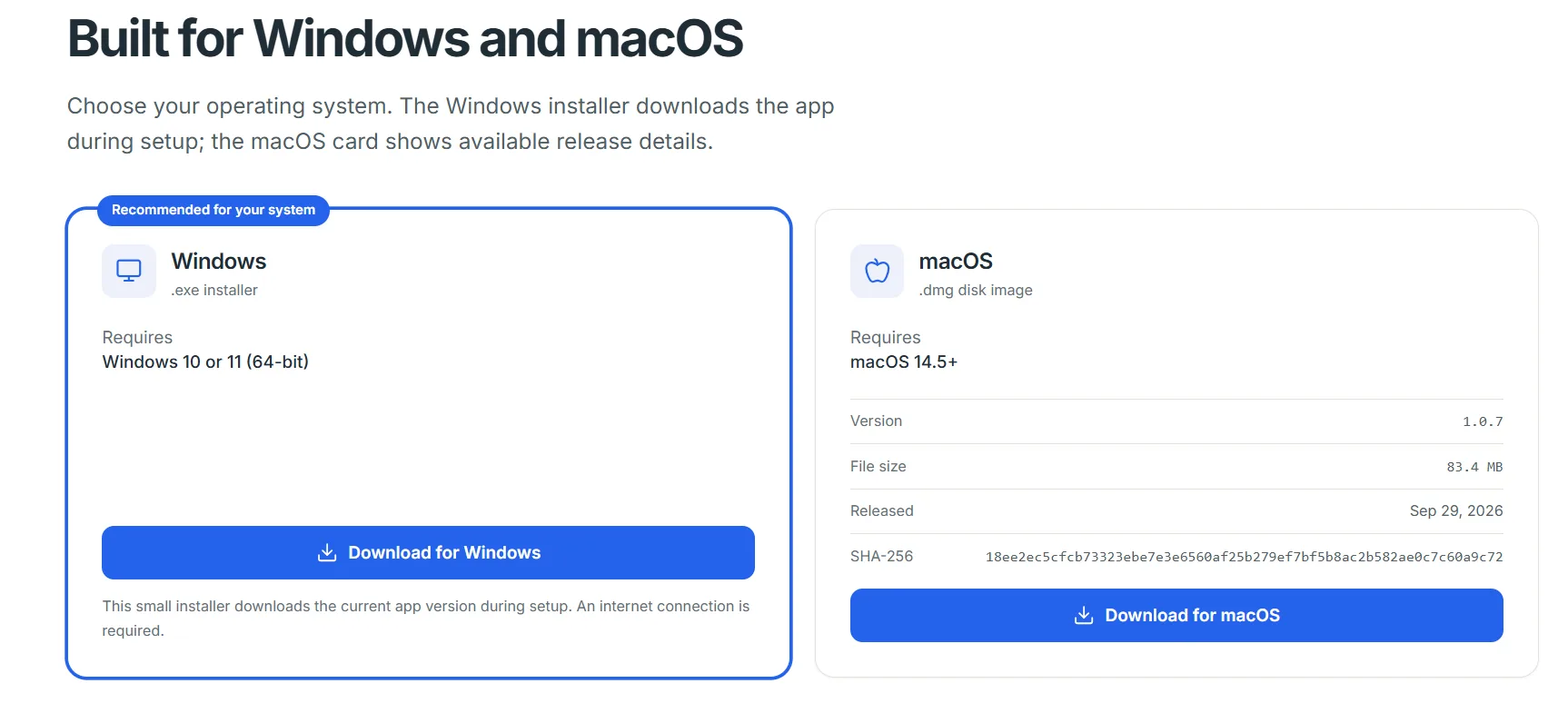
Download and install Memora Keep
Install Memora Keep for Windows or macOS and open your local archive.
- 2
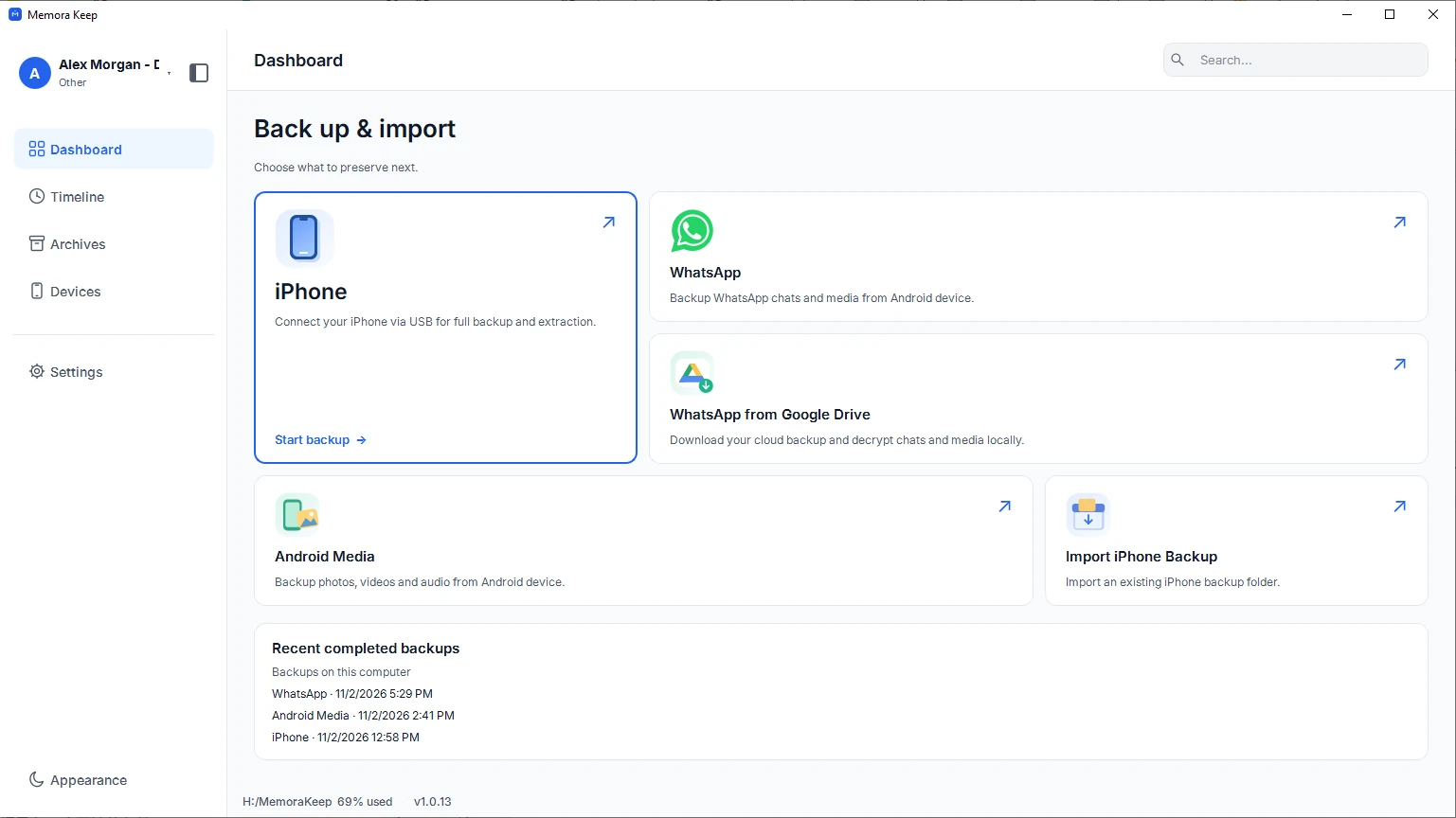
Back up WhatsApp from the iPhone
Create an iPhone backup in Memora Keep, or import an existing iTunes or Finder backup. Wait for extraction to finish, then check that the WhatsApp conversations you need are readable in Archives. See the iPhone backup guide linked below.
- 3
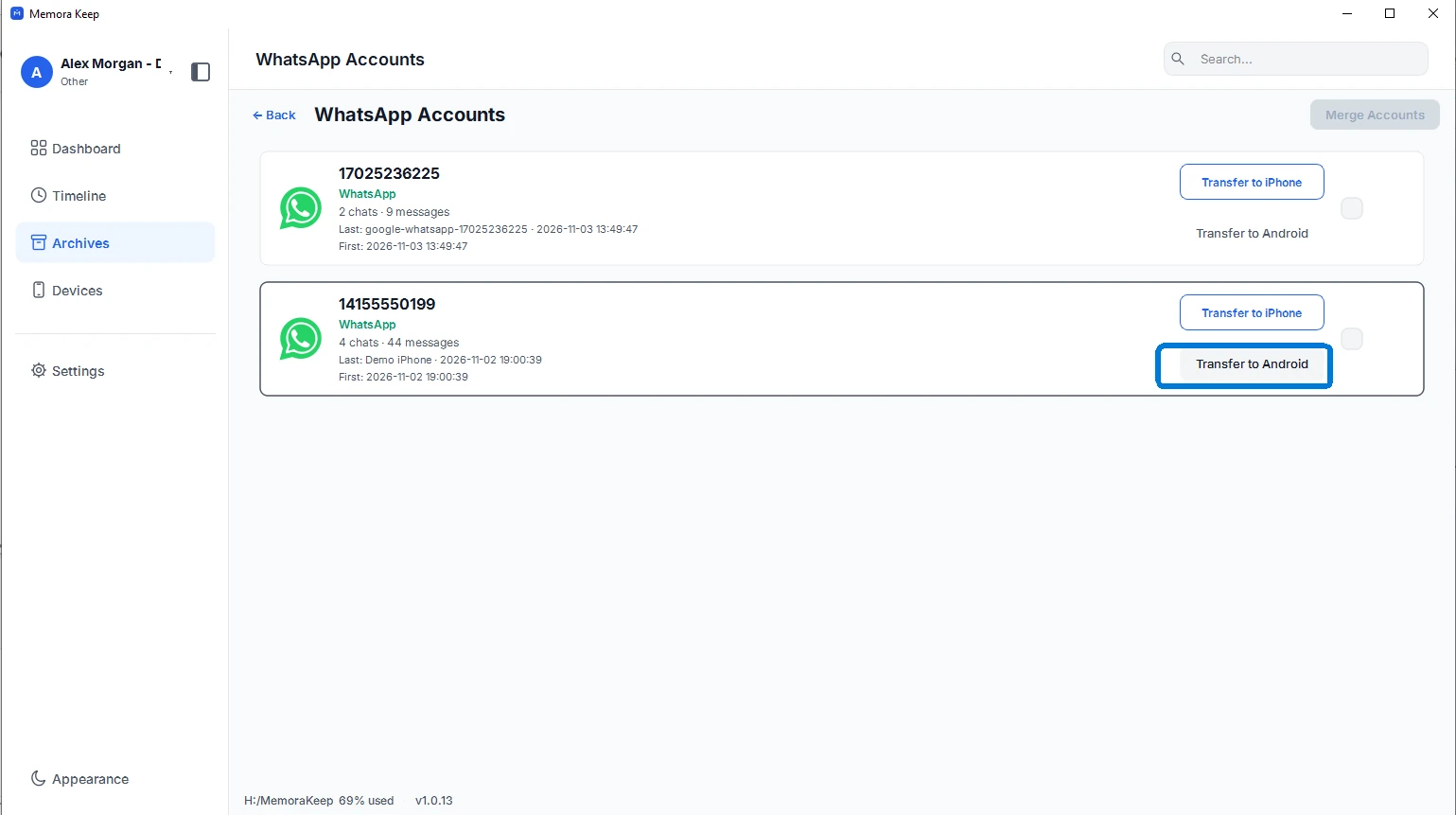
Select the account and choose Transfer to Android
In Archives, open WhatsApp Accounts. Find the account you want to restore and choose “Transfer to Android”.
- 4
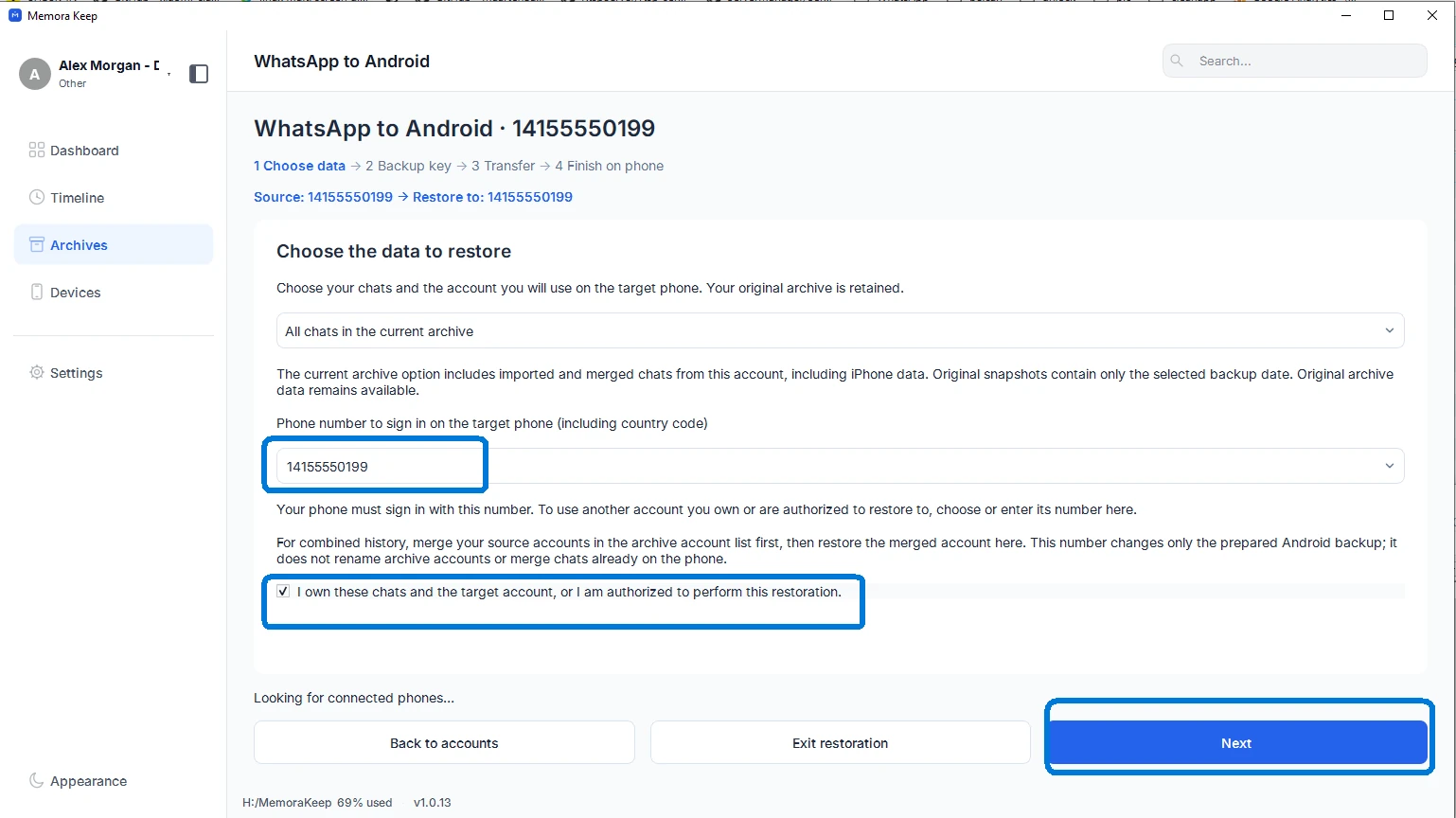
Enter the account you will use on Android
Choose the source data and enter the country code and phone number you will actually sign in with on the Android phone. This may differ from the source account. Confirm that you have backed up the destination chats, then click “Next”.
- 5
Save the key and prepare the encrypted backup
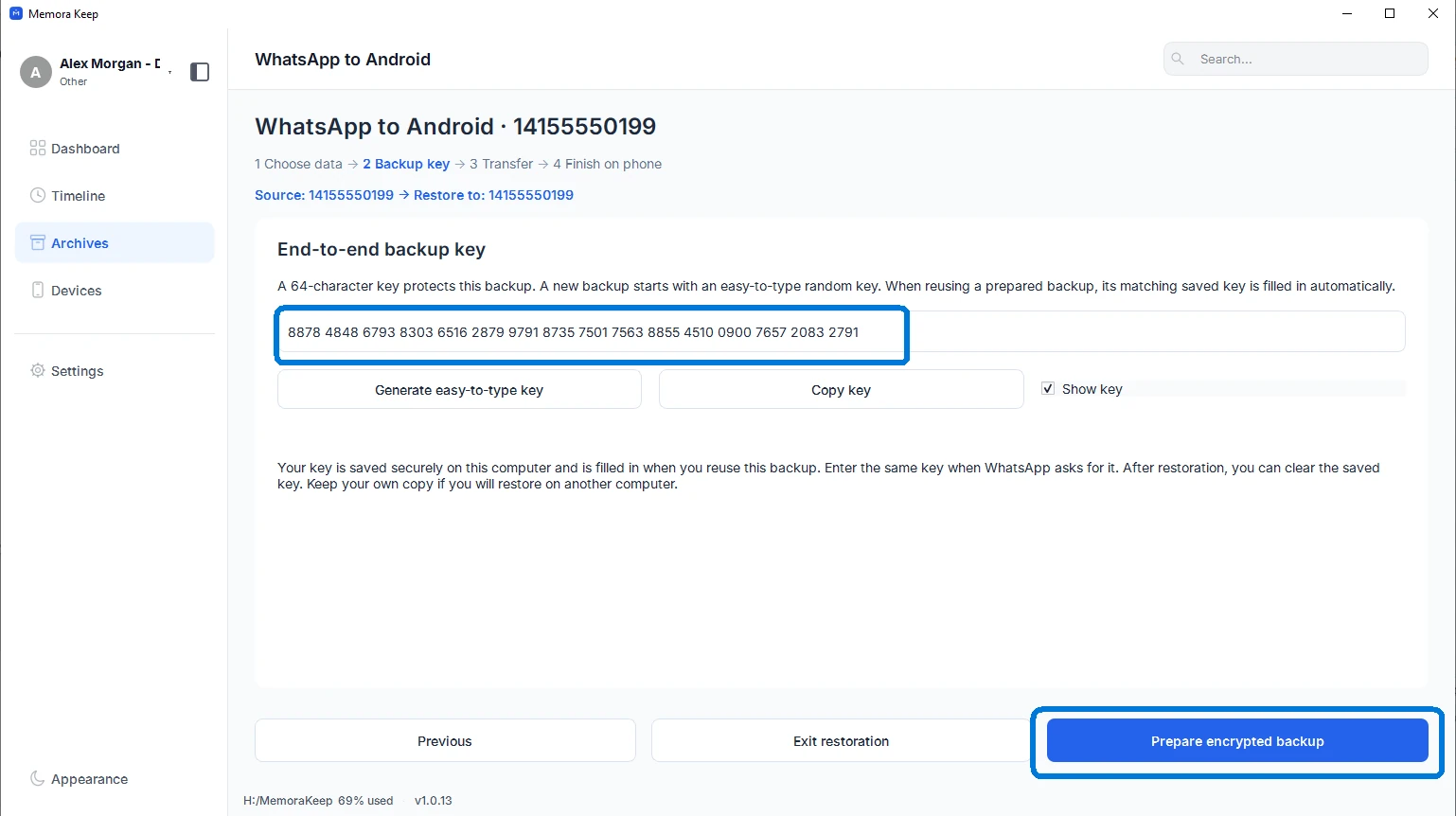
Copy the backup key shown in the client and keep it somewhere private. You will need this exact key when restoring on the phone. Click “Prepare encrypted backup” and wait for preparation to finish.
- 6
Connect the Android phone and transfer the backup
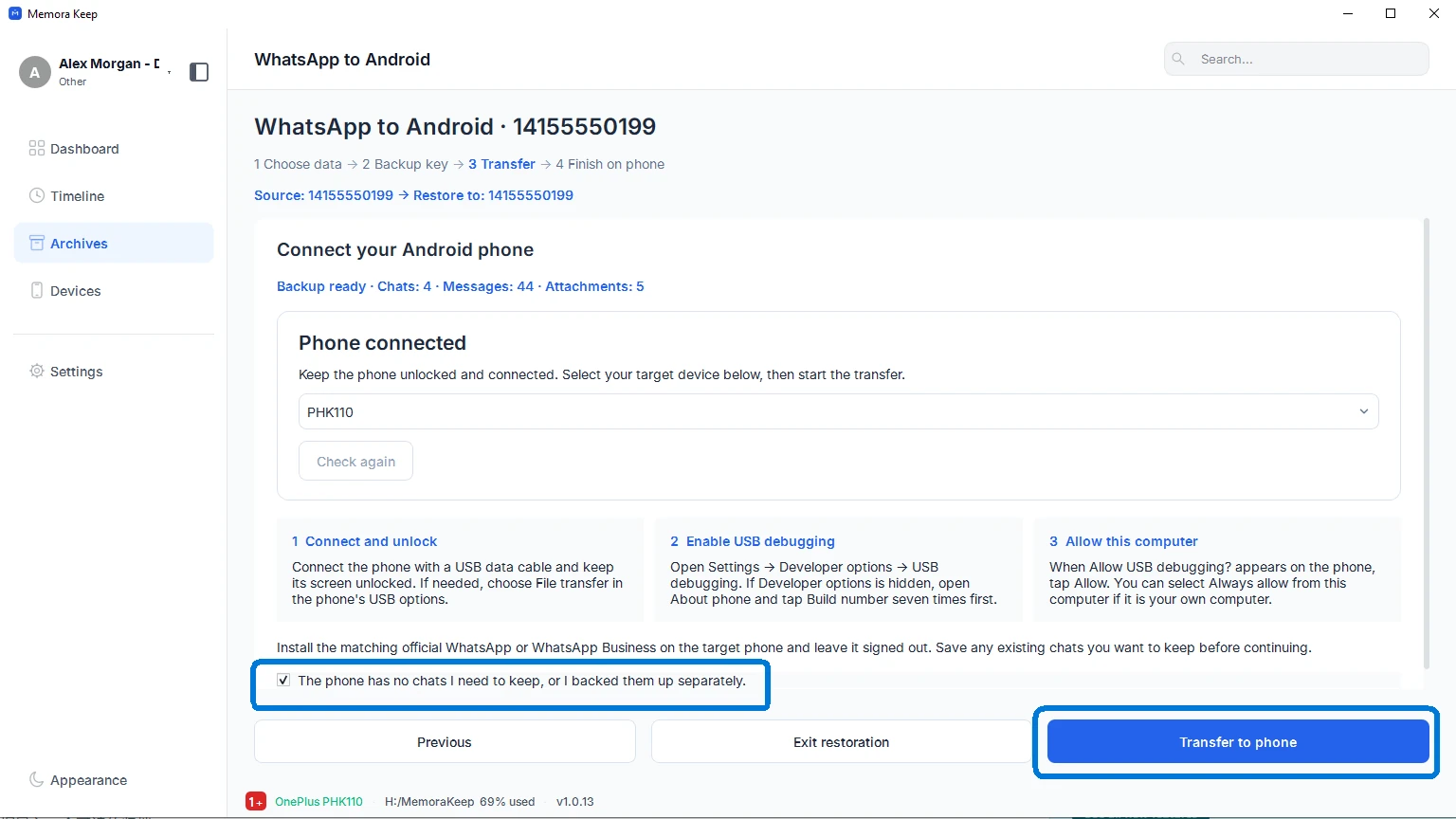
Connect and unlock the phone. Enable Developer options and USB debugging, accept the computer authorization prompt, and choose the intended device in Memora Keep. Close WhatsApp on the phone, review the backup confirmation and click “Transfer to phone”. Keep the cable connected until the transfer completes.
- 7
Finish the restore in WhatsApp on the phone
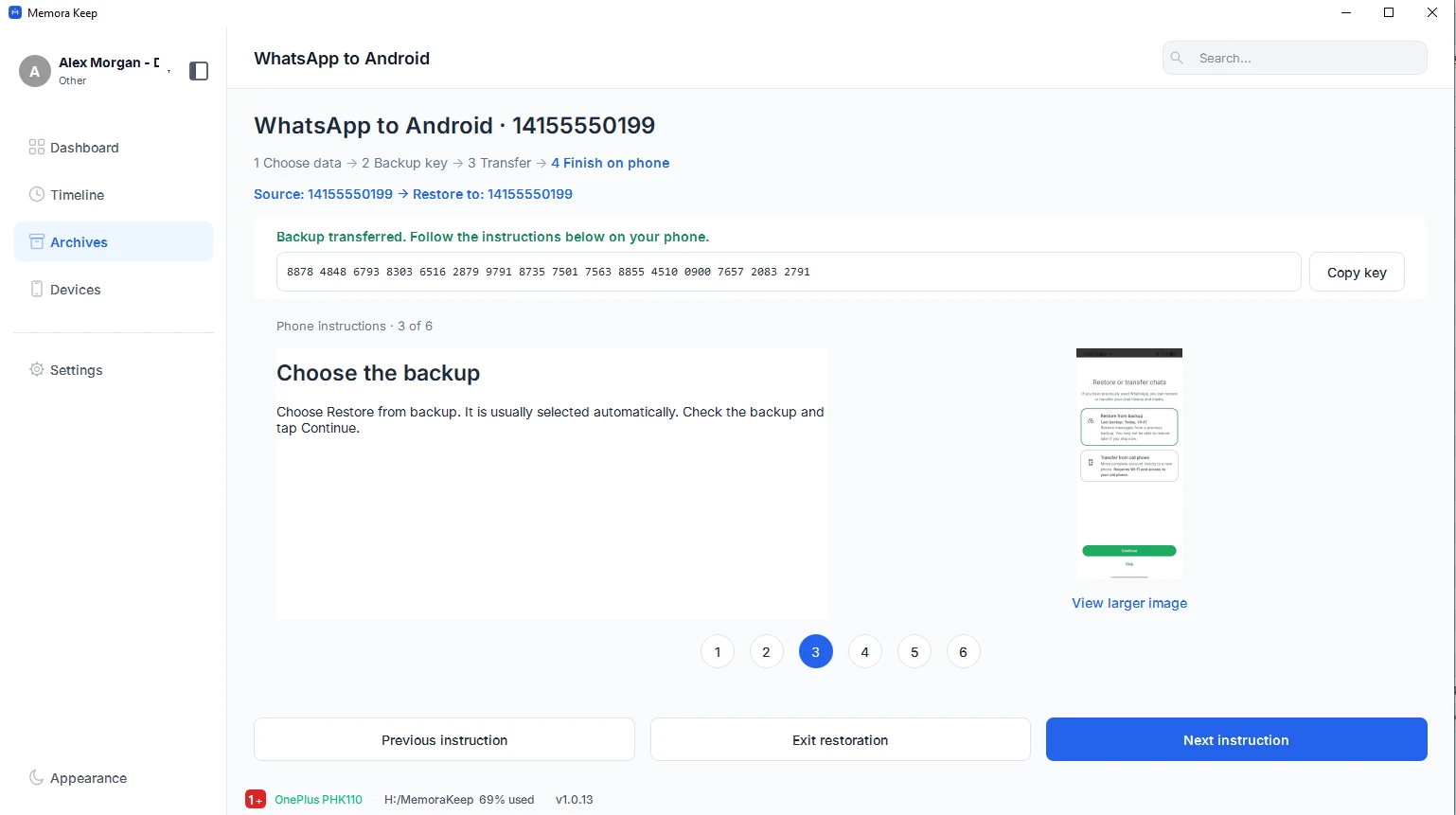
After the transfer completes, follow all six illustrated phone instructions in the client. Sign in with the destination number, choose “Restore from backup” when prompted and enter the saved key at the encryption prompt. Wait for the restore to finish, then open several conversations and check their media.
Your archive stays on your computer
Save backups, chats and media in a folder you choose. Memora Keep does not upload your archive, and you can browse and export it offline without an account.
- No Memora Keep account; cloud imports use your provider sign-in
- Backups, chats and media are never uploaded
- Diagnostics stay local unless you choose to send them
- Backups and the archive stay readable offline
FAQ
Transfer Whatsapp iPhone to Android questions
Does transfer completion mean WhatsApp has restored the chats?
No. It means the backup files have reached the phone. You still need to finish the restore inside WhatsApp using the client’s phone instructions and the saved key.
Must the destination number match the iPhone account?
The destination number can differ. Enter the exact country code and number you will sign in with on Android. This selects the account for the prepared backup; it does not merge live WhatsApp identities.
Will this merge with chats already on Android?
Do not treat this as an automatic merge with the phone’s current chats. Save a separate backup first and follow the warnings in the client. If you need archive account merging, do that separately and review its result before transfer.
Can I restore archived data from another source?
The “Transfer to Android” workflow starts from a supported account in the local archive. This guide uses an iPhone backup as its source. Review the selected account and available media before preparing the backup.
Related
Keep reading
- Feature iPhone backup Back up your iPhone locally and browse supported messages, WhatsApp chats, contacts, photos and videos. Read
- Feature Merge WhatsApp chats Combine chat histories from multiple different WhatsApp accounts into one account in your local archive, and remove duplicate messages. Read
- Feature WhatsApp transfer to iPhone Transfer WhatsApp data from your local archive to an iPhone with Memora Keep for Windows and macOS. Read
Start your own local archive
Free, with no account or subscription. Your archive stays on your computer.
Windows & macOS · Free