Back up Android media to your computer
Copy photos, videos, audio and documents from an Android phone to your own computer, choosing the types you want.
Windows & macOS · Free · No account required
Why it matters
The problems this solves
How this feature helps you keep and use your phone data.
-
The phone runs out of space
Photos and videos pile up on the phone until there is no room left for the next one.
-
Your memories live on one device
If your phone holds the only copy, losing or damaging it can put those photos and videos at risk.
-
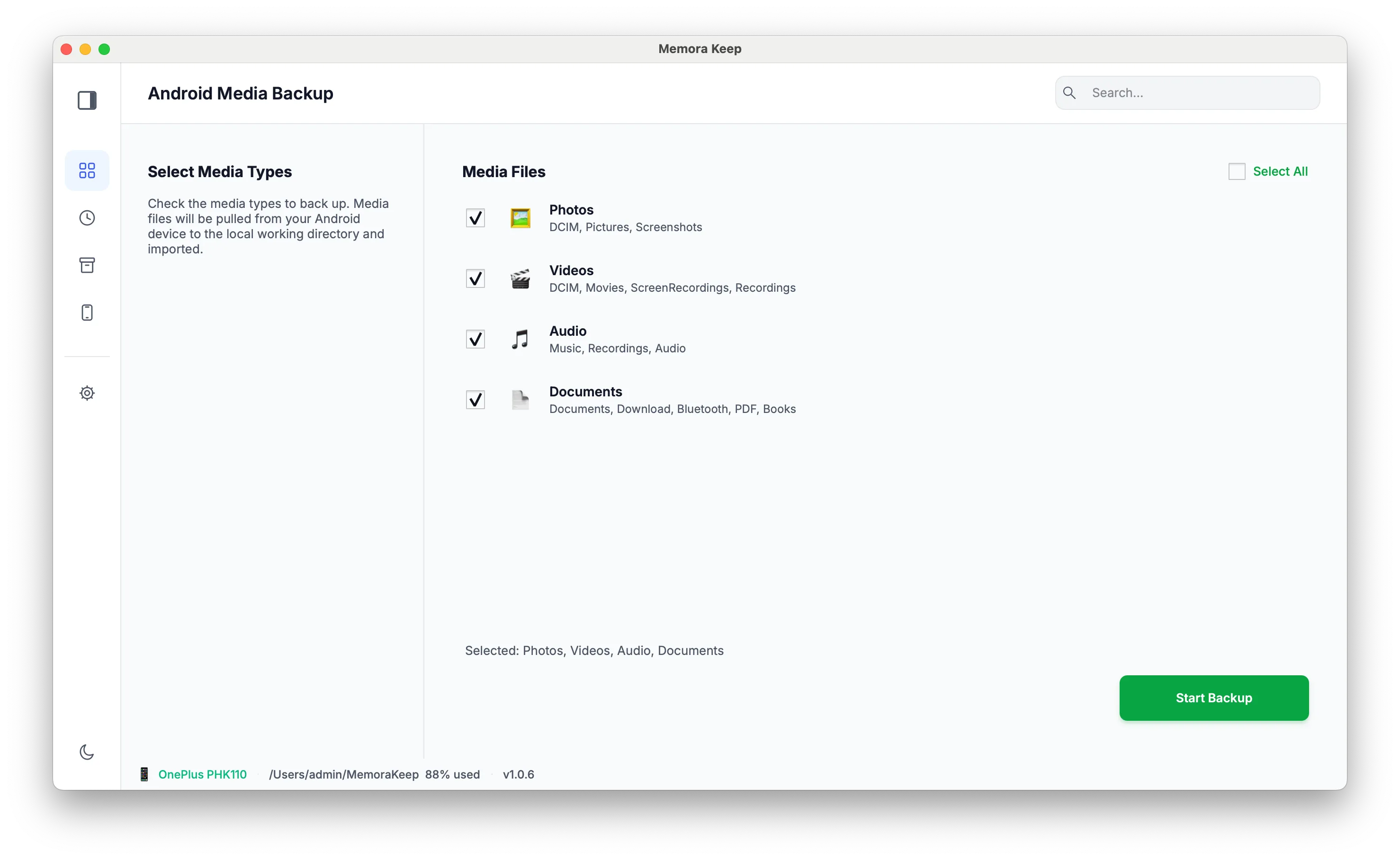
Choose what to copy
Choose the media types you need and check their estimated size before copying them to your computer.
How it works
How to use it
- 1
Choose what to copy
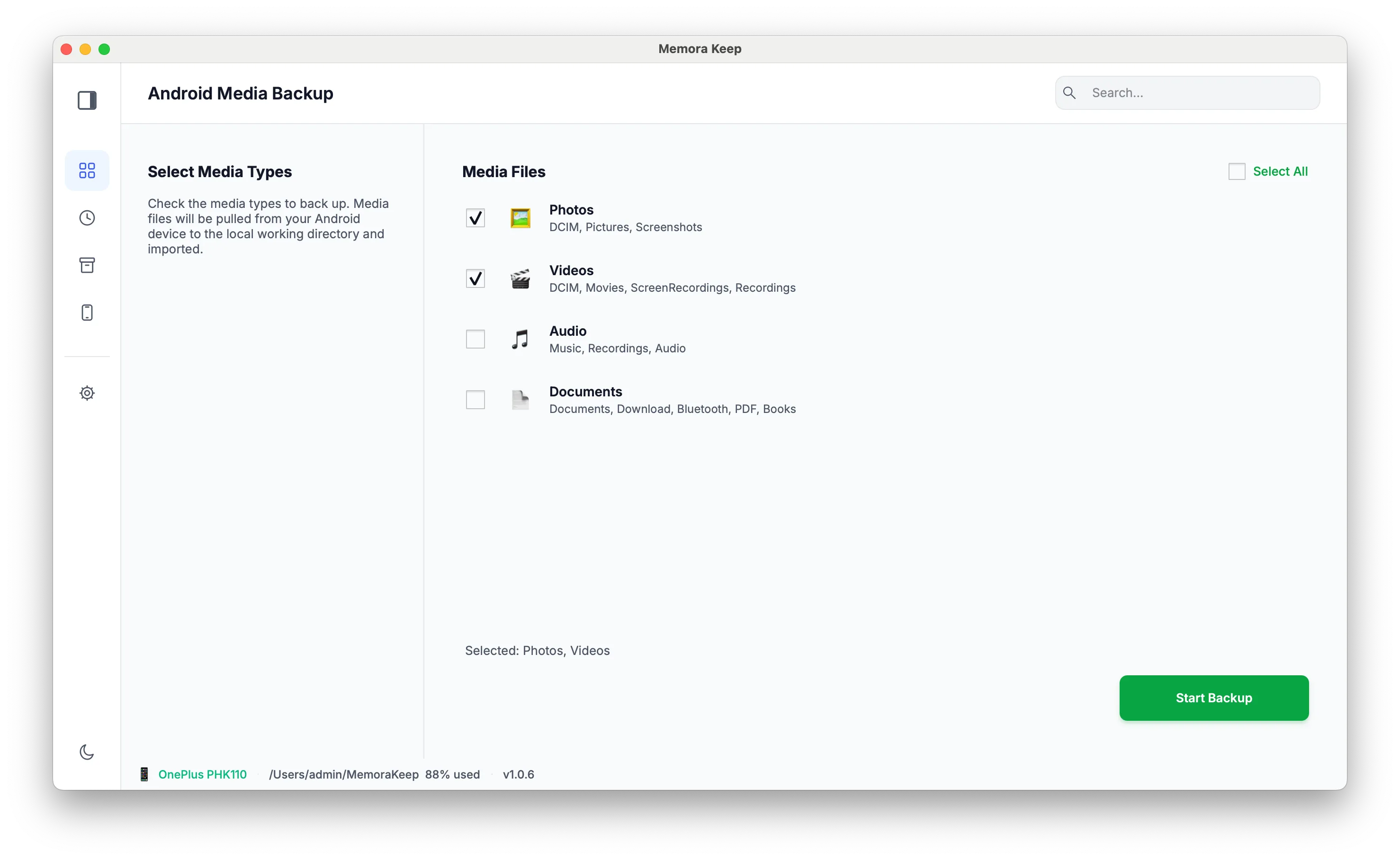
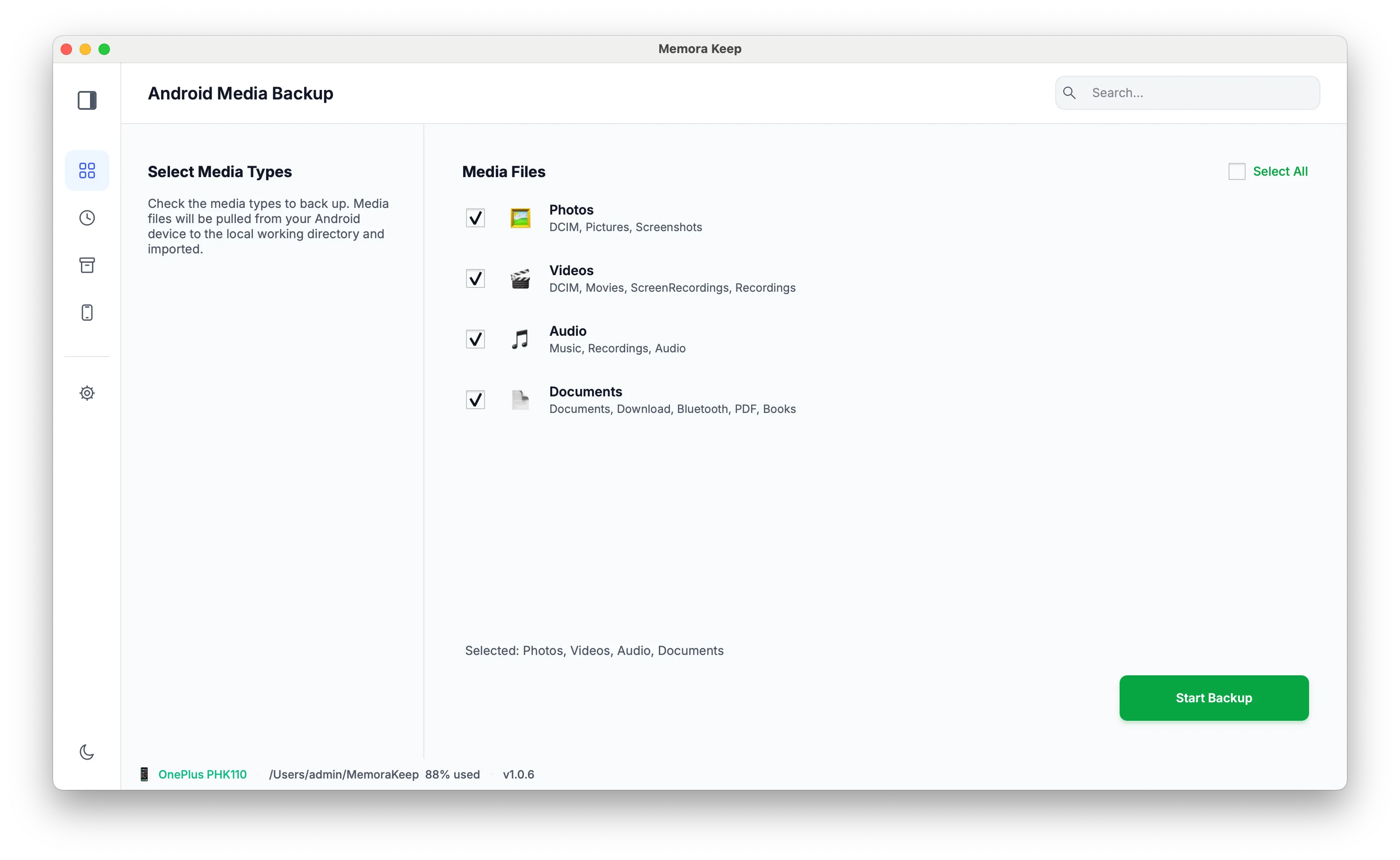
Photos, videos, audio and documents are selectable by type before the backup starts.
- 2
Check the size first
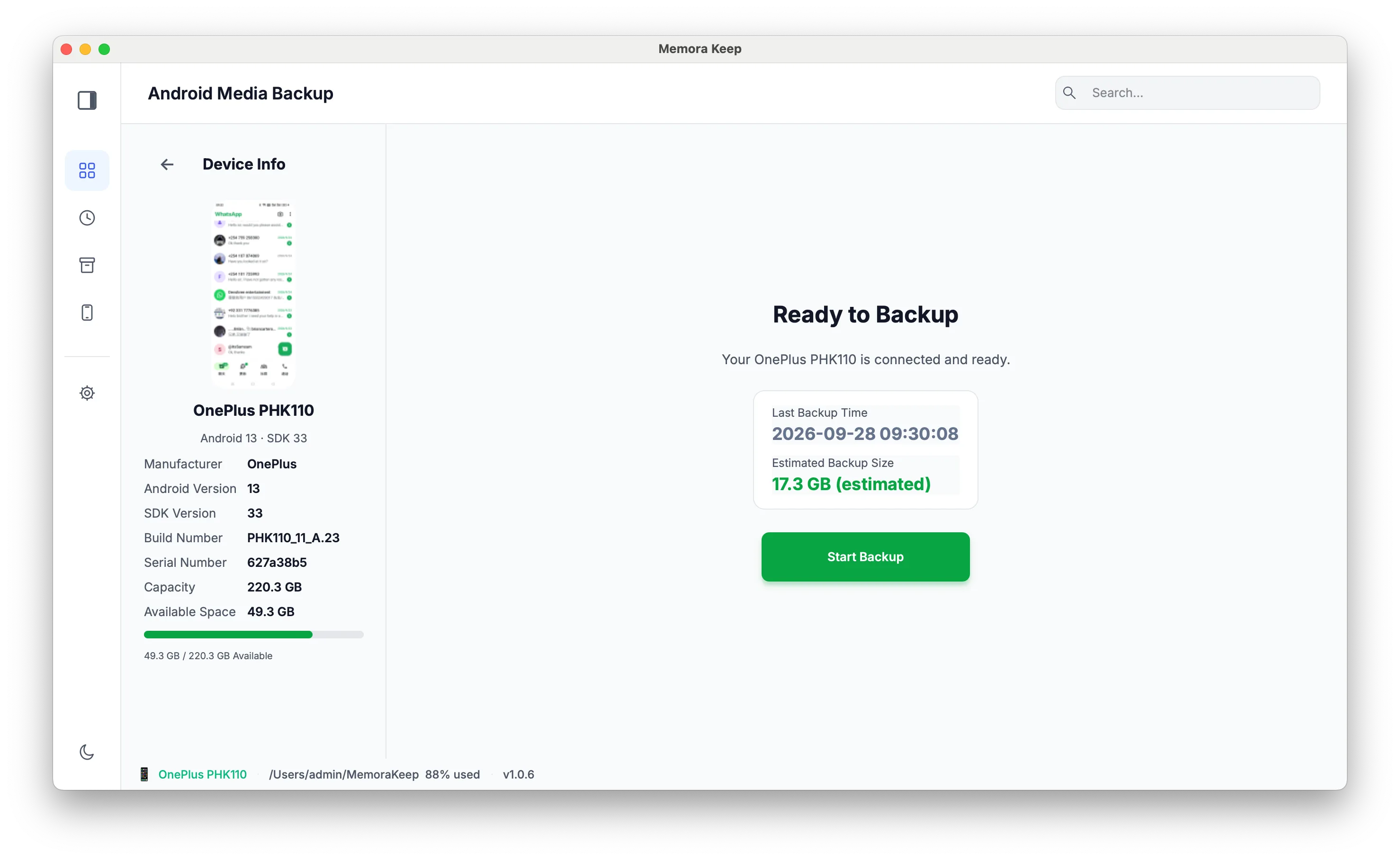
The app estimates the size of the selected data, so you know what is going onto the disk before anything is copied.
- 3
Start the backup
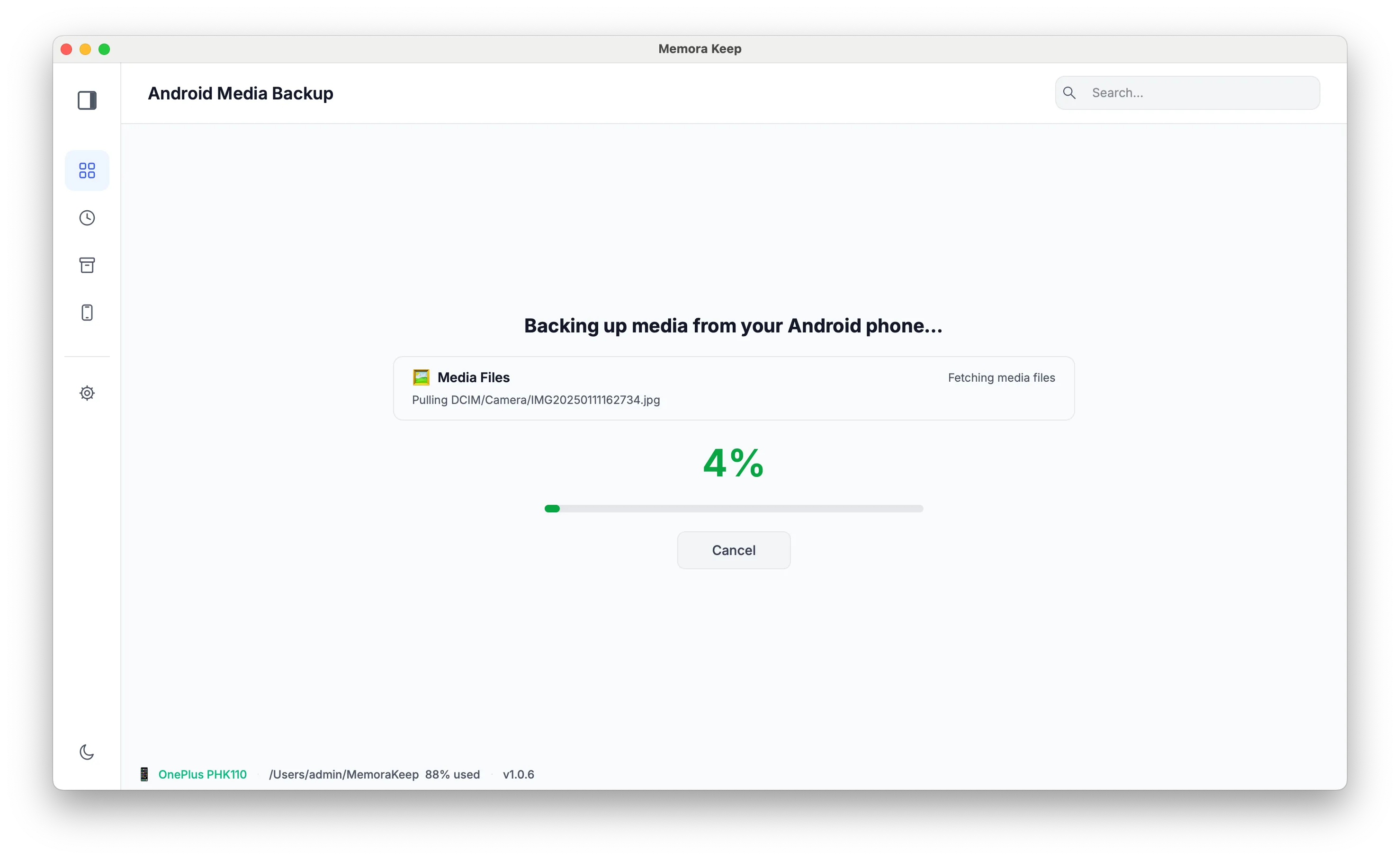
Progress is shown during the copy, and the backup can be canceled while it runs.
Capabilities
What you can do with it
Step by step
Back up your Android phone, step by step
Connect the phone over USB, choose the data types, and the copy lands in your local archive.
1. Connect the phone
- 1
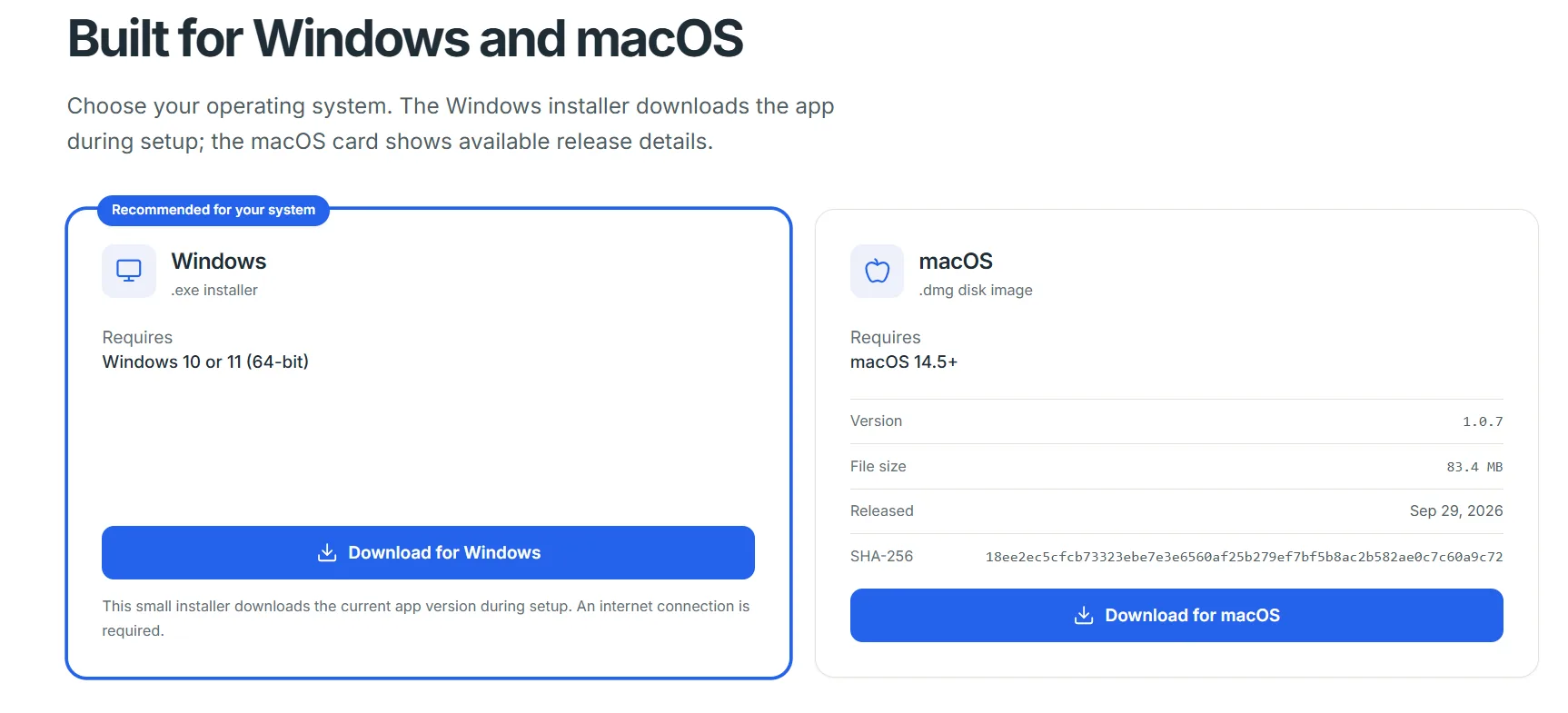
Download and install Memora Keep
Install the desktop client on your Windows PC or Mac.
- 2
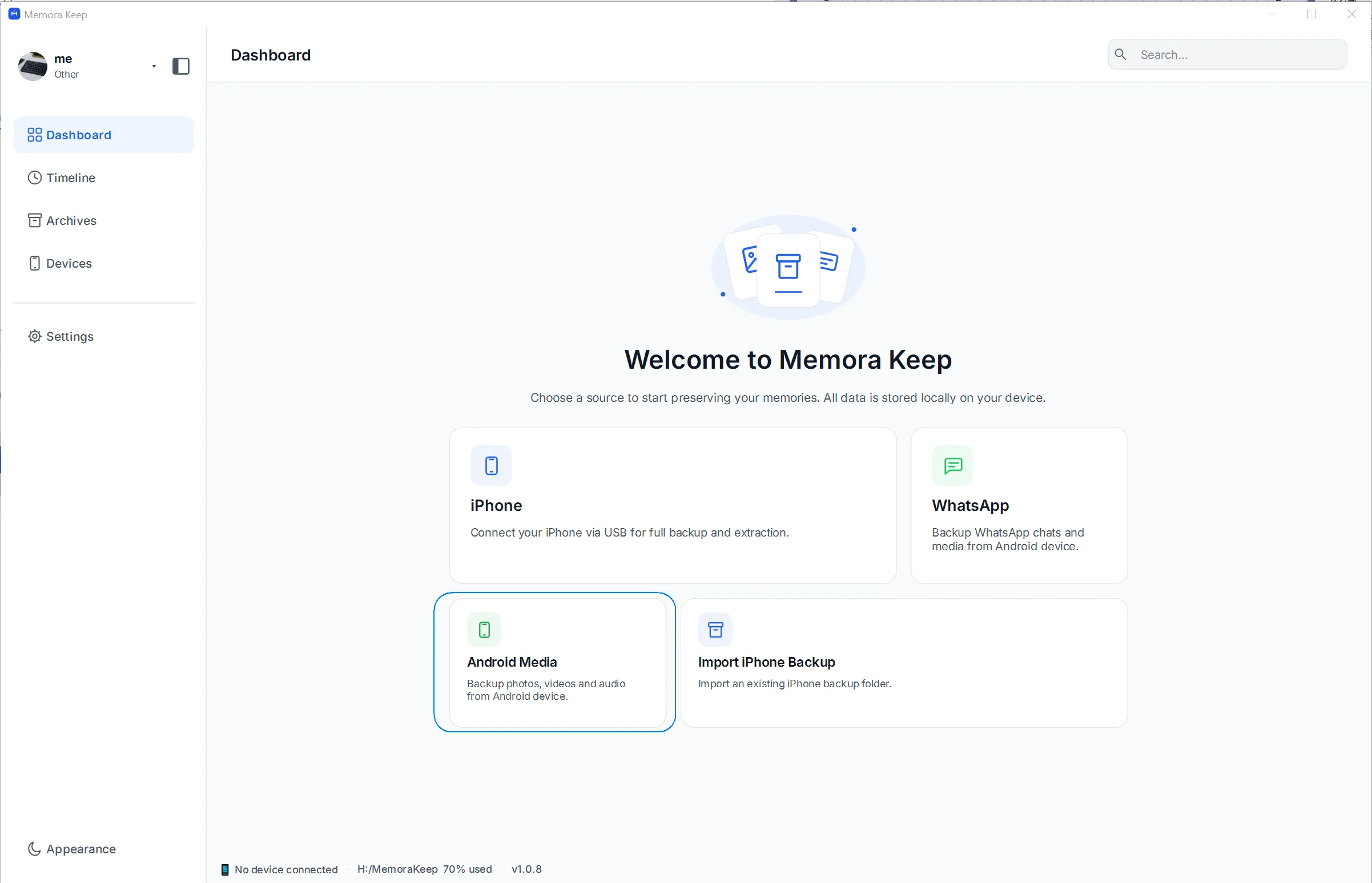
Choose "Android Media" on the Dashboard
Open the app and click the "Android Media" card to start a phone backup.
- 3
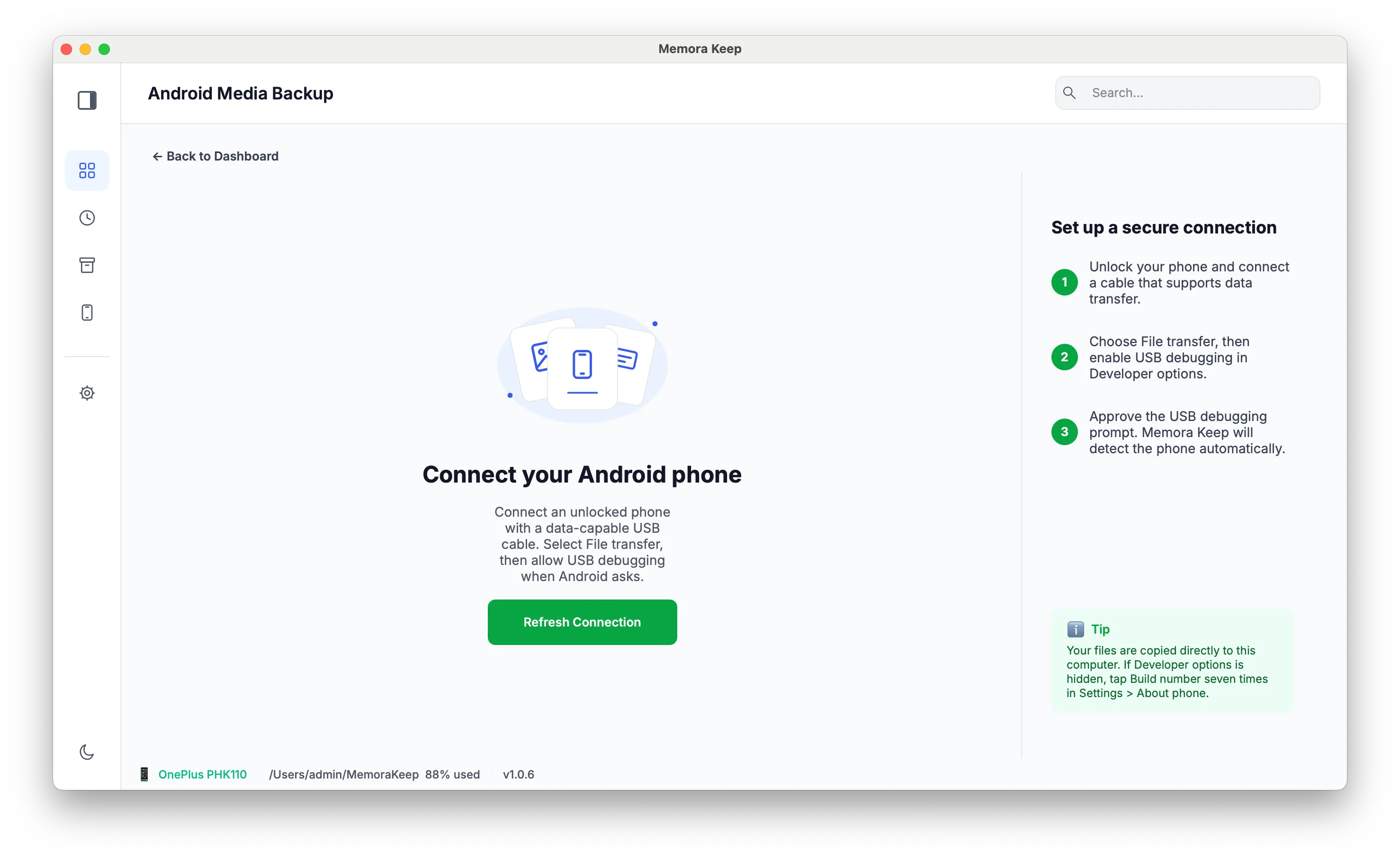
Connect your phone and click "Start Backup"
Plug the phone in with a USB data cable, switch it to File transfer (MTP) mode, and click "Start Backup" once the app detects it.
2. Choose and run the backup
- 1
Pick the data you want to back up
On the backup options page, tick Photos, Videos, Audio and Documents in any combination, then click "Start Backup" again.
- 2
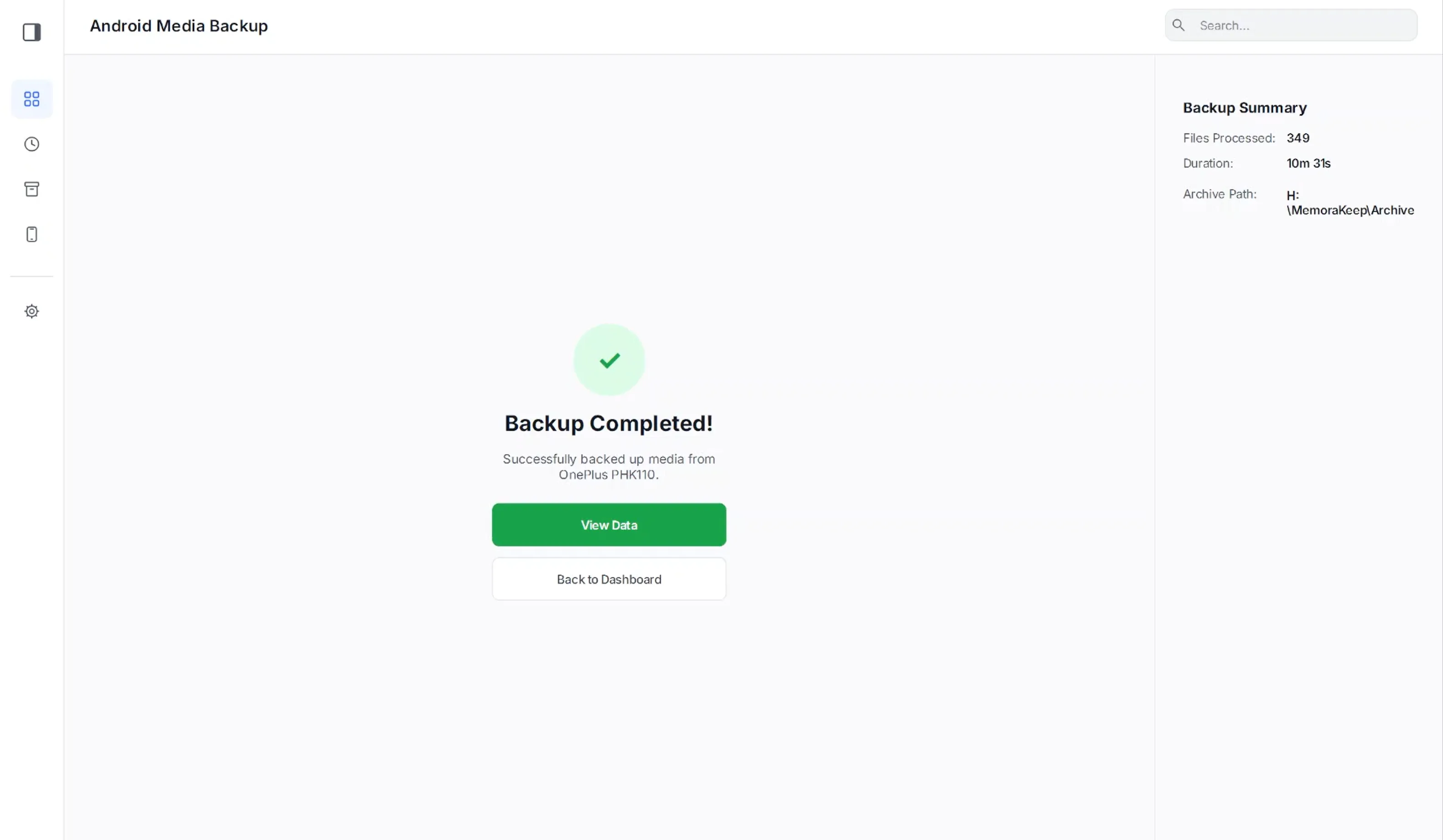
The backup runs and completes
Files are copied over the cable into your local archive. A success screen confirms what was copied — nothing on the phone is deleted.
- 3
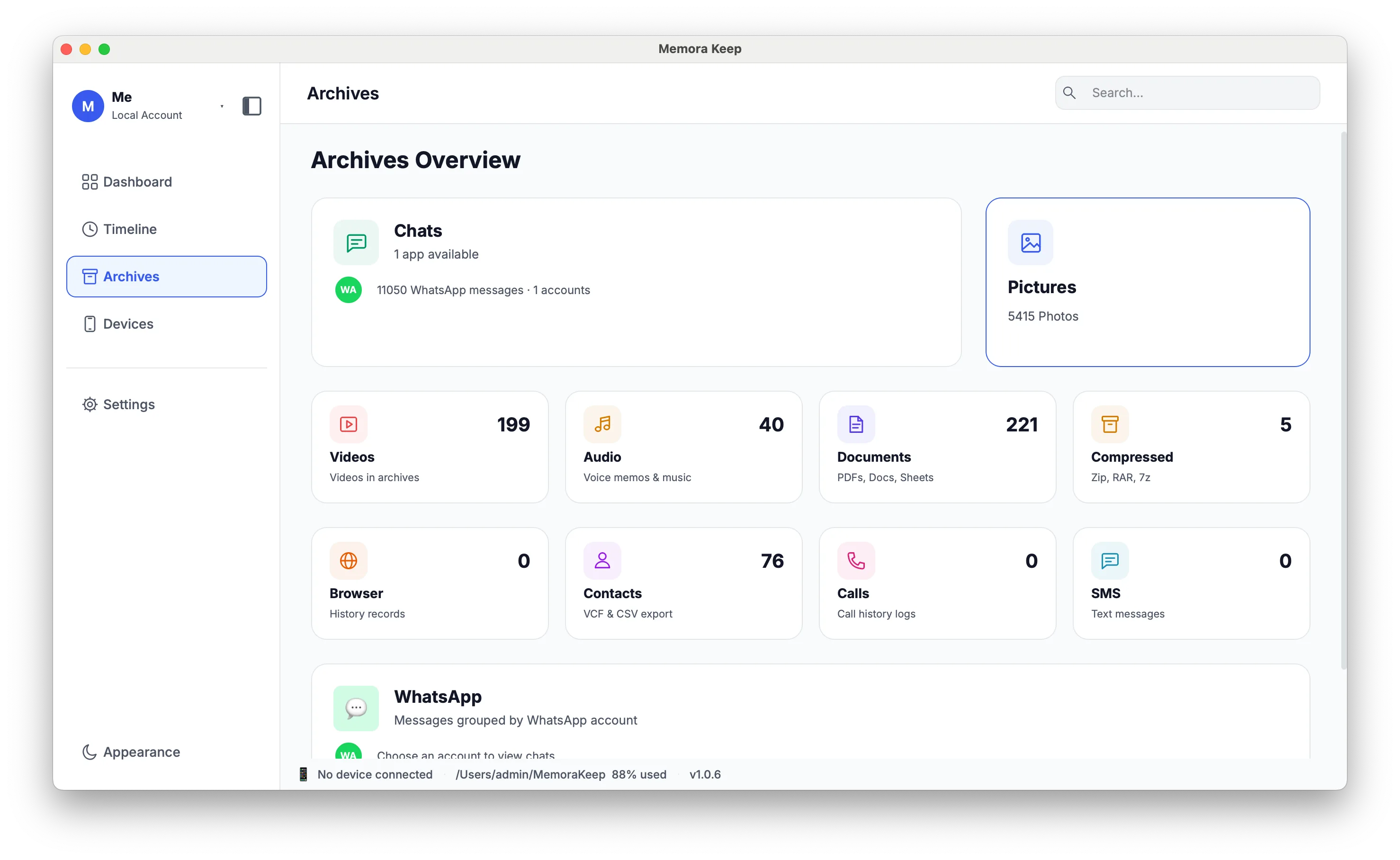
Browse everything in Archives
Go to Archives to open the backed-up Photos, Videos, Audio and Documents — even with the phone unplugged.
Your archive stays on your computer
Save backups, chats and media in a folder you choose. Memora Keep does not upload your archive, and you can browse and export it offline without an account.
- No account and no sign-in required
- Backups, chats and media are never uploaded
- Diagnostics stay local unless you choose to send them
- Backups and the archive stay readable offline
FAQ
Back up Android media to your computer questions
Can I back up only some of the categories?
Yes. Photos, videos, audio and documents are selectable by type, so you can copy only the ones you want.
Can I see the size before the backup starts?
Yes. The size is estimated before the backup, and progress is shown while it runs.
Can I stop a backup that is already running?
Yes. The backup can be canceled while it is in progress.
Is Android WhatsApp covered by this backup?
No. WhatsApp on Android is backed up through a separate flow that supports WhatsApp and WhatsApp Business, and it is not part of the media backup.
Related
Keep reading
- Feature WhatsApp backup Back up WhatsApp and WhatsApp Business chats and media from a phone, and read them in a local archive. Read
- Feature Photo library Browse backed-up photos by category, view them full screen, check photo details and export selected images. Read
- Feature Local archive Keep original backups, media and a browsable archive together on your computer, with no cloud account required. Read
Start your own local archive
Free, with no account or subscription. Your archive stays on your computer.
Windows & macOS · Free