Backup Guides
How to Back Up Android Audio Files to Your Computer
Save Android music and recordings to your computer over USB, then find and play the copied files in Memora Keep.
3 min read
On this page
A recording is easier to keep when you have a copy you can play on your computer. Memora Keep copies audio from your Android phone over USB and lists it in your local archive.
You’ll need the phone, a data-capable USB cable, and enough space on your computer. Download Memora Keep if you haven’t installed it yet.
What you need
-
Memora Keep on a Windows or macOS computer. It is free.
-
Your Android phone, unlocked, and a USB cable that supports data transfer.
-
Enough free disk space for the imported data and any files you export.
1. Check where your audio is saved
The audio backup looks in your phone’s Music, Recordings and Audio folders. This covers files stored there, such as songs and voice recordings.
Some recording apps save files in their own private folders. If a recording is missing, check its location in the app that created it. A streaming app’s offline downloads may also be stored in a form that cannot be played elsewhere.
2. Connect your phone
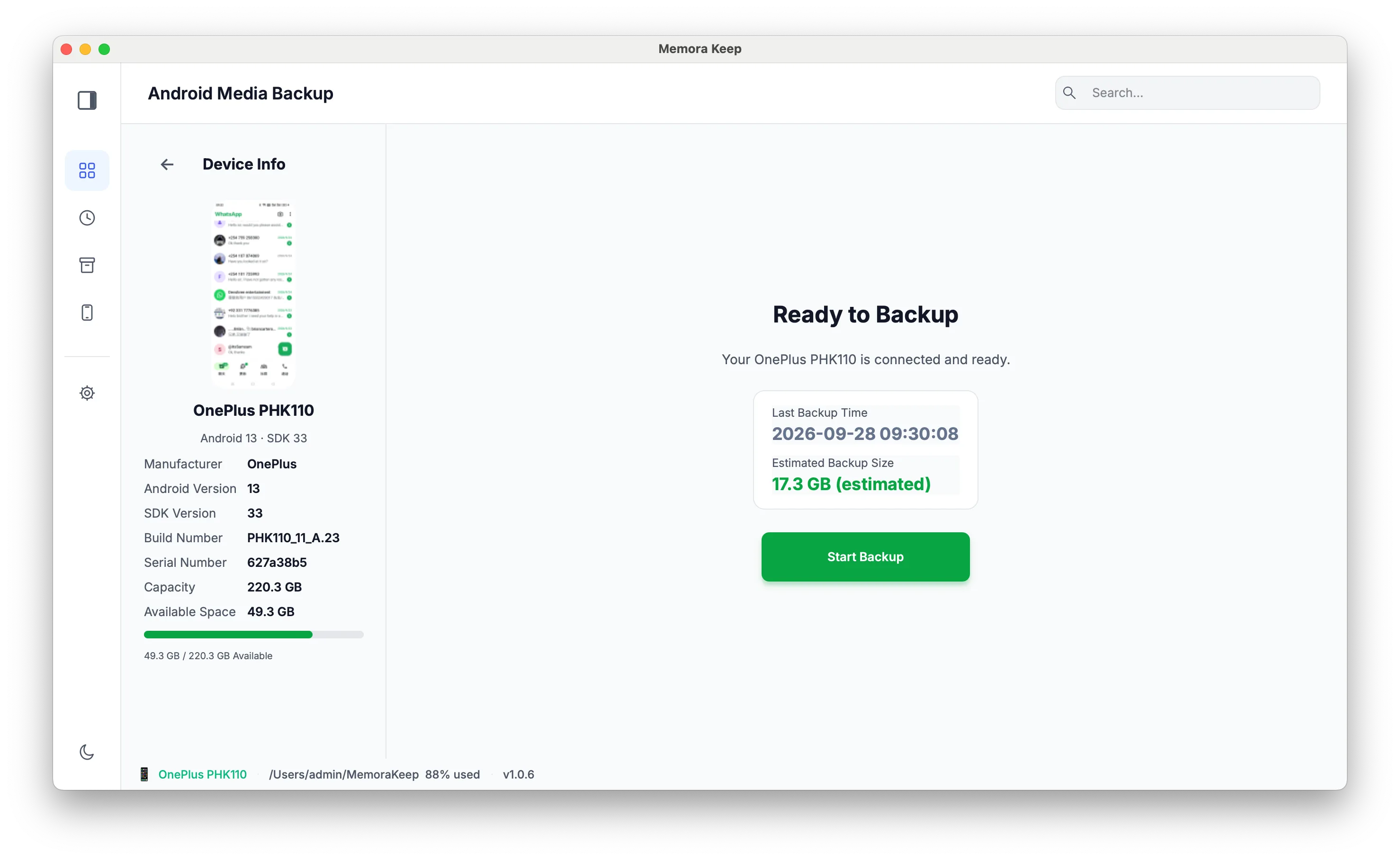
Open Android Media Backup in Memora Keep. Connect the phone, unlock it, and select File transfer when Android asks. Follow the connection prompts to enable USB debugging and approve access from your computer.
Once the phone is ready, check that Memora Keep shows the device you want to back up.
3. Select Audio and run the backup
Choose Audio in the media selection. Leave other categories selected only if you want to copy those too. Check the estimated size and available disk space, then start the backup.
Keep the phone connected until the backup finishes. If you cancel it, check which files were copied before relying on the result.
4. Find and play the saved files
Open Archives → Audio. The list shows file names, sizes and source devices. Use the device selector if you have backed up more than one phone.
Open a file to play it in your computer’s default audio app. The example below shows an archived MP3 playing in Windows Media Player.
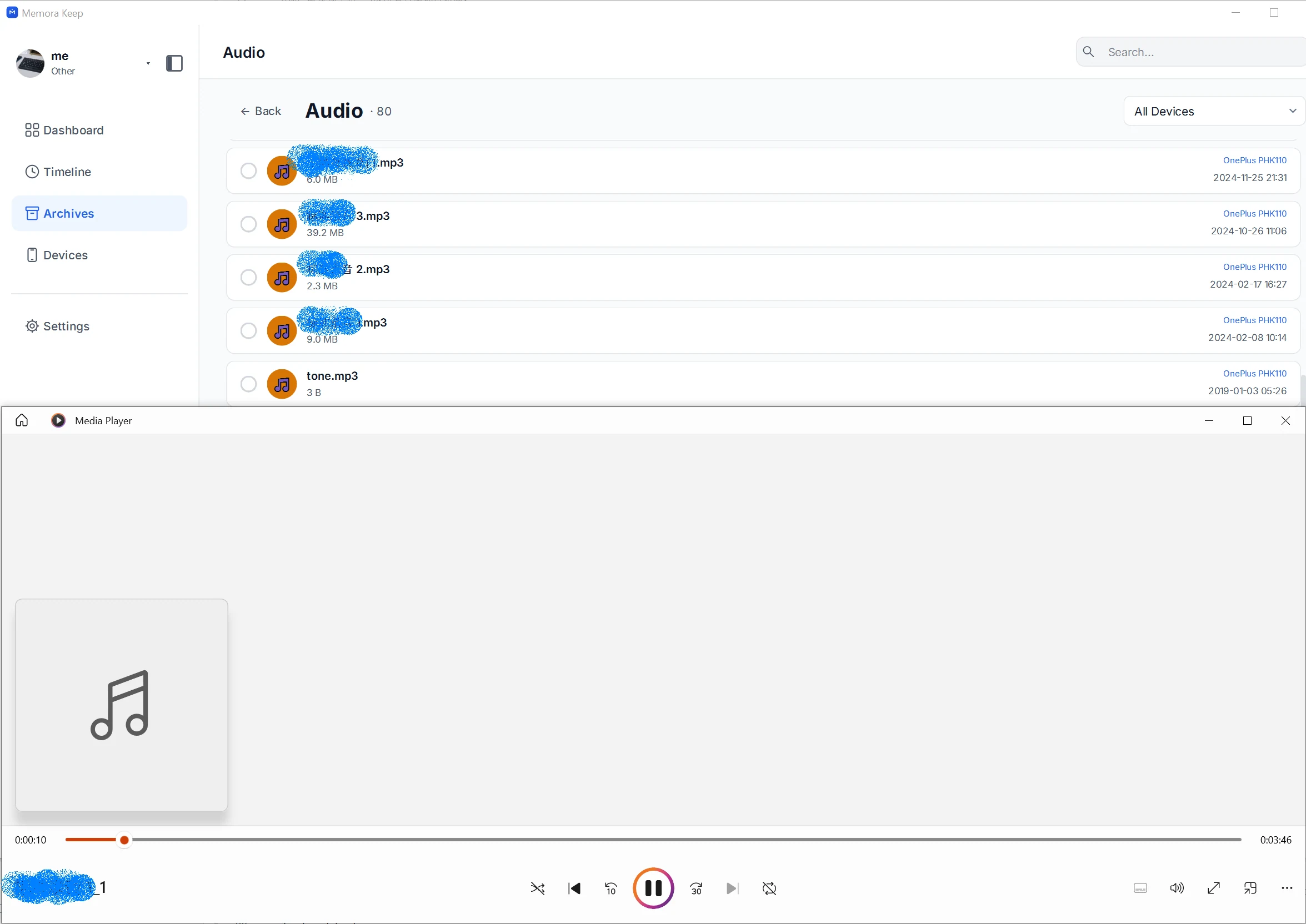
Listen to the beginning, a point in the middle, and the end of an important recording. Check that the length and content match what you expected.
If an audio file is missing or won’t play
Missing from the list? Check its folder on the phone and confirm that Audio was selected for the backup.
Listed but won’t play? Try a player that supports the file’s format. A playback problem does not always mean the copy failed.
Looking for WhatsApp voice messages? Use the separate WhatsApp backup workflow. Android media backup and WhatsApp backup cover different sources.
You can also back up Android documents over USB in the same media backup workflow.
- android
- audio
- backup