Backup Guides
How to Back Up Android Documents to a Computer over USB
Copy Android documents to your computer over USB. Browse saved PDFs and other files, export a selection, and check the copies.
3 min read
On this page
Need to keep the PDFs, downloads or other documents on your Android phone? Memora Keep can copy files from common document folders over USB, then let you browse and export them on your computer.
Start with your unlocked phone, a data-capable USB cable and Memora Keep.
What you need
-
Memora Keep on a Windows or macOS computer. It is free.
-
Your Android phone, unlocked, and a USB cable that supports data transfer.
-
Enough free disk space for the imported data and any files you export.
1. Check the document location
The document backup checks shared folders including Documents, Download, Bluetooth, PDF and Books.
A file stored only in a cloud service or inside an app’s private storage may not be available through these folders. If you need a particular document, check where it is saved before starting.
2. Connect and authorize the phone
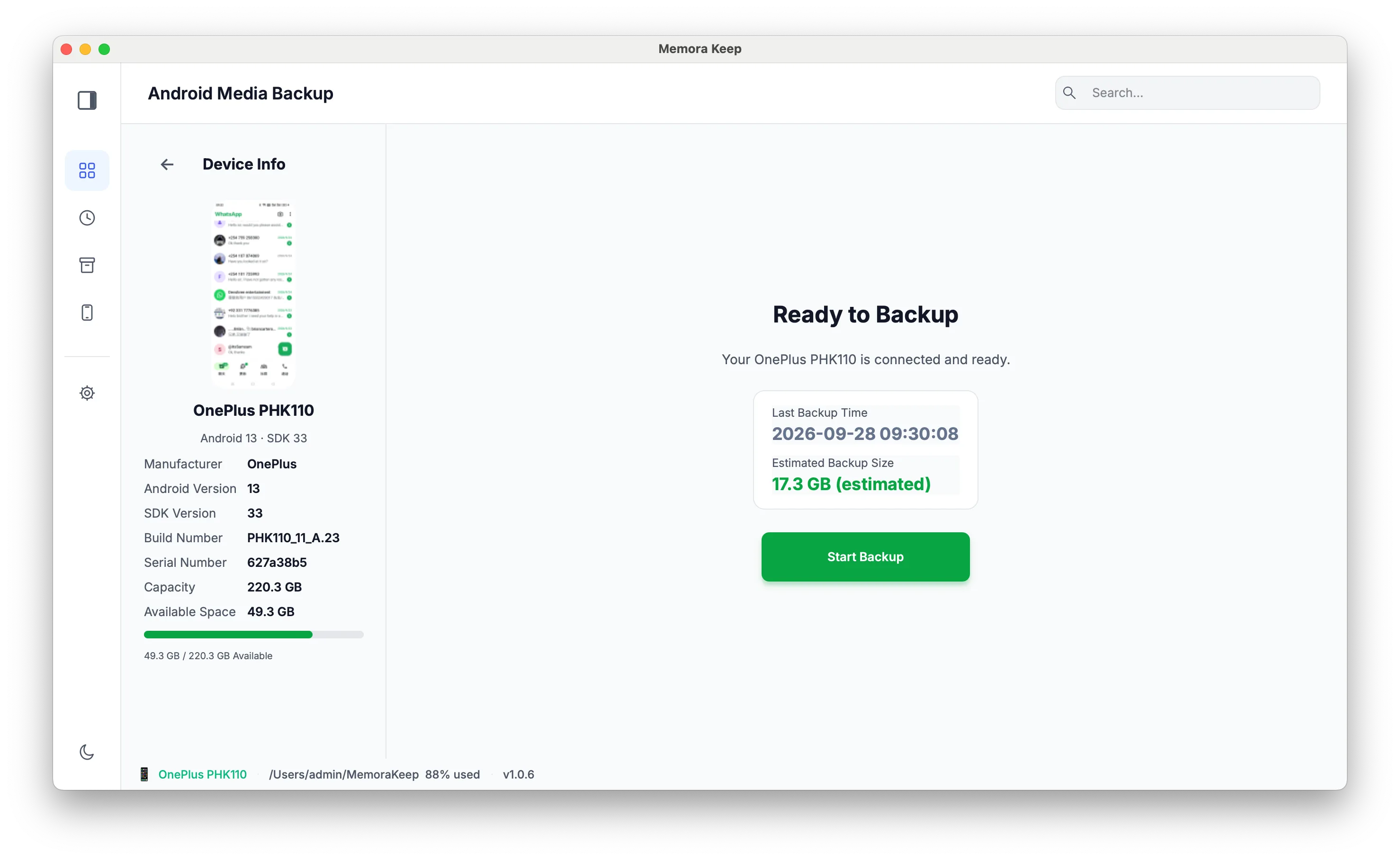
Open Android Media Backup, connect the phone and select File transfer on Android. Follow the prompts to enable USB debugging and allow the computer to connect.
Check the phone name in Memora Keep before continuing.
3. Choose Documents and start the backup
Select Documents in the media selection. You can include photos, videos or audio in the same run, or leave them out.
Review the estimated size and available space, then start the backup. Keep the cable connected until it finishes.
4. Browse the copied documents
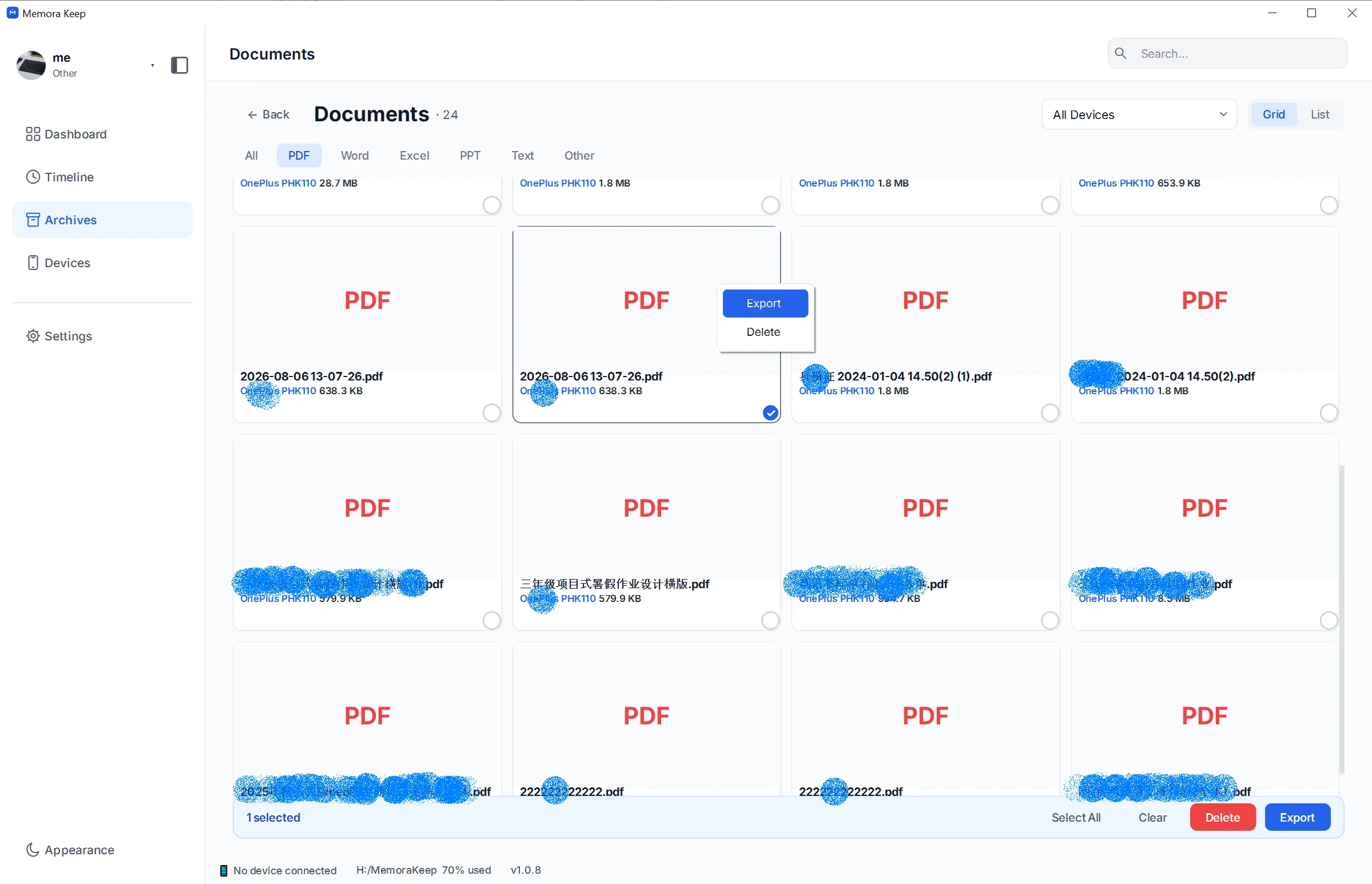
Open Archives → Documents. Use the file-type tabs to narrow the list to PDFs, Word documents, spreadsheets or other files. If you have several phones in the archive, choose the source device from the dropdown.
To save a separate copy, select the document and click Export, then choose a folder on your computer. The screenshot shows a PDF selected with the Export menu open.
5. Open the copy you saved
Go to the export folder and open the document. Check a few pages of an important PDF or the relevant sheets in a workbook. Seeing a file name in the list is only the first check; you also want to know that its contents open.
PDFs can be previewed in Memora Keep. Other document types may need their usual app on your computer.
Common questions
Why wasn’t a file copied?
Check that Documents was selected and that the file is in an accessible folder. Files kept in app-private storage may need to be exported from that app first.
Does this include WhatsApp conversations?
WhatsApp uses a separate backup workflow.
Can I use this for iPhone documents?
This article covers Android. General document browsing from iPhone backups is not currently supported.
For songs and recordings, see how to back up Android audio files.
- android
- documents
- usb backup