Backup Guides
How to Browse iPhone Backup Photos by Date
Find photos by date in an imported iPhone backup. Use the timeline, open a day's pictures, and save the photos you want.
3 min read
On this page
If you remember when a photo was taken but not its file name, start with the date. Memora Keep’s timeline groups imported photos by day, so you can browse a month or year and open the pictures from one date.
You need a local iPhone backup that contains the photos. Apple notes that photos already synced and stored in iCloud are excluded from computer backups. See Apple’s backup coverage.
What you need
-
Memora Keep on a Windows or macOS computer. It is free.
-
A local iPhone backup containing the data you want to read, and its password if it is encrypted.
-
Enough free disk space for the imported data and any files you export.
1. Import the iPhone backup
In Memora Keep, choose Import iPhone Backup from the Dashboard. Select the backup folder, check the device and backup date, then start the import. Enter the backup password if it is encrypted.
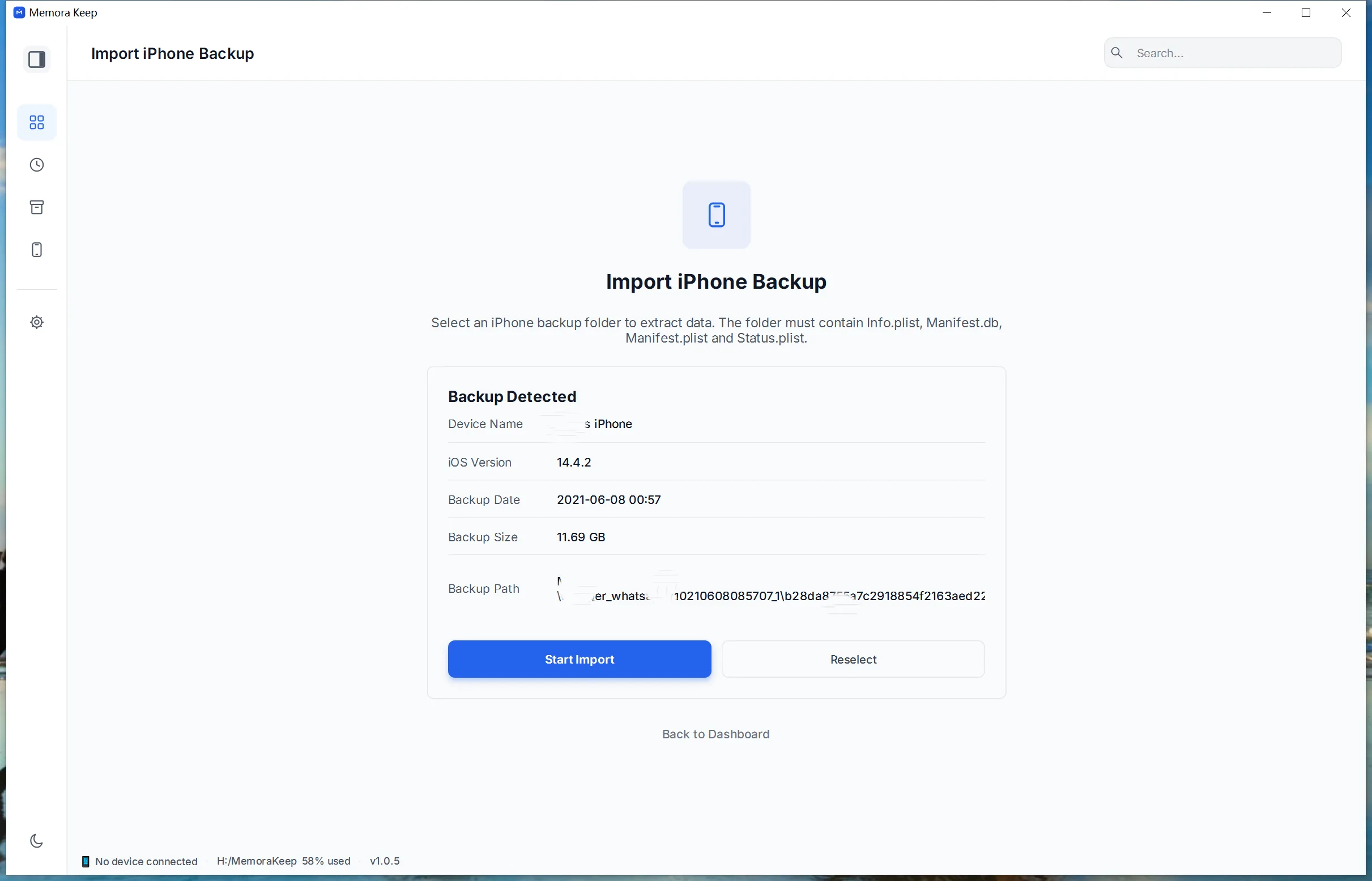
The backup import guide covers folder selection and the import steps.
2. Find the year and day
Open Timeline from the sidebar. Use the year navigation on the right, then browse to the month and date you remember. Look for a Photos card.
Each card shows a few thumbnails and a count. The count can be larger than the number of thumbnails visible on the card.
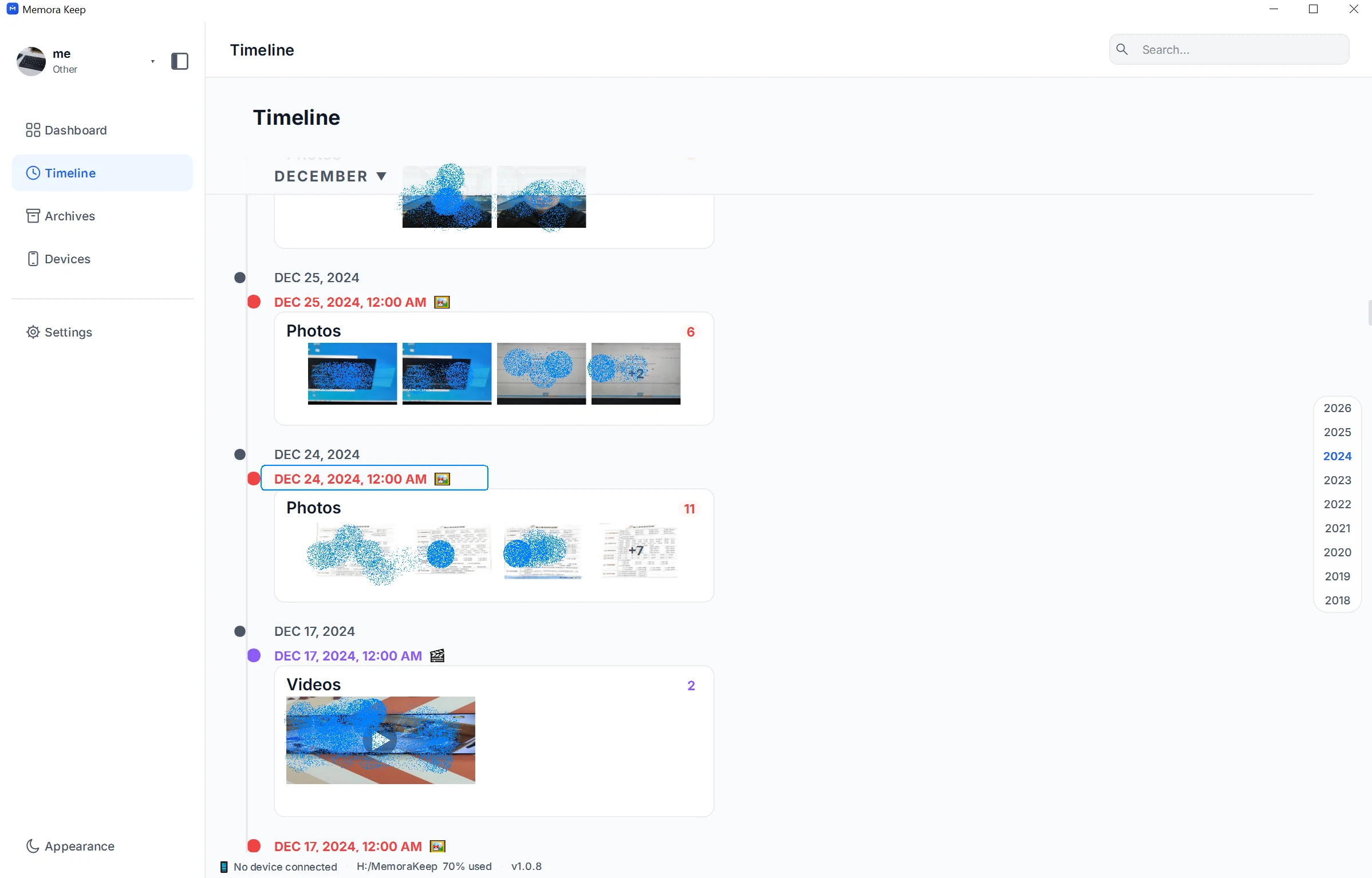
These timeline examples use an Android photo archive. Imported iPhone photos appear in the same date-based view.
3. Open the day’s photos
Open the photo entry to see its Timeline Detail window. This shows the pictures in that group, along with their file names and source device.
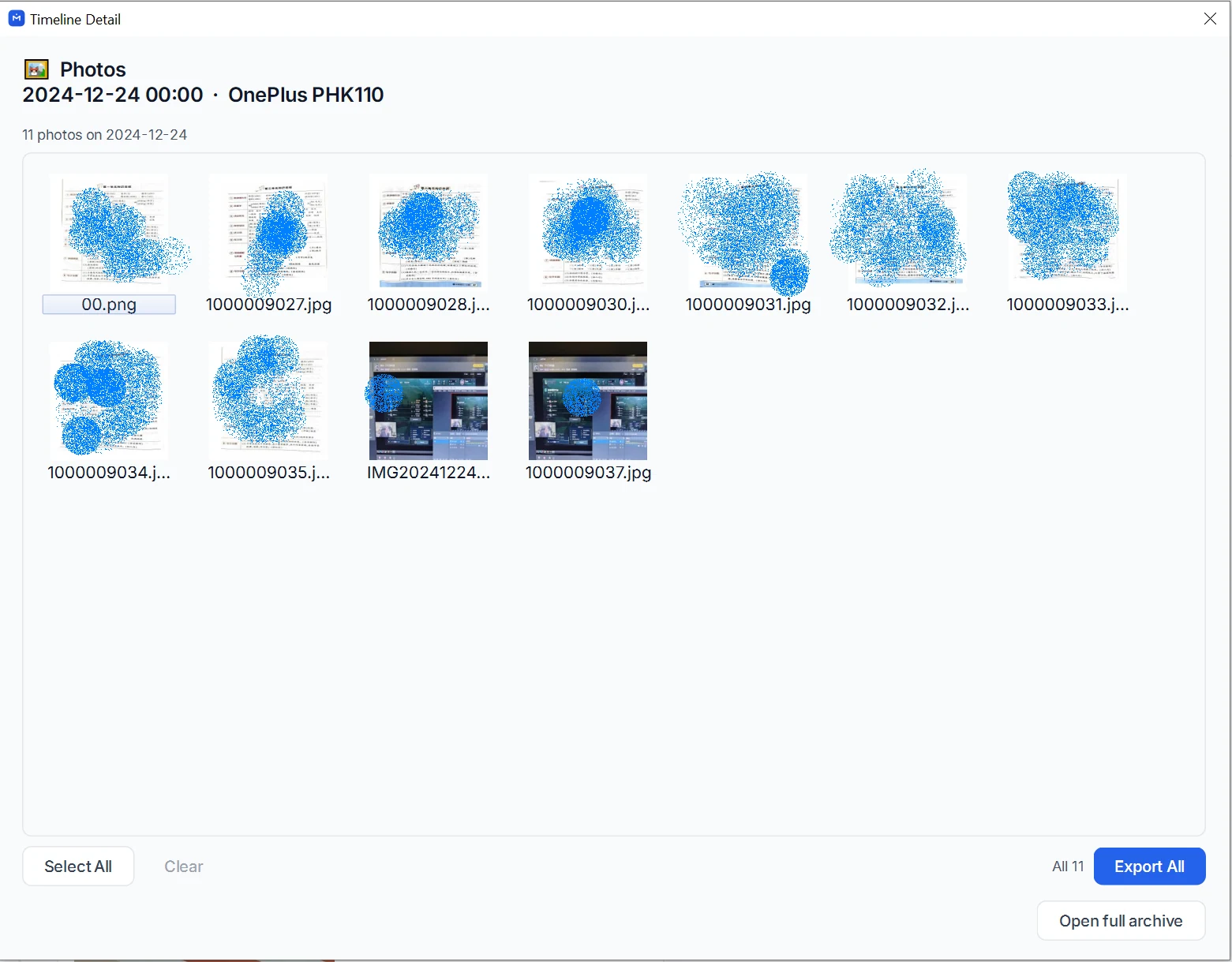
Check the source device if your archive includes more than one phone. From this window, you can select pictures to export, export the whole group, or choose Open full archive to continue browsing.
4. Check the date and image details
The date of the backup is different from the date of a photo. A backup made this year may contain pictures from many years ago.
Open a picture to inspect it and view any available photo details. Missing metadata, an incorrect phone clock or an edited file can affect the date shown. A group labeled midnight does not mean every picture was taken at exactly midnight.
If the photo isn’t there
First check that you imported the right device’s backup. Then browse nearby dates and look in the photo archive’s other categories, including screenshots.
If the image was never included in the backup, changing the date view won’t bring it back. Keep that distinction in mind before assuming the import failed.
To save several photos together, see exporting photos into folders by device.
- iphone backup
- photos
- timeline