Backup Guides
How to Browse Safari Bookmarks from an iPhone Backup
Find Safari bookmarks in a local iPhone backup. Open the Bookmarks tab, search saved titles or URLs, and check the links.
3 min read
On this page
A useful website can be easy to lose when you change phones. If its Safari bookmark is still in an old iPhone backup, you can look it up on your computer without restoring that backup to a phone.
Memora Keep lists saved bookmarks separately from browsing history. A bookmark is a link you saved; history records pages you visited.
What you need
-
Memora Keep on a Windows or macOS computer. It is free.
-
A local iPhone backup containing the data you want to read, and its password if it is encrypted.
-
Enough free disk space for the imported data and any files you export.
1. Import the backup
Open Memora Keep and choose Import iPhone Backup on the Dashboard. Select your local backup folder, confirm the device and date, and start the import.
If the backup is encrypted, you’ll need its password. Follow the iTunes and Finder backup import guide for the full steps.
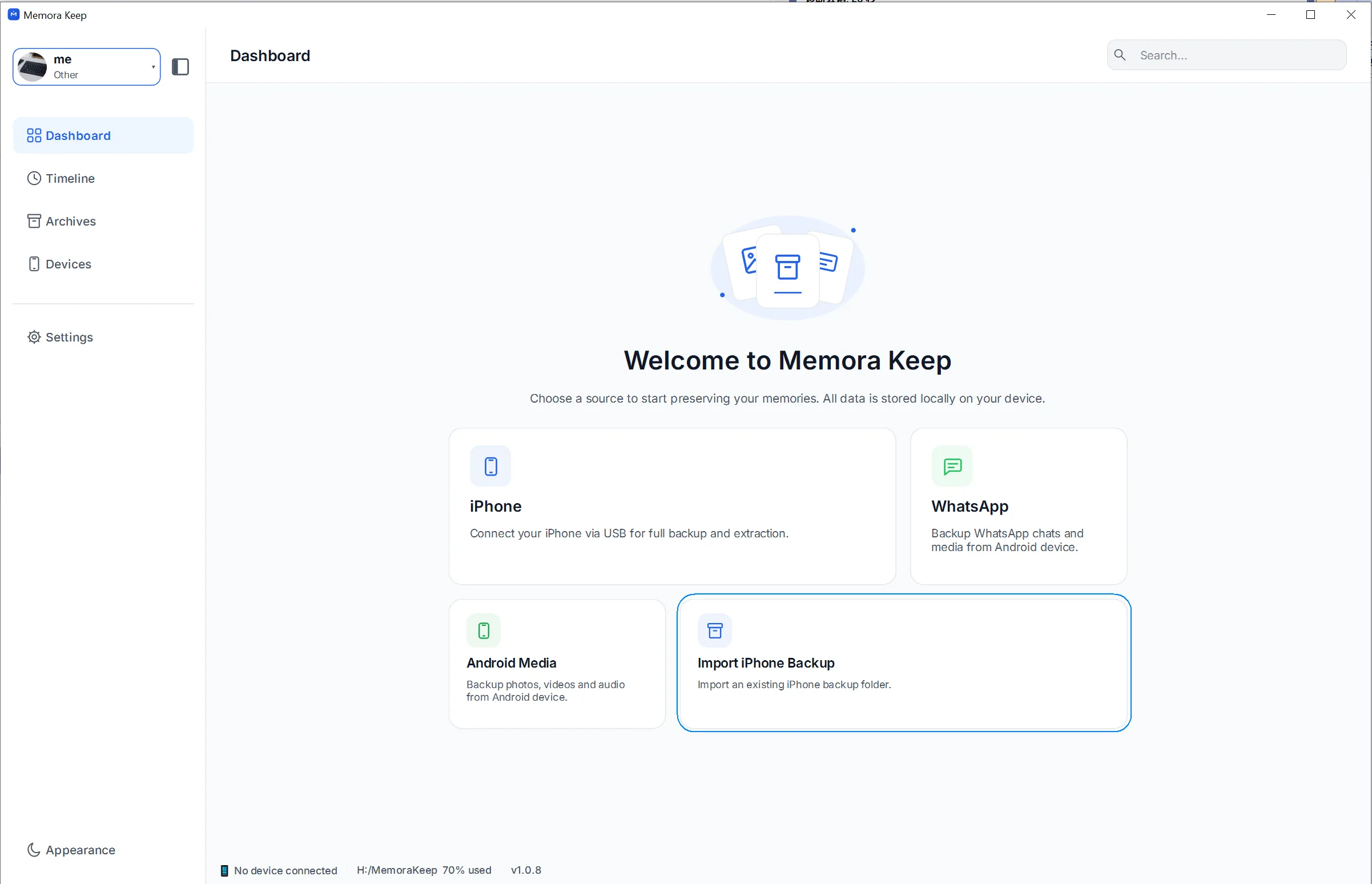
Choose a backup from a time when the bookmark was already saved. The import can only read bookmarks present in that source.
2. Open the Bookmarks tab
Go to Archives → Browser History, then click Bookmarks beside History.
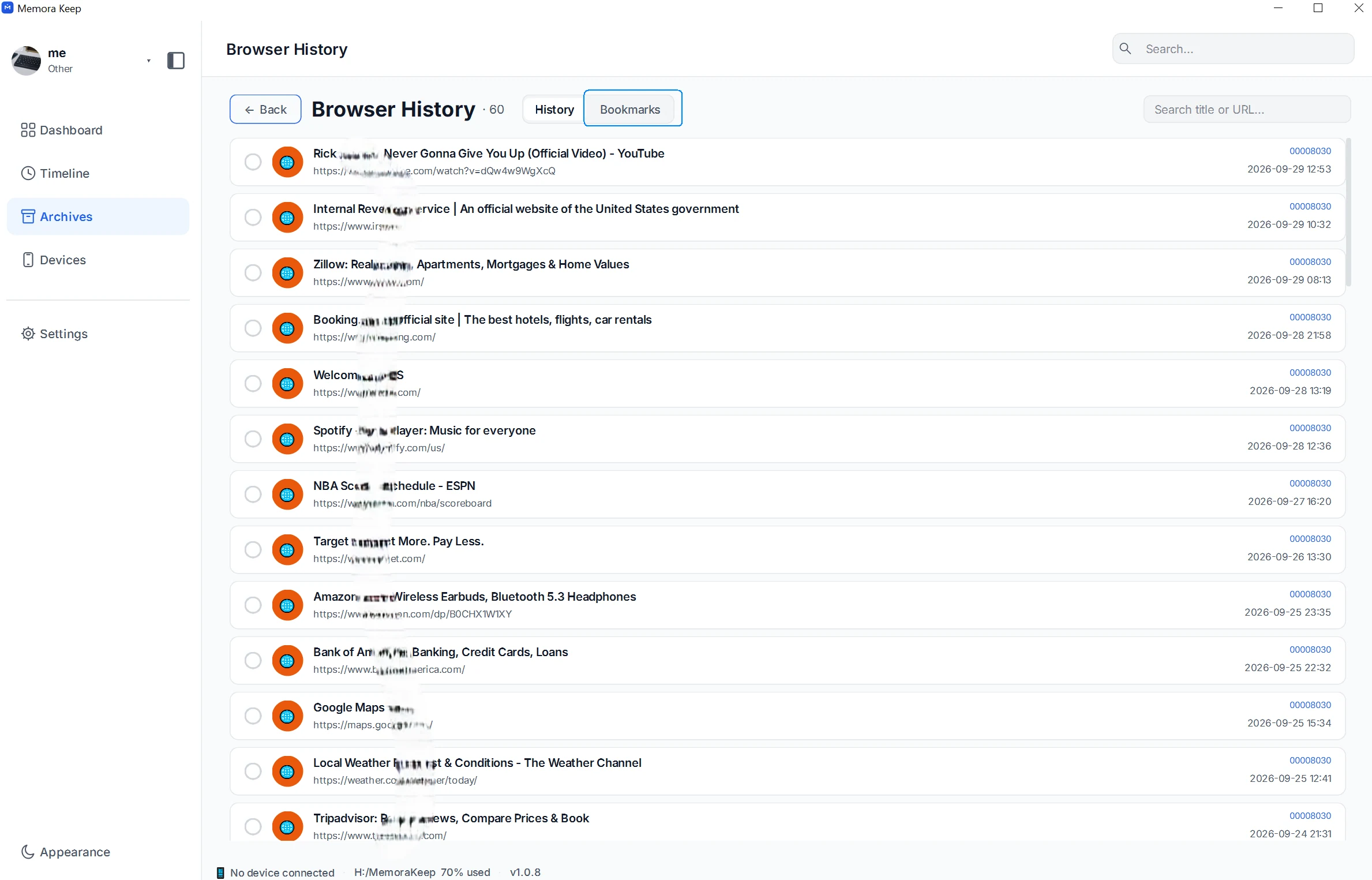
If you see a list of visited pages and visit times, check that you have switched from History to Bookmarks.
3. Find the saved link
The bookmark list shows page titles and web addresses. Use Search title or URL to find a site by its name or part of its address.
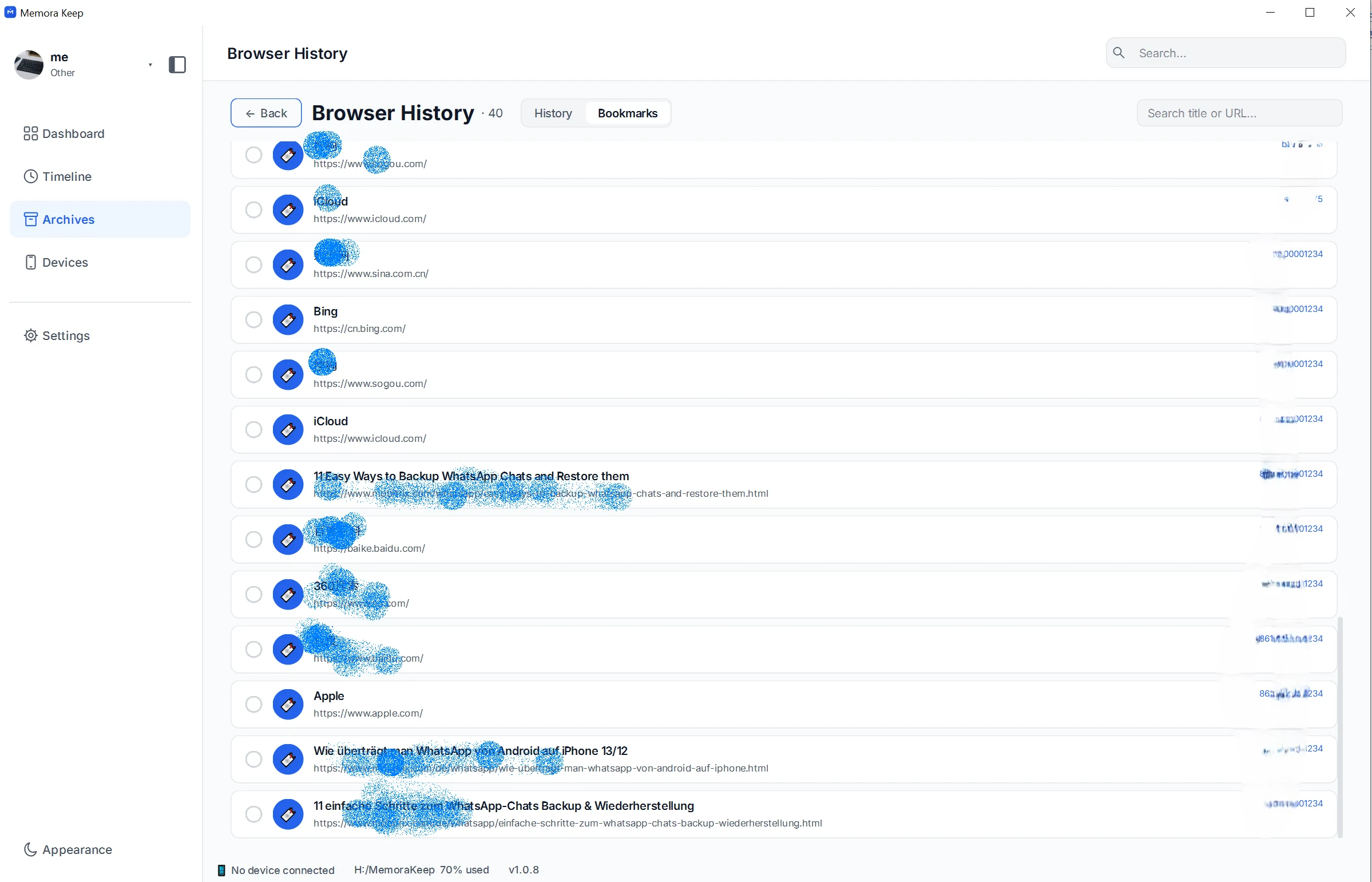
Check the address as well as the title. Several bookmarks may have similar names, and an old title may no longer match the website.
Open a bookmark to visit its address in your computer’s browser. This loads the website as it exists now. The bookmark does not contain a saved copy of the old webpage.
If a bookmark is missing
Clear the search field first, then check that you imported the right backup. A bookmark added after that backup was made will not be part of the saved copy.
If you have another backup from the right period, check that source too. This workflow reads local backup data; it does not fetch missing bookmarks from iCloud.
Common questions
Do I need the old iPhone connected?
No, if you already have a valid backup on your computer and any required password.
Does this put bookmarks back into Safari?
These steps let you browse saved links in Memora Keep. They do not restore a bookmark collection to Safari.
Will the list look like my old Safari folders?
The view shown here lists titles and URLs. Use it to find links rather than relying on the original Safari folder layout.
For the difference between saved links and visited pages, see the browser history feature.
- iphone backup
- safari
- bookmarks