Can You Merge WhatsApp Chat Histories from Multiple Accounts?
Merge WhatsApp chat histories from multiple accounts on your computer. Learn what merging does, its limits and when to keep accounts separate.
3 min read
On this page
Yes. Memora Keep can merge WhatsApp chat histories from multiple accounts into one account in your local archive. Conversations with the same contacts become one continuous history, with duplicates removed. Your phone numbers and WhatsApp logins stay unchanged.
Here’s when merging helps, what it changes and what it can’t do.
When merging helps
Merging makes sense when one person’s conversations are split across accounts:
- You changed phone numbers. Chats with the same people are split between your old and new accounts.
- Personal and WhatsApp Business. Conversations with clients who used both numbers are split across accounts.
- An old phone’s backup and your current phone. Your conversations are spread across two archived accounts.
Keep accounts separate if they belong to different people, such as you and your spouse, or if you need to keep work identities apart. See how to organize separate accounts.
What the merge does
All of this happens inside the local archive on your computer:
- Combines the selected accounts. Choose any number of accounts from the archive’s account list and click Merge.
- Removes duplicates. A message backed up under both accounts appears once in the combined history.
- Lets you name the result. Keep one account’s name or give the combined account a new name.
- Lets you keep the originals. A setting controls whether the original accounts stay in the archive. Keep them to browse each account as it was before merging.
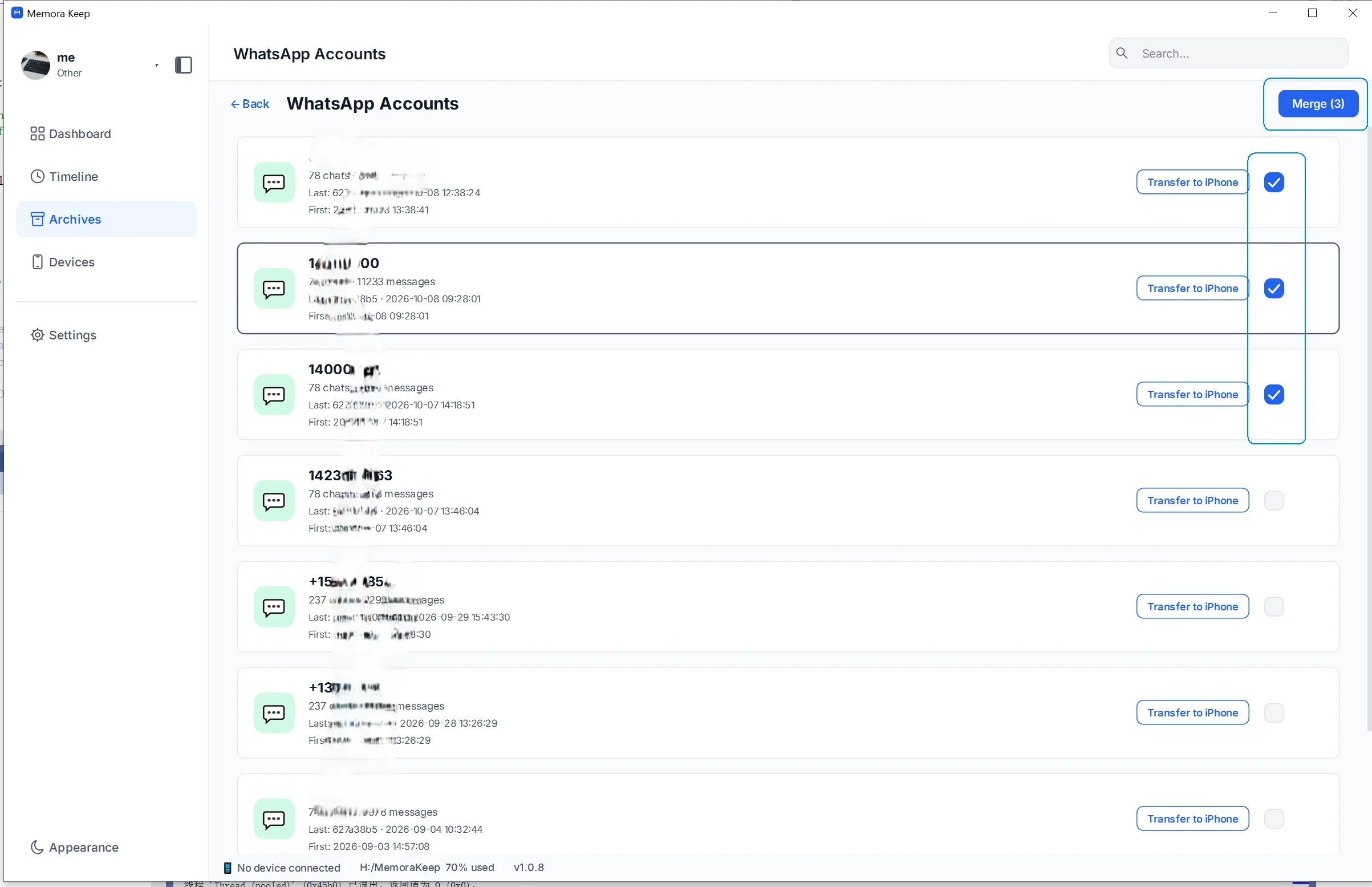
For the steps and settings, see how to merge WhatsApp chats from multiple accounts.
What a merge can’t do
Before you start, keep these limits in mind:
- It doesn’t merge phone numbers or logins. Only the archived data on your computer changes. Your WhatsApp accounts on the phones stay untouched.
- It doesn’t move history onto a phone. The combined history stays in the archive. Moving chats to a new phone requires the separate transfer process.
- It works on archived data only. You can’t merge a Google Drive or iCloud backup directly; the data must be in the archive first. A local iPhone backup can be imported as it is.
- It can’t recover chats that were never backed up. Only the messages in the archive can be combined.
What to do with a merged history
After merging, you can use the combined history like any other archived account:
- Read one conversation covering the months before and after a number change.
- Search it using the same tools for searching a local backup.
- Export merged conversations to PDF, HTML or CSV. For records or evidence, you get one file per contact containing the combined messages, with duplicates removed.
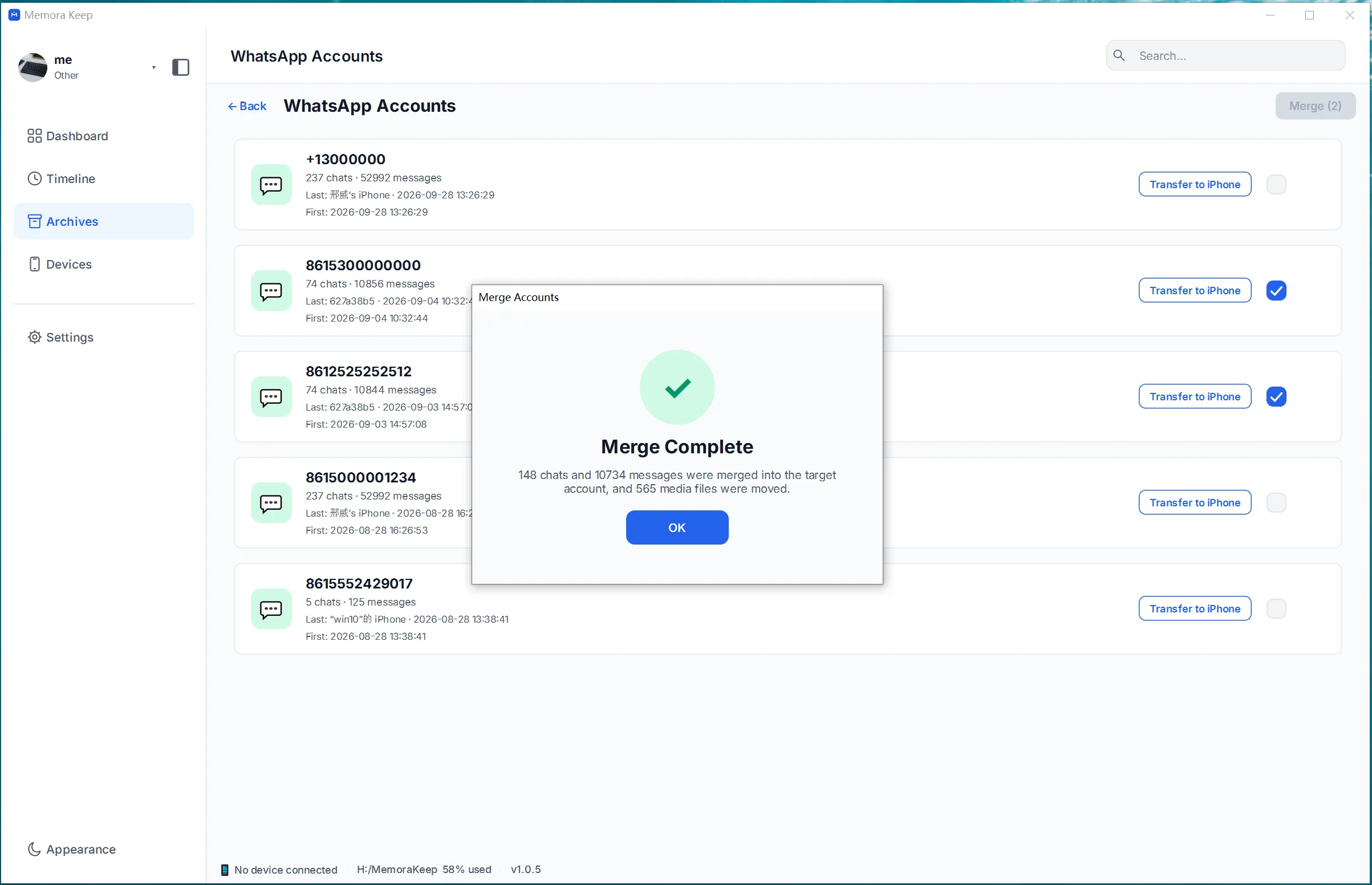
Frequently asked questions
Does merging delete anything? The merge creates a combined account without changing your original backup files. You can also choose to keep the original accounts in the archive.
How many accounts can I merge at once? As many as you select; you’re not limited to two.
Can I merge accounts that are on different phones? Yes. Back up both phones to the same computer, or import their backups, to add their accounts to the archive.
What if I merge and later wish I hadn’t? Choose to keep the originals in the merge settings. The merged account is then an extra entry you can ignore or delete.
Good to know
- For when to keep accounts apart, see organizing multiple WhatsApp accounts in one archive.
- If your split history came from a number change, start with keeping WhatsApp history from an old phone number.
- Feature page: merge WhatsApp accounts.
- merge
- multiple accounts
- chat history