How to Check Missing Media in WhatsApp Chat Exports
Find out why photos, videos or audio are missing from a WhatsApp export. Check the source, export format and media files.
3 min read
On this page
A WhatsApp export may show the message but leave out its photo or video. Before exporting again, check where the problem starts: in the saved conversation, in the format you chose, or in the files you copied.
Pick one missing attachment to investigate. Note its chat, date and media type so you can compare the same item at each step.
What you need
-
Memora Keep on a Windows or macOS computer. It is free.
-
The chats in your local archive, or an Android phone or local iPhone backup containing them. The steps below explain how to add the source.
-
Enough free disk space for the imported data and any files you export.
1. Check the media in the saved conversation
In Memora Keep, open Archives → WhatsApp, choose the account and open the chat. Find the message and try to open its attachment.
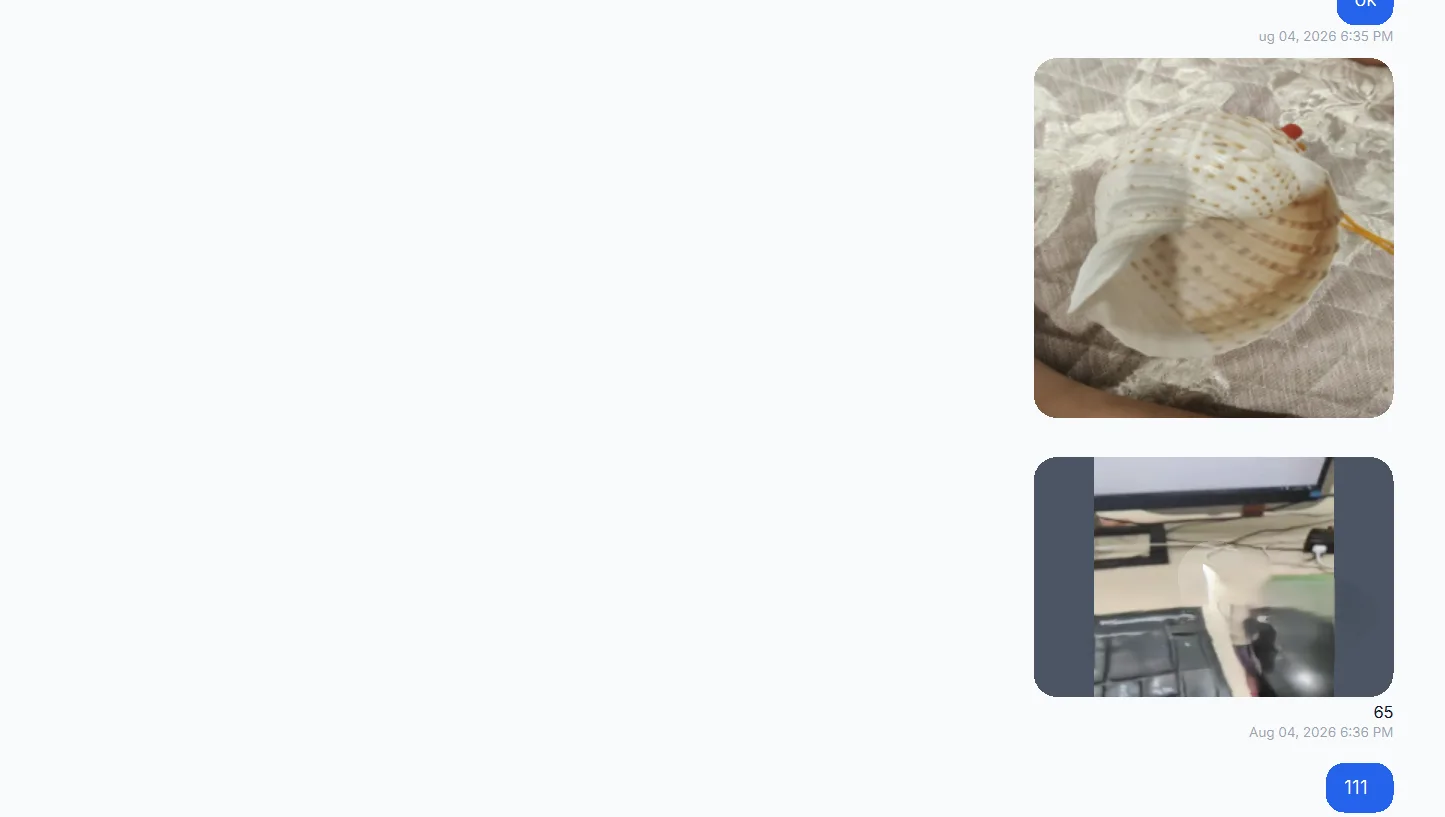
If the attachment opens here, the archive has a usable file. Continue with the export checks below.
If it does not open, check the backup you imported and whether it contained that media. Exporting again cannot add a file that is absent from the source.
2. Read any missing-file label
The example below shows two image messages labeled NOT DOWNLOADED, followed by an image that does display.
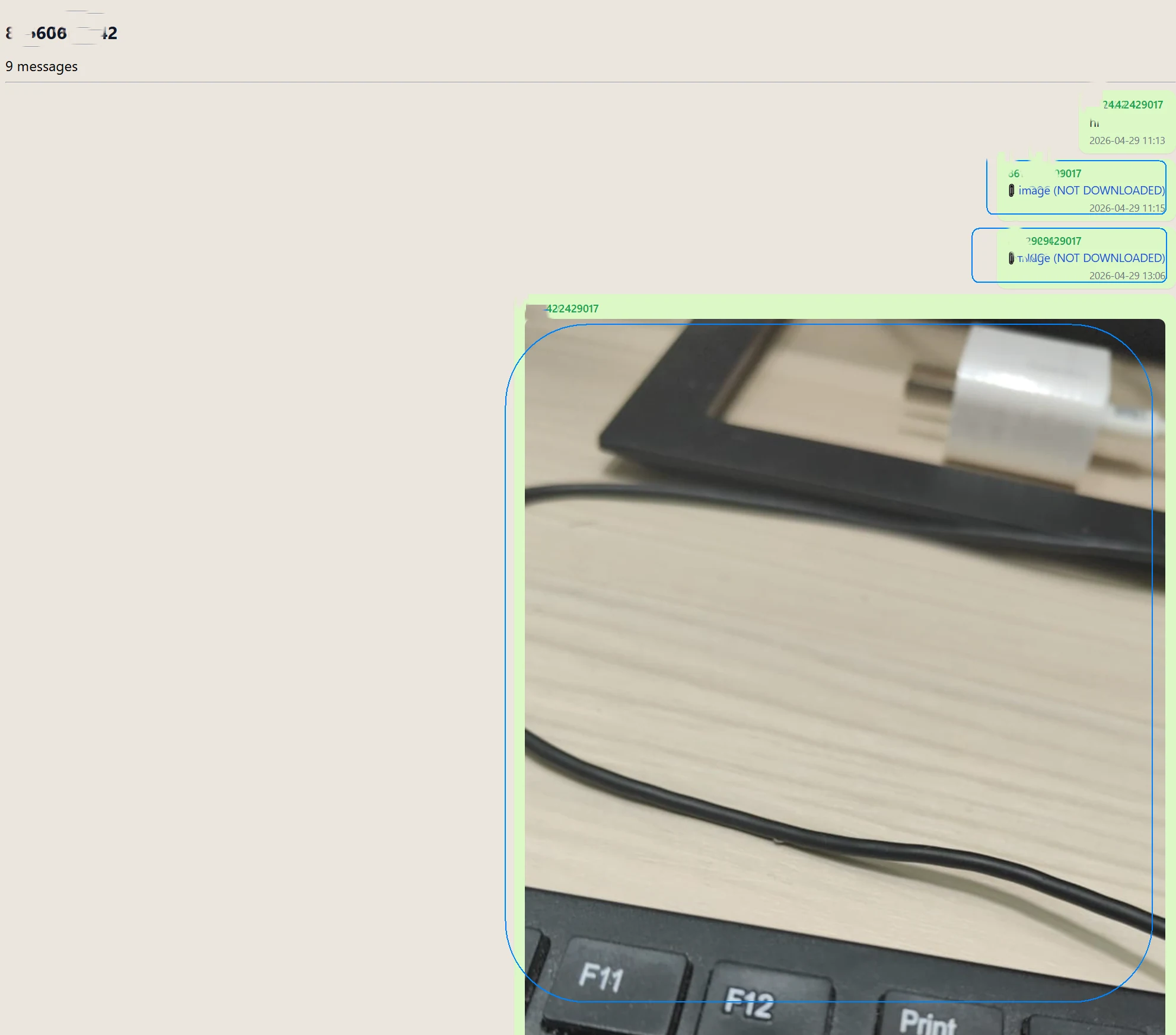
A label preserves the fact that a message referred to an attachment. It does not mean the attachment itself was saved in the export. Check the same messages in the archive to see whether the source files are available.
3. Check what your export format includes
| Format | What to check |
|---|---|
| Images may appear in the conversation, while other attachments appear as labels. Do not expect video or audio playback inside the PDF. | |
| CSV | This is a table of chat data, not a package of playable media. |
| HTML | Check both the conversation file and its accompanying media files. |
Also confirm that you exported the right chat and time range. An attachment outside the selected range will not be included.
4. Keep the HTML package together
If you exported an HTML package, extract the full package before opening it. Keep the HTML file and its media folder in their original relative locations.
When moving or sharing it, copy the whole package. Sending only the HTML file can leave the text readable while images and other media disappear.
See how to export WhatsApp chats to HTML with media for the export steps.
5. Try opening the media file directly
If a file is present but the browser cannot display it, open it in a suitable photo viewer or media player. Some formats need support that your browser does not provide.
HEIC images are one example: HTML export may convert them to JPEG for browser use, but a file that could not be converted may remain in its original format.
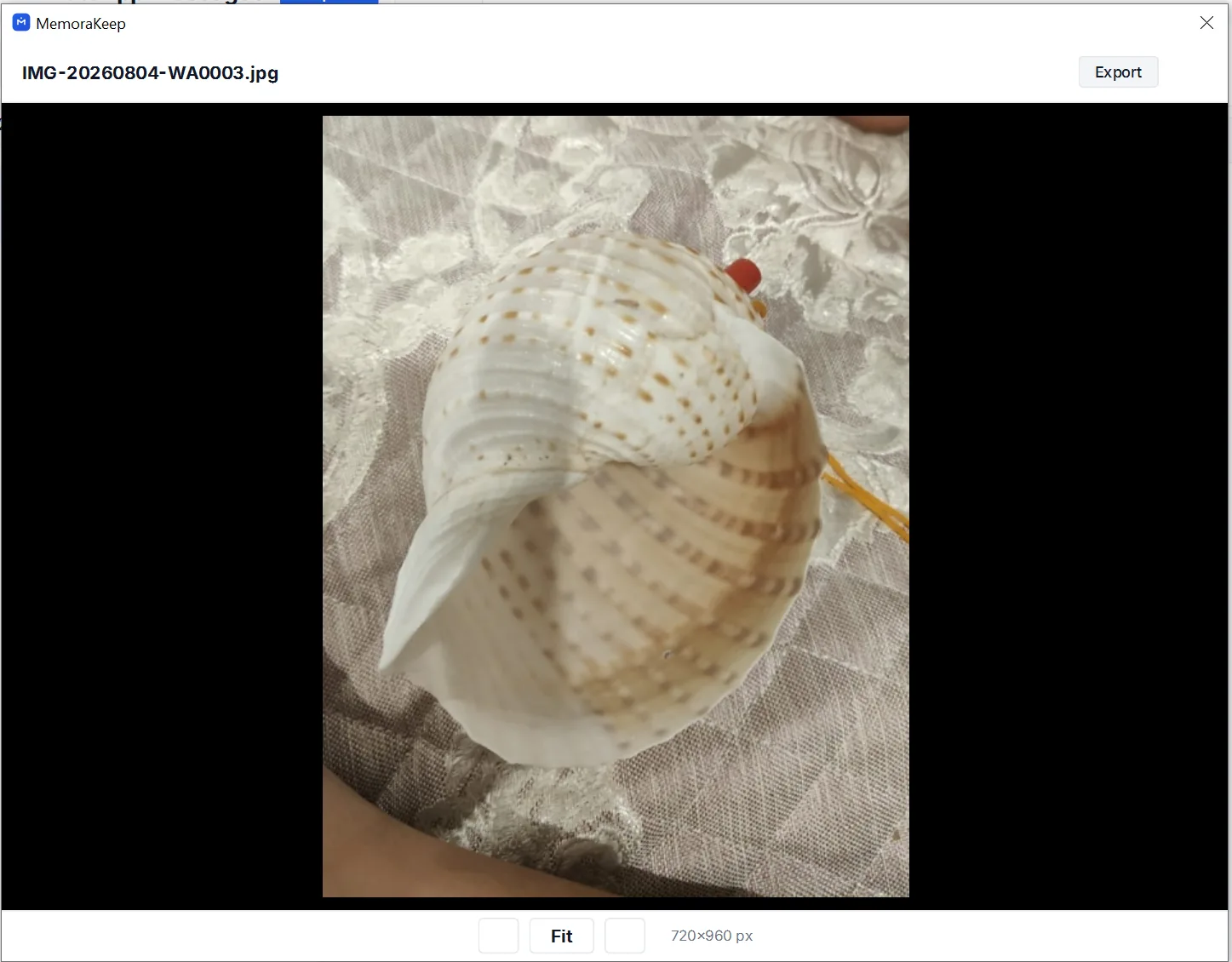
If the file opens in the archive but is absent from the export, record the chat, message date and chosen format before trying a fresh export. Keep the working source while you investigate.
For help inspecting individual files, see viewing WhatsApp media from an iPhone backup.
- export
- media
- troubleshooting