How to Combine Old WhatsApp Conversations into an Archive
Bring old WhatsApp conversations into a local archive. Check your sources, import supported backups, and choose whether to merge accounts.
3 min read
On this page
Old WhatsApp conversations may be spread across a previous phone, an iPhone backup and an account you no longer use. Start by finding those sources. Once their data is in Memora Keep, you can keep the accounts separate or combine their archived chats.
The aim is to collect the history you still have and make it readable on your computer.
What you need
-
Memora Keep on a Windows or macOS computer. It is free.
-
The chats in your local archive, or an Android phone or local iPhone backup containing them. The steps below explain how to add the source.
-
Enough free disk space for the imported data and any files you export.
1. List the sources you have
Make a short note for each phone or backup. Record the account or number, where the data is stored, and which period you expect it to cover.
| Source | What to do with it |
|---|---|
| An Android phone with the chats still available | Use Memora Keep’s WhatsApp backup workflow. |
| A local iPhone backup | Import it and check the WhatsApp data it contains. |
| An account already in Memora Keep | Open it and review its conversations. |
| A TXT, PDF, HTML or CSV export | Keep it as a separate reference file; this workflow does not import it as a WhatsApp account. |
A phone number alone is not a source of old messages. You need the saved data.
2. Add each supported source
For an Android phone, use the WhatsApp backup module. For an iPhone, make a device backup or import an existing iTunes or Finder backup.
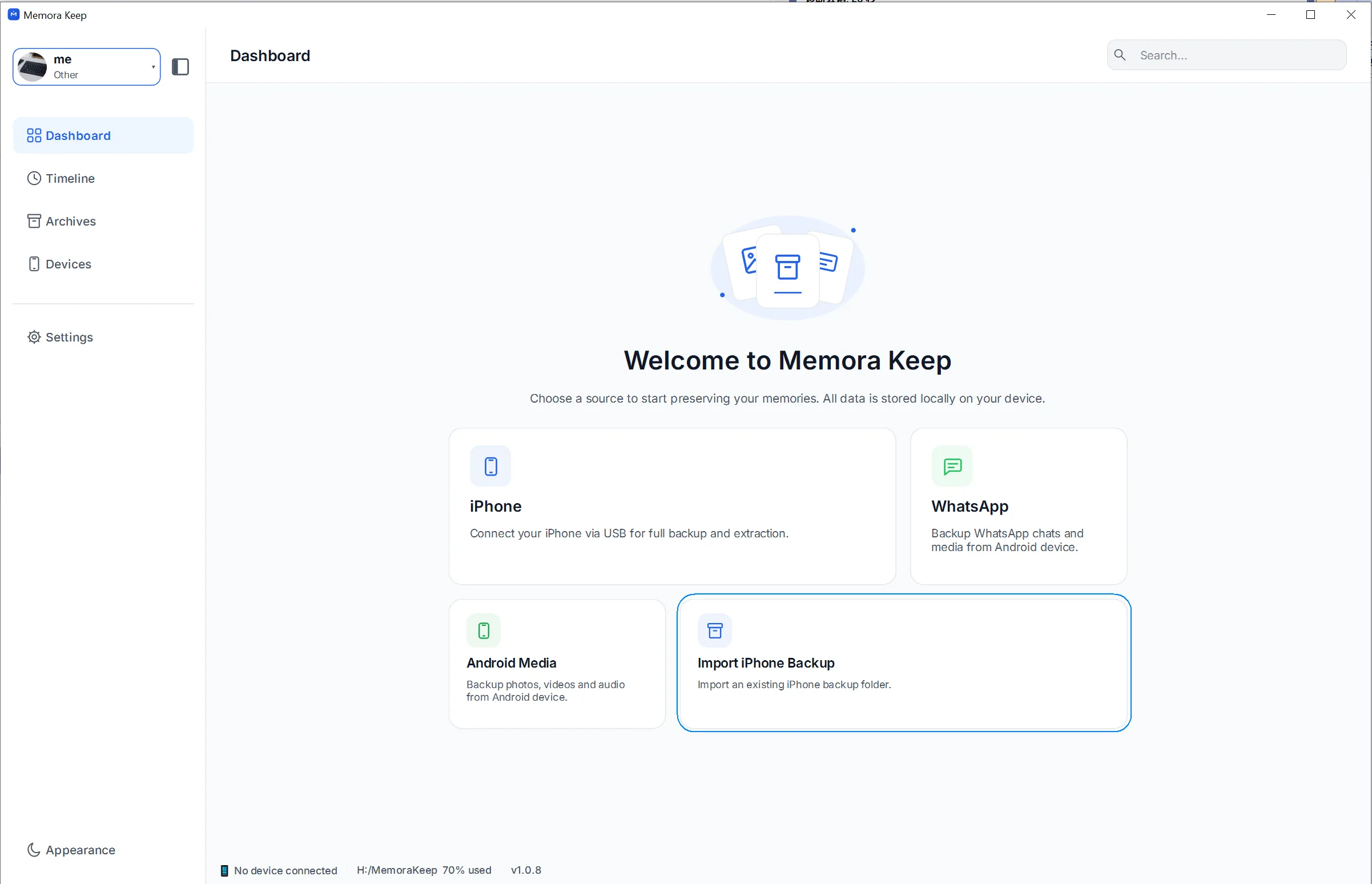
Work through one source at a time. After each import, open Archives → WhatsApp and check a conversation you recognize before moving on.
3. Review the archived accounts
The account list lets you see which histories are available. Open each relevant account and check the chats and dates you need.
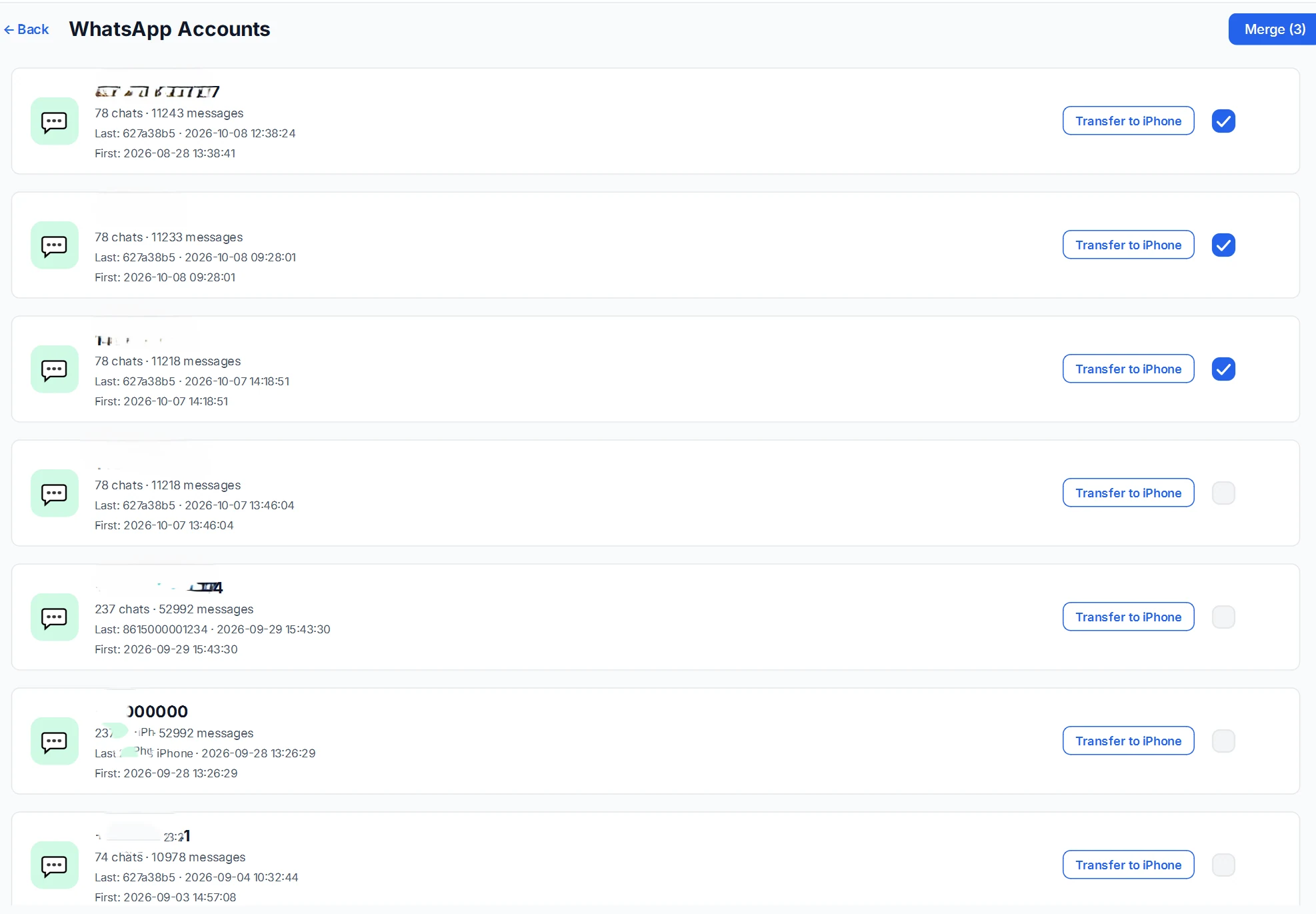
Keep your source notes alongside the archive. Similar account names or message counts do not, by themselves, prove that two sources contain exactly the same history.
4. Decide whether to merge
You can leave accounts separate if you want to keep work and personal chats apart. Merging is useful when your own conversations are split across old and new accounts and you want to read them together.
Select the accounts and click Merge. Review the name for the result and the option to keep the original account data.
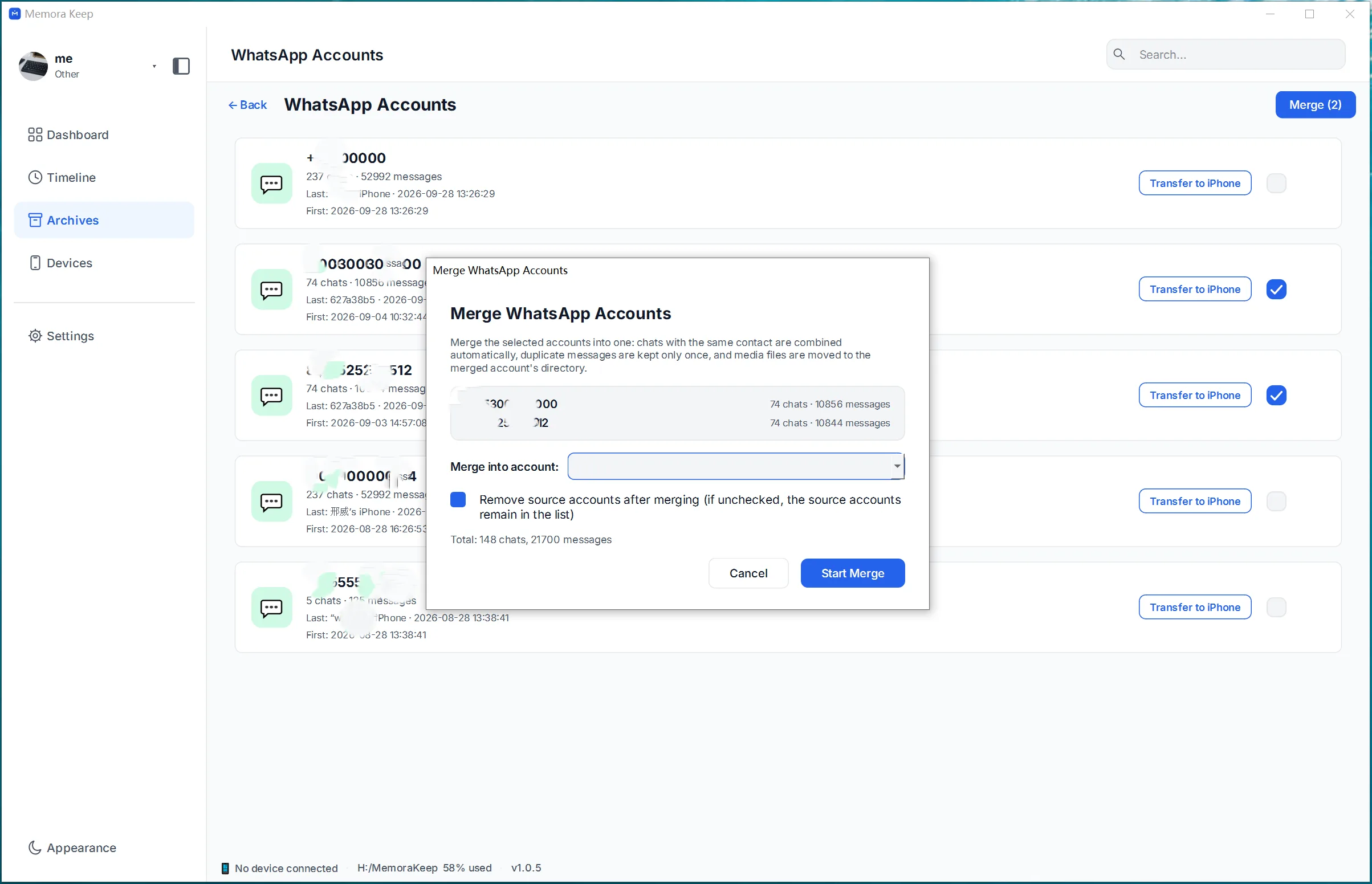
Follow the account merge guide for the full procedure. Merging changes the stored archive; it does not combine phone numbers or change your WhatsApp logins.
5. Check the combined history
Open a few important conversations. Look for both older and newer messages, then try opening some photos or videos.
The merge can remove duplicate messages, but it cannot fill gaps that were already missing from every source. Keep your original backups so you can refer to them later.
When the result looks right, you can save a readable copy of the conversations you use most.
- archive
- merge
- old chats