Backup Guides
How to Create a Local Timeline of Phone Photos and Messages
Bring backed-up photos and messages into one local timeline. Browse by date, open details, and check the data against its source.
3 min read
On this page
A photo tells you what a day looked like. The messages around it can help you remember what was happening. Memora Keep brings supported photos and messages from your backups into a timeline on your computer.
You don’t need to arrange every file by hand. Start by importing the sources that contain the memories you want to browse.
What you need
-
Memora Keep on a Windows or macOS computer. It is free.
-
The phone or local backup containing the items you want to keep. Start with the source options described below.
-
Enough free disk space for the imported data and any files you export.
1. Choose your sources
For an iPhone, use a local device backup containing the photos and messages you want. Apple excludes some data already synced and stored in iCloud from computer backups, so check what your source actually contains. Apple explains the backup limits here.
For Android, use Android Media Backup for photos and videos. WhatsApp has its own backup workflow. The Android media flow does not import the phone’s SMS conversations.
2. Back up or import the data
In Memora Keep, choose the relevant backup module. If you already have an iPhone backup folder, choose Import iPhone Backup and check the device and date before starting.
Wait for the import to finish, then review the result.
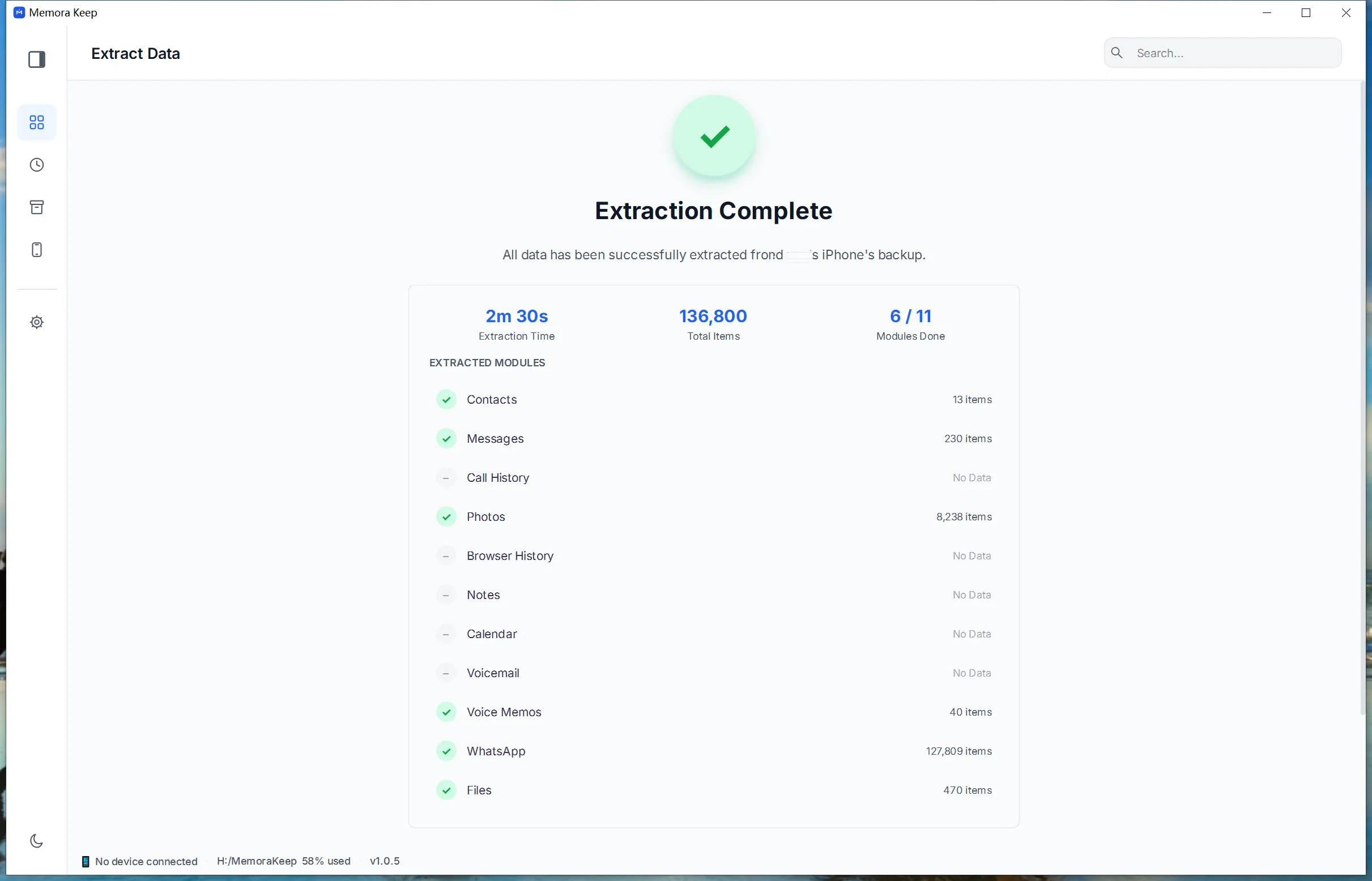
The iPhone import guide explains this step in detail. Add other sources through their supported workflows as needed.
3. Open Timeline and find a day
Choose Timeline in the sidebar. Browse by year, month and day.
Photos and messages appear in separate cards under their dates. The example below shows WhatsApp message groups and photo groups on the same days.
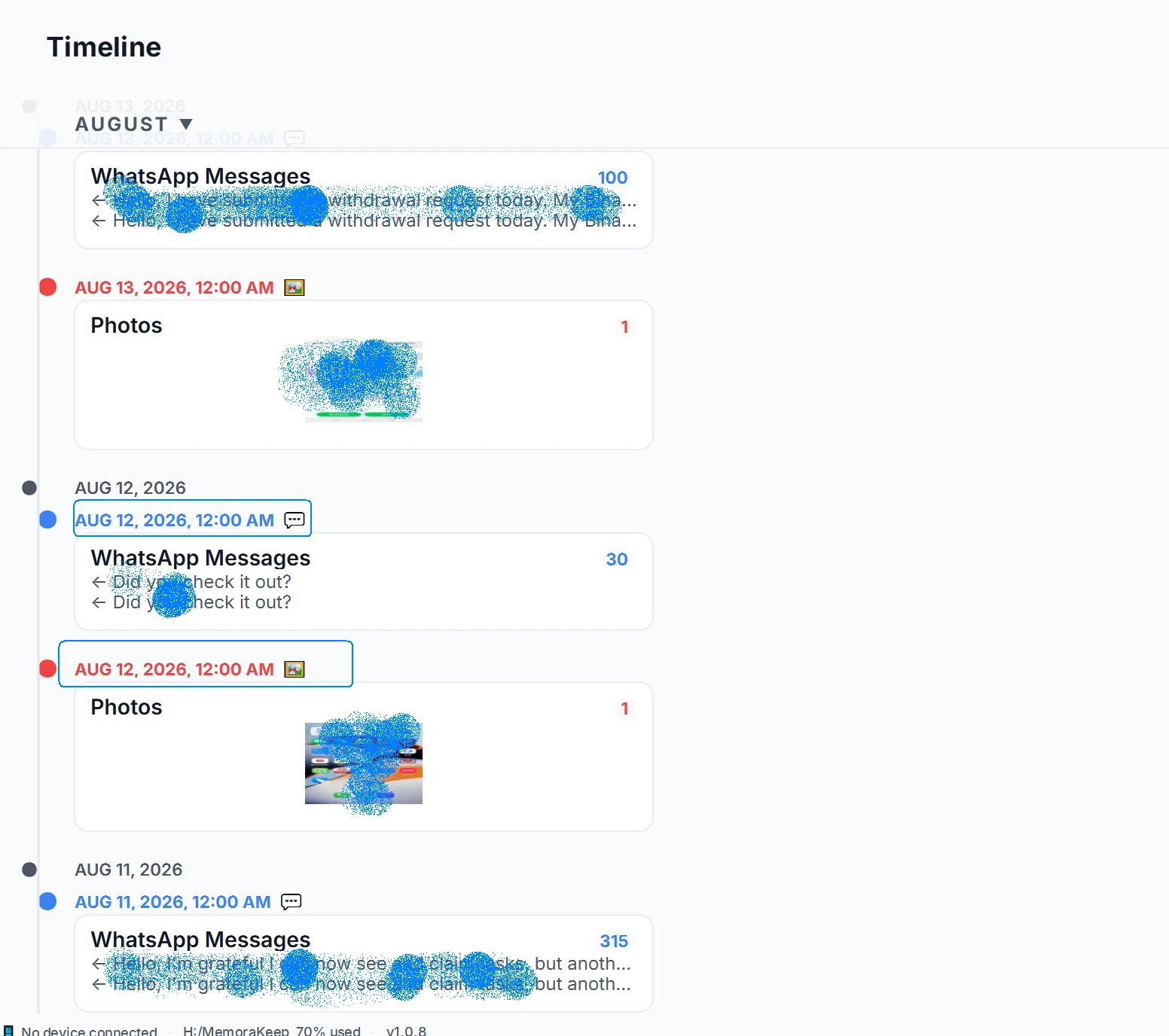
The cards help you browse related dates together. They do not automatically decide that a photo and a conversation describe the same event.
4. Open a card for more detail
Open an entry to inspect the items inside it. A photo card may show only a few thumbnails on the timeline; its detail window can show the rest of the group.
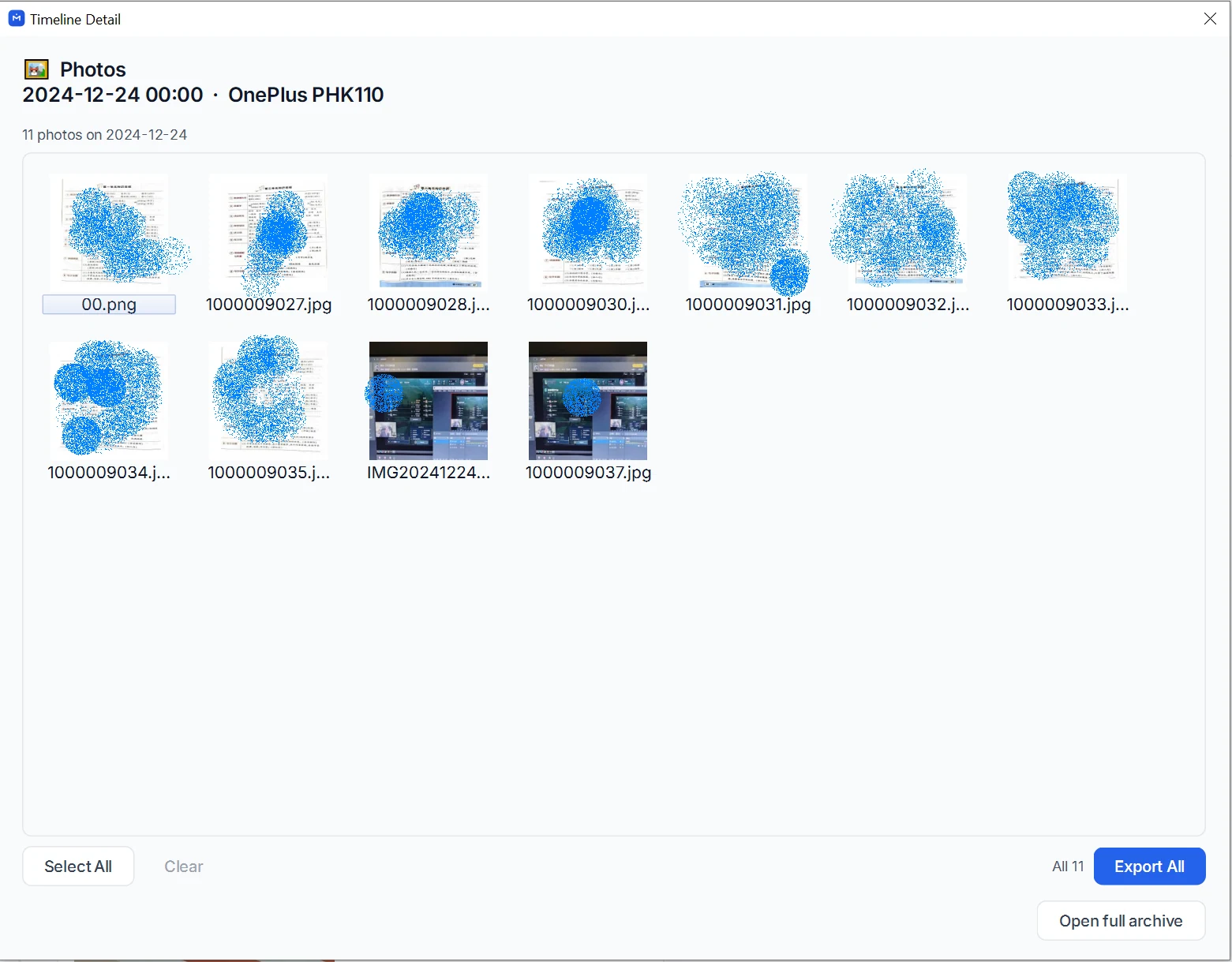
Check the source device shown in the detail window, especially if you have imported more than one phone. You can also use the timeline’s type filter to focus on the kind of content you want.
5. Check the dates and contents
Choose a day you remember. Open a photo and a message entry, and check that they belong to the expected source.
The timeline uses the dates available in the imported data. Missing metadata or an incorrect device clock can affect where an item appears. A daily group labeled 12:00 AM is not proof that every item was created at midnight.
New photos and messages appear after you back up or import the newer data; this is not a live feed from your phone.
For a closer look at one type of content, see browsing backup photos by date.
- timeline
- photos
- messages
- local archive