Backup Guides
How to Export Backed-Up Photos into Folders by Device
Export photos from your local archive into device folders. Select a phone, choose the pictures, and check the saved copies.
3 min read
On this page
When photos from several phones share one archive, it helps to keep track of where each picture came from. Memora Keep groups photo exports into folders using the source device labels.
Start with photos already imported through a supported phone backup. These steps save copies to a folder you choose.
What you need
-
Memora Keep on a Windows or macOS computer. It is free.
-
Photos already imported into your local archive from the source phones.
-
Enough free disk space for the imported data and any files you export.
1. Choose the source device
Open Archives → Pictures. Use the device dropdown near the top-right to choose the phone whose photos you want.
The categories below the heading let you focus on photos, screenshots, app images or other pictures.
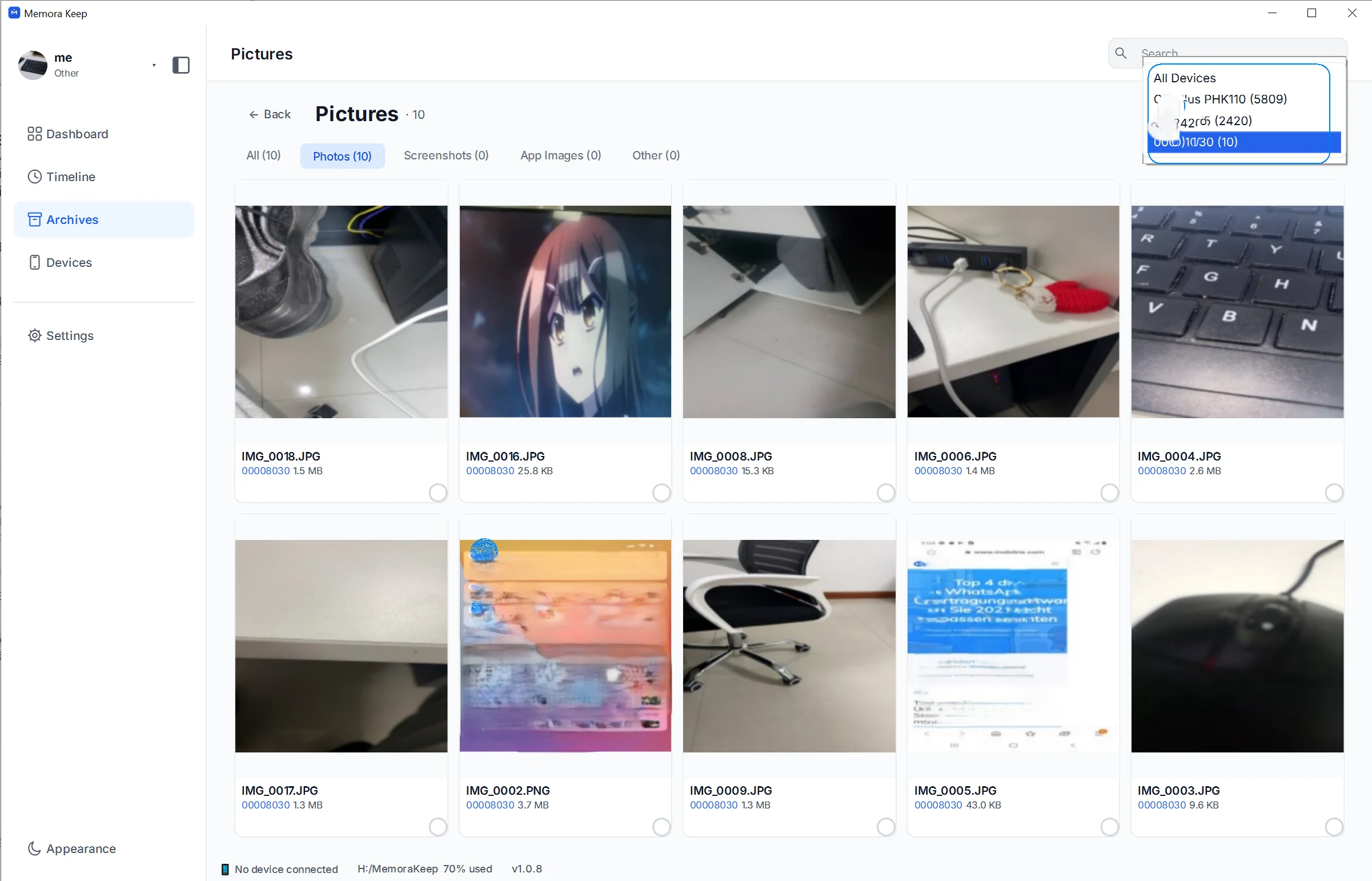
If two devices have similar names, check a few pictures before exporting. The device label is also used to group the output, so identical labels may not keep two sources distinct.
2. Select the pictures
Click the selection circles on the pictures you want. To export the whole filtered collection, use Select All and check the selected count at the bottom.
For a clear separation between phones, you can export one device at a time. Finish the first selection before switching to another device.
3. Choose an export folder
Click Export in the bottom bar. Choose the parent folder where you want the copies saved, then confirm the folder selection.
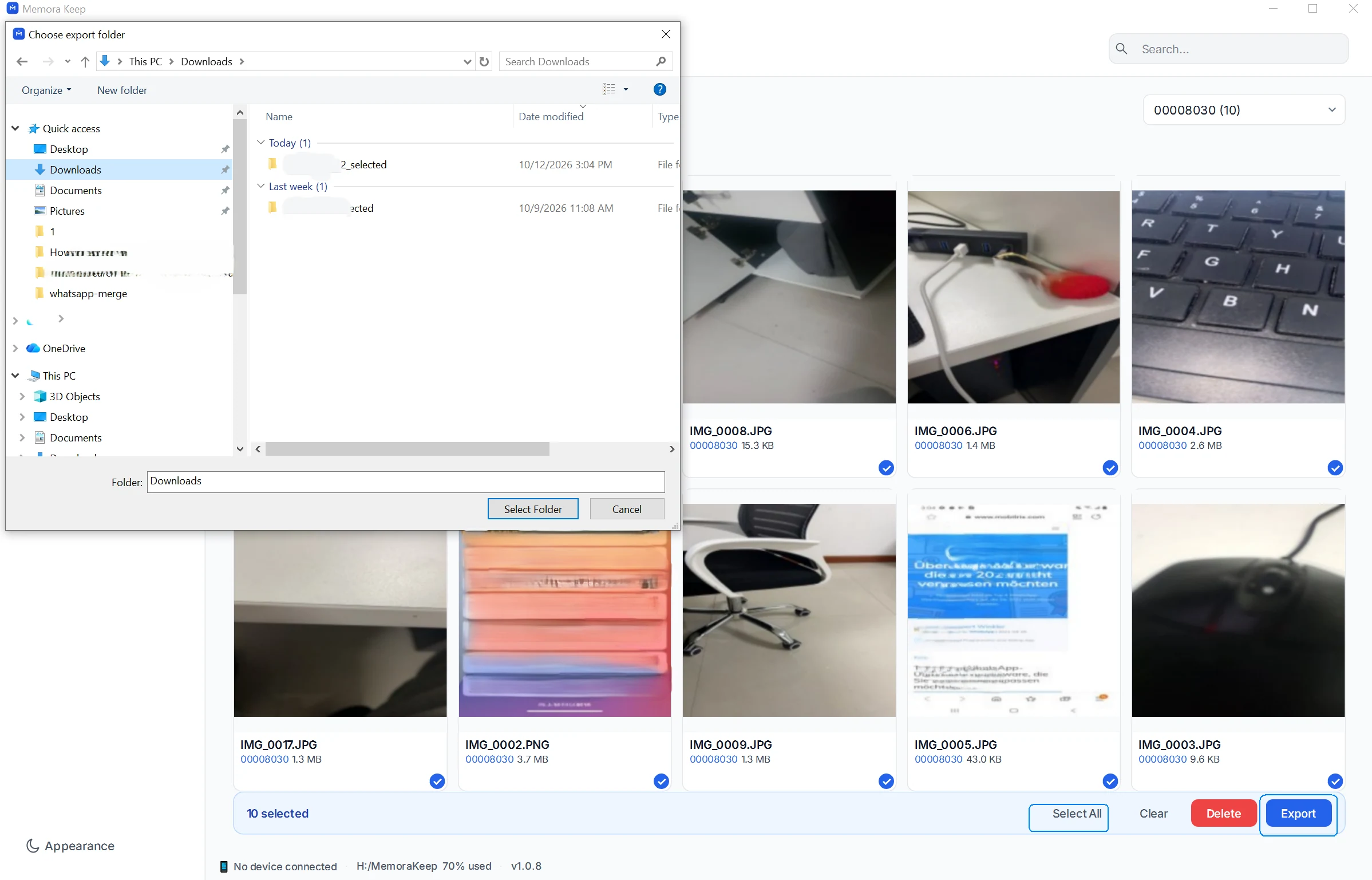
Memora Keep groups the copied files into subfolders by device label. You do not need to create a folder for every picture.
This output is organized by source device. It does not recreate every album or folder from the original phone.
4. Check the saved files
Open the destination in your computer’s file manager. Check the device folders and open a few full-size images from each one.
Compare the export result with the number of photos you selected. If fewer files were copied, keep the archive and check which items were unavailable.
Existing file names are handled by adding a suffix when needed. A renamed file is not proof that the app detected a duplicate photo.
Common questions
Can I export photos from more than one device?
Yes. The photo export groups files by their device labels. Exporting each device separately also lets you check the results as you go.
Will the files be grouped by year and month too?
This workflow groups the output by device. Use the timeline to browse by date.
Does exporting remove photos from the archive?
No. Exporting copies the selected files to the destination.
What if a photo has no clear source label?
Check it in the archive first. Don’t rely on an unclear folder name to identify where the image came from.
- photos
- export
- devices