Backup Guides
How to Export iPhone Call History to CSV from a Backup
Export iPhone call history from a local backup to CSV. Save call dates, numbers and durations, then check the file in a spreadsheet.
3 min read
On this page
If an iPhone backup contains the calls you need, you can save its call list as a CSV file without restoring your phone. Memora Keep lets you select records from the imported backup and open the result in a spreadsheet.
Before you start
-
Memora Keep on a Windows or macOS computer. It is free.
-
A local iPhone backup containing the data you want to read, and its password if it is encrypted.
-
Enough free disk space for the imported data and any files you export.
You’ll need a local iPhone backup and its password if it is encrypted. Call history is one of the data types Apple says encrypted backups can contain that unencrypted backups do not. See Apple’s encrypted backup guide.
An old backup only gives you the records it contains. It is not a complete record of every call ever made on the phone.
1. Import the backup
In Memora Keep, choose Import iPhone Backup. Select the backup folder, check the device and date, and start the import.
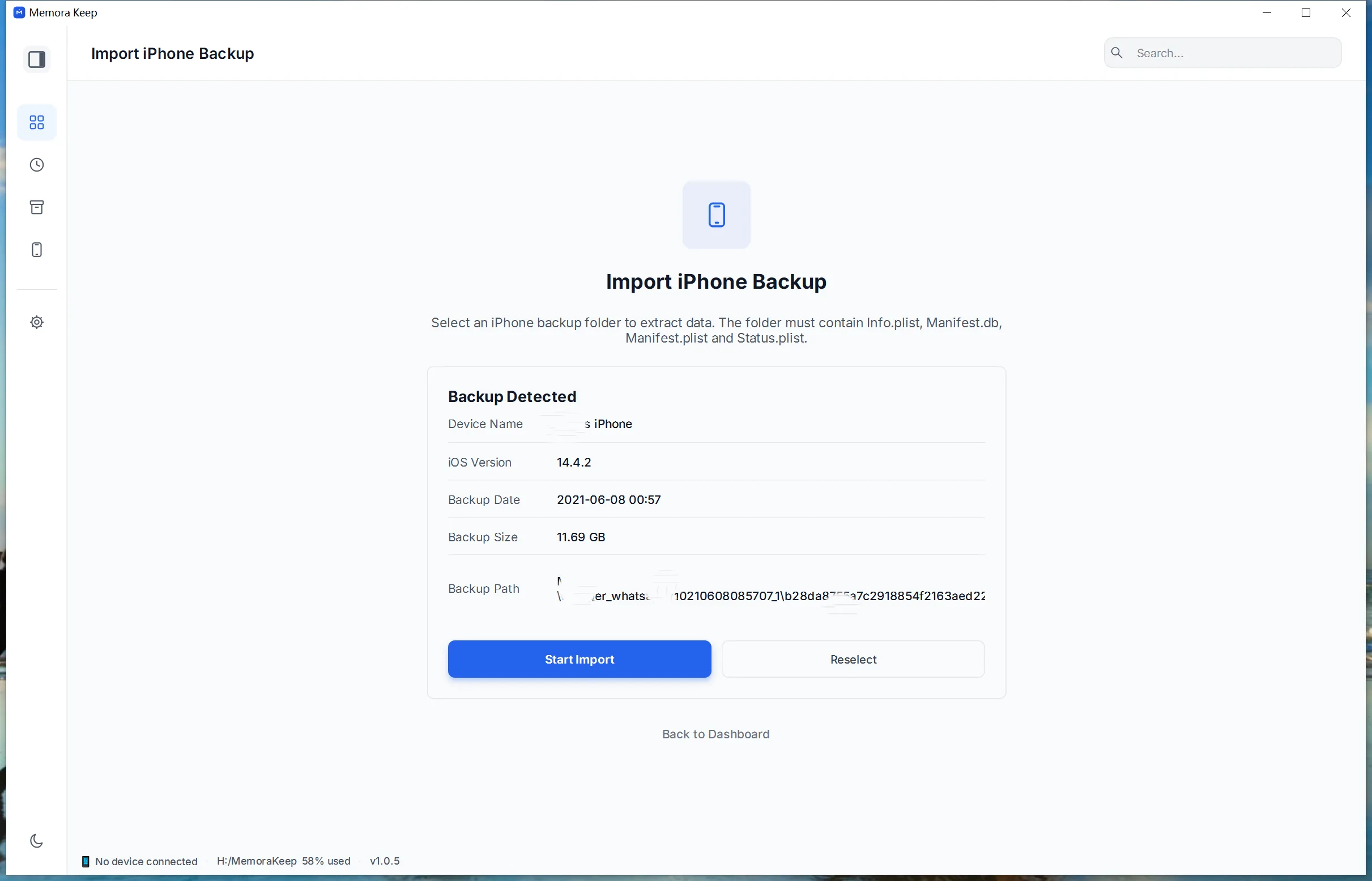
For help choosing the folder, follow the backup import guide.
2. Open Call History and select records
Go to Archives → Call History. Review the numbers, dates and durations, then select the calls you want to save.
Click Export at the bottom and choose a folder. The example below exports three selected records.
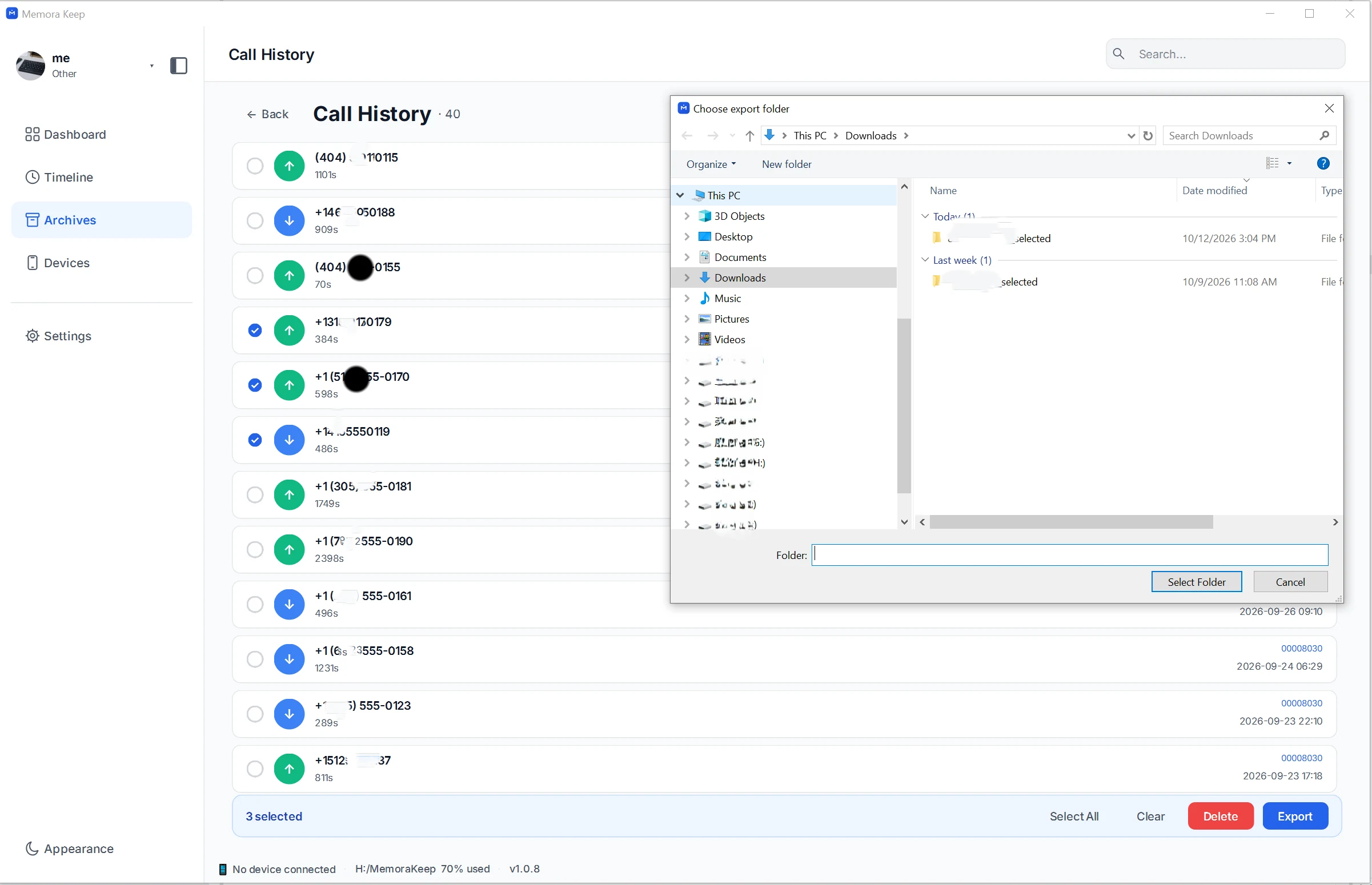
Check the export result before closing the window. Then open the destination folder to find the CSV.
3. Read the CSV columns
The file has four columns:
| Column | Contents |
|---|---|
time | The displayed call date and time |
type | The exported call category, such as incoming or outgoing |
number | The phone number |
duration_s | The displayed duration value |
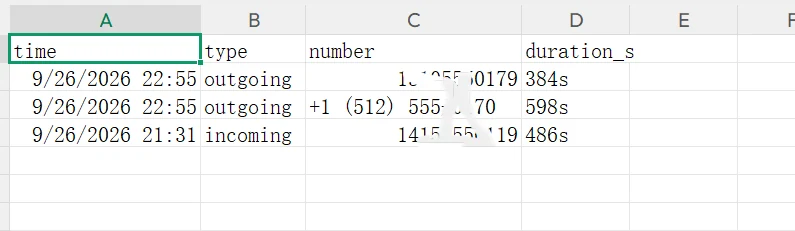
In this example, durations appear as 384s, 598s and 486s. Although the column is named duration_s, those values include an “s” and are not plain numbers. If you want to add durations in a spreadsheet, convert them in a working copy and keep the original values.
4. Check the file before using it
Compare a few rows with the call list in Memora Keep. Check the number, date and duration together so you know they still describe the same call.
When importing into a spreadsheet, treat phone numbers as text to preserve their formatting. Keep the original CSV and save any calculations or formatting changes in a separate workbook.
Common questions
Do I need the iPhone connected?
Not when you already have a readable local backup containing the records.
Can this recover all deleted calls?
It exports records available in the backup. It cannot supply calls that are absent from that source.
Why is a date range missing?
Check the backup date, the records visible in Call History, and your export selection. The gap may already exist in the backup.
- iphone backup
- call history
- csv