Backup Guides
How to Export iPhone Contacts to VCF from a Backup
Save contacts from an iPhone backup as a VCF file. Select the contacts, export them, and check names, phone numbers and email addresses.
3 min read
On this page
You can take contacts out of an iPhone backup without restoring the whole phone. Memora Keep reads the address book from a local backup and exports selected contacts as a VCF file.
VCF, also called vCard, is a contact-file format that address book apps can import.
What you need
-
Memora Keep on a Windows or macOS computer. It is free.
-
A local iPhone backup containing the data you want to read, and its password if it is encrypted.
-
Enough free disk space for the imported data and any files you export.
1. Import a backup containing the contacts
Open Memora Keep, choose Import iPhone Backup, and select the backup folder. Confirm the device and backup date before starting. If the backup is encrypted, enter its password.
Use the iPhone backup import guide if you need help locating or selecting the folder.
The contacts available to export depend on what was saved in that backup.
2. Review and select your contacts
Go to Archives → Contacts. Check the names and phone numbers, then select the people you want to export.
Look carefully at contacts with the same name or several phone numbers. An old address book may contain details you no longer use.
3. Export to a VCF file
Click Export in the bottom bar and choose a folder on your computer.
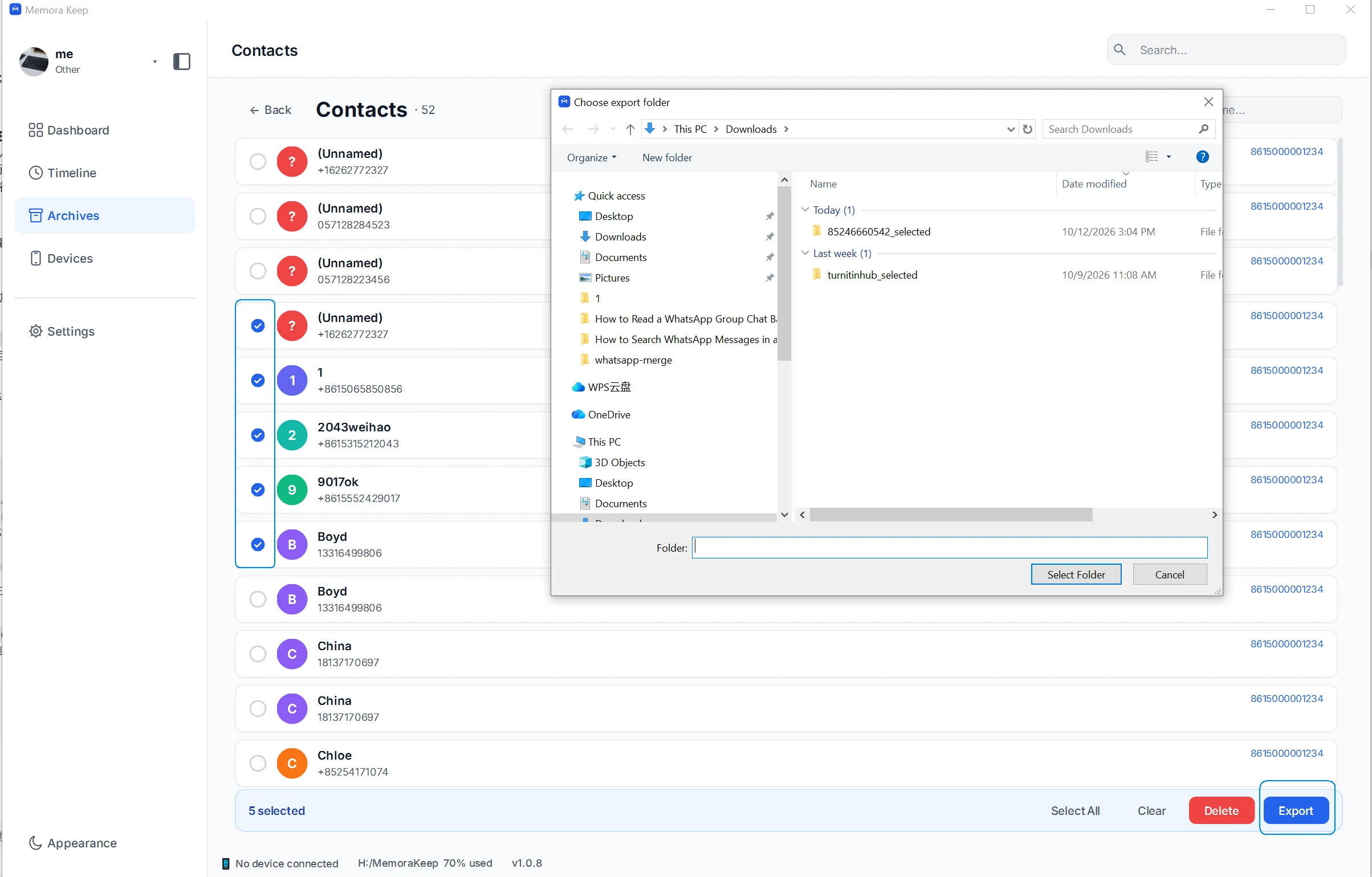
Memora Keep writes the selected contacts into one VCF file. Its name includes the export date and time, such as Contacts_20261012_153123.vcf.
You do not need to save each person in a separate file.
4. Open the file and check the details
Open the VCF with a compatible contacts app. The example below shows a contact from the exported file in a Windows contact preview.
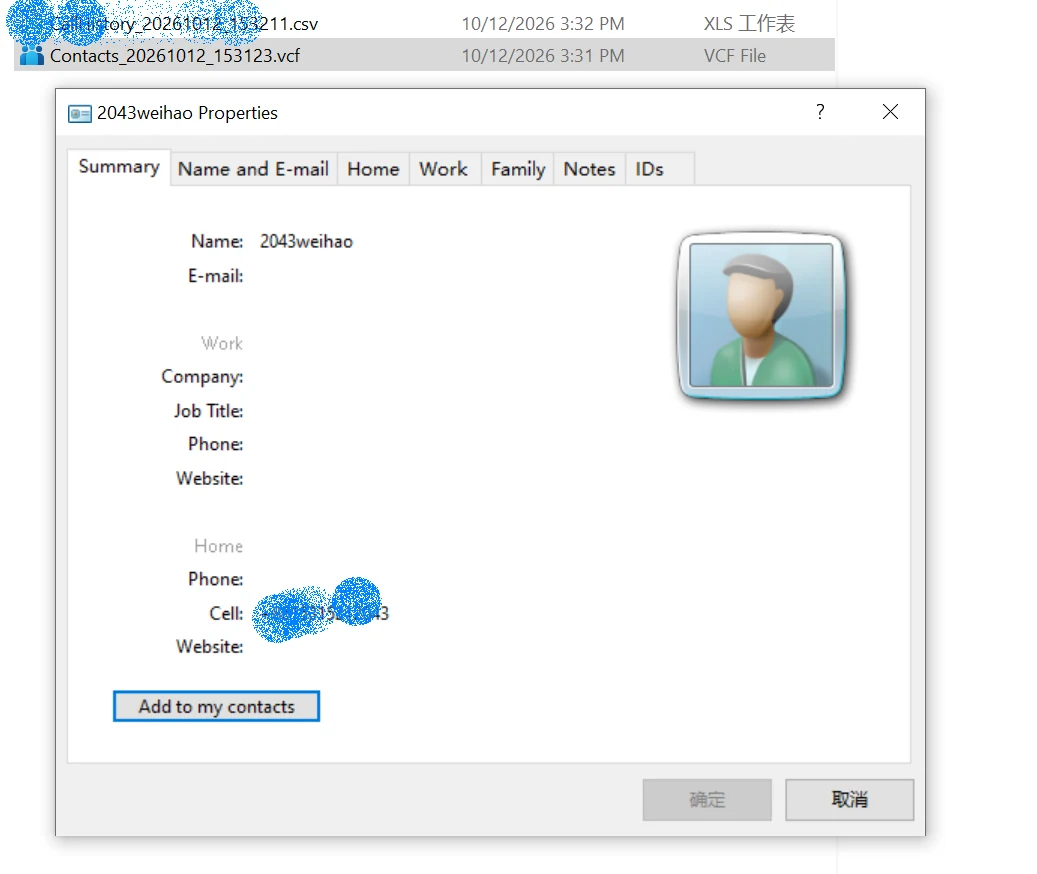
Check the name, phone numbers and email addresses before adding the contacts to another address book. For a contact with multiple numbers, make sure each one appears where you expect it.
The current export writes names, phone numbers and email addresses. Other fields, such as photos, birthdays, notes or custom labels, are not covered by this export.
5. Keep the file or import a checked copy
You can keep the VCF as a separate address book copy or import it into another contacts app.
Before importing into an address book you already use, keep a copy of that address book too. The receiving app decides how to handle matching names and duplicates; a VCF file does not automatically merge them for you.
Common questions
Can I export contacts directly to CSV or Excel?
The current contact export format is VCF.
Will this remove contacts from my iPhone?
No. This workflow reads the imported backup and creates a file on your computer.
Why is a contact or field missing?
First check whether it appears in the imported Contacts list. If the contact is there but a field is missing from the VCF, check whether that field is part of the supported export.
Learn more about contact export.
- iphone backup
- contacts
- vcf