Backup Guides
How to Export iPhone SMS to CSV from a Backup
Export iPhone text messages from a local backup to CSV. Check the time, text, sender and status columns before using the file in a spreadsheet.
3 min read
On this page
An old text conversation is easier to sort and review when you have it in a spreadsheet. Memora Keep can read SMS conversations from a local iPhone backup and save them as CSV files, without restoring the backup to your phone.
You need the backup folder and its password if it is encrypted. The export can only include messages that the backup contains and the app can read.
What you need
-
Memora Keep on a Windows or macOS computer. It is free.
-
A local iPhone backup containing the data you want to read, and its password if it is encrypted.
-
Enough free disk space for the imported data and any files you export.
Import the backup and open your conversation
Choose Import iPhone Backup on the dashboard. Select the backup folder, check the device name and backup date, then start the import. The backup import guide covers the folder selection in more detail.
Open Archives → SMS and select a conversation. Check the contact and a few messages before exporting.
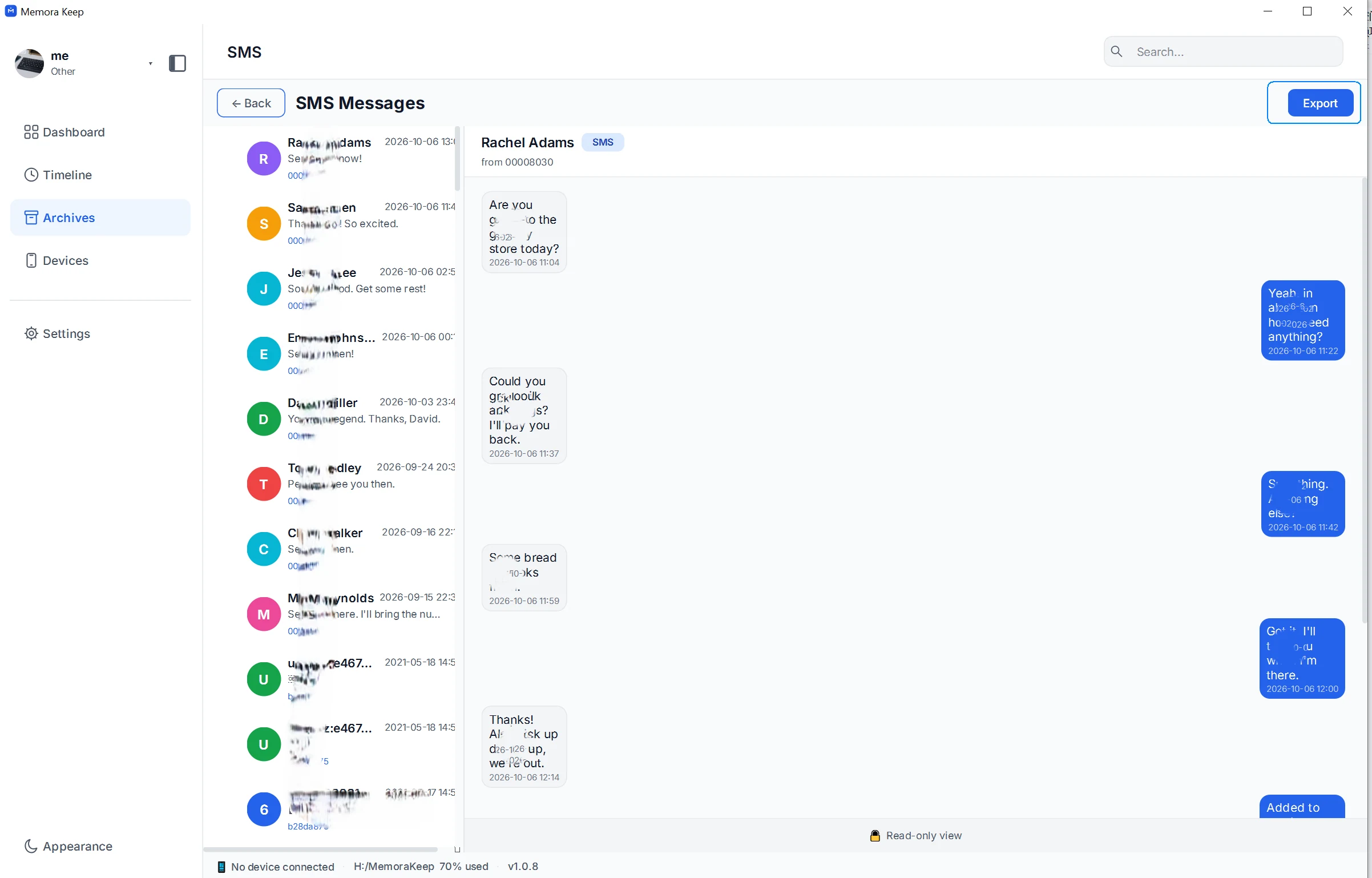
The screenshot shows the current conversation ready to export. If you select several conversations using the conversation checkboxes, the app saves a separate CSV for each one.
Export the conversation
Click Export, then choose a folder you can find again. With no conversations checked, the app exports the conversation currently open.
Read the completion message and compare the number exported with the number you expected. Each filename starts with SMS_ and includes the contact name and export time. That filename time tells you when the file was made, not when the messages were sent.
Understand the four columns
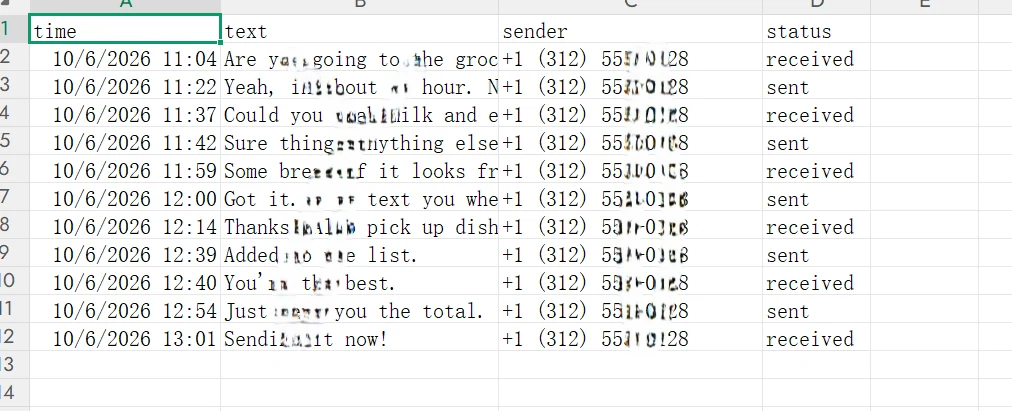
| Column | What it contains |
|---|---|
time | The displayed message date and time |
text | Message text, with line breaks replaced by spaces |
sender | The conversation partner’s number, or display name if no number is available |
status | sent or received, relative to the backed-up phone |
Despite its name, the sender column identifies the conversation partner on both sent and received rows. Use status to tell which direction a message travelled. It is not a delivery or read receipt.
CSV keeps the text as table rows. It does not preserve chat bubbles or embed message attachments.
Check the file before editing it
Open the CSV in your spreadsheet app. Compare an early message, a recent one, and a sent-and-received pair with the archive.
If text looks garbled, use the app’s text import option and choose UTF-8 encoding. Treat the sender column as text so phone numbers keep their leading plus signs and zeros. Widen columns before assuming a message has been cut short.
Keep the first export unchanged and do any sorting or editing in a copy.
If messages are missing
Check the selected backup, import result and conversation first. Apple notes that messages already synced and stored in iCloud are excluded from computer backups. See Apple’s backup coverage.
A CSV is a readable record, not a file you can restore into the iPhone Messages app. To read messages in their conversation layout, use the backup message viewer.
- iphone backup
- sms
- csv