Backup Guides
How to Export Safari History to CSV from an iPhone Backup
Save Safari history from an iPhone backup as CSV. Export selected records and check page titles, URLs and visit times.
3 min read
On this page
If you remember visiting a useful website on an old iPhone, its backup may help you find the address. Memora Keep lets you browse the Safari history it reads from a local backup and export selected records to CSV.
The file gives you page titles, links and visit times. It does not save copies of the web pages themselves.
What you need
-
Memora Keep on a Windows or macOS computer. It is free.
-
A local iPhone backup containing the data you want to read, and its password if it is encrypted.
-
Enough free disk space for the imported data and any files you export.
Check the backup first
Use a backup from the right iPhone and period. You will need the backup password if it is encrypted. Apple lists website history among the information that encrypted computer backups can include.
An old backup is not a complete record of everything you ever visited. Private browsing, cleared history or records missing from the source cannot be recovered by exporting the list.
Import and find the history
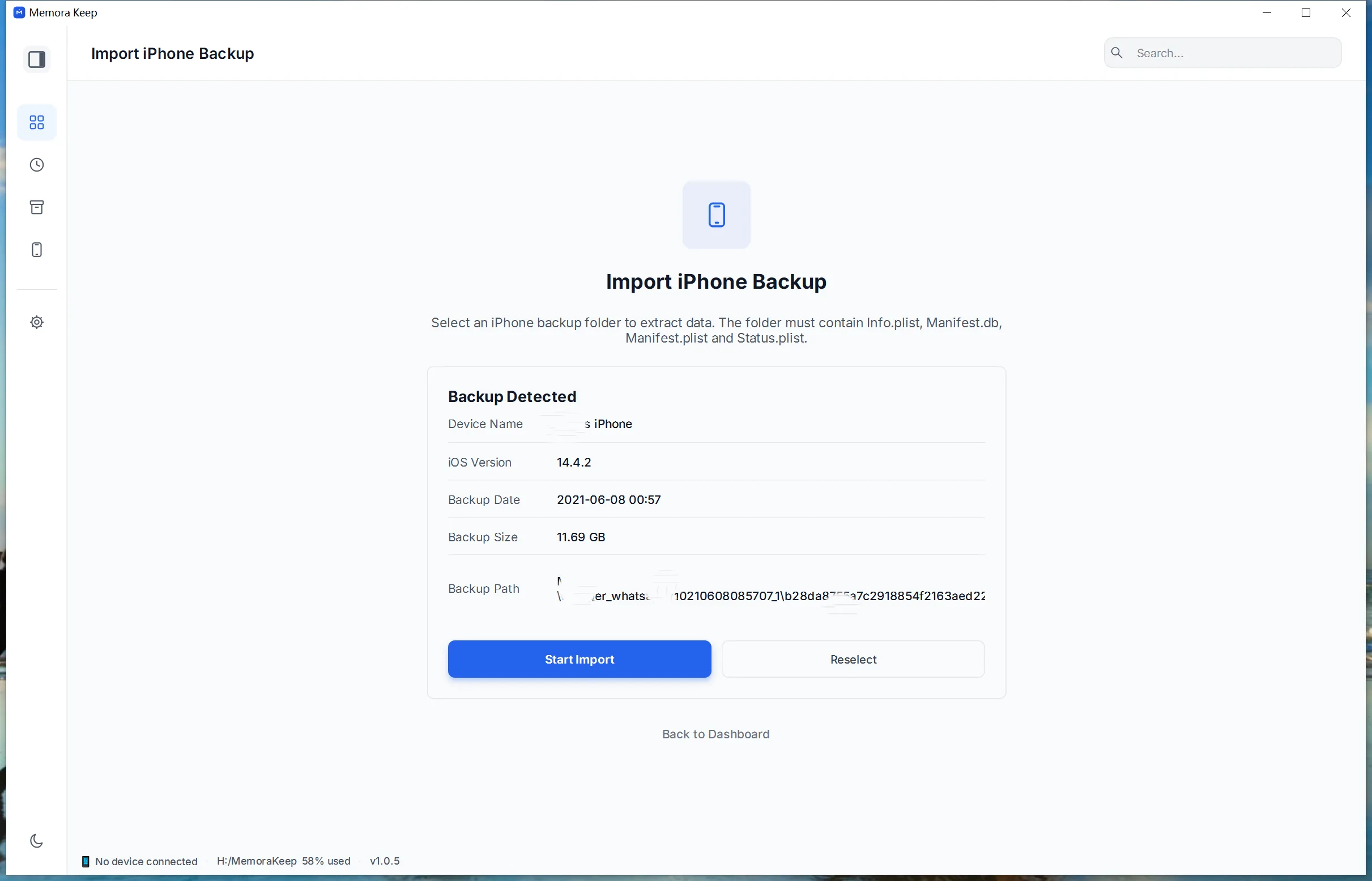
Choose Import iPhone Backup, select the backup folder and check the device details before starting.
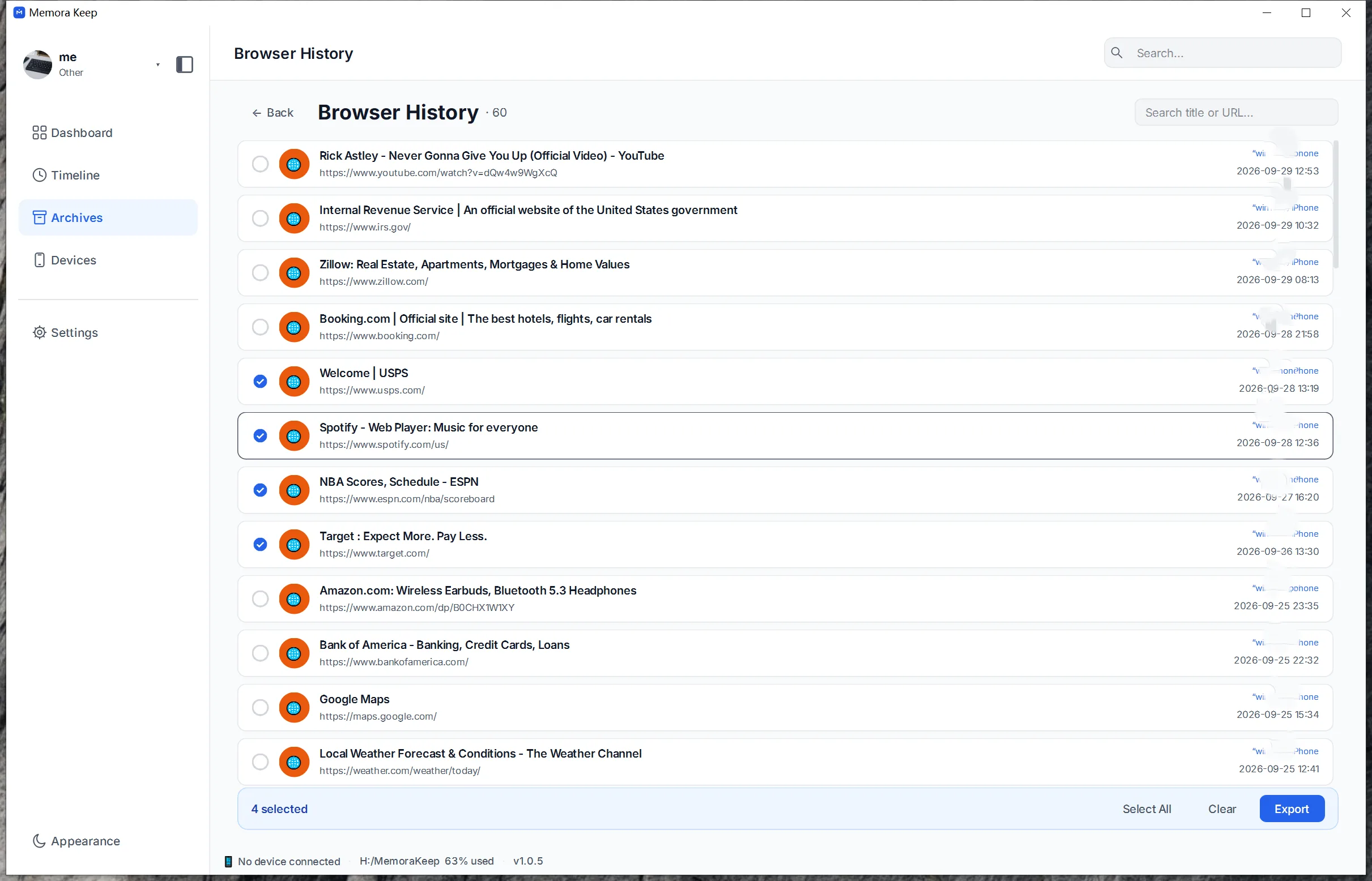
After import, open Archives → Browser History and use the history view. Look for a page title or URL you recognize. Check the visit date and source label so you know you are looking at the right records.
If you need help with the first step, follow the iPhone backup import guide.
Select records and export
Select the history entries you want to keep, click Export in the selection bar, and choose a destination folder.
The output filename begins with BrowserHistory_ and includes the export date and time. That is the file creation time; individual visit times are inside the CSV.
Read and check the CSV
Open the file in a spreadsheet app and widen the columns to see complete titles and addresses.
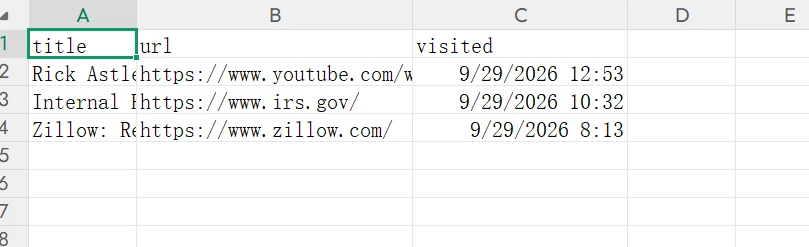
| Column | Meaning |
|---|---|
title | The displayed page title; a domain may appear when the title is missing |
url | The saved web address |
visited | The displayed visit date and time |
Compare a few rows with the history list. The three-row sample above shows the output format; it is a different selection from the interface screenshot.
The export does not include visit counts, page text or a complete event log of every visit. Keep the original CSV before changing date formats or sorting rows.
History and bookmarks are separate
History records pages you visited. Bookmarks are links you chose to save. To find a saved bookmark, use the bookmarks view instead.
Opening an exported URL takes you to the website as it exists now. The page may have changed or disappeared since the visit. If a section of history is missing, check another available backup from that period rather than assuming the export can fill the gap.
- iphone backup
- safari
- csv