Backup Guides
How to Extract Contacts from an Old iPhone Backup
Find contacts in an old iPhone backup without restoring your phone. Check names and numbers, then save the contacts you need as VCF.
3 min read
On this page
You may only need one number from an old iPhone: a former colleague, a neighbour or someone whose details never reached your new phone. If you still have a readable backup containing that contact, you can look it up without replacing your current address book.
Start with the backup from the device and period when you remember using the contact.
What you need
-
Memora Keep on a Windows or macOS computer. It is free.
-
A local iPhone backup containing the data you want to read, and its password if it is encrypted.
-
Enough free disk space for the imported data and any files you export.
Find the right backup
Keep a note of the old phone’s name, the backup date and where the folder is stored. A newer backup may not contain a contact that was removed earlier.
You need the actual local backup, not just the old phone number or Apple Account. If the backup is encrypted, you also need its password.
In Memora Keep, choose Import iPhone Backup and select the folder. Check the displayed device and date before clicking Start Import.
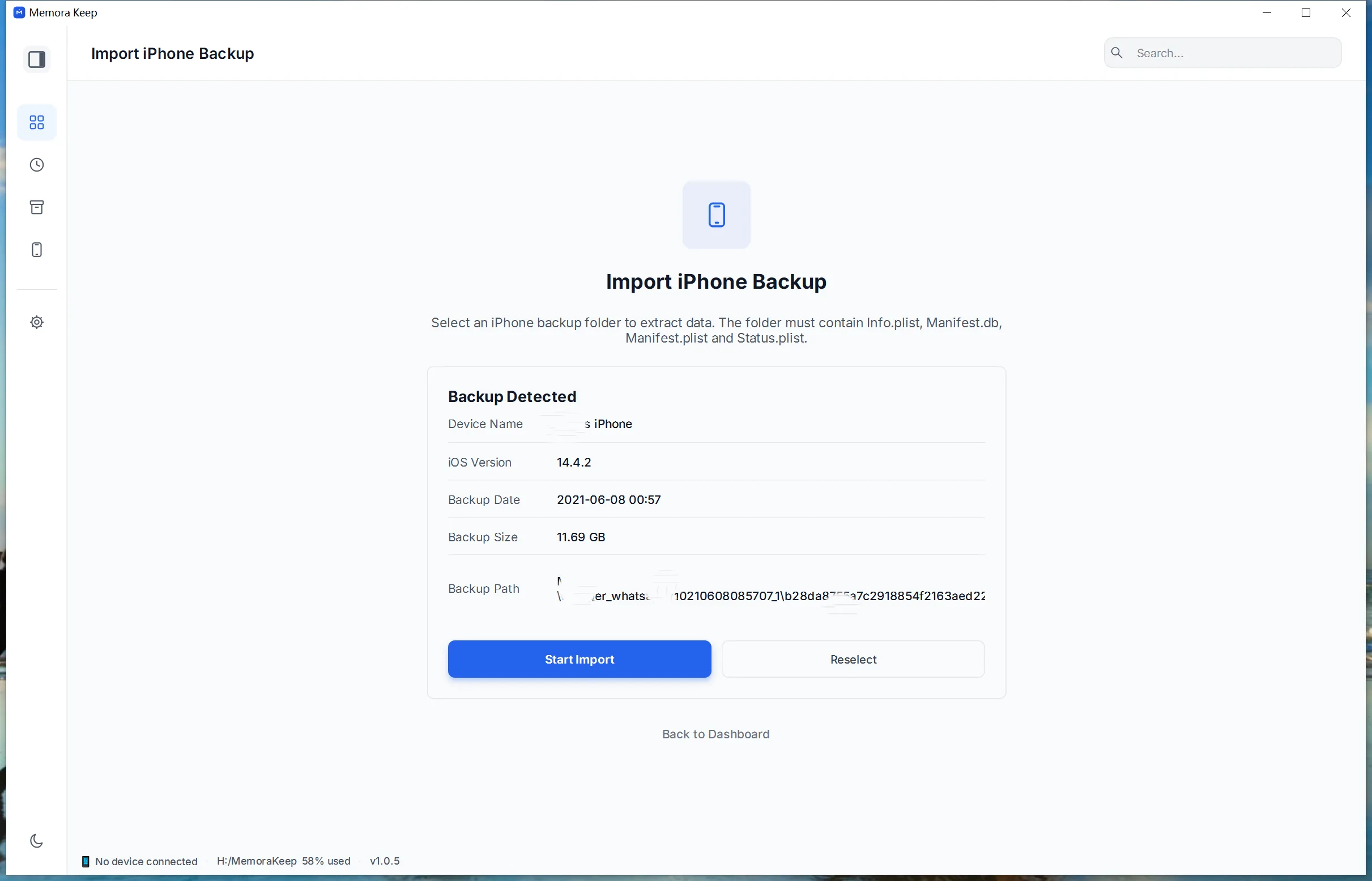
The import guide explains how to choose the folder. Importing reads a local copy; it does not restore the old phone’s contents onto your current iPhone.
Find and verify the contact
Open Archives → Contacts. Look for the name you remember, then check the number and source label.
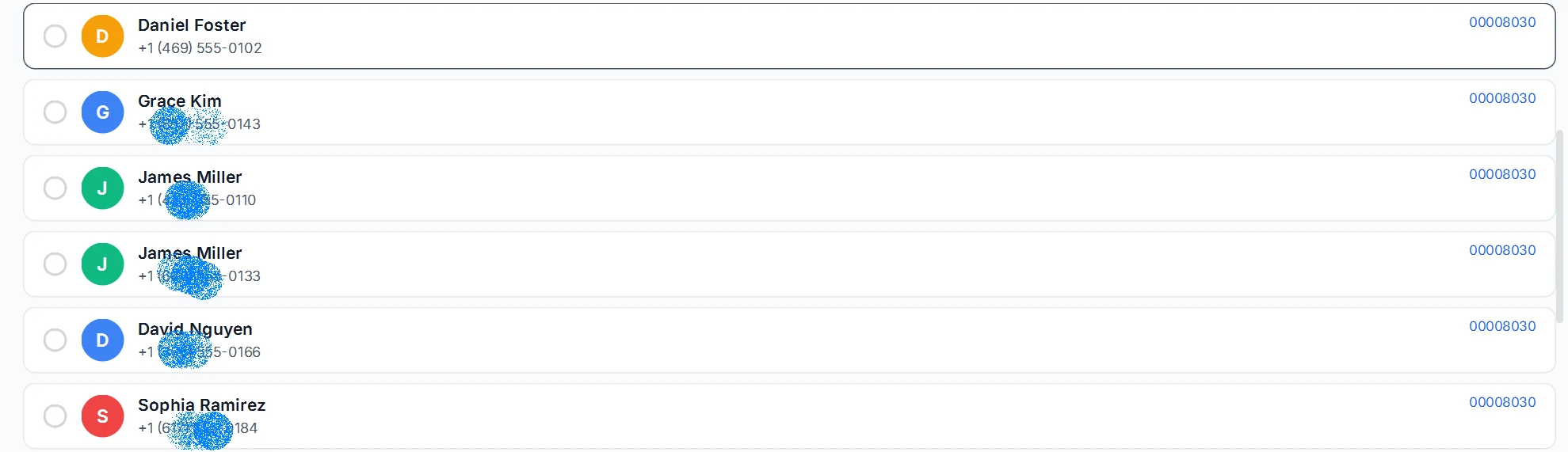
The example has two contacts with the same name. Do not assume they are duplicates, or that either number is still in use by the person you knew. Compare other details you have, such as an email address or the period when you saved the number.
If you need several people, review each entry before selecting them.
Save the contacts as VCF
Select the contacts, click Export and choose a folder. Memora Keep saves the selection in one VCF file, a format that contact apps can import.
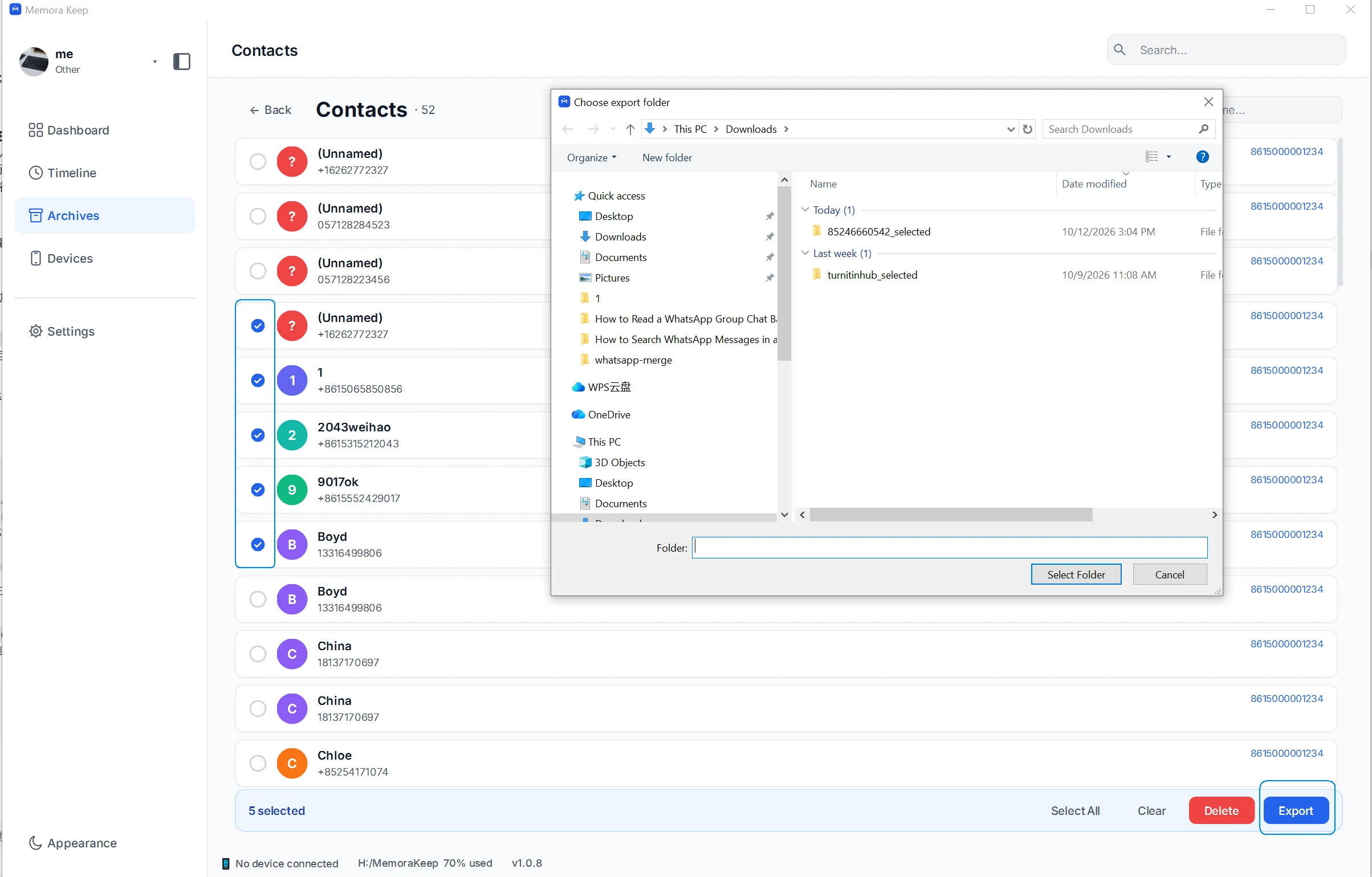
The current export includes names, phone numbers and email addresses. Fields such as birthdays, photos and notes are not part of this export.
For the full workflow, see exporting iPhone contacts to VCF.
If the contact is missing
Check that the import completed and that you chose the expected device and date. The contact might have been added later, deleted before the backup, or kept in another address book that the backup did not include.
If you have another suitable backup, check it too. Exporting cannot recreate a contact that is absent from the imported source.
Review before adding old contacts to your phone
Preview the VCF in the contacts app you intend to use. Check names, multiple phone numbers and email addresses before importing into your everyday address book.
Keep a copy of that address book first. The receiving app controls how duplicates are handled, so importing the same VCF repeatedly may create extra entries.
- iphone backup
- contacts
- old phone