How to Back Up WhatsApp to a Computer Without iCloud
Create a local iPhone backup without using iCloud, import it into Memora Keep and check the WhatsApp conversations it contains.
2 min read
On this page
You can save an iPhone backup on your computer and read its available WhatsApp data in Memora Keep. This uses a local device backup rather than downloading WhatsApp’s iCloud chat backup.
What you need
- Free Memora Keep on Windows or macOS.
- A local iPhone backup containing the chats, plus its password if encrypted.
- To make a new backup: the iPhone, a data cable, authorization to trust the computer and enough disk space.
Create or locate a local backup
Use Finder on Mac or Apple Devices on Windows to create a computer backup. Apple provides Windows backup instructions. Memora Keep also provides an iPhone backup workflow.
If a valid backup already exists, keep its complete folder. Check the device and date rather than choosing by folder size alone.
A device backup has its own coverage limits. Do not assume it contains every item from the phone or all data stored in iCloud.
Import it into Memora Keep
Choose Import iPhone Backup, select the folder and confirm the device details. Enter the backup password when asked, then start the import.
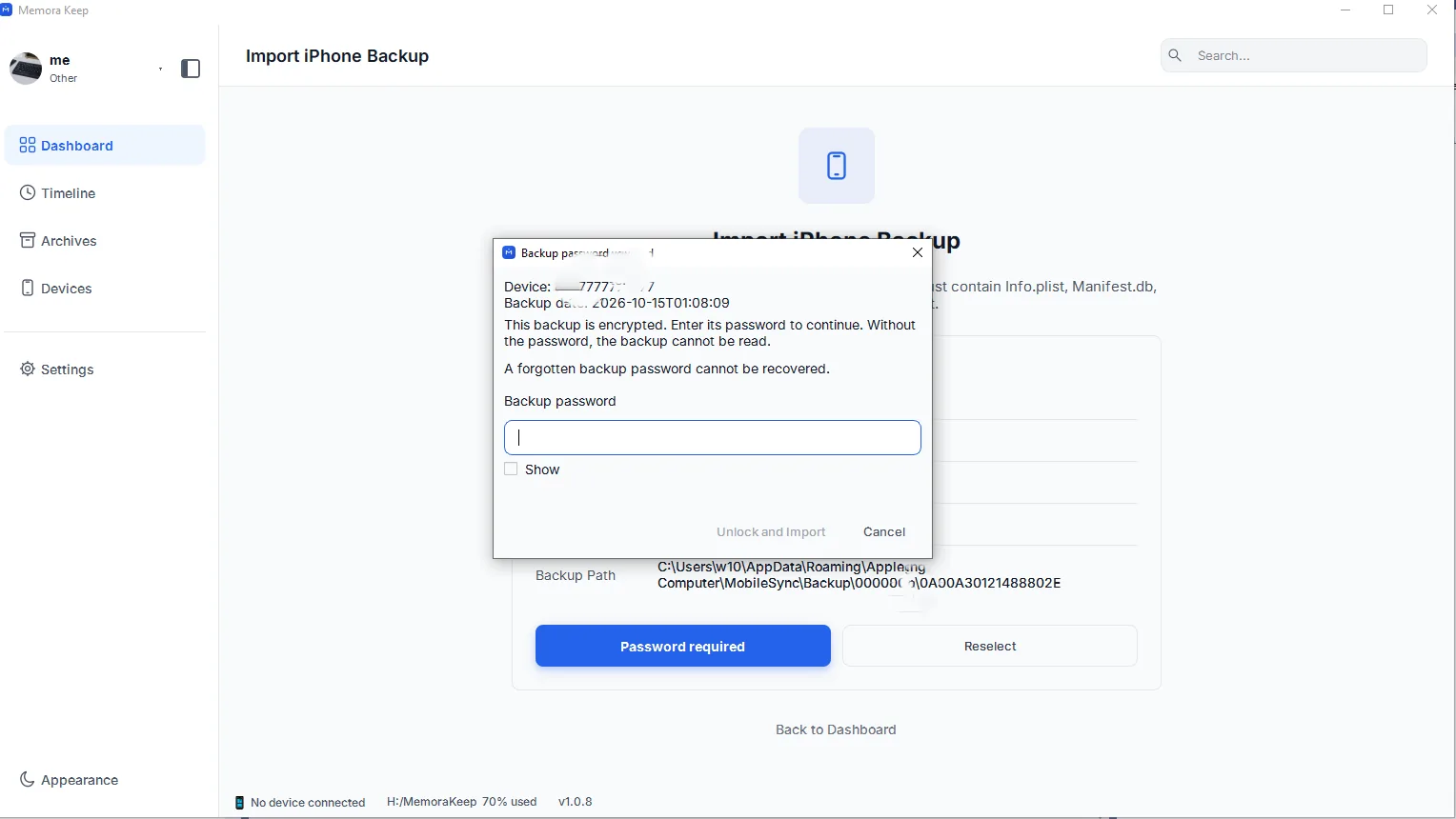
The password is the one used to encrypt the backup. Memora Keep does not bypass it. Read the completion result and any warnings.
Open the WhatsApp account
Go to Archives → WhatsApp and choose the account you expected to import.
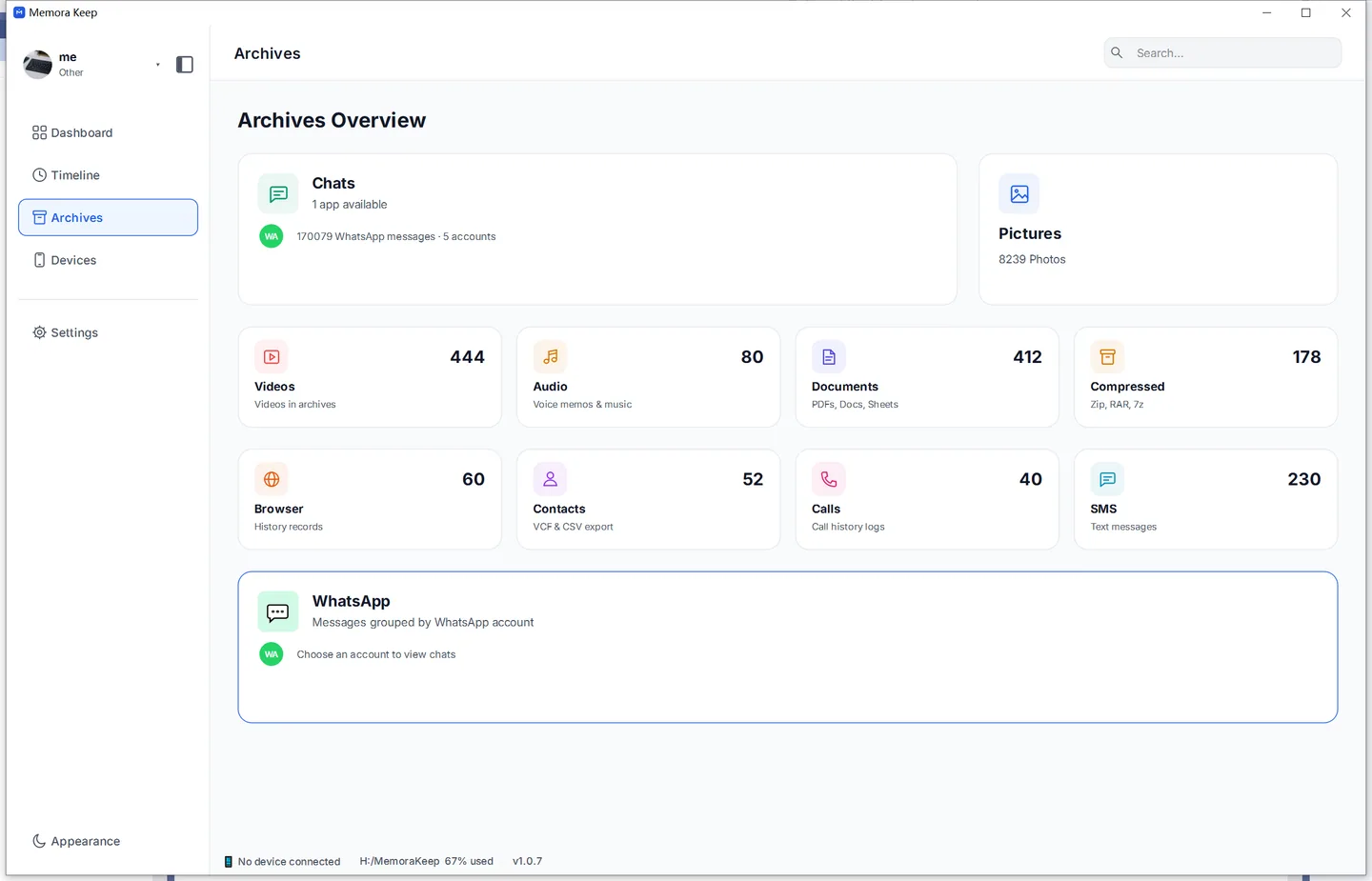
Open a conversation, find an older message and test important media. If content is missing, check the source, backup date and import warnings. A fresh backup may help only if the phone still contains the missing data.
Keep a reading copy
Export important chats as PDF or HTML + Media and check the output separately. Keep the source backup as well.
A local device backup and WhatsApp’s own iCloud chat backup follow different restore processes. This guide covers reading saved data on a computer; it does not establish that either source contains everything required for a particular phone restore.
For folder locations, follow the backup import guide.
- iphone
- local backup
- computer