How to Export a WhatsApp Chat with Media
Export WhatsApp photos, videos, voice messages and documents with a chat. Choose a format, save the package and check the files.
2 min read
On this page
To keep a WhatsApp conversation with its attachments, export it as HTML + Media or PDF in Memora Keep. The app can include available photos, videos, voice messages and documents from your local archive.
What you need
- Memora Keep on Windows or macOS. It’s free.
- The conversation in your local archive. Use the Android WhatsApp backup workflow or import a local iPhone backup first.
- Enough space for the export and its extracted files.
Choose a format
| Format | What you get |
|---|---|
| HTML + Media | A ZIP containing a browser-readable conversation and a media folder. |
| A PDF for reading or printing. When usable media is available, the output is a ZIP containing the PDF and media files. | |
| CSV | Message rows and media references, without the attachment files. |
WhatsApp’s built-in chat export is another option for a text copy with optional attachments. Its packaging depends on the phone and sharing method.
Check attachments before exporting
Open Archives → WhatsApp, choose the account and conversation, then try opening a photo, video, voice message and document that matter to you.
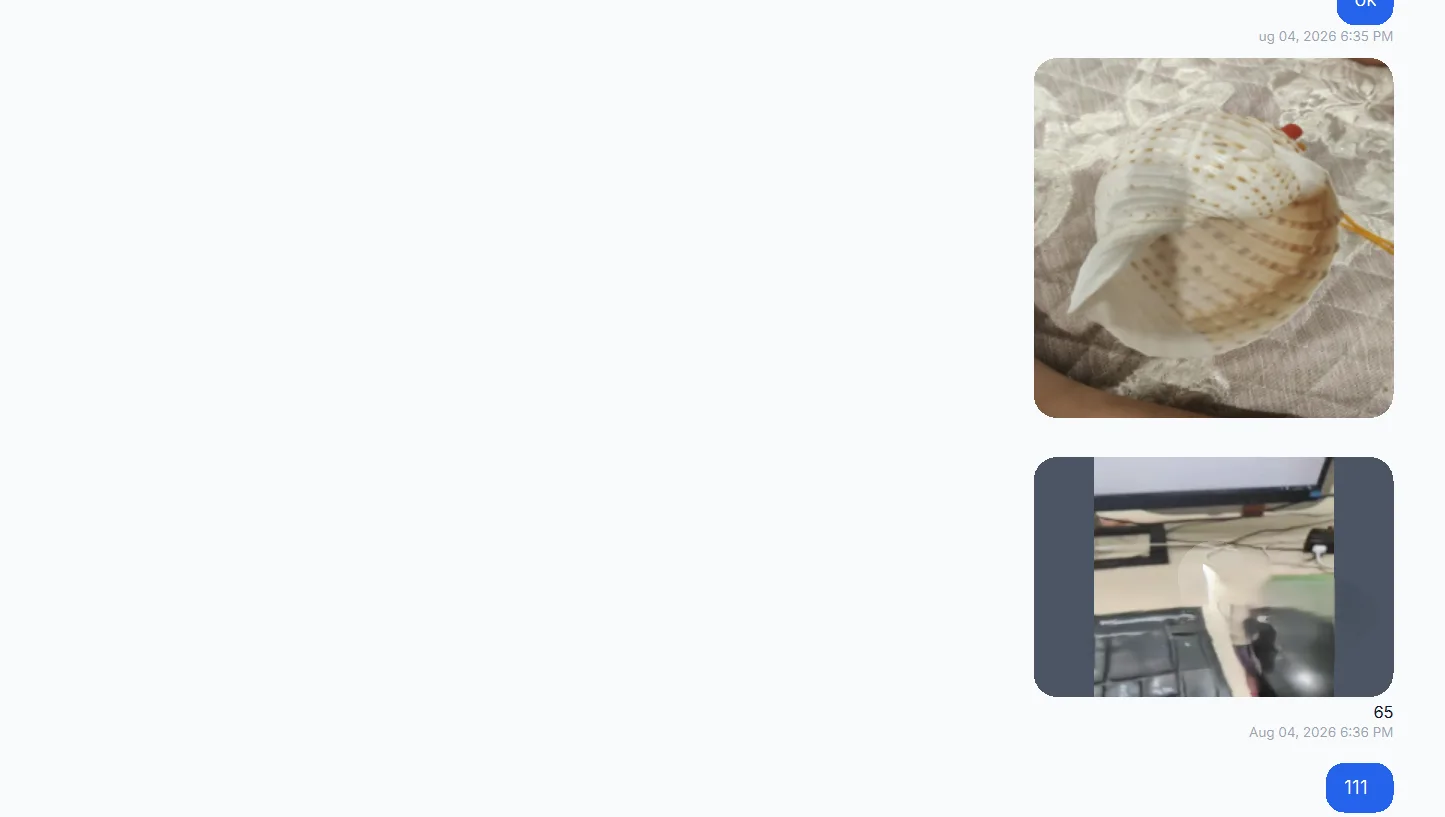
If an attachment will not open, check the source and any backup or import warnings. Missing files, incomplete copying and unsupported formats need different fixes.
Export the chat
Clear any selected messages if you want the whole conversation. Click Export, select the chat, choose the date range if needed, and pick HTML + Media or PDF. Select a destination and read the completion message for warnings.
Extract the ZIP before opening its contents. Keep the HTML file beside its media folder so relative links keep working.
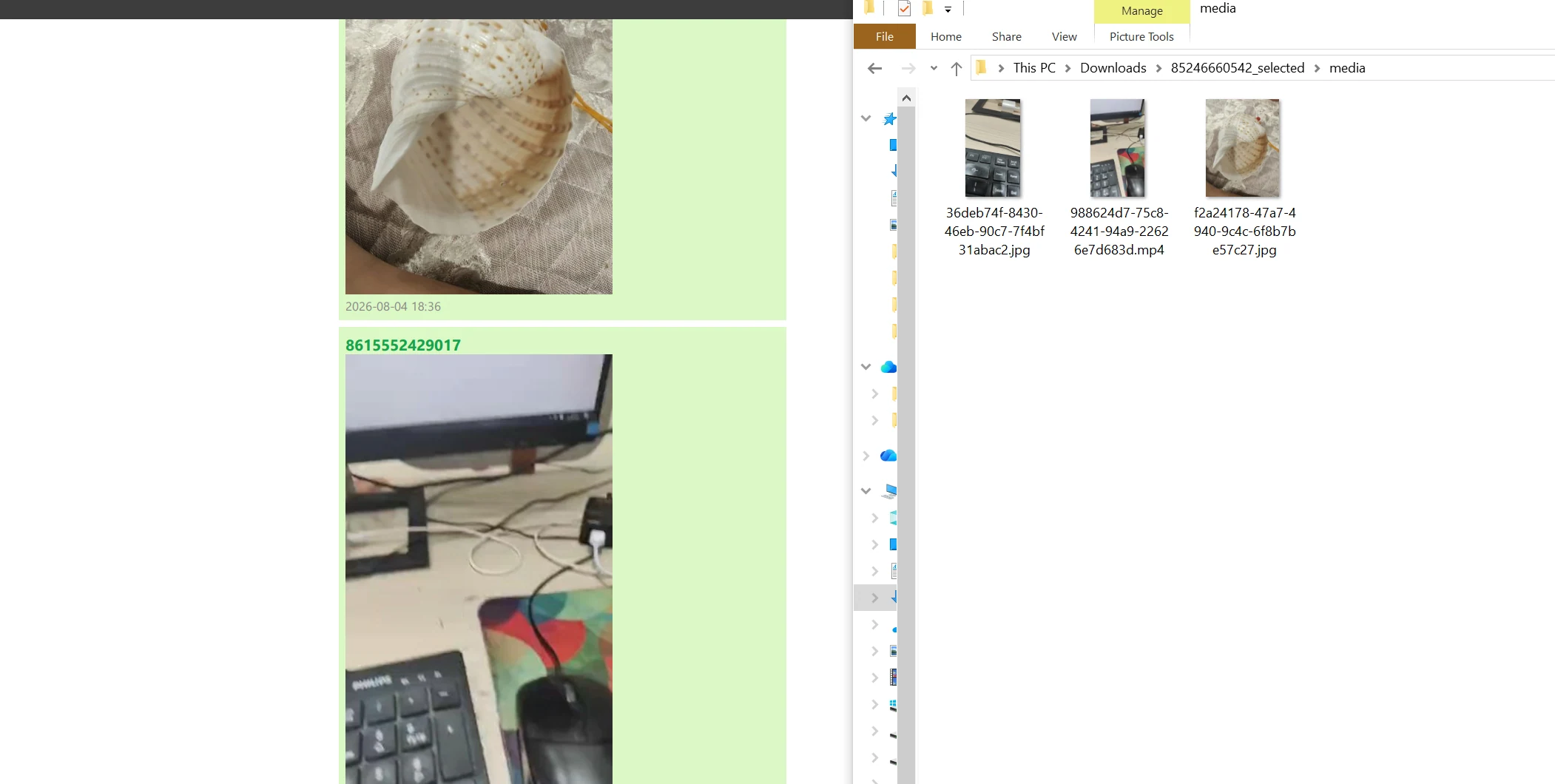
A PDF retains its rendered images when copied alone, but separate videos, audio and documents do not travel inside it. Keep the full package when those files matter.
Check the saved files
Open attachments from the export folder, not just from the archive. If a video fails in the browser, try its file in a local player; that checks the file separately from browser playback.
For unresolved gaps, follow the missing-media checks. For photo captions specifically, see saving photos and messages together.
- export
- media
- attachments