How to Export a WhatsApp Chat with Sender Names and Dates
Export a WhatsApp chat with sender names, dates and times in HTML, PDF or CSV. Use Memora Keep for free, with your data kept on your computer.
3 min read
On this page
When you save a WhatsApp conversation, you’ll want to see who sent each message and when. Clear sender names and dates make it easier to follow, especially in a group chat.
Memora Keep includes those details in HTML, PDF and CSV exports. Here’s how each format displays them, so you can choose what suits your needs.
What you need
- Memora Keep on a Windows or macOS computer. It’s free.
- The chat saved in a local archive (step 1 shows how).
Step 1: Back up your WhatsApp chat to your computer
Memora Keep exports chats from your local archive, so back up the chat first.
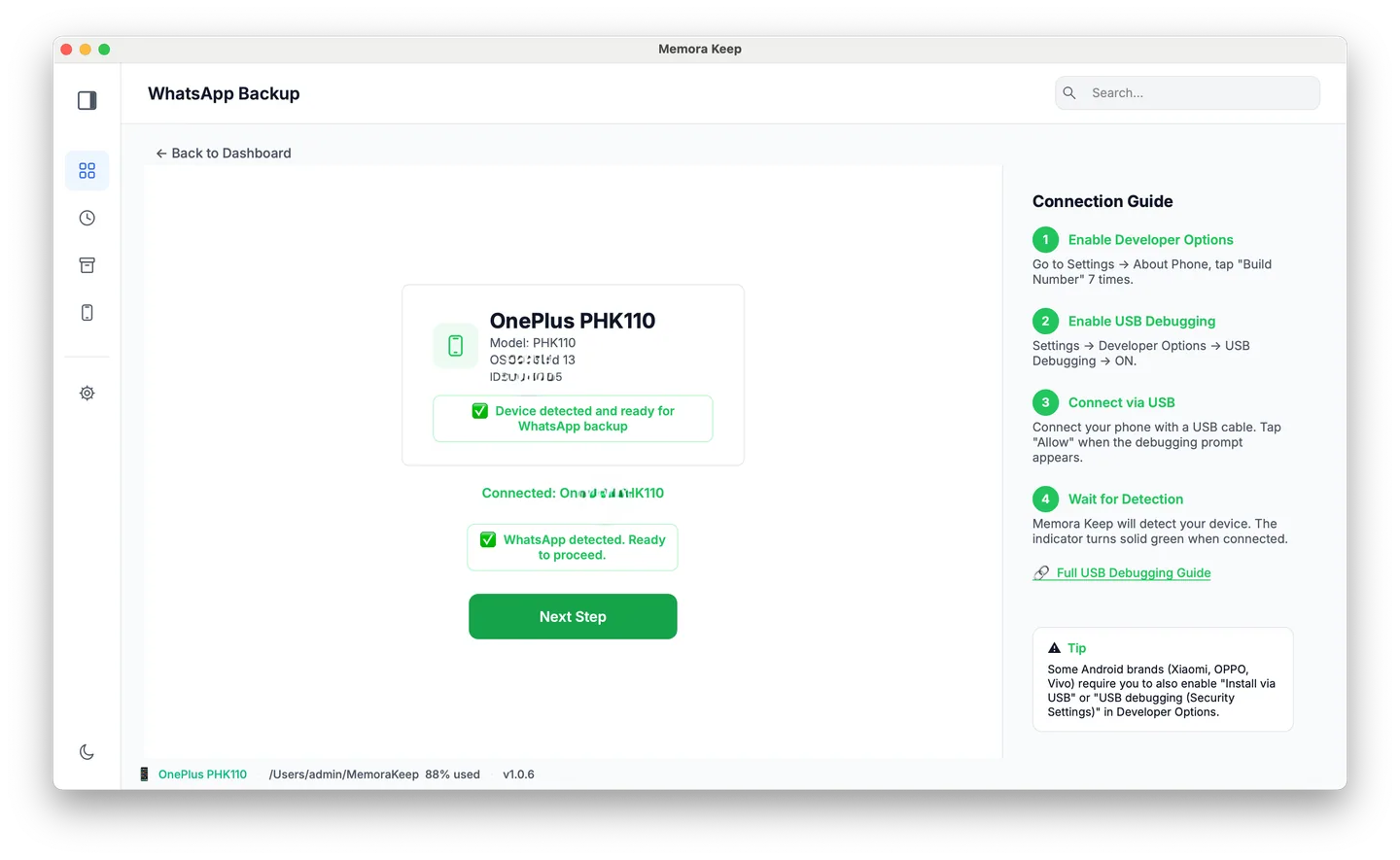
From Android. Connect the phone over USB and back up WhatsApp. Follow the illustrated Android steps, stopping after the backup finishes.
From iPhone. Memora Keep reads WhatsApp from an iPhone device backup. Back up your iPhone first, or import a backup you already have.
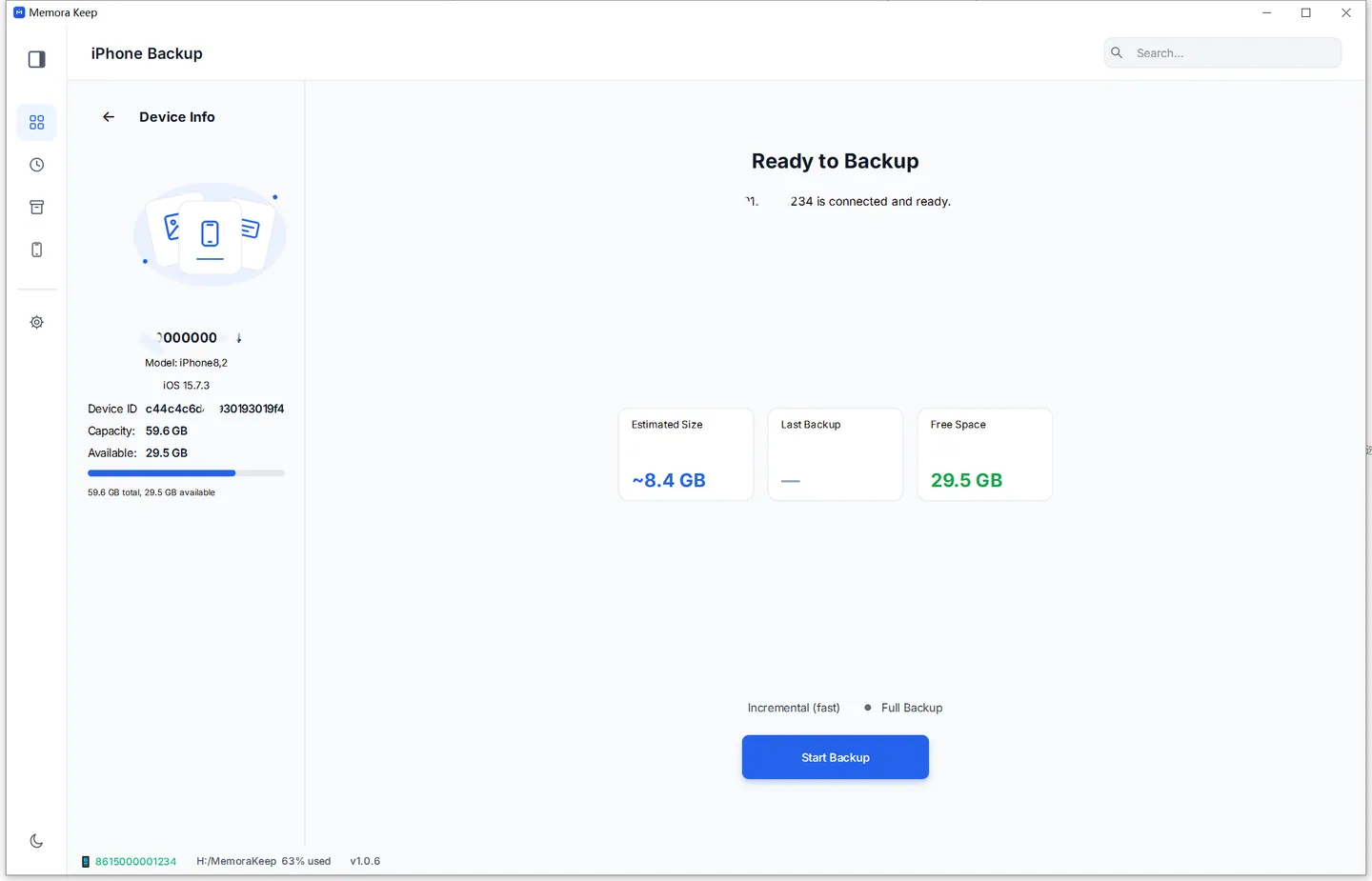
Your data stays on your computer. You don’t need an account, and nothing is uploaded.
Step 2: Open the chat and start the export
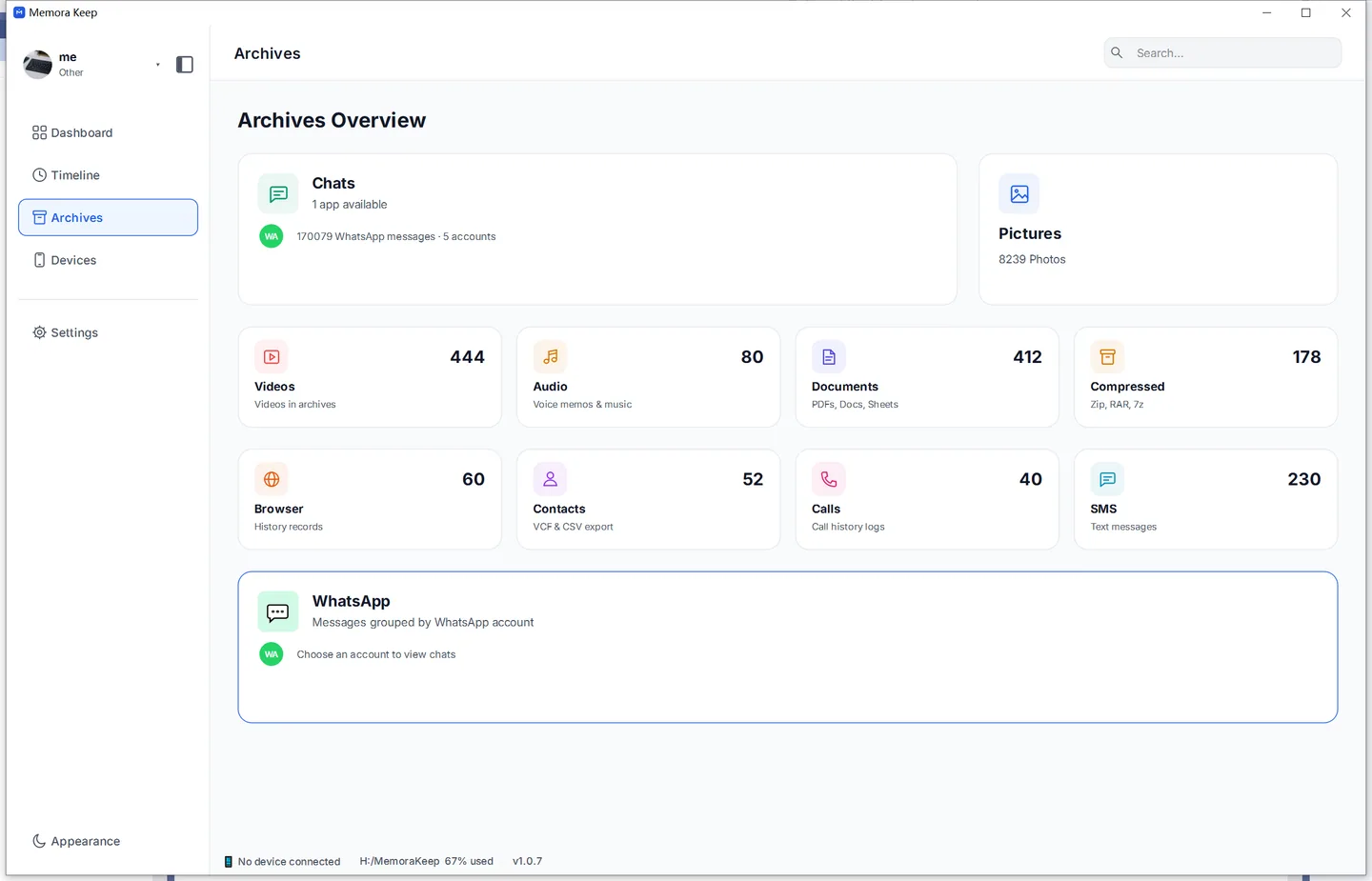
In Archives, open WhatsApp, pick the account, then open the conversation.
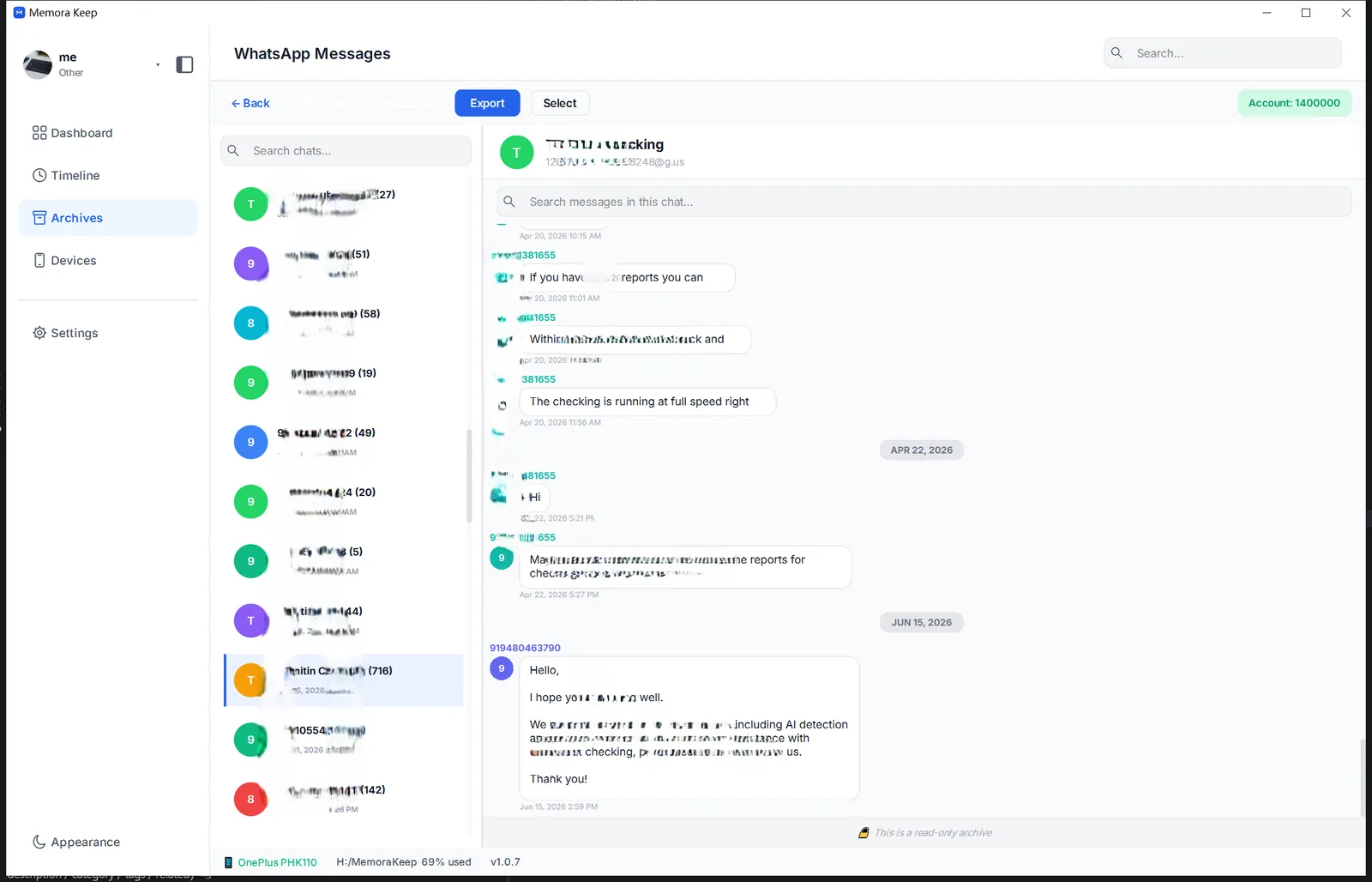
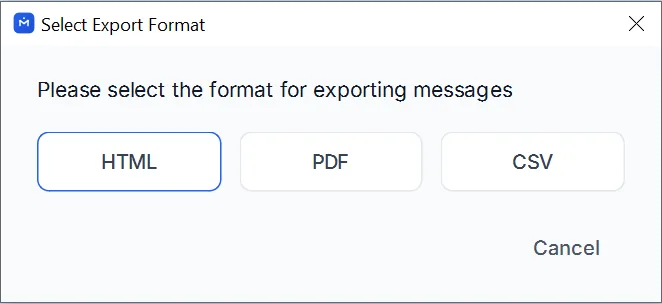
Click Export at the top. Choose from HTML, PDF or CSV. All three include sender names and dates, displayed in different ways.
Step 3: Choose an export format
HTML: read the chat in a browser
Each chat bubble shows the sender’s name, message and timestamp. Photos and videos appear alongside the messages. Open the file in a browser to read the conversation.
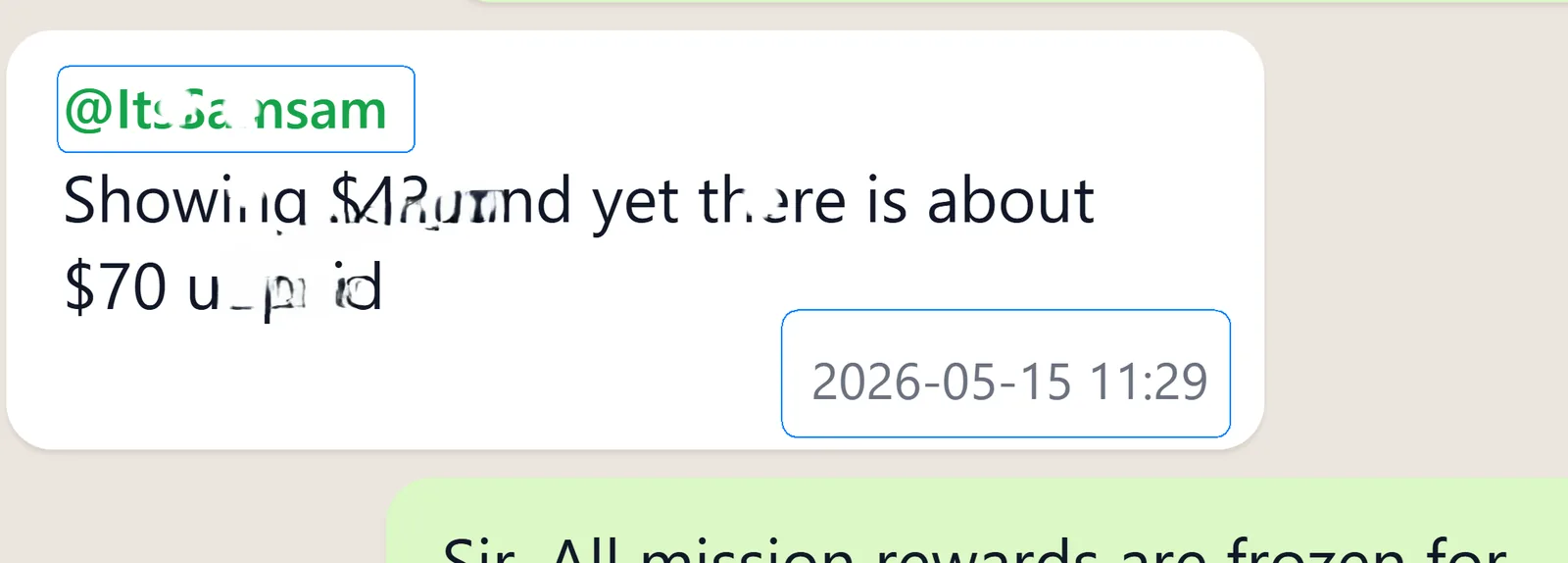
Useful for reading group chats with clear sender names. See the HTML export guide.
PDF: print messages with sender names and dates
PDF uses a similar chat layout, arranged on pages for printing. Each message keeps its sender name and timestamp.
Useful for printing, submitting or attaching a conversation to a report. See how to export selected messages to PDF.
CSV: sort sender names and dates in a spreadsheet
CSV puts each message on its own row, with separate date, sender and text columns. You can sort by sender, filter to one week or count messages per person.
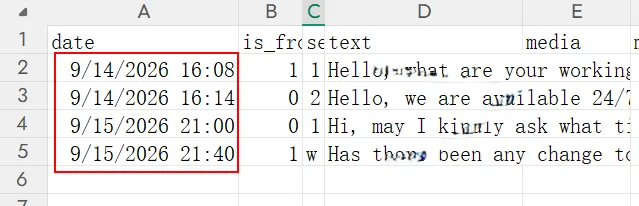
Useful for spreadsheets and analysis. See the CSV export guide.
What about WhatsApp’s own export?
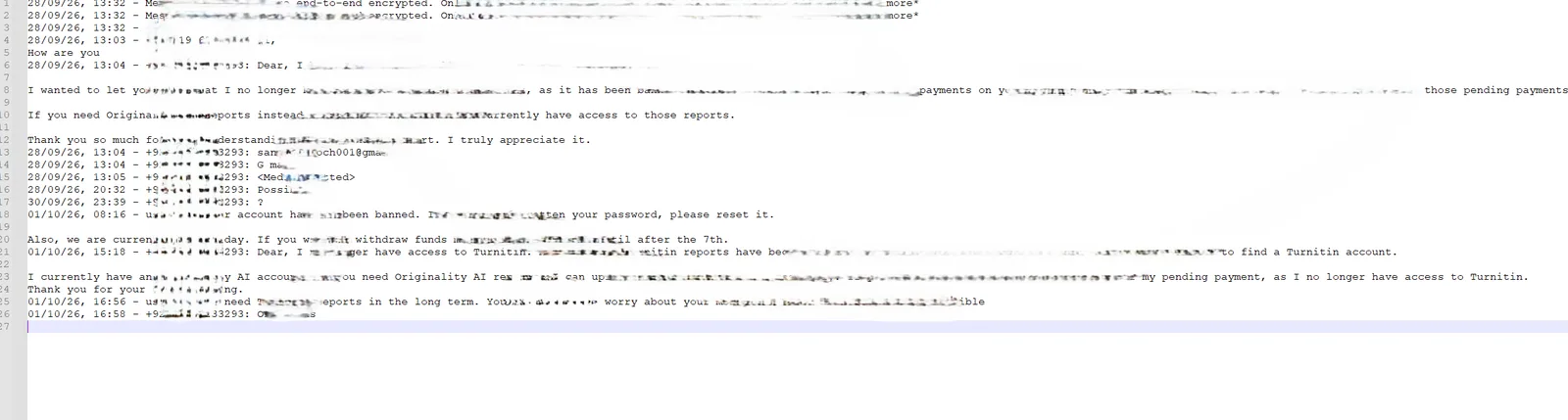
WhatsApp exports a .txt file with the date and sender before each message:
28/09/26, 13:04 - +92 319 6233293: Hi, how are youThe details are included, but a busy group can be harder to follow in plain text. Dates are part of each line, rather than a separate field you can sort or filter.
Good to know
- Exporting creates a copy and leaves your chat and archive unchanged.
- You can set a date range or select specific messages in any format.
- For more help choosing, compare PDF vs HTML or CSV vs TXT.
- sender names
- timestamps
- export