How to Export a WhatsApp Conversation for Printing
Export a WhatsApp conversation to PDF for printing, with sender names, timestamps and photos. Use Memora Keep for free, with your data kept local.
3 min read
On this page
Need a printed copy of a WhatsApp conversation, such as a payment agreement, delivery confirmation or support exchange? Exporting to PDF gives you one document to print.
This guide shows you how to export and print a chat with sender names, dates, times and photos alongside the messages.
What you need
- Memora Keep on a Windows or macOS computer. It’s free.
- The chat saved in a local archive (step 1 shows how).
- A printer, or the “Save as PDF” option if you plan to email the document.
Step 1: Back up your WhatsApp chat to your computer
Memora Keep exports chats from your local archive, so back up the chat first.
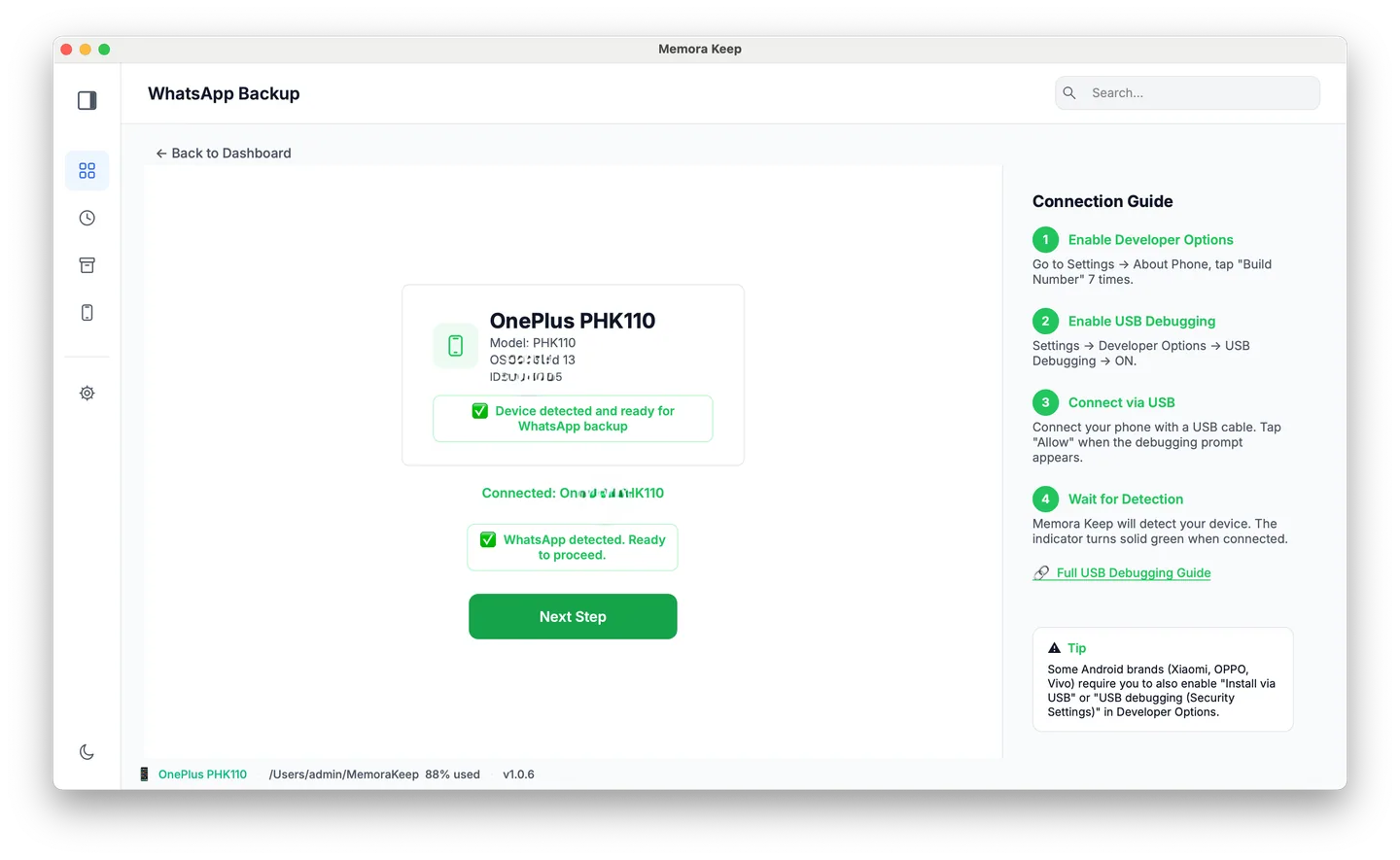
From Android. Connect the phone over USB and back up WhatsApp. Follow the illustrated Android steps, stopping after the backup finishes.
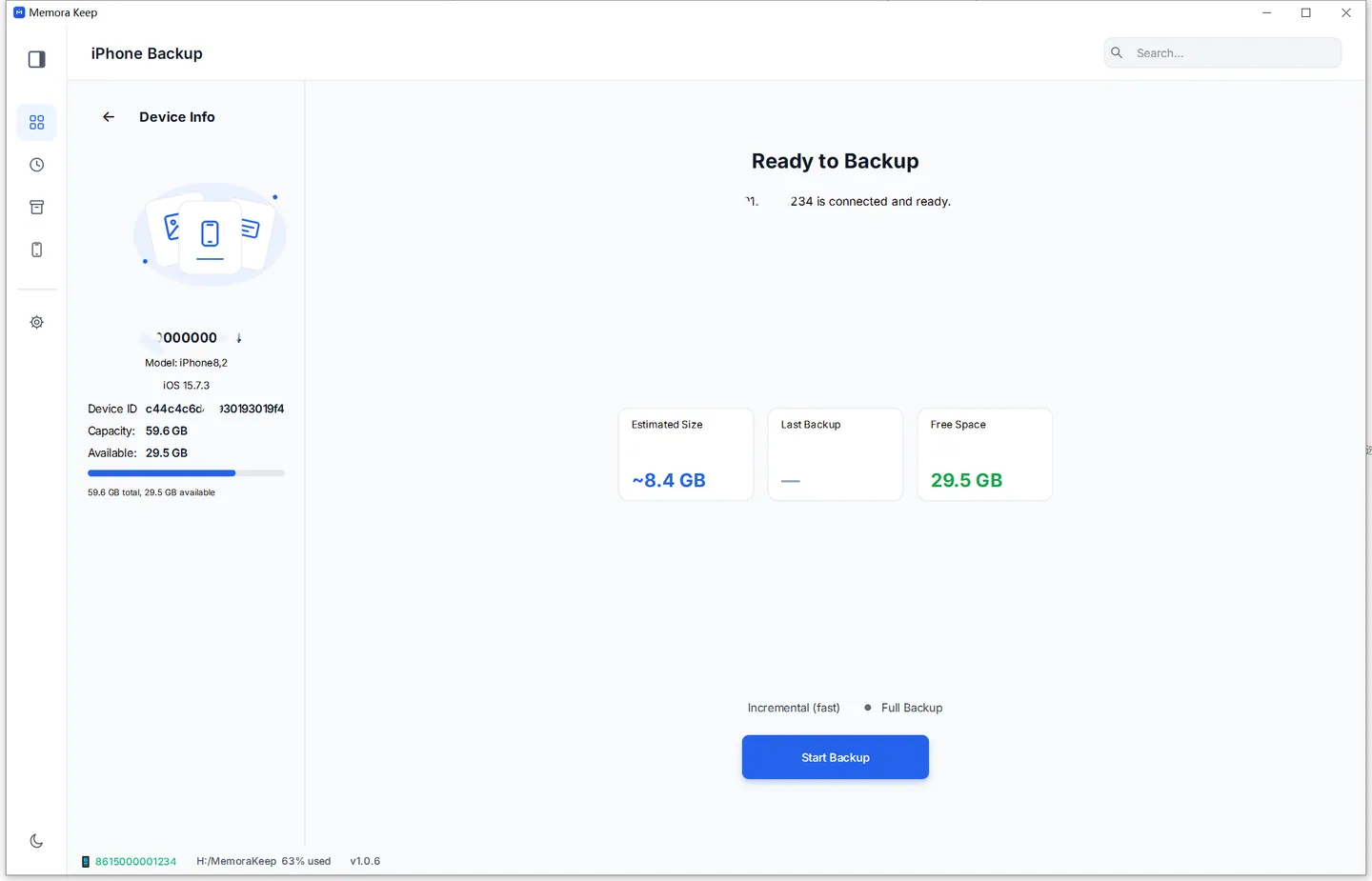
From iPhone. Memora Keep reads WhatsApp from an iPhone device backup. Back up your iPhone first, or import a backup you already have.
Your data stays on your computer. You don’t need an account, and nothing is uploaded.
Step 2: Open the chat and export it to PDF
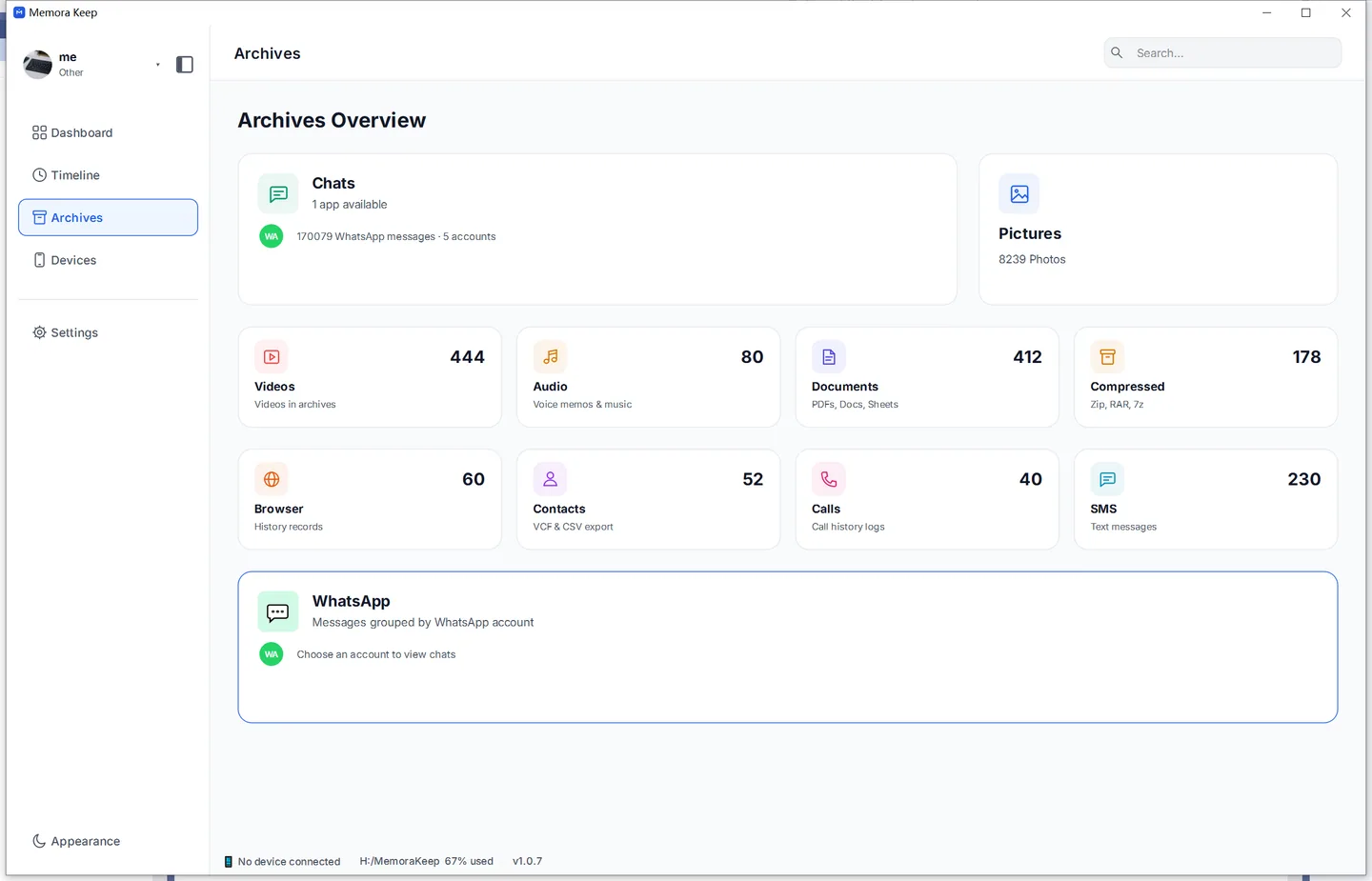
In Archives, open WhatsApp and pick the account. Then open the conversation you need to print.
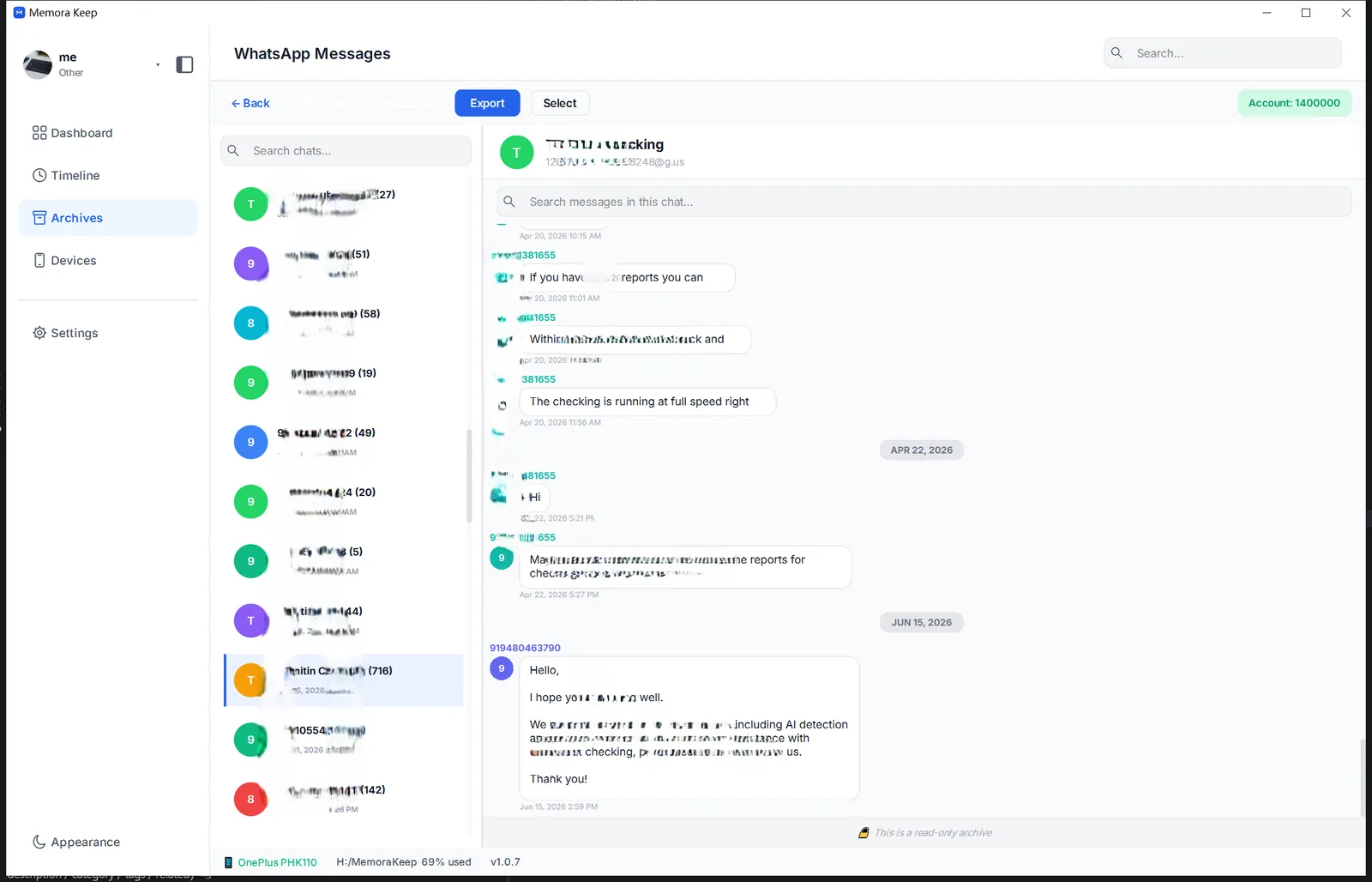
Click Export at the top, and choose PDF in the format dialog.
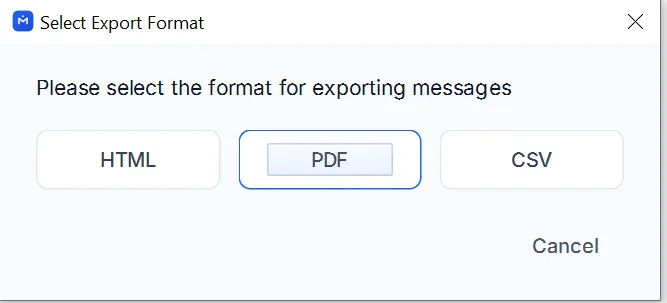
Choose a folder and save. The PDF keeps messages in order, with sender names, timestamps, photos and documents shown in the chat.
Step 3: Print the WhatsApp conversation
Open the PDF and press Ctrl+P (Cmd+P on Mac). The chat is already laid out on pages.
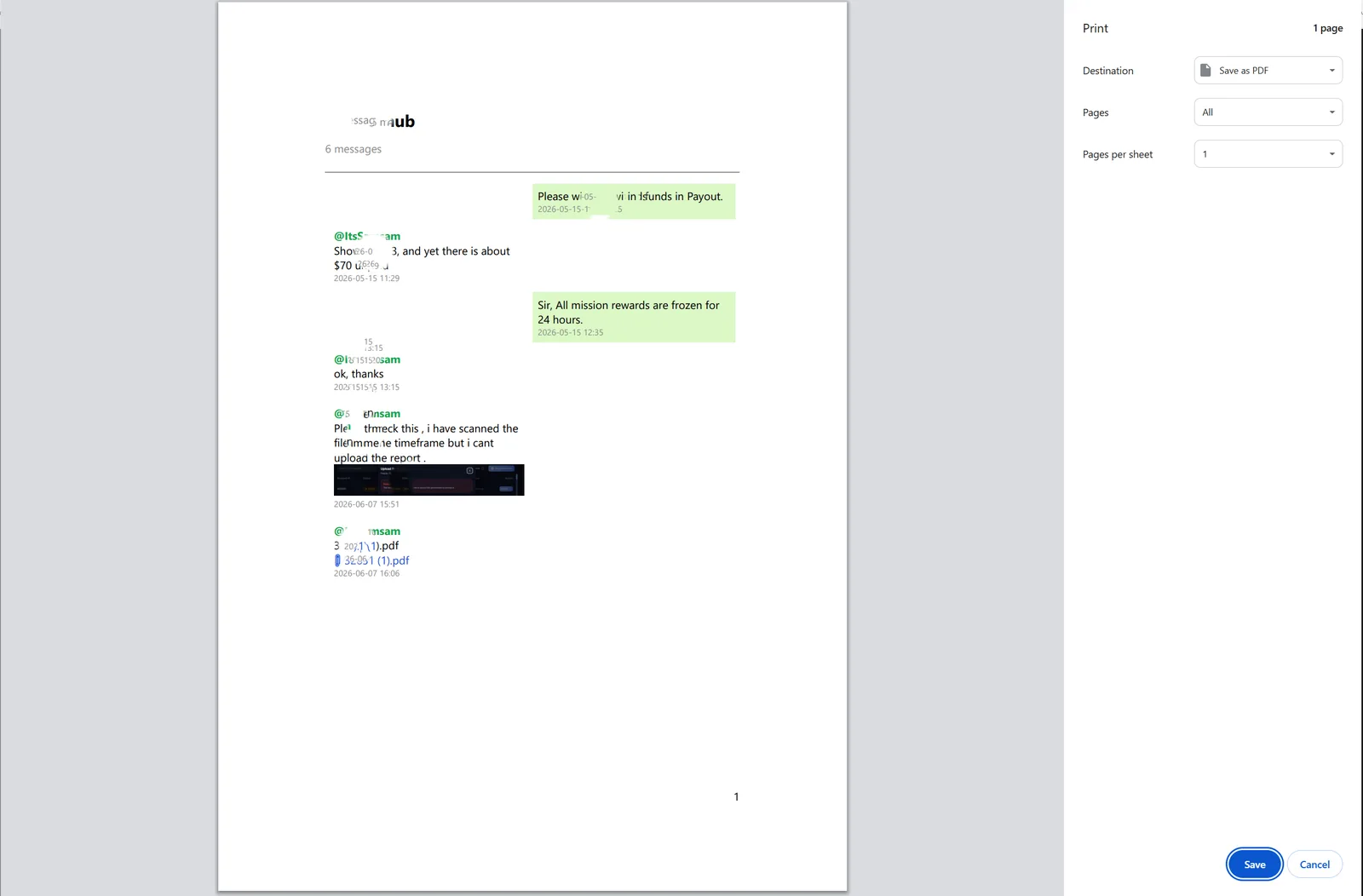
Check these settings before printing:
- Paper: Choose A4 or Letter to match the paper in your printer.
- Margins: Use the default. Choose “Minimum” only if the chat has long messages.
- Color: Keep color if the PDF contains photos, so they’re easier to see.
- Pages: Leave this on “All” to print the whole conversation.
Page numbers make longer chats easier to follow and reference, such as “see page 12”.
Why not print straight from WhatsApp?
You can export from the app — open the chat, tap the top-right menu, More → Export chat — but it gives you a .txt file.
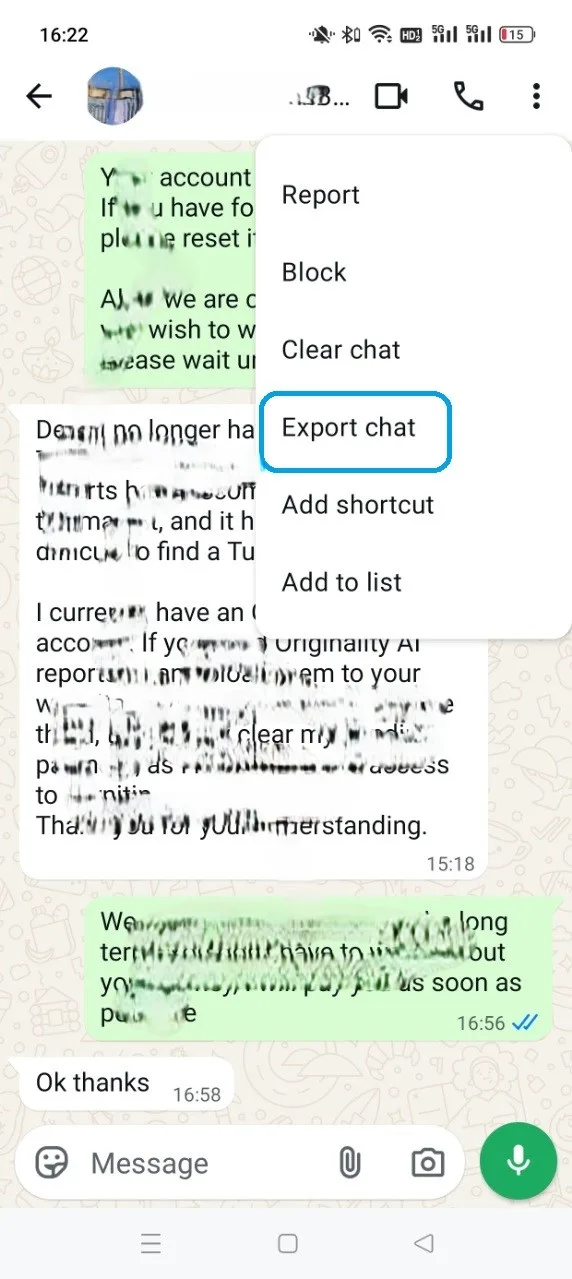
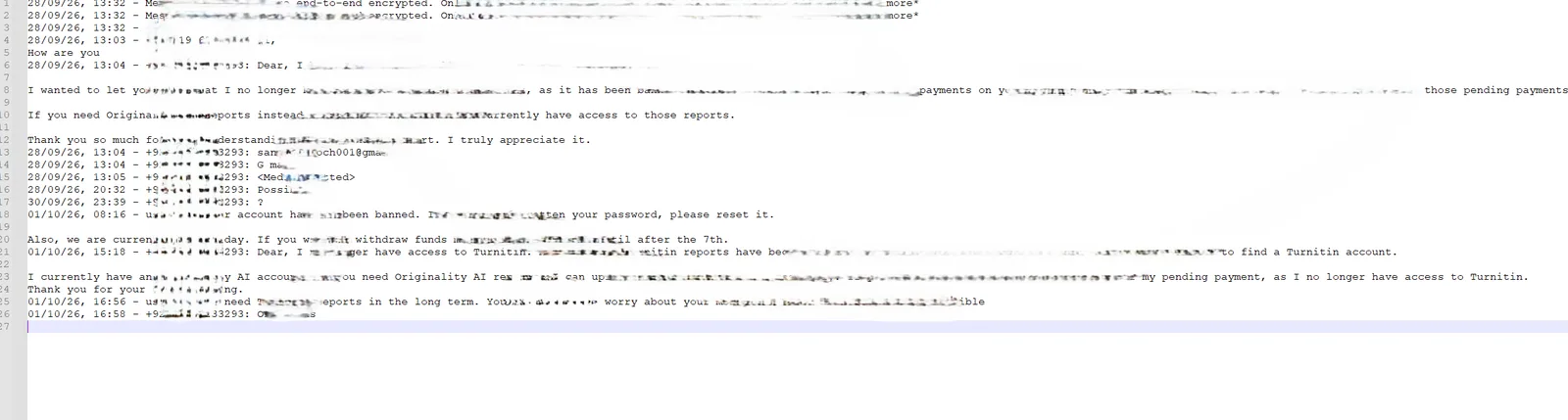
Printing the TXT file gives you plain text, without chat bubbles or photos alongside the messages. A busy group can be harder to follow, and you may need to format the text before printing.
PDF keeps a fixed page layout, making it easier to print.
Good to know
- To print part of a chat, select the messages first and export them to PDF.
- To print a specific period, such as a contract year, filter by date range.
- Exporting creates a copy and leaves your chat and archive unchanged.
- printing
- export