How to Export Selected WhatsApp Messages to PDF
Select the WhatsApp messages you need and save them as a PDF with Memora Keep. Free for Windows and macOS, with your data kept on your computer.
3 min read
On this page
Need to save just a few WhatsApp messages, such as a payment confirmation, an agreement or an address? You can select those messages and export them as a PDF.
This guide shows you how to choose specific messages and create a PDF of only those messages.
What you need
- Memora Keep on a Windows or macOS computer. It’s free.
- The chat saved in a local archive (step 1 shows how).
Step 1: Back up your WhatsApp chat to your computer
Memora Keep exports from your local archive, so back the chat up first.
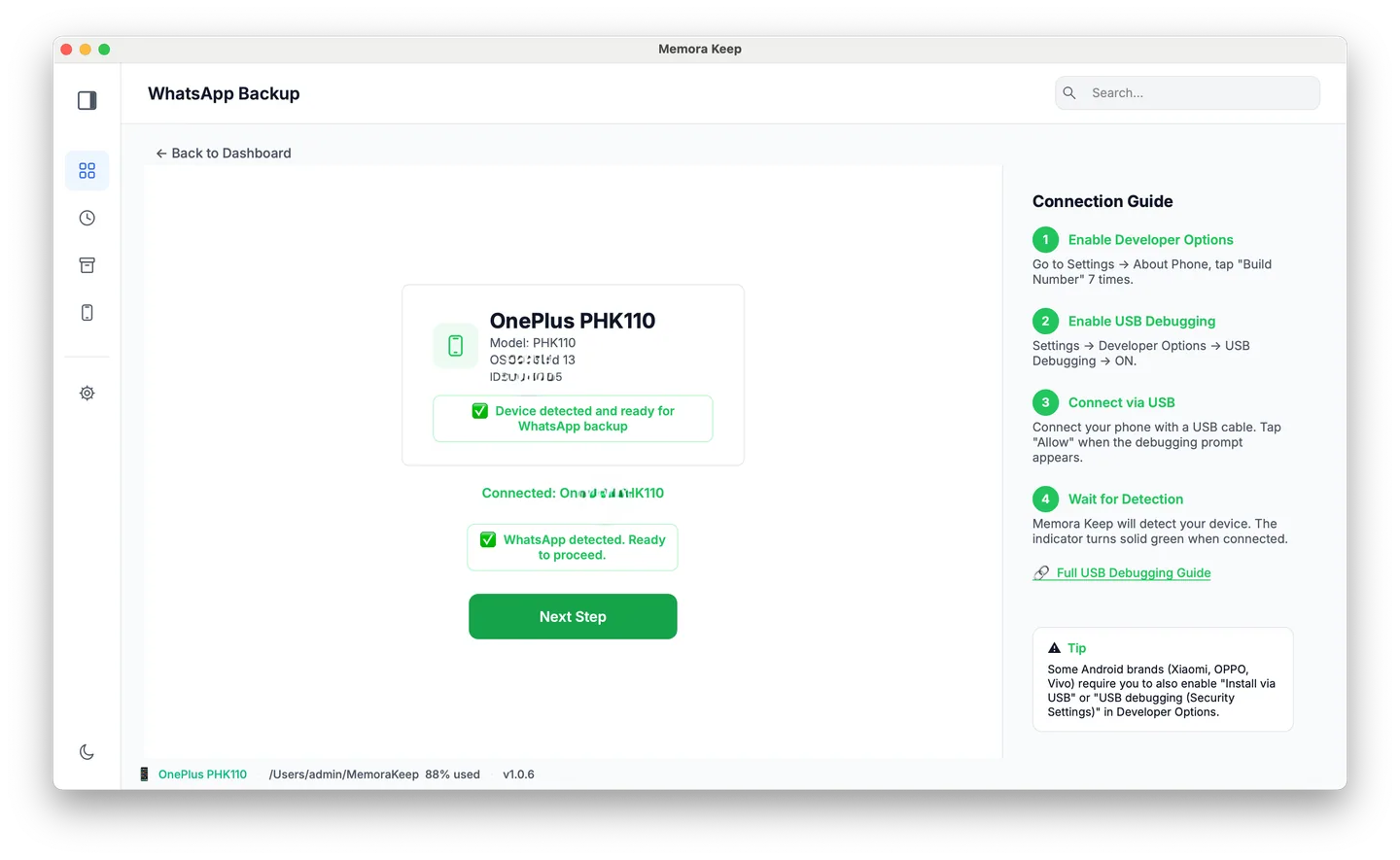
From Android. Connect the phone over USB and back up WhatsApp from it. Follow the illustrated Android steps, stopping after the backup finishes.
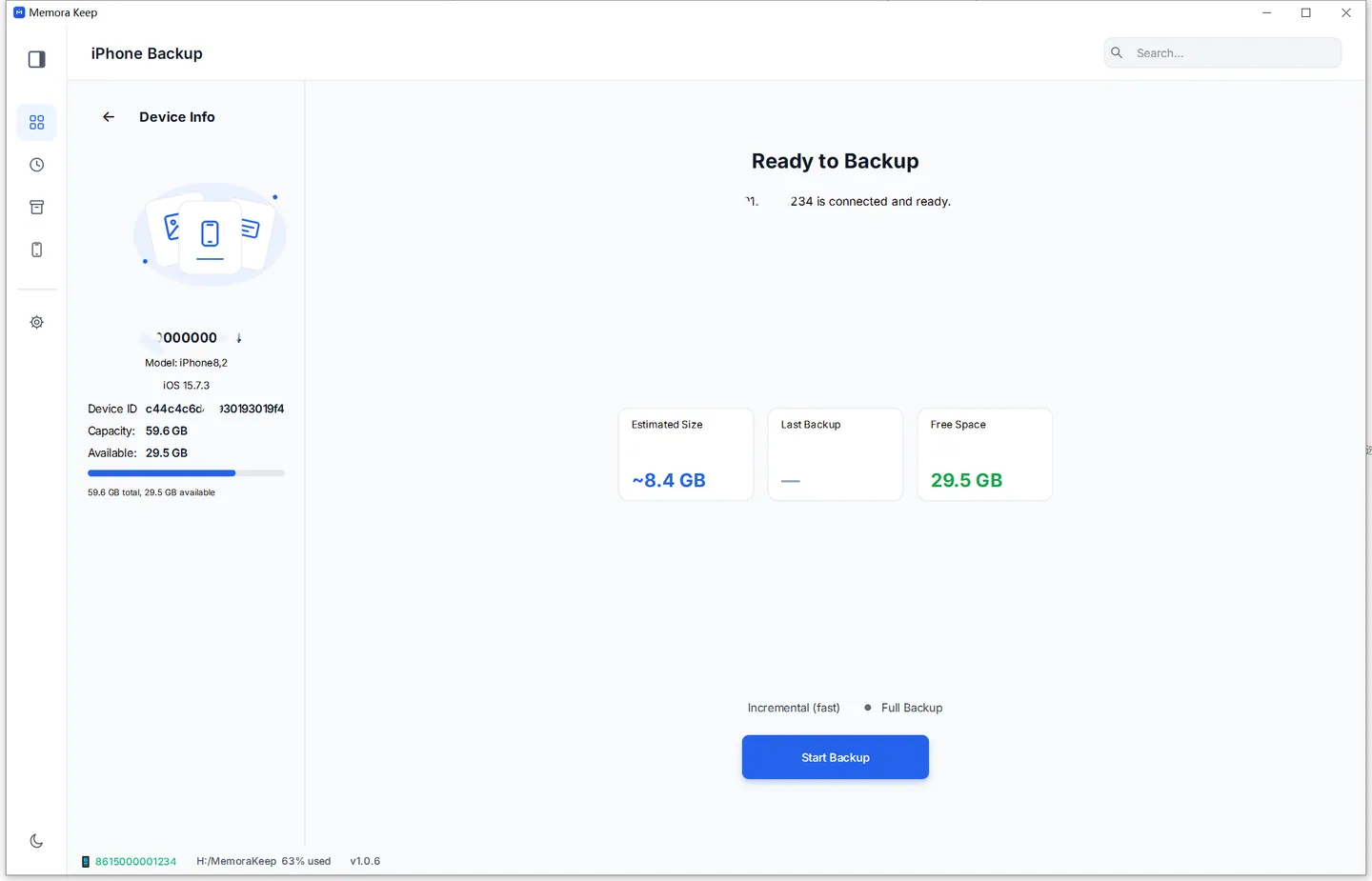
From iPhone. Memora Keep reads WhatsApp out of an iPhone device backup. Back up your iPhone first, or import a backup you already have.
Your data stays on your computer. No account, nothing uploaded.
Step 2: Open the conversation
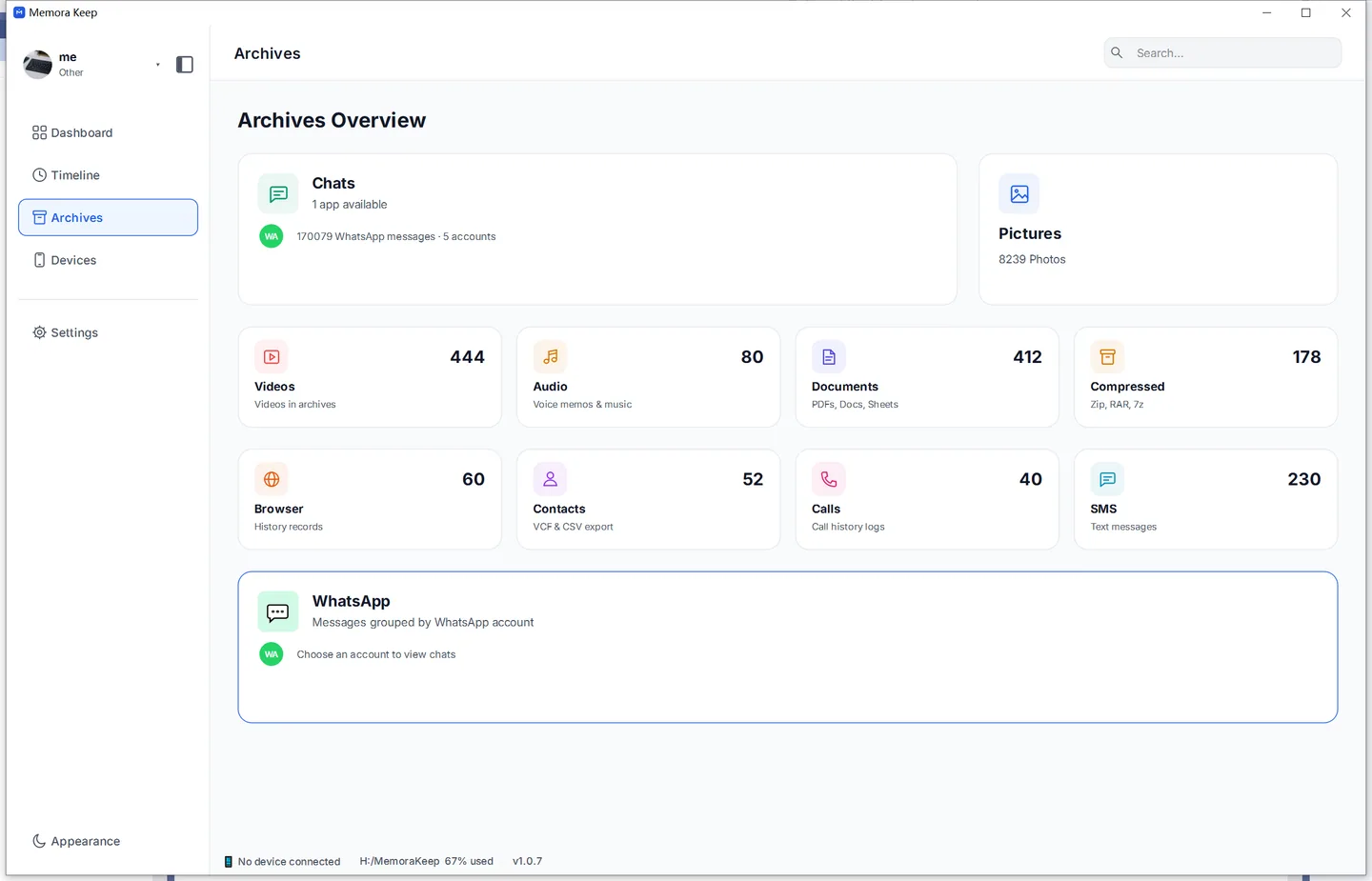
In Archives, open the WhatsApp section, then pick the account if you have more than one.
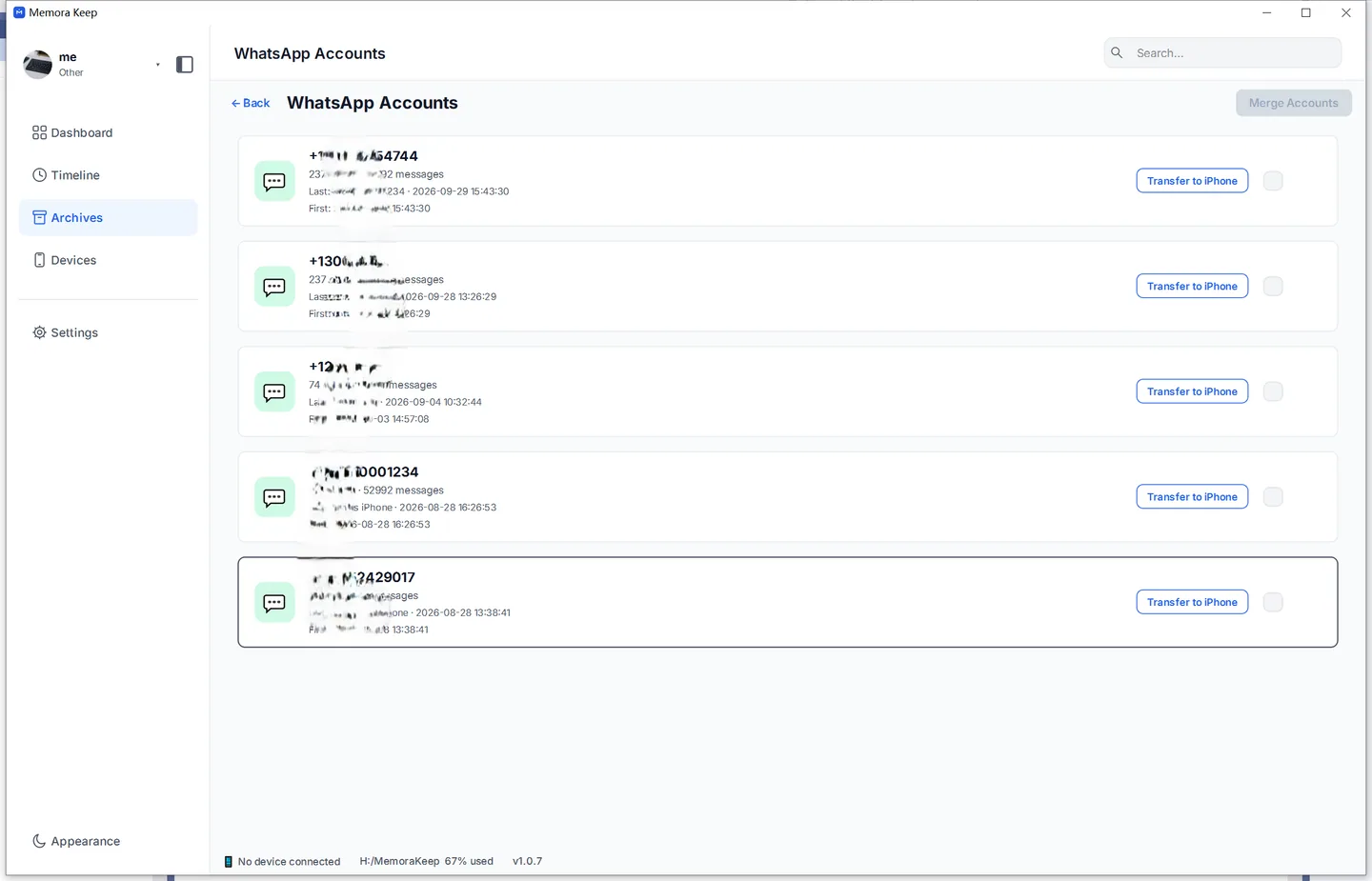
Open the contact’s chat and scroll to the messages you need.
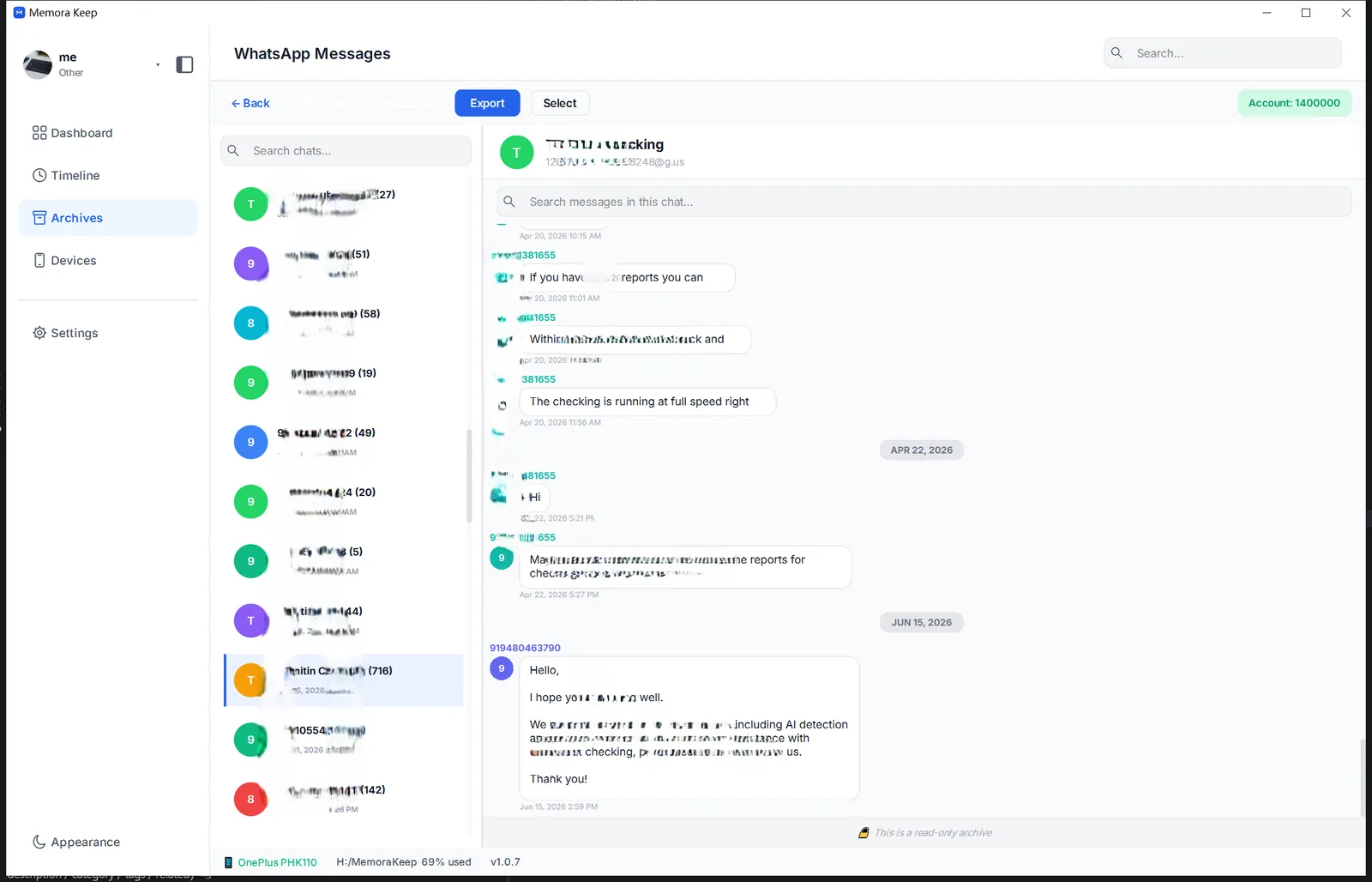
Step 3: Select the WhatsApp messages to export
This is the step that matters, so here’s the whole thing in detail.
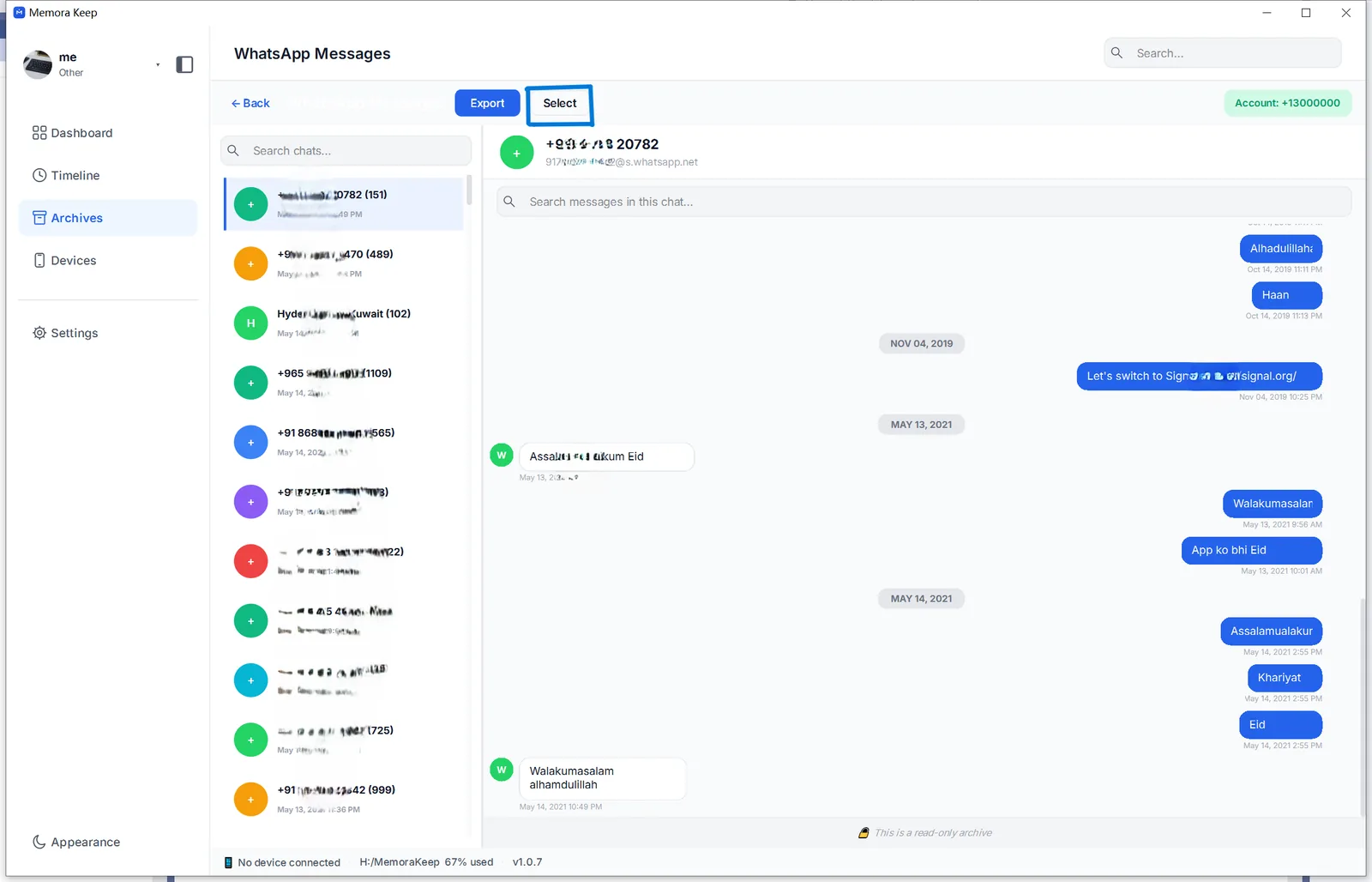
Click Select at the top of the chat. The messages turn into a checklist — a round box appears beside each one.
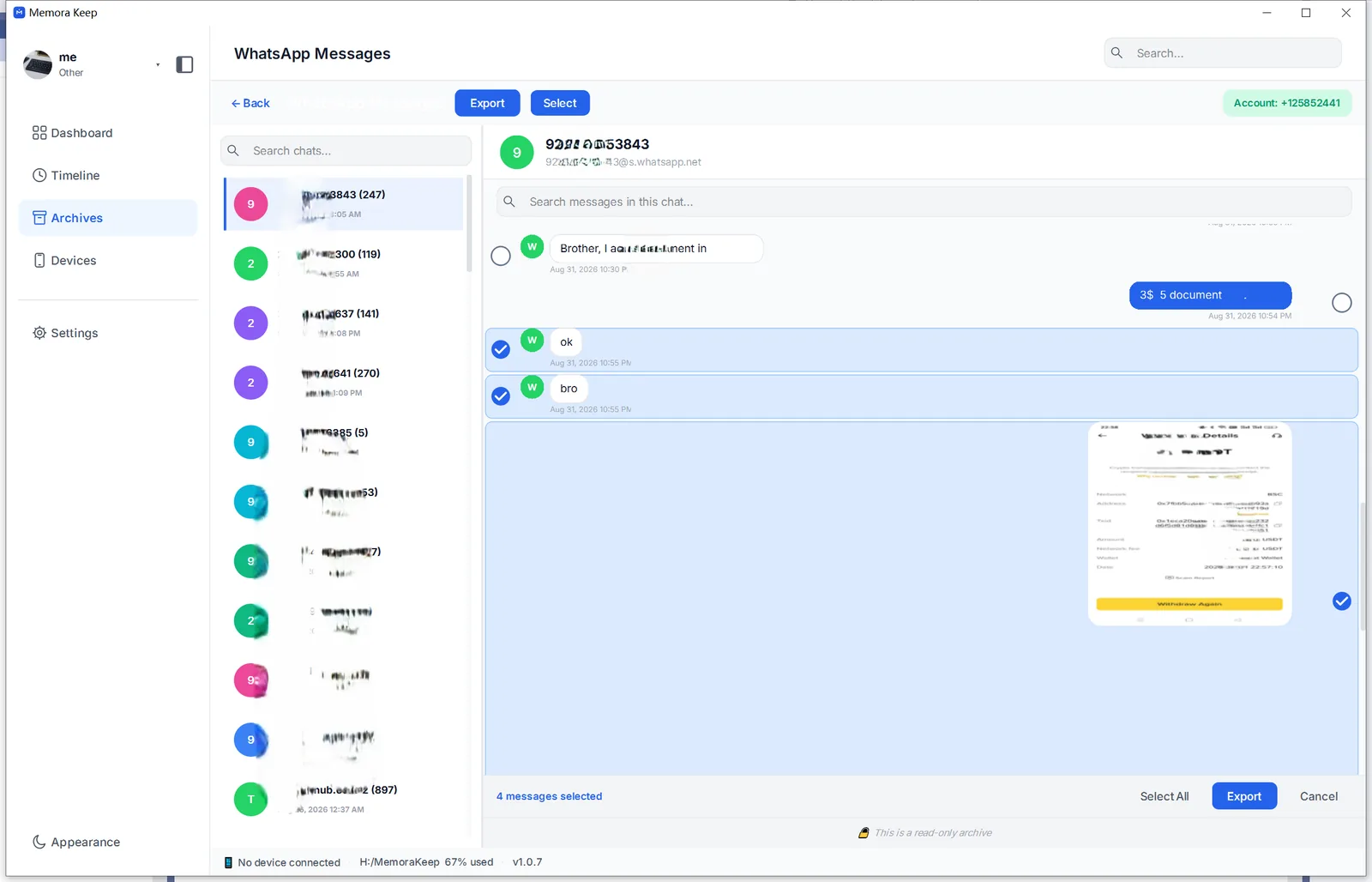
Now tick what you need:
- One message at a time. Click its checkbox. Click again to untick.
- Photos, videos and documents too. If a message has media, the media gets exported with it — you’re selecting the whole message, not just its text.
- Everything in view. Use Select All in the bottom bar when the chat is already filtered down to what you want.
- Changed your mind? Cancel drops all ticks and leaves the chat untouched.
A bar at the bottom keeps a running count — “4 messages selected” — so you always know how much you’ve picked. When the count looks right, press Export in that same bar.
Step 4: Export the selected WhatsApp messages as a PDF
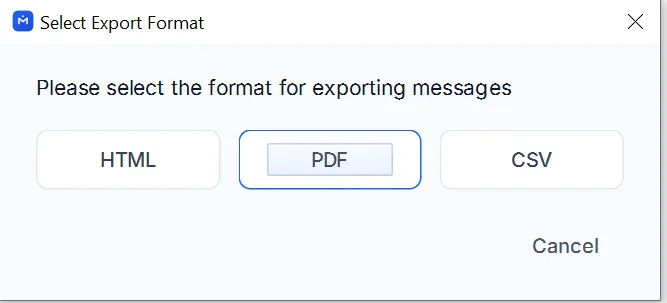
In the format dialog, click PDF.
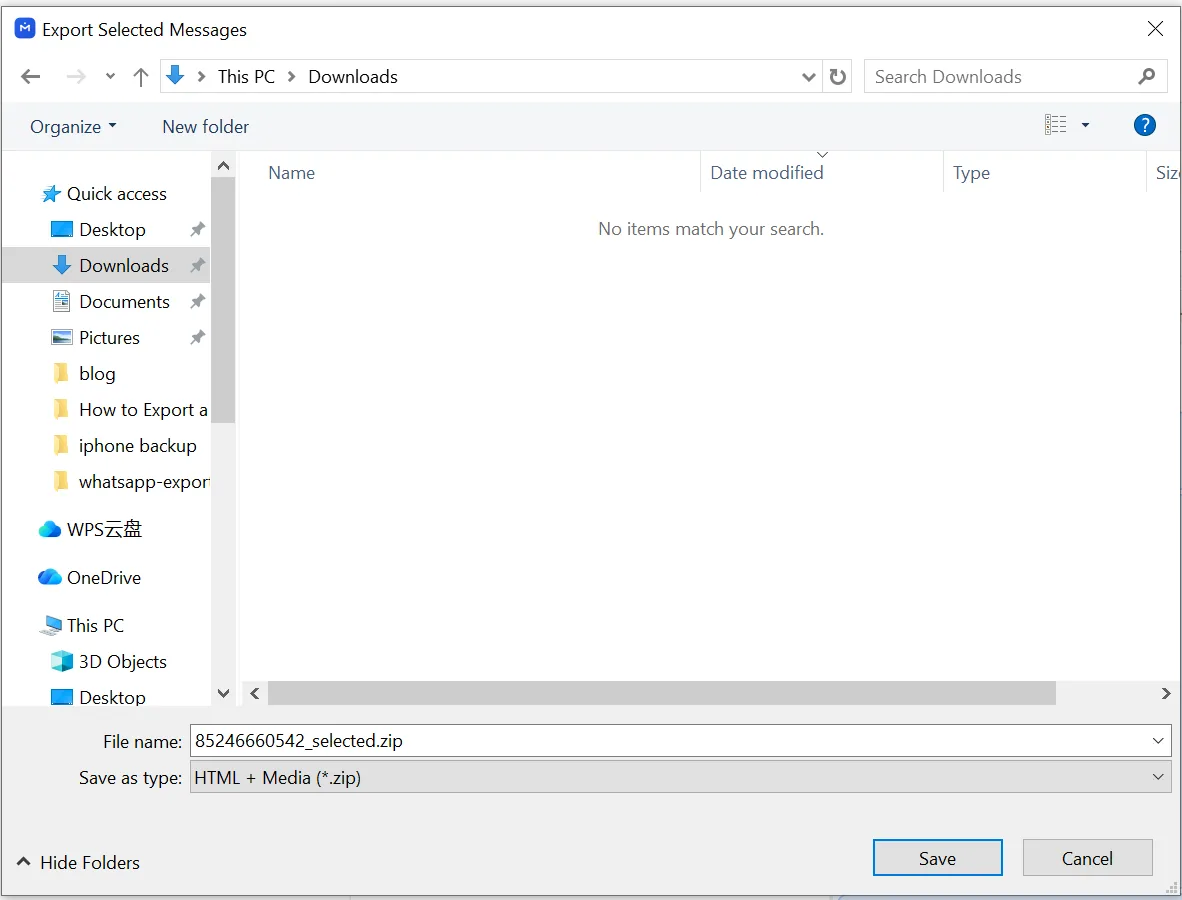
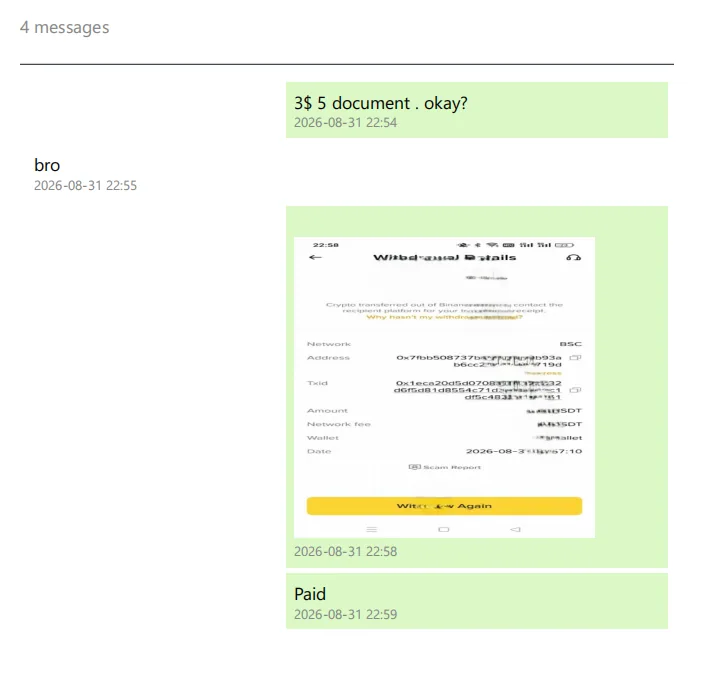
Pick a folder, save, and open the file. You get a clean PDF with only the messages you ticked — sender, text, timestamps and any media, laid out like the chat itself.
Can you export selected WhatsApp messages from the app?
No. WhatsApp exports the whole chat and doesn’t let you select individual messages. The export contains a .txt file and media in a ZIP.
To make a PDF with just a few messages, you’d need to edit the text file, save it as a document and convert it to PDF. That takes time, especially for longer chats.
With Memora Keep, select the messages and export them directly. To export messages from a period instead, filter by date range.
Good to know
- Exporting creates a copy and leaves your chat and archive unchanged.
- You can also export the selected messages as HTML with media or CSV.
- selected messages
- export