How to Export a WhatsApp Chat to CSV with Timestamps
Export a WhatsApp chat to CSV with timestamps, senders and messages using Memora Keep. Free and local, ready for Excel, Numbers or Google Sheets.
4 min read
On this page
Want to count replies, sort messages by date or add a conversation to a report? Export your WhatsApp chat to CSV so you can work with it in a spreadsheet.
This guide shows you how to export with Memora Keep, keep each message’s timestamp and check the file in Excel, Numbers or Google Sheets.
What you need
- Memora Keep on a Windows or macOS computer. It’s free.
- Your conversation saved in a local archive (see step 1).
- A folder to save the CSV file in.
Step 1: Back up your WhatsApp chat to your computer
Memora Keep exports chats from your local archive, so you’ll need to back up the chat first.
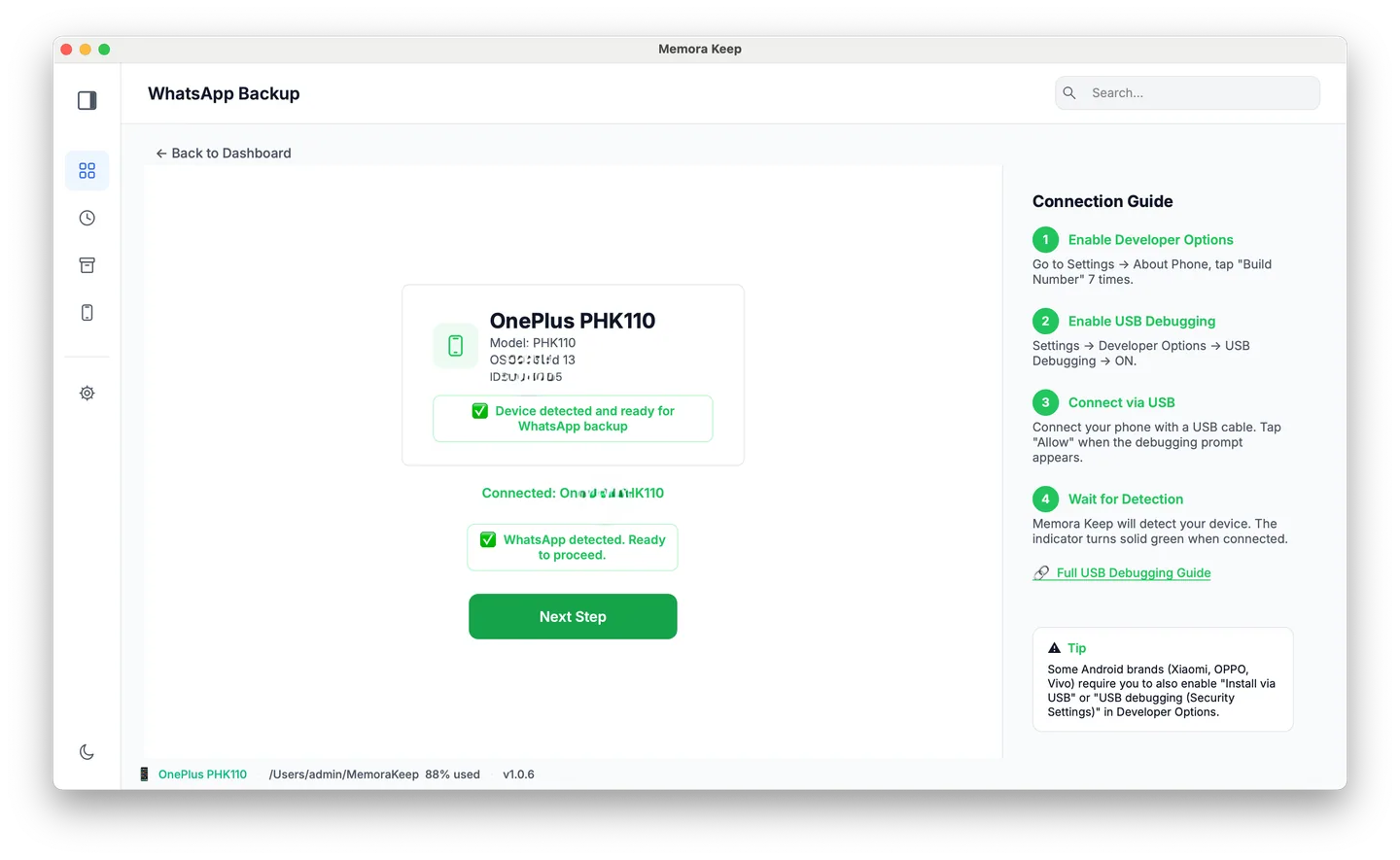
From Android. Connect the phone over USB and back up WhatsApp from it. The chats and their media land in your archive. Follow the illustrated Android steps, stopping after the backup finishes.
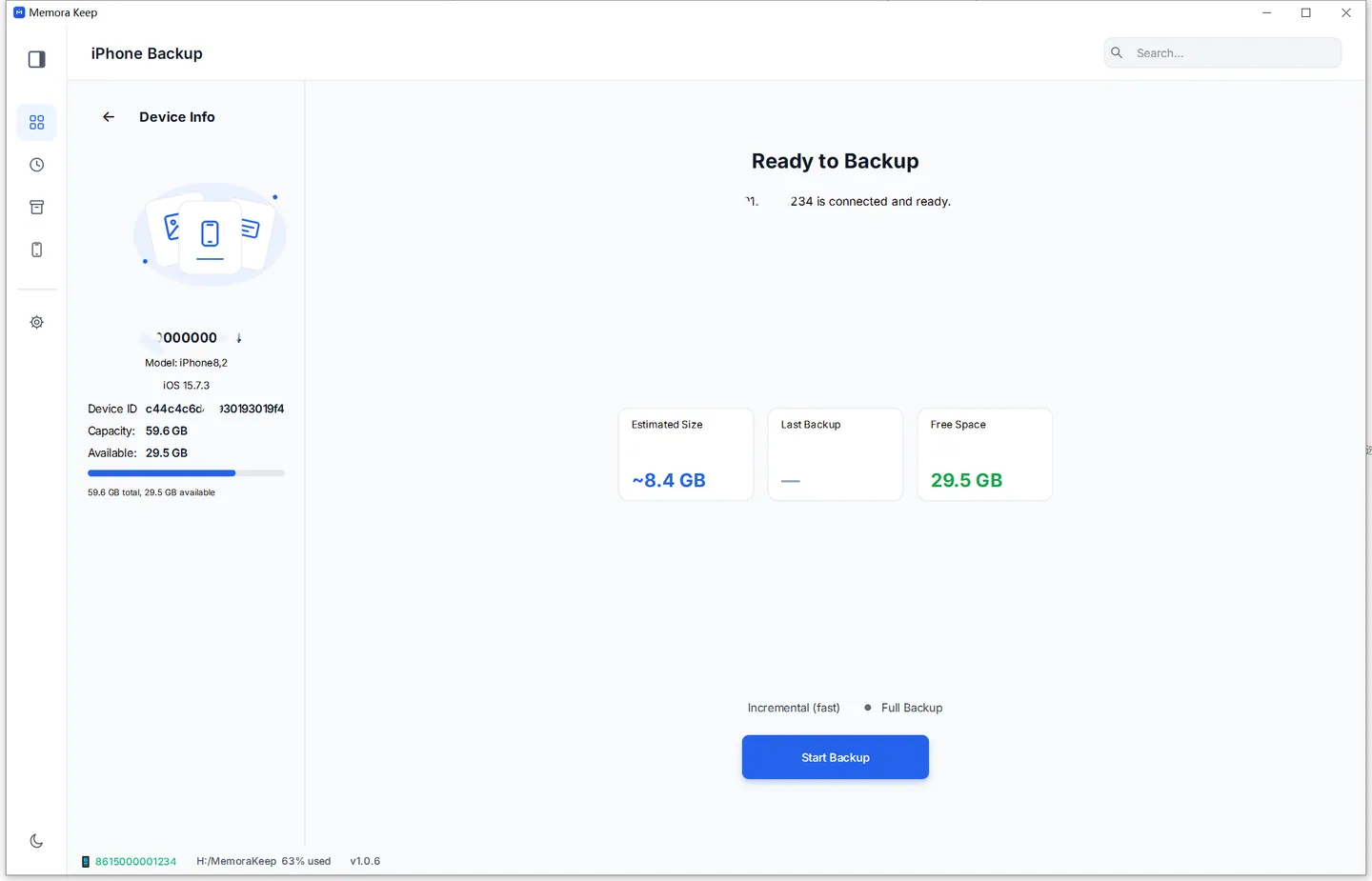
From iPhone. Memora Keep reads WhatsApp out of an iPhone device backup. Back up your iPhone first, or import a backup you already have.
Your data stays on your computer. You don’t need an account, and nothing is uploaded.
Step 2: Open the conversation
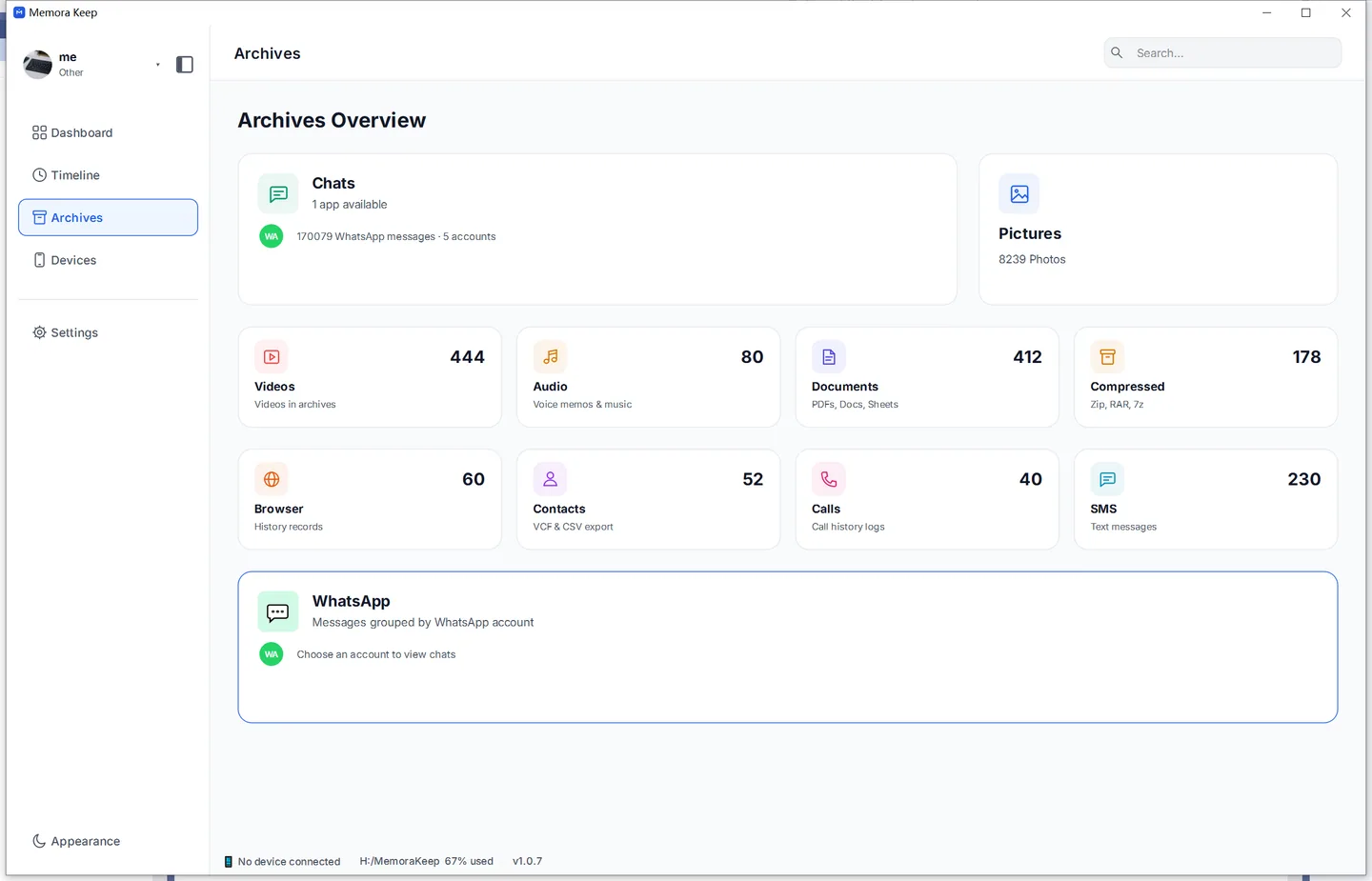
In Archives, open the WhatsApp section.
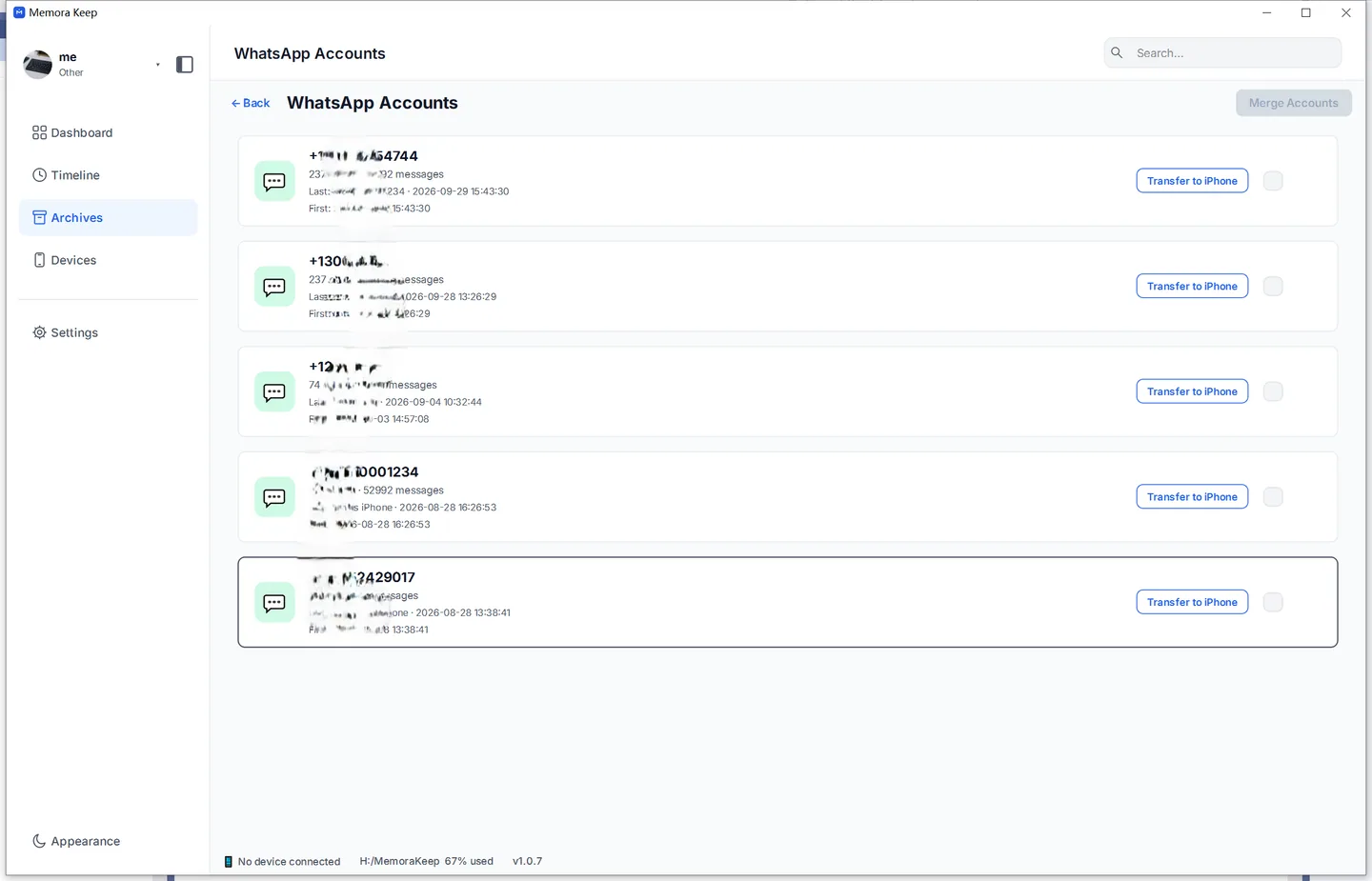
If the archive holds more than one WhatsApp account, pick the one you want from the account list.
Step 3: Choose what to export
Export the whole conversation or just the messages you need.
The whole conversation. Open it and use the Export button.
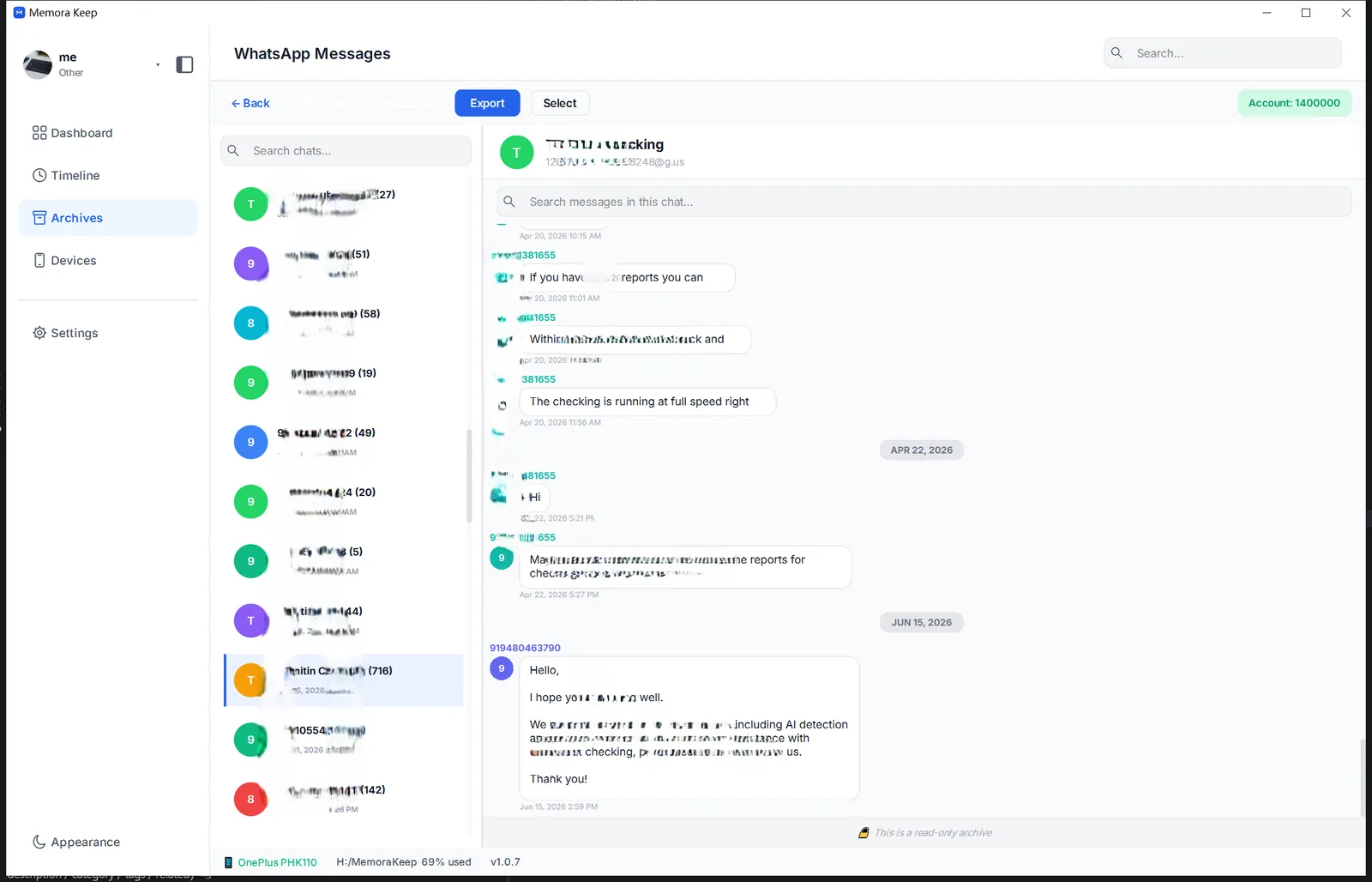
Only some messages. Click Select at the top of the chat and tick the ones you want.
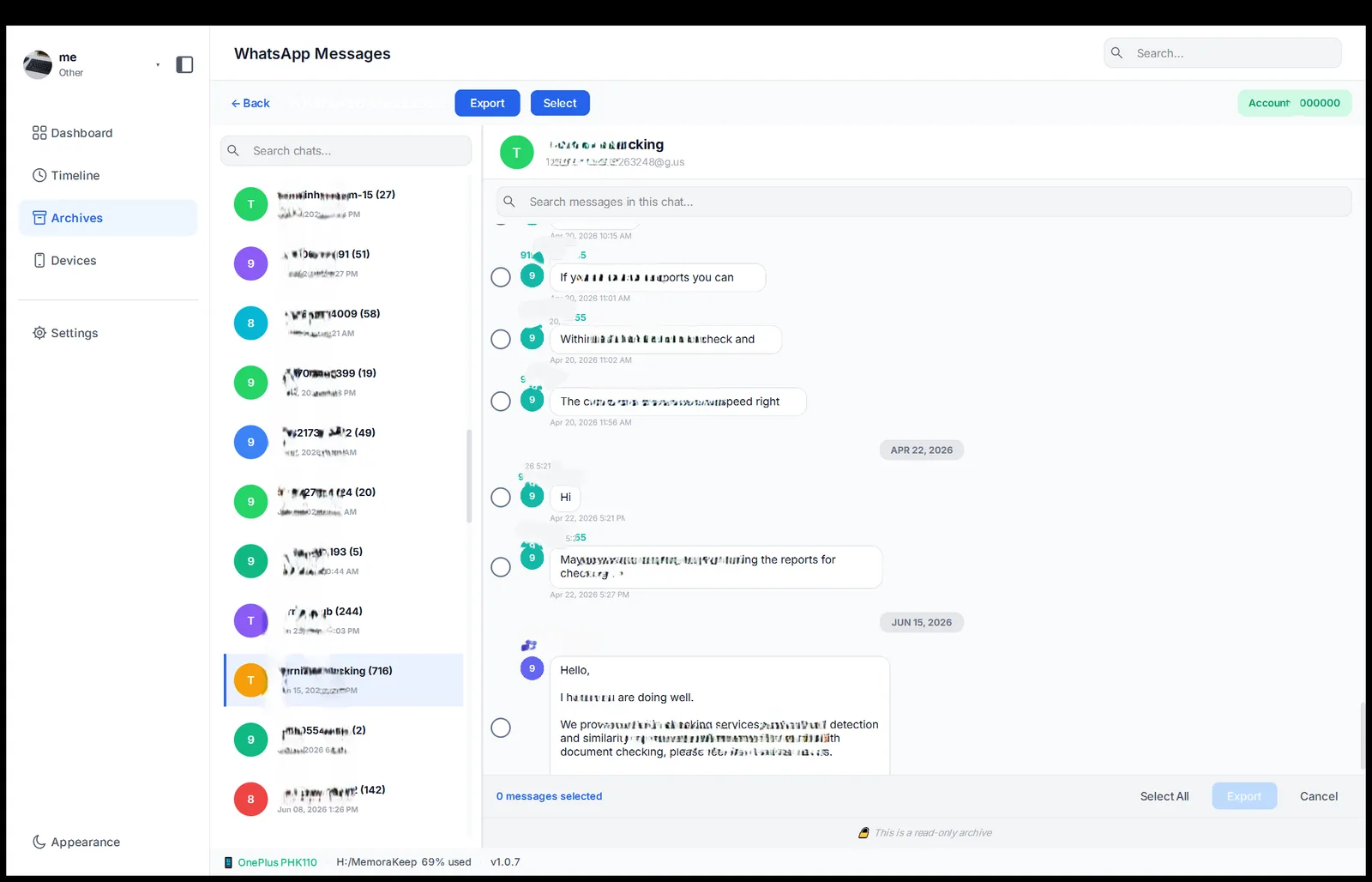
Then use Export below the conversation.
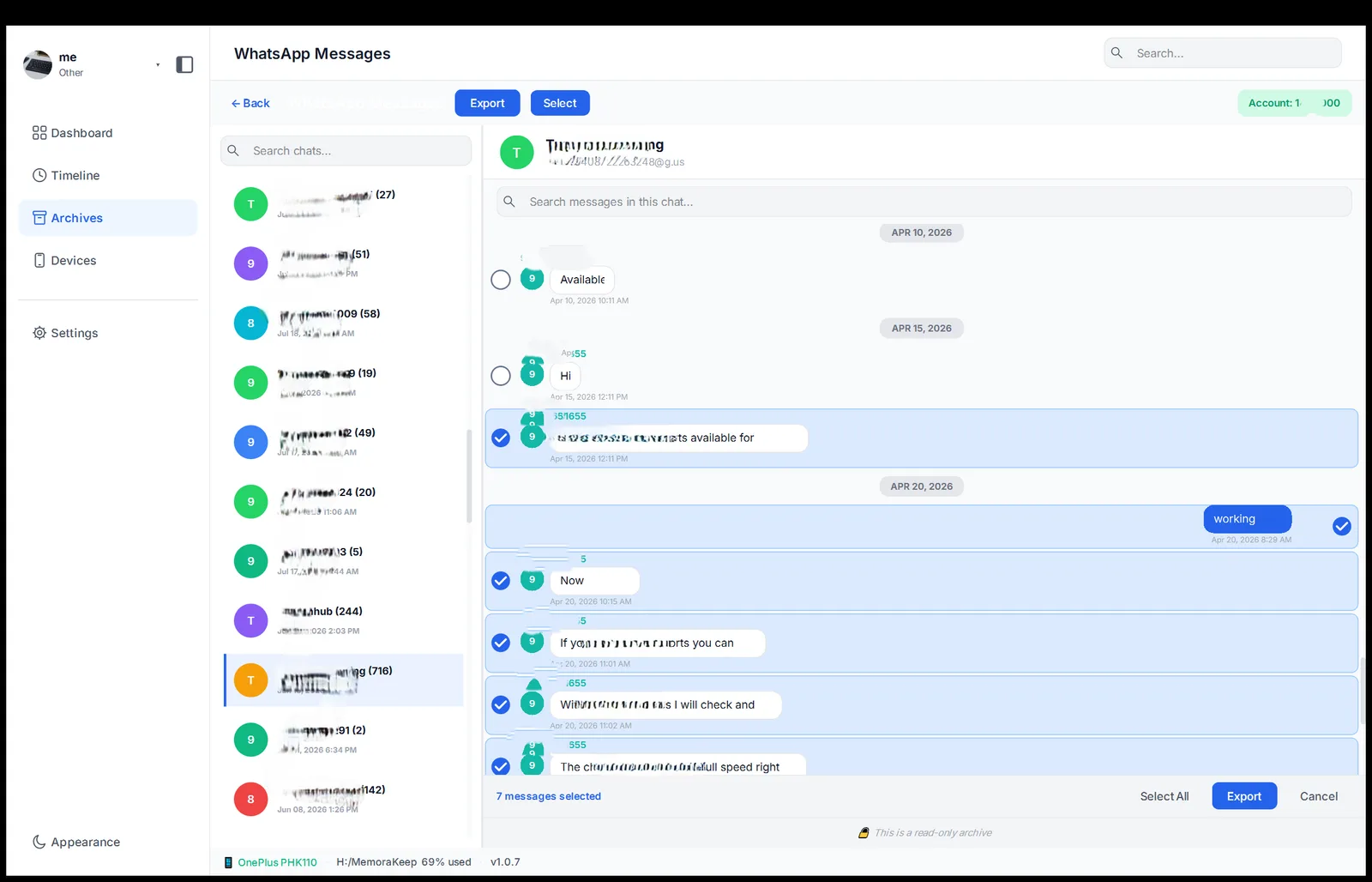
With either option, you can limit the export to a date range.
Step 4: Save your WhatsApp chat as a CSV file
In the export dialog, choose CSV.
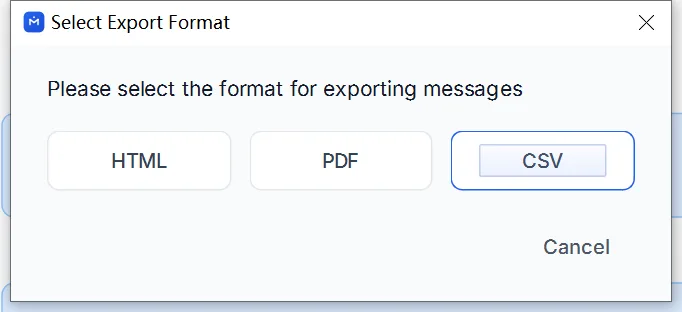
Choose a folder to save the file in, then start the export.
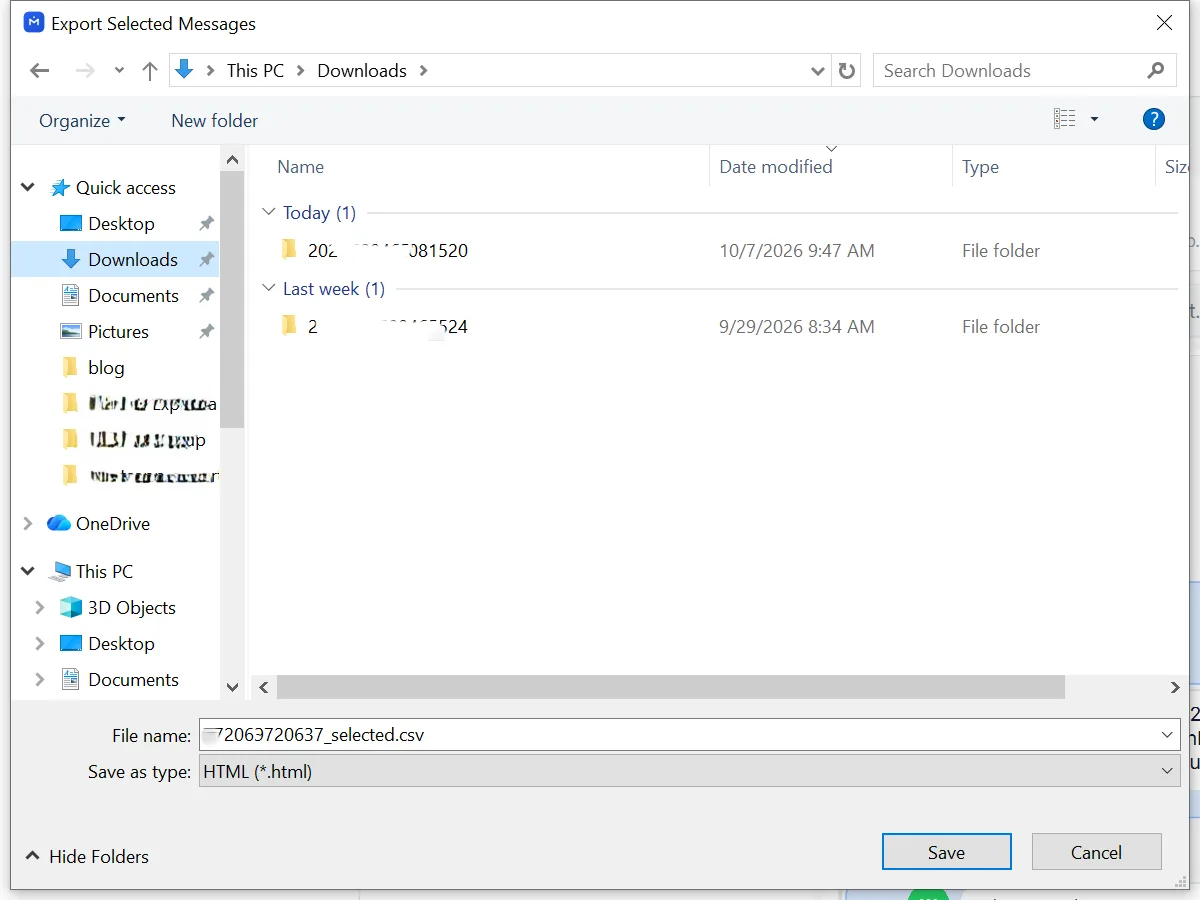
Once the export finishes, open the folder and check the CSV file in Excel, Numbers or Google Sheets.
The CSV uses UTF-8 encoding. If accented or non-Latin names look scrambled in Excel, import the file using Data → From Text/CSV and set the encoding to UTF-8.
What’s included in your WhatsApp CSV export?
Each message gets its own row, with the date and time, sender, message text, a note about any media and a field showing whether you sent it.
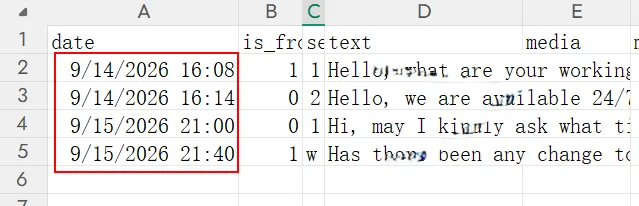
Timestamps come from the saved messages and have their own column, so you can sort or filter the conversation by date.
Can you export a chat to CSV from WhatsApp itself?
WhatsApp’s built-in export gives you a .txt file in a ZIP. You can export directly from your phone, but you’ll need to convert the text file yourself to get a CSV.
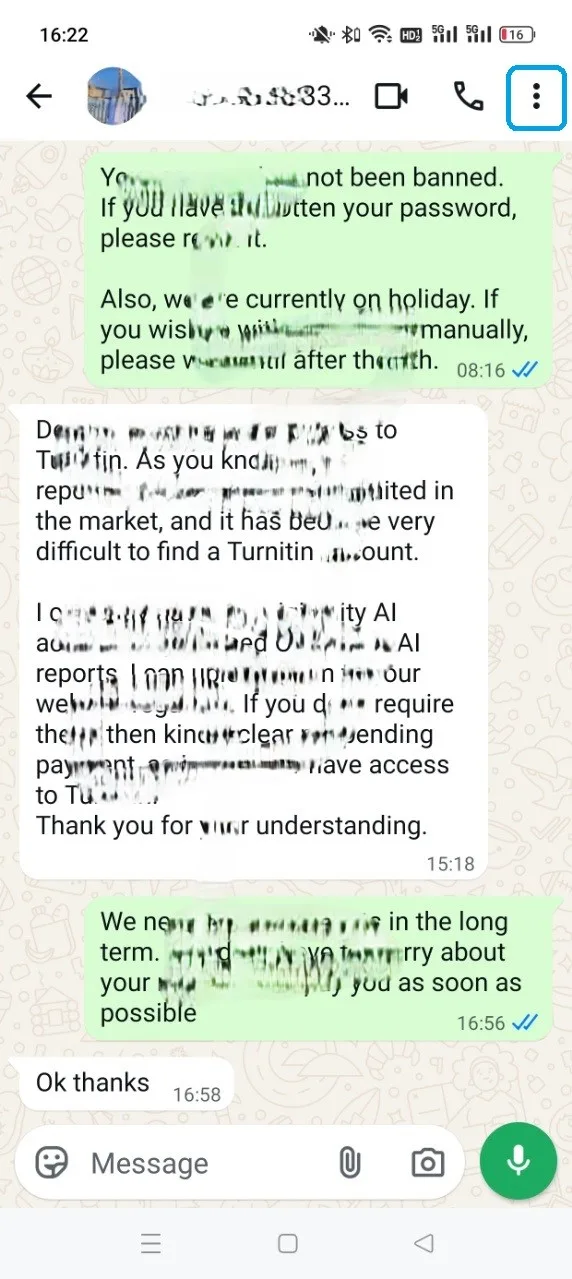
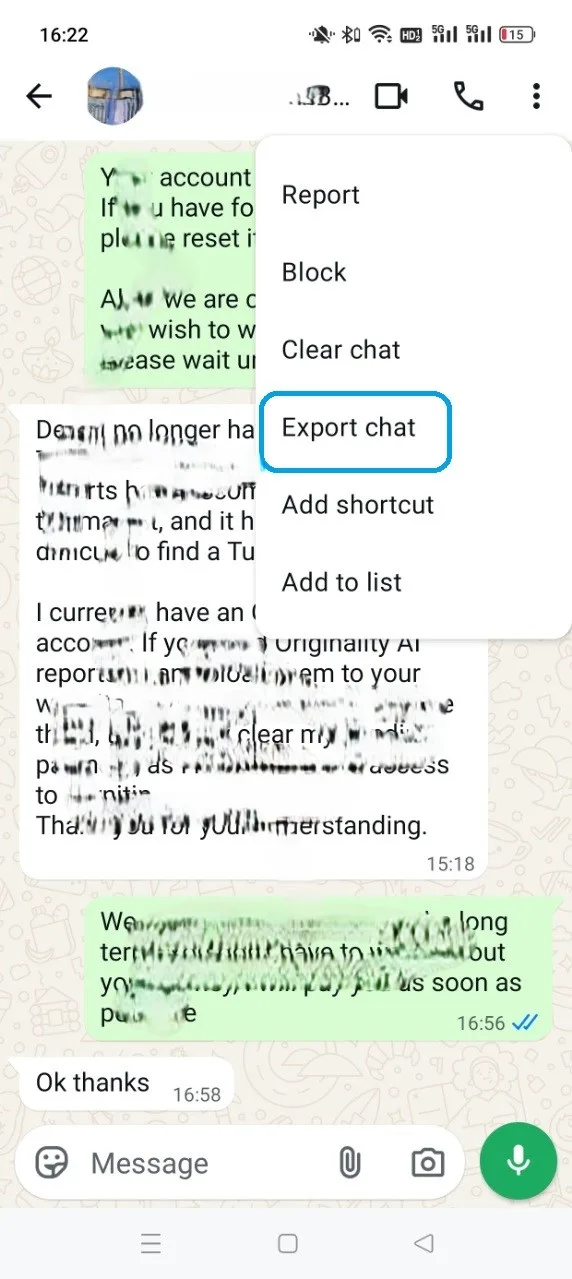
Open the chat, tap the menu in the top-right corner, then More.
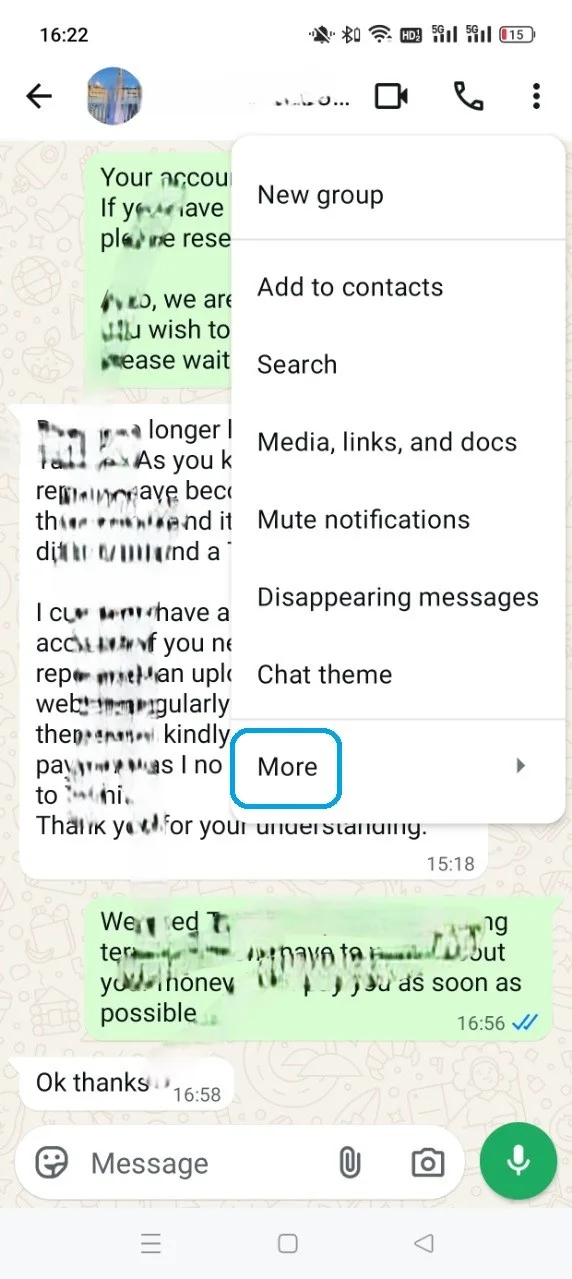
Choose Export chat and send it to your own email (or straight to the phone’s storage).
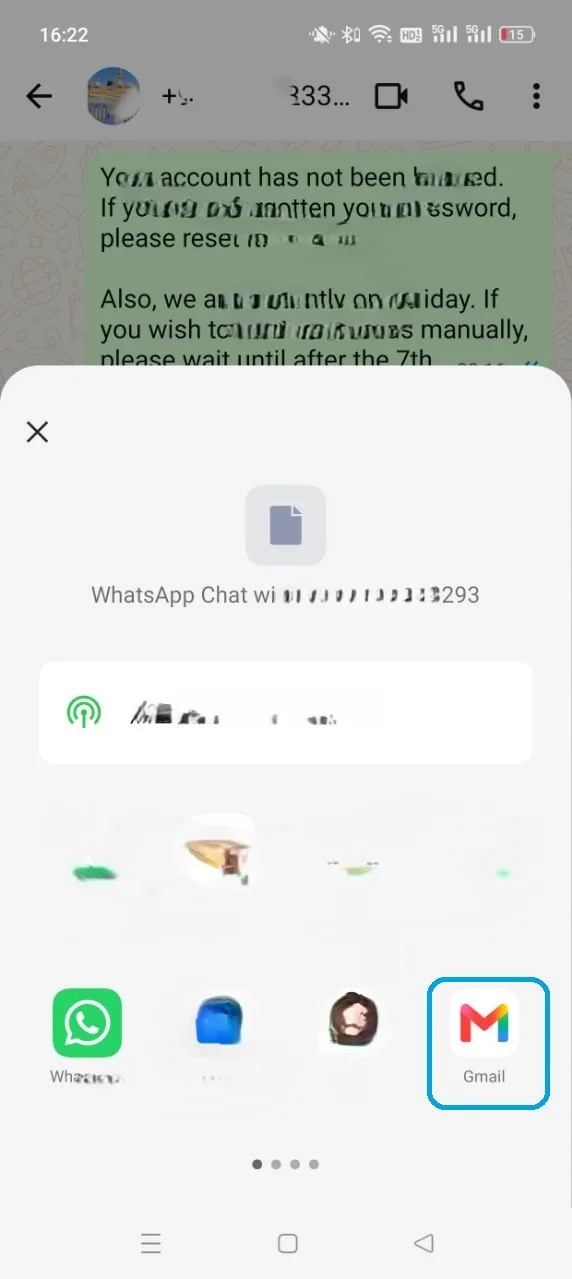
Download the ZIP from the email and unzip it. Inside is a _chat.txt file.
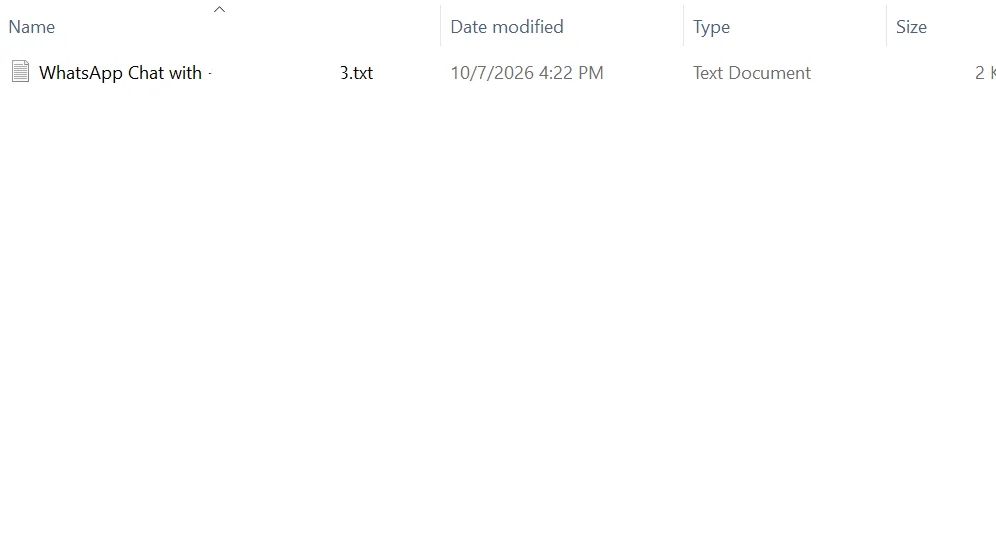
Open the file to see your messages, each with a date and time before the text. The details aren’t split into columns.
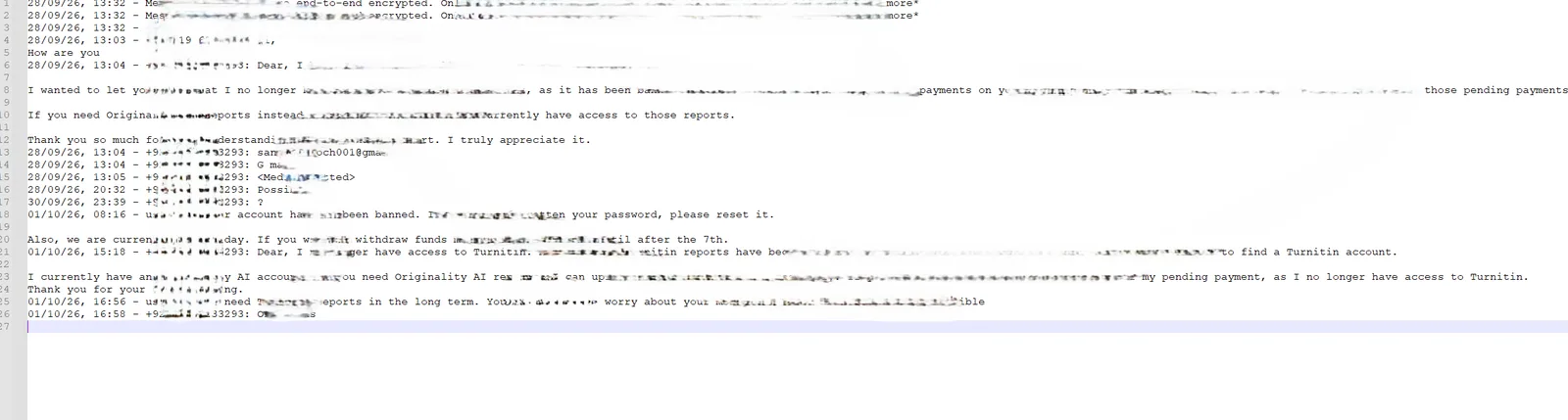
WhatsApp exports one chat at a time, with no date filter. To make a CSV, you’ll need to separate the dates, senders and messages into columns yourself. For a CSV export with a date range, follow steps 1–4 above.
Good to know
- Exporting creates a copy and leaves your archive and original phone backup unchanged.
- You can export one conversation or several at once.
- The CSV describes media but doesn’t include the original photos, videos or documents. Export those separately if you need them.
- csv
- export
- excel
- timestamps