How to Export a WhatsApp Chat to HTML with Media
Export a WhatsApp chat to HTML with photos, videos and timestamps. Save locally with Memora Keep and read in your browser. Free for Windows and macOS.
3 min read
On this page
Want to save a WhatsApp conversation with its photos and videos? An HTML export lets you read the chat in your browser, with messages in order and timestamps included.
Here’s how to export a WhatsApp chat to HTML with Memora Keep. The HTML page and original media files are saved together in one ZIP file.
What you need
- Memora Keep on a Windows or macOS computer. It’s free.
- The chat saved in a local archive (step 1 shows how).
- A folder to save the export in.
Step 1: Back up your WhatsApp chat to your computer
Memora Keep exports chats from your local archive, so you’ll need to back up the chat first.
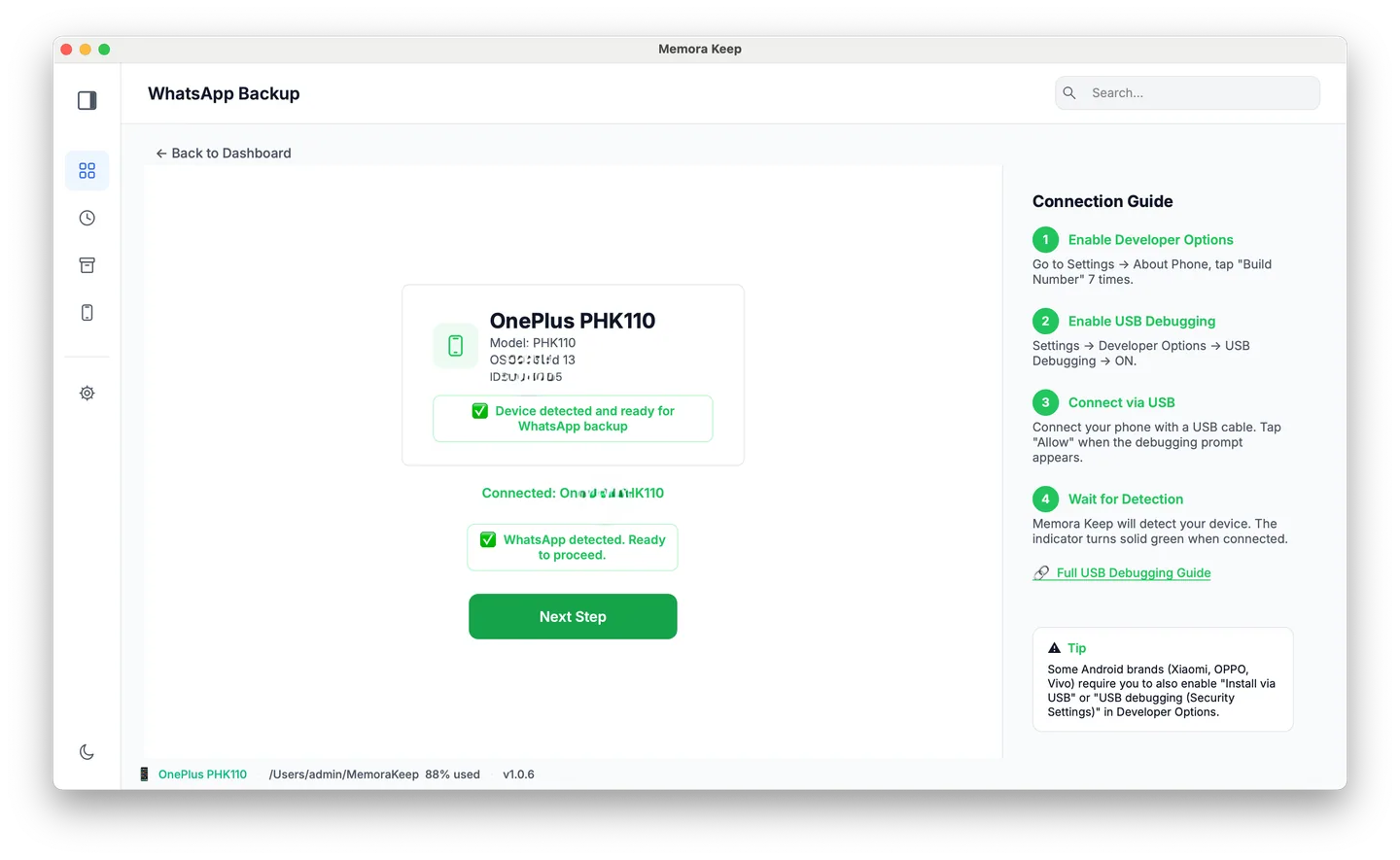
From Android. Connect your phone over USB and back up WhatsApp. This saves your chats and media in your archive. Follow the illustrated Android steps, stopping after the backup finishes.
From iPhone. Memora Keep reads WhatsApp data from an iPhone backup. Back up your iPhone first, or import a backup you already have.
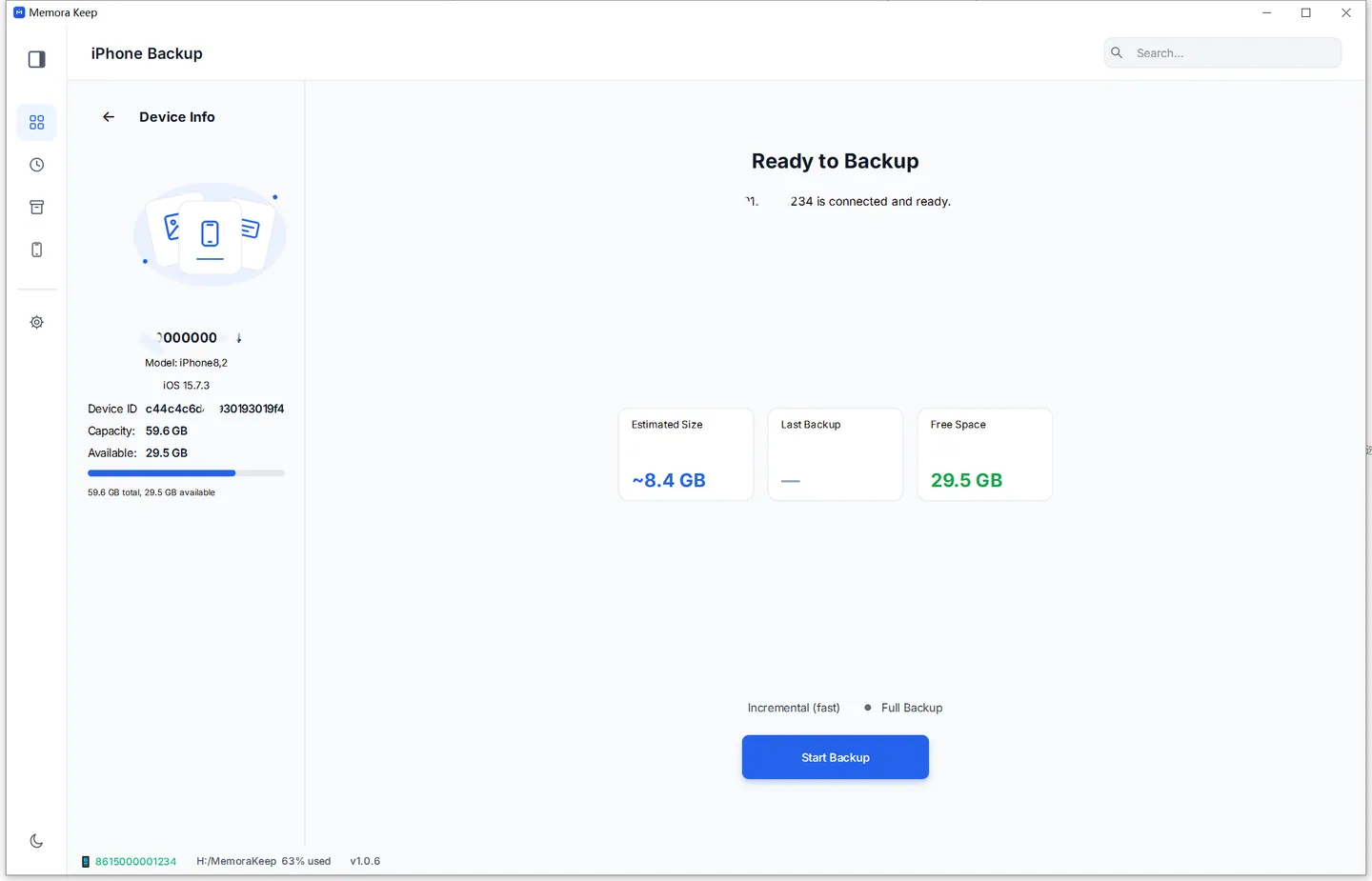
Your data stays on your computer. You don’t need an account, and nothing is uploaded.
Step 2: Open the conversation
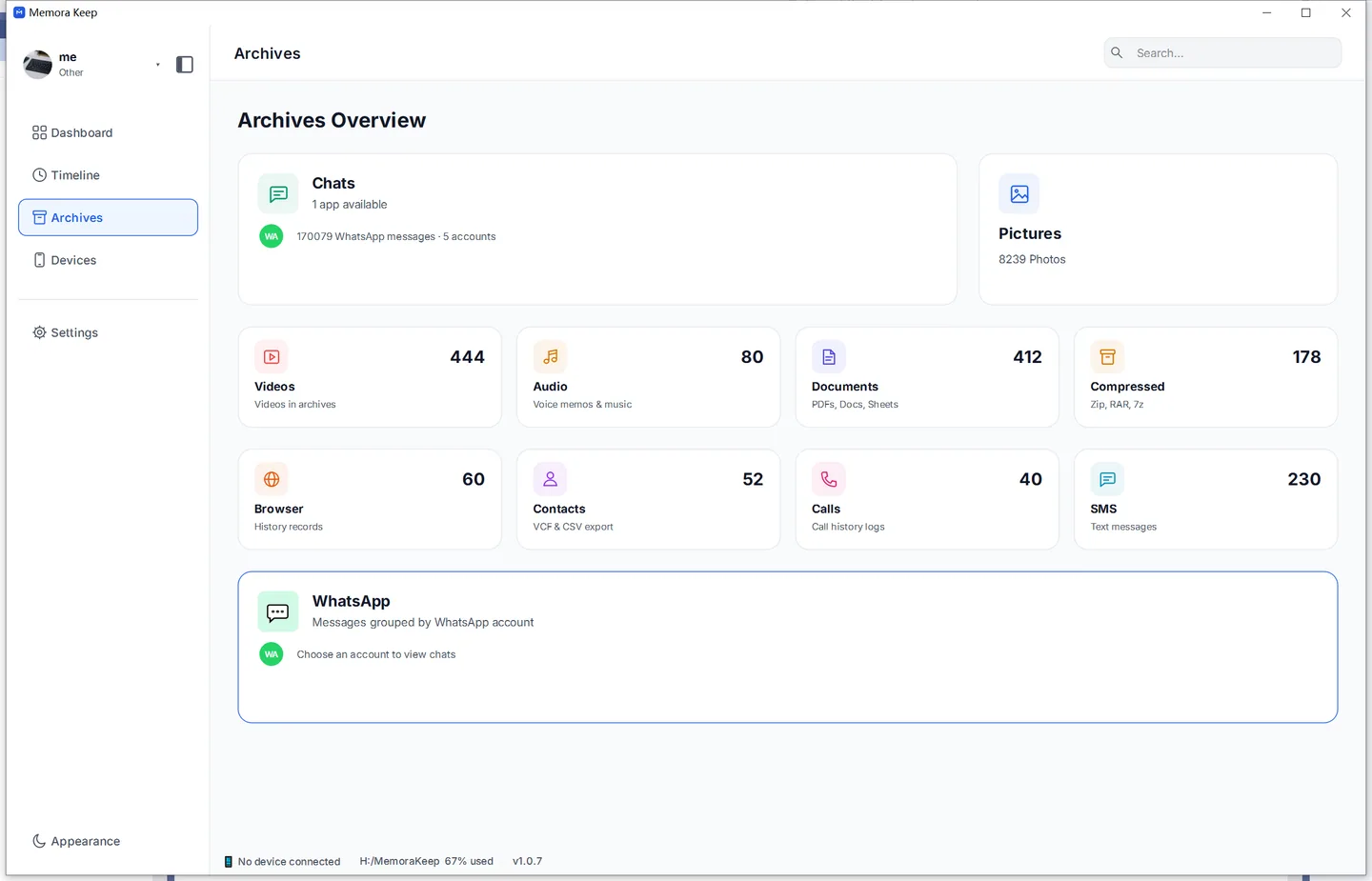
In Archives, open the WhatsApp section.
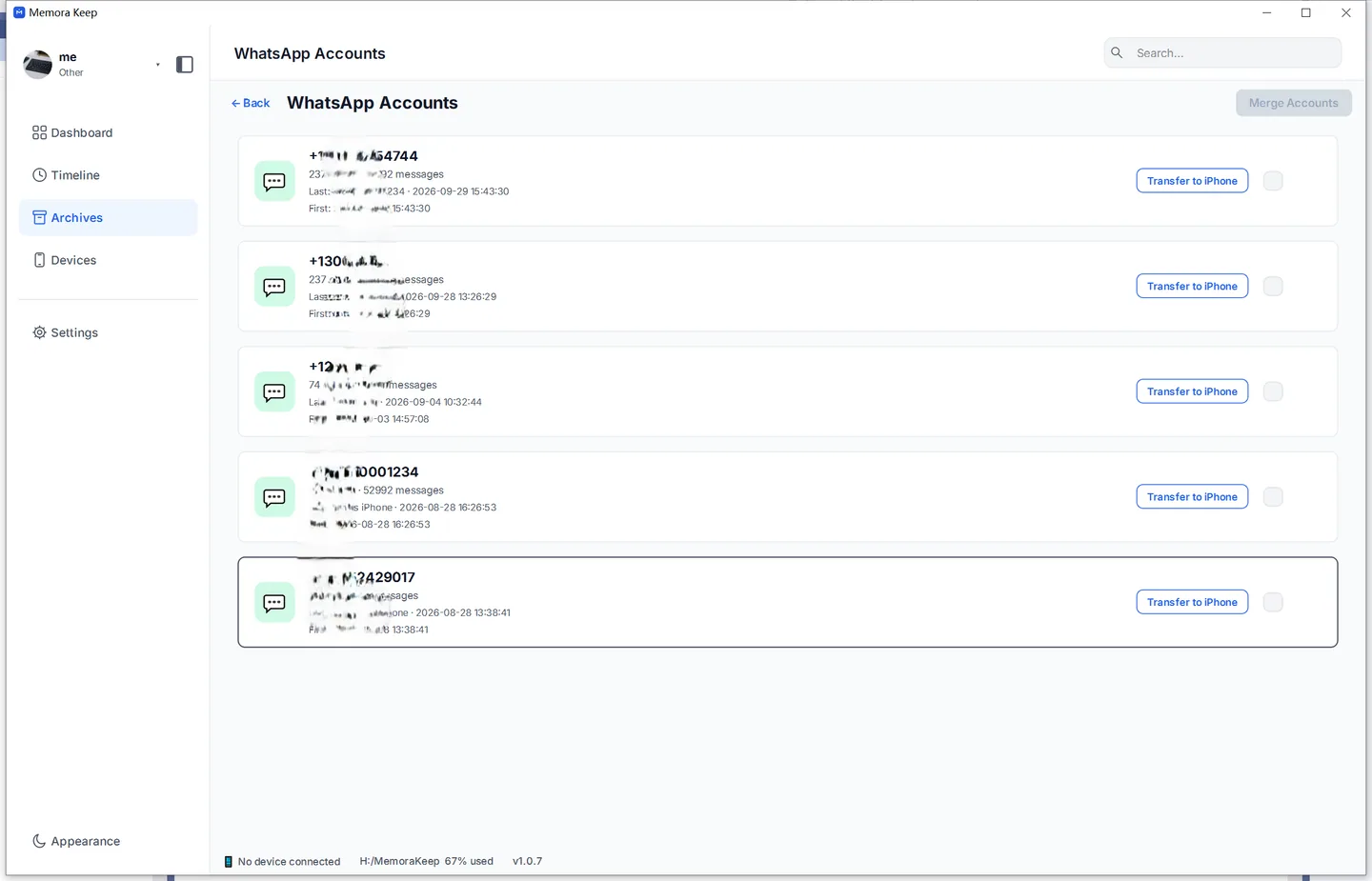
If your archive has more than one WhatsApp account, choose the one you want from the account list.
Step 3: Choose what to export
Open the contact’s chat and scroll to around the dates you need.
The whole conversation. Use the Export button.
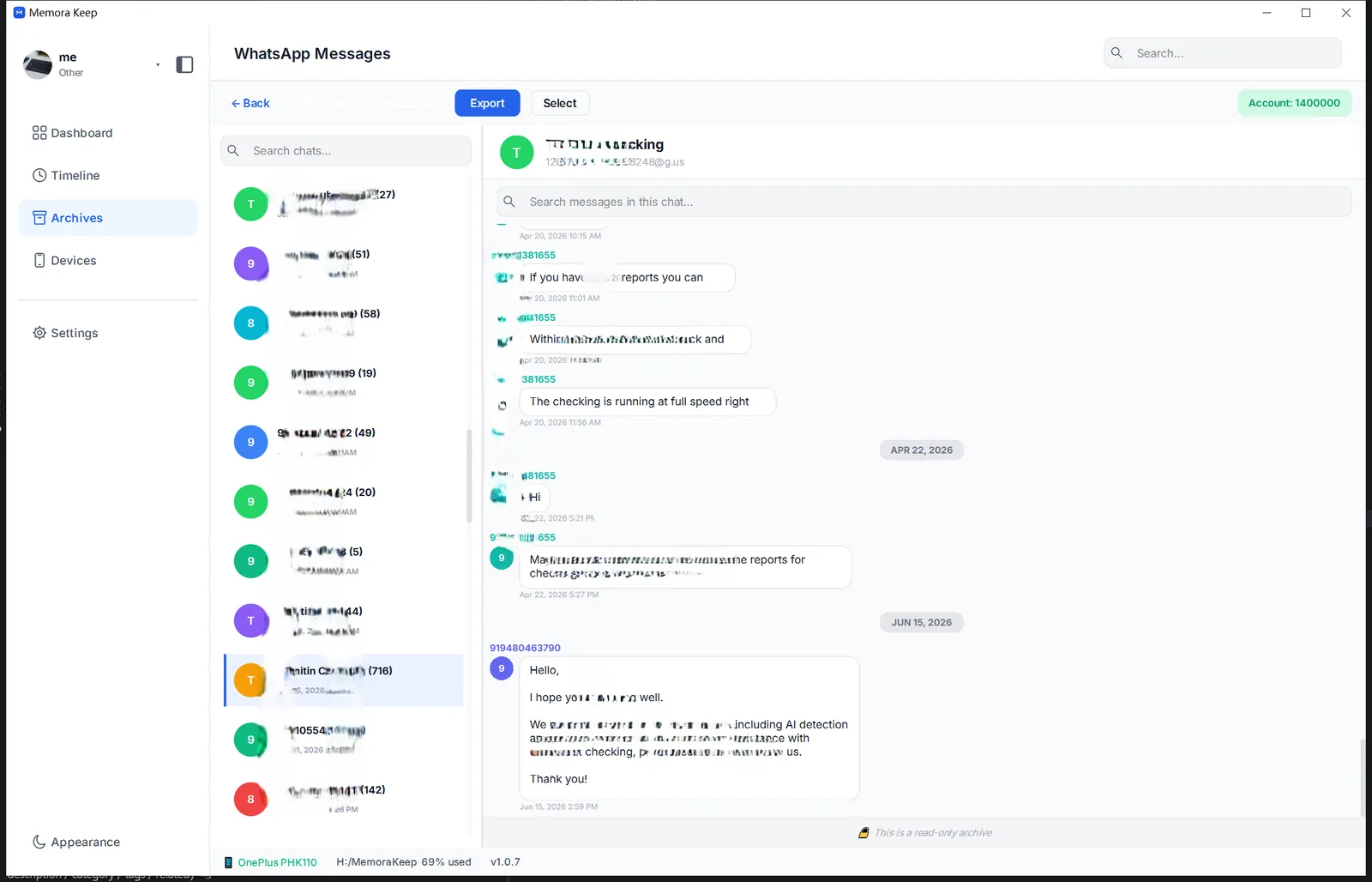
Only some messages. Click Select at the top of the chat and tick the ones you want.
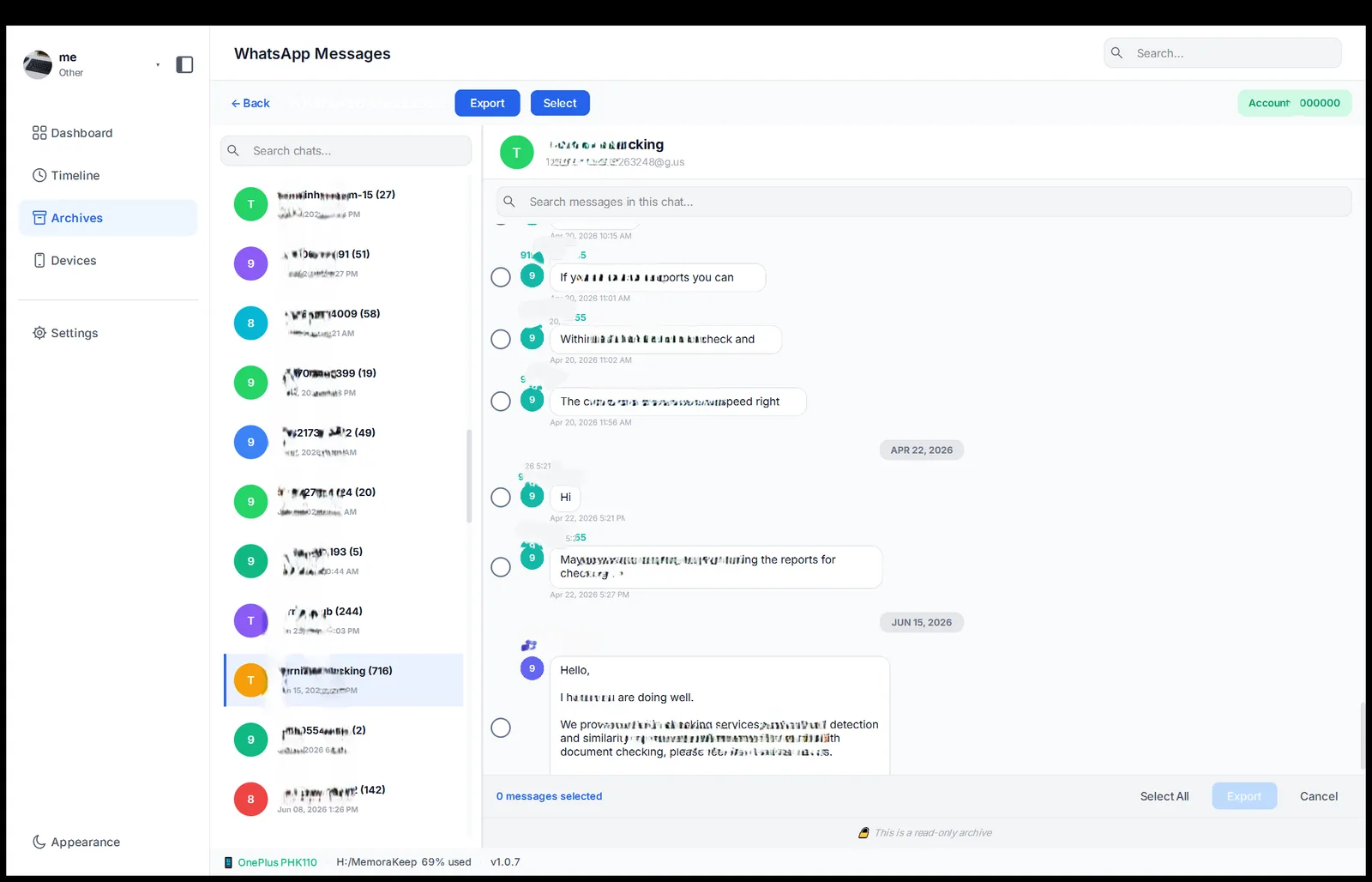
Then press Export in the bar below the chat.
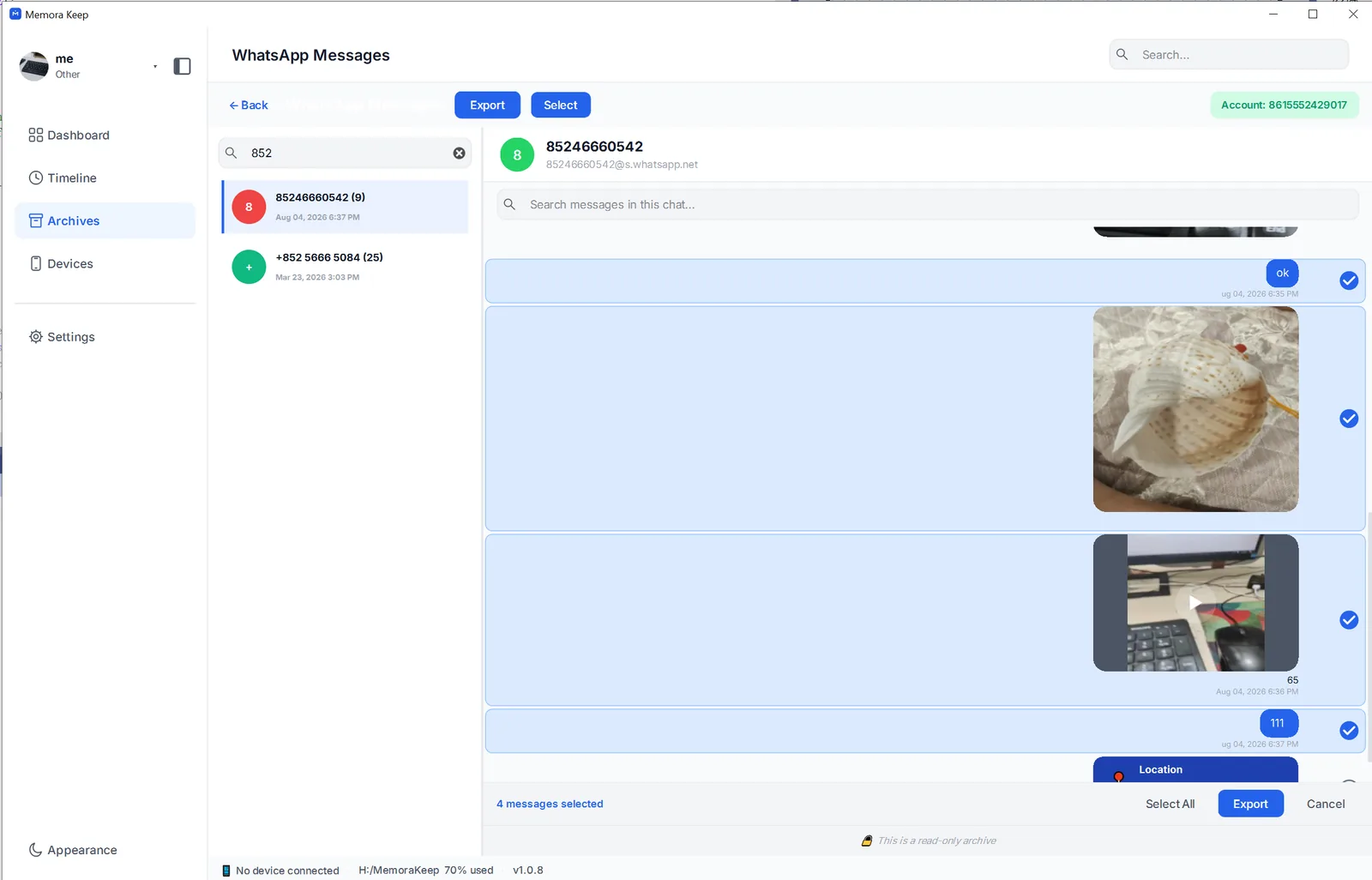
With either option, you can limit the export to a date range.
Step 4: Export your WhatsApp chat as HTML
In the export dialog, choose HTML.
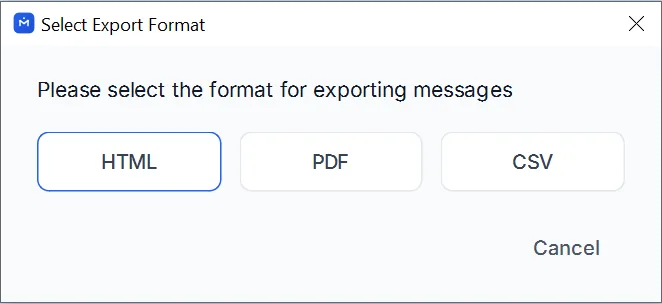
Choose a folder and save the export. Memora Keep creates a ZIP file named after the chat.
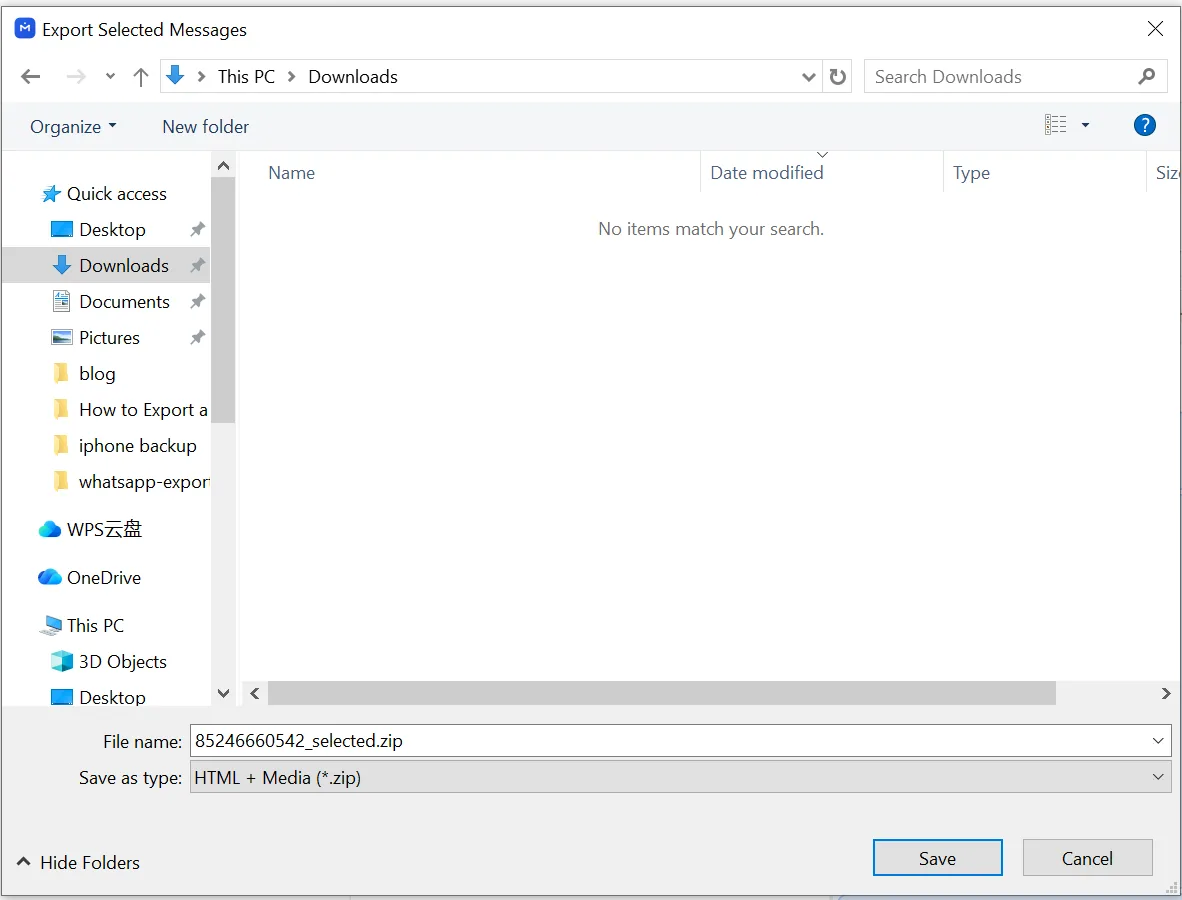
Open your WhatsApp HTML export with media
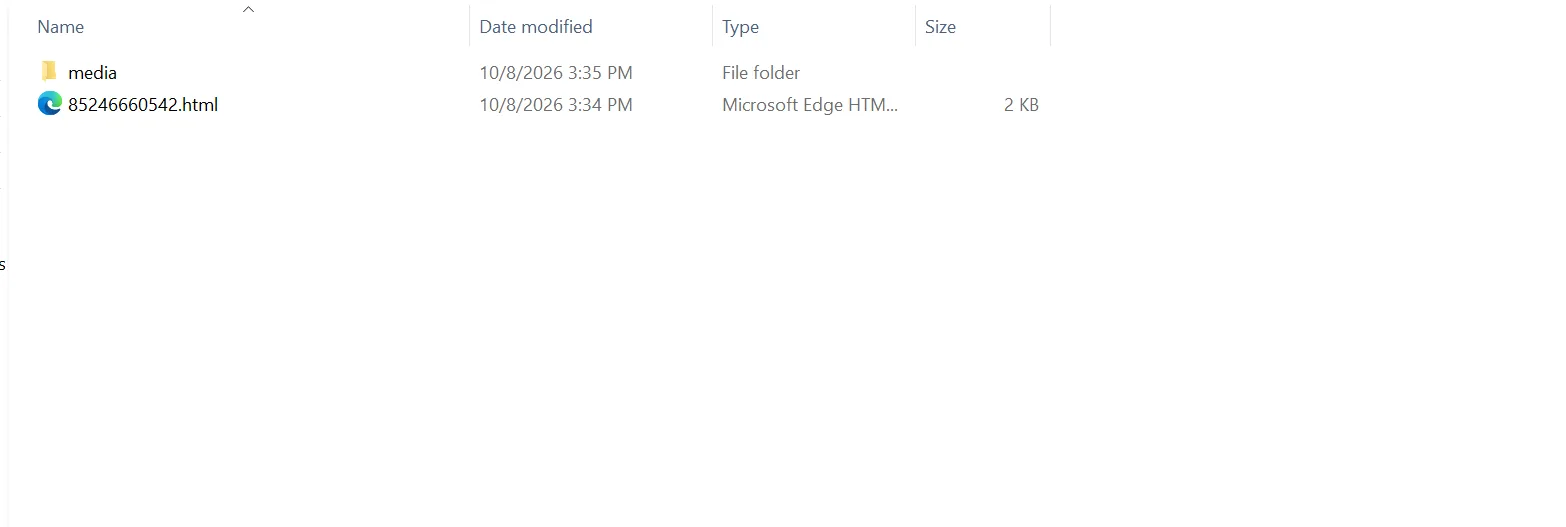
Unzip the file to find the HTML page and a media folder containing the original photos, videos and documents.
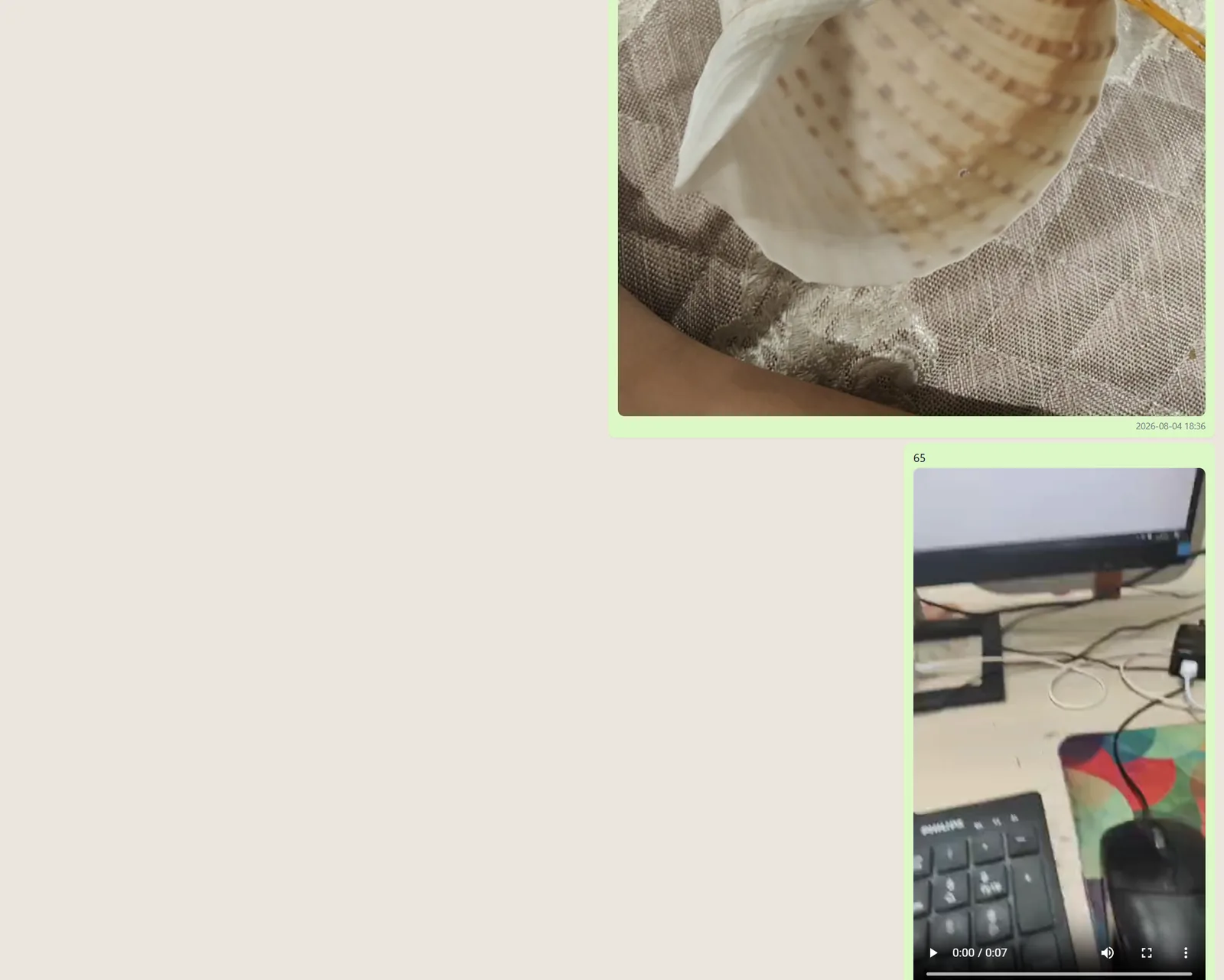
Double-click the HTML file to open the conversation in your browser. Photos appear in the chat, and you can play videos on the page. Each message shows its sender and timestamp. The original files are in the media folder.
Can you export a chat to HTML from WhatsApp itself?
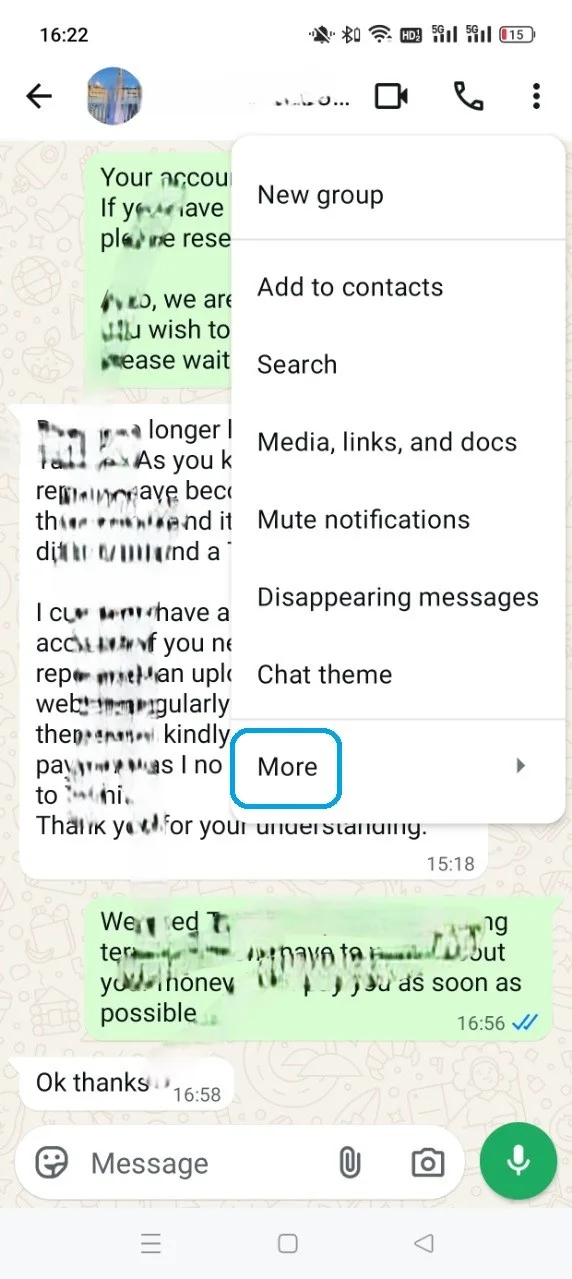
No. WhatsApp’s built-in export gives you a .txt file in a ZIP, with media saved as separate files.
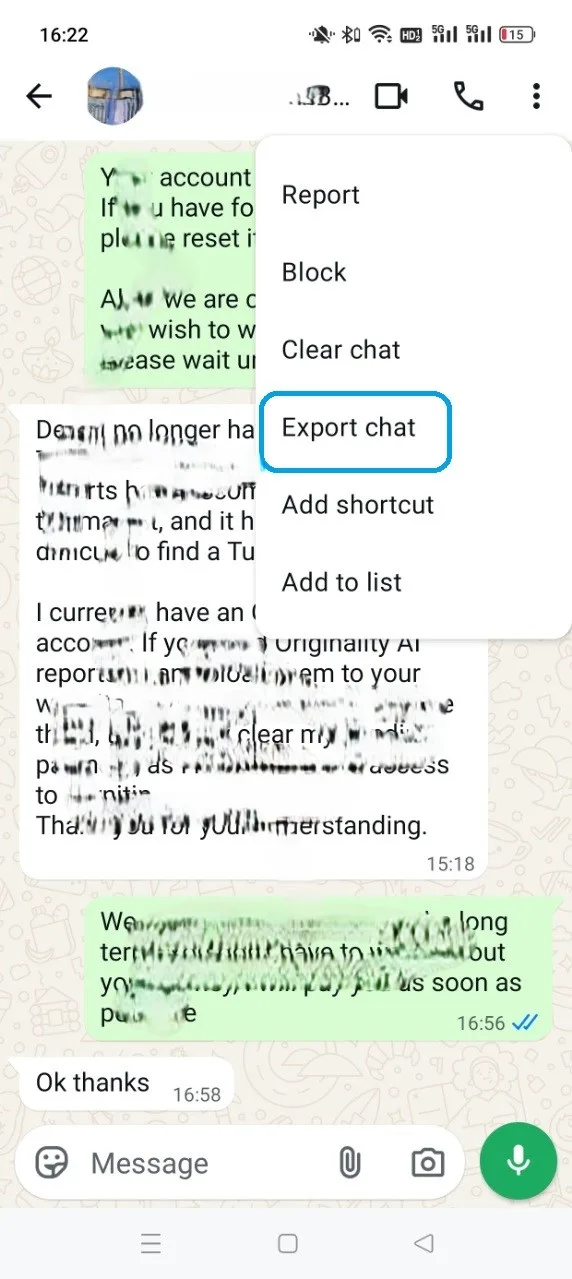
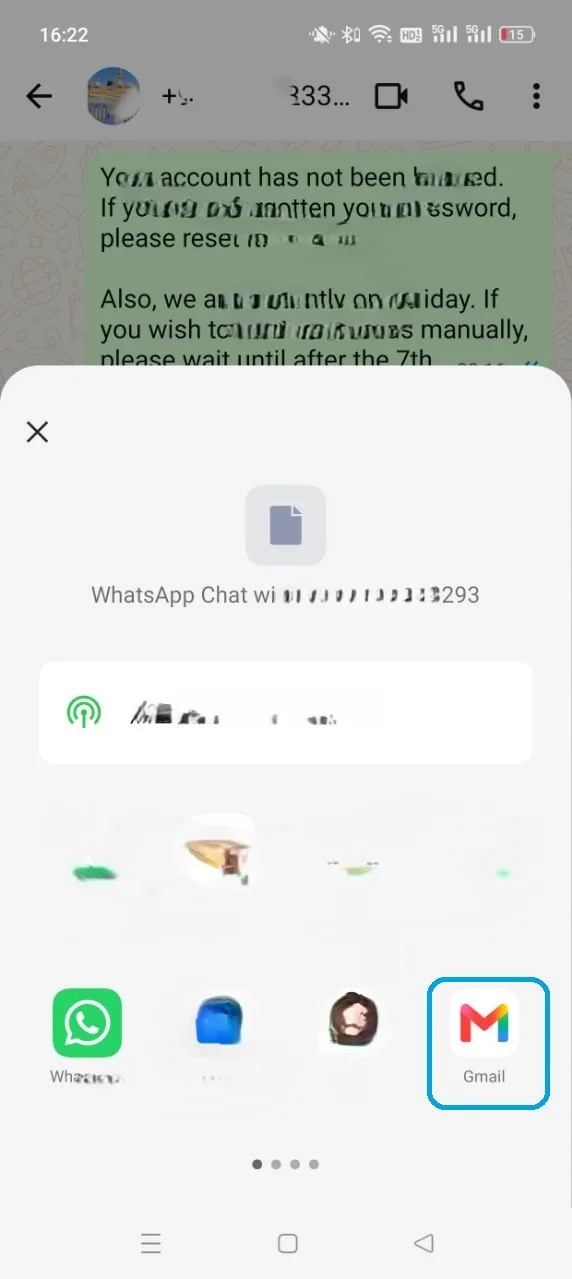
Open the chat, tap the menu in the top-right corner, then More → Export chat, and send it to your own email (or save it on the phone).
Unzip the export to find _chat.txt and the media files.
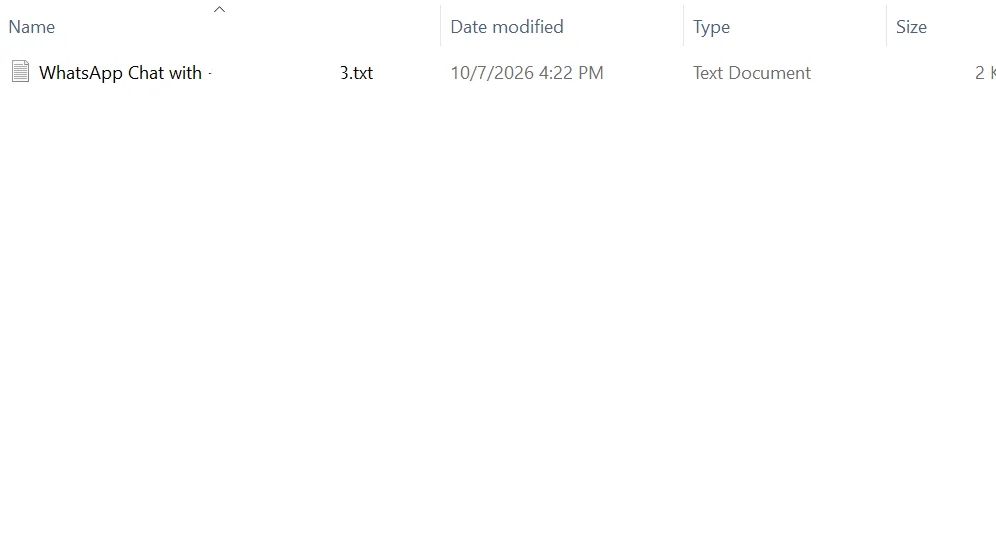
The text file lists dates and numbers before each message, without a chat layout or links to photos. To turn it into HTML, you’ll need to format it yourself or use an AI tool such as ChatGPT and check the result. WhatsApp also exports one whole chat at a time, with no date filter.
Good to know
- Exporting creates a copy and leaves your archive and phone unchanged.
- Photos, videos and documents keep their original quality.
- Need to sort or count messages instead? Export to CSV with timestamps.
- html
- media
- export
- photos