How to Export WhatsApp Chats from Android
Export an Android WhatsApp chat as text, or back it up to Memora Keep and save PDF, HTML or CSV files with the range you need.
2 min read
On this page
To save one Android WhatsApp chat quickly, use the phone’s Export Chat option. To browse saved conversations on a computer and export PDF, HTML or CSV copies, back up the phone with Memora Keep first.
What you need
- For a phone export: access to the conversation in WhatsApp.
- For the computer method: free Memora Keep on Windows or macOS, your unlocked Android phone and a data-capable USB cable.
- Space for the backup and exports.
Save a text copy from WhatsApp
Open the conversation and use More → Export chat in the chat menu. Choose whether to include media, then select a saving or sharing destination.
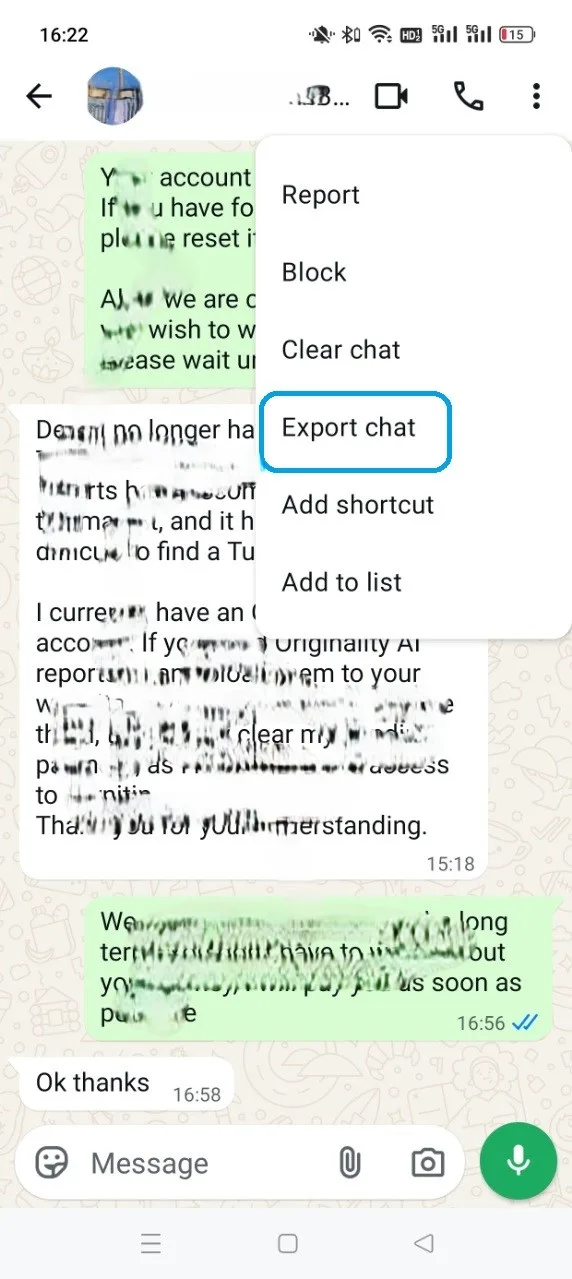
Menu wording can vary; WhatsApp’s instructions explain the built-in method. Check the saved text and attachments, including the oldest messages you need. The resulting text file is a reading copy, not an account backup that Memora Keep imports.
Back up the phone to Memora Keep
Connect and unlock the phone. Open the dedicated WhatsApp Backup workflow, follow its USB and debugging authorization prompts, and complete the preparation steps shown for your device.
This workflow needs WhatsApp’s chat data and its required decryption information. A general media backup only copies files such as photos and videos; it does not replace the WhatsApp workflow.
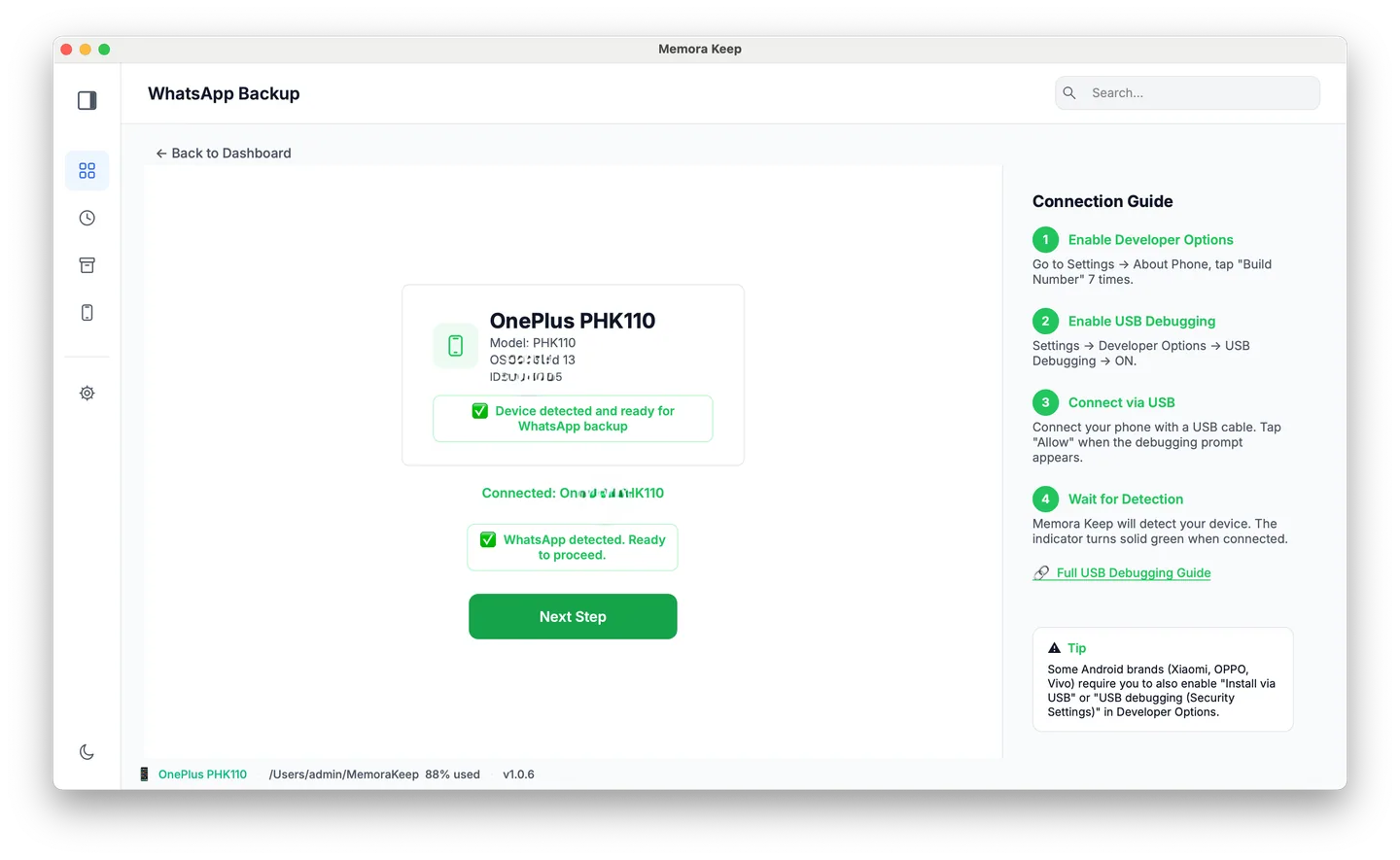
Confirm the detected app and number before starting. Do not assume cloned apps, work profiles or two installed WhatsApp variants are interchangeable.
Export from the archive
When backup finishes, open Archives → WhatsApp and select the account and conversation. Clear selected messages if you want the chat export dialog, then click Export.
Choose the chats, date range and format. HTML + Media produces a ZIP; PDF with available media also produces a ZIP containing separate media files. CSV contains message rows and media references only.
Check the output
Extract the package, open the reading file and test important attachments from the export folder. Compare an older message with the archive, and read any warnings.
If something is missing, inspect the source, backup result and export range. The missing-media guide helps distinguish unavailable files from copying or playback problems.
- android
- export
- local backup