How to Export WhatsApp Chats to PDF
Save a WhatsApp conversation as a PDF you can read, print or share — free, and without anything leaving your computer.
4 min read
On this page
To save WhatsApp chats as a PDF with Memora Keep, first back up your chats to your computer, open a conversation in Archives, then choose Export → PDF. WhatsApp does not have a built-in PDF export option. A PDF gives you a copy you can read, print or share without opening WhatsApp.
PDF opens in standard PDF readers on computers and phones. The export uses a chat-style layout for reading and printing; it is not an exact screenshot of the WhatsApp app. The steps below cover both whole conversations and selected messages.
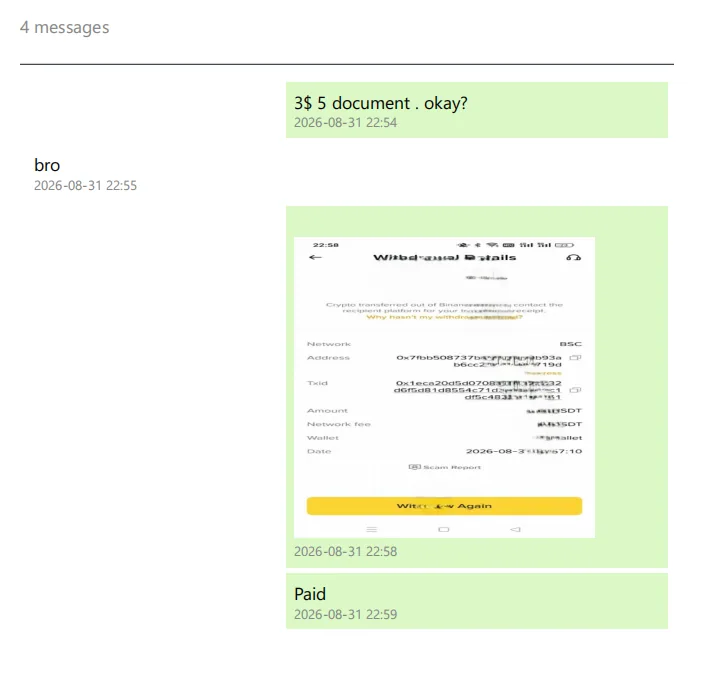
What the PDF looks like
The PDF uses a chat-style layout with names, messages and timestamps. Supported images appear in the document when available in the archive; videos and other attachments appear as text labels rather than playable embedded files. Export the original media separately if you need those files too.
Why PDF
PDF is useful when a conversation is going to be read or printed — a family thread, an agreement buried in a group chat, or something you want to refer to later. It shows who said what and when, with supported images and attachment labels. Videos are not embedded as playable videos in the PDF.
It is not the only choice. HTML keeps the conversation browsable in a browser, and CSV puts every message into columns if you want to sort, filter or count them. But for reading and keeping, PDF is the one people ask for.
What you need
- Memora Keep on a Windows or macOS computer. It is free.
- The conversation in your local archive: the backup data saved on your computer. Step 1 explains how to get it there.
- Enough free disk space for the backup and exported files; the amount depends on the chats and media you include.
Step 1: Get your chats onto the computer
An export reads from the archive on your computer, never from the phone, so the conversation has to be in there first. How you get it in depends on which phone you are coming from.
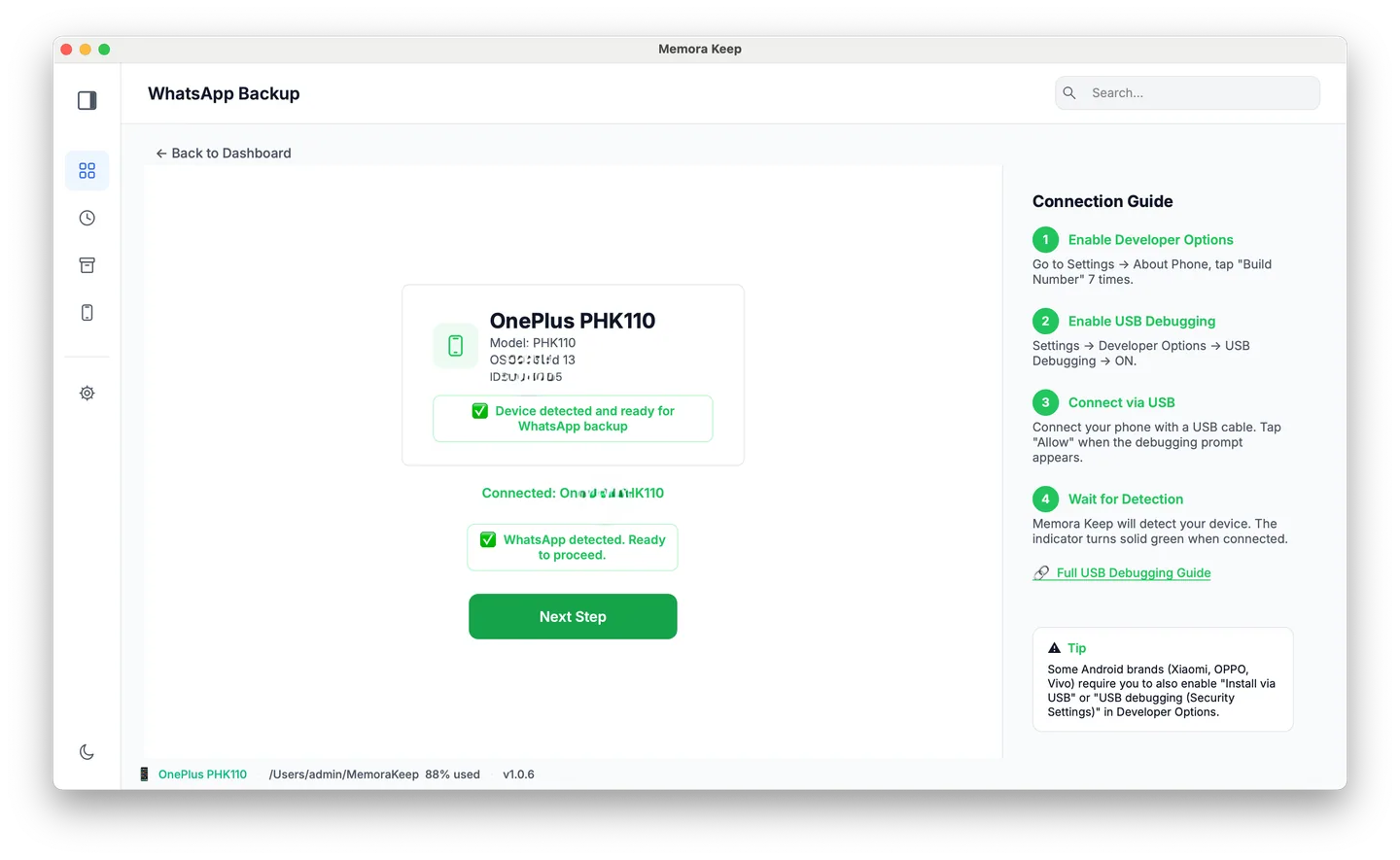
From Android. Connect the phone over USB and back up WhatsApp from it. The chats and their media are written into your archive. Follow the illustrated Android backup steps, stopping after the backup completes.
From iPhone. Memora Keep reads WhatsApp from an iPhone device backup. Back up your iPhone first, or import an existing backup. The chats and available media are saved in the same archive.
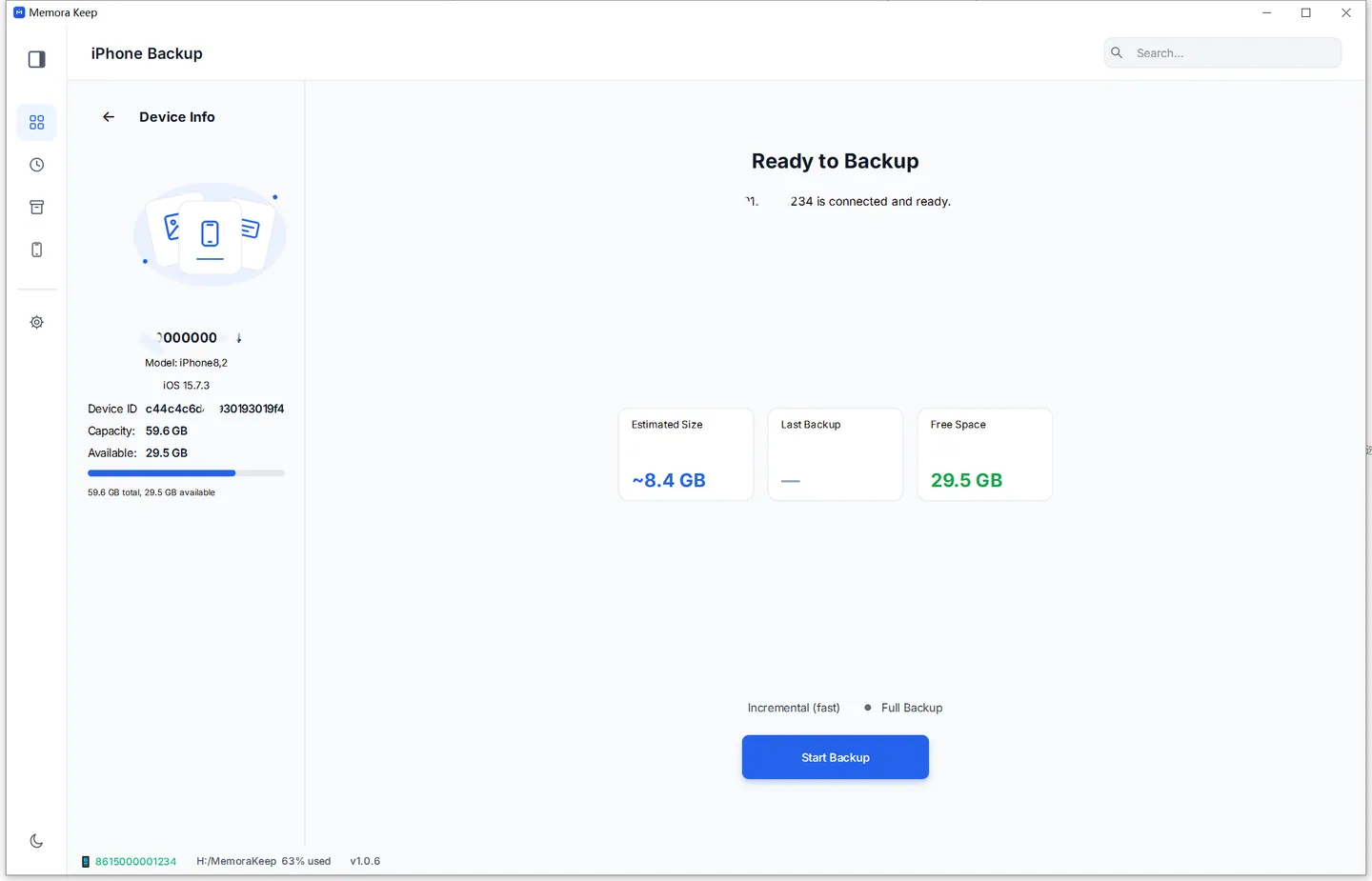
Either way it stays on your own disk. No cloud account, nothing uploaded.
Step 2: Open the conversation you want
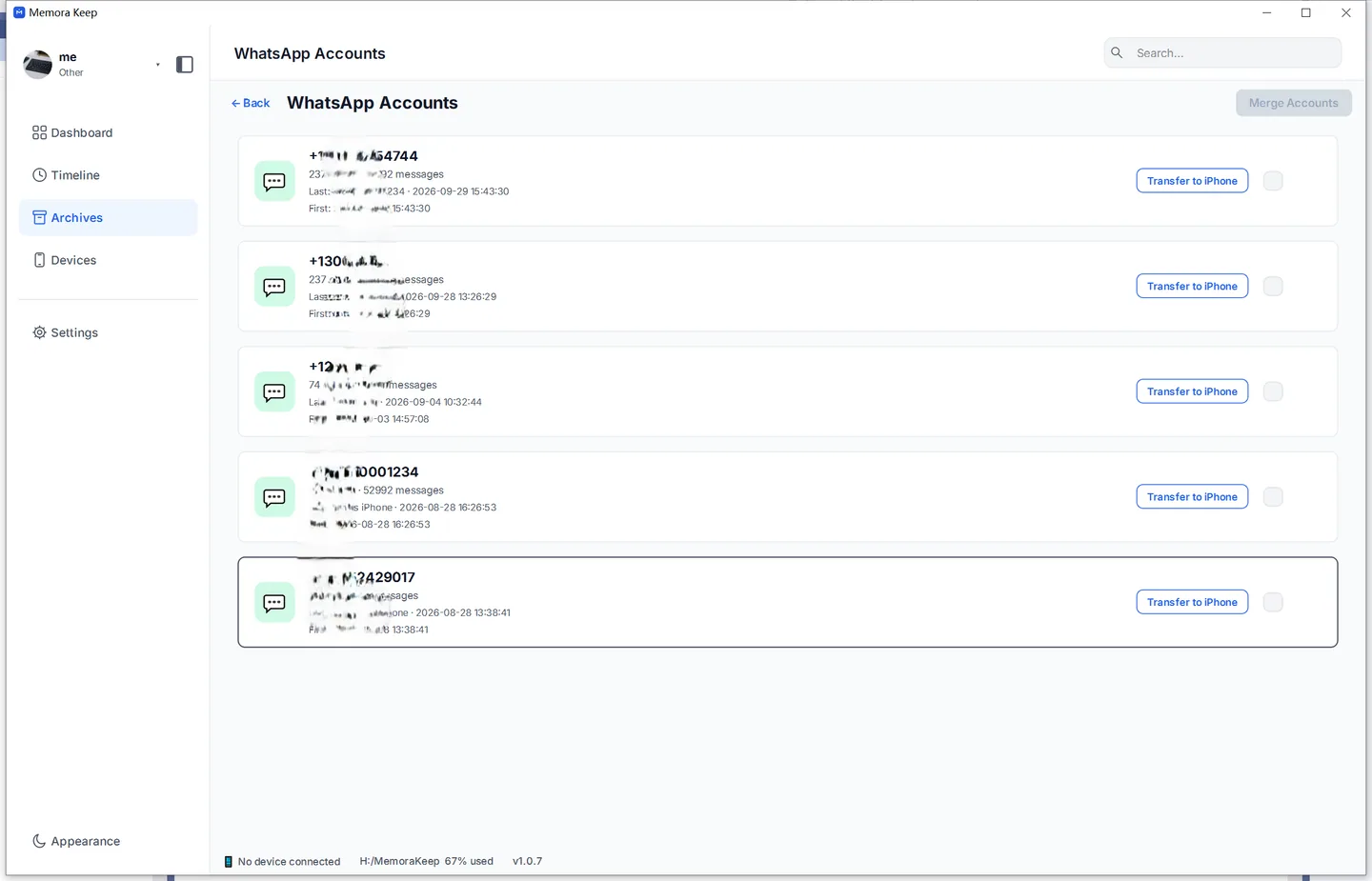
In Archives, open the WhatsApp section.
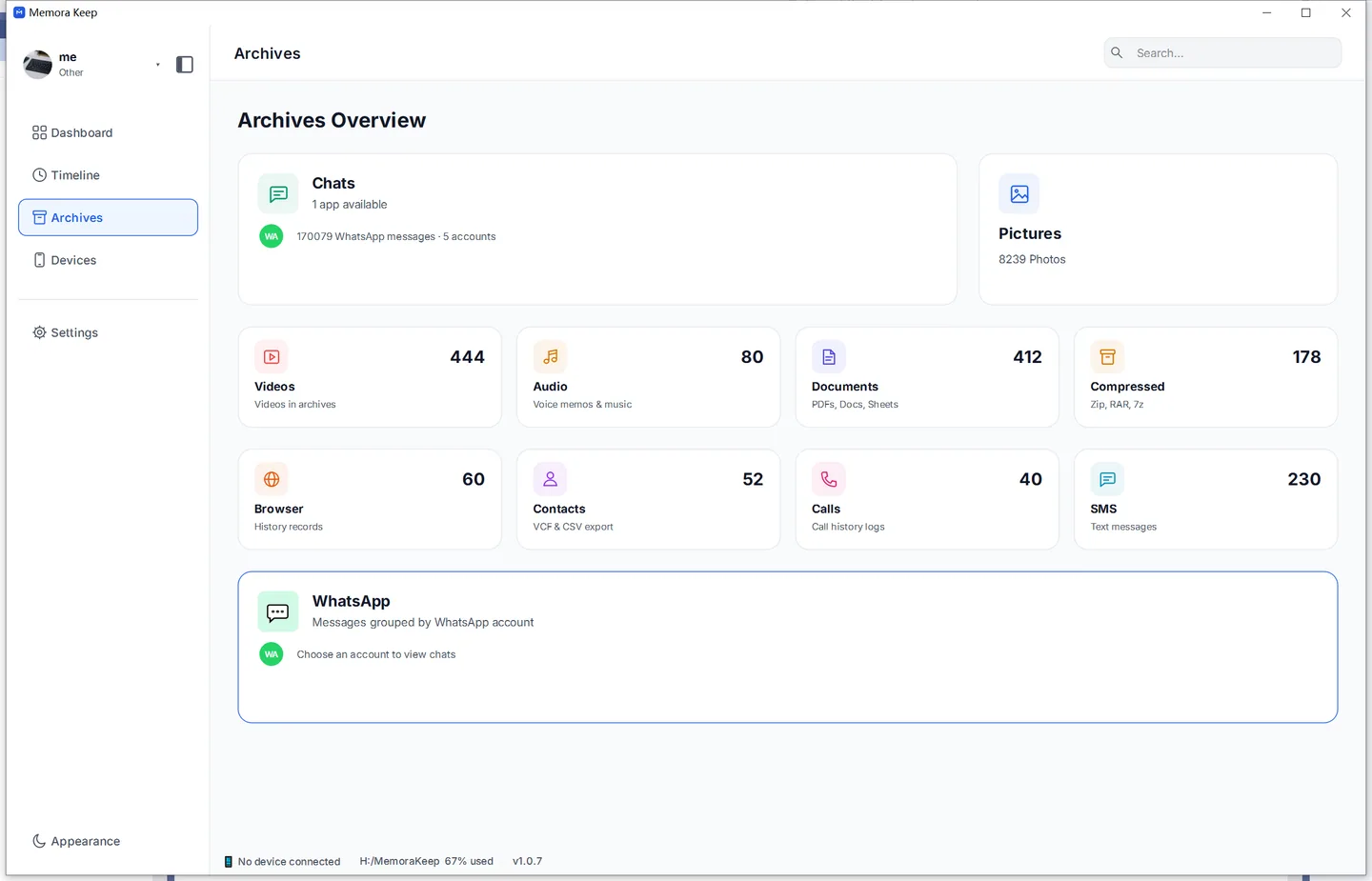
If the archive holds more than one WhatsApp account, the account list is where you choose which one to export from.
Step 3: Export it as a PDF
Choose whether to export an entire conversation or only selected messages.
Option A — export a whole conversation
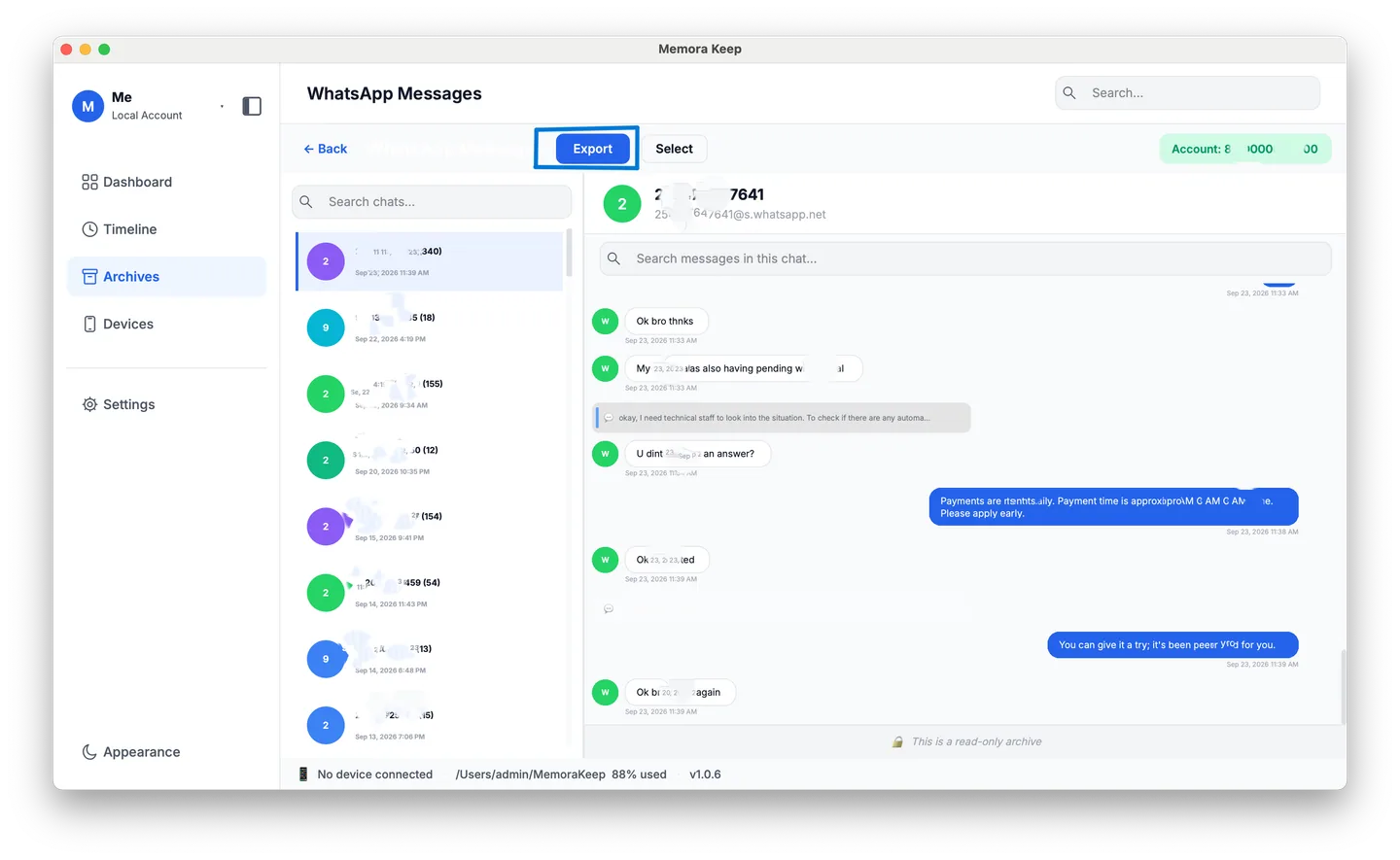
Open the conversation and use the Export button.
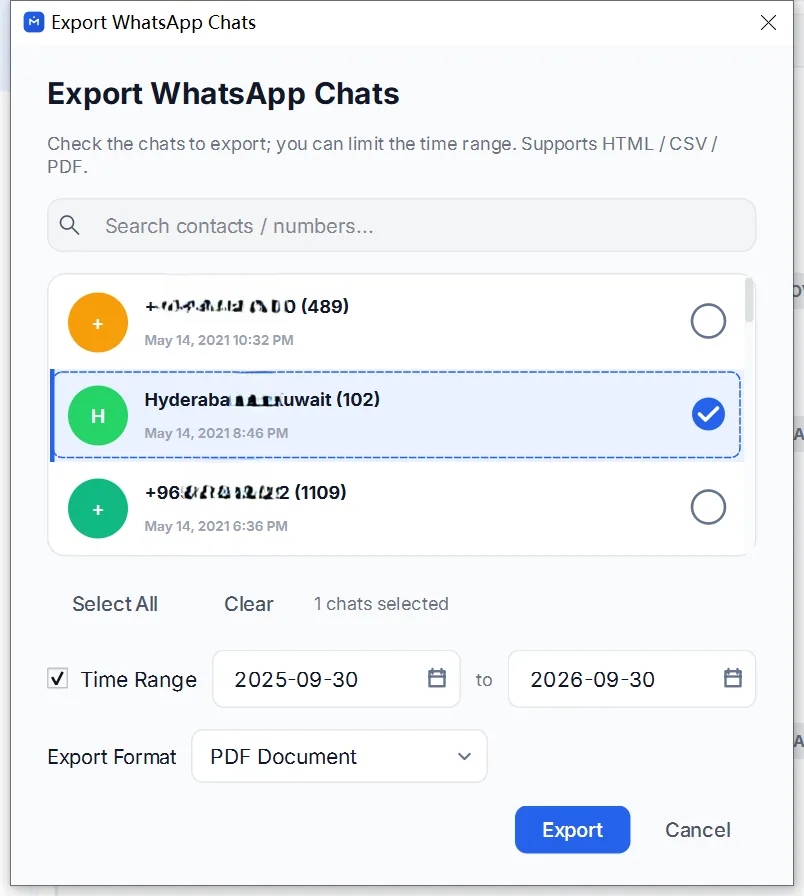
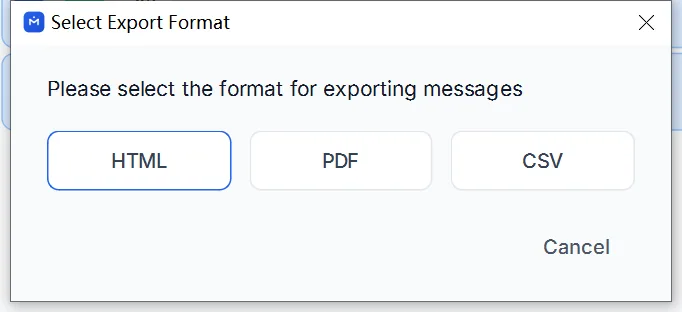
In the export dialog, choose PDF. You can also limit the export to a date range or select several conversations to export at once. Choose a destination folder and start the export.
Option B — export only some messages
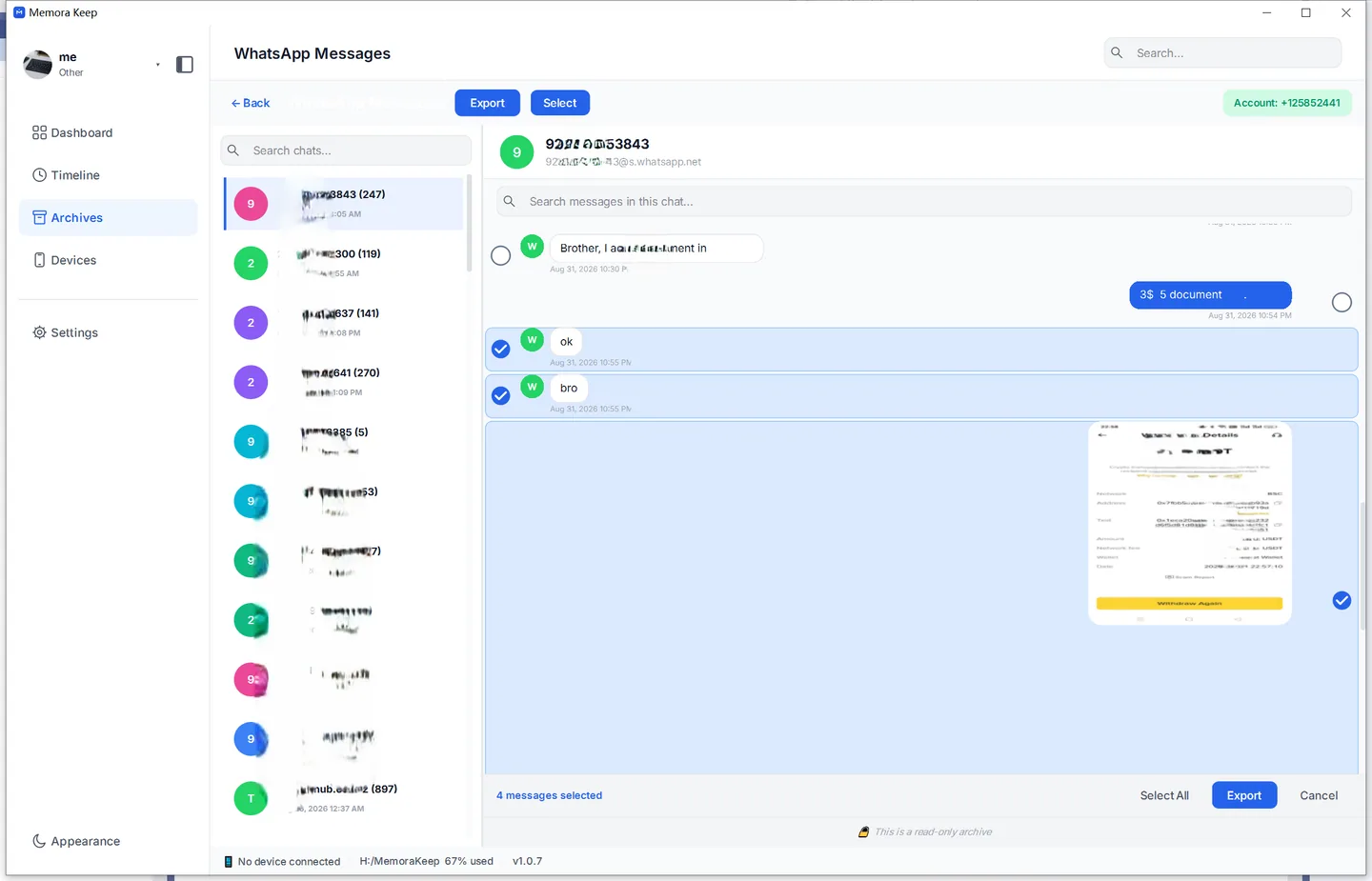
When the whole thread is more than you need, open the chat and click Select at the top.
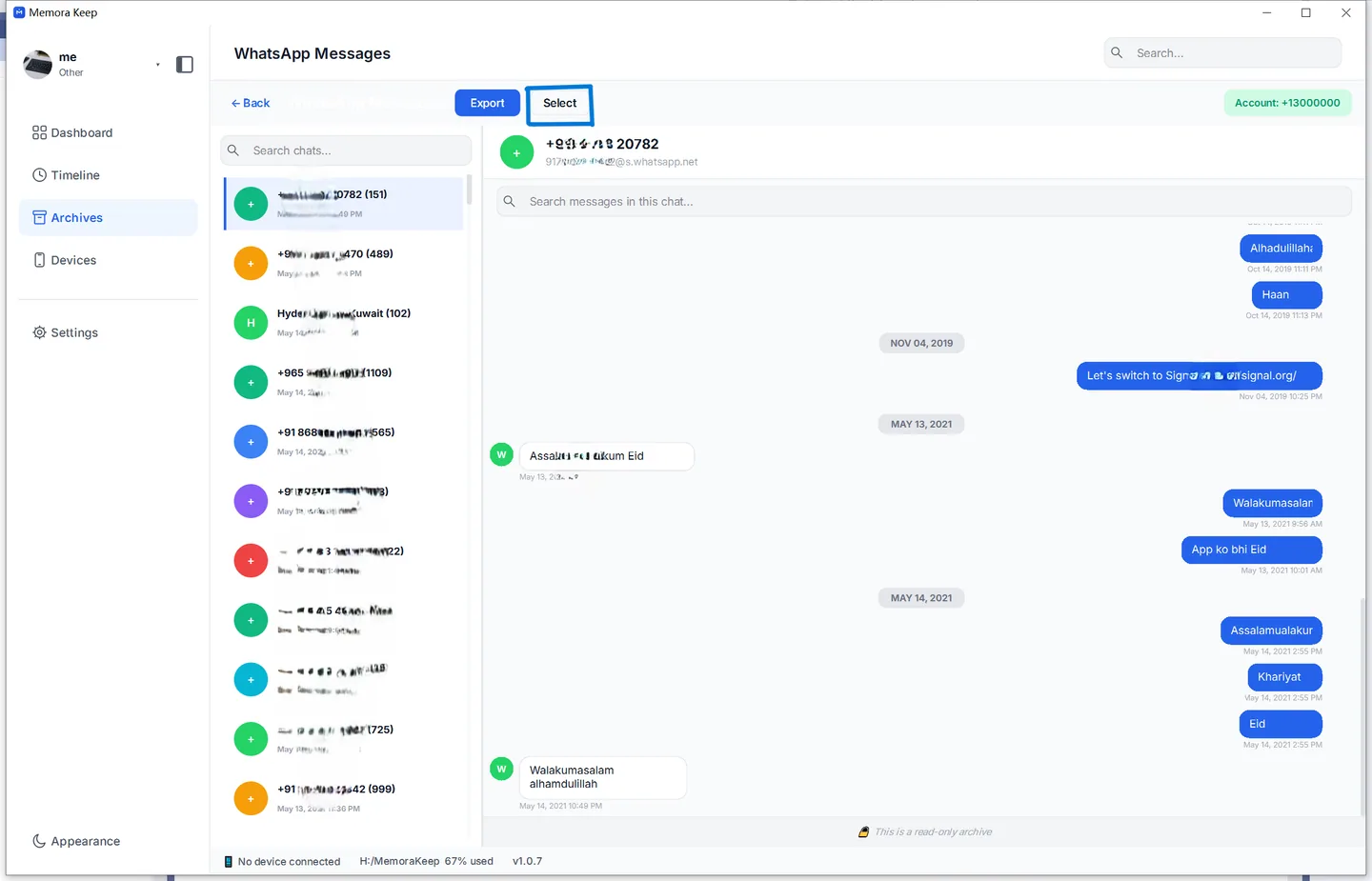
Tick the messages you want, then use Export below the conversation.
Choose PDF as the format, choose where to save the file and start the export.
When the export finishes, open the destination folder and open the PDF in your usual PDF reader. Check the messages, date range and images before sharing it or relying on it as your saved copy.
Good to know
- Exporting is a copy, not a move. Your archive and the original backup are left exactly as they were.
- One conversation or many — a single run can cover either.
- Timestamps come from the saved message data, so they survive the export.
- Images must be available in the archive to appear in the PDF. Video and other attachment labels are not copies of the original files. If something is missing, check the archive and source backup before relying on the export.
- The export runs locally on your computer. You do not need to upload your chats or create a Memora Keep account to export them.
- export
- backup
- archive