How to Export WhatsApp Messages by Date Range
Export WhatsApp messages between two dates as HTML, PDF or CSV. Memora Keep filters your chats on your computer and keeps your data local.
3 min read
On this page
Need the messages from a trip, a project or a specific year? Export just the WhatsApp messages between two dates instead of sorting through an entire chat.
Memora Keep includes a date range filter in the export dialog. Here’s how to use it.
What you need
- Memora Keep on a Windows or macOS computer. It’s free.
- The chat saved in a local archive (step 1 shows how).
Step 1: Back up your WhatsApp chat to your computer
Memora Keep exports from your local archive, so back the chat up first.
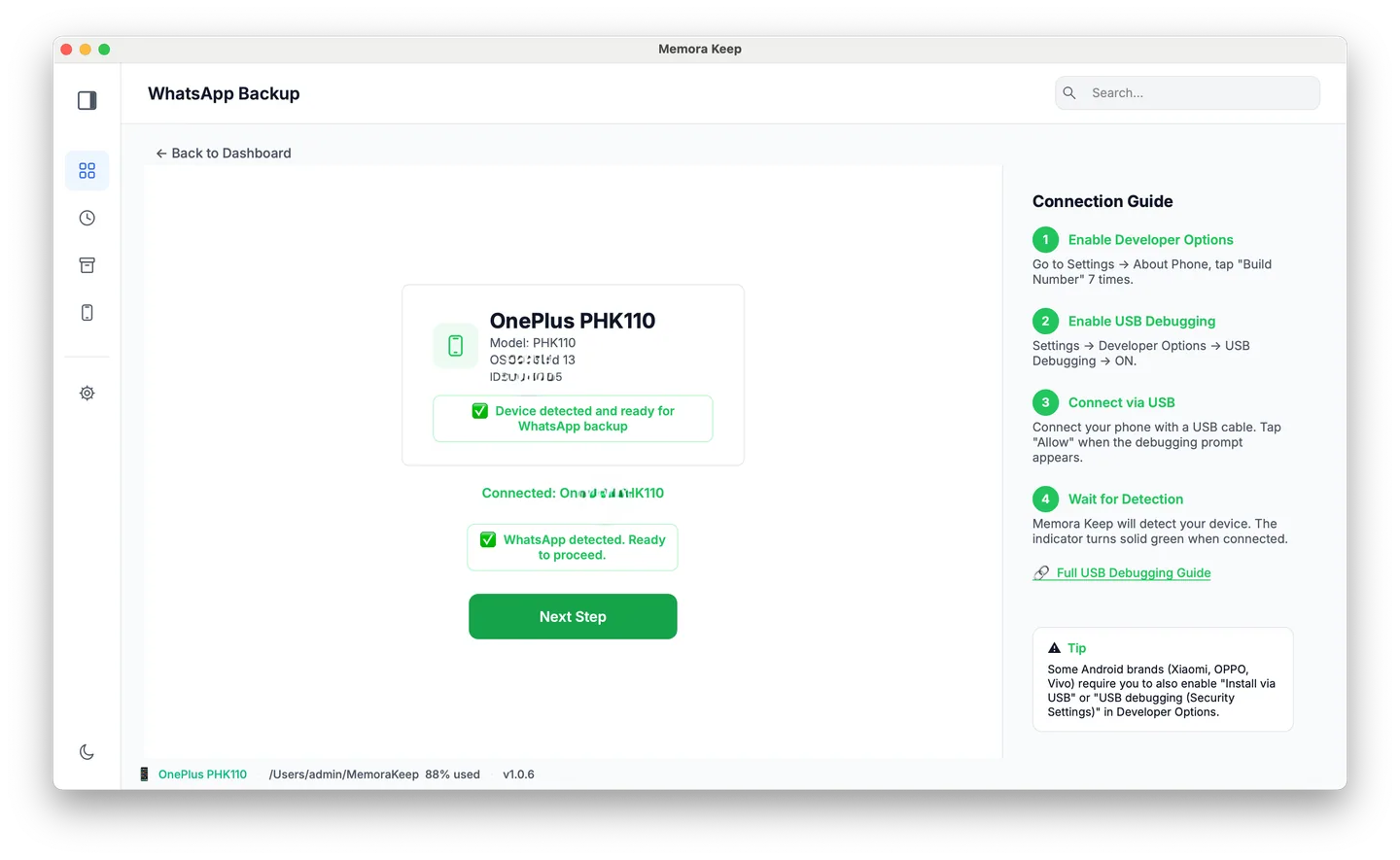
From Android. Connect the phone over USB and back up WhatsApp from it. Follow the illustrated Android steps, stopping after the backup finishes.
From iPhone. Memora Keep reads WhatsApp out of an iPhone device backup. Back up your iPhone first, or import a backup you already have.
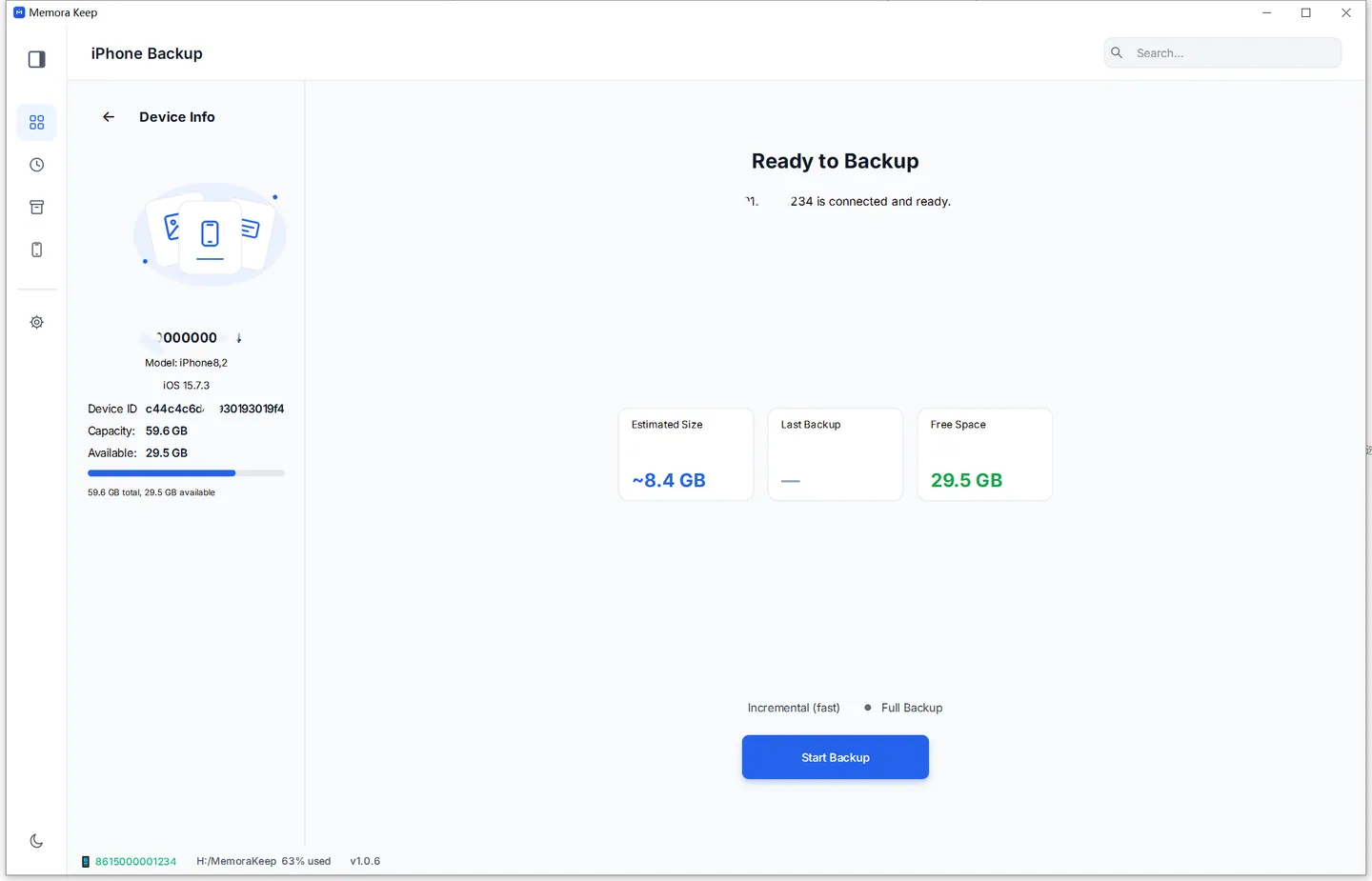
Your data stays on your computer. No account, nothing uploaded.
Step 2: Open the WhatsApp section
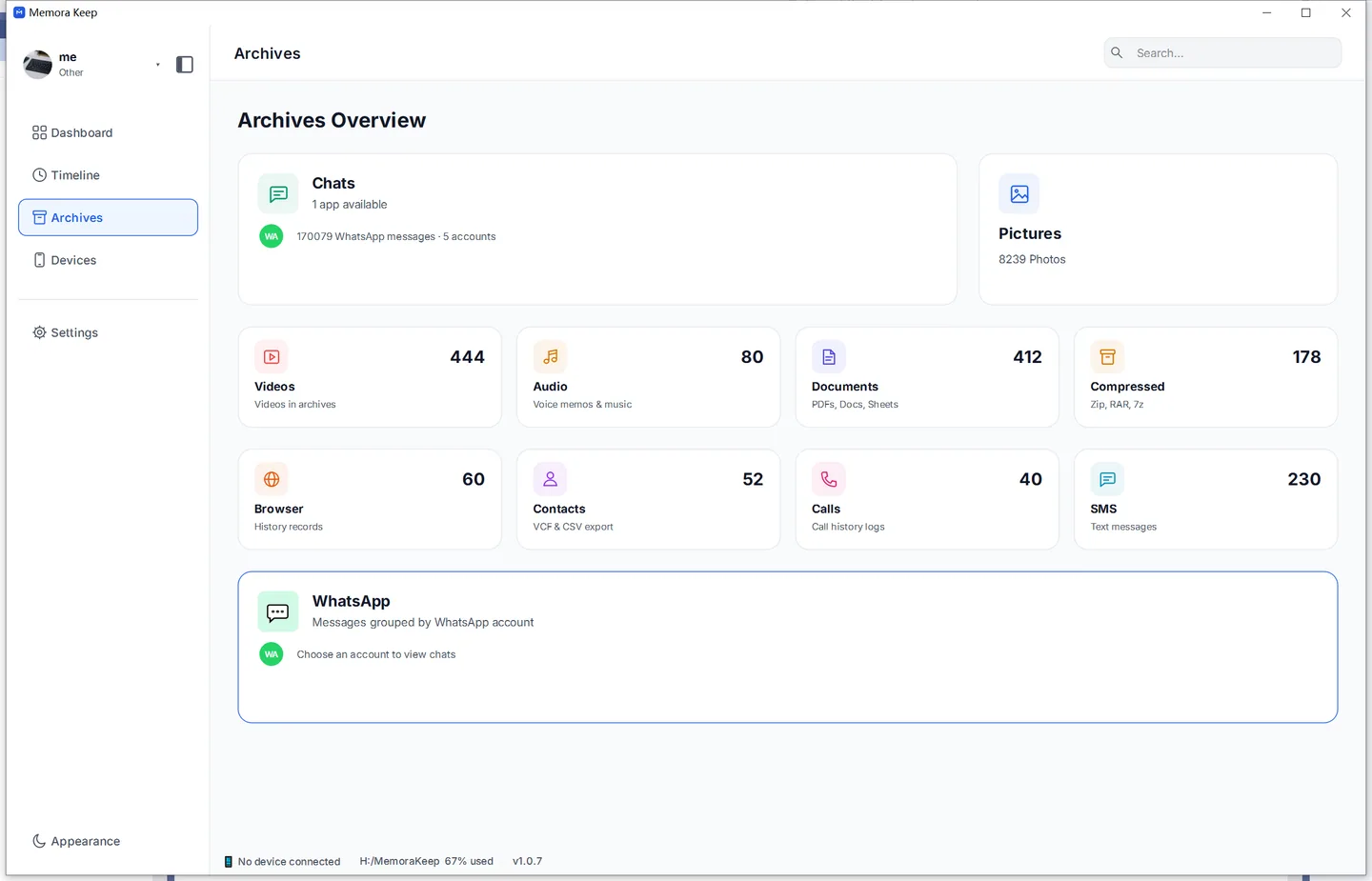
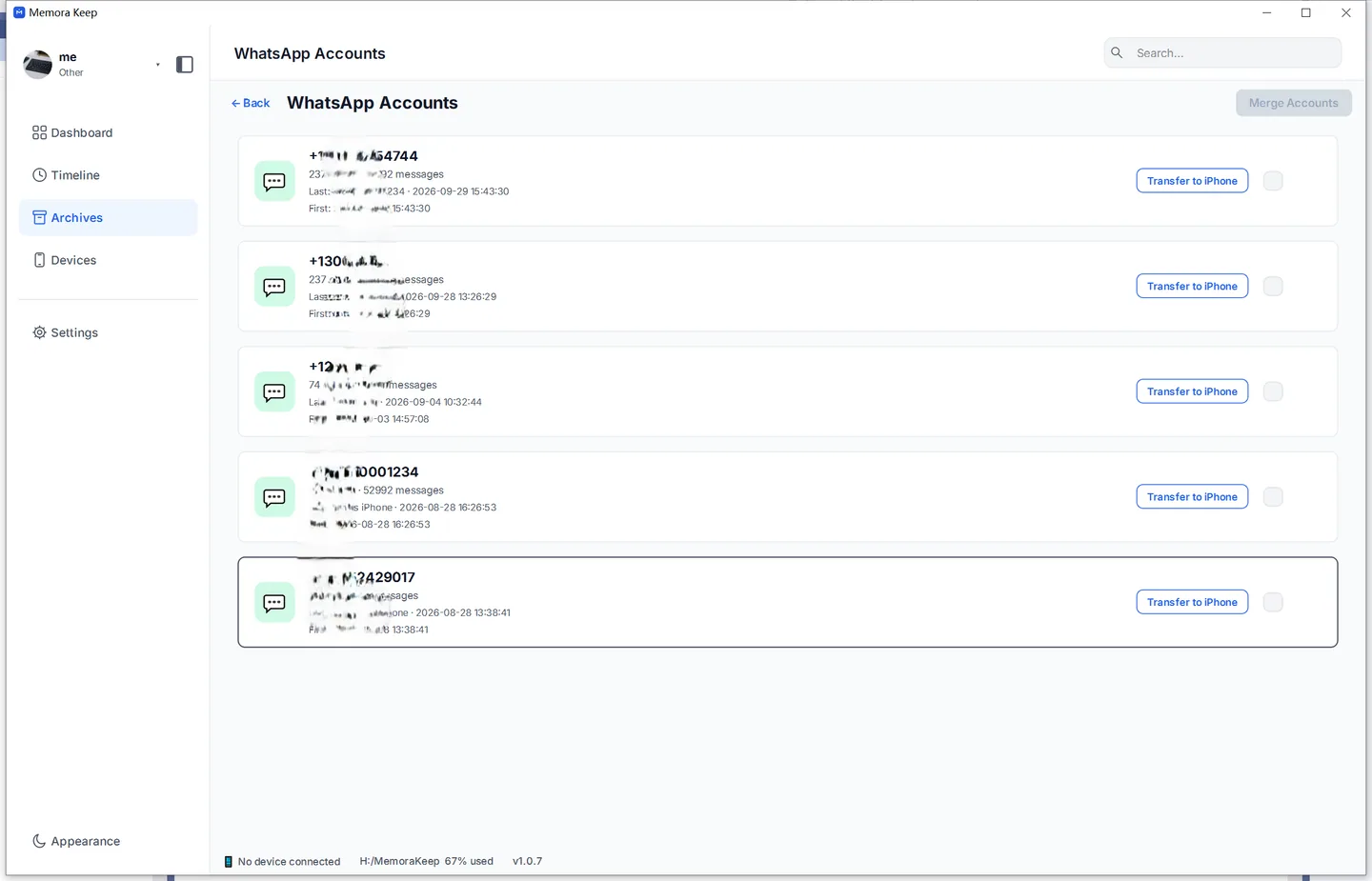
In Archives, open WhatsApp and pick the account if you have more than one.
Step 3: Choose a date range for your WhatsApp export
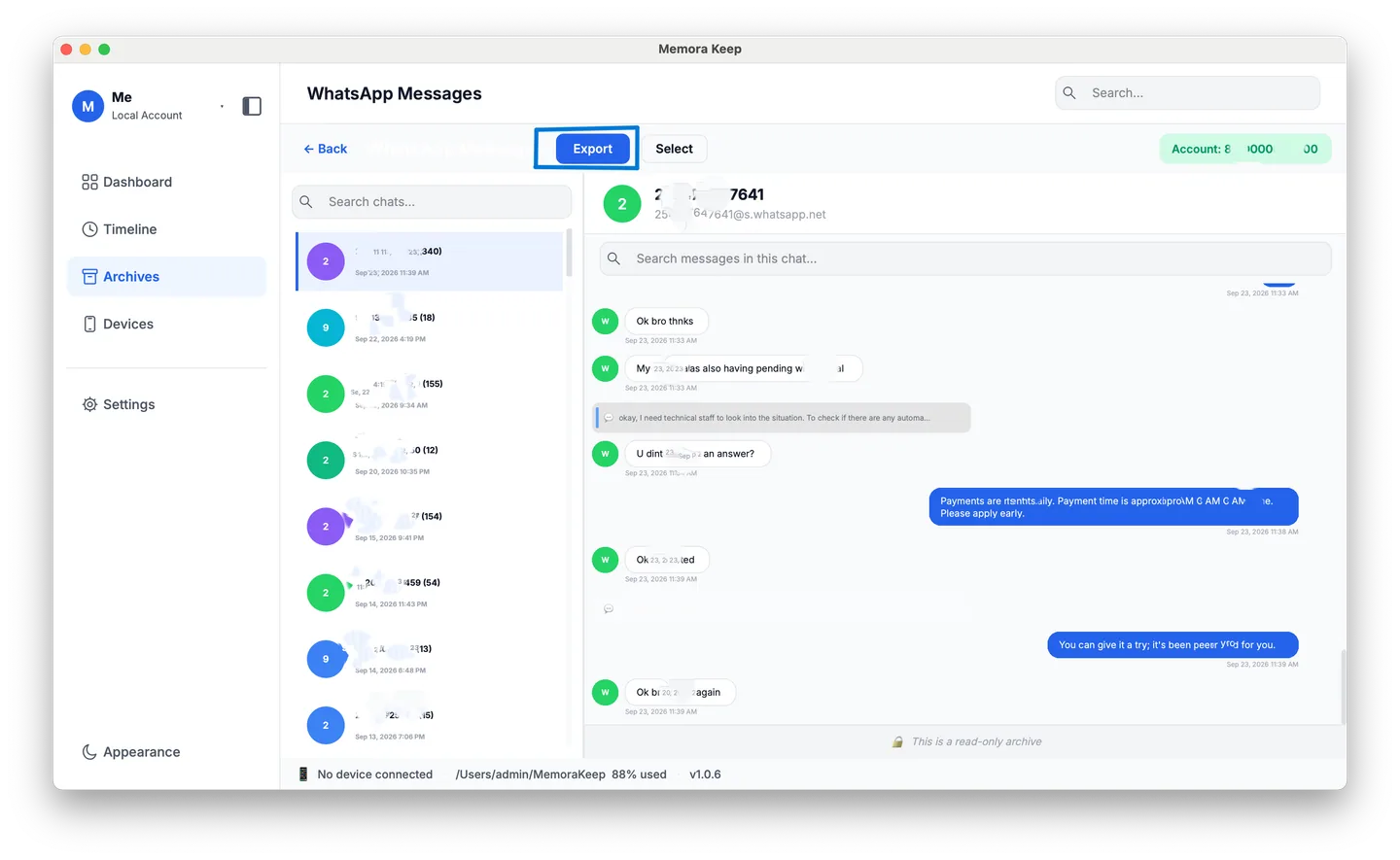
You don’t need to open the chat first. Click Export at the top of the WhatsApp view to export whole conversations by date.
The dialog lists every chat in the account, with its message count. Tick the conversations you want — or Select All for everything.
Then comes the part this guide is about: tick Time Range and set the two dates.
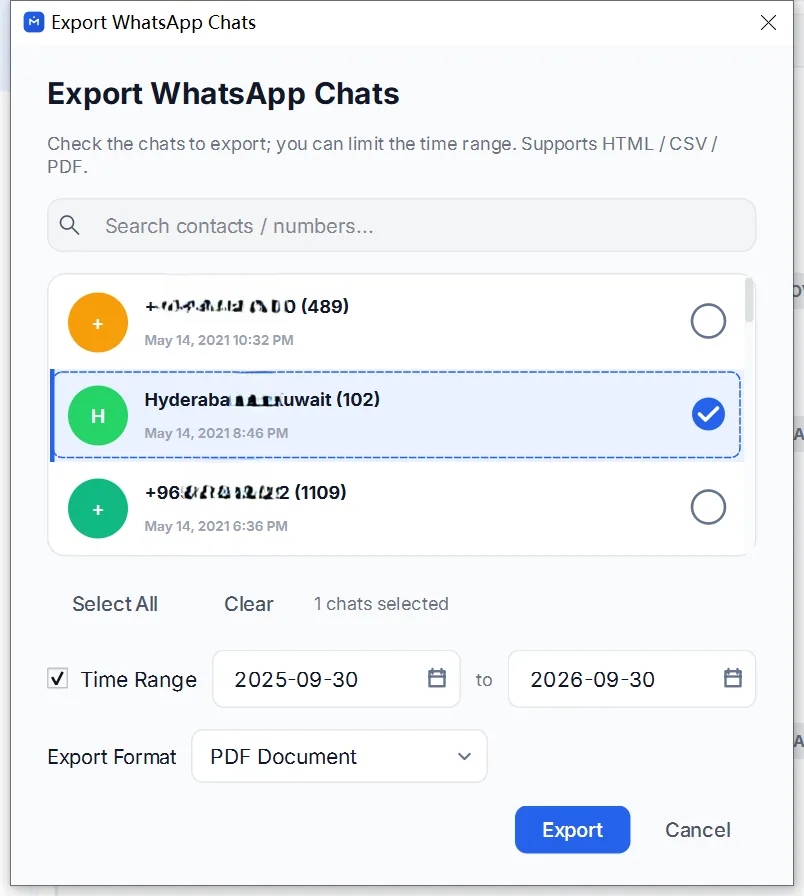
- Only messages sent between those dates go into the export. Everything outside the window is left out of every chat you ticked.
- The same window applies to all the chats you selected — handy for “give me March from every conversation.”
- Untick Time Range and you’re back to exporting whole chats.
Choose your format — HTML, PDF or CSV — press Export, and pick where to save.
What’s included in the export?
Memora Keep creates one file per chat in your chosen format. Each file contains only messages from the selected dates, along with the sender and timestamp.
An HTML export includes the original photos and videos. In a PDF, they appear in the chat, while a CSV lists the media and its file paths.
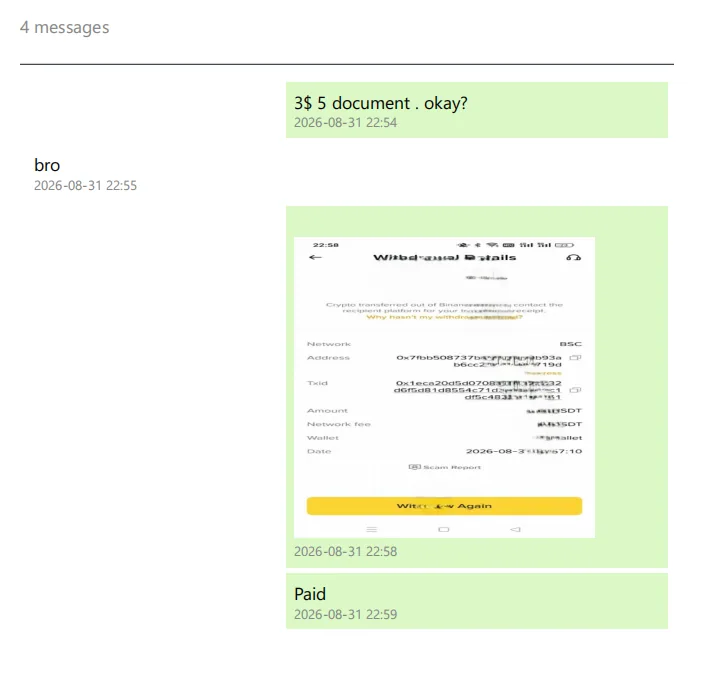
Want just a few messages from that period? Open the chat, select the messages in select mode, then export them.
Does WhatsApp support a date range?
No. WhatsApp’s Export chat feature exports one entire conversation at a time, with no date filter. To keep only a certain period, you’d have to edit the exported .txt file yourself.
Memora Keep lets you export just the messages from the dates you choose.
Good to know
- Exporting creates a copy and leaves your archive and phone unchanged.
- You can apply the same date range to several chats in one export.
- To create a separate file for each chat, export from inside each conversation. The date filter is available there too.
- date range
- time range
- export
- filter