How to Read Old WhatsApp Chats from an iPhone Backup
Read old WhatsApp chats from an iPhone backup without restoring your phone. Browse, search and find deleted messages that were saved in the backup.
3 min read
On this page
Need a WhatsApp conversation that’s no longer on your phone? If it was saved in an iPhone backup, you can still read it on your computer.
An iPhone backup isn’t a document you can open and read. Apple’s restore process puts the backup onto a phone, replacing its current data. Memora Keep reads the backup on your computer so you can browse and search old chats without restoring the phone.
What you need
-
Memora Keep on a Windows or macOS computer. It is free.
-
A local iPhone backup containing the data you want to read, and its password if it is encrypted.
-
Enough free disk space for the imported data and any files you export.
Why you don’t need to restore
Restoring replaces the phone’s current data with the backup’s contents. If the backup is older than your current chats, newer messages can be lost.
Memora Keep reads the WhatsApp data in the backup and creates a browsable copy in a local archive. The original backup stays unchanged.
Step 1: Get the backup into Memora Keep
Already have an iTunes or Finder backup? On the Dashboard, choose Import iPhone Backup, then select the backup folder. You don’t need a cable. To find the folder, see where Finder and iTunes keep backups.
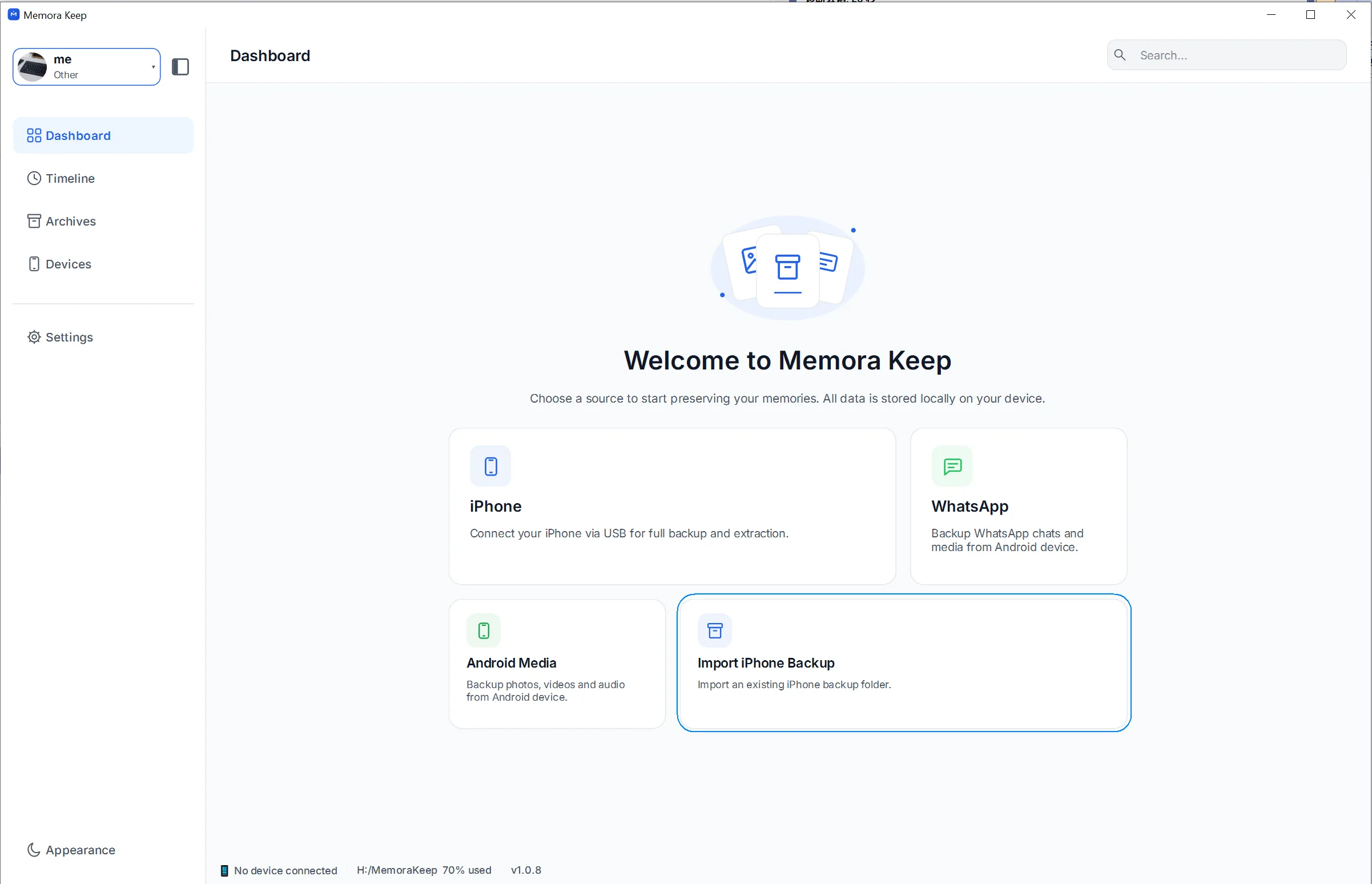
No backup yet? Connect the iPhone over USB and make a full device backup, which includes WhatsApp. Follow the iPhone backup guide.
Memora Keep then extracts the data into a local archive, leaving the original backup unchanged.
Step 2: Open WhatsApp in Archives
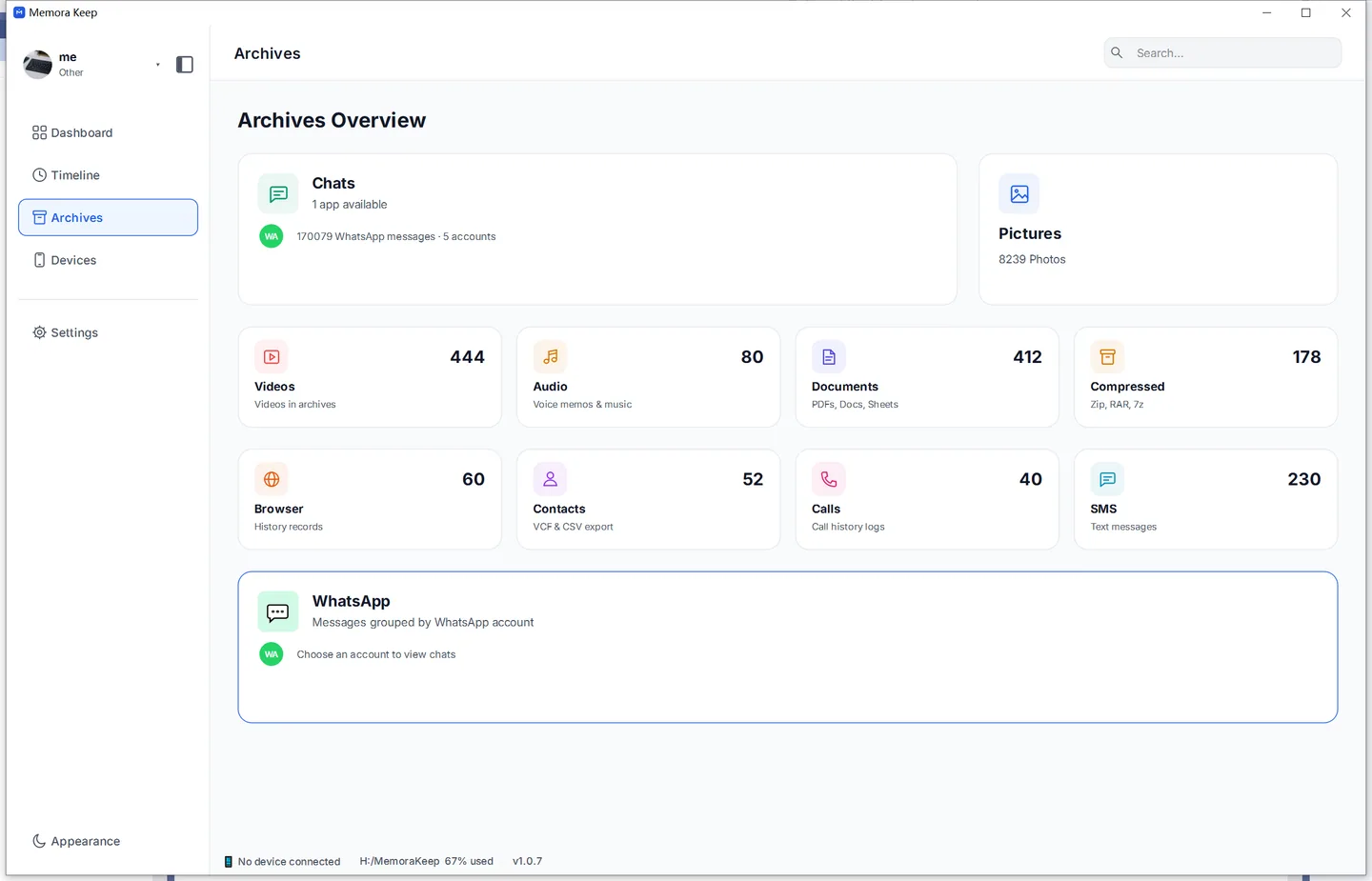
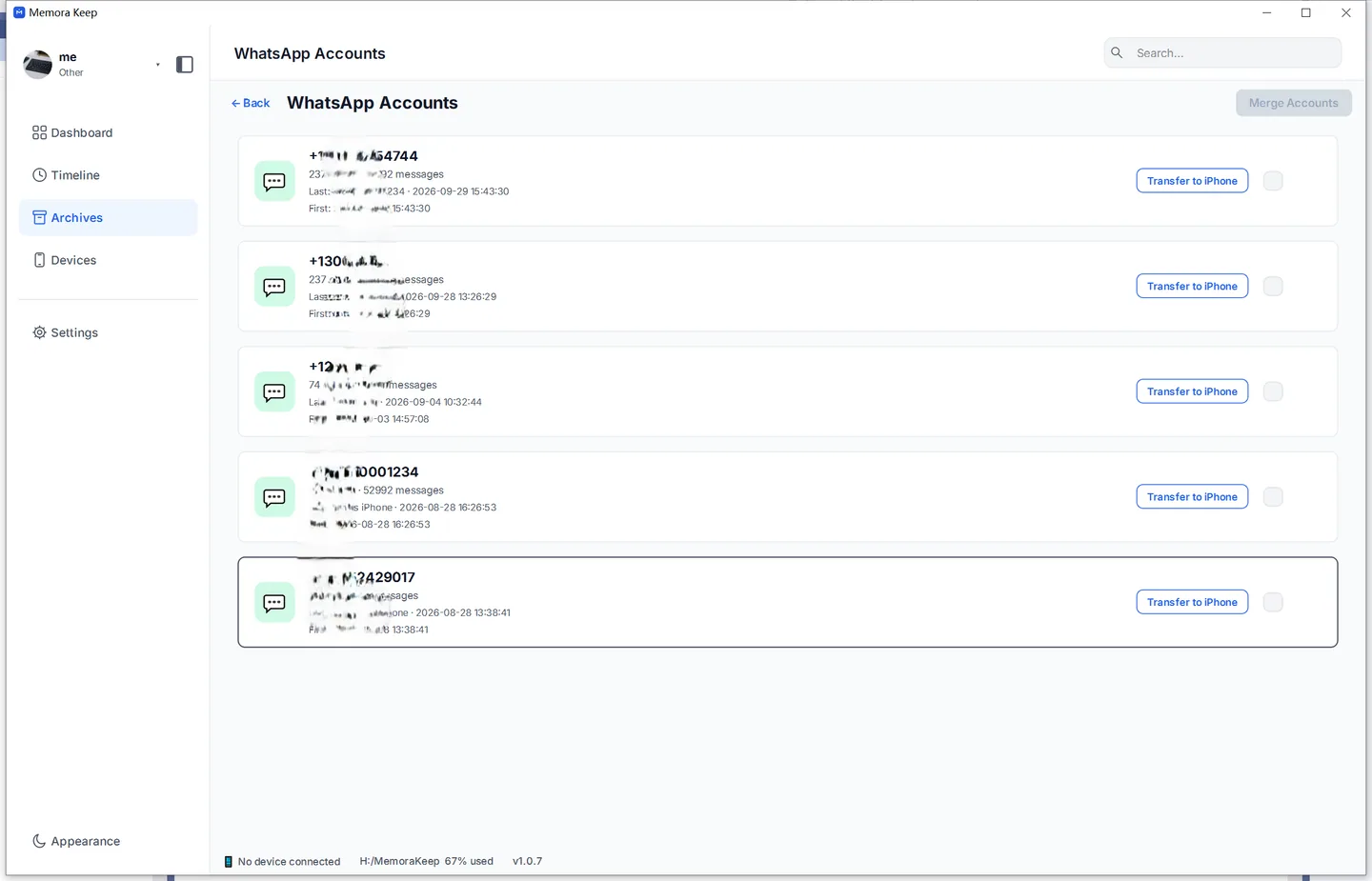
When the import finishes, open Archives → WhatsApp. Accounts backed up to this computer are listed separately. Choose the one containing the old chats.
Step 3: Read the old chats
Open a contact or group to see the conversation in order, with chat bubbles, sender names and timestamps. Scroll up to load older messages from the backup; the view isn’t limited to recent chats.
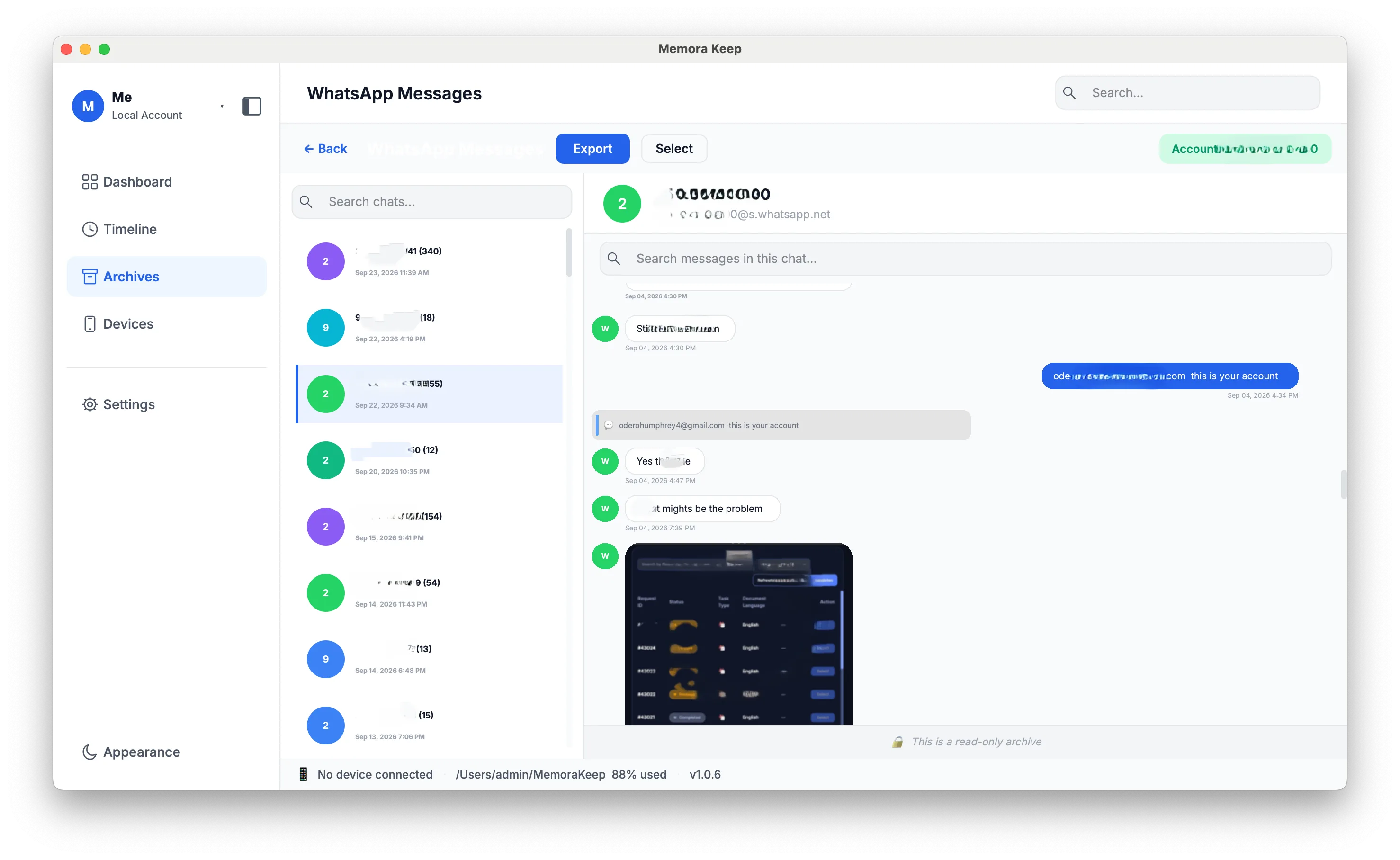
From here, you can:
- Find a message with search inside the chat.
- Open photos and videos within the conversation. See how to view media from a backup.
- Keep a readable copy for later. See how to save a chat as a readable archive.
Frequently asked questions
Can I read messages I deleted on my phone? Yes, if they were on the phone when the backup was made. Deleting a message in WhatsApp doesn’t remove it from an existing backup.
Does reading the backup affect my phone? No. Once you have the backup, reading it doesn’t involve the phone. Nothing is restored, replaced or erased.
The backup is encrypted. Can it still be read? Yes, with the password you set in iTunes or Finder. Memora Keep detects encrypted backups and asks for the password before reading them. You need that password to open the backup.
How old can the chats be? As old as your oldest backup. Import backups from earlier phones to read the chats they contain.
Good to know
- You can rerun an import or add more backups to the archive later.
- When you find what you were looking for, you can export selected messages to PDF, HTML or CSV.
- Your data stays on your computer. Nothing is uploaded, and no account is needed.
- iphone backup
- old chats
- read