How to Read WhatsApp Conversations After Changing Phones
Read old WhatsApp conversations after changing phones using a backup on your computer. Learn what you can do with or without the old phone.
3 min read
On this page
Changed phones, but your old WhatsApp conversations didn’t appear? The transfer may have failed, or you may have skipped it. You can still read those chats if you can back up the old phone or already have a backup.
Here’s what you can do in each situation.
What you need to read the old chats
The old phone still works. Connect it over USB and back it up to your computer, including chats that didn’t reach the new phone.
The old phone is gone, but you have a backup. An iTunes, Finder or Android backup on your computer contains the chats saved at the time. You can read it without the phone.
The old phone is gone and there’s no backup. You can’t read the missing chats this way. Google Drive and iCloud backups can only be restored through WhatsApp onto a phone as a whole; you can’t open them to read individual conversations.
Situation 1: You still have the old phone
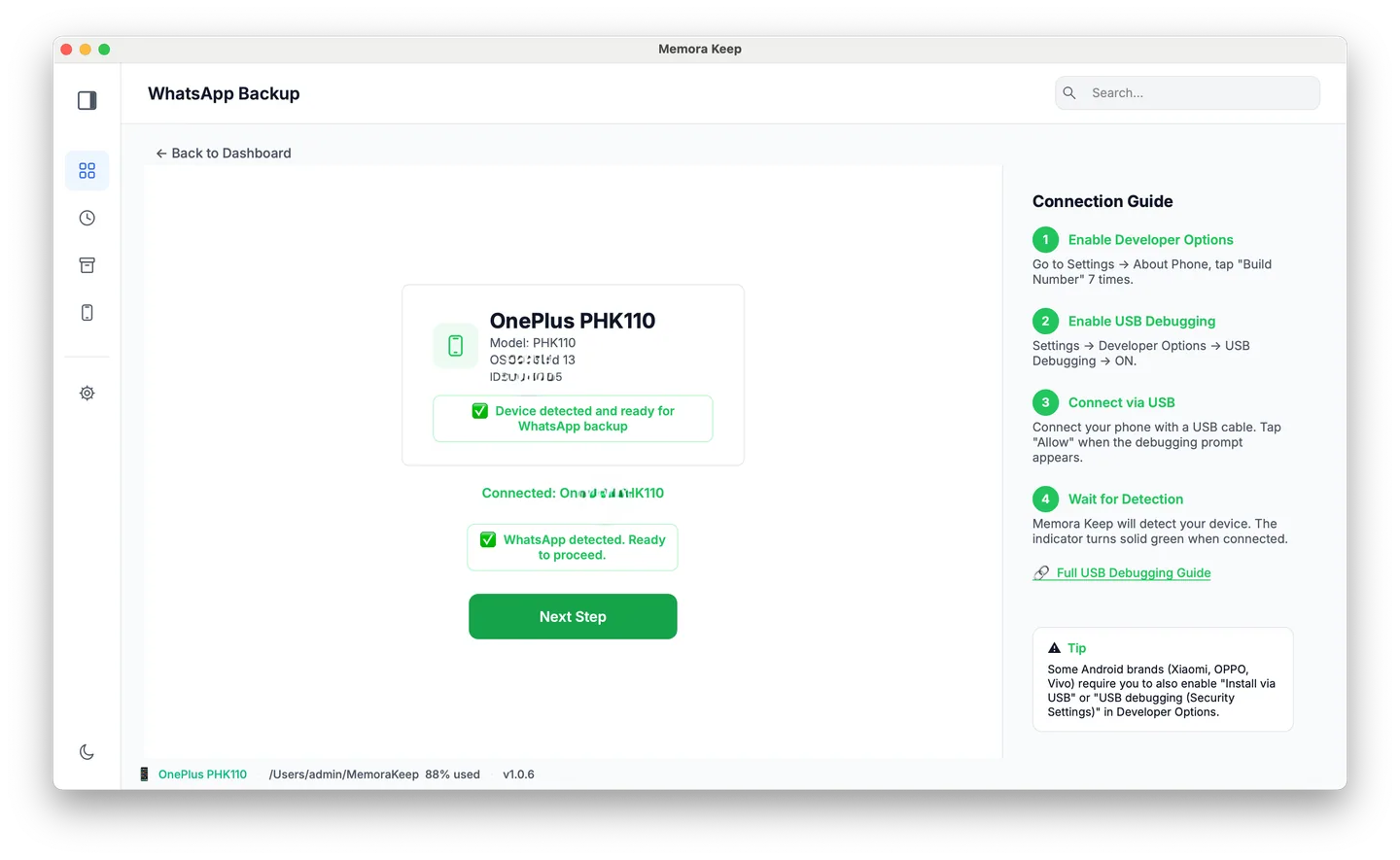
Back up the old phone before selling or erasing it. Memora Keep on Windows or macOS reads the data over USB. No cloud account is needed, and nothing is uploaded.
Download Memora KeepAndroid: connect the old phone and back up WhatsApp through the app.
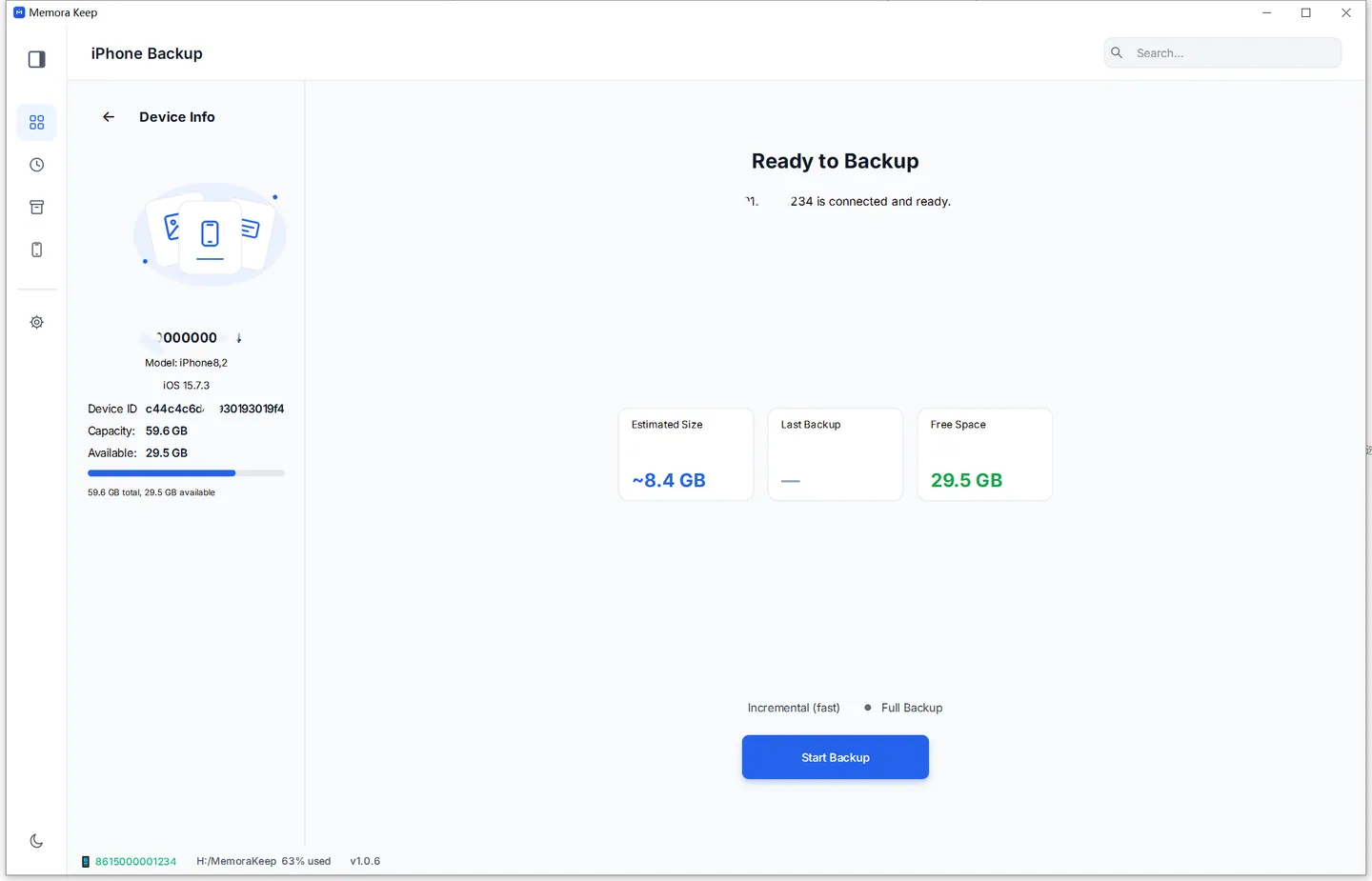
iPhone: WhatsApp is included in a full device backup. This guide walks through backing an iPhone up to a computer.
Situation 2: You have a backup but no old phone
Memora Keep can read an existing iTunes or Finder backup without a phone, cable or restore. On the Dashboard, choose Import iPhone Backup and select the backup folder.
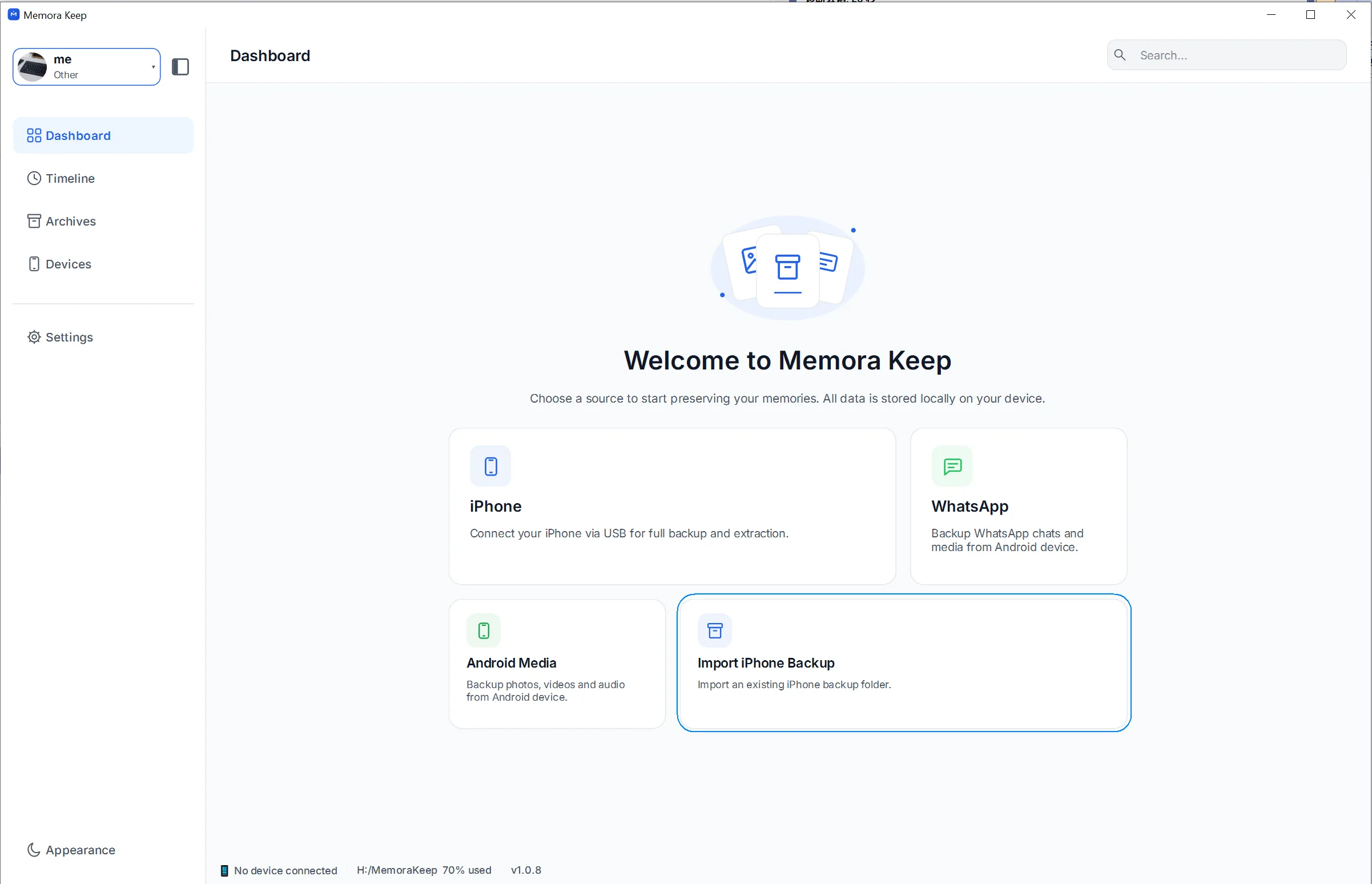
To find the backup folder, see the import guide.
Reading the old chats
Once the backup is added to the archive, open Archives → WhatsApp and choose the old phone’s account.
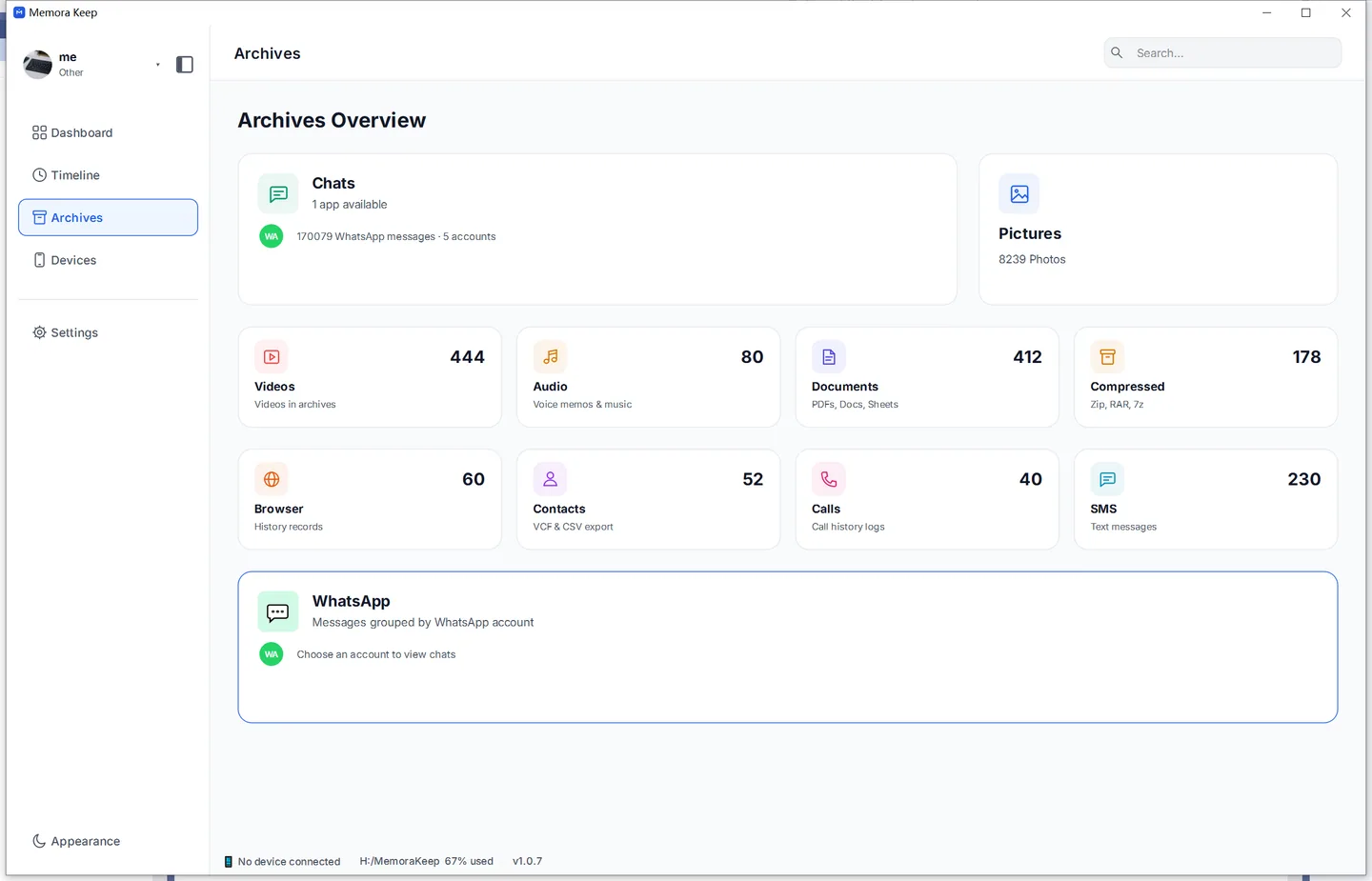
Open a conversation to see chat bubbles, sender names and timestamps. Scroll back to the first saved message. Photos and videos appear alongside messages and open with a click.
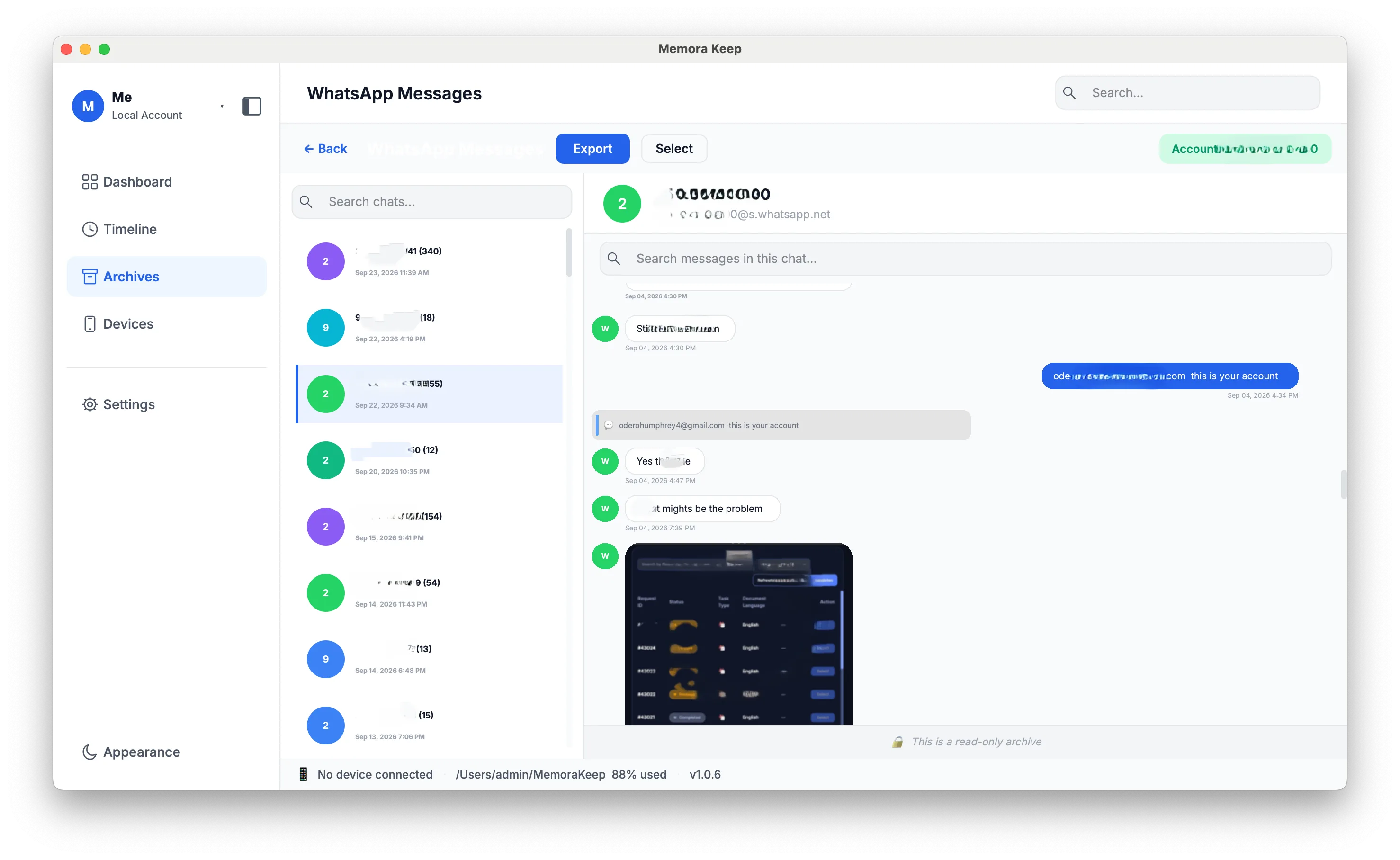
You can then:
- Find a message. Search one conversation or all chats with the local backup search tools.
- Save a readable file. Export a conversation to PDF, HTML or CSV to read it without opening the backup.
If you also changed numbers, the archive can hold the old and new accounts separately. Learn how to organize them, or merge their histories later.
Frequently asked questions
The transfer to my new phone failed halfway. Are the chats lost? If the chats are still on the old phone, back it up to your computer. You can read its saved chats even if the transfer never finishes.
Can I read old chats from a Google Drive or iCloud backup? Not directly. They must be restored through WhatsApp onto a phone. To read chats on your computer, use a local backup.
I changed phones and numbers. Can I still read the old account’s chats? Yes, if you have a backup of the old account. It stays separate in the archive and can be read without the old phone or an active number.
Does any of this touch the new phone? No. You read saved files on your computer; the new phone stays unchanged.
Good to know
- Back up your phone to a computer before switching. See the iPhone backup guide.
- For a number change, see how to keep WhatsApp history from an old phone number.
- Planning to move chats to a new phone instead of just reading them? Transfer WhatsApp from Android to iPhone.
- old phone
- phone switch
- read