How to Read a WhatsApp Group Chat Backup on Your PC
Read a WhatsApp group chat backup on your PC. Filter the chat list, check members' message counts and show messages from selected people.
3 min read
On this page
Need an address, file or message buried in a busy WhatsApp group? Reading the backup on your computer lets you filter, browse and search the conversation on a larger screen.
Here’s how to read a WhatsApp group chat backup on your computer with Memora Keep.
What you need
- Memora Keep on a Windows or macOS computer. It’s free.
- The group’s messages saved in a local archive (step 1 shows how).
Step 1: Back up WhatsApp to your PC
Group chats are included in a normal WhatsApp backup.
From Android: connect the phone over USB and back up WhatsApp, including your group chats.
From iPhone: WhatsApp is included in a full device backup. Back up the iPhone, or import an iTunes or Finder backup you already have.
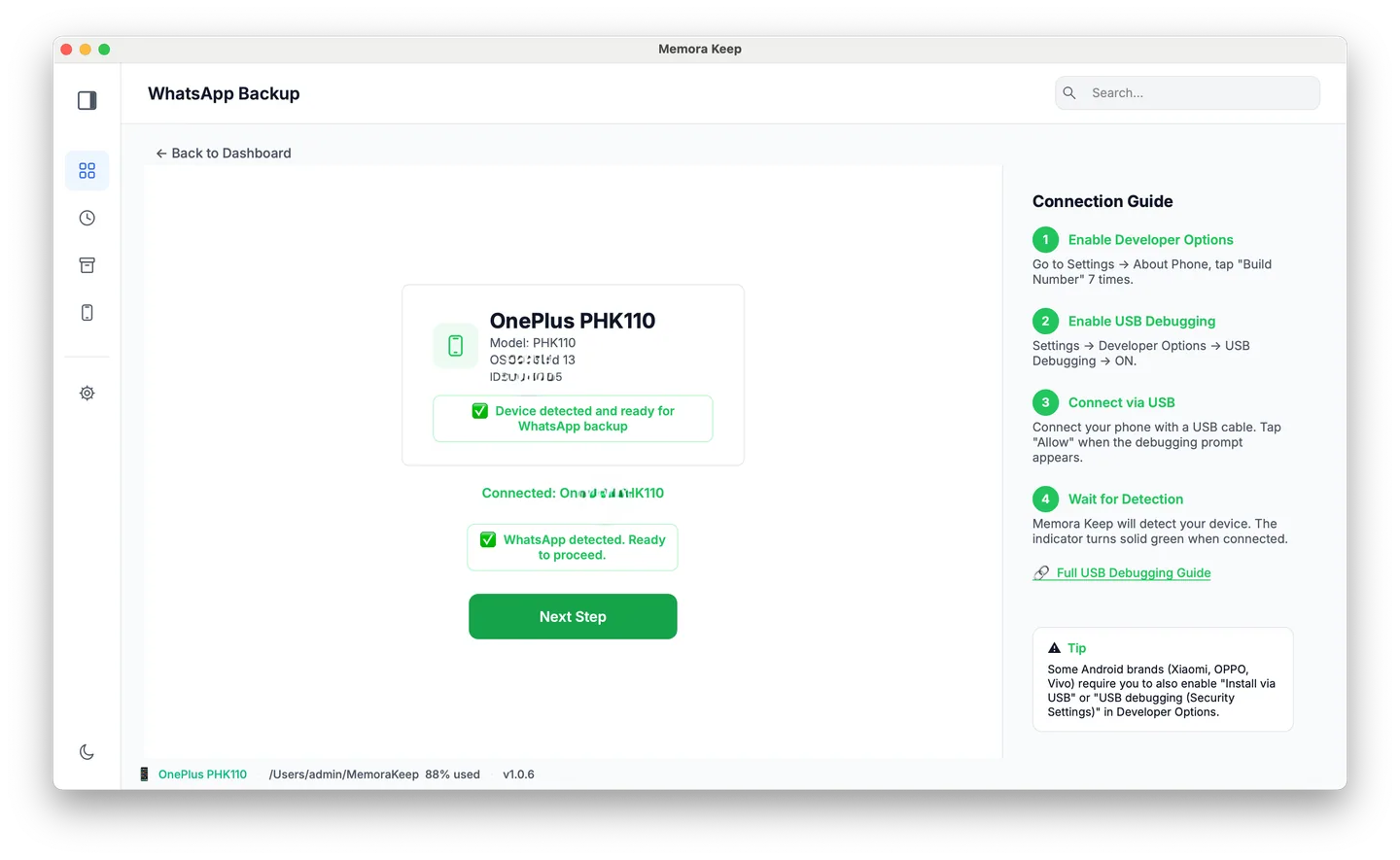
Memora Keep adds the backup to an archive on your computer. Nothing is uploaded.
Step 2: Filter the chat list to groups only
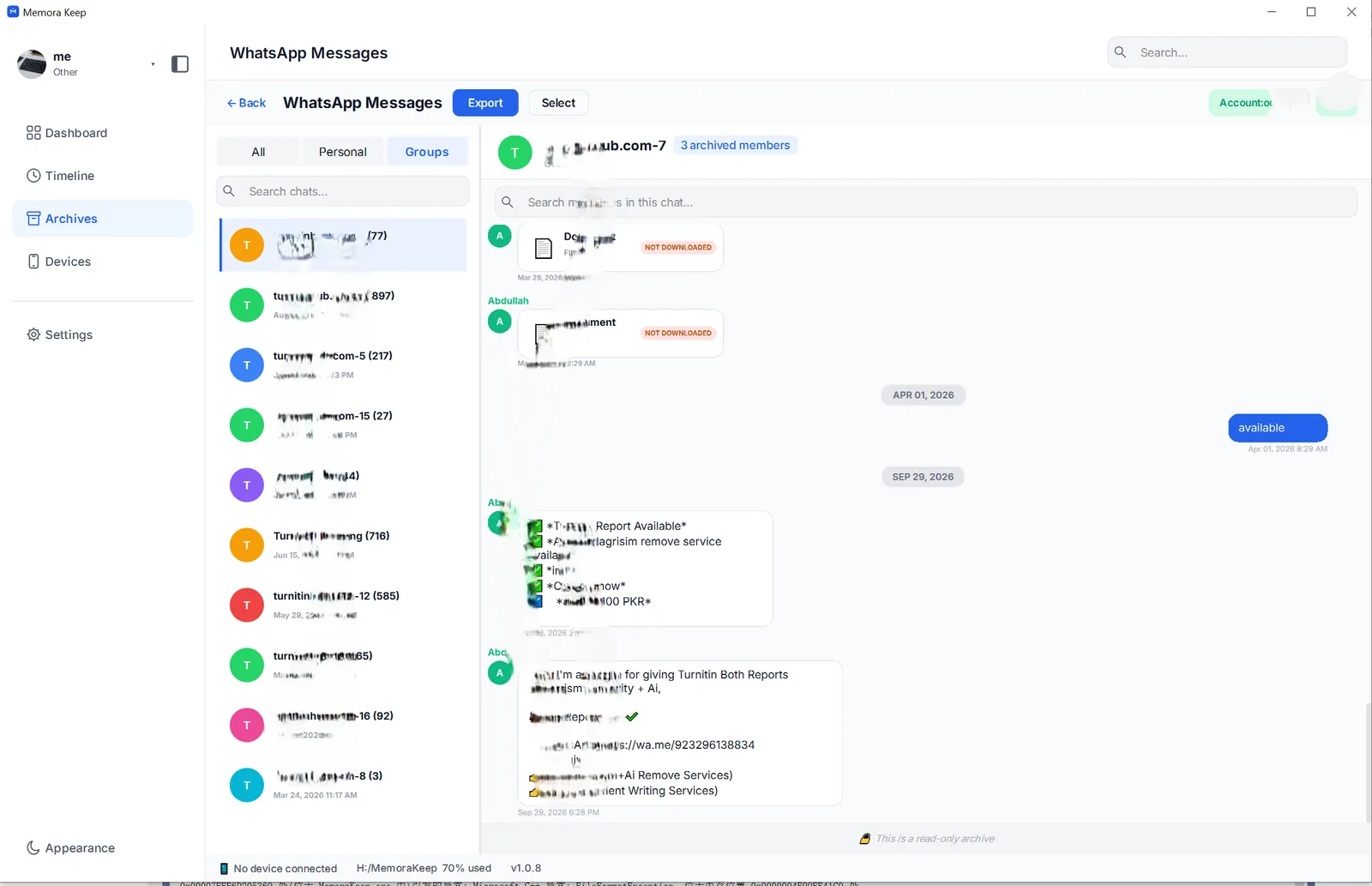
In Archives, open WhatsApp and choose the account. Click Groups at the top of the chat list to show group conversations only.
Each group shows its name and the number of messages backed up.
Step 3: Open and read the group chat
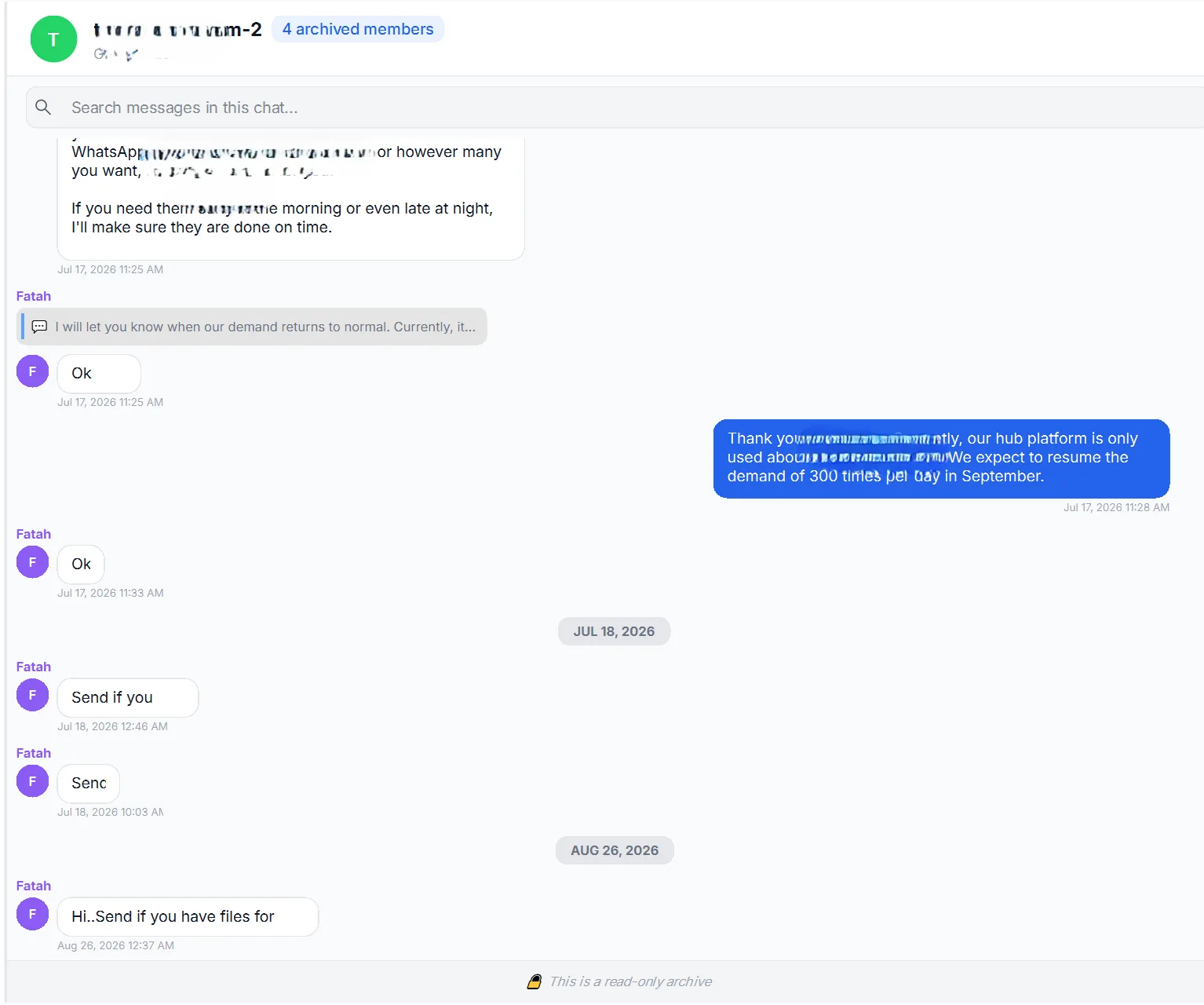
Click a group to open the conversation on the right, with chat bubbles, sender names and timestamps in order. Scroll up to load older messages saved in the backup, including history no longer shown on your phone.
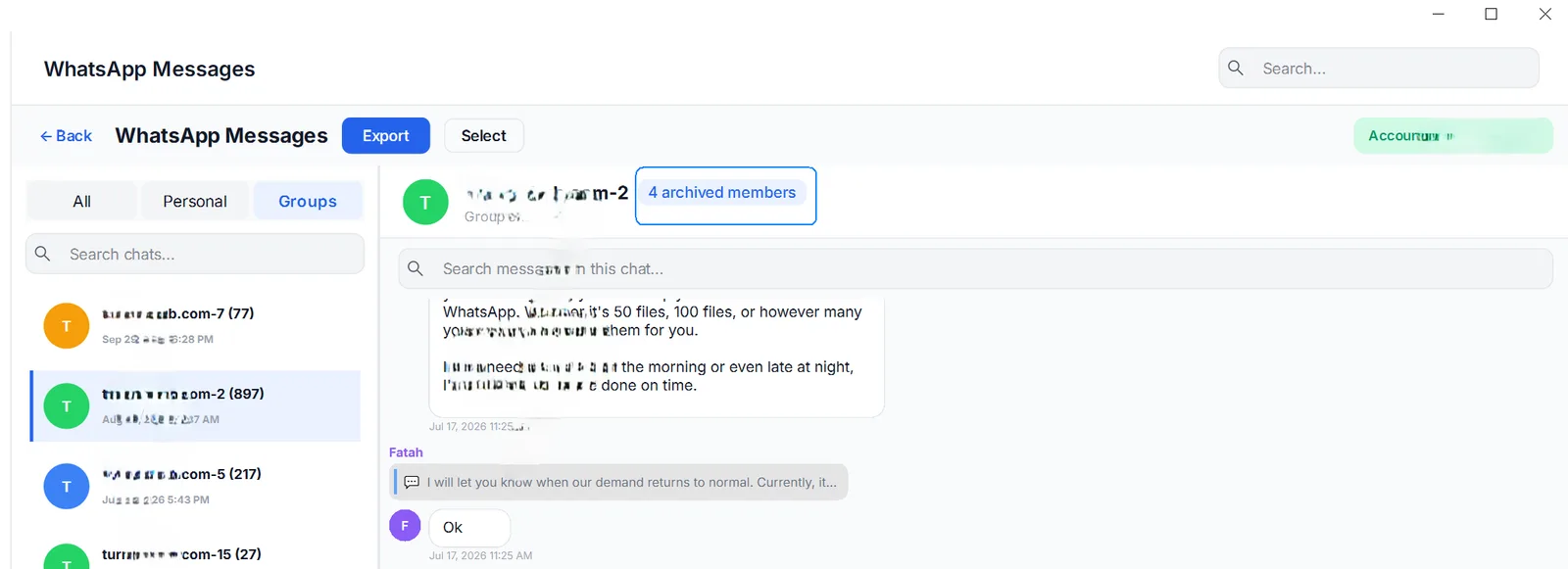
The header shows how many members have messages in the archive. Click it to view the member list.
Step 4: View the group members
The Group members window lists everyone whose messages are in the backup, with three columns: nickname, phone number and message count.
Message counts help you see who contributed most and whose messages you want to review.
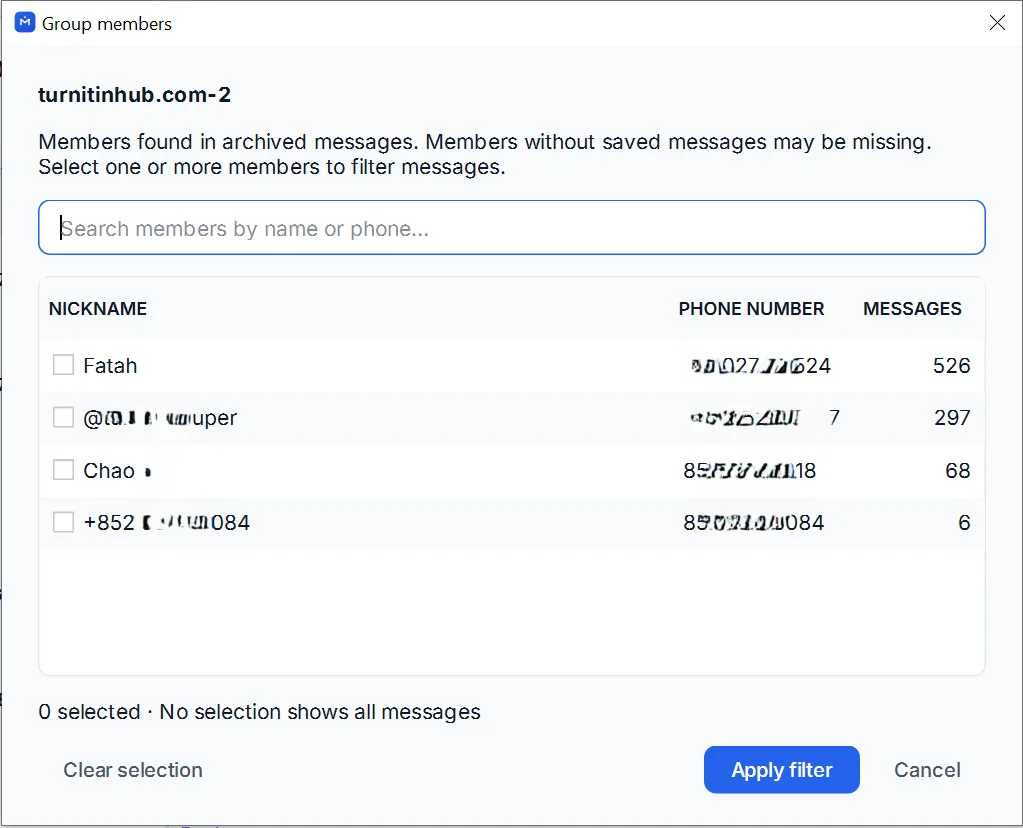
You can also search members by name or phone inside this window.
Step 5: Filter messages by member
Tick one or more members and press Apply filter. The conversation shows only their messages, with the dates they were sent.
For example, select Alice to read her posts in a busy group, or select a contractor’s number to review their messages about a deadline.
Clear the selection to show all messages again. Filtering only changes the view; the backup and archive stay unchanged.
Good to know
- Open or save individual photos and videos from the conversation. See how to view media in a backup.
- You can search inside the group for a keyword, or search across all chats at once.
- To keep or share a readable file, save the WhatsApp group chat as HTML.
- You can also read personal conversations. See how to view WhatsApp chats on your PC.
- group chat
- backup
- pc