How to Save a WhatsApp Chat as a Readable Archive
Save a WhatsApp chat as an HTML archive with messages, sender names, dates and media. Read it in your browser. Free and local with Memora Keep.
3 min read
On this page
Want a saved WhatsApp conversation you can read after changing phones? An HTML archive lets you open the chat in a browser, with messages and media kept together.
The archive shows who sent each message and when, and includes photos and videos. It’s the simplest way to keep WhatsApp conversations readable on your computer — no WhatsApp, no phone required. Here’s how to create one with Memora Keep.
What you need
-
Memora Keep on a Windows or macOS computer. It is free.
-
The chats in your local archive, or an Android phone or local iPhone backup containing them. The steps below explain how to add the source.
-
Enough free disk space for the imported data and any files you export.
How a readable archive differs from a WhatsApp backup
WhatsApp’s own export gives you a .txt file and separate media files. It has no chat layout or links between messages and their media, so a busy group can be harder to follow.
iCloud / Google Drive chat backup is designed for restoring chats in WhatsApp. You need the app, the same account and a phone to restore it; you can’t open it as a standalone conversation.
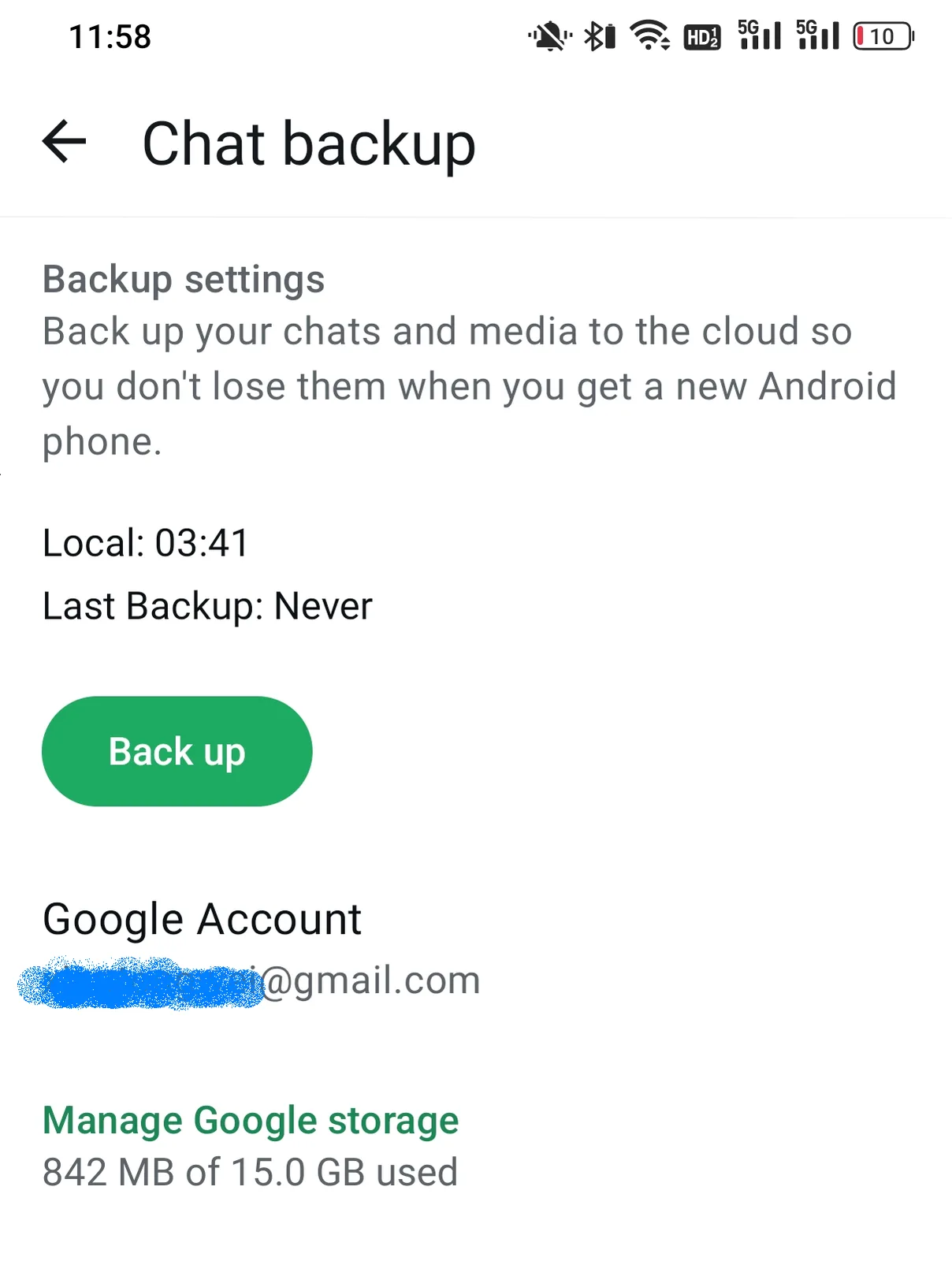
For an archive you can read later, look for these features:
- Opens in a browser without extra software
- Keeps media with the messages
- Shows sender names and timestamps
- Can move between folders, phones and platforms
- Lets you search the text with Ctrl+F
HTML with media fits this checklist.
How to save a WhatsApp chat as an HTML archive
Memora Keep creates the archive on your computer. It’s free.
Step 1: Back up your WhatsApp chat to your computer
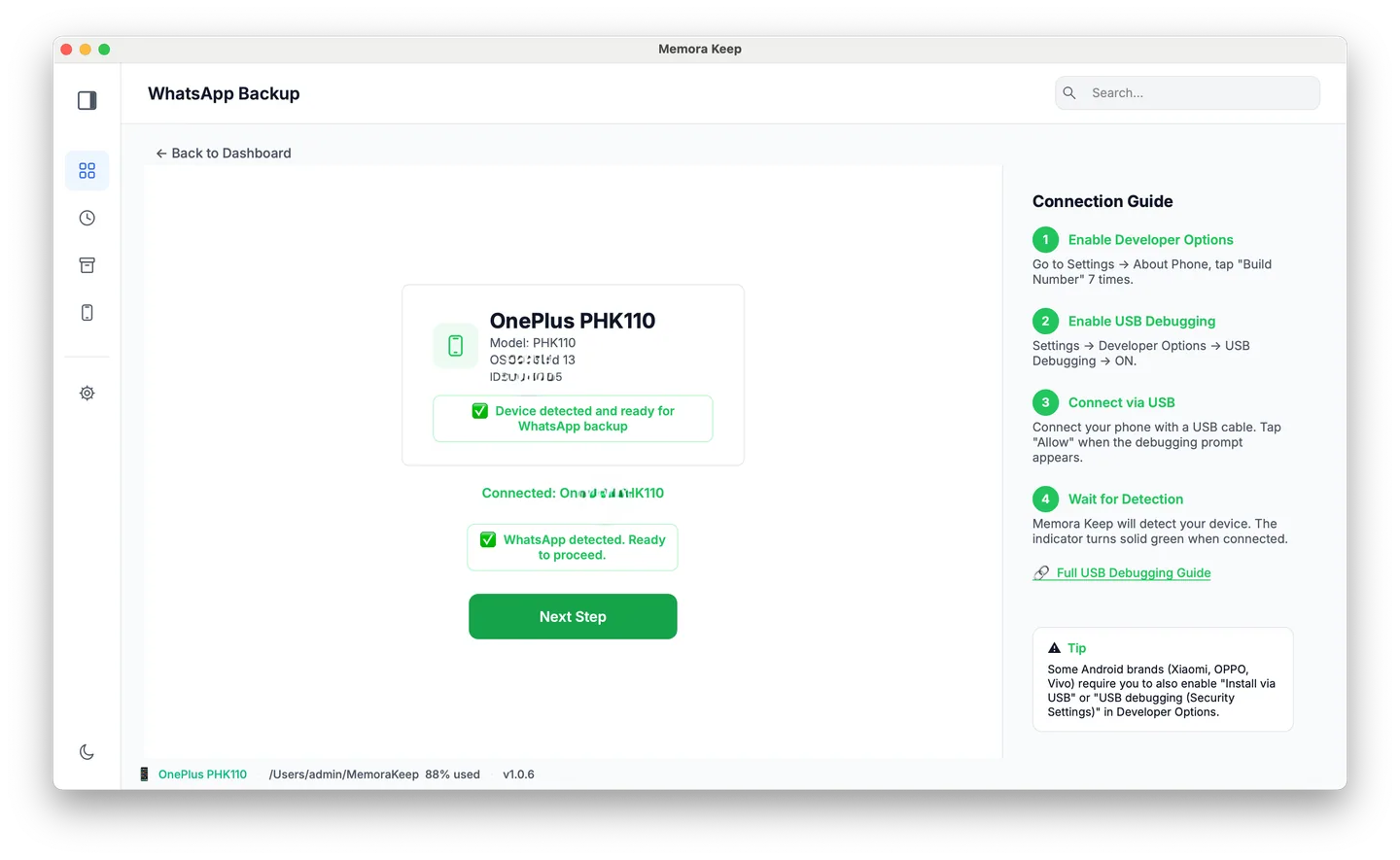
From Android. Connect the phone over USB and back up WhatsApp. Follow the illustrated Android steps, stopping after the backup finishes.
From iPhone. Memora Keep reads WhatsApp from an iPhone device backup. Back up your iPhone first, or import a backup you already have.
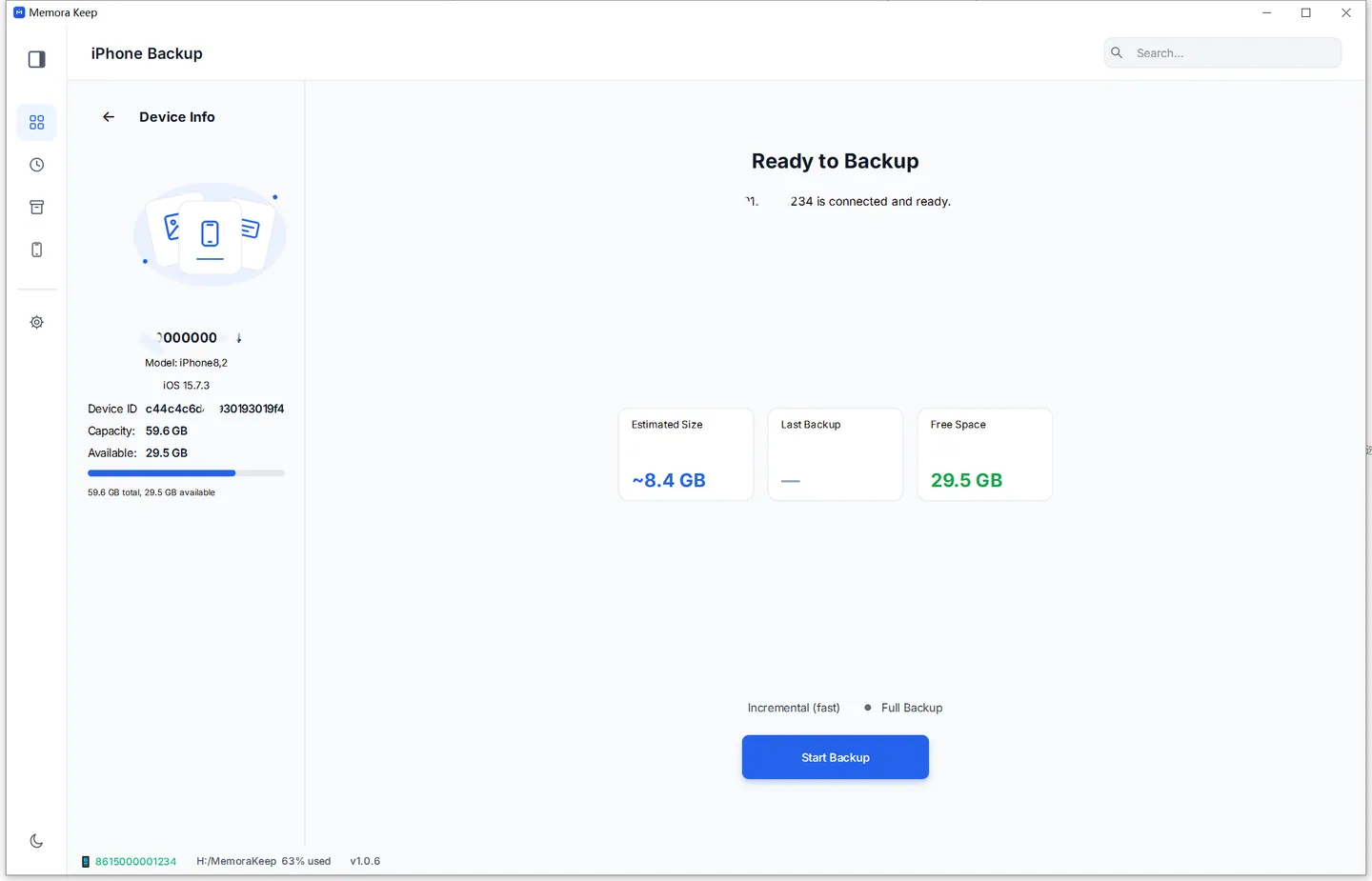
Nothing is uploaded, and you don’t need an account.
Step 2: Open the chat
In Archives, open the WhatsApp section. Choose the account, then the conversation.
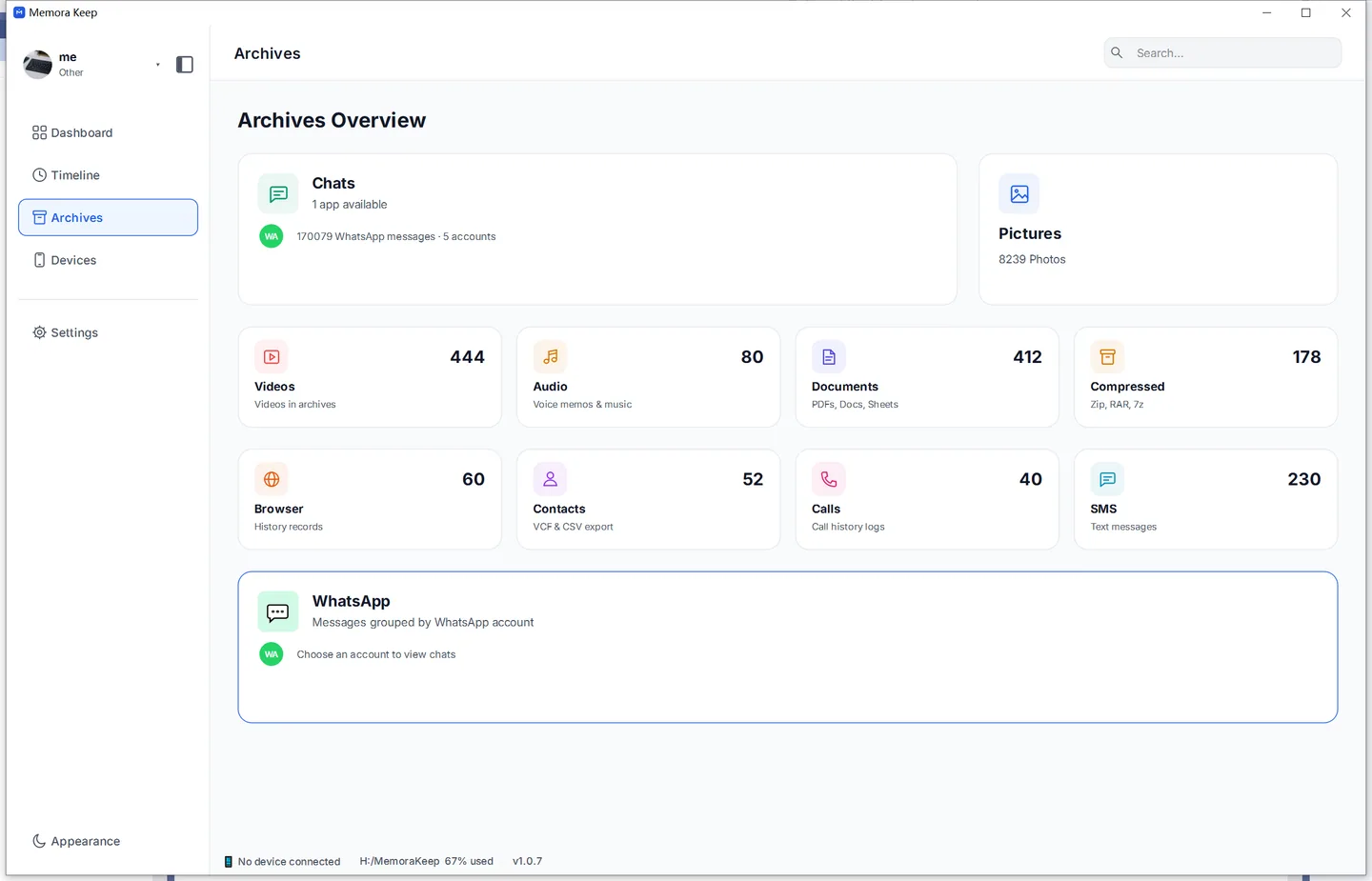
Step 3: Export as HTML
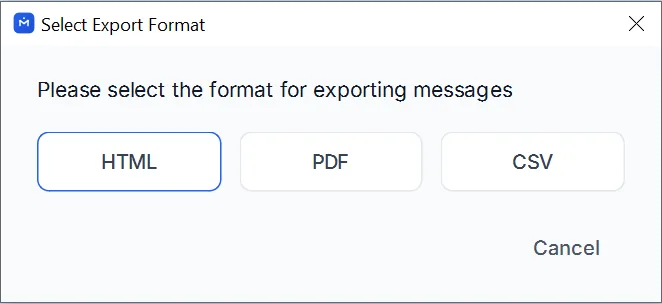
Click Export, choose HTML and select a folder. Memora Keep creates a ZIP file named after the chat.
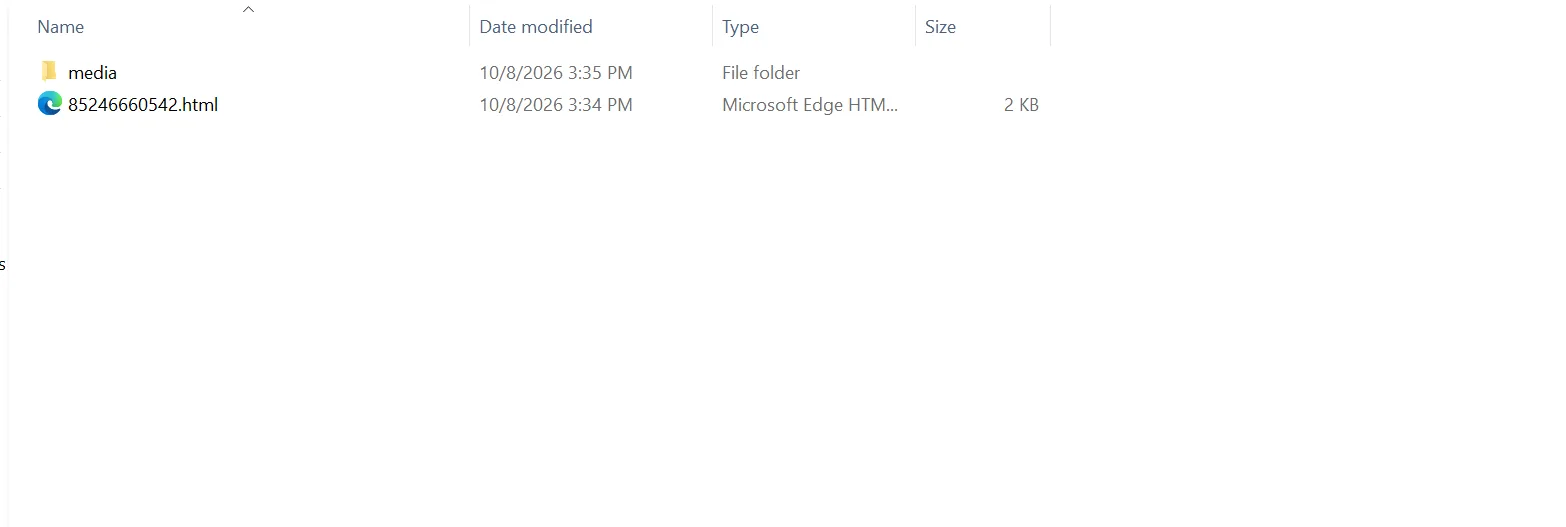
Unzip the file to find the HTML page and a media folder containing the original photos, videos and documents.
Step 4: Open and check the archive
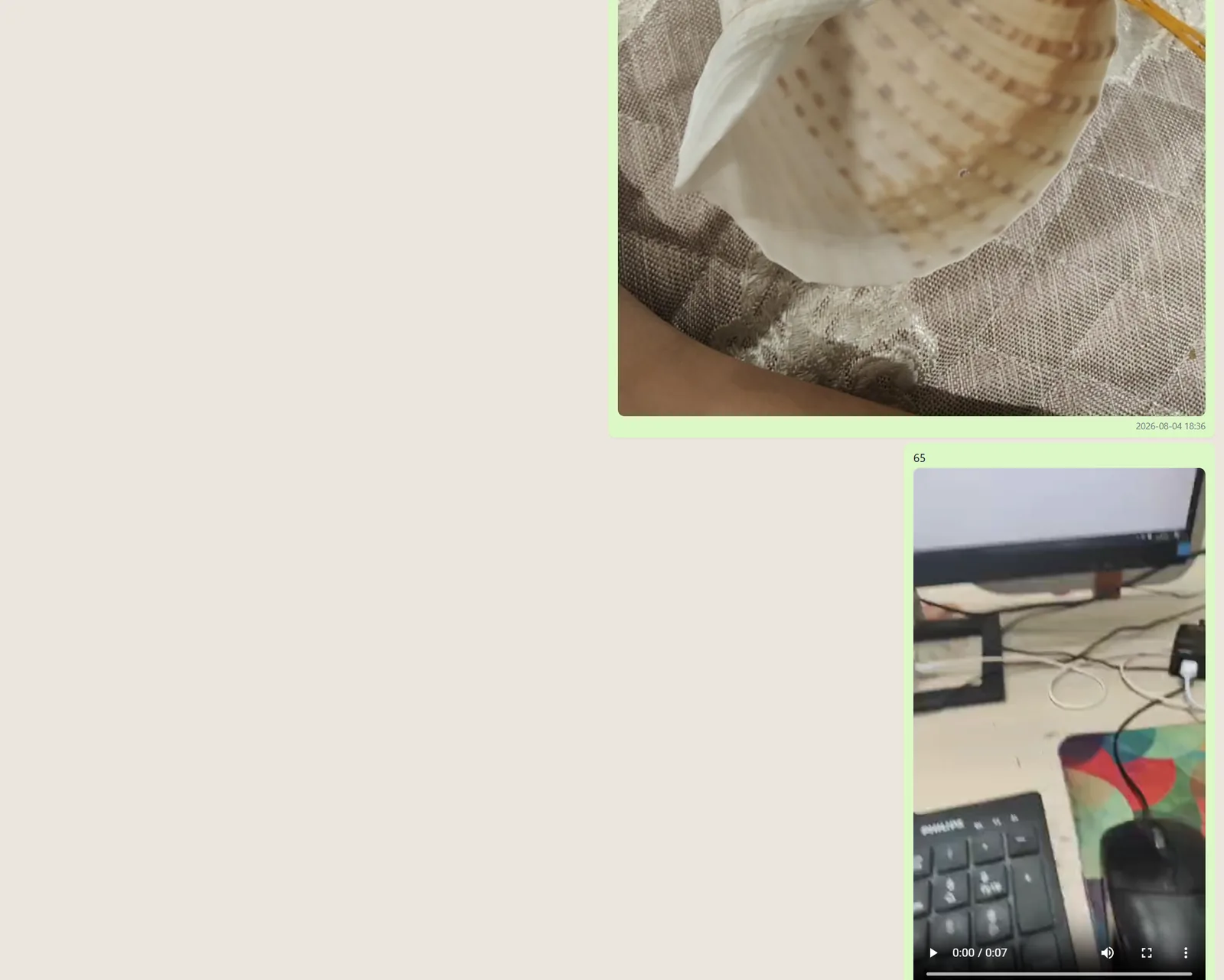
Double-click the HTML file to open the chat in your browser. Check that it shows chat bubbles, sender names, timestamps and photos, with playable videos. Press Ctrl+F and search for a message you remember.
How to keep the archive organized
- Keep the folder together. The page uses relative paths to find media, so move the HTML file and media folder together.
- Back it up like any important file. Keep a copy of the ZIP on an external drive or in cloud storage. You can open it without restoring a WhatsApp backup.
- Archive selectively. Use Time Range for a specific period, or select only the messages you need.
- Need paper too? The same chat exports to print-ready PDF.
Good to know
- To work with messages in a spreadsheet, export to CSV.
- For help choosing a format, compare PDF vs HTML.
- Exporting creates a copy and leaves your phone and chat unchanged.
- archive
- save
- html