How to Save a WhatsApp Group Chat as HTML
Save a WhatsApp group chat as HTML with photos, videos and timestamps. Export with Memora Keep and read it in your browser. Free and local.
3 min read
On this page
Want to keep a family group’s plans or a team’s decisions? Saving your WhatsApp group chat as HTML gives you a copy you can read in your browser.
Messages stay in order, with sender names, timestamps, photos and videos on the page. Here’s how to export the group with Memora Keep.
What you need
- Memora Keep on a Windows or macOS computer. It’s free.
- The group chat in a local archive (step 1 shows how).
Step 1: Back up the group chat to your computer
Memora Keep exports chats from your local archive, so back up the group chat first.
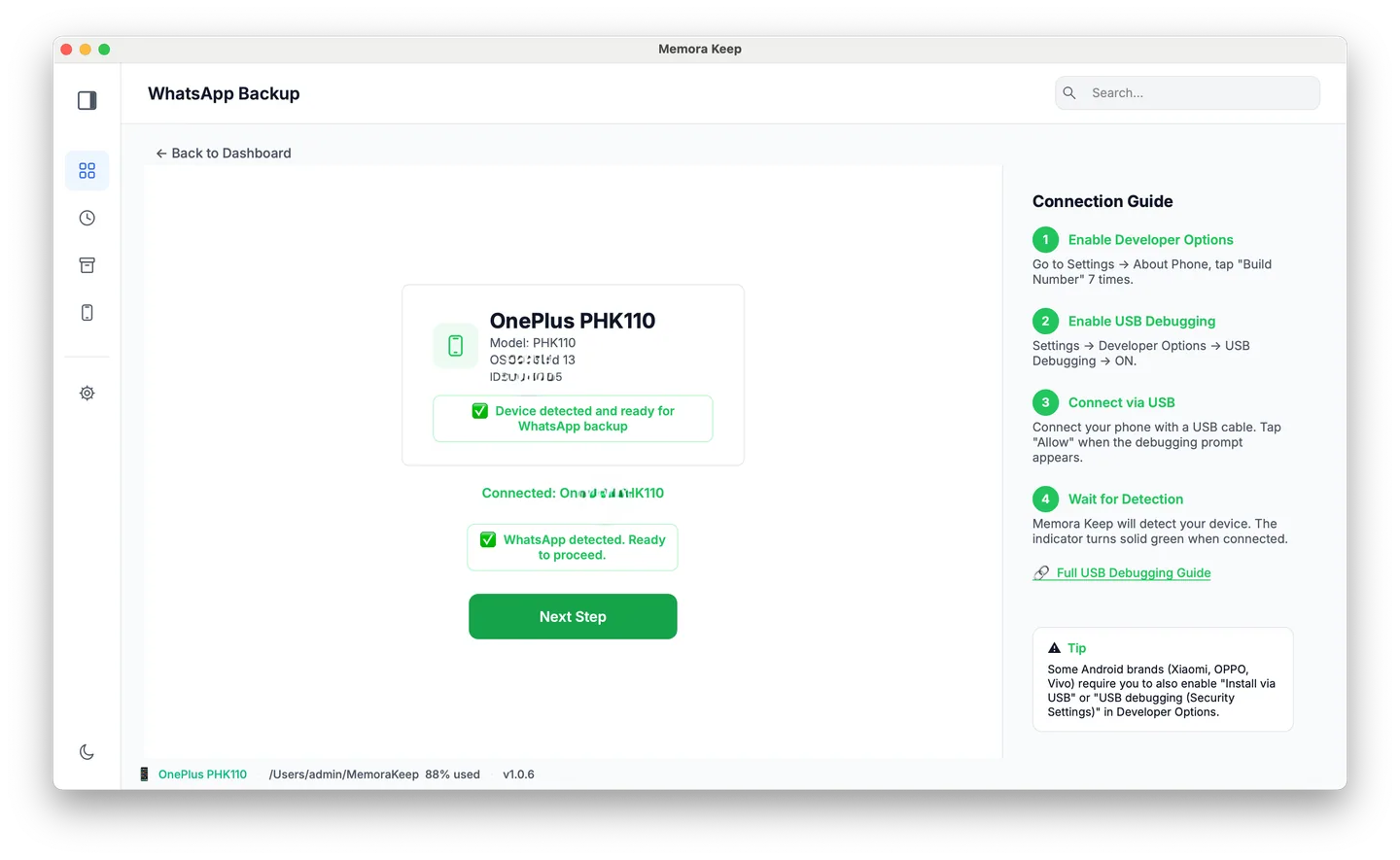
From Android. Connect the phone over USB and back up WhatsApp. Follow the illustrated Android steps, stopping after the backup finishes.
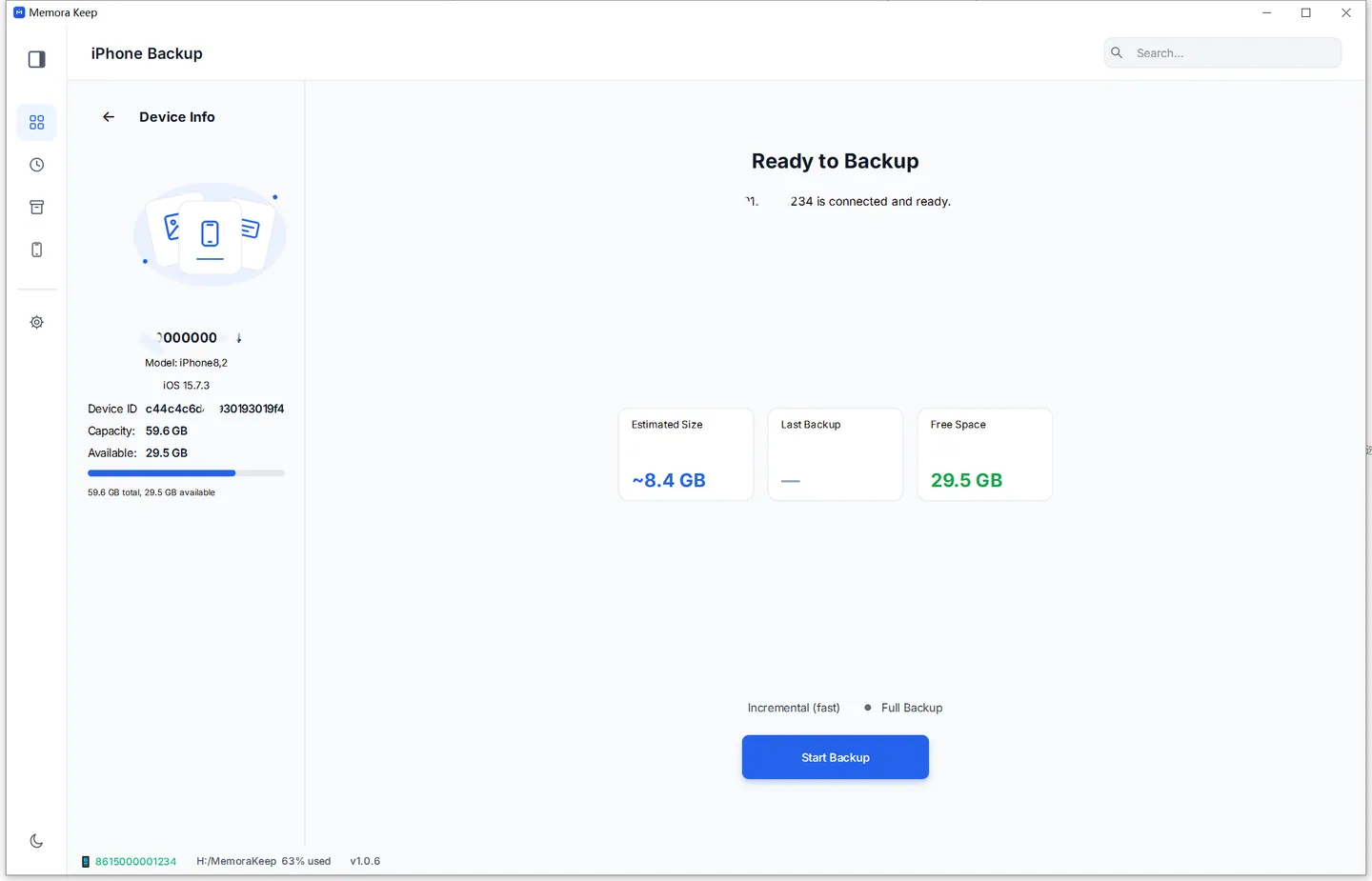
From iPhone. Memora Keep reads WhatsApp from an iPhone device backup. Back up your iPhone first, or import a backup you already have.
Your data stays on your computer. You don’t need an account, and nothing is uploaded.
Step 2: Open the WhatsApp section
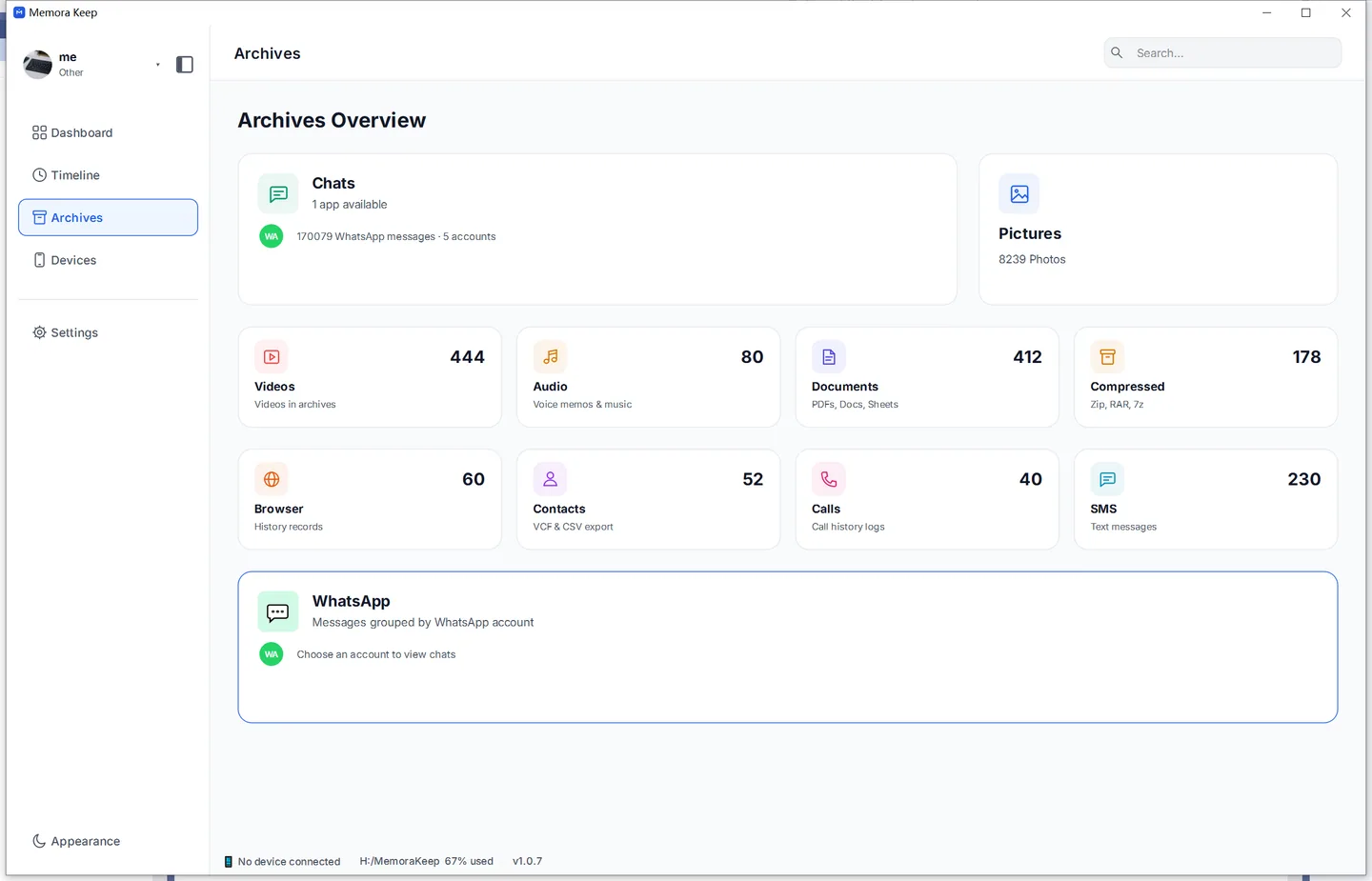
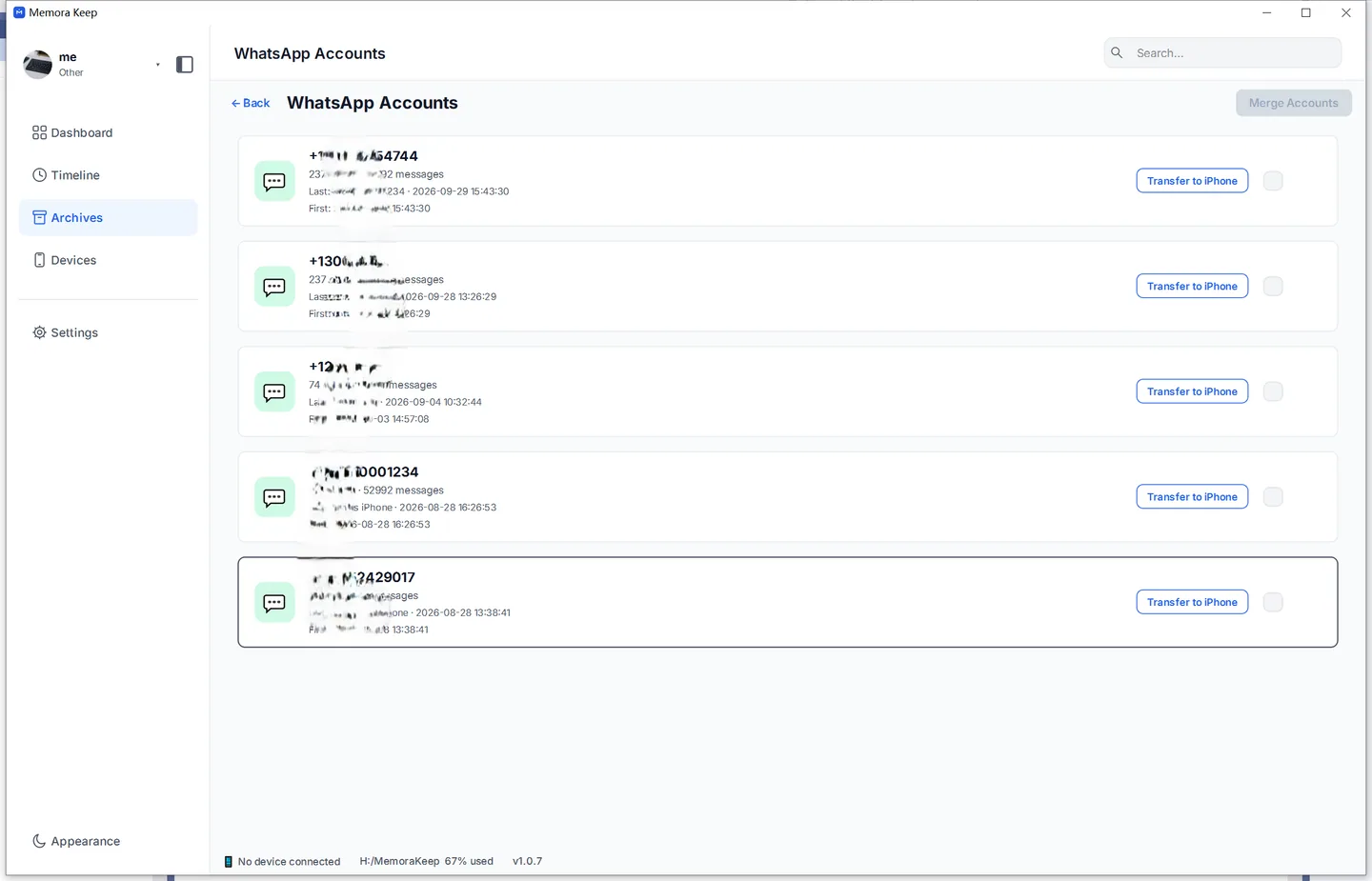
In Archives, open WhatsApp and pick the account the group belongs to.
Step 3: Export the whole group
Click Export at the top of the WhatsApp view. The dialog lists your chats, including groups, and the number of messages in each.
Tick the group you want to save. You can select more than one group and use Time Range to export a specific period, such as this year.
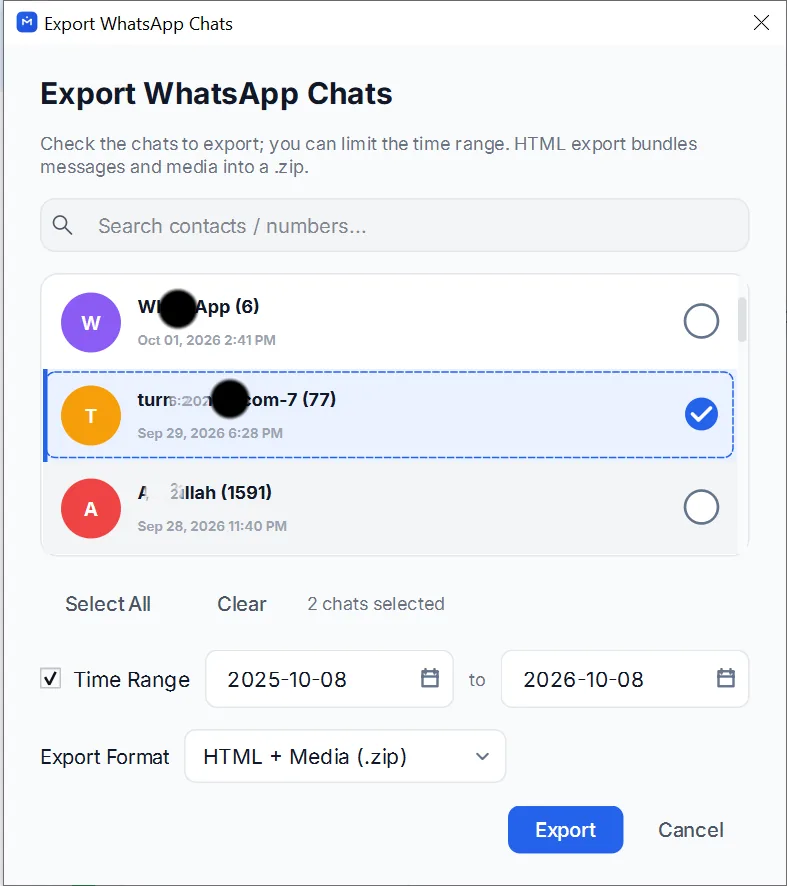
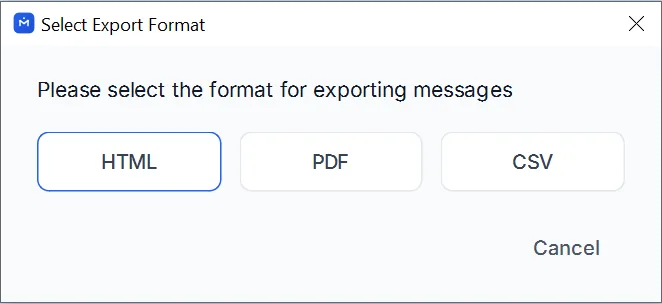
Choose HTML as the format and click Export.
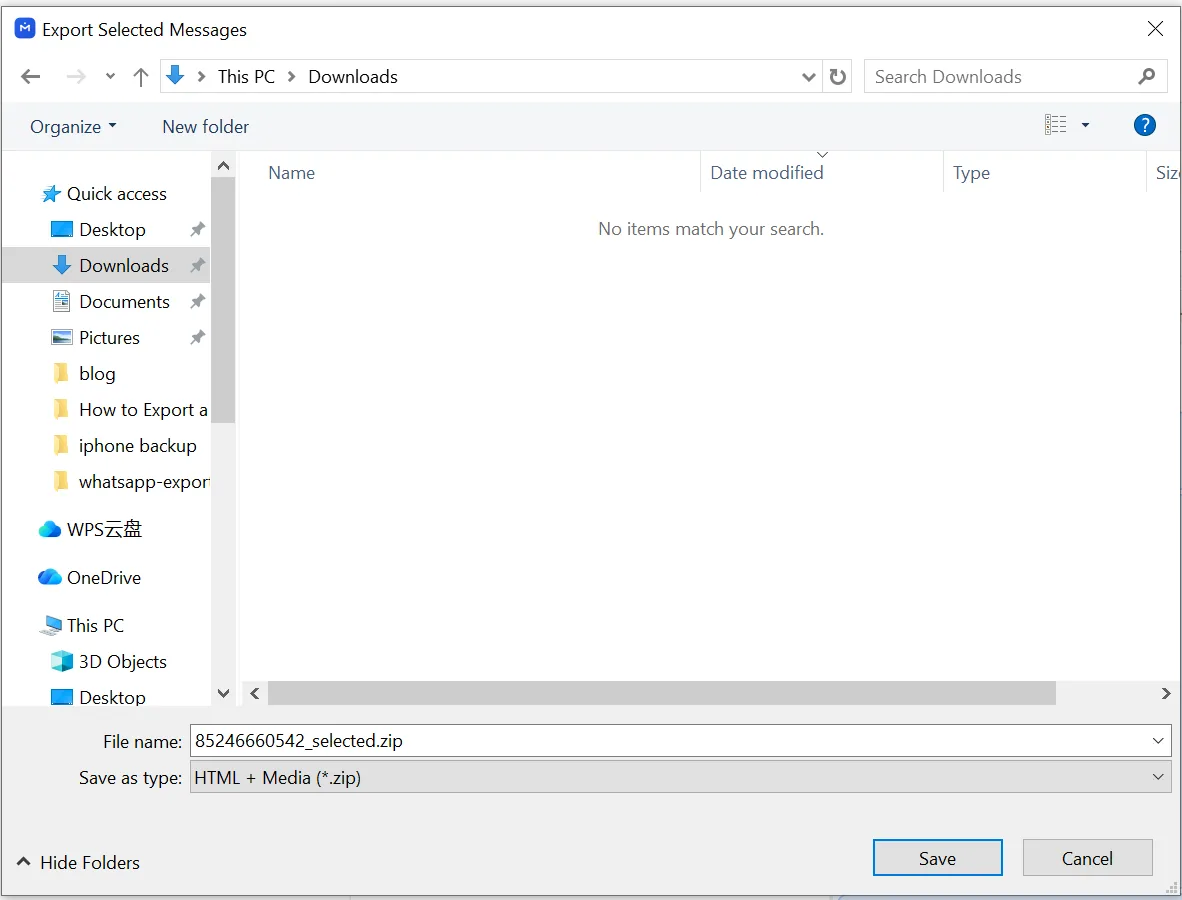
Step 4: Save the ZIP and open it
Choose a folder and save the export. The ZIP file contains the HTML page and a media folder with the original photos, videos and documents.
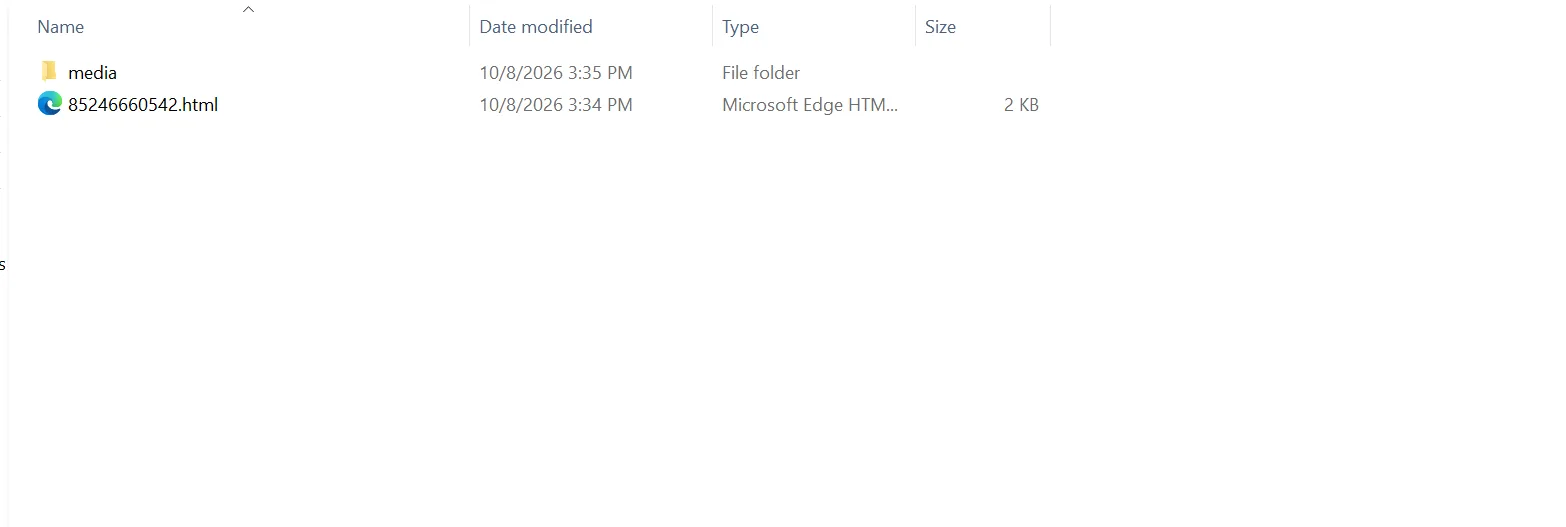
Double-click the HTML file to open the group in your browser. Each message shows the sender’s name, text, timestamp and media in a chat layout. You can scroll, search with Ctrl+F or print to PDF.
How to save selected messages from a WhatsApp group
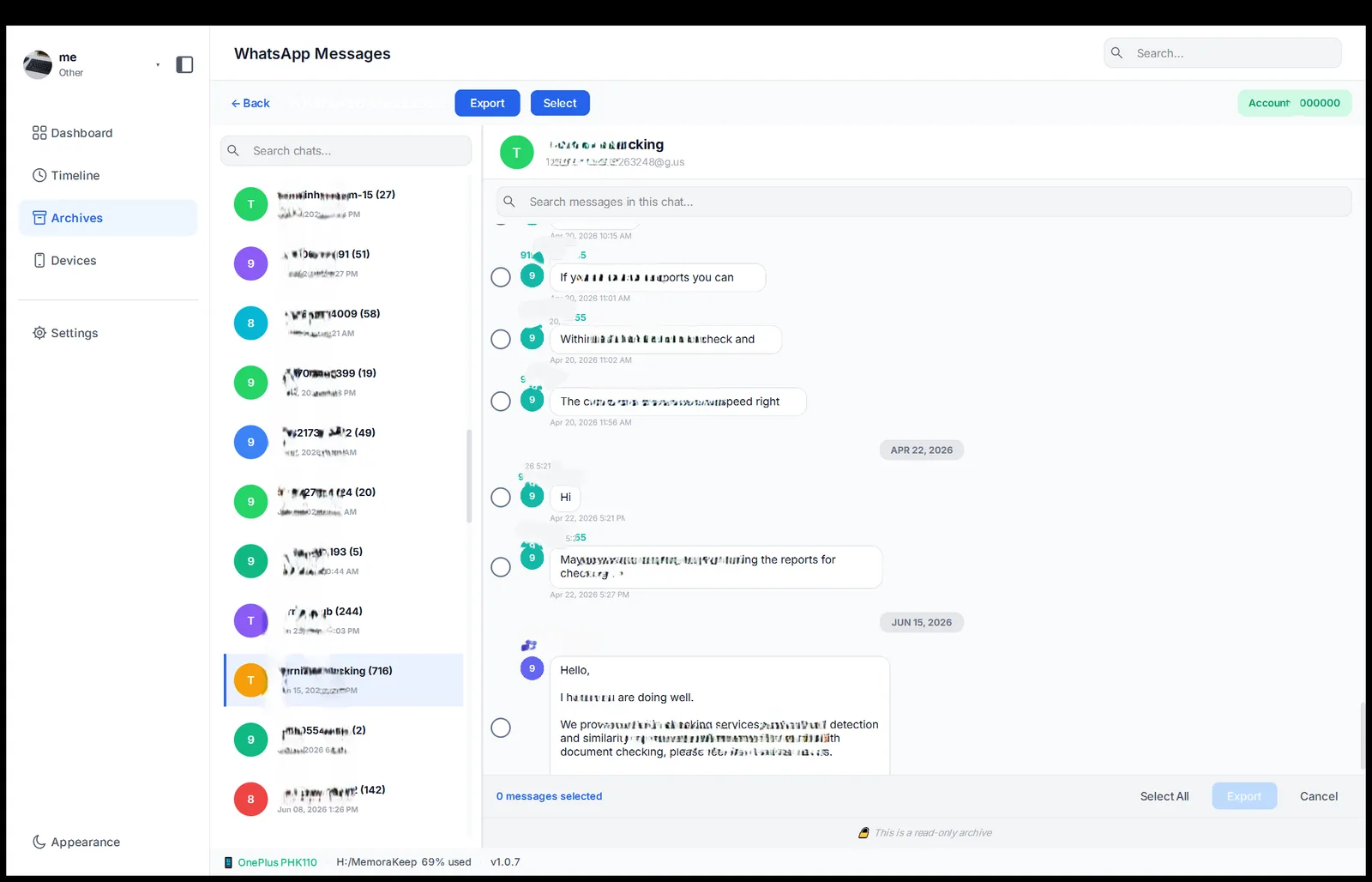
Open the group in Memora Keep, click Select and tick the messages you need. Then export to HTML as above. This is useful for saving a specific discussion, announcement or week of messages.
Can you save a group chat from WhatsApp itself?
Yes. Open the group, tap the top-right menu, then More → Export chat, and email it to yourself. WhatsApp exports a .txt file without a chat layout or clickable photos, so a busy group can be harder to follow. To turn it into HTML, you’ll need to format it yourself or use an AI tool and check the result.
WhatsApp exports one entire chat at a time, with no date filter. A long-running group can produce a large text file.
Good to know
- Exporting creates a copy and leaves the group and your archive unchanged.
- Files in the media folder keep their original quality.
- You can also save individual conversations this way. See how to export a WhatsApp chat to HTML with media.
- group chat
- html
- save
- export