How to Search WhatsApp Messages in a Local Backup
Search WhatsApp messages in a local backup on your PC. Find chats by name or number, search one conversation or find matches across your archive.
3 min read
On this page
Looking for a WhatsApp message in a backup on your computer? Memora Keep lets you search one conversation or the whole archive, with matching messages shown in a list.
Here’s how both methods work, followed by a comparison with WhatsApp’s in-chat search.
What you need
- Memora Keep on a Windows or macOS computer. It’s free.
- Your WhatsApp chats saved in a local archive (step 1 shows how).
Step 1: Get the chats into a local backup
First, add your chats to the local archive. You have two options:
No backup yet. Connect the phone over USB and back it up. Back up Android WhatsApp directly; iPhone chats are included in a full device backup.
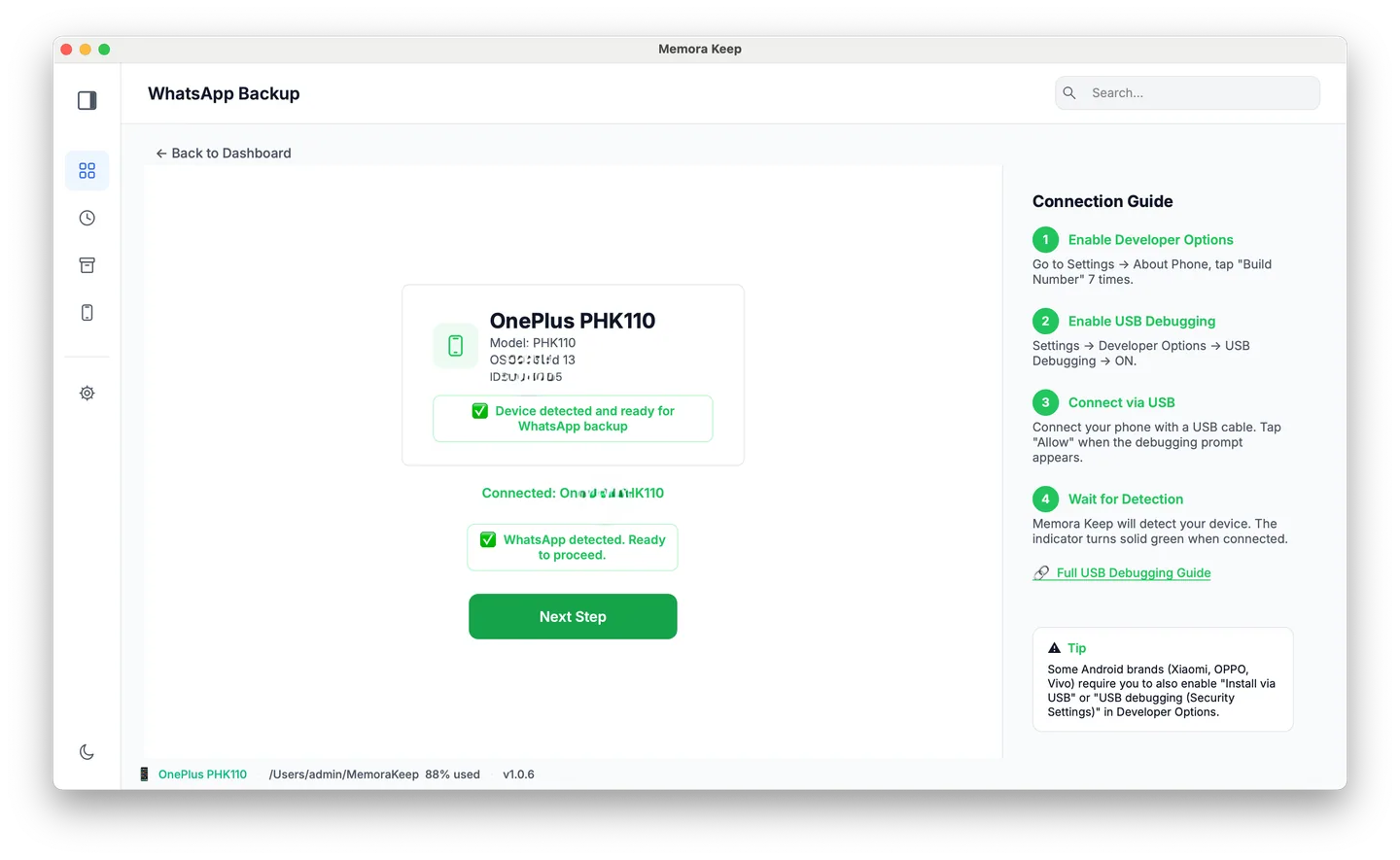
Already have an iPhone backup. Import your existing backup without connecting the phone.
Your data stays on your computer. No account is needed, and nothing is uploaded.
Step 2: Open the account in Archives
In Archives, open WhatsApp and choose the account if you’ve backed up more than one.
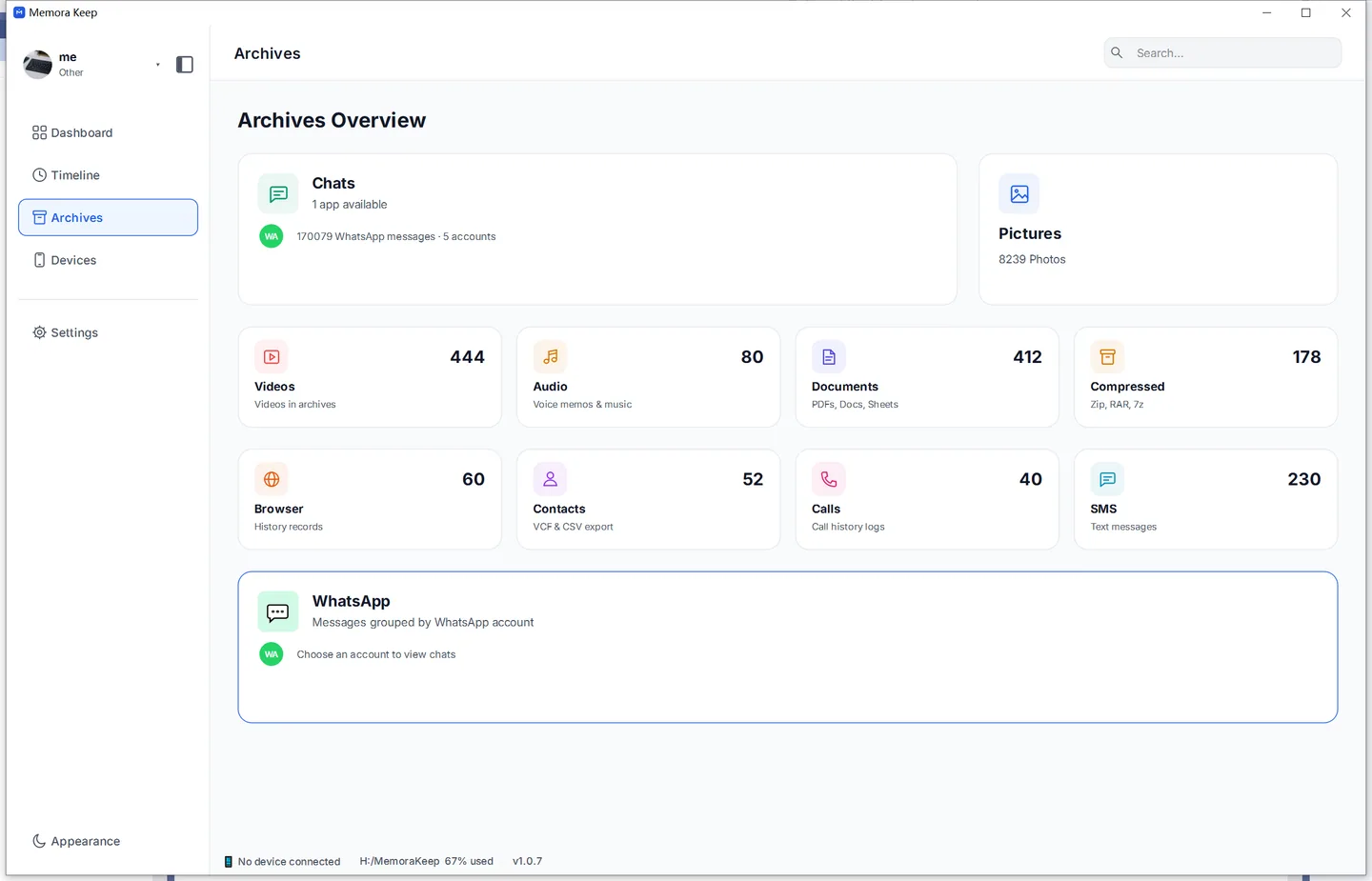
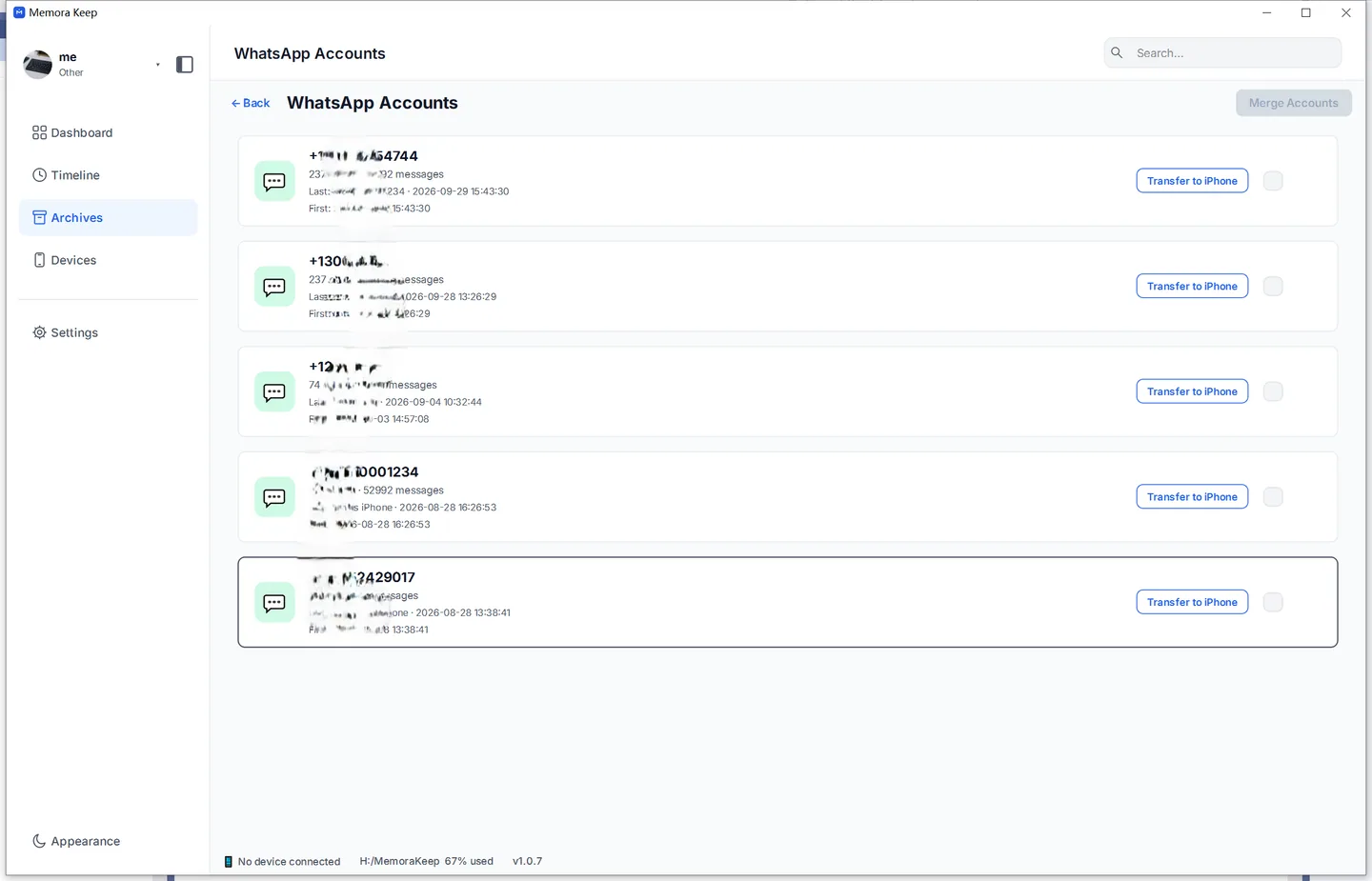
Choose a search method based on whether you know which conversation contains the message.
Search inside one conversation
Use this when you know who sent the message.
1. Find the chat. Type a name or phone number into Search chats on the left. Partial text works too; you don’t need the full name or number.
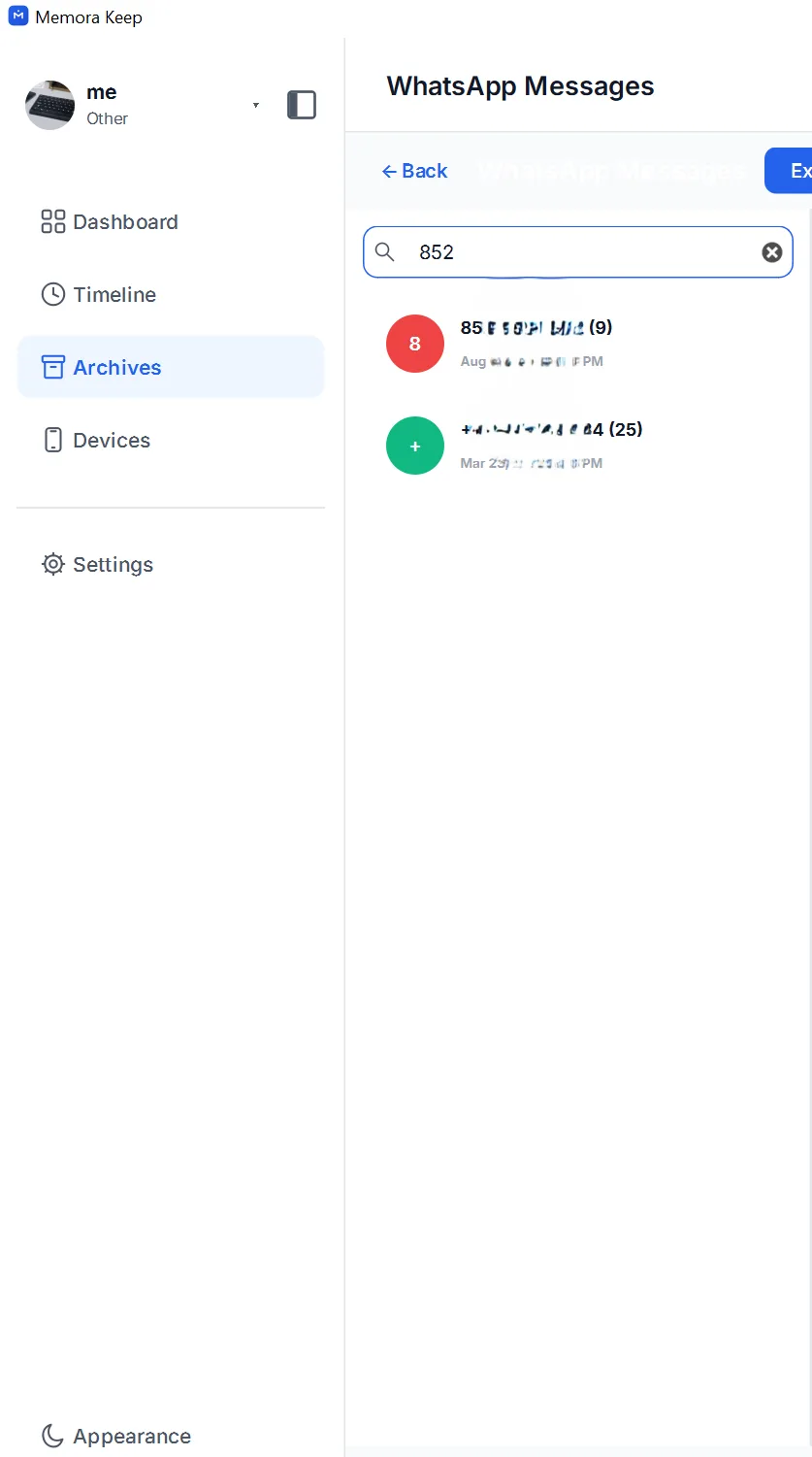
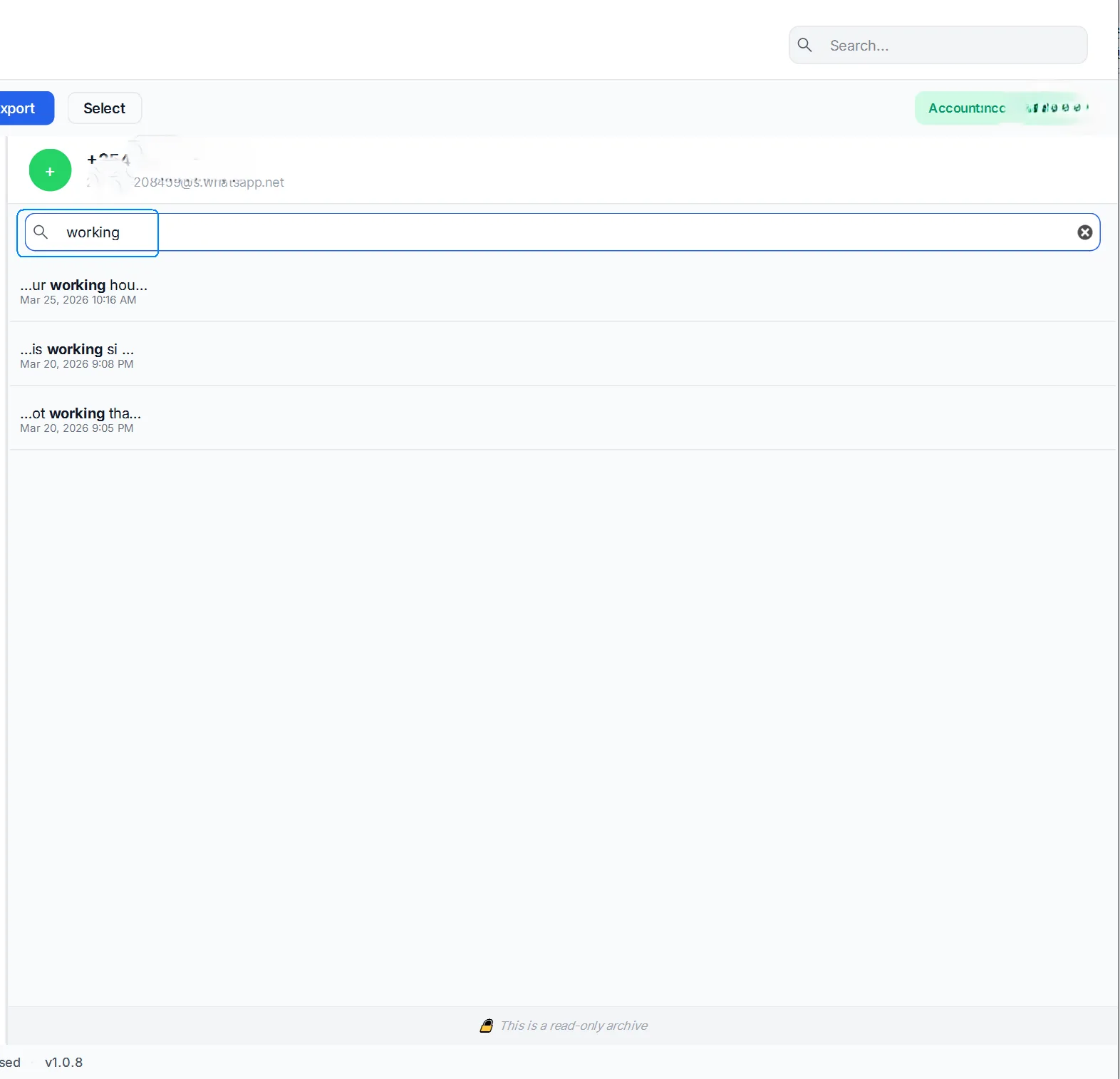
2. Search within the chat. Open it and use Search messages in this chat at the top. Matching messages appear in a list with their dates.
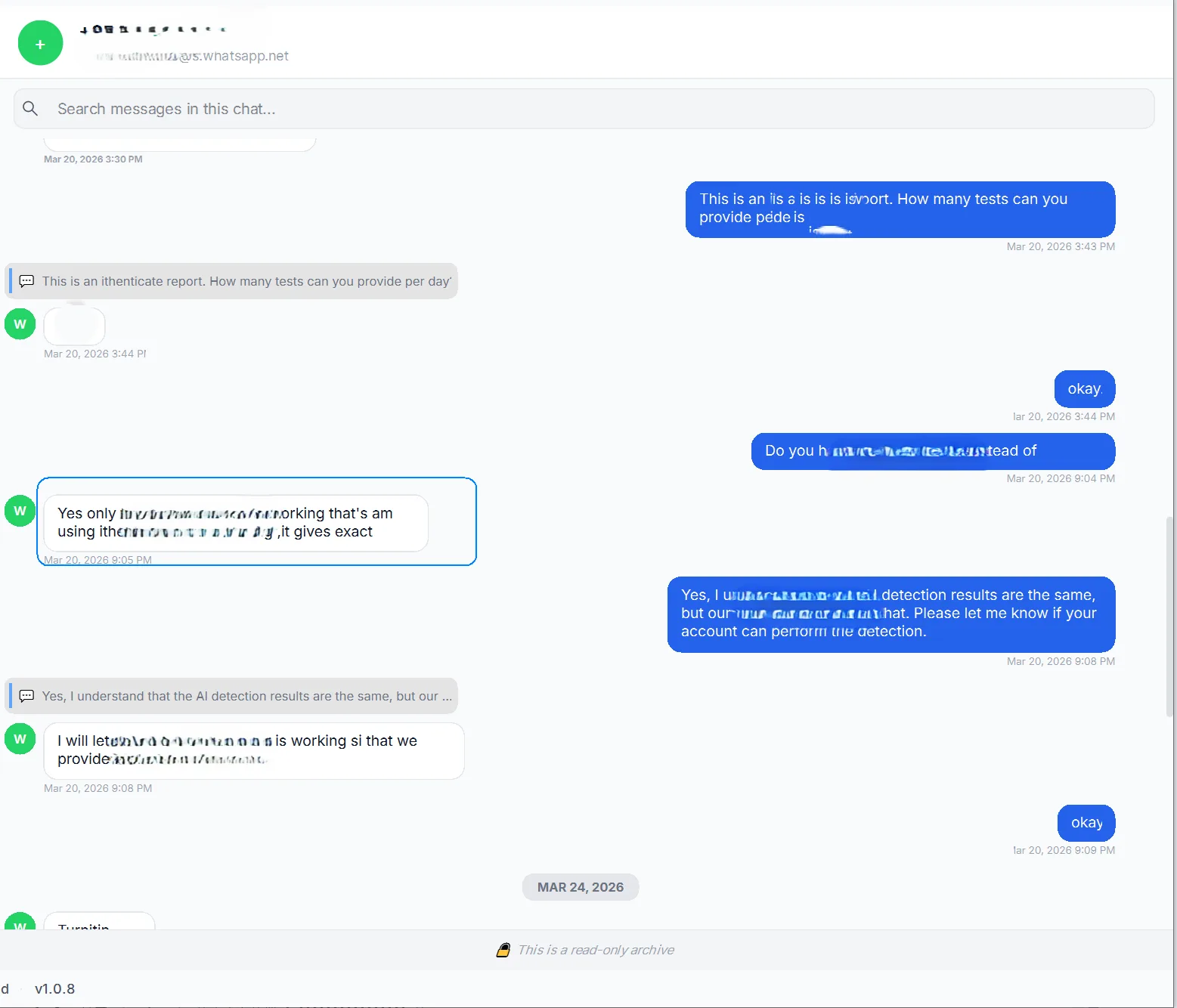
3. Open a result. Click a match to jump to the highlighted message and read the messages around it.
Search across all your chats at once
Use this when you remember what was said but not who said it.
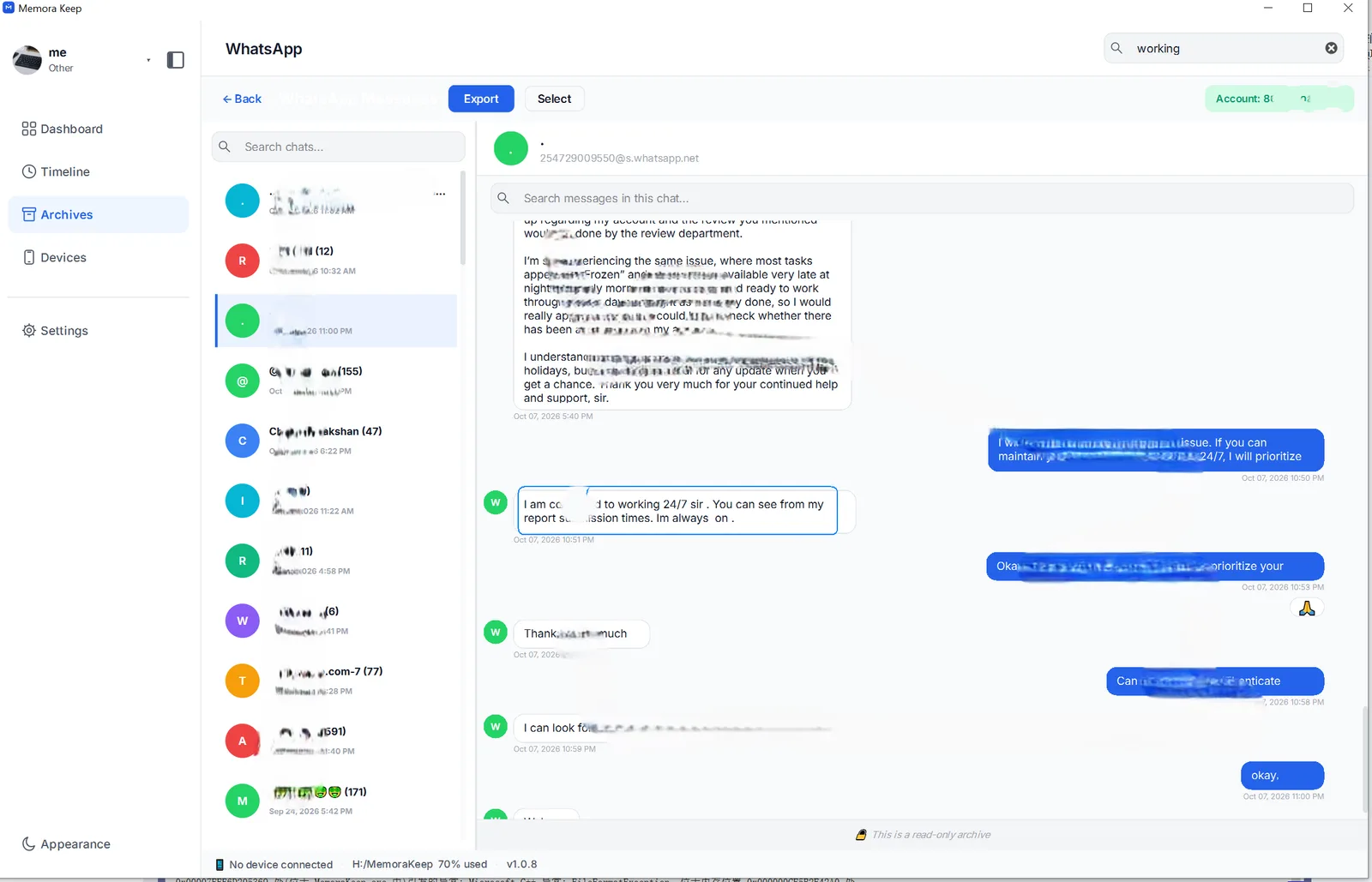
Type a keyword into the Search box at the top-right. Memora Keep searches the whole archive and groups matches by chat, showing each result’s device and date. Click a result to open the conversation at that message.
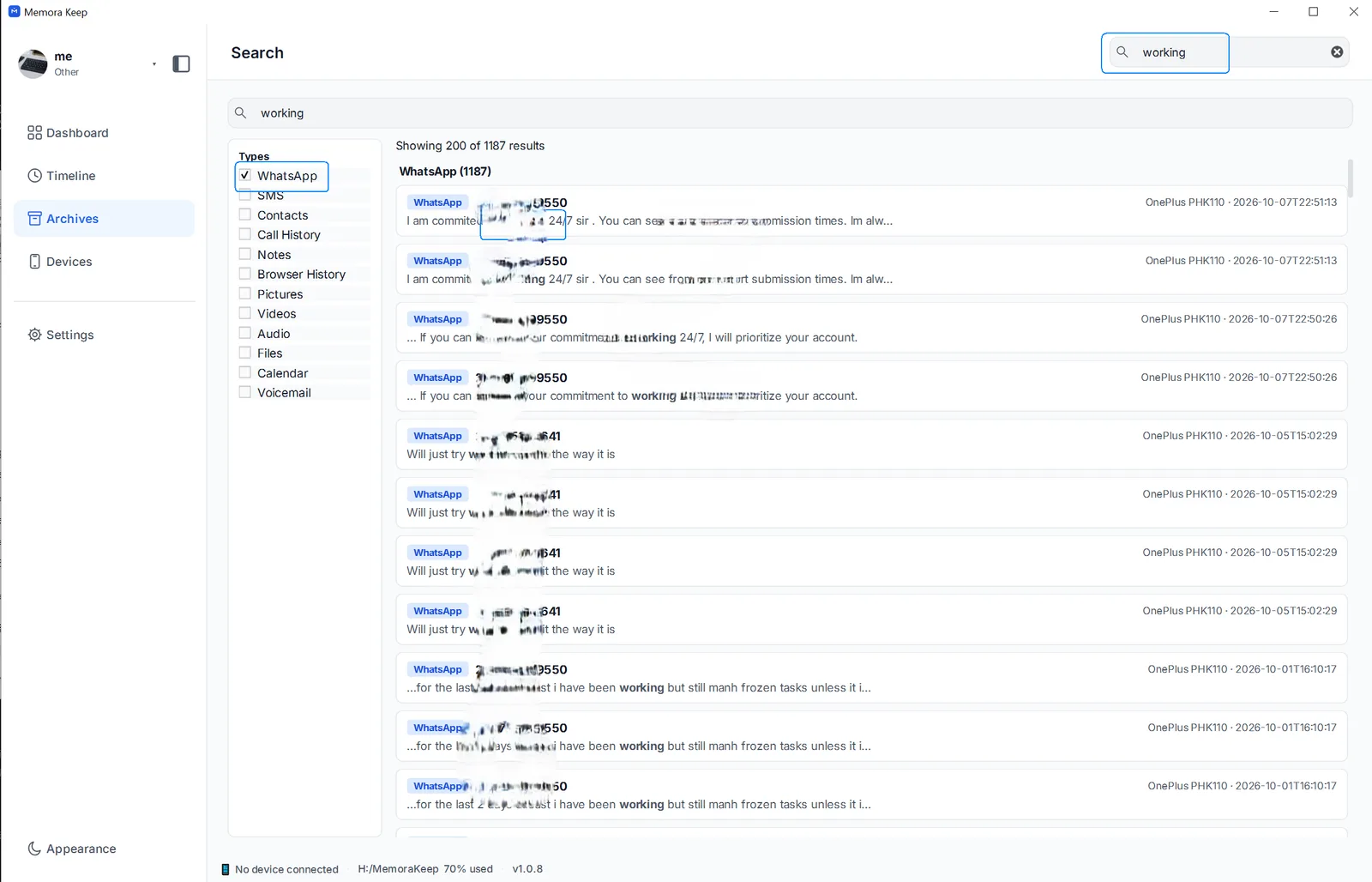
By default, this searches all backed-up data, including chats, SMS and contacts. To search only WhatsApp, tick just WhatsApp under Types on the left.
What about WhatsApp’s built-in search?
WhatsApp’s in-chat search works within the conversation you have open.
Open a chat, tap the menu at the top-right, and choose Search.
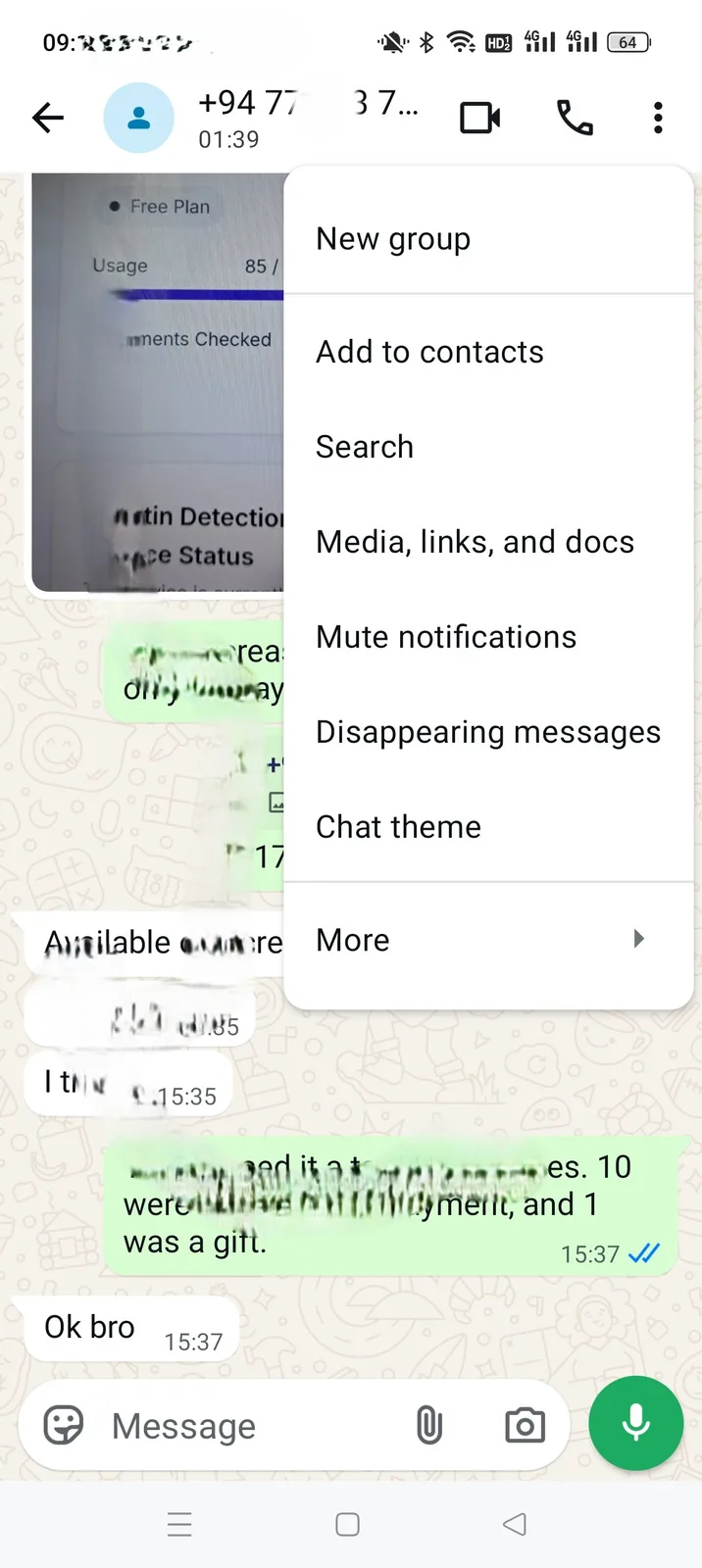
Type a word to jump to the most recent match. Use the up and down arrows to move through the others.
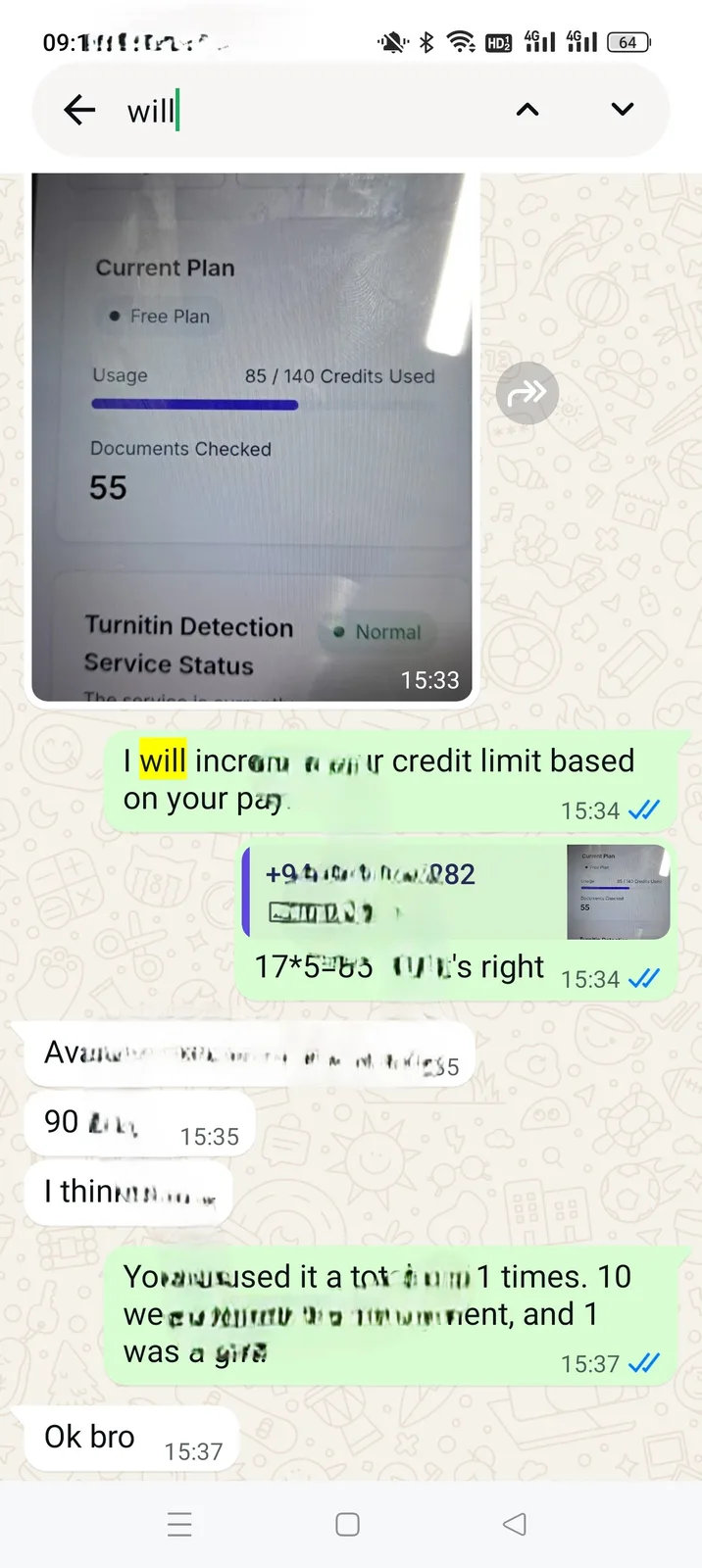
This in-chat search shows matches one at a time, rather than in a list. Common words such as “ok” can take a while to review. Memora Keep’s search tools list matches and let you search across the archive.
Good to know
- Search works offline and with the phone unplugged because it reads the local archive.
- You can find messages deleted from the phone if they were saved in the backup.
- Once you’ve found a message, you can select it and export it to PDF, HTML or CSV.
- To browse full conversations, see how to read old WhatsApp chats from an iPhone backup.
- search
- local backup
- iphone backup