How to View WhatsApp Photos and Videos from an iPhone Backup
View WhatsApp photos and videos from an iPhone backup on your computer. Open them in their conversations and save original files without restoring.
2 min read
On this page
An iPhone backup can contain WhatsApp photos and videos that are no longer on your phone. But it isn’t a photo folder: media files have hard-to-recognize names and sit among other backup data. Apple’s restore process puts the whole backup onto a phone.
Memora Keep shows those photos and videos in their original conversations on your computer. You can view, play and save individual files without restoring the phone or replacing its data.
What you need
- An iPhone backup on your computer — made by Memora Keep, iTunes or Finder.
- Memora Keep on a Windows or macOS computer. It’s free.
Step 1: Get the backup into Memora Keep
Already have an iTunes or Finder backup? On the Dashboard, choose Import iPhone Backup, select the backup folder and start the import. The original backup stays unchanged.
No backup yet? Connect the iPhone over USB and make a full device backup, which includes WhatsApp media. Follow the iPhone backup guide.
Memora Keep then adds the data to a local archive. Nothing leaves your computer.
Step 2: Open the conversation
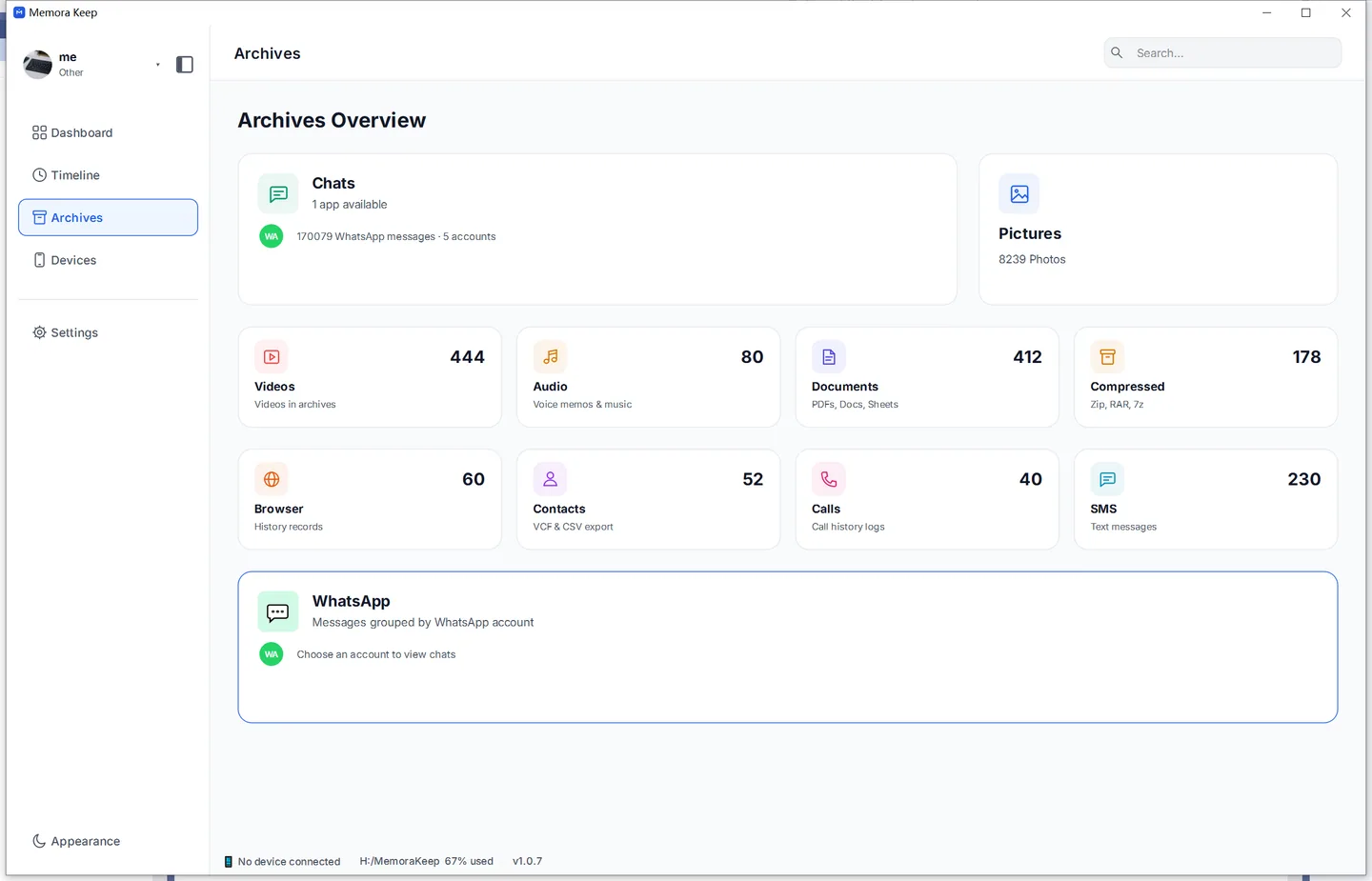
In Archives, open WhatsApp, choose the account, then open the contact or group containing the photos you want.
Step 3: Find photos and videos in the chat
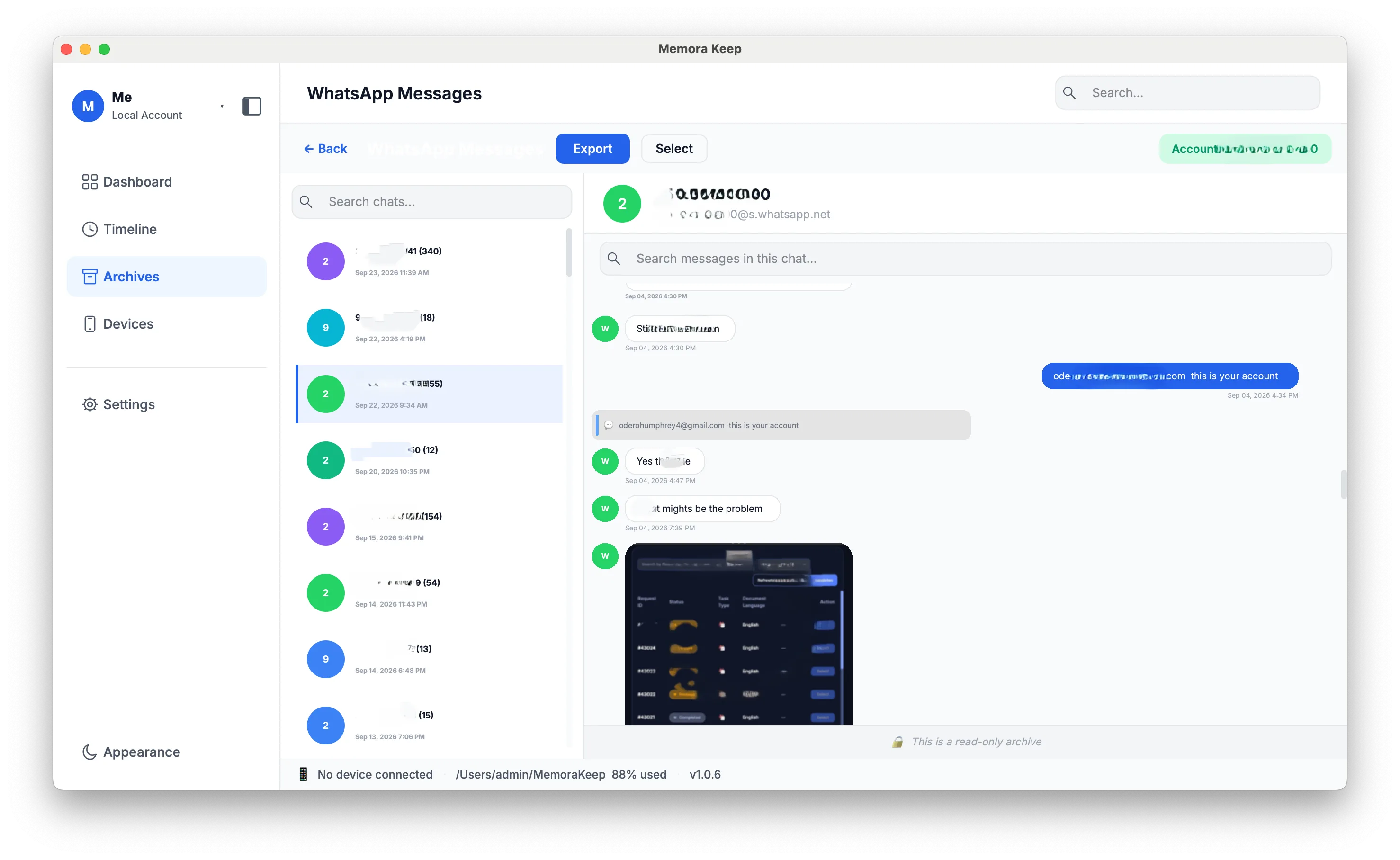
Photos and videos appear alongside the messages where they were sent. Photos show as thumbnails, and video thumbnails have a play button. Scroll to see them in order with their dates.

This makes it easier to identify a file than searching through the backup’s hashed filenames: you can see who sent it and the surrounding conversation.
Step 4: Play a video or enlarge a photo
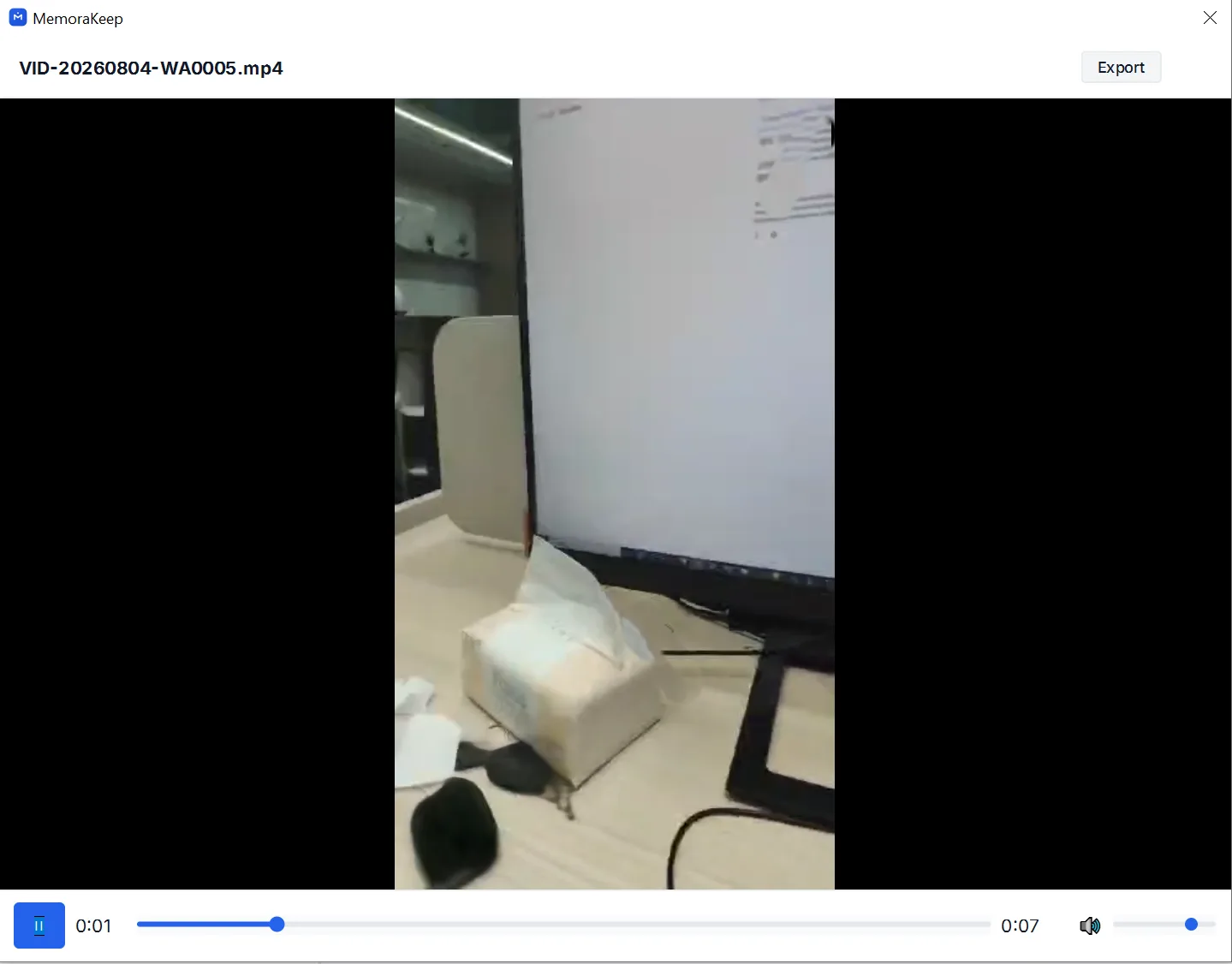
Click a video to open the player, with playback and volume controls. Click Export at the top-right to save that video to a location you choose.
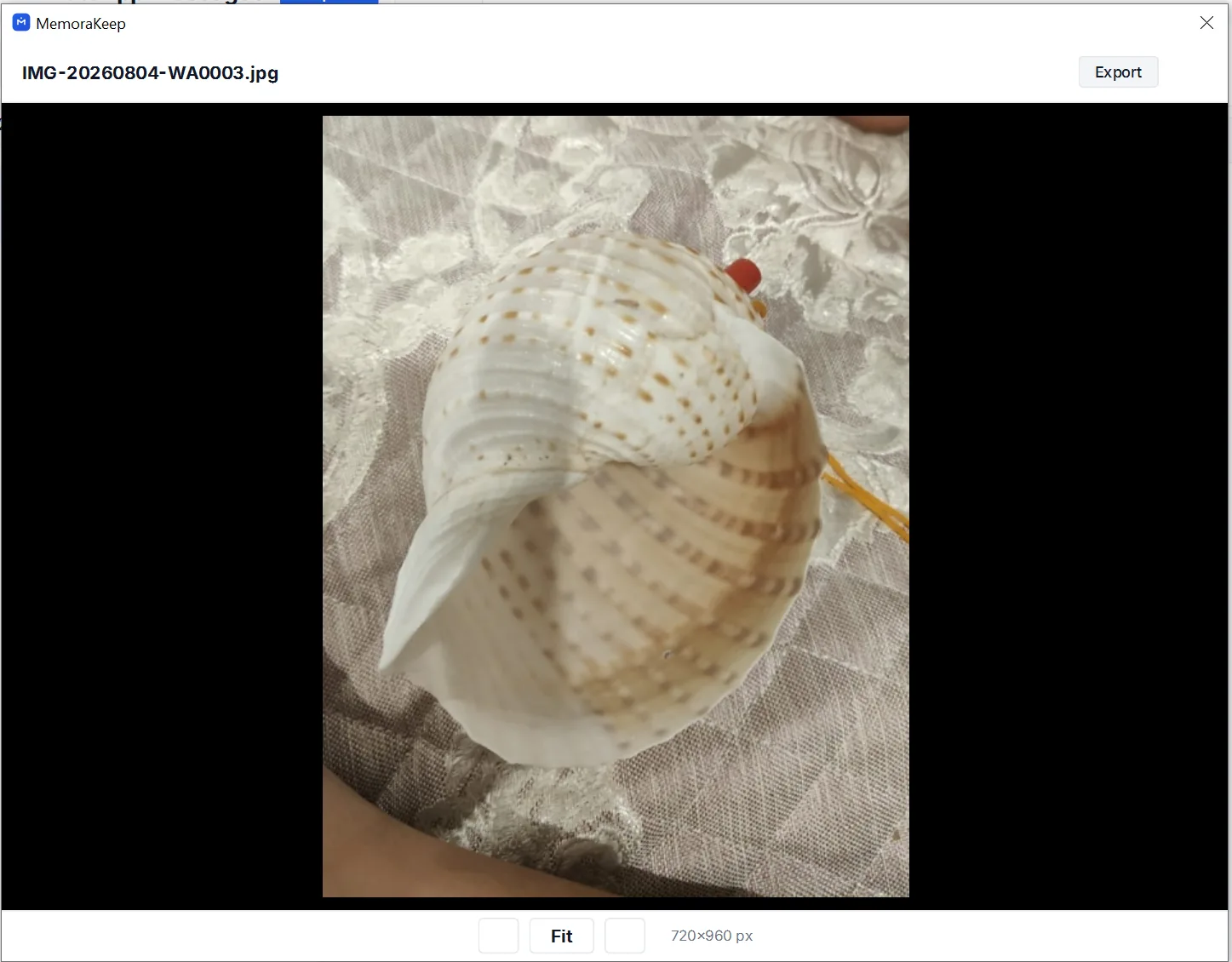
Click a photo to enlarge it. The viewer shows its original filename (IMG-20260804-WA0003.jpg) and dimensions. Click Export to save the original file without taking a screenshot or recompressing it.
Good to know
- Deleted photos and videos remain available if they were saved in the backup.
- Exporting saves a copy; the archive and the original backup stay unchanged.
- To keep the whole conversation and its media for browser reading, export the chat to HTML with media.
- To browse the messages too, see how to read old WhatsApp chats from an iPhone backup.
- iphone backup
- media
- photos