Digital Legacy
How to Keep a Personal Archive of Old Phone Data
Build a personal archive of old phone data. Keep sources, browse memories, save useful exports and make a simple plan for future access.
3 min read
On this page
An old phone can hold things you still want to use: a family photo, a message with an address, or a video you thought you had lost. A personal archive makes those items easier to revisit on your computer.
Start with one phone or backup and a short list of what matters. You can add more once you know the first source is readable.
What you need
-
Memora Keep on a Windows or macOS computer. It is free.
-
The phone or local backup containing the items you want to keep. Start with the source options described below.
-
Enough free disk space for the imported data and any files you export.
Choose what you want to keep
List the conversations, photos, videos and contacts you care about. Beside each one, note where it still exists: a working phone, a local backup or an export you already saved.
Memora Keep brings supported data into categories you can browse.
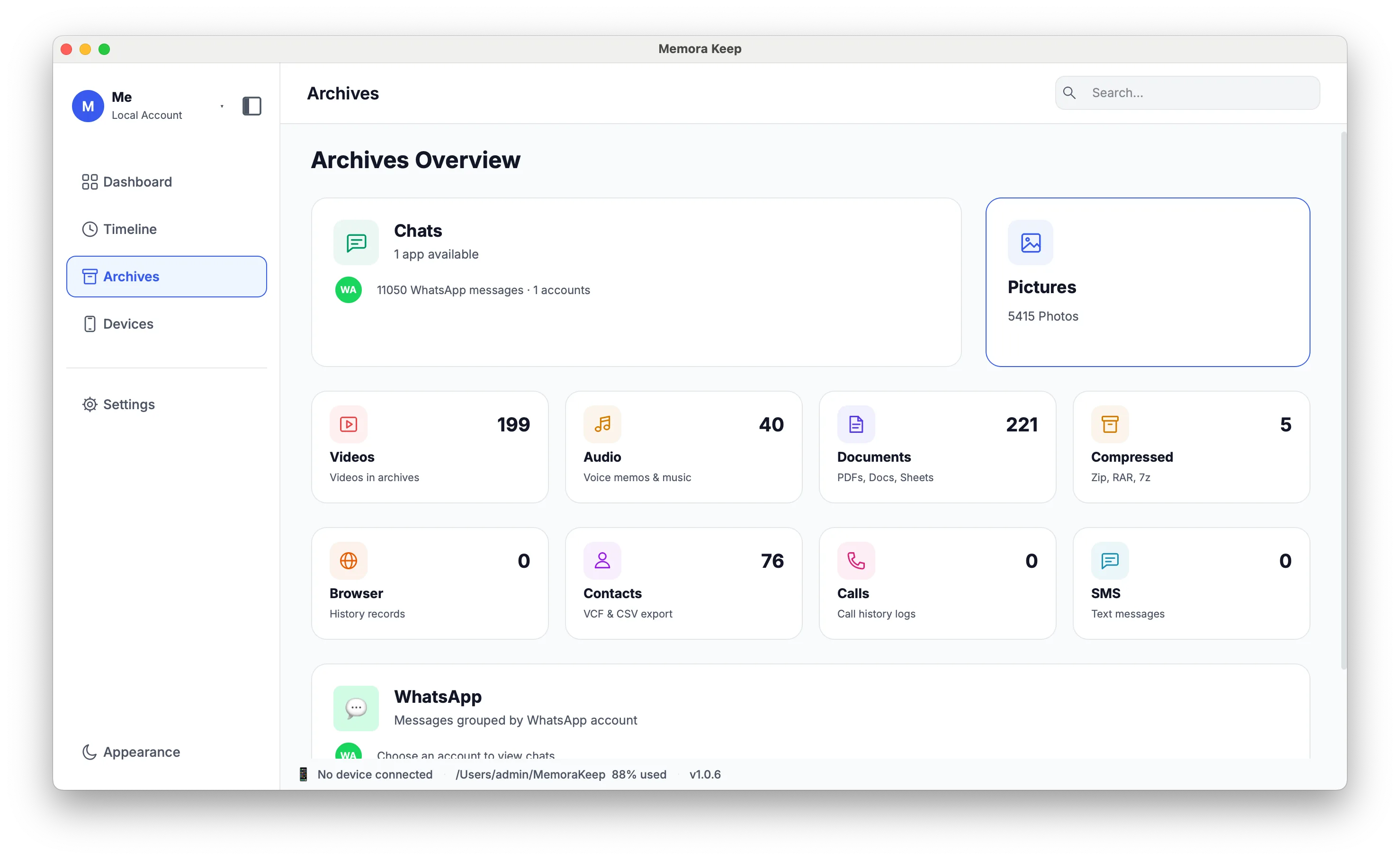
The available categories and their contents depend on your sources. A category on the screen does not mean every phone or app can supply it.
Keep track of three different copies
Your original backup, the browsable archive and exported files serve different purposes.
| Copy | Why keep it | What to record |
|---|---|---|
| Source backup | Read the source again or use its supported restore process | Device, backup date and folder |
| Memora Keep archive | Browse imported content on your computer | Archive location and sources added |
| Exported files | Open selected content in other apps | Conversation or event, format and export date |
A PDF of one conversation does not copy the whole archive. Keep the original backup folder intact, and avoid rearranging the archive’s internal files by hand.
The backup and archive comparison explains these roles.
Add one source and check it
For an existing iPhone backup, follow the import guide. For Android photos and videos, use the supported Android media backup workflow; WhatsApp has its own backup process.
Afterward, open a few items you recognize. Check a photo at full size, play a video and read part of an important conversation.
Use Devices to help identify imported sources.
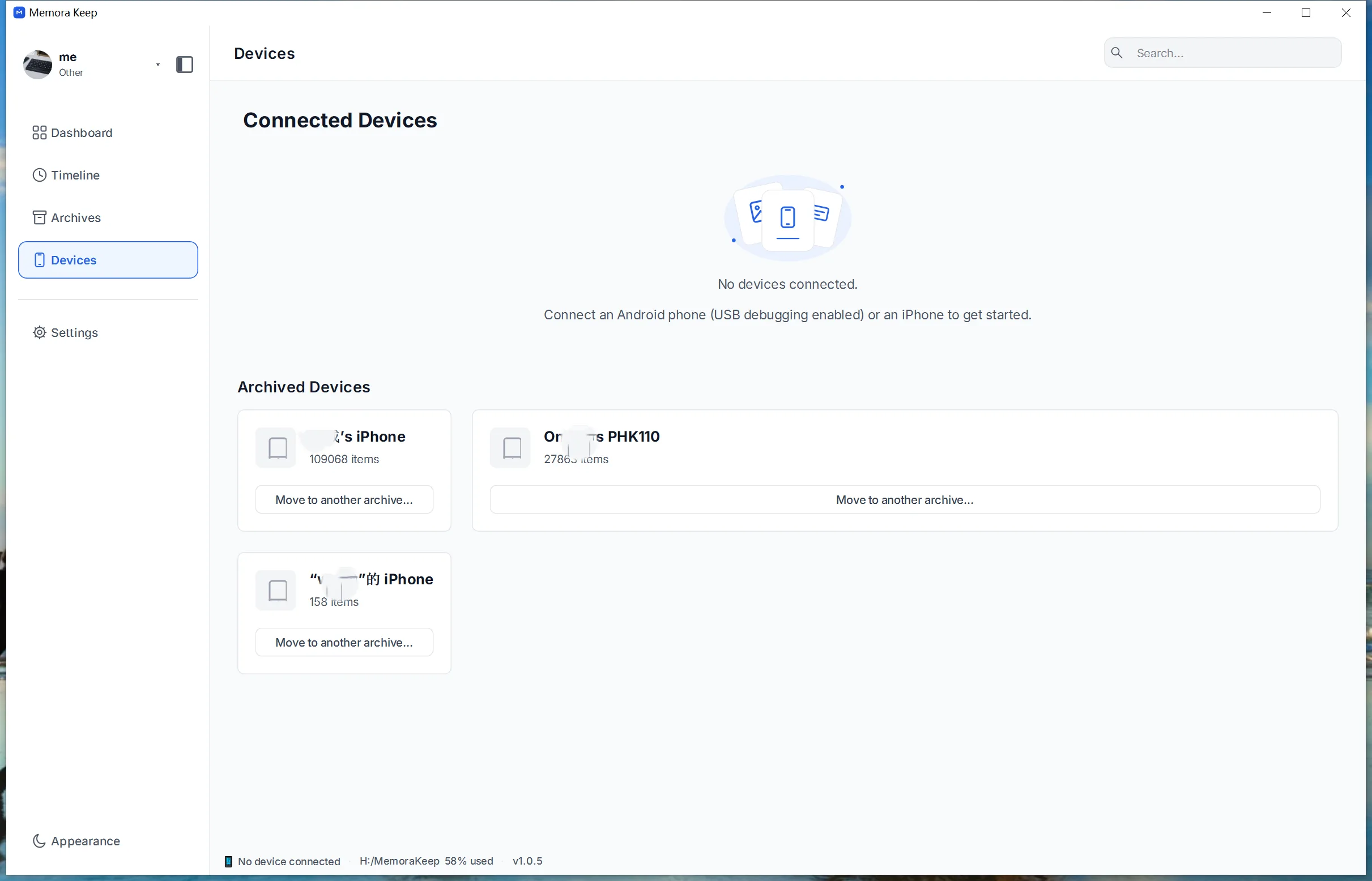
Record the result before adding another phone. This makes missing items easier to trace.
Browse by category or date
Use Archives when you know the kind of item you want. Use Timeline when you remember a year or event.
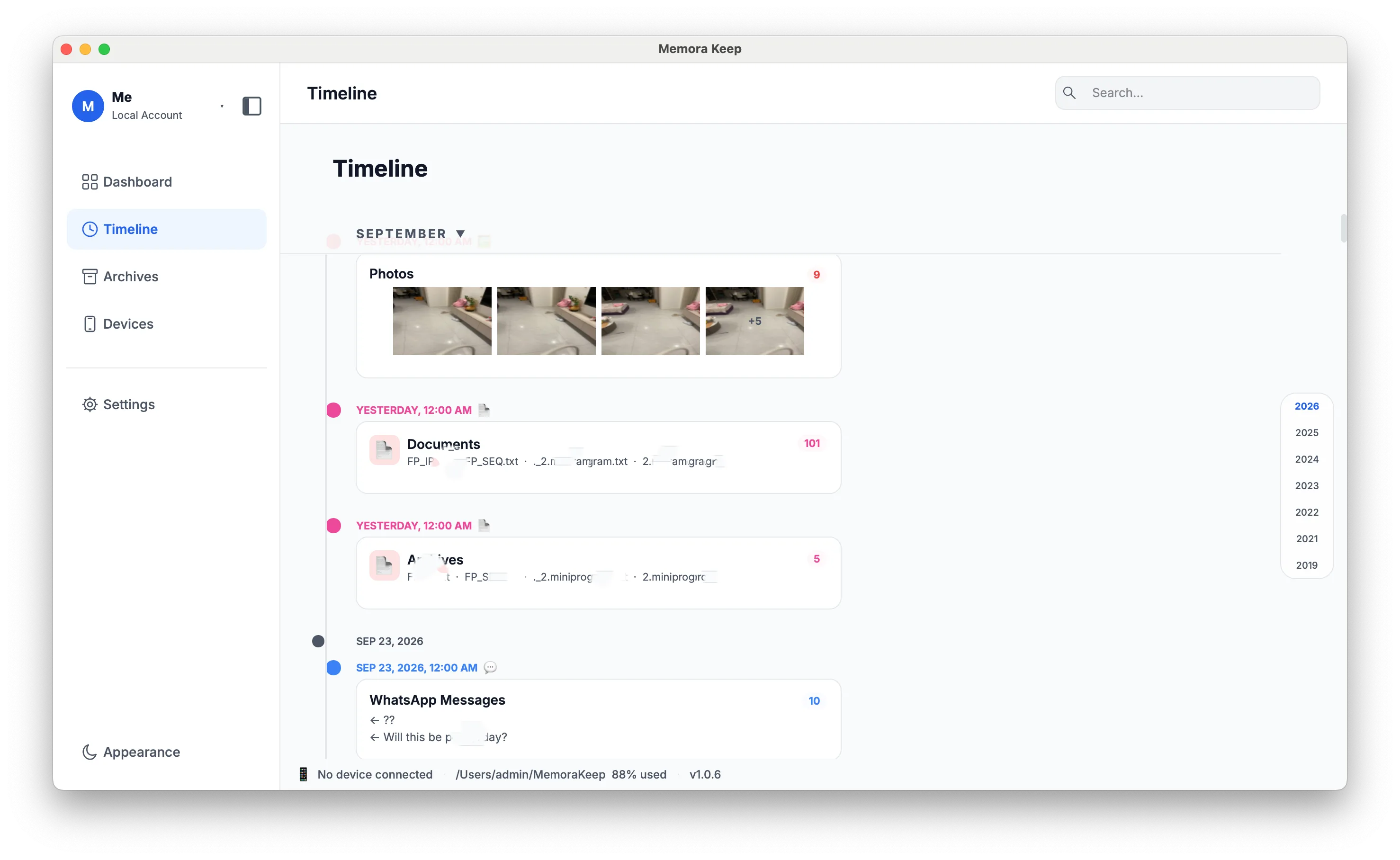
Keep your own short notes about people and events alongside exported files. They can explain things a filename cannot.
Make future access easier
Save important selections in formats you can open outside the app, and check any accompanying media folders. Keep another checked copy of those files in a separate storage location.
A small review log is enough:
| Item | Where the copy lives | Last opened successfully |
|---|---|---|
| Family conversation export | Family archive folder | Date you checked it |
| Holiday photos | Photo export folder and second drive | Date you checked them |
| Source backup | Backup storage folder | Date import was checked |
Update the log when you add a source or change storage. Local storage alone does not mean the files are encrypted, and new phone data needs another backup or import to reach the archive.
- local archive
- old phone
- digital memories