Backup Guides
How to Keep Phone Backups from Multiple Devices Organized
Keep backups from several phones easy to identify. Record devices and dates, separate sources from exports, and check each import.
3 min read
On this page
When several old phones have similar names, it is easy to open the wrong backup or mistake an export for the source. A small inventory saves that guesswork.
Keep the backup folders intact. Do your organizing around them, using clear outer folder names and a separate list of what each source contains.
What you need
-
Memora Keep on a Windows or macOS computer. It is free.
-
The phone or local backup containing the items you want to keep. Start with the source options described below.
-
Enough free disk space for the imported data and any files you export.
Make a device and backup list
Start with one row per backup or source. Here is a simple example you can adapt:
| Device | Period used | Backup date | Source location | Import check |
|---|---|---|---|---|
| Personal iPhone | 2020–2023 | Date shown in backup | Recorded folder path | Contacts checked |
| Personal Android | 2023–2026 | Date of media backup | Recorded folder path | Photos and video checked |
| Spare iPhone | Travel phone | Date shown in backup | Recorded folder path | Not yet imported |
Use labels that help you recognize the phone. If two phones share a name, add the model or part of the device identifier to your own notes.
For encrypted backups, record where you keep the password securely rather than putting the password in the inventory.
Separate sources from exports
A source backup may be needed for a supported restore or another import. An export contains the selection you saved for reading elsewhere.
Keep them in clearly marked areas, such as Source backups and Readable exports. If you add descriptive outer folders, preserve everything inside each backup as it was.
Do not rename the hashed files inside an iPhone backup to make them readable. Their names and folder structure are part of how the backup is read.
See phone backups and readable archives for the difference.
Check the archived devices
Open Devices in Memora Keep and compare the entries with your list.
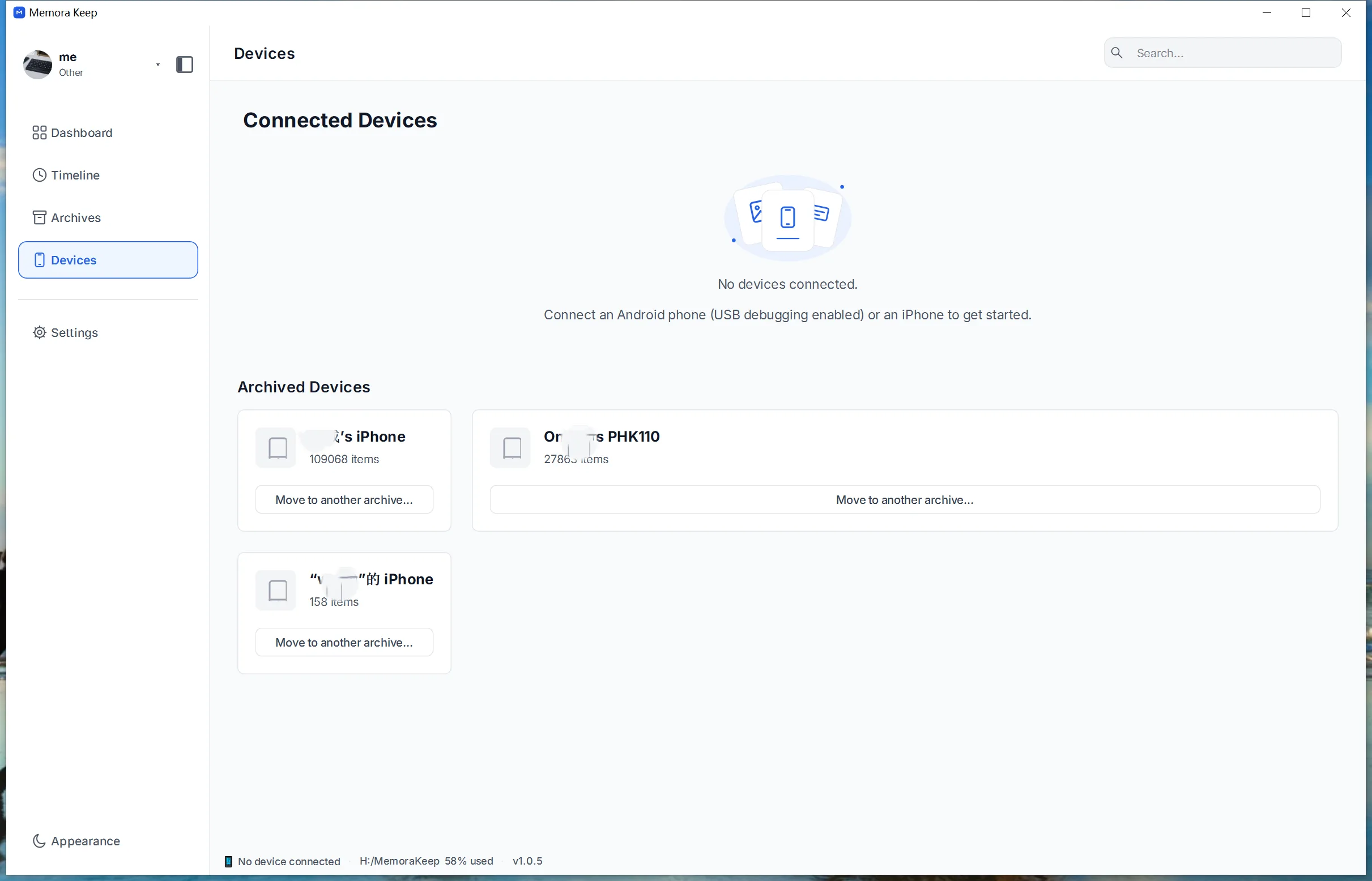
The screenshot shows device names and item counts. Use these as clues to identify the sources you imported. An item count alone does not prove a backup contains everything from a phone, and the list is not a complete catalog of every historical snapshot on your disks.
Import and verify one source at a time
Choose the source, confirm its device and date, and wait for the import to finish.
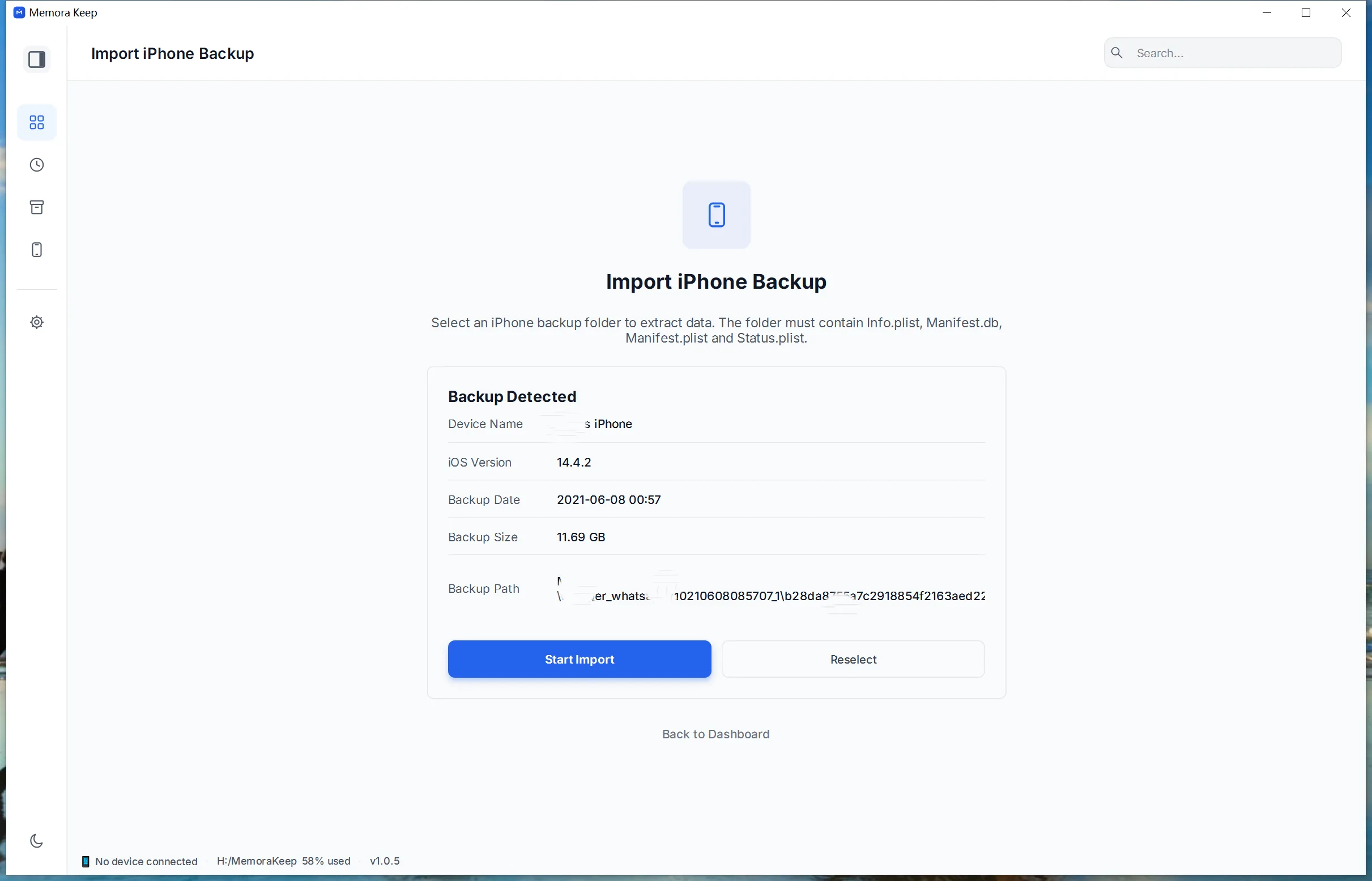
Check something specific before moving on: an old contact, a photo from a known trip, or a conversation from the period you need. Write the result in your inventory.
For detailed steps, use the iPhone backup import guide. To organize photos after import, see media from multiple phones.
Update the list when something changes
Add a row when you save a new source and record when you last checked it. Before deleting an older copy, make sure you understand which period and data it contains.
Keeping devices organized does not require merging different people’s WhatsApp accounts. Separate source records often make the collection easier to understand.
- phone backups
- multiple devices
- organization