Backup Guides
How to Organize Backed-Up Media from Multiple Phones
Organize photos and videos from several phones. Check source labels, use device filters and export clearly identified copies.
3 min read
On this page
Photos from several phones are easier to manage when you can tell where each file came from. Before sorting by date or exporting folders, identify the devices and check what each source actually brought in.
You can browse supported iPhone backup media and Android media in Memora Keep, but the available files depend on each source.
What you need
-
Memora Keep on a Windows or macOS computer. It is free.
-
The phone or local backup containing the items you want to keep. Start with the source options described below.
-
Enough free disk space for the imported data and any files you export.
Record the source phones
Keep a short list of each phone, the years you used it and the backup or import date. This is especially helpful when two devices have the same display name.
The Devices page gives you an overview of archived devices.
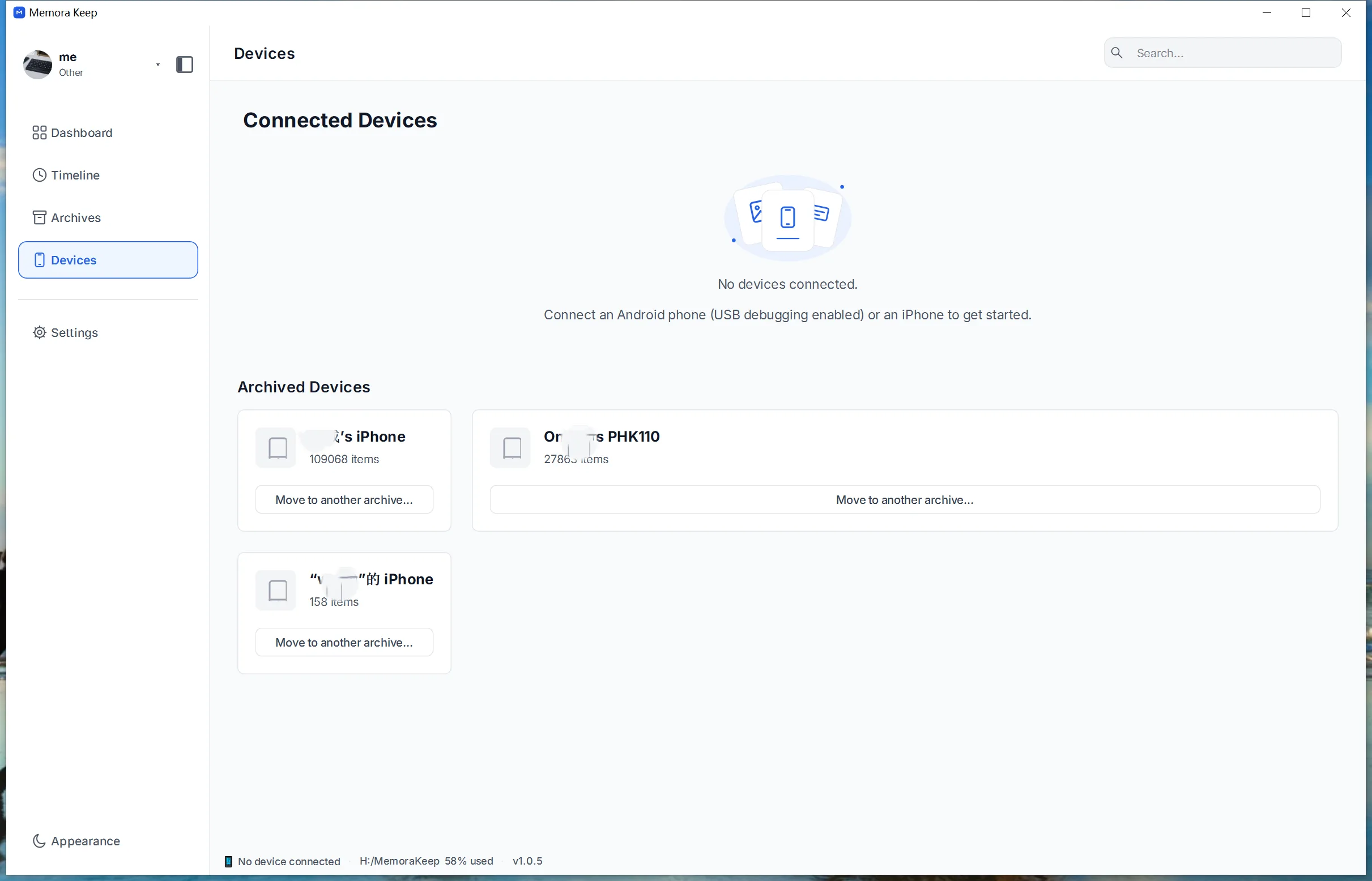
A device label identifies a source. It does not identify everyone pictured in the files or create separate family access permissions.
Add one source at a time
Import a readable local iPhone backup using the backup import guide. For an Android phone, use the Android backup workflow for supported shared media.
Before adding the next source, open a photo and play a video from the one you just added. Check that the content and source label match the phone you expected.
Android media backup and WhatsApp backup are separate workflows. Files available only in cloud storage may also be absent from the local source.
Filter photos by device
Open Archives → Pictures. Use the device dropdown to narrow the list, then check the source labels beneath the thumbnails.
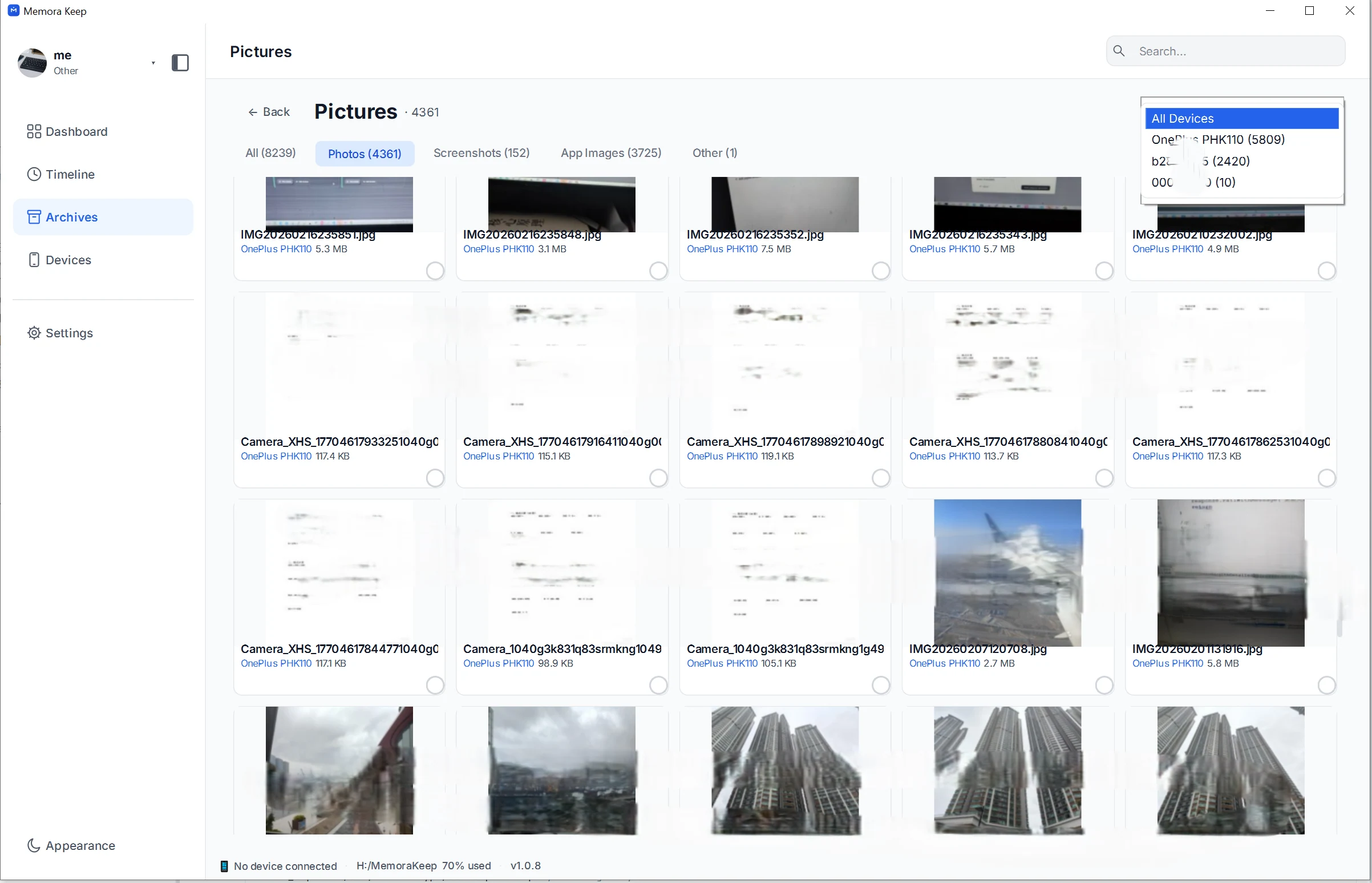
This lets you review one phone’s photos without guessing from filenames such as IMG_0001. Use the photo categories to narrow the view further when needed.
Open the video category separately to review clips.
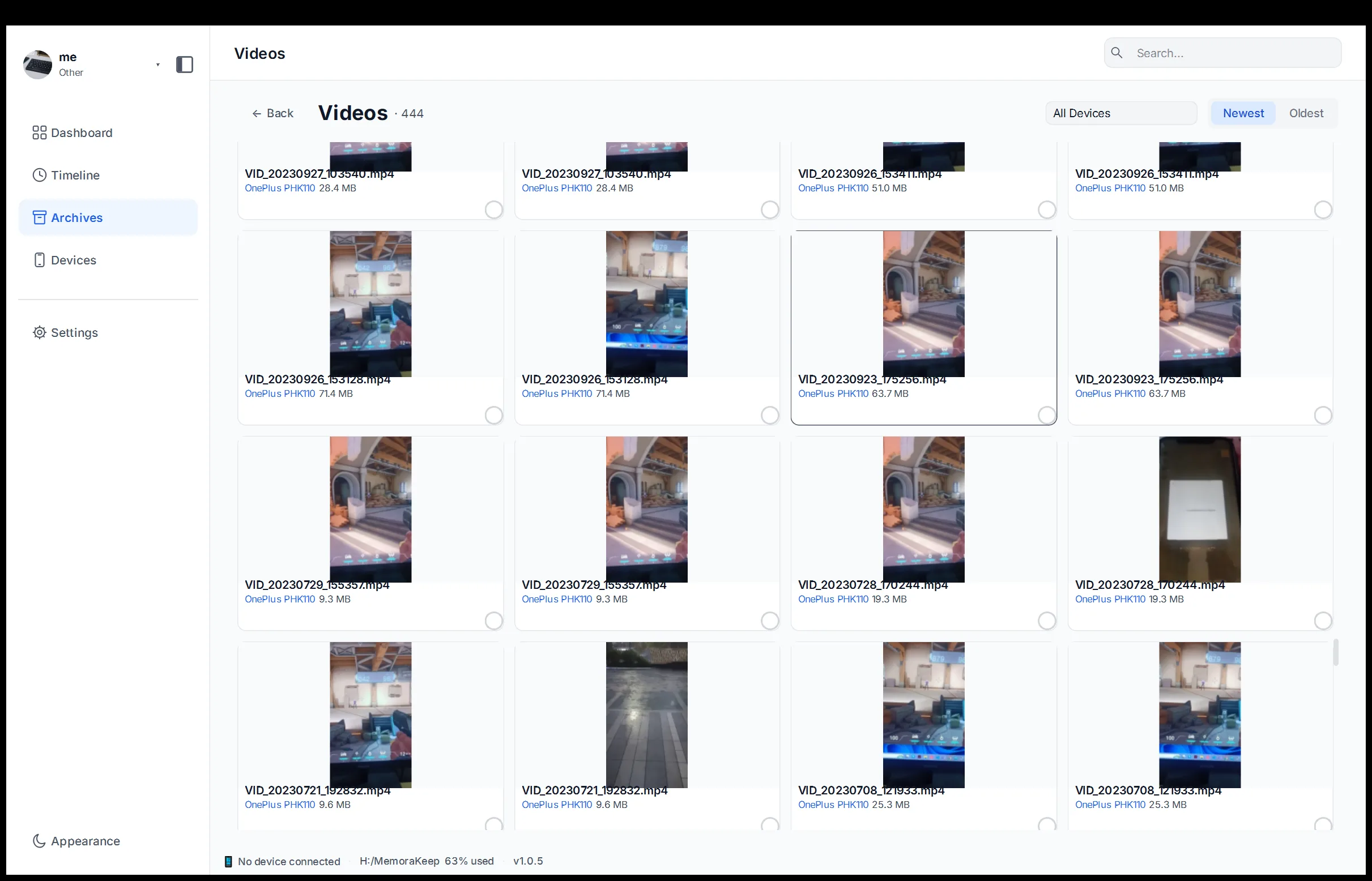
A similar thumbnail may be a different clip, an edited version or a second copy. Play it before making that decision.
Treat duplicates as a separate check
Two files with the same name are not necessarily identical. Two files with different names may contain the same picture.
Compare the content, dimensions and size before removing anything from your saved copies. A suffix added to avoid a filename collision does not prove the app has compared the contents.
Keep uncertain items until you have checked them.
Export a selection you can identify later
Choose the media you need and save it to a clearly named destination. For photos, follow exporting into folders by device.
Check the resulting folders, particularly if devices share a label. Keep a source note beside the export and organize those copies without changing internal archive paths.
Finally, open files from the export folder itself. Seeing them in the archive confirms that you can browse the source; checking the exported copies confirms what you saved for use elsewhere.
- photos
- videos
- multiple devices