Digital Legacy
How to Organize Phone Memories by Date on Your Computer
Find phone photos and conversations by date on your computer. Browse the timeline, check timestamps and keep useful event notes.
3 min read
On this page
You may remember the month of a trip long after you forget its photo filenames. Browsing by date gives you a useful starting point for finding those pictures and the conversations around them.
In Memora Keep, the timeline brings supported imported items into a dated view. Begin with a year or event, then open the items you want to check.
What you need
-
Memora Keep on a Windows or macOS computer. It is free.
-
The phone or local backup containing the items you want to keep. Start with the source options described below.
-
Enough free disk space for the imported data and any files you export.
Start with a date you remember
Pick something specific: a birthday, a holiday or the month you moved house. An approximate date is enough to begin.
If you have not added the phone data yet, follow creating a local timeline. The timeline can only show items already brought into the archive.
Move from the year to the day
Open Timeline and use the year navigation on the right. Browse the month and dated groups around the period you remember.
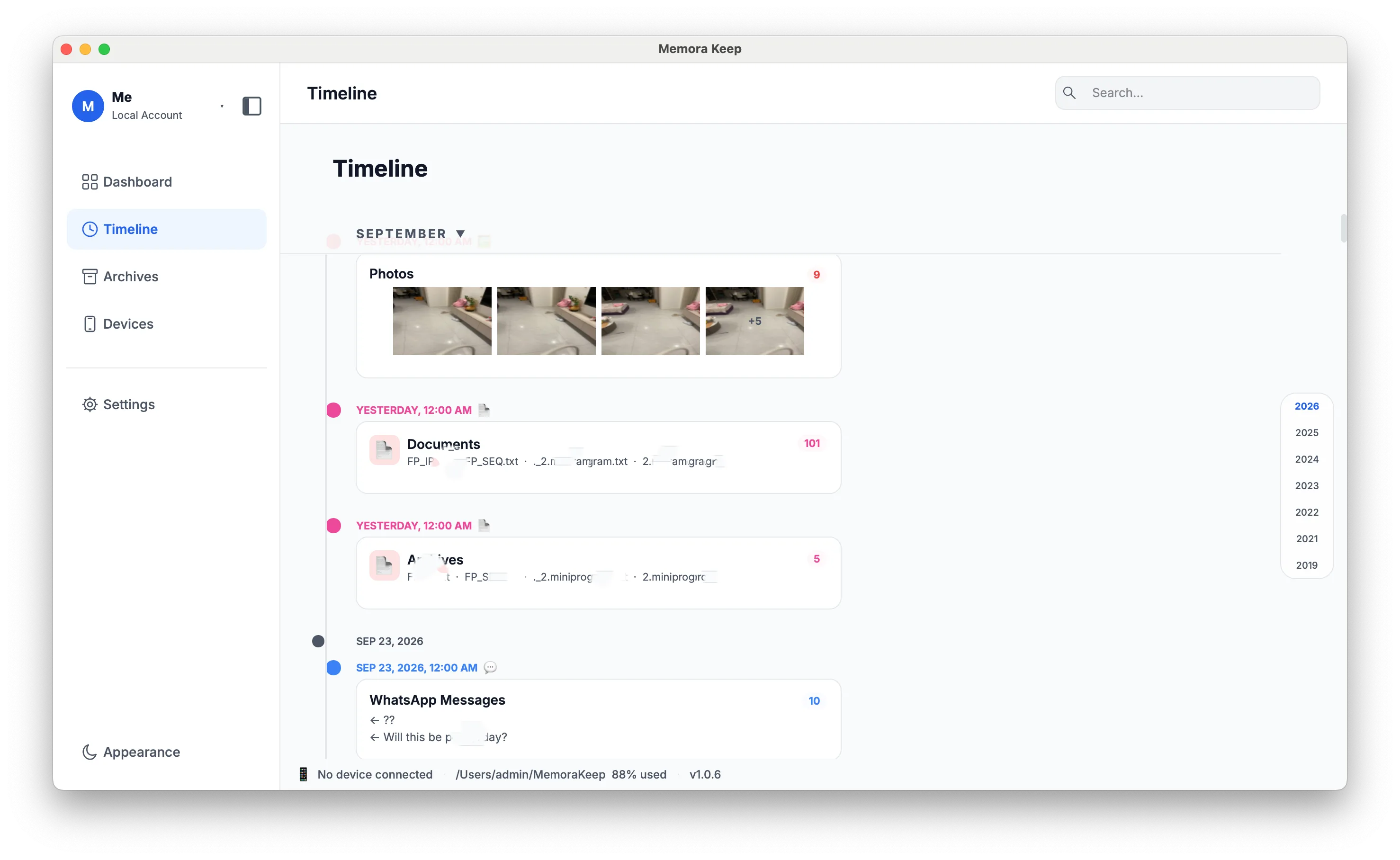
Open a group to look more closely at its contents. Finding the right month is usually easier than scanning thousands of filenames.
The timeline is a way to browse the archive. It does not automatically create event folders on your disk.
Read photos and messages in context
Look at the category shown on each card before opening it. You may find photos, videos and conversations near the same date.
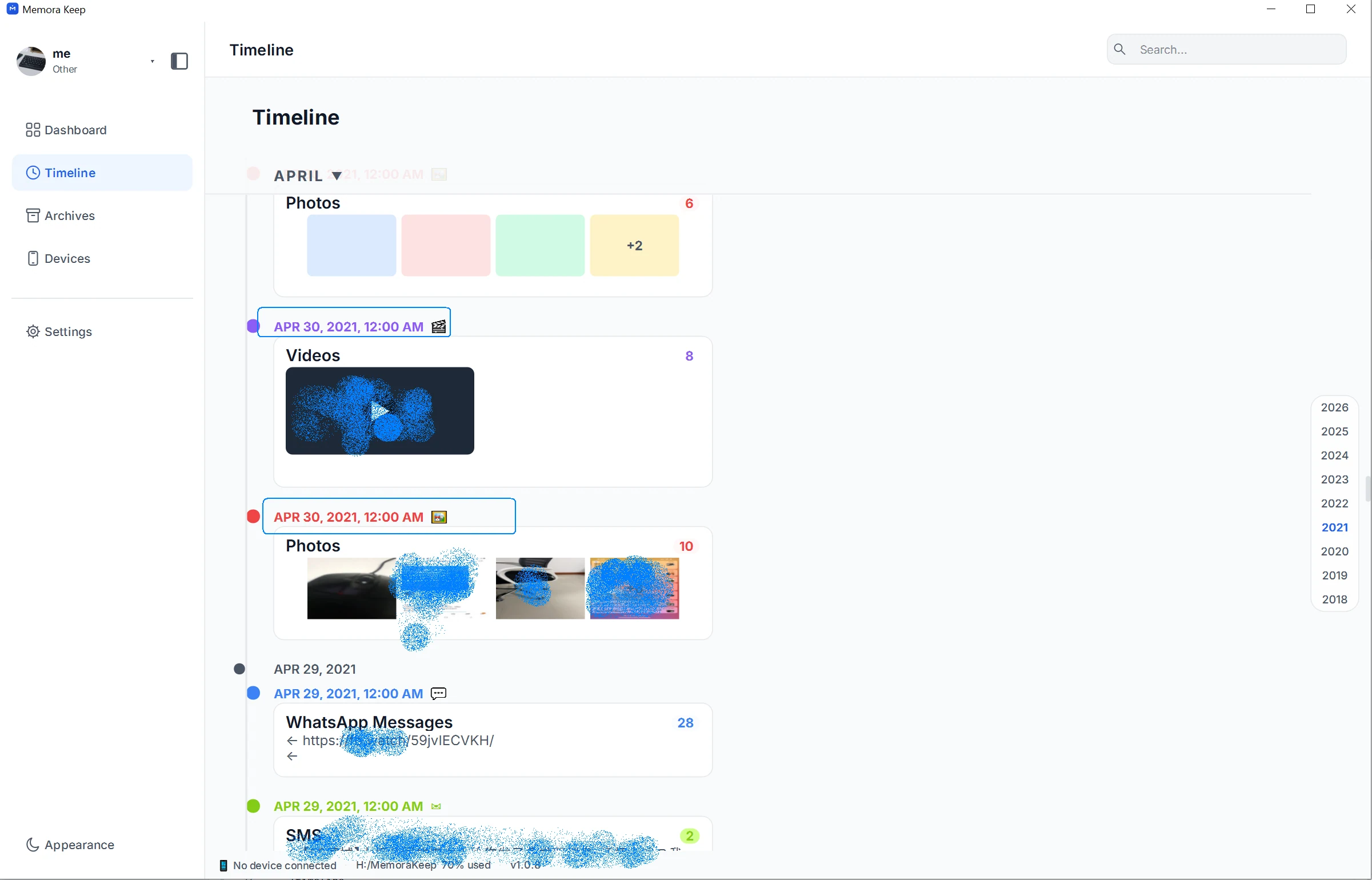
The example places several types of content near each other. That helps you investigate an event, but it does not establish that a nearby photo and conversation belong together.
Open the items and check their contents and sources. If you want to focus on just pictures, use Archives → Pictures and its available filters.
Check what each date means
A date can refer to several different things:
| Date | What it helps you understand |
|---|---|
| Photo date | When the source says the image was taken or dated |
| Message time | When the message record places the conversation |
| Backup date | When the source snapshot was made |
| Copy or export date | When a file was saved to its current location |
The cards in the example show midnight for several groups. Do not treat that group label as proof that every item was created at midnight. Open the underlying item for more detail.
Missing metadata, an incorrect device clock or a changed file date can affect where an item appears. If something looks out of place, check nearby dates and its source information.
Keep a short event note
Outside the app, save a small note with the event name, date range, source phones and filenames of anything you export. For example, a trip note can explain who appears in the pictures and which conversation contains the travel plans.
Keep your own recollections separate from dates recorded in the files. Then open the exports and check that they match the event you intended to preserve.
For a closer look at photo dates, see browsing backup photos by date.
- timeline
- photos
- digital memories