Backup Guides
How to Save Old Phone Videos in a Local Archive
Save old phone videos from a supported backup, check playback and export a separate copy with useful source and event details.
3 min read
On this page
A thumbnail can remind you of a video, but it cannot tell you whether the whole recording is still playable. To preserve an old phone video, bring in an available source, play the clip and check a separately exported copy.
Memora Keep can browse videos from supported local iPhone backups and Android media backups.
What you need
-
Memora Keep on a Windows or macOS computer. It is free.
-
The phone or local backup containing the items you want to keep. Start with the source options described below.
-
Enough free disk space for the imported data and any files you export.
Find a source containing the video
If you still have the Android phone, use its supported media backup workflow. For iPhone, you can import an existing local backup; encrypted backups need their password.
Check the source device, backup date and free storage before starting. A cloud-only video or a thumbnail without its media file is not a full playable copy.
If the old phone no longer works, an existing readable backup may still contain the video. Without a source holding the file, this workflow cannot recreate it.
Open the video category
After backup or import, go to Archives → Videos. Look for a clip you recognize and check its filename and source label.
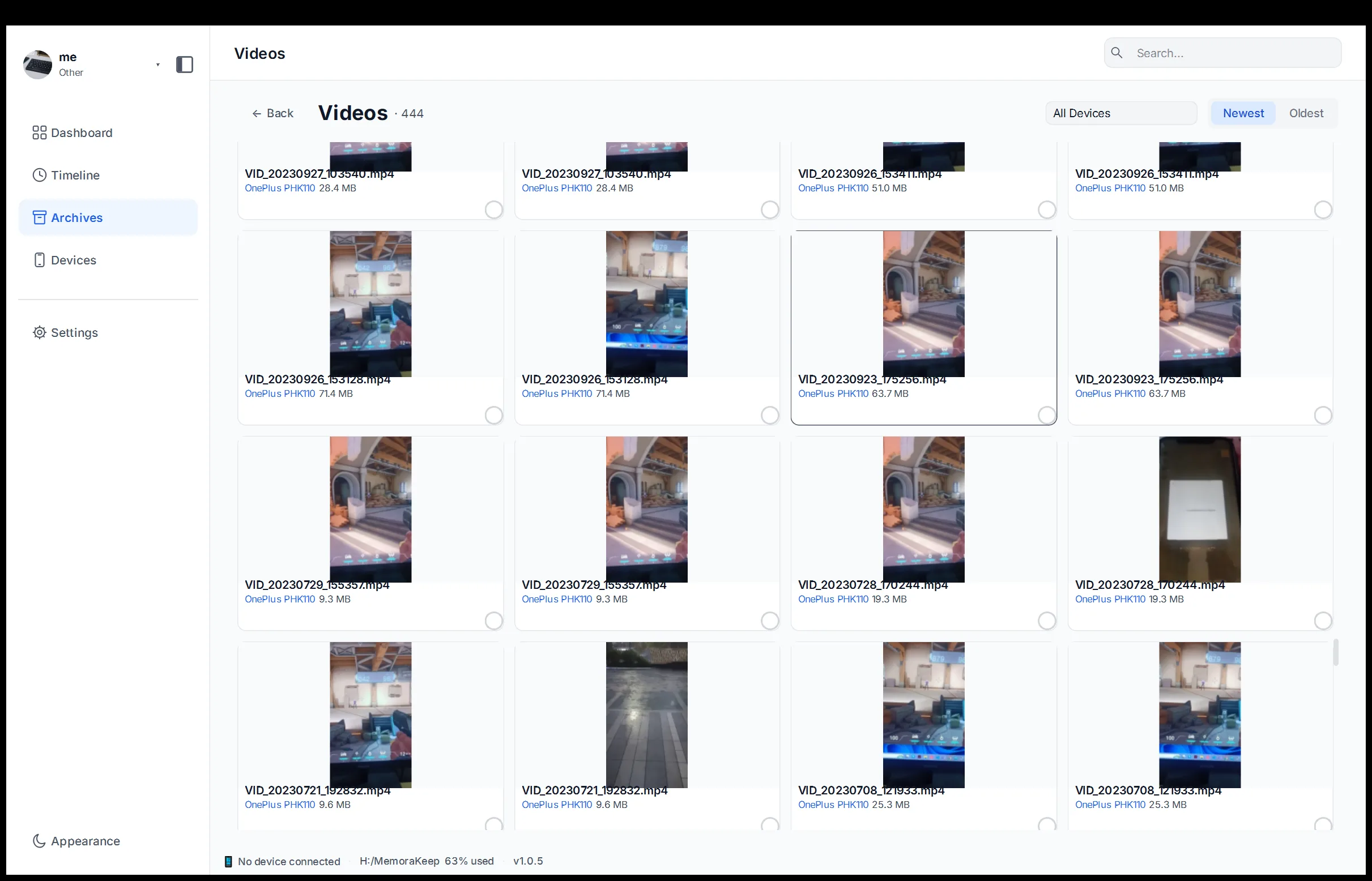
Use the available device and date-order controls to narrow the view. Similar first frames do not always mean the clips are identical.
Test playback in the archive
Open the video and watch beyond its first frame. Check the beginning, a point in the middle and the end. Listen for sound if you expect an audio track.
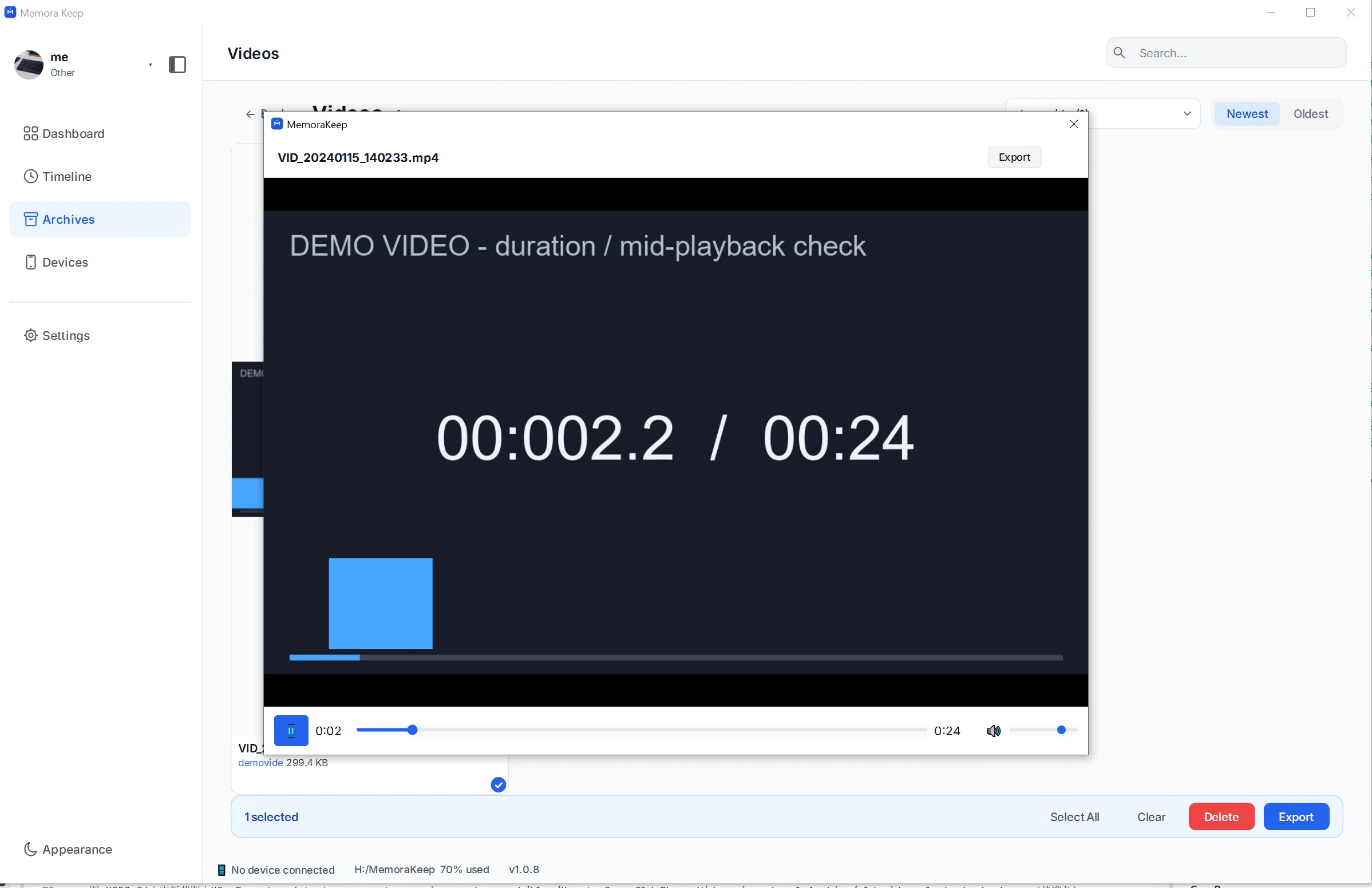
This demonstration clip shows the playback controls and duration. Apply the same check to your own recordings; one working clip does not verify every video in the source.
If a clip fails, check whether the actual file is available and whether the player supports its format. Keep the source while investigating.
Export and open a separate copy
Select the videos you want, click Export and choose a folder.
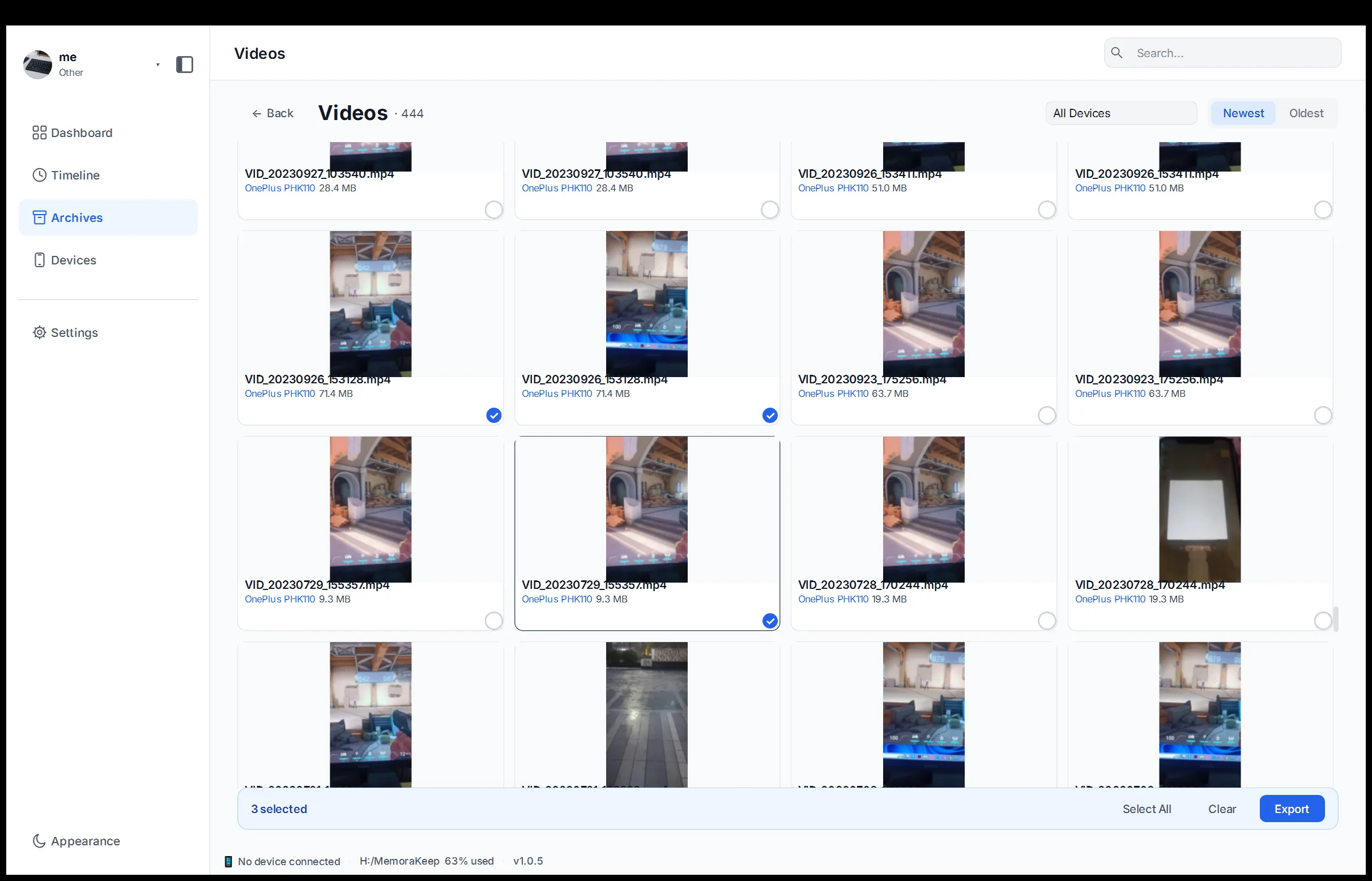
Next, open that destination folder in your computer’s file manager and play the exported videos from there. This is a separate check from playback inside the archive.
Compare the content and duration. Check the audio again, and try important clips in the player you expect to use later. A file’s presence or nonzero size does not establish that it plays to the end.
Keep a little context
Beside the saved clips, write down the event, people, source phone and approximate date if you know them. Keep your own recollections separate from dates recorded in the file.
For several phones, use organizing media by source to keep the exports understandable.
Keep another checked copy in a separate storage location and reopen important videos periodically. Backup and export do not remove the videos from your phone or automatically convert every format for future players.
- videos
- local archive
- old phone