Transfer WhatsApp from Android to iPhone
Compare Move to iOS with a local computer-based transfer, including setup requirements, backup precautions and step-by-step instructions.
10 min read
On this page
Moving to a new iPhone is supposed to feel like an upgrade. Then you open WhatsApp and it’s empty. Every conversation, every photo someone sent three years ago, still sitting on the old Android.
Yes, you can transfer WhatsApp from Android to iPhone. The official Move to iOS method runs during iPhone setup. If you’ve already set up your iPhone, you need to back up its data, erase it and start setup again to use that method.
This post walks through both options: the official Move to iOS method and a local transfer using Memora Keep on your computer. Read the requirements and restore precautions before choosing a method.
Which one should you use?
Start with your iPhone’s setup state, whether you can erase it, and whether you want a computer-based archive. Both methods need preparation; a local restore is not a guarantee that existing iPhone data will be preserved.
| Requirement or feature | Move to iOS | Memora Keep |
|---|---|---|
| Cost | Free | Free |
| Needs iPhone setup to start again | Yes, if already set up | Uses a full-device restore instead |
| Keeps what’s already on the iPhone | Erasing removes current device data | Restore may replace existing data; back up first |
| Computer required | No | Yes, Windows or macOS |
| Merges multiple accounts | No | Yes, merge archived accounts before transfer |
| Uploads chat backup data to the cloud for transfer | No | No |
| WhatsApp call history and display name | Not supported | Not confirmed in this guide |
| WhatsApp Business | Not supported | Supported |
| Device requirements | Android 5.0+, iOS 15.5+ and current app requirements | See compatibility |
If your iPhone is new or you can erase it and repeat setup, consider the official method first. If you want to review and prepare a local archive on your computer, consider Memora Keep. Back up existing iPhone data before either an erase or a restore.
What can and can’t move
It helps to know what each method supports before choosing one. With the official Move to iOS method, WhatsApp can transfer your personal chats, group and community conversations, channel updates, your media and your settings.
The official method does not transfer WhatsApp call history, your display name or media received through Channels. It also does not support transferring WhatsApp Business chats from Android to iPhone. These limitations refer to Move to iOS; check the supported data types separately for other tools.
See WhatsApp’s migration instructions for current requirements and limitations.
The official way: Move to iOS
This is the method WhatsApp documents, using Apple’s free Move to iOS app. Check the following requirements before starting.
What you’ll need
- An Android phone running Android 5.0 (Lollipop) or newer.
- An iPhone on iOS 15.5 or newer.
- The Move to iOS app installed on the Android phone. These instructions apply specifically to that app.
- The latest WhatsApp from both app stores.
- The same phone number on both phones.
- An iPhone that is new, or reset to factory settings.
- Both phones plugged into power, on the same Wi-Fi network — or with the Android connected to the iPhone’s hotspot.
How it goes
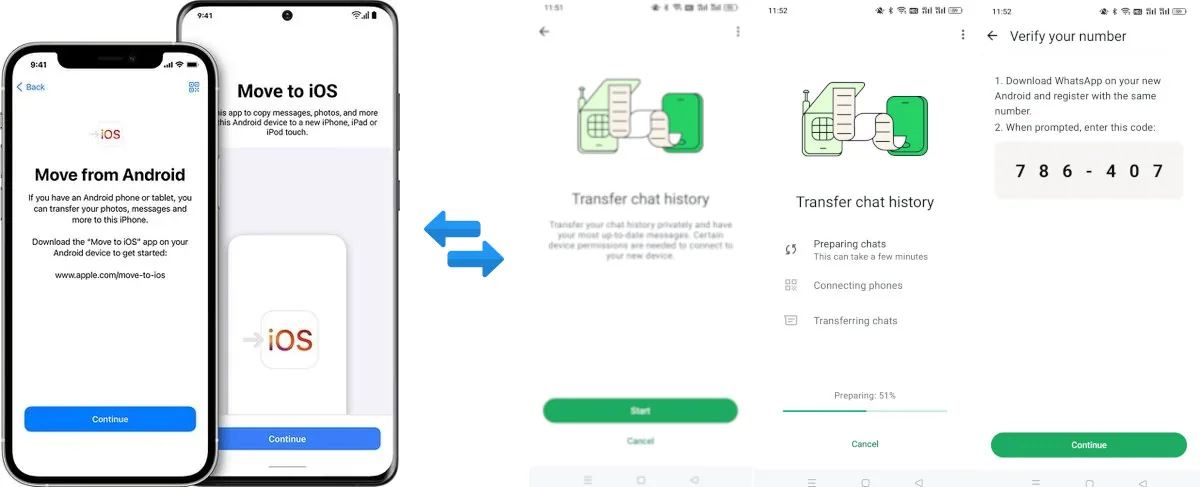
- During iPhone setup, choose From Android on the Transfer Your Apps & Data screen, then Transfer with App if shown. Open Move to iOS on the Android phone and follow the prompts. Screen labels can vary by iOS version.
- On the iPhone’s Move from Android screen, tap Continue to display a code. Enter it on the Android phone and join the temporary Wi-Fi network when prompted.
- On the Transfer Data screen, select WhatsApp.
- Tap Start, then wait while WhatsApp prepares your data. You’ll be signed out of the Android app once it’s ready.
- Tap Next to go back to Move to iOS, tap Continue, and wait for it to confirm the transfer.
- Wait for the iPhone’s transfer progress to finish, complete iPhone setup, then install WhatsApp and sign in with the same number.
- Tap Start when asked, wait for activation to finish, and your chats are there.
Where it falls short
The main constraint is the iPhone setup requirement. An existing iPhone can use this method, but you must erase it and start setup again. Save a separate backup of anything you want to keep before erasing it. Apple’s setup instructions explain where to start the Android transfer.
Move to iOS does not merge Android chats with conversations already on the iPhone. Complete the migration during setup; it is not a way to add another batch of chats later. Repeating the Move to iOS process requires starting iPhone setup again.
The local way: Memora Keep
Memora Keep backs up WhatsApp from the Android phone onto your computer, converts that backup into iPhone format, and writes it to the iPhone through a full-device restore. The backup data is processed locally.
You will need Memora Keep on a Windows or macOS computer, data-capable USB cables and enough free disk space for the backup and converted data. Check device compatibility before starting.
Download Memora KeepBefore restoring: Save a separate backup of your destination iPhone. A full-device restore may replace existing iPhone data. Do not assume that photos, apps or current iPhone WhatsApp chats will be preserved or automatically merged. Review the restore prompts before continuing. Merging archived WhatsApp accounts is a separate operation.
Why people choose it
- It’s free.
- It supports Android-to-iPhone transfers on compatible devices. Check the supported versions before you start.
- Your backup data is processed on your computer without a cloud upload.
- You can merge several WhatsApp accounts, then send the combined result to the iPhone.
- It uses a computer-based restore rather than the Move to iOS setup flow. Review what the restore will replace before starting.
- Your Android backup remains available in the local archive so you can check the transferred chats against it.
- It can write into a brand-new WhatsApp account, not just an account that already exists.
- You can slim things down first, dropping contacts and chats you don’t need.
- Progress is shown while the transfer runs, so you can follow its status.
The main difference is the workflow: Memora Keep gives you a local archive to review and prepare before restoring it to the iPhone. A local transfer still requires a separate backup of the destination phone.
Move WhatsApp from Android to iPhone, step by step
It happens in two stages: back up the WhatsApp data from the Android phone, then restore it to the iPhone.
Back up WhatsApp from your Android phone
-
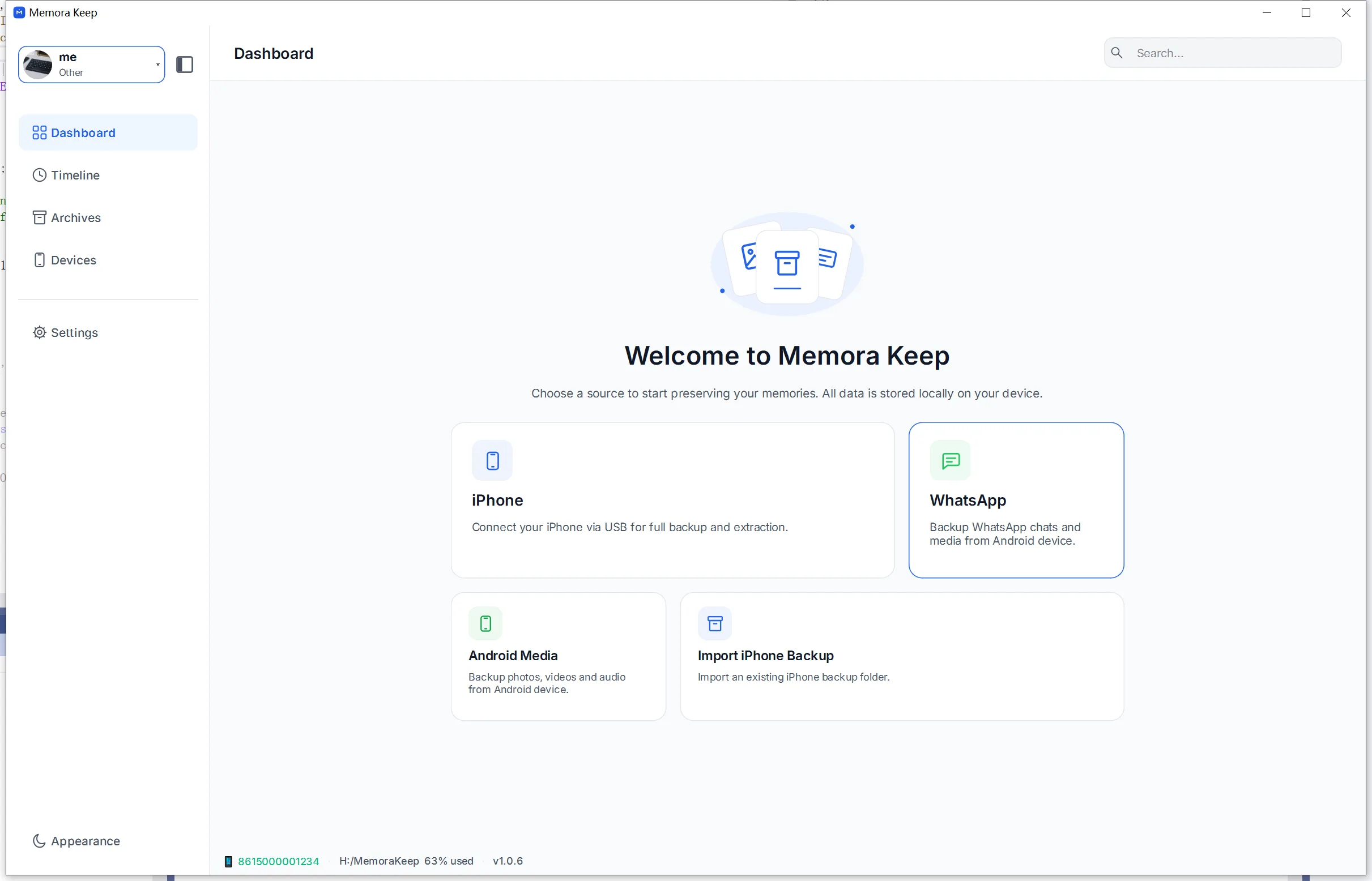
Open the WhatsApp module from the Dashboard. Start Memora Keep and open the WhatsApp module from the Dashboard — this is where the Android backup flow begins.
-
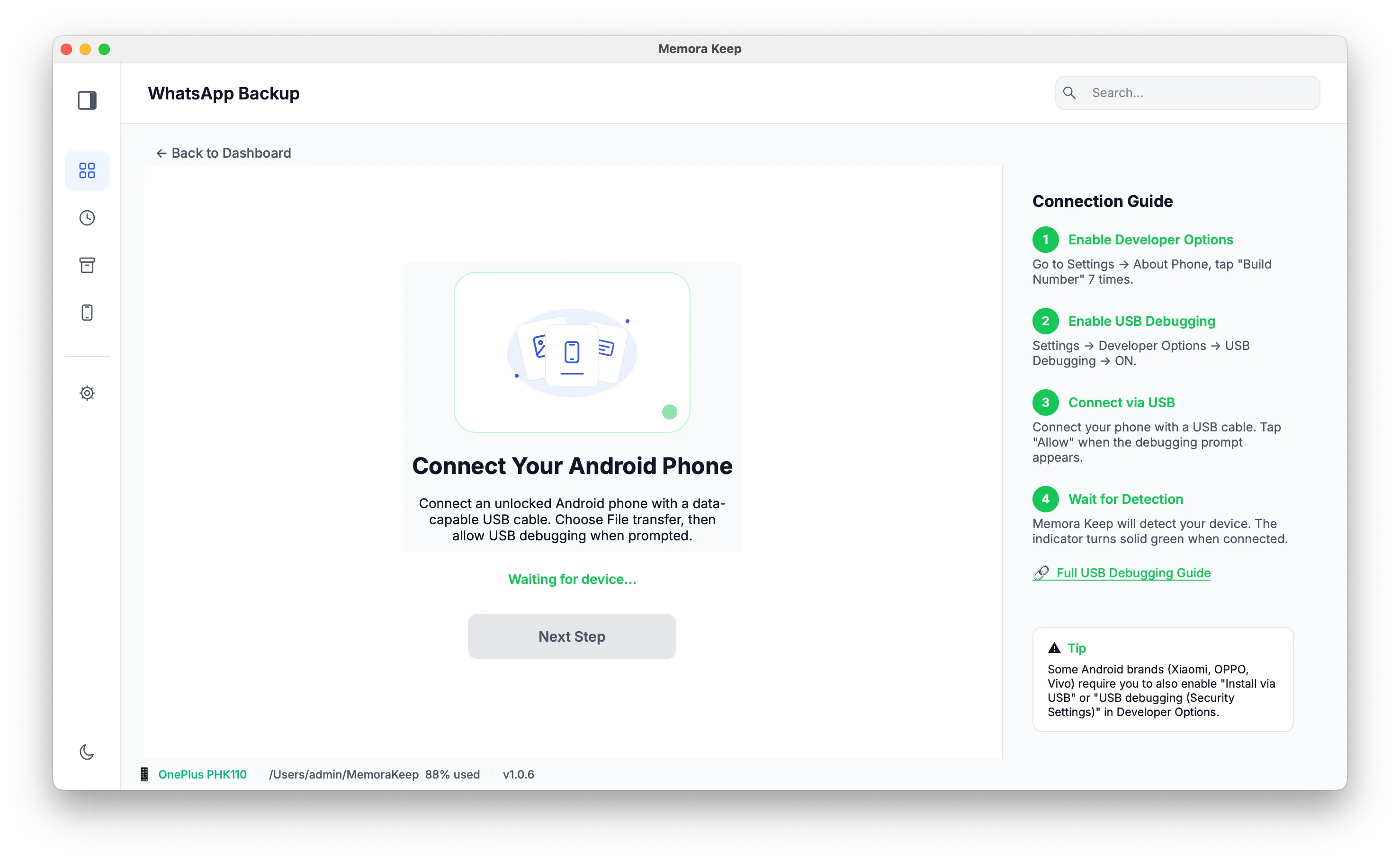
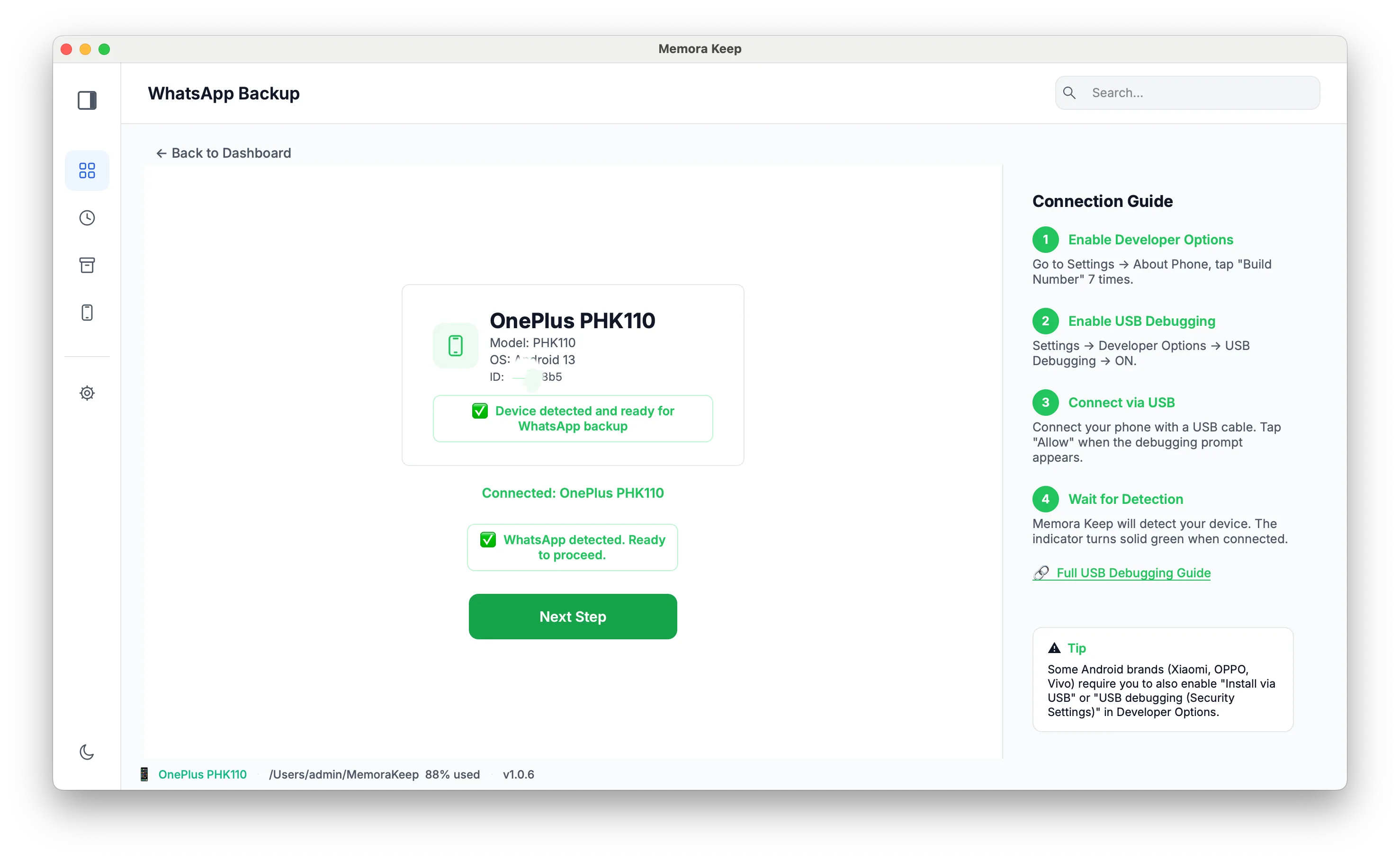
Connect your Android phone to the computer with a USB cable. Plug the phone in over USB. The module shows whether a device is detected, and switches to the connected state once Android is ready.
-
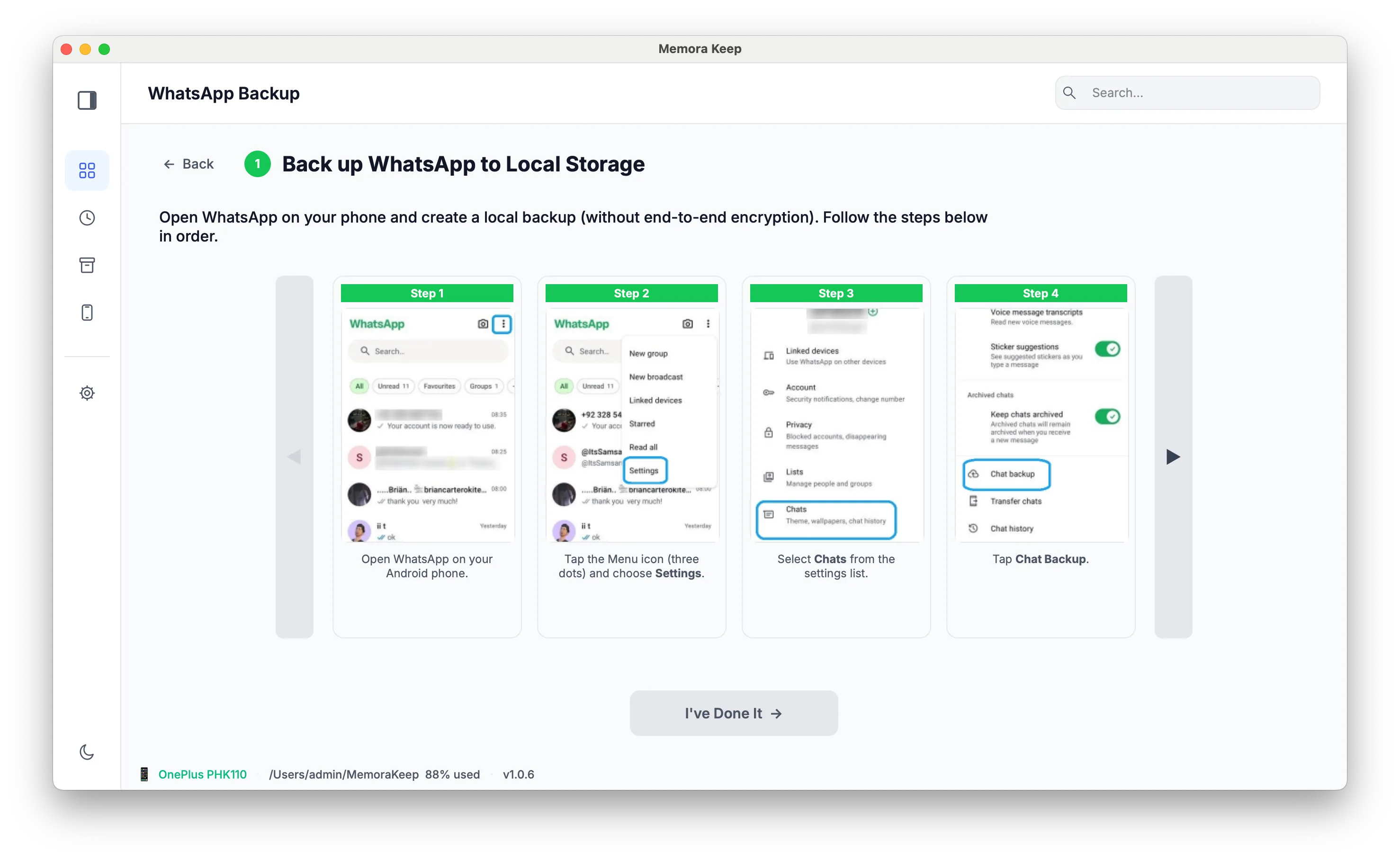
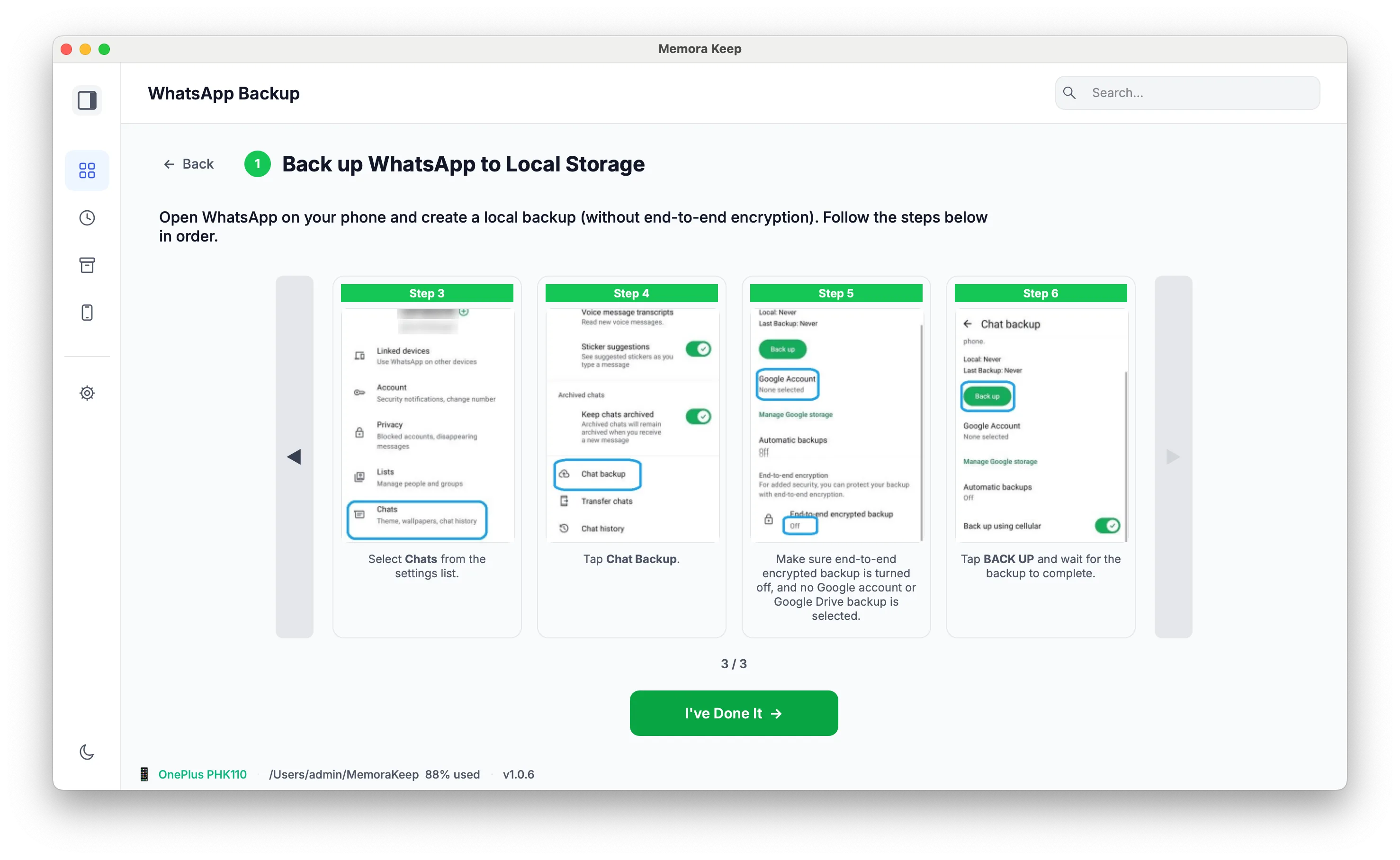
Back up WhatsApp to local storage. Choose the option to back up WhatsApp to local storage on the computer, then confirm. The data is written to the archive folder you chose, not to a cloud account.
-
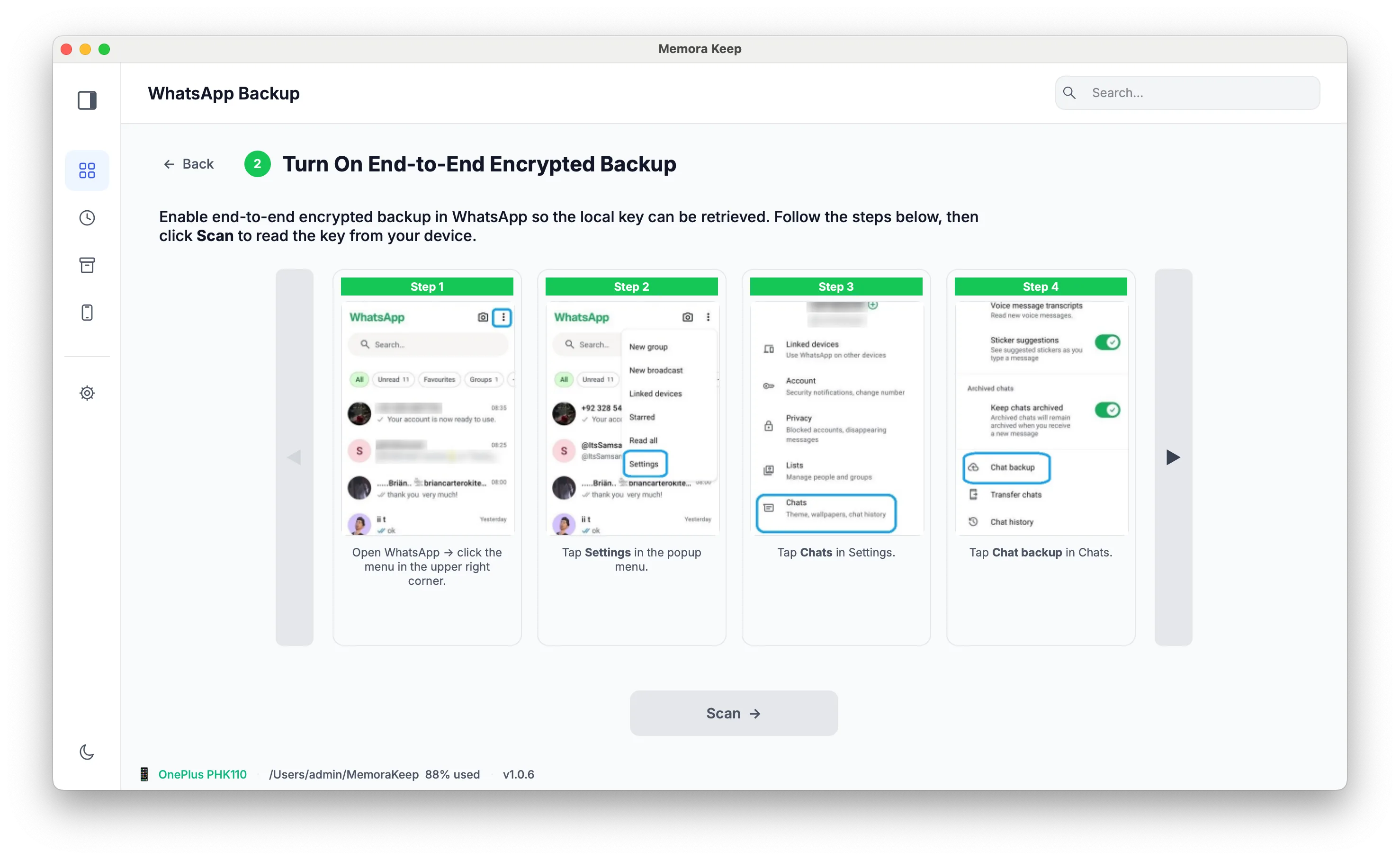
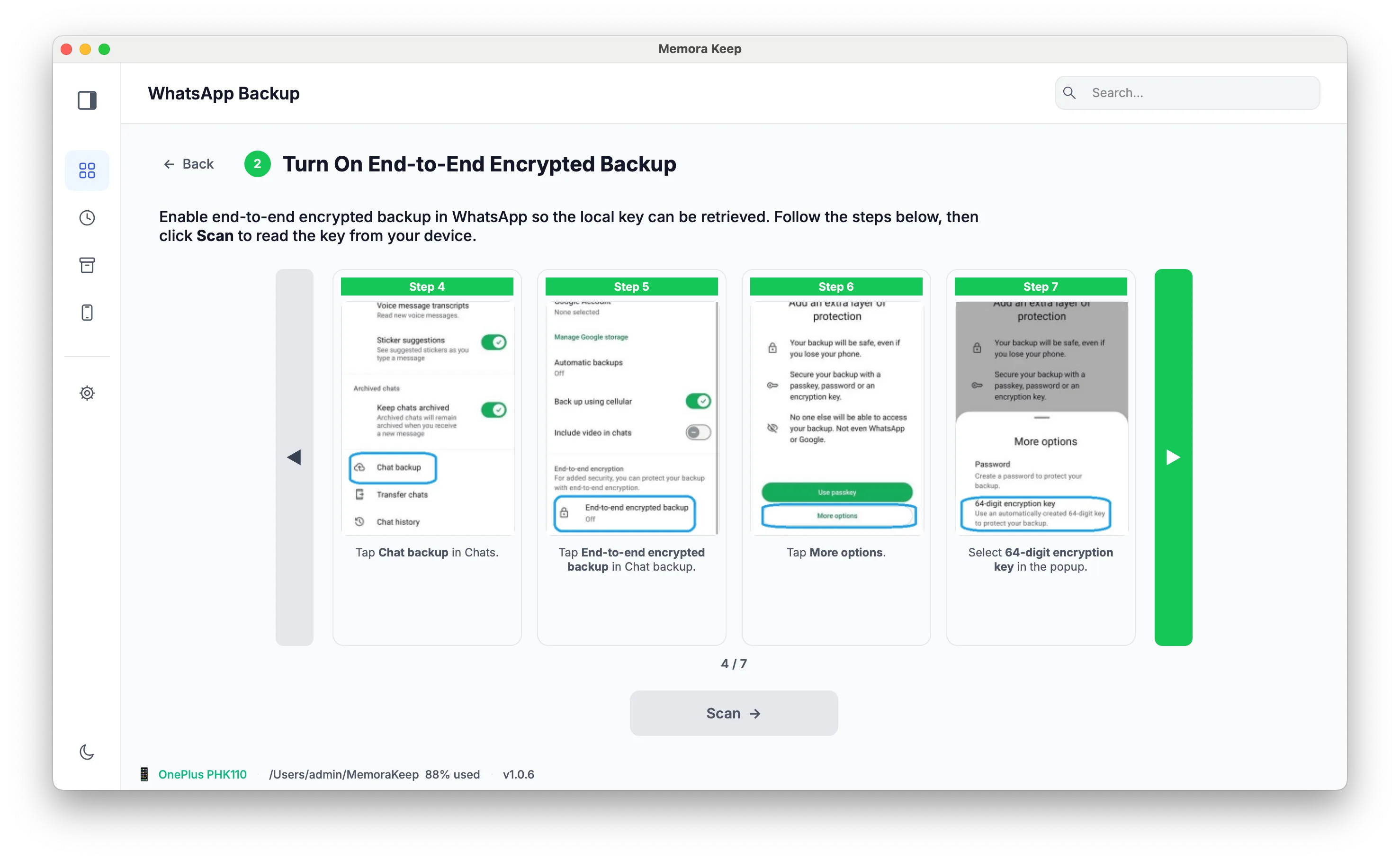
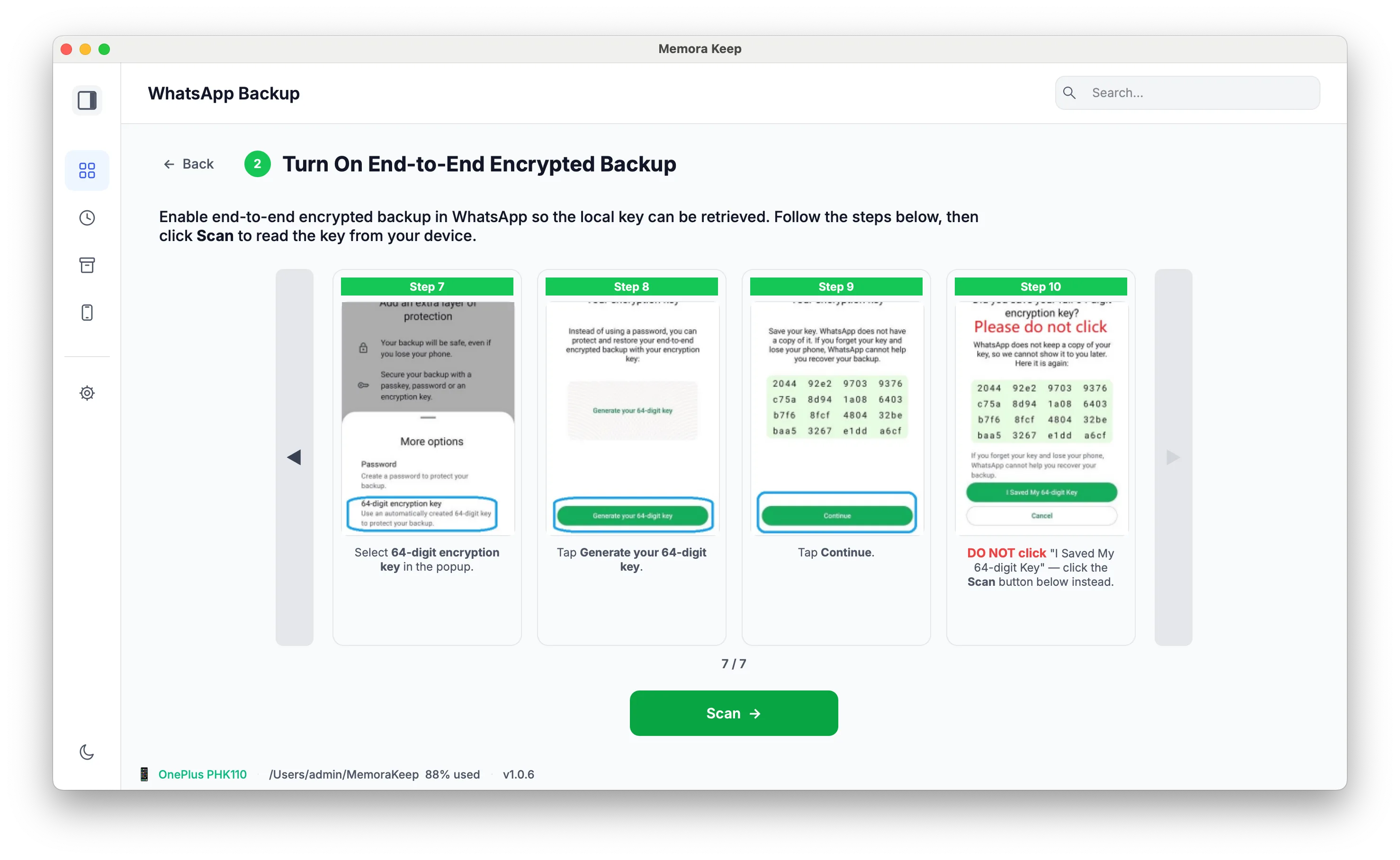
Turn on the end-to-end encrypted backup. On your Android phone, open WhatsApp’s Settings → Chats → Chat backup → End-to-end encrypted backup. Follow the illustrated prompts in Memora Keep. In the flow shown below, choose More options → 64-digit encryption key. Save your own key securely, then click Scan in Memora Keep when prompted to read the key from your connected phone. Do not use a key shown in an example screenshot.
-
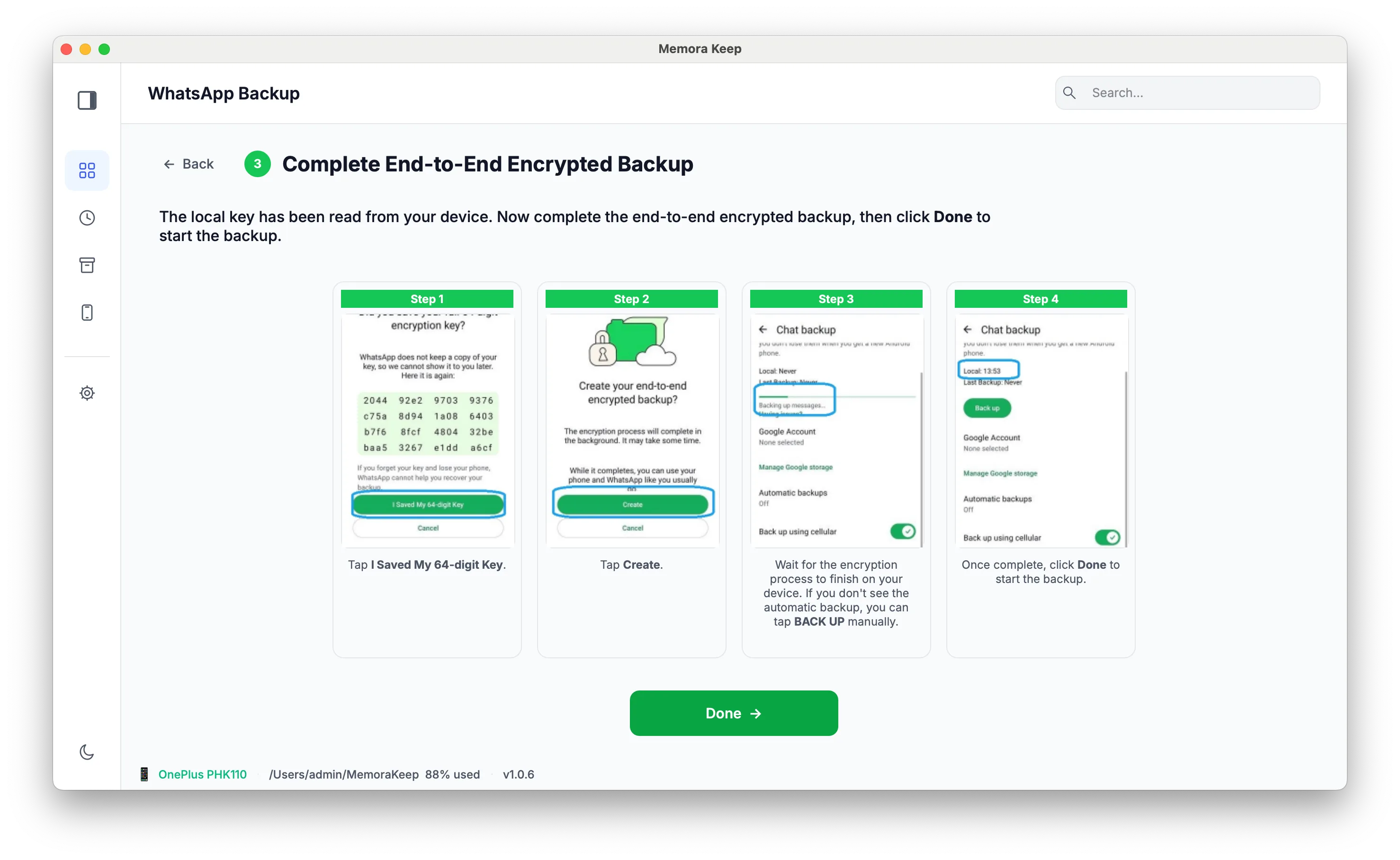
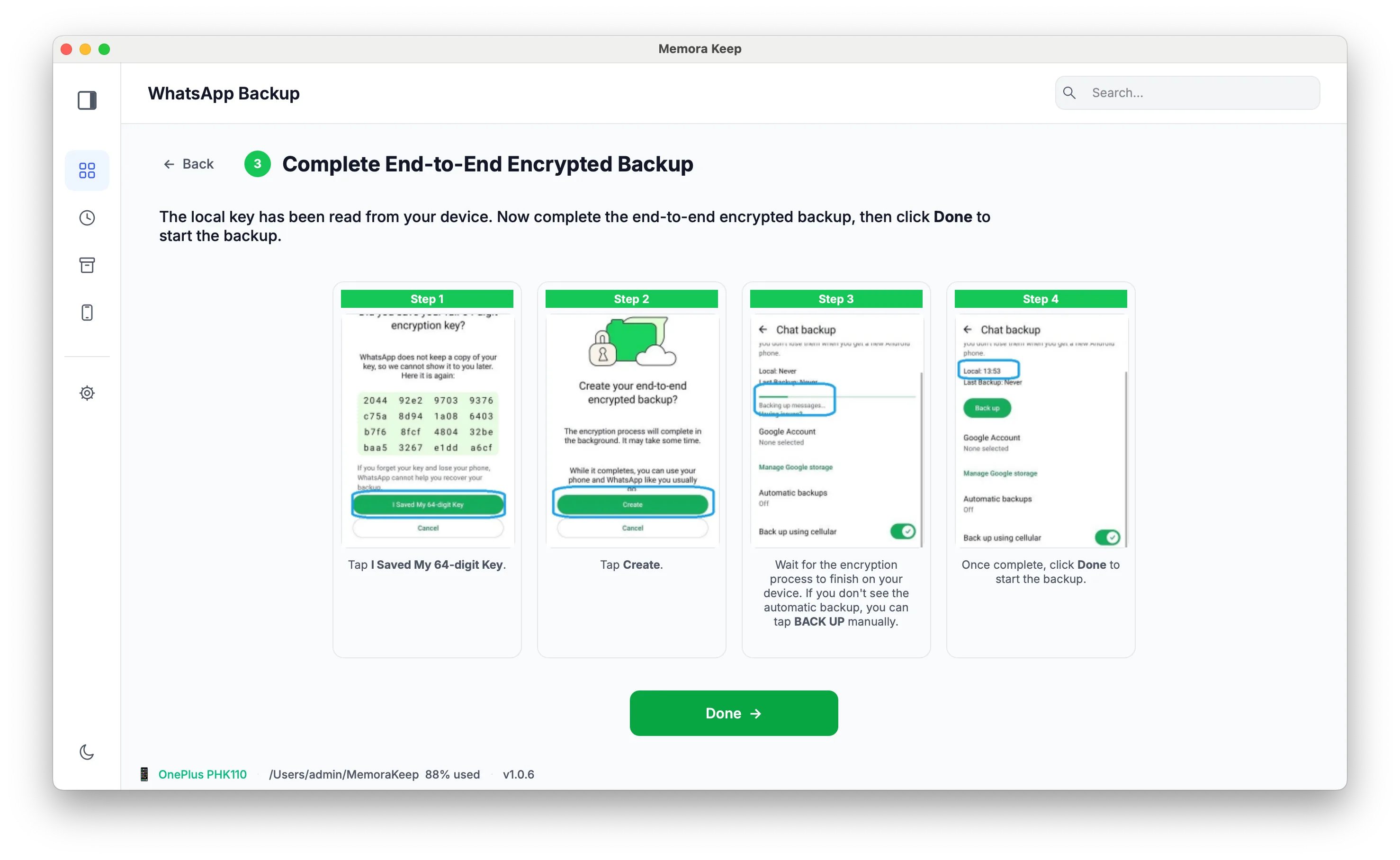
Complete the end-to-end encrypted backup. Once Memora Keep confirms that it has read the key, continue on the Android phone: tap I Saved My 64-digit Key, then Create. Wait for WhatsApp to finish the encrypted backup; if it does not start automatically, tap Back up. Then click Done in Memora Keep to start copying the backup to your computer.
-
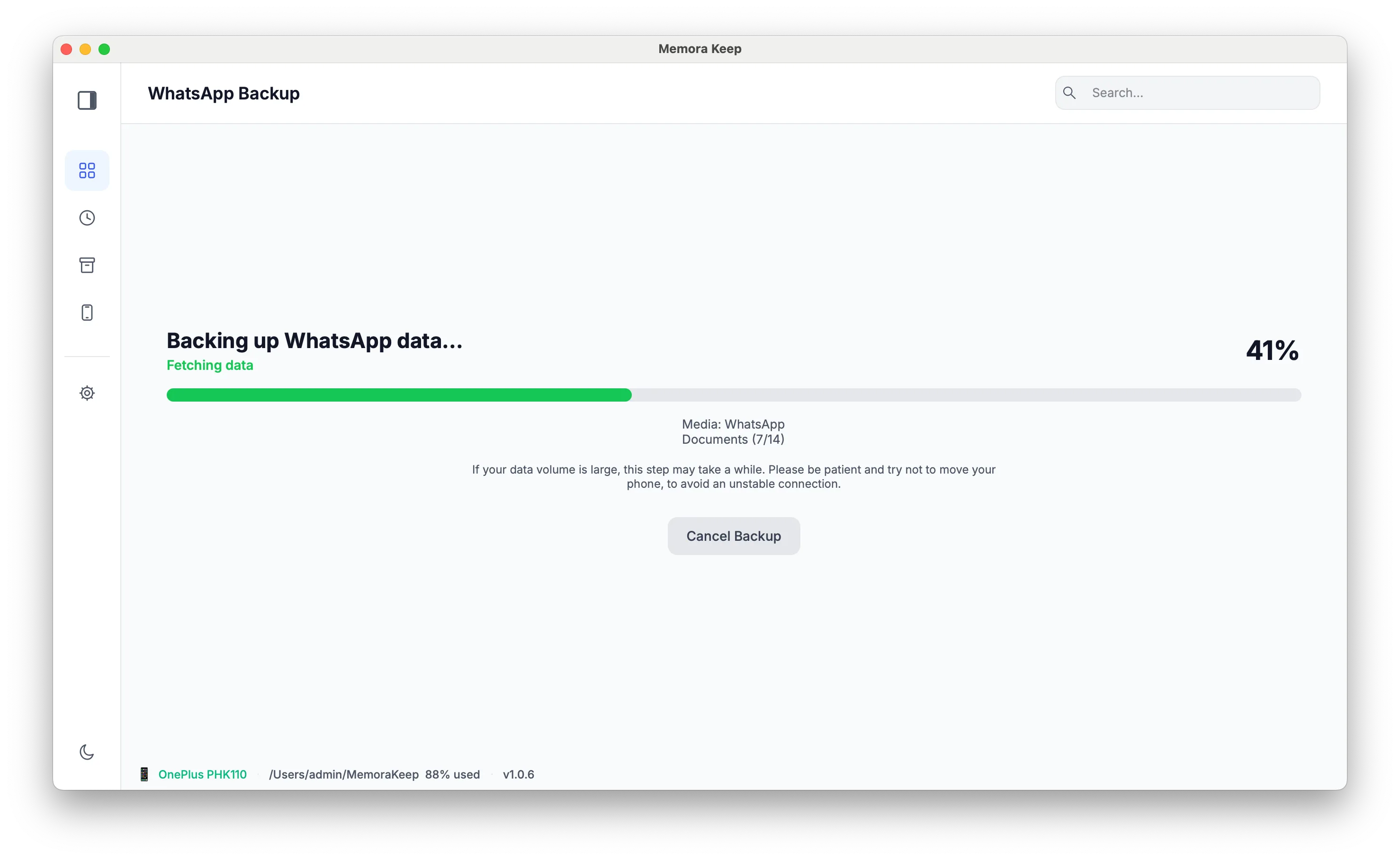
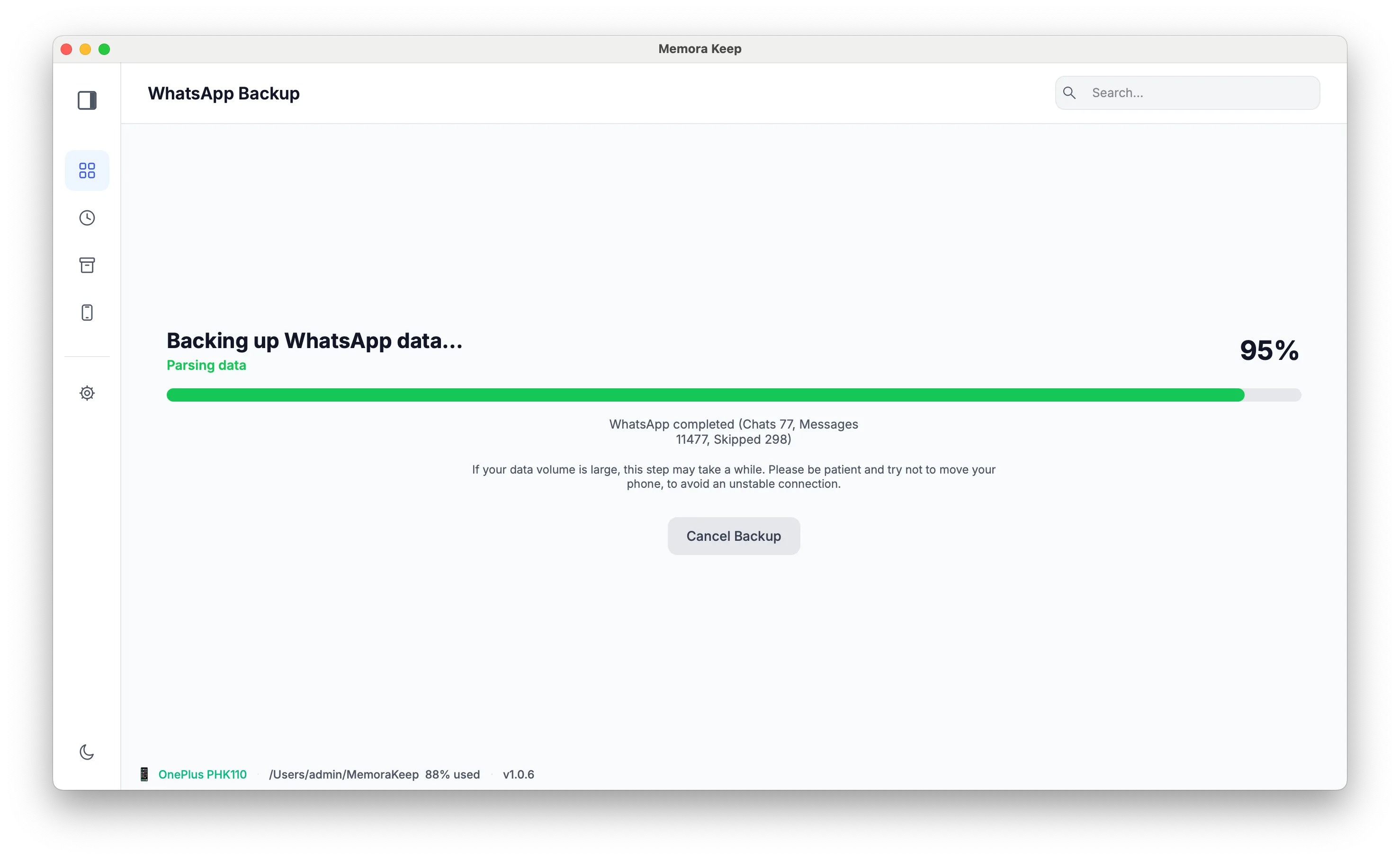
Wait while the WhatsApp data is backed up. The chats and their media are copied onto your own computer. Keep the phone connected until the run finishes.
-
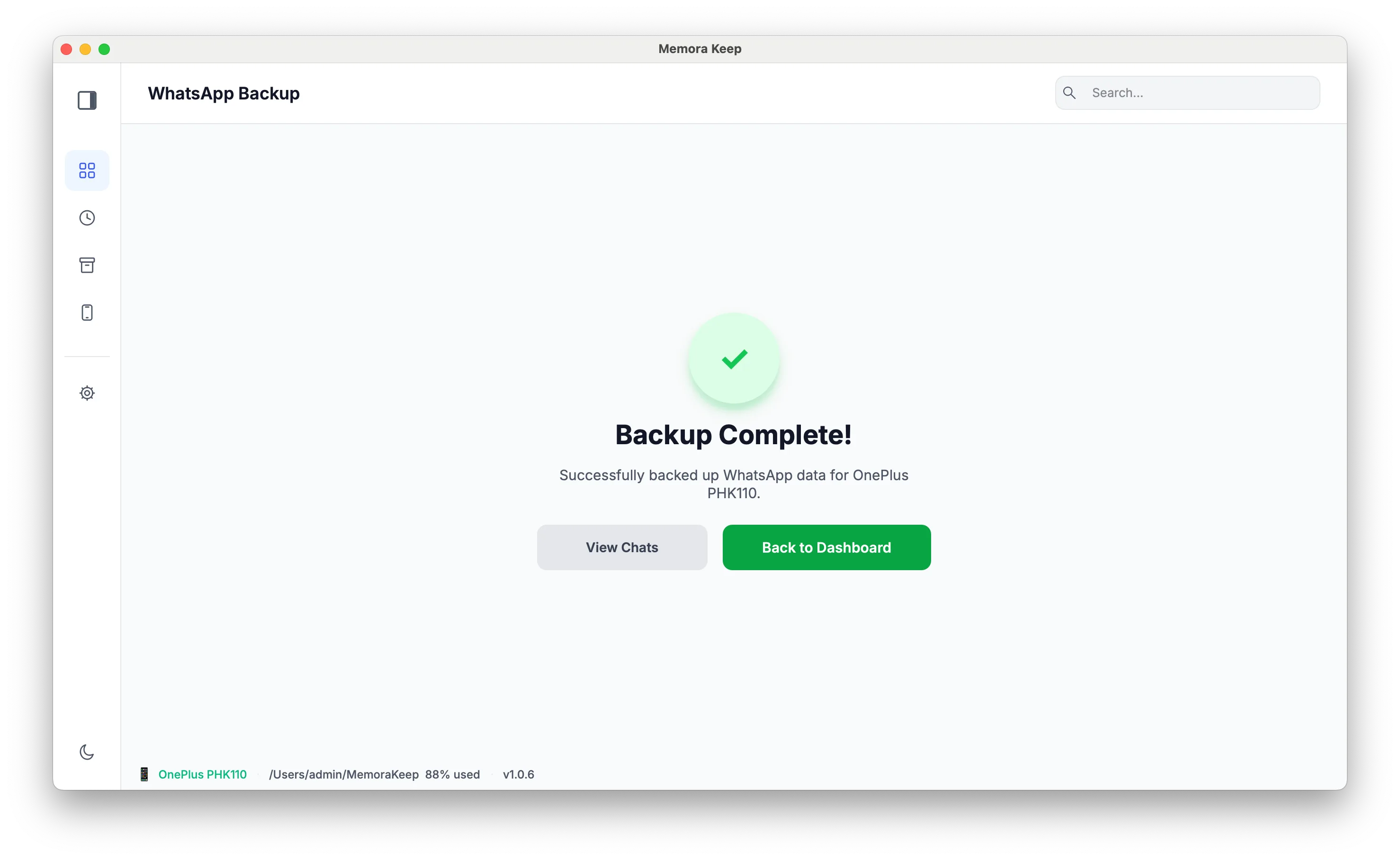
The backup completes. When the run finishes, the WhatsApp data sits in your local archive, ready to be converted for the iPhone.
Restore the data to your iPhone
-
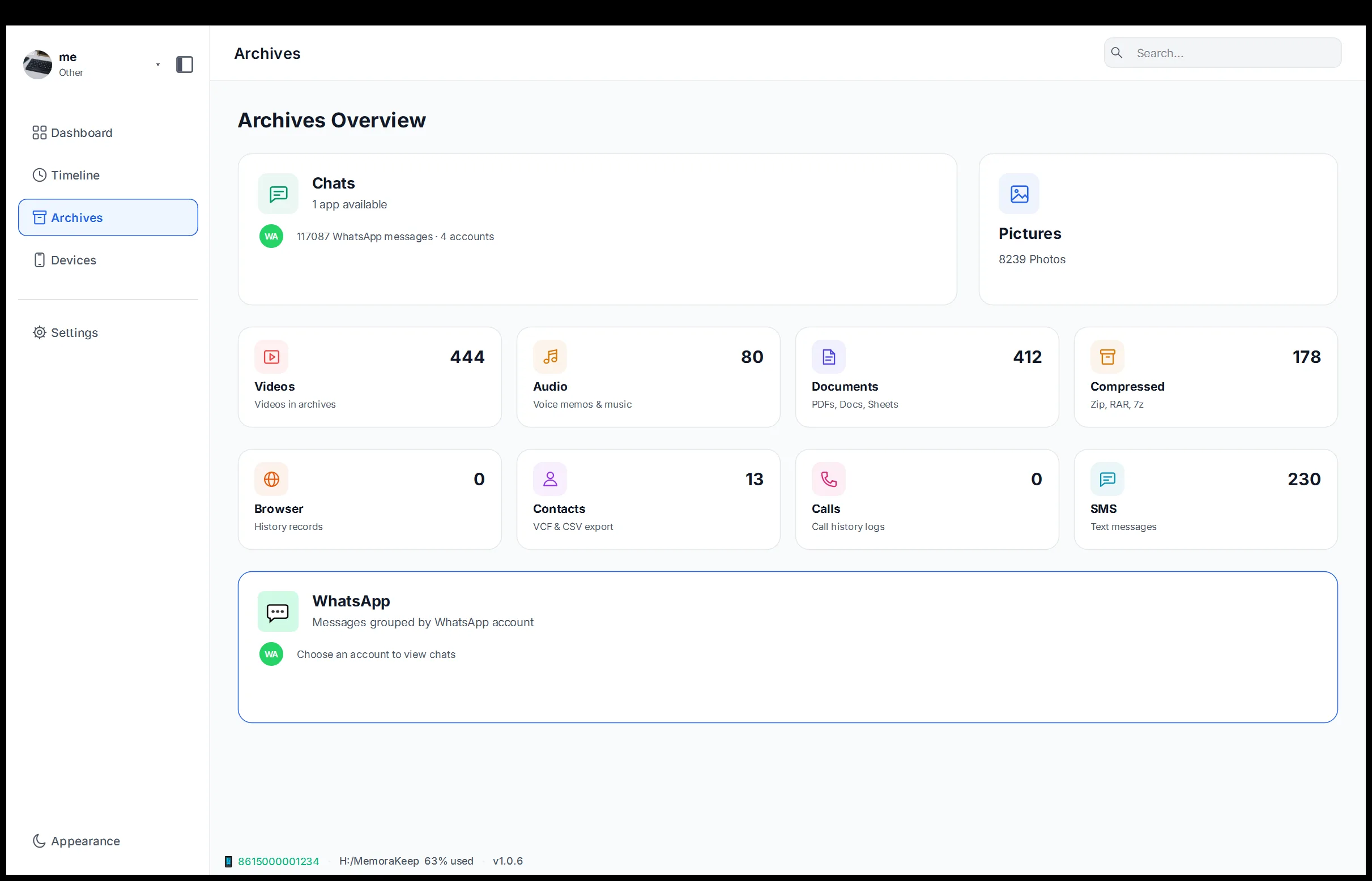
Open WhatsApp from Archives. In Archives, open the WhatsApp section to see the accounts backed up from the phone.
-
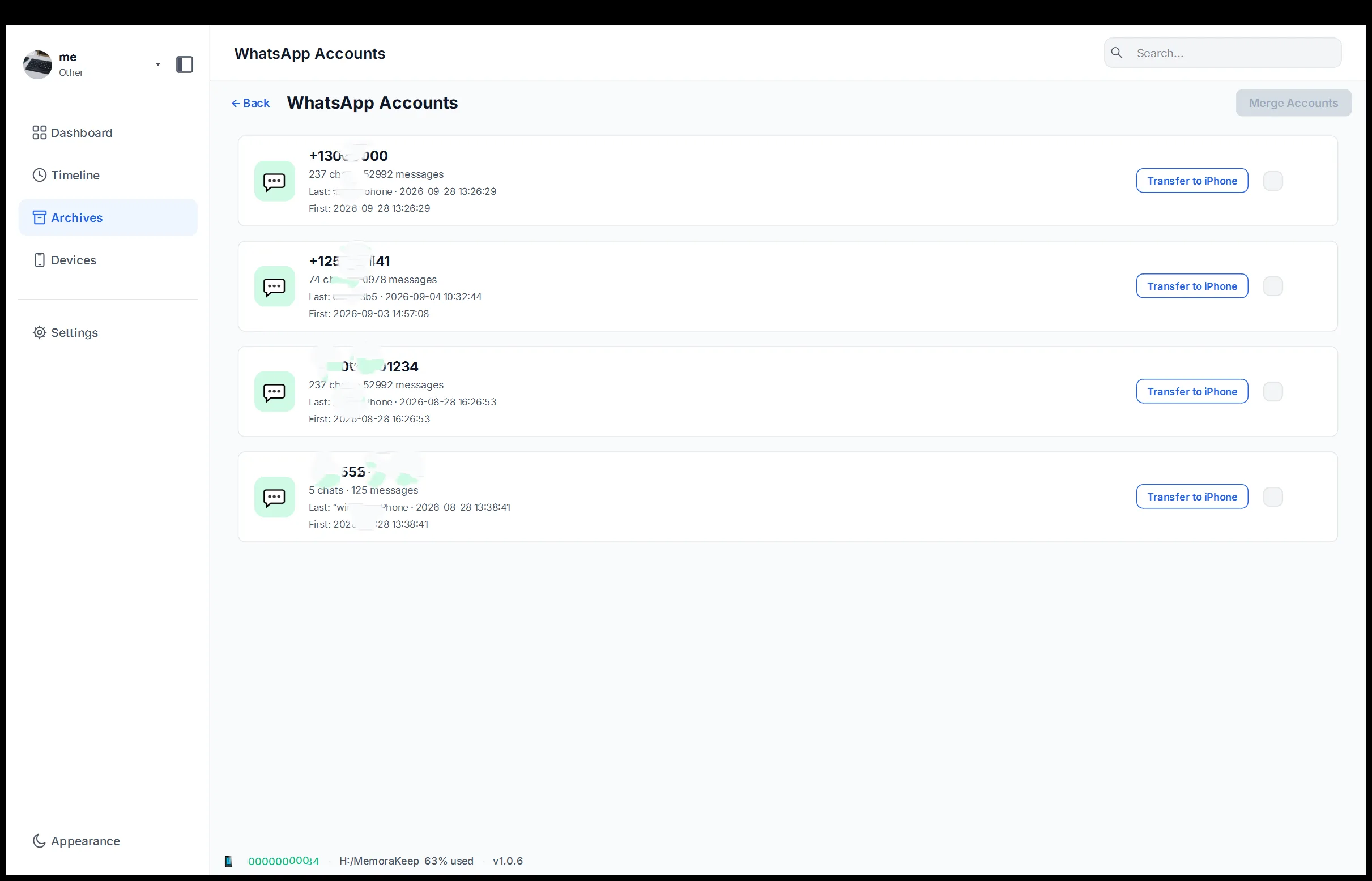
Select the data to restore and choose “Transfer to iPhone”. Pick the account data you want to move, then start the iPhone transfer workflow.
-
Start converting the data. Choose “Start Conversion”. The Android backup is turned into the format an iPhone restore expects.
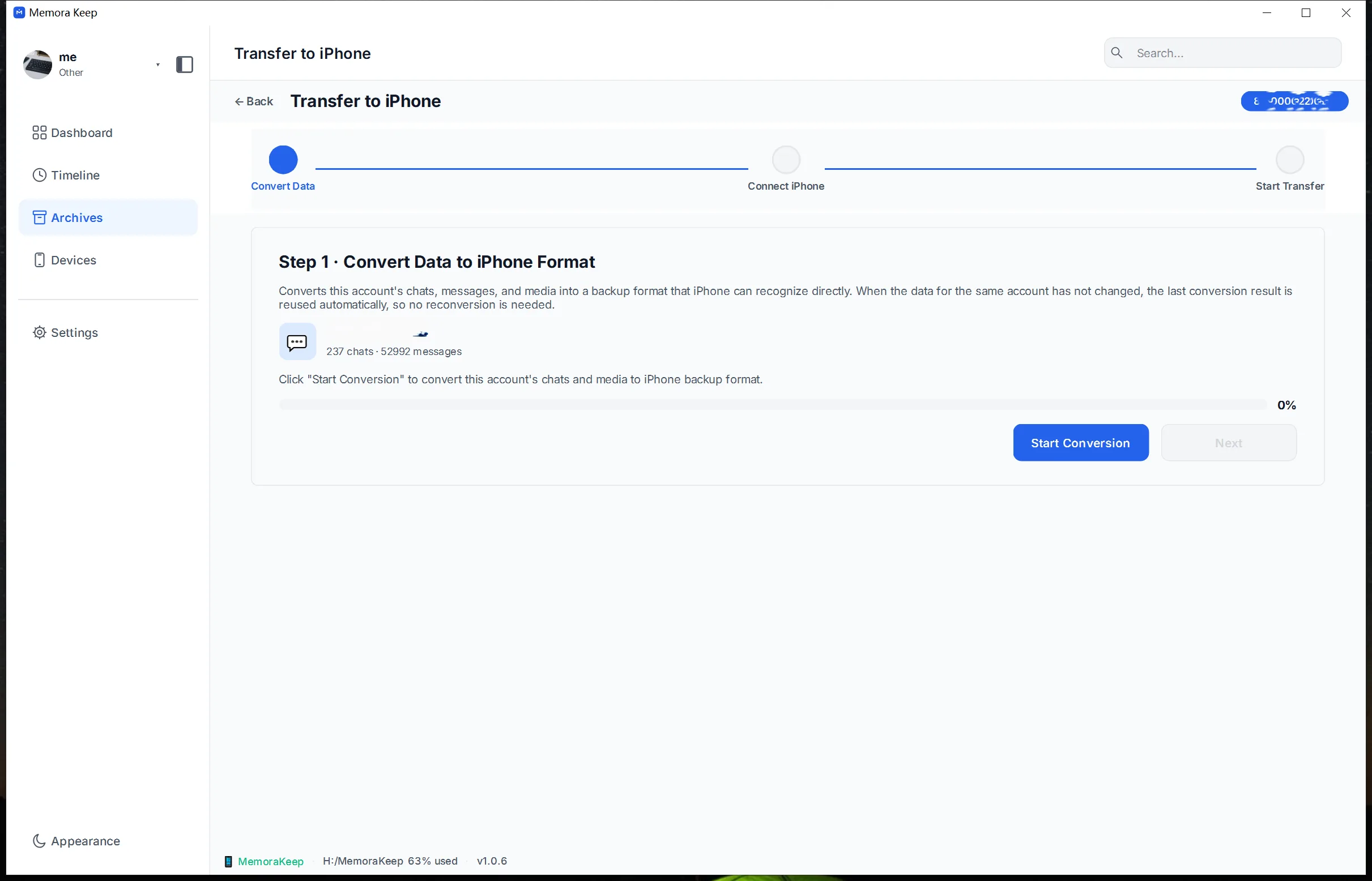
-
Connect your iPhone to the computer, then click “Next”. Plug the iPhone in over USB and unlock it. Once the device is detected, click Next to continue.
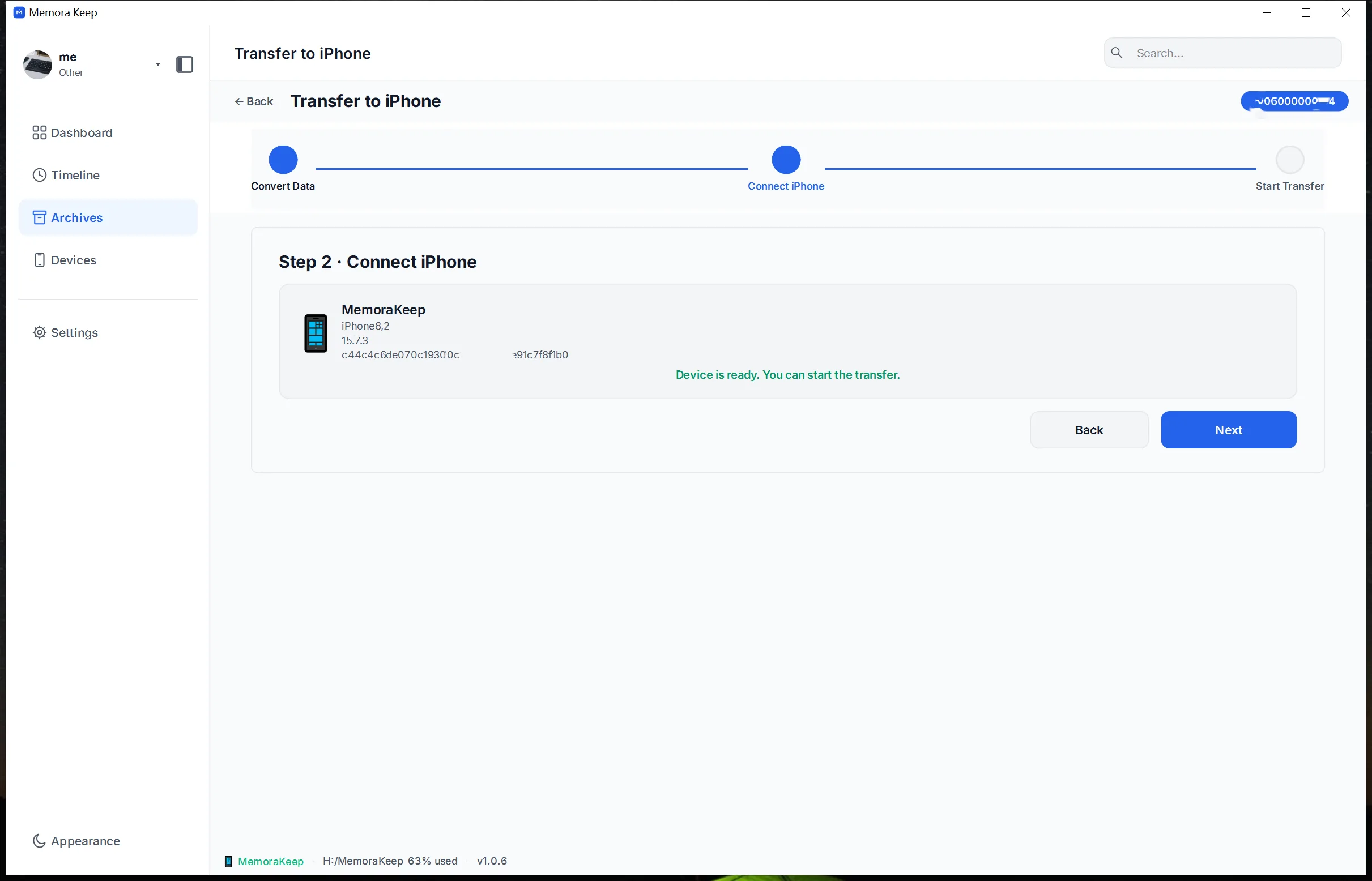
-
Turn off Find My iPhone before restoring. If Find My iPhone is on, turn it off first — the restore cannot proceed while it is enabled.
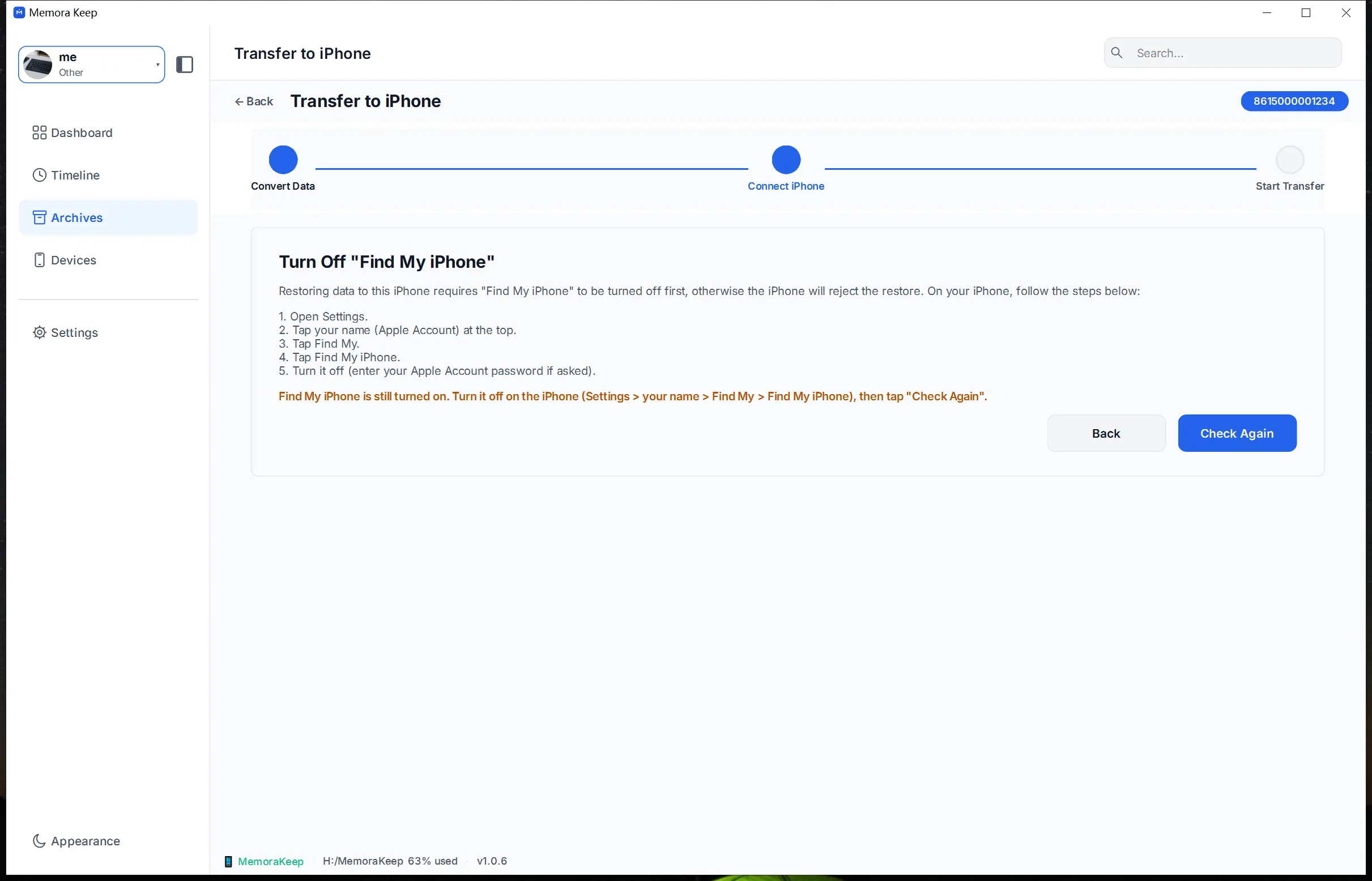
-
Sign in to WhatsApp on your iPhone, then click “Next”. On the iPhone, sign in to WhatsApp when the flow asks, then click Next in Memora Keep.
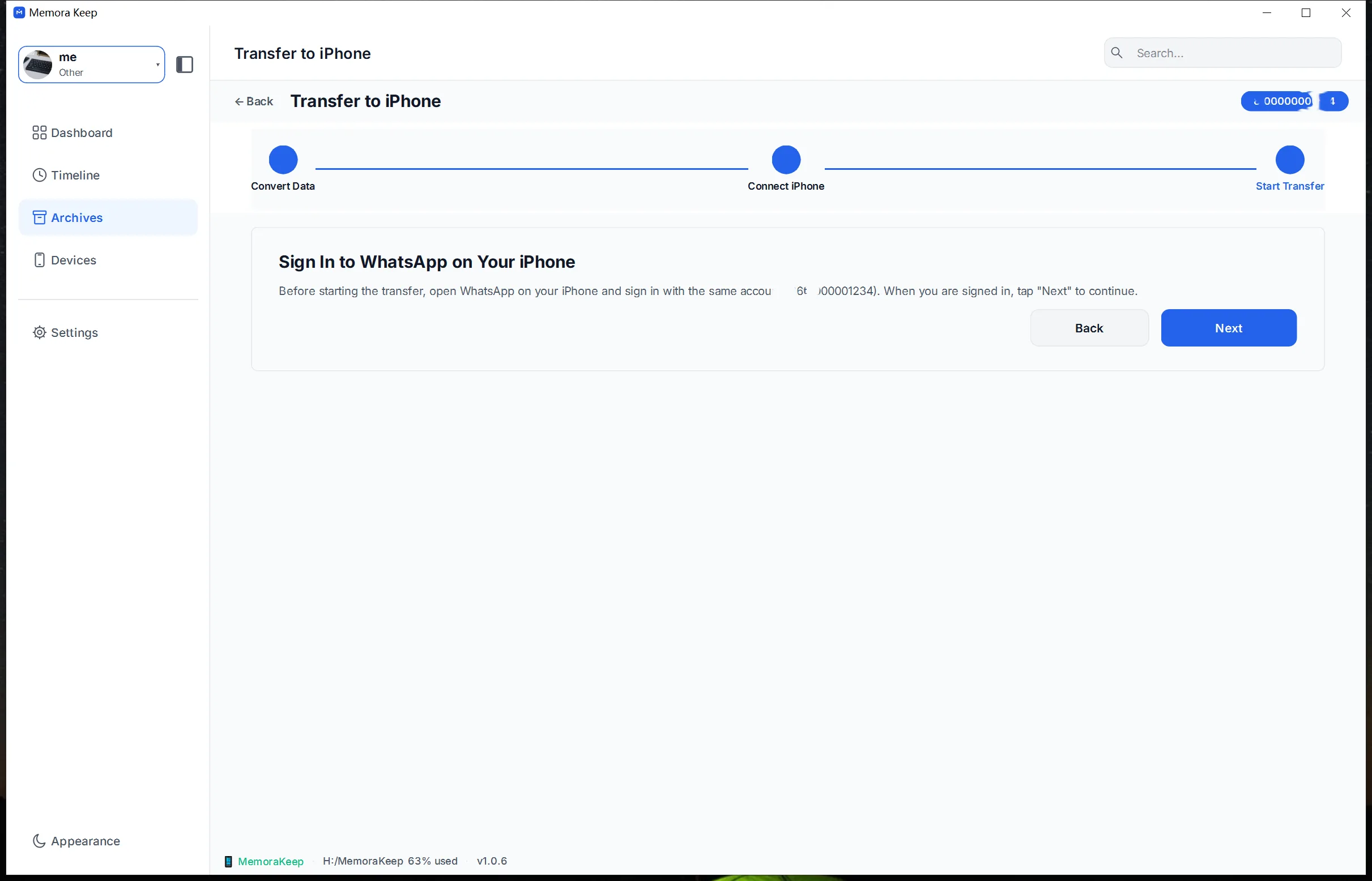
-
Start the transfer and wait for it to finish. The converted data is written to the iPhone through a full-device restore. Keep the phone and the computer connected while it runs.
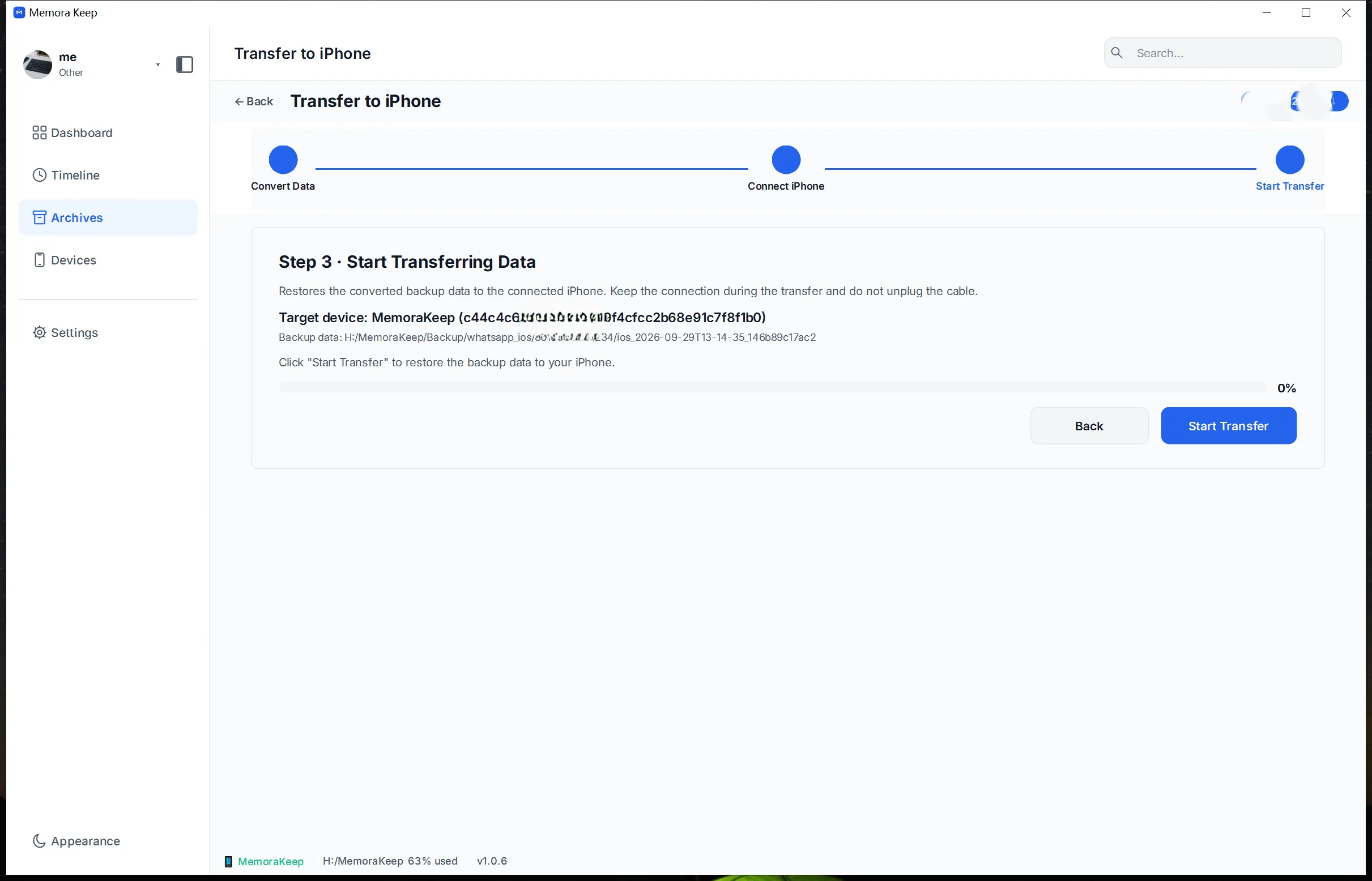
-
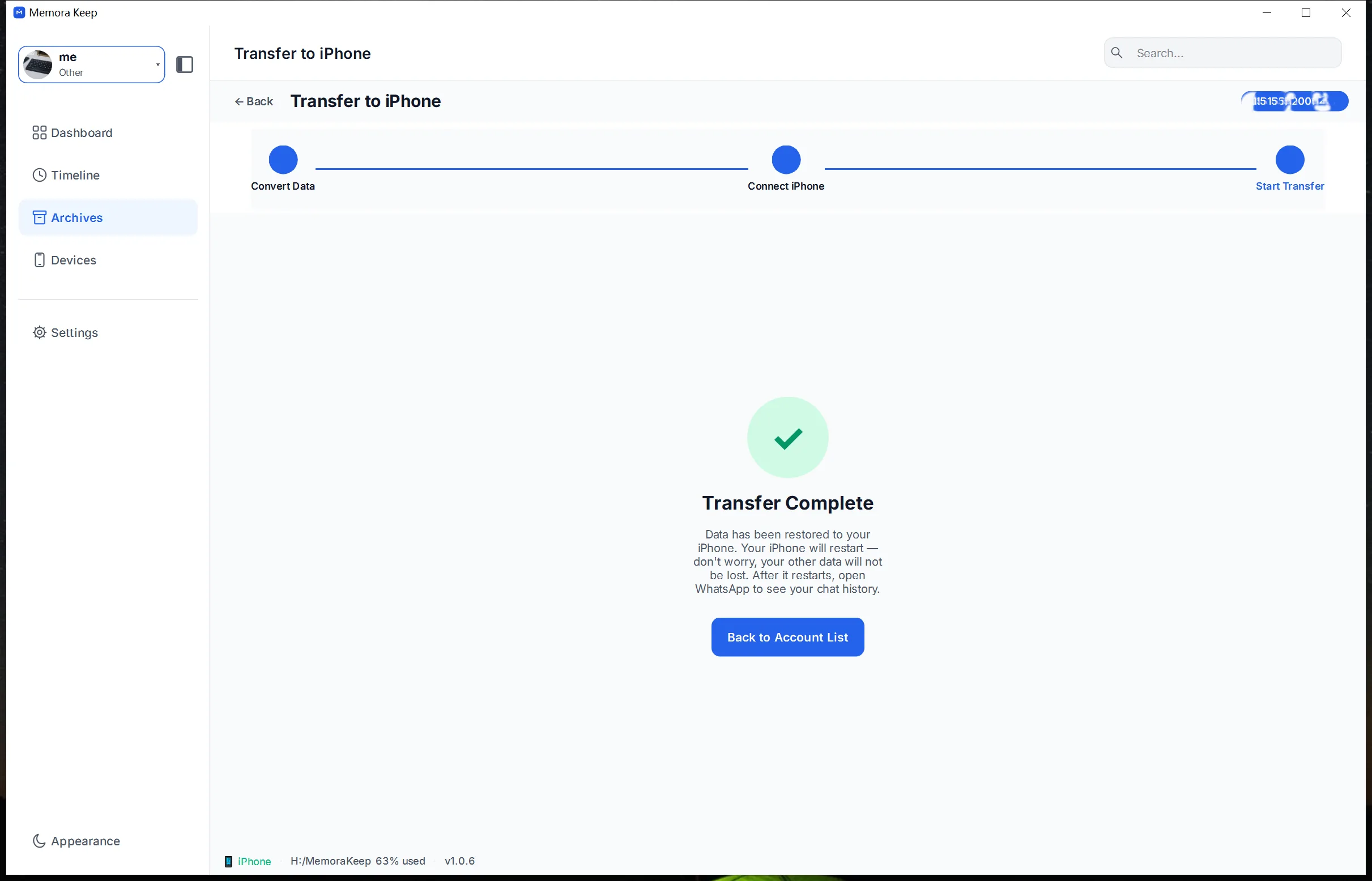
The transfer is complete. When the restore reports success, open WhatsApp on the iPhone and check the conversations and media you expected to move. Turn Find My iPhone back on after completing the restore.
MobileTrans, briefly
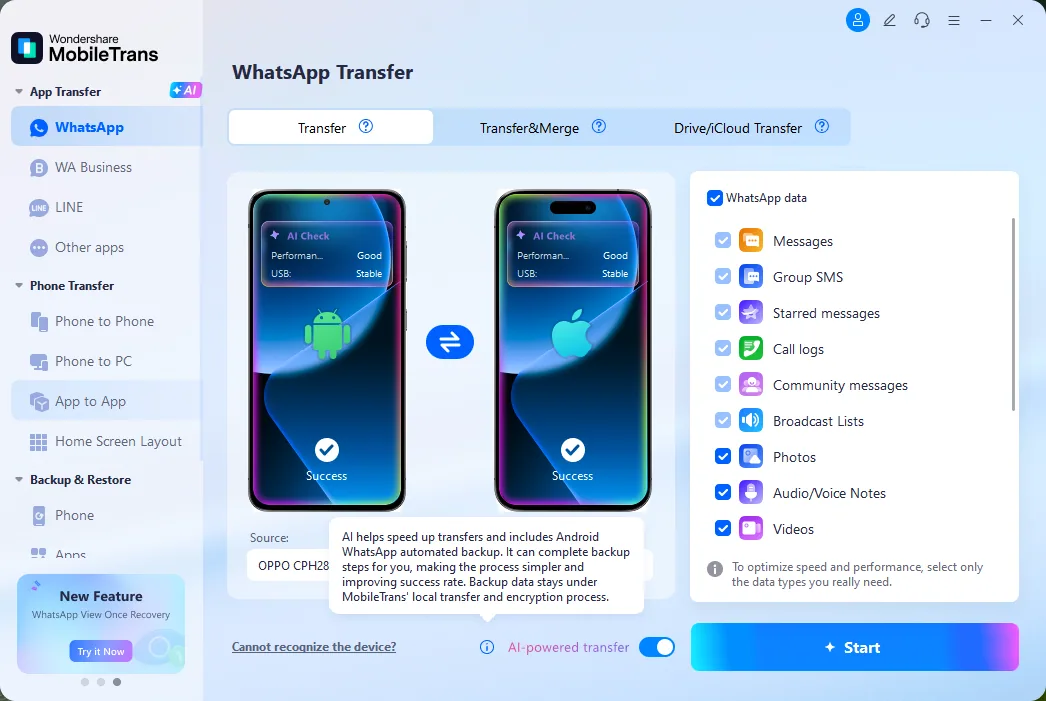
MobileTrans is another option worth considering. It is a commercial third-party tool that offers WhatsApp transfers between phones.
A few common questions
Can I transfer WhatsApp from Android to iPhone without a new iPhone?
Yes. The official Move to iOS method works with an existing iPhone after you erase it and start setup again. Memora Keep uses a computer-based restore; read the restore precautions above before using it on an iPhone that already contains data.
Does the official method delete what’s already on my iPhone?
If your iPhone is already set up, you must erase it to use Move to iOS. That erase removes the data currently on the device. Save a separate backup before starting.
Do both phones need the same number?
For Move to iOS, use the same phone number on both phones. If you’re moving to a new number, change it in WhatsApp on the old phone first, then transfer. For Memora Keep, follow the account and sign-in prompts in the transfer workflow.
Does the data go over the internet?
The chat data transfer does not require a cloud upload. Move to iOS transfers between the phones, while Memora Keep processes the backup and conversion locally on your computer. Downloading apps, signing in or activating a device can still require an internet connection.
Can I merge chats from two accounts before transferring?
Not with the official tool. Memora Keep lets you merge accounts first and then transfer the combined result.
- android
- iphone
- transfer
- move to ios