Backup Guides
How to Verify Phone Photos Copied to Your Computer
Check copied phone photos beyond their thumbnails. Review file counts, open full images and compare dates, dimensions and available source files.
3 min read
On this page
Seeing thumbnails on your computer is a useful first check, but it does not confirm that the full photos were copied correctly. Open the saved files, compare what you expected to receive and check their details before relying on the copy.
Keep the phone or source backup while you do this.
What you need
-
Memora Keep on Windows or macOS if you want to follow the archive checks shown below. It is free; you can check the copied files in your usual photo viewer.
-
The copied photos, their destination folder, and the phone or backup they came from for comparison.
Record what you intended to copy
Note the source phone or backup, the selected photos and the destination folder. If you exported only a date range or one device, compare against that selection rather than the whole library.
For exports from Memora Keep, first open a recognizable picture in the archive.
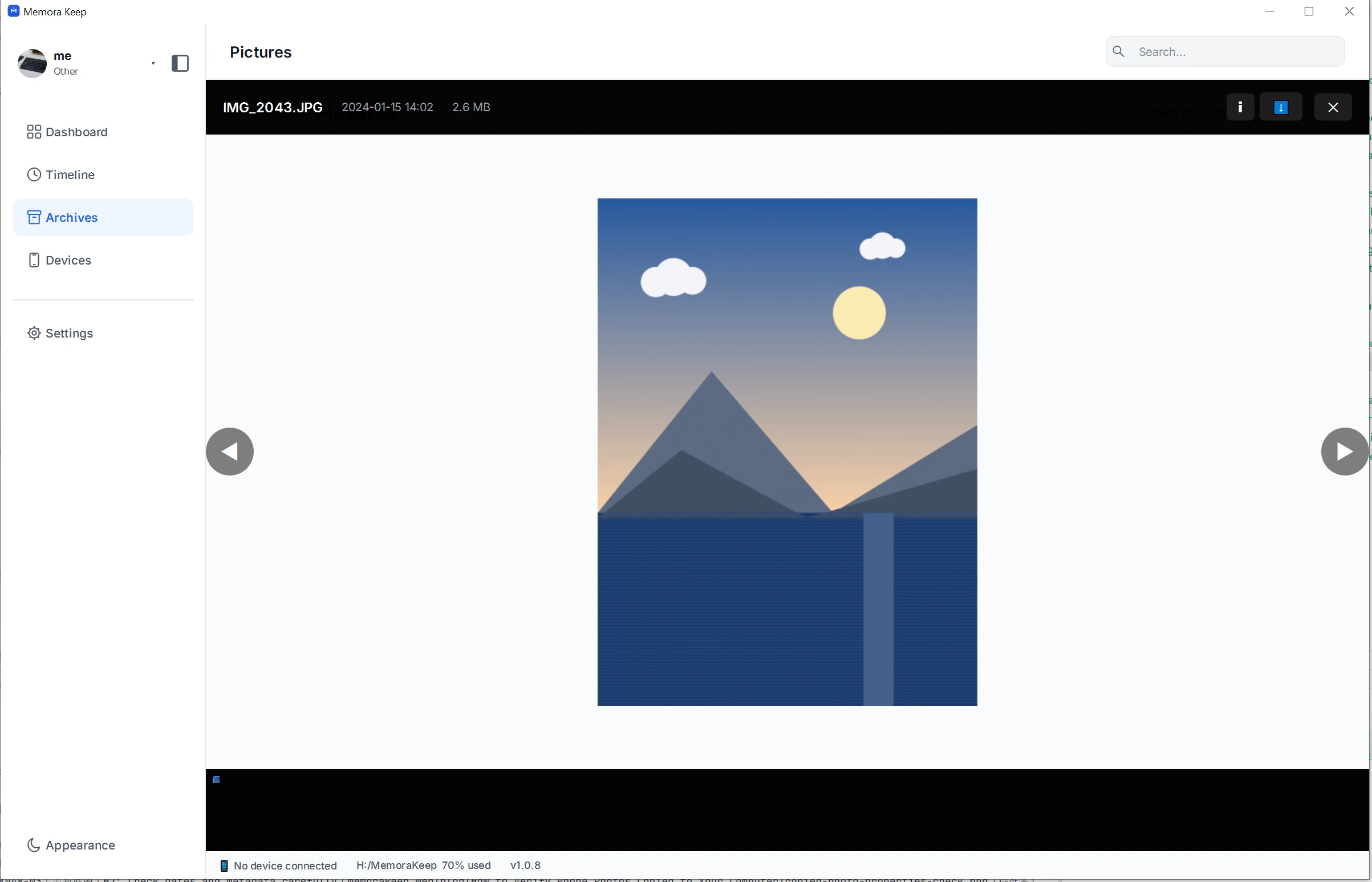
This checks the archived image. You still need to open the file from the export folder to verify the copy you will use elsewhere.
Compare the saved files
Look at the destination folder’s file count, extensions and sizes. Investigate unexpected gaps, zero-byte files and filename suffixes.
Matching counts are helpful, but not conclusive. Two copies of one image can hide a missing image, while paired files or separate versions may produce more files than expected.
If you saved photos from several phones, check each device’s output. See exporting photos into folders by device.
Open the files from the destination folder
Use your computer’s file manager to open the exported photos in an image viewer. Zoom in and check that the full picture loads.
Include older and newer photos, different source phones and each format you care about. Check every irreplaceable photo rather than relying only on a small sample.
For formats such as HEIC or paired photo-and-video items, test the actual files in the apps you intend to use.
Compare dimensions and dates
The archive’s information panel can give you a reference.
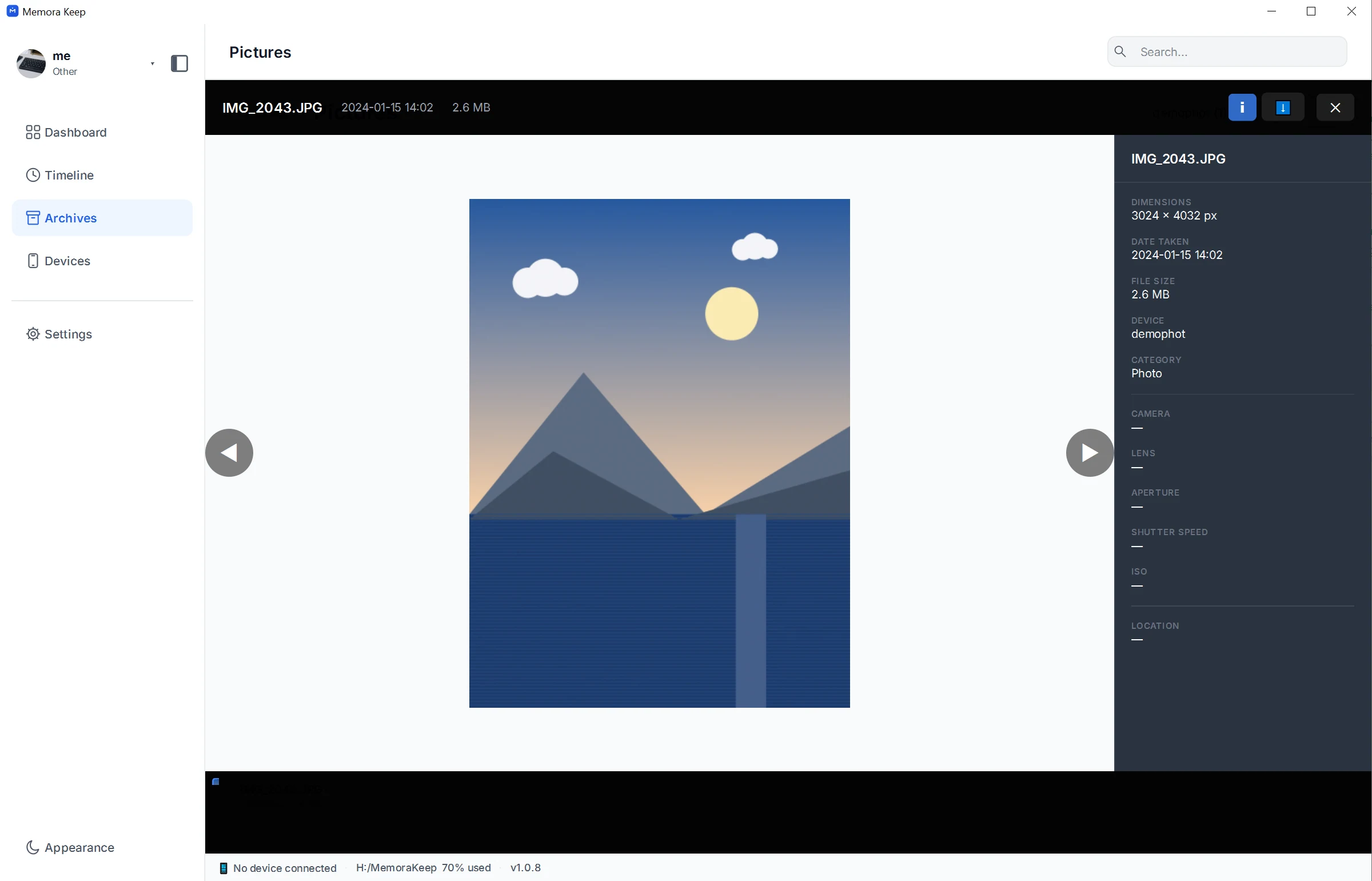
The example shows dimensions, a date and file size, while some camera fields are blank. Compare the saved copy with whatever information is actually present in your source.
A file’s copy date can differ from its capture date without the picture being damaged. Missing camera metadata also cannot be restored simply by copying again.
Avoid treating a filename date or folder date as proof of when the photo was taken.
Compare file contents when needed
If you have access to both the source file and the saved copy, an external file-checking tool can compare their SHA-256 hashes.
Matching hashes mean those two files have the same bytes. This is an optional check outside Memora Keep. It does not prove that every phone photo was included, or that the source file was the camera’s untouched original.
A converted or edited image will have a different hash even if it looks similar.
Keep the source until you are satisfied
If a photo fails to open, preserve the source and check the export path, file format and source availability before trying again.
Once the files you need are usable, keep another checked copy in a separate location. Record any gaps so you do not mistake an incomplete set for the whole library later.
- photos
- verification
- backup