Backup Guides
How to View Call Logs in an Old iPhone Backup
Find call logs in an old iPhone backup without restoring your phone. Check the source, call dates, numbers and durations.
3 min read
On this page
If you still have an old iPhone backup, you may be able to look up a call without restoring that backup to a phone. Memora Keep reads the call records available in the source and displays them in the local archive.
You need a valid backup containing those records. The old iPhone itself does not need to be connected when you import an existing backup.
What you need
-
Memora Keep on a Windows or macOS computer. It is free.
-
A local iPhone backup containing the data you want to read, and its password if it is encrypted.
-
Enough free disk space for the imported data and any files you export.
Choose the right device and period
Find a backup from the phone you used at the time. Check its date, but remember that a backup made later does not necessarily retain every earlier call.
Choose Import iPhone Backup in Memora Keep and select the folder. Review the detected details before starting.
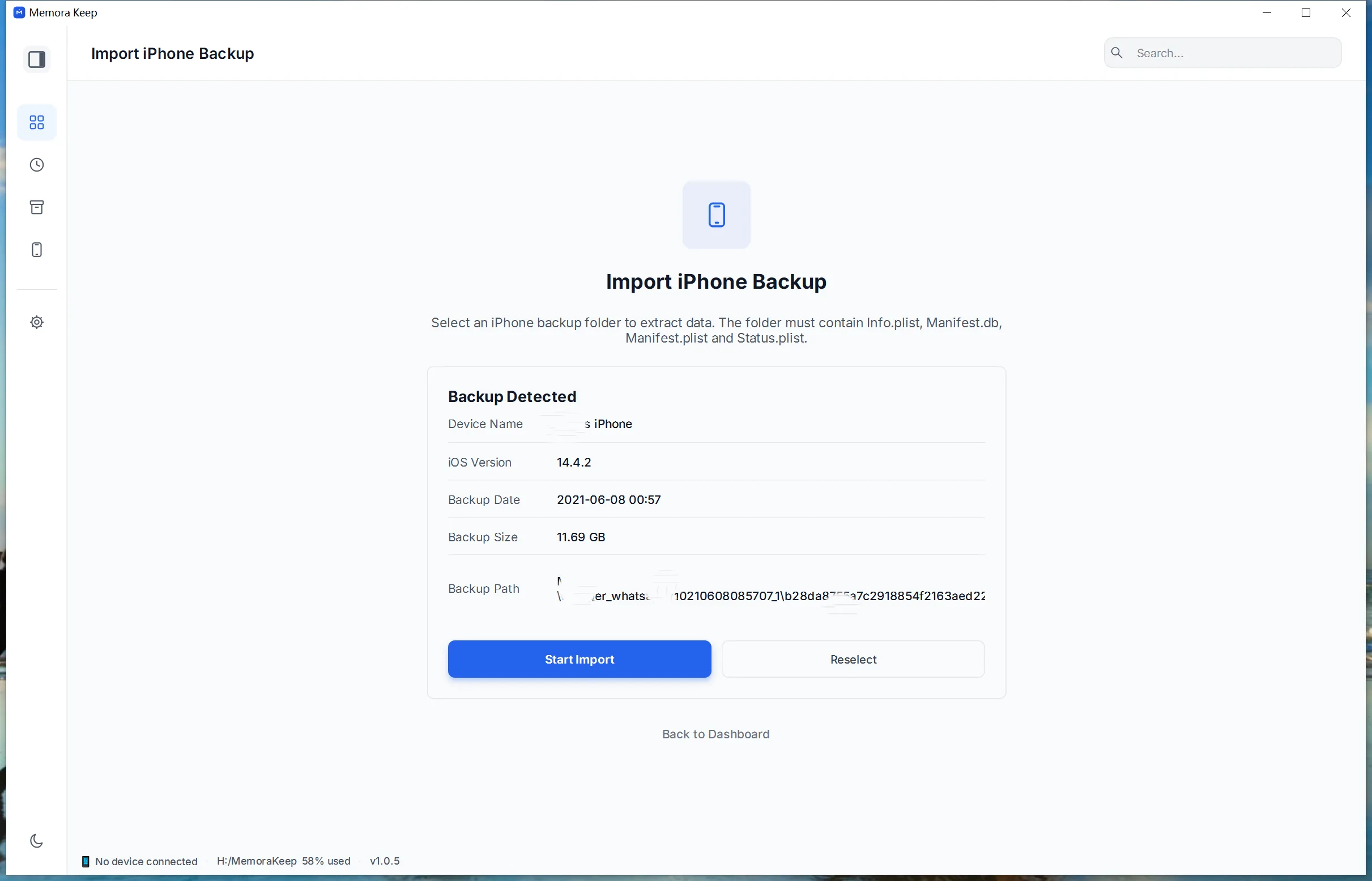
Keep the original folder intact. You are reading its saved contents, not replacing the data on your current phone.
Have the backup password ready
Encrypted backups require their password. Apple lists call history among the information that encrypted computer backups can include.
An unreadable encrypted backup and a readable backup with no matching call are different situations. Resolve password or import errors before drawing conclusions about the contents.
Follow the backup import guide if you need help selecting the source.
Open the call list
After import finishes, open Archives → Call History.
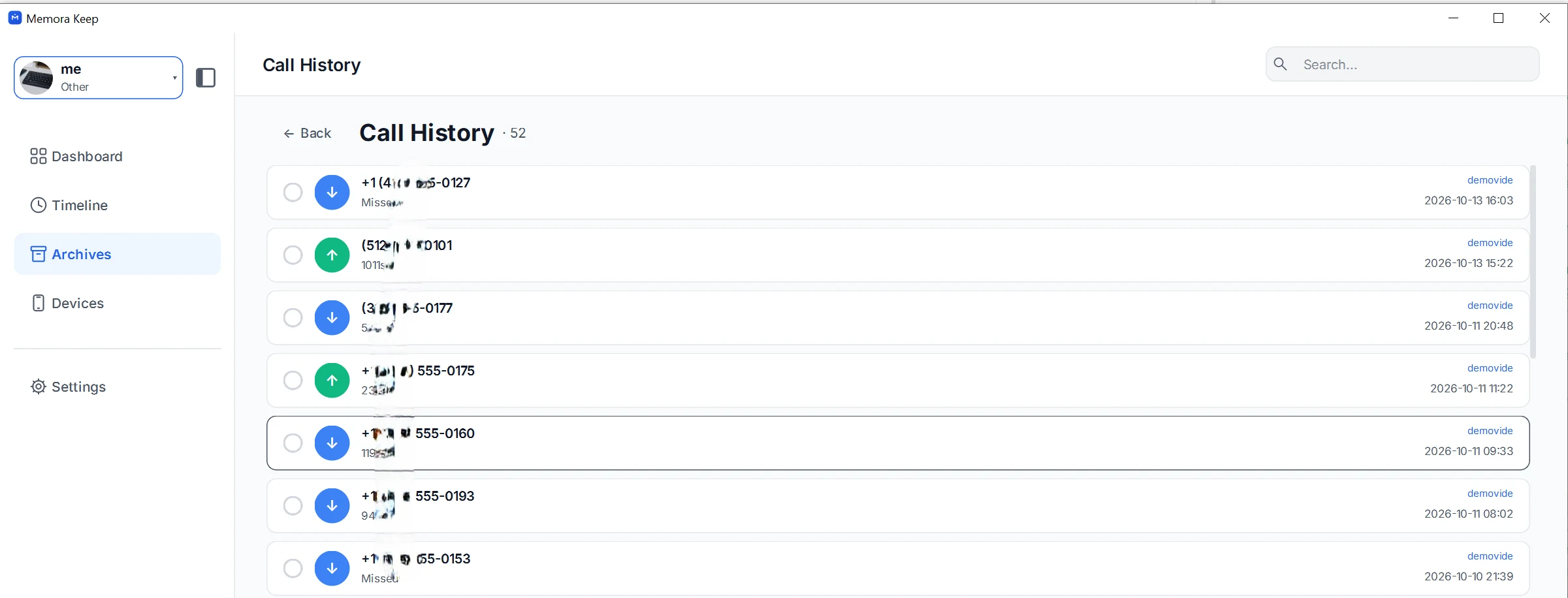
Look for the period and number you remember. Compare the date, time, direction icon and duration shown for the record. Check the source label as well, especially if the archive contains several phones.
A familiar number alone may not identify the call you need. Several calls can share the same number and occur close together.
Interpret the record carefully
The call list shows recorded details, not the conversation itself. It does not provide call audio.
A missing duration or a Missed label should be read as shown. Do not infer the reason for a call’s outcome from a zero or unfamiliar field alone.
Likewise, finding ordinary phone calls does not establish that every third-party calling app is included.
If the call is missing
Check these points in order:
- Did you choose the correct phone’s backup?
- Does its date make sense for the period you need?
- Did the import complete successfully?
- Do you have another saved snapshot that might contain the record?
An export cannot recover a call absent from the imported source. There is no fixed number of years of history that every backup will contain.
Save the useful records
If you find what you need, select the records and save a CSV. Keep a note of the device and backup date with that file.
Use exporting iPhone call history to CSV for the steps, or checking saved dates and durations before working with the values in a spreadsheet.
- iphone backup
- call history
- old phone