Backup Guides
How to View iPhone Messages Without Restoring a Backup
Read iPhone messages from a local backup without restoring your phone. Check conversations, dates and source details, then export if needed.
3 min read
On this page
You do not have to restore an entire iPhone just to read an old text conversation. Memora Keep can import a local iPhone backup and show the SMS messages it contains in a read-only conversation view.
This works from the saved backup. Your current phone’s messages are not replaced.
What you need
-
Memora Keep on a Windows or macOS computer. It is free.
-
A local iPhone backup containing the data you want to read, and its password if it is encrypted.
-
Enough free disk space for the imported data and any files you export.
Check the device and backup date
Find the backup folder from the iPhone you used for the conversation. Note its date, and have the password ready if it is encrypted.
A backup made after a conversation does not guarantee that every message is present. Apple excludes messages already synced and stored in iCloud from computer backups. Apple’s backup guide explains that coverage.
Keep the original backup folder intact while you read it.
Import the local backup
Open Memora Keep and choose Import iPhone Backup. Select the device’s backup folder, confirm the details and start the import.
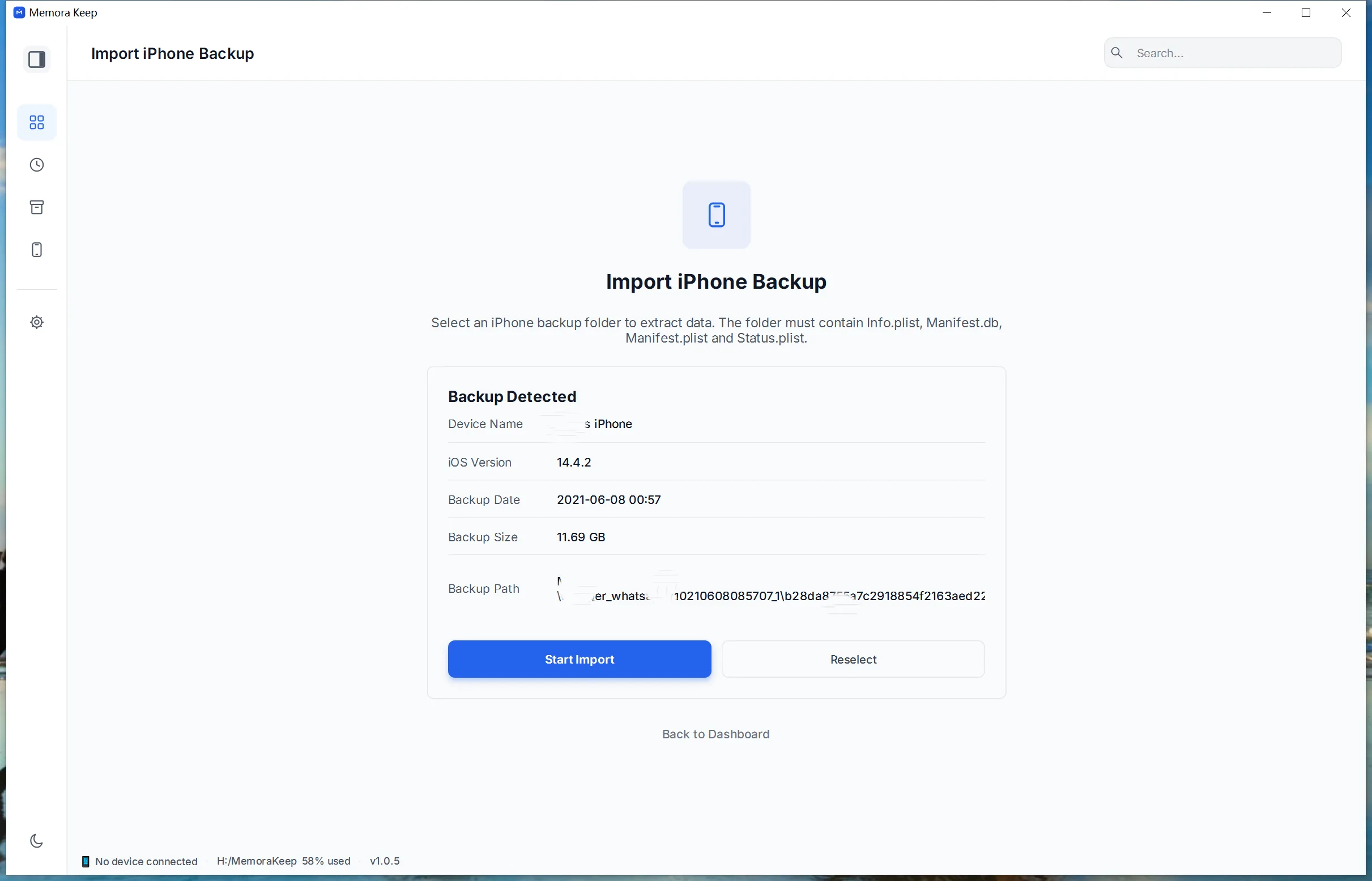
Wait for the import to finish and review its result. If a category failed or was skipped, resolve that before assuming the conversation was never saved.
Use the backup import guide for help selecting the correct folder. An existing readable backup does not require the old phone to stay connected.
Open the SMS conversation
Go to Archives → SMS and choose a contact from the conversation list. Messages appear beside the list, with dates and times beneath the bubbles.
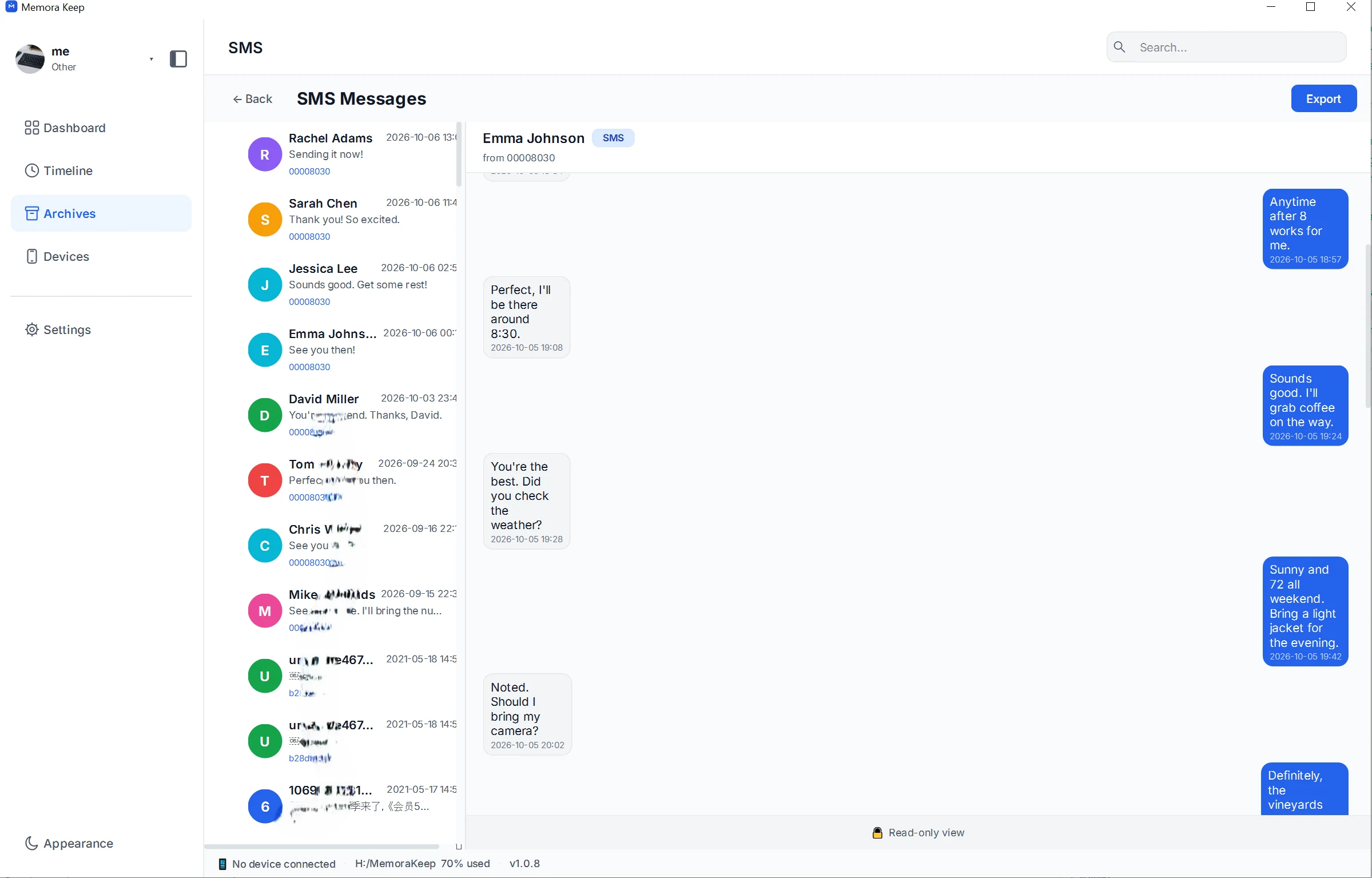
Check a few messages you recognize. Then look near the beginning and end of the period you wanted to save. The date beside a conversation preview does not tell you the full range of messages inside it.
Use the source label to distinguish records from different devices. A familiar contact name alone may not be enough.
Save a separate copy if you need one
You can read the conversation in the app or export it as CSV for a spreadsheet. The current CSV contains time, text, sender and status. It does not retain the bubble layout or embed attachments.
The SMS export article explains those columns, including why the sender field can show the same conversation partner on sent and received rows.
If the conversation does not appear
First check the source device and backup date. Next, review whether the import succeeded and whether the messages were available locally when the backup was created.
A password error, an incomplete backup and missing source data are different problems. Trying another available backup may help establish what was saved; restoring your current phone is not a required troubleshooting step for this viewer.
This workflow covers readable SMS records. Do not assume that every iMessage, RCS message or MMS attachment will be available just because other texts appear.
- iphone backup
- sms
- messages