Manage backup devices
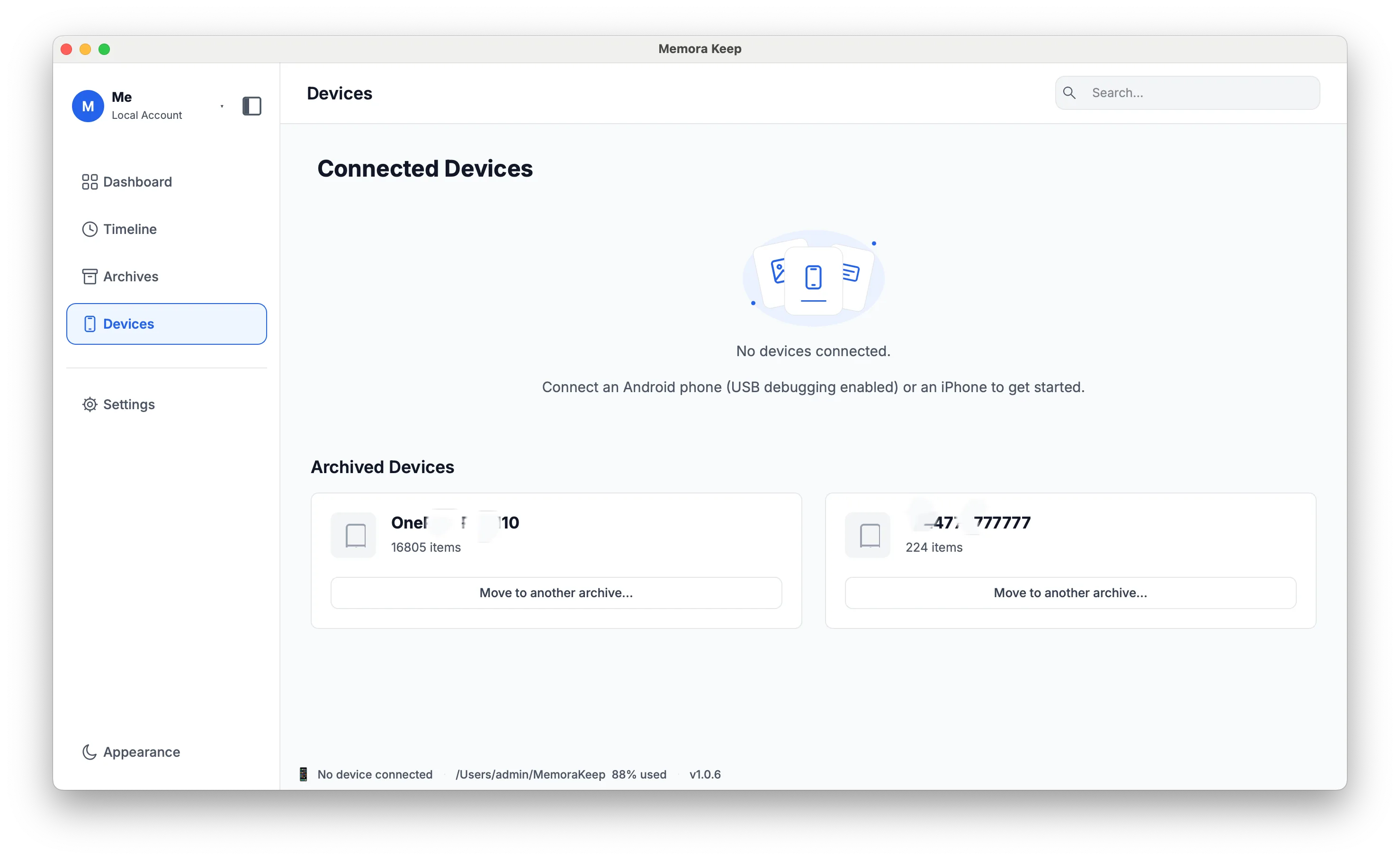
See your backed-up devices, the date of each last backup and how much disk space it used.
Windows & macOS · Free · No account required
Why it matters
The problems this solves
How this feature helps you keep and use your phone data.
-
Which device was backed up when?
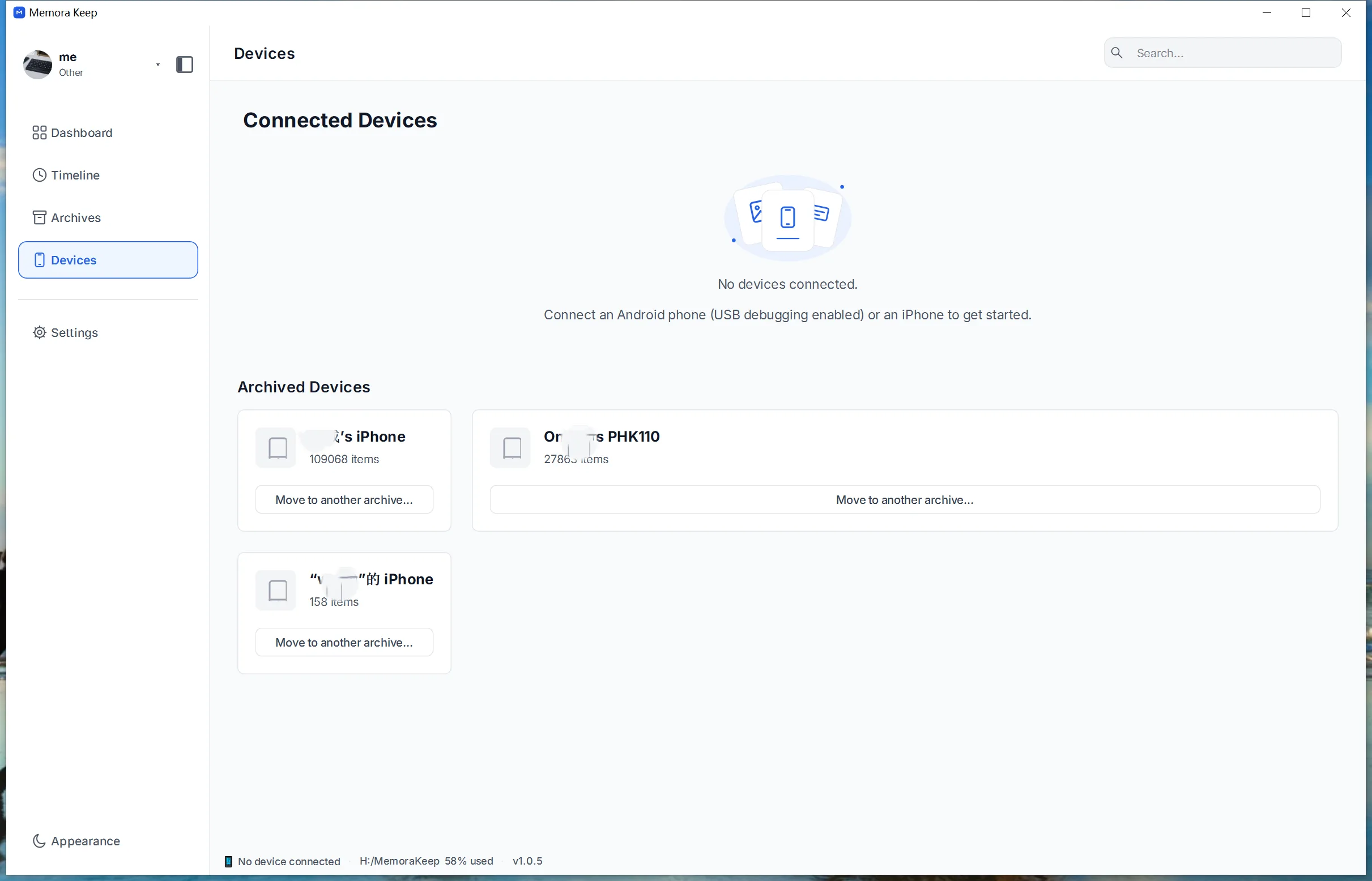
After a few backups, the dates blur together. The Devices page lists each device with its last backup time and size.
-
Is the device actually connected?
A cable can be plugged in while the phone is locked or waiting for a prompt. The page and the status bar report the live connection state.
-
Devices accumulate with no overview
Old phones and tablets keep adding records. One list keeps them visible instead of scattered across folders.
How it works
How to use it
- 1
Register the device
Memora Keep saves device details and a record of each completed backup or import.
- 2
Watch the connection
Check whether your phone is connected and whether it needs you to trust the computer or allow USB debugging.
- 3
Review the history
The Devices page shows the connected devices with their last backup time and size, while the status bar shows connection status and storage usage.
Capabilities
What you can do with it
In the app
Screenshots
Your archive stays on your computer
Save backups, chats and media in a folder you choose. Memora Keep does not upload your archive, and you can browse and export it offline without an account.
- No account and no sign-in required
- Backups, chats and media are never uploaded
- Diagnostics stay local unless you choose to send them
- Backups and the archive stay readable offline
FAQ
Manage backup devices questions
What is shown for each device?
The device appears with its last backup time and the size of that backup.
How does the app know a phone is connected?
It detects the USB connection and shows when trust or USB debugging permission is needed.
Where does the device information live?
On your computer, alongside the local settings and backup records used by the app.
Does the Devices page start a backup?
No. It reports connection state and backup history, while the backup itself is started from the backup feature.
Related
Keep reading
- Feature iPhone backup Back up your iPhone locally and browse supported messages, WhatsApp chats, contacts, photos and videos. Read
- Feature Android media backup Copy Android photos, videos, audio and documents to your computer, with a size estimate and backup progress. Read
- Feature Local archive Keep original backups, media and a browsable archive together on your computer, with no cloud account required. Read
Start your own local archive
Free, with no account or subscription. Your archive stays on your computer.
Windows & macOS · Free