Skip to content
Memora Keep
Stored locally, never uploaded

Download Memora Keep

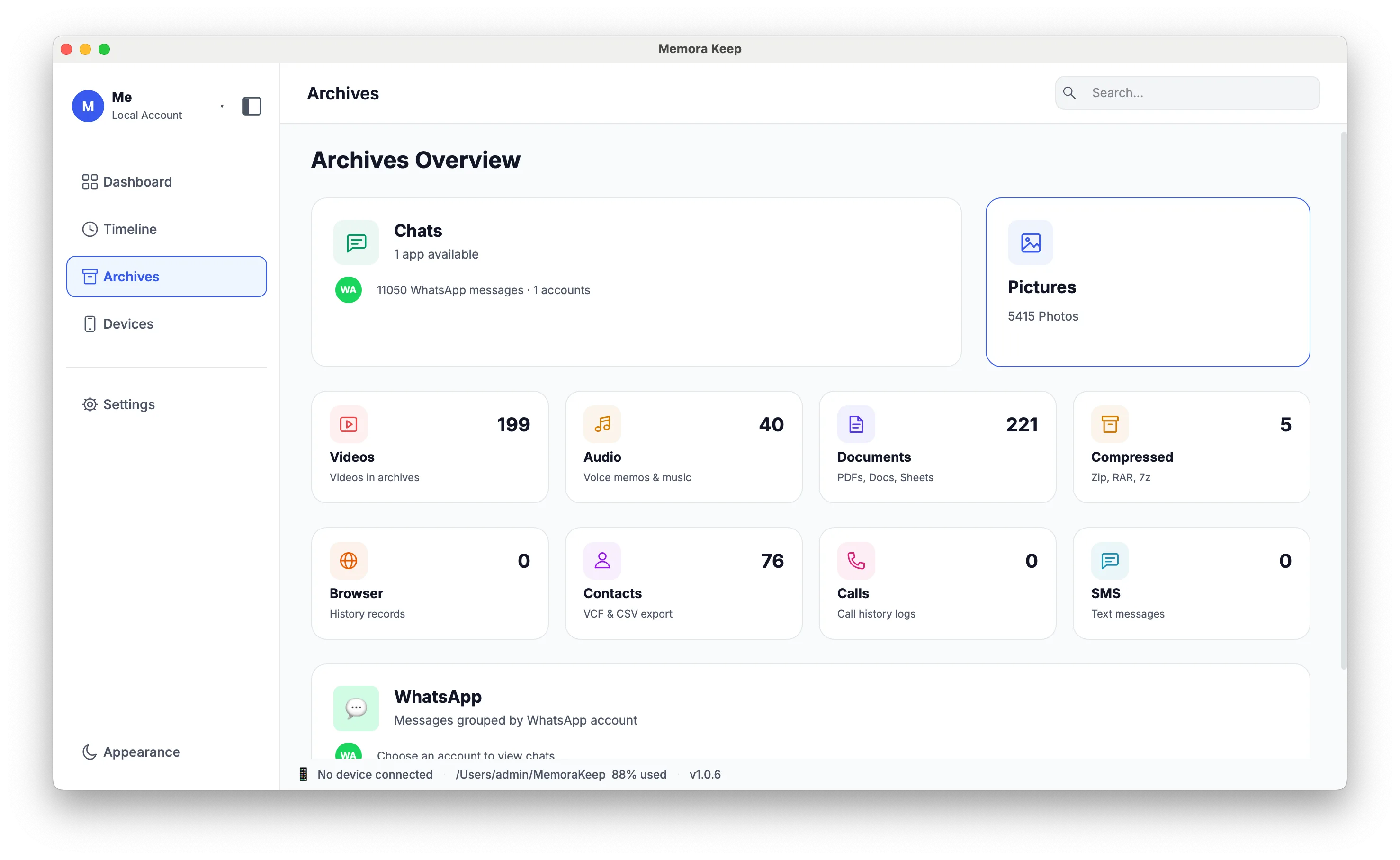
A desktop app for Windows and macOS that backs up a phone to your own disk and turns the backup into something you can actually read — chats, messages, photos and call history.

Memora Keep runs on Windows and macOS. Pick the build for your computer below.

Free · No subscription · No account required

Memora Keep installer or first-run setup wizard

Builds

Built for Windows and macOS

Choose your operating system. On Windows you can install from Microsoft Store or download the small .exe installer; the macOS card shows available release details.

Windows

Microsoft Store or .exe installer

Requires
Windows 10 or 11 (64-bit)

Get it from Microsoft

Choose one installation method. The Microsoft Store version is signed by Microsoft and updates automatically; the .exe installer downloads the current version from our release server during setup.

macOS

.dmg disk image

Requires
macOS

Version
Loading…
File size
Loading…
Released
Loading…
SHA-256
Loading…

Fetching the current release. The download link and its SHA-256 checksum appear here once the data loads.

Before you install

What you need

Check your operating system, available disk space and USB cable before starting.

  • Operating system Windows 10 or 11 (64-bit) · macOS
  • Storage A folder on your own disk for the backup and the archive
  • Connection A USB cable that supports data transfer (not charge-only)
  • Account None required — no sign-in, no subscription
  • Network Internet is needed to download and install. Backup, browsing and export work offline

Windows requires Windows 10 or 11 (64-bit). Minimum macOS and phone OS versions have not yet been published. Contact support if you need to check your setup.

Install

Three steps to a local archive

Install the app, choose your archive folder and connect your phone.

  1. 1

    Install from Microsoft Store or run the .exe installer

    On Windows, install from Microsoft Store (recommended, updates automatically) or download and run the .exe installer — choose one, not both. If a SHA-256 checksum is shown for the .exe file, use it to verify the download. On macOS, open the disk image and drag the app to Applications.

  2. 2

    Choose your archive folder

    Choose a folder during setup. Memora Keep saves backups, media and your browsable archive there.

  3. 3

    Connect the phone and back up

    Connect your phone by USB and follow its connection prompts. Choose a supported backup option, then import the data into your archive.

Integrity

Verify your download

When a SHA-256 checksum is available, compare it with your downloaded file to check that the contents match.

  • Windows SHA-256

    No checksum is listed for this bootstrapper.

  • macOS SHA-256

    Loading… The checksum is loaded together with the build.

Installers are served over HTTPS from download.memorakeep.com; the macOS build is served by the release service on api.memorakeep.com. Microsoft Store installations and updates are handled by Microsoft. If a checksum is shown above, compare it with your downloaded file before opening it.

FAQ

Download questions

Is Memora Keep free?

Yes. It is free, with no subscription and no account required.

Which operating systems are supported?

The desktop app runs on Windows 10 or 11 (64-bit) and on macOS.

Can I download Memora Keep now?

Yes. On Windows you can install from Microsoft Store or download the .exe installer. The macOS card loads release details and a checksum when available.

What is the difference between Microsoft Store and the .exe installer?

Both install the same app. The Microsoft Store version is signed by Microsoft and updates automatically; the .exe installer is a small bootstrapper that downloads the current version from our release server during setup. Choose one method and install only one.

Do I need an internet connection to use it?

You need internet access to download and install the app. Once installed, phone backups, archive browsing and exports work offline.

Where does my data go?

Into the folder you choose on your own computer: the raw device backup, the media files, and a local SQLite archive. You can open that folder at any time with your normal file manager.

What happens to my data if I stop using the app?

Your backups and archive remain on your disk when you uninstall the app. Export important items first if you want to read them in other apps.