Backup guide
How to back up your Android phone to a computer
Copy photos, videos, audio and documents from an Android phone to your Windows PC or Mac with Memora Keep — connect the phone, choose what to back up, and browse everything in Archives.
Last updated
Prerequisites
- Memora Keep installed on a Windows PC or Mac
- An Android phone and a USB data cable
- Enough free space on your computer for the data you plan to copy
- 1
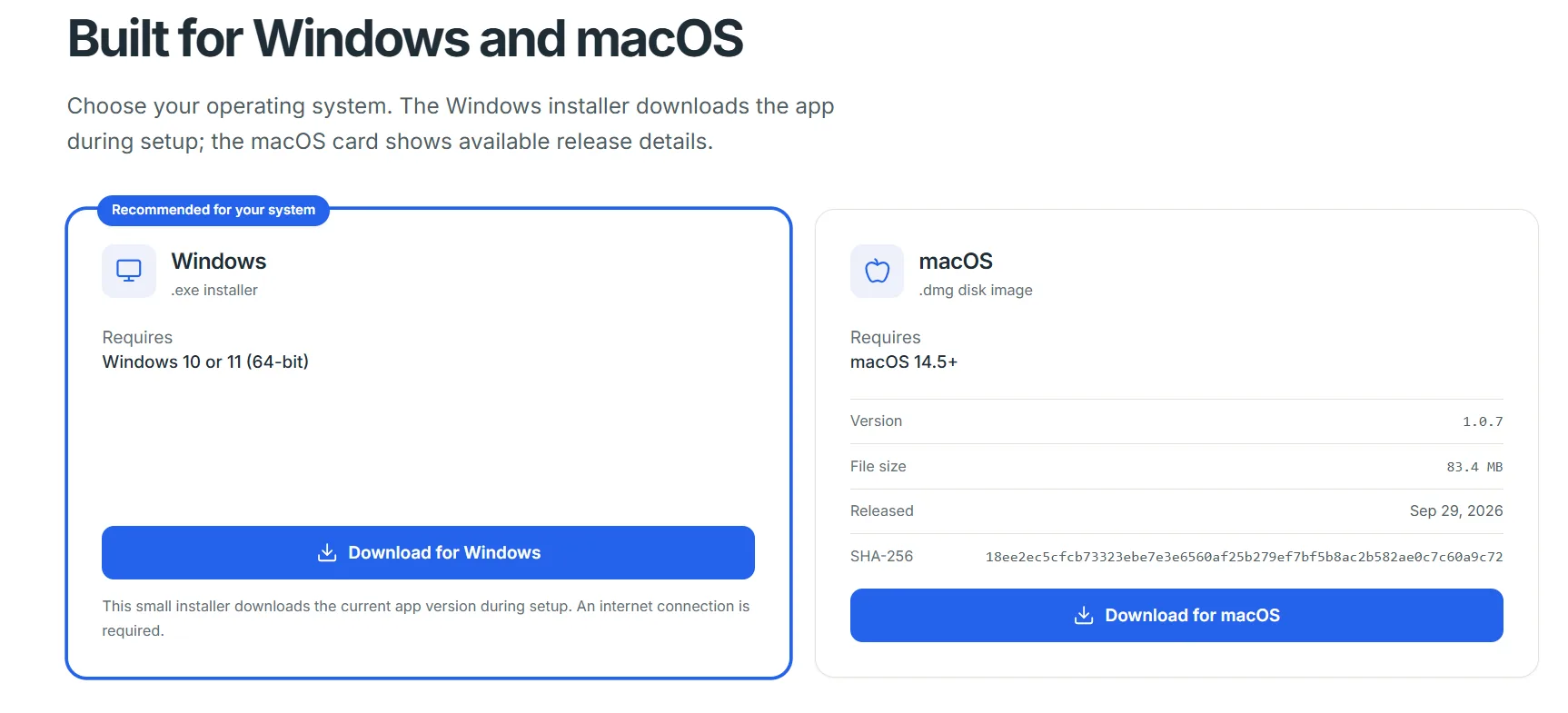
Download and install Memora Keep
Download the desktop client from the Memora Keep website and install it on your Windows PC or Mac. On first launch it asks where the local archive should live — pick a folder on a drive with enough free space.
- 2
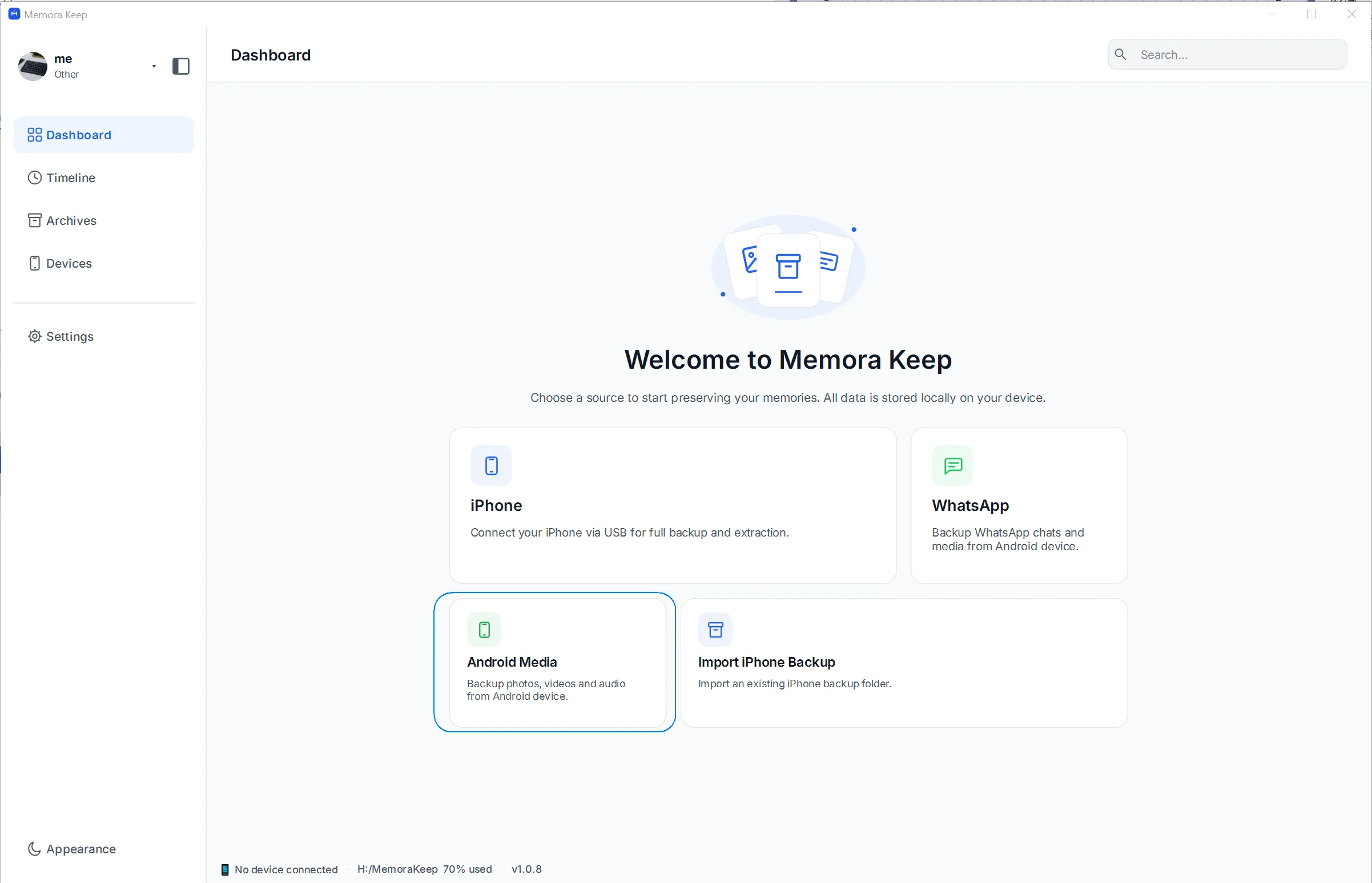
Choose "Android Media" on the Dashboard
Open the app and you land on the Dashboard. Click the "Android Media" card to start a phone backup.
- 3
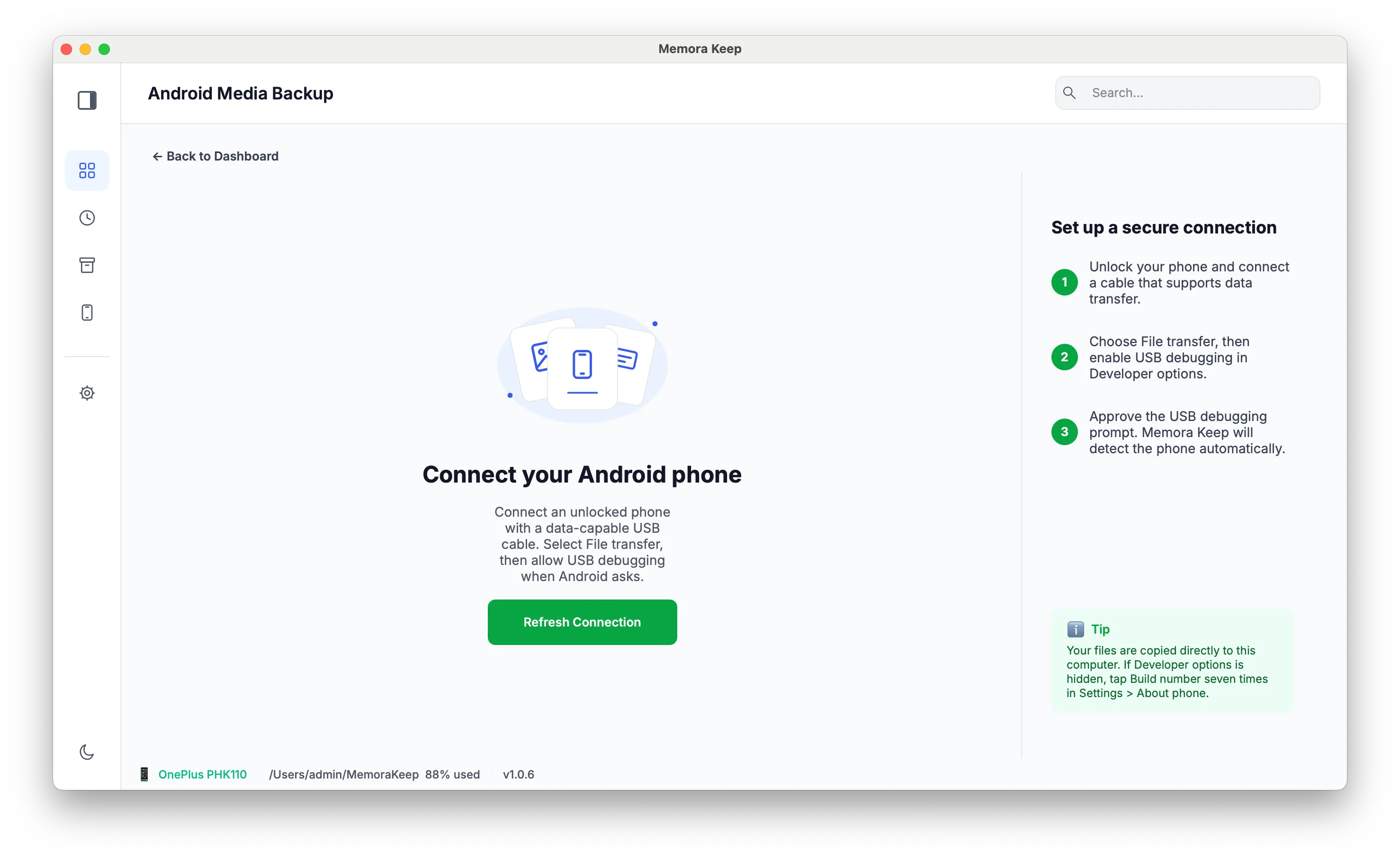
The phone connection screen appears
The app opens the connection page, which stays in a waiting state until a phone is detected. Nothing is copied yet — this screen just watches the USB connection.
- 4
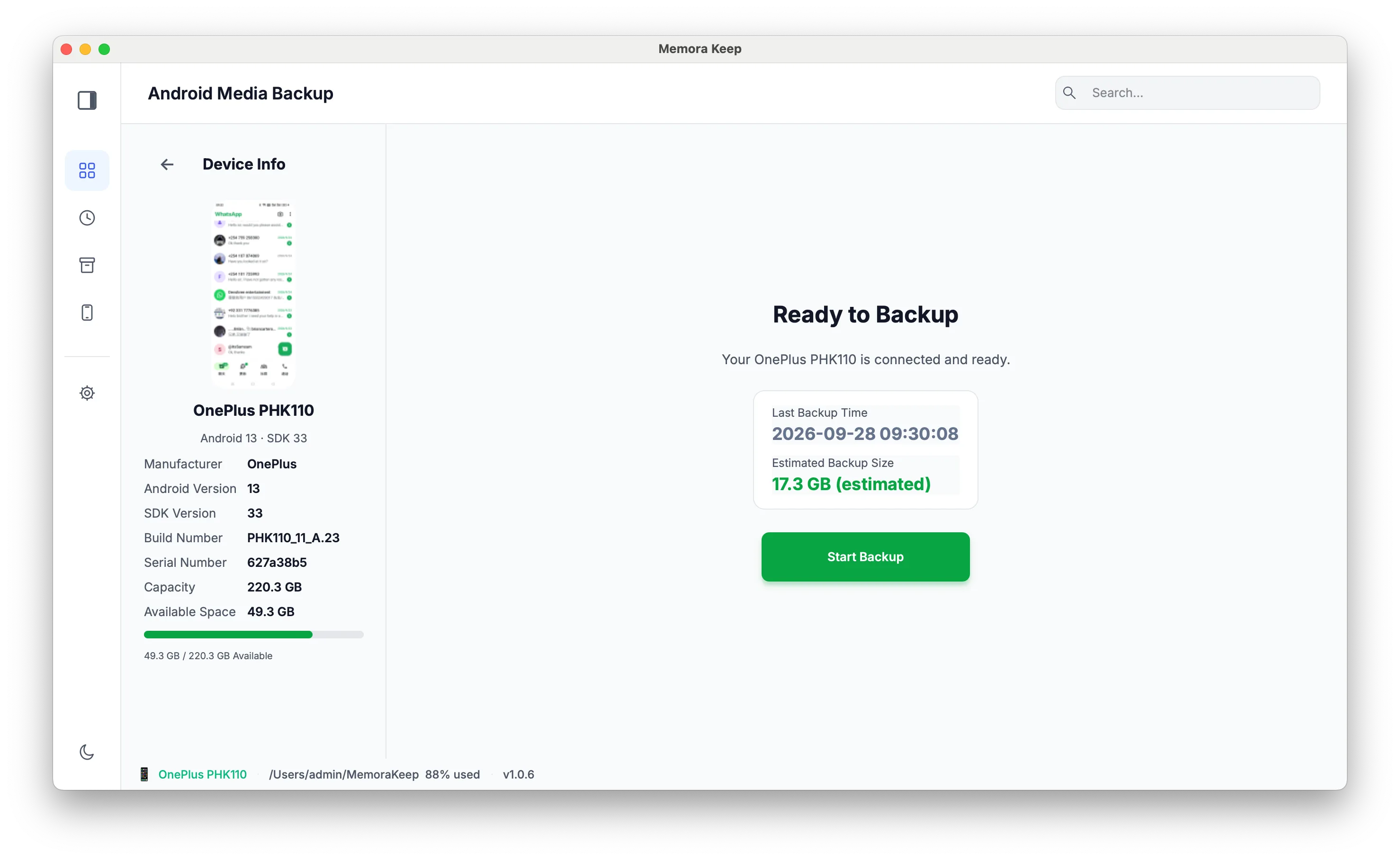
Connect your phone and click "Start Backup"
Plug the phone into the computer with a USB data cable. If your phone asks, choose File transfer (MTP) mode and allow USB debugging so the PC can see it. Once the app shows the phone as connected, click "Start Backup".
- 5
Pick what you want to back up
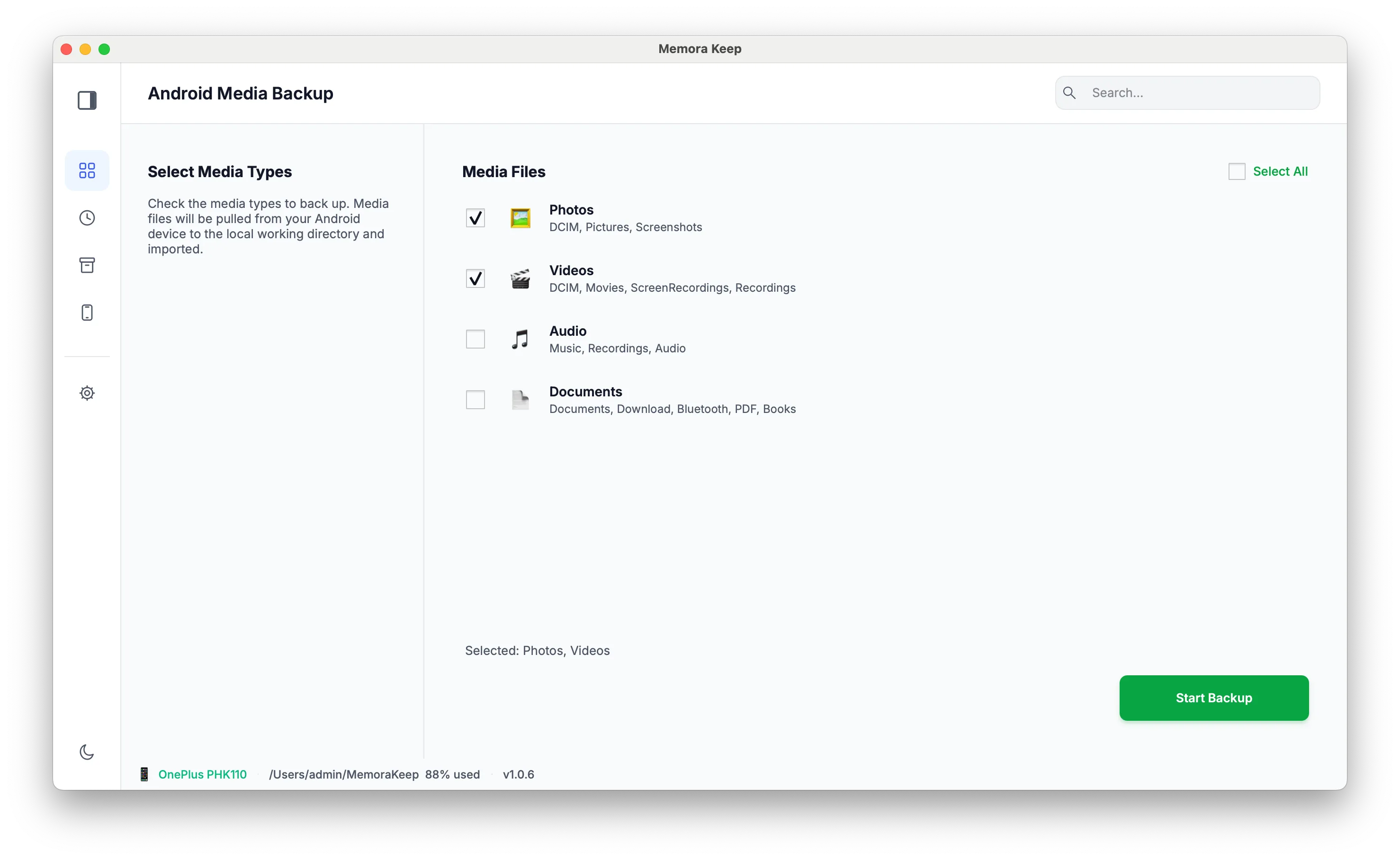
The app moves to the backup options page. Here you decide which kinds of data to copy from the phone.
- 6
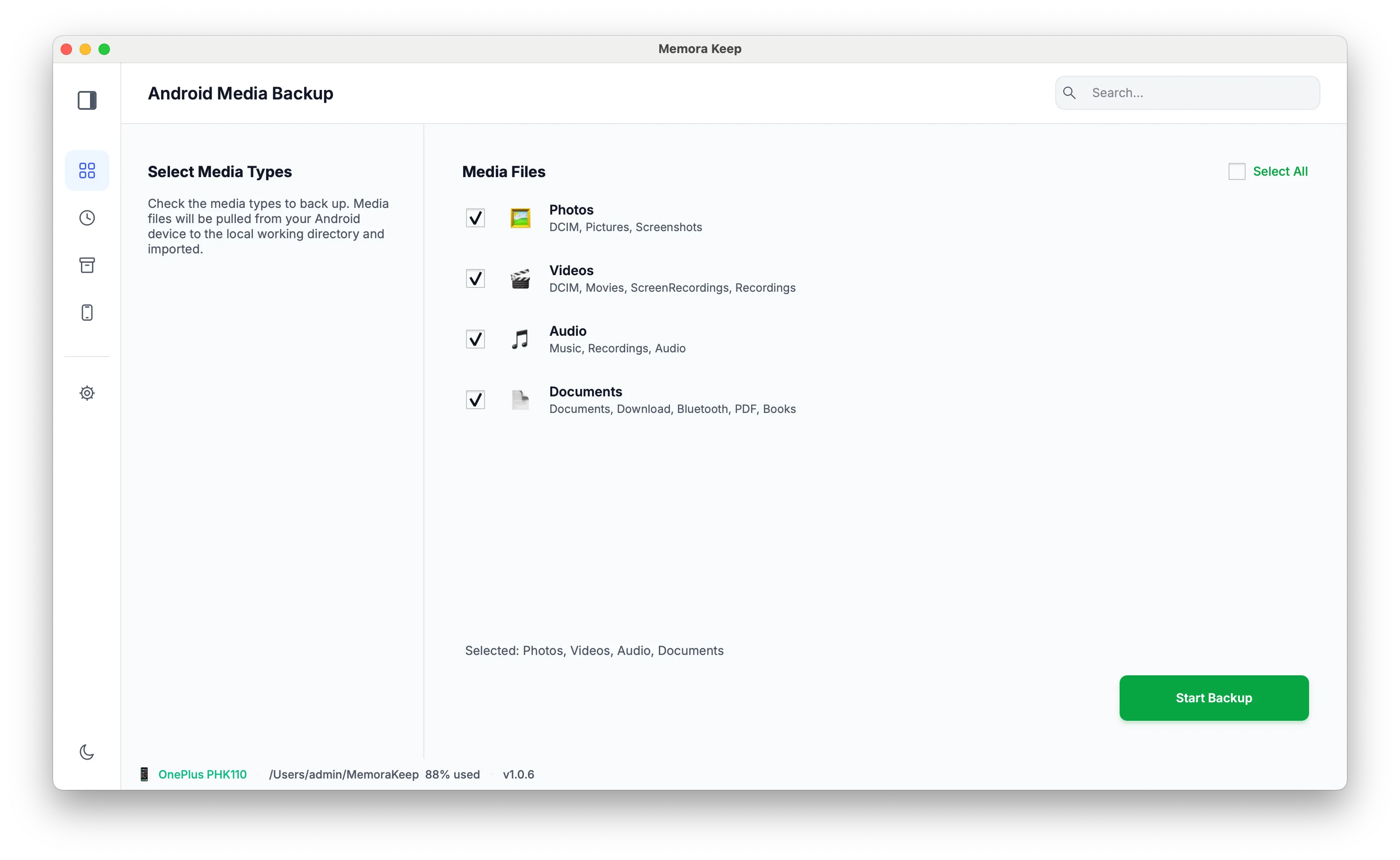
Select photos, videos, audio or documents
Tick the categories you need — Photos, Videos, Audio and Documents — in any combination, or select all of them. Click "Start Backup" again to begin copying.
- 7
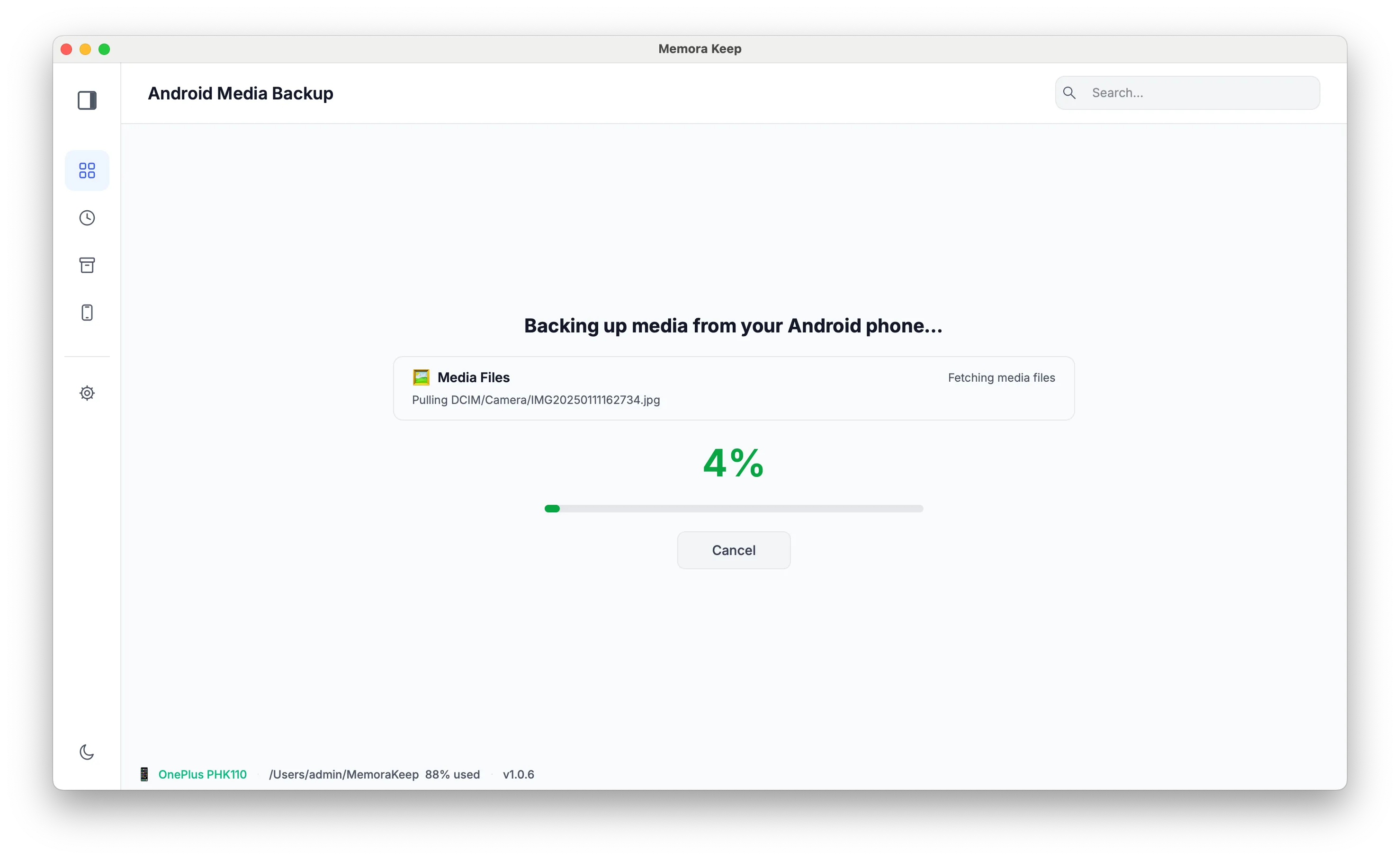
The backup runs
Files are copied over the cable into your local archive, with progress shown as they come in. Keep the phone connected and unlocked until the copy finishes.
- 8
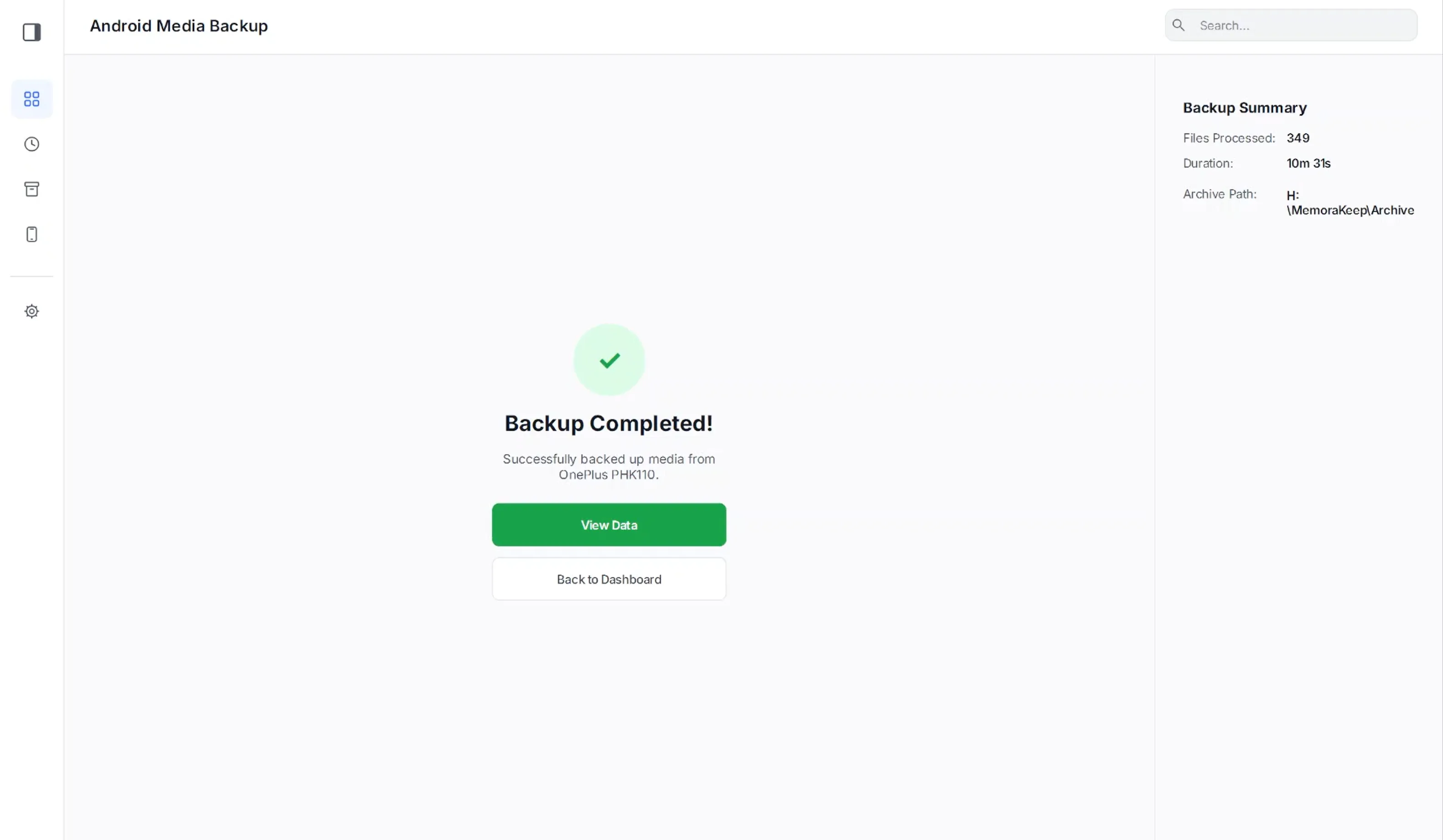
The backup completes
A success screen confirms what was copied. Your phone keeps its own files — the backup is a separate copy in the archive on your computer.
- 9
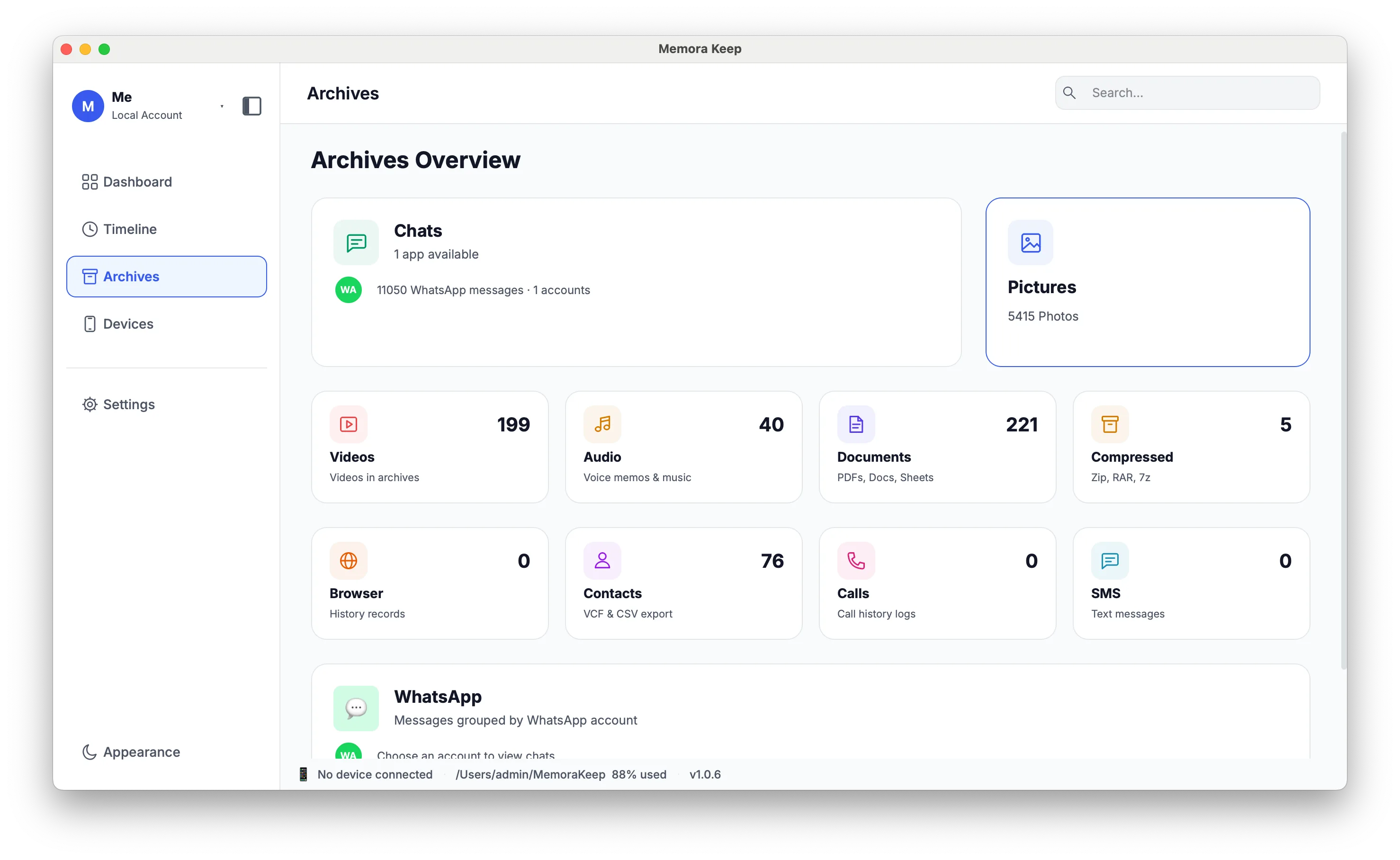
Browse everything in Archives
Go to Archives to see the backed-up data by category — open Photos, Videos, Audio or Documents and browse them right on your computer, even with the phone unplugged.
Notes
Phones fail, get lost and get replaced — an Android backup on your computer is the copy that does not depend on any account, cloud quota or internet connection. Memora Keep copies your media straight off the phone over USB and keeps it in a local archive you can open any time.
What gets backed up
Four categories, in any combination: Photos, Videos, Audio and Documents. The files land in your local archive, organised so you can browse them by category in the app without the phone attached.
What a local backup is good for
- Recovery when a phone breaks, is lost or is replaced.
- Freeing space on the phone after the copy is verified.
- Reading old photos, videos, voice notes and documents on a bigger screen.
Good to know
- The backup is a copy — nothing on the phone is modified or deleted.
- Use a real data cable. Very cheap cables are charge-only and the phone will never appear on the connection screen.
- WhatsApp chats are handled by the separate WhatsApp module, not by Android Media. If you want conversations, see the WhatsApp backup guides.
Frequently asked questions
Does the backup delete anything from my phone?
No. Memora Keep copies files to your computer; everything stays on the phone unless you delete it yourself.
My phone is connected but the app does not see it. What now?
Check the phone's USB mode — switch it from "Charging only" to File transfer (MTP) — and accept the USB debugging prompt if it appears. A charge-only cable is a common culprit, so try a different data cable too.
Can I back up only certain folders?
You choose the categories to copy (Photos, Videos, Audio, Documents). Once the data is in the archive you can browse and export it by folder, so there is no need to be selective at backup time.
Where is the backup stored?
In the local archive folder you picked on first launch. It never leaves your computer — nothing is uploaded to a cloud service.
Need help with a step?
The support center answers the common questions, and you can tell us where you got stuck.