Backup guide
How to back up an iPhone to a computer
Back up your iPhone to a Windows PC or Mac with Memora Keep. Follow the setup steps, check the backup and browse supported chats, photos and messages.
Last updated
Prerequisites
- A Windows 10/11 or macOS computer with enough free disk space
- A USB cable that supports data transfer (not a charge-only cable)
- The iPhone passcode, and the backup password if the backup is encrypted
- 1
Install Memora Keep and pick a data folder
On first launch the setup wizard asks where the archive should live. Choose a folder on a drive with enough free space — this is where the backup and the parsed archive are written. Nothing is uploaded, so the folder is the only place your data goes.
- 2
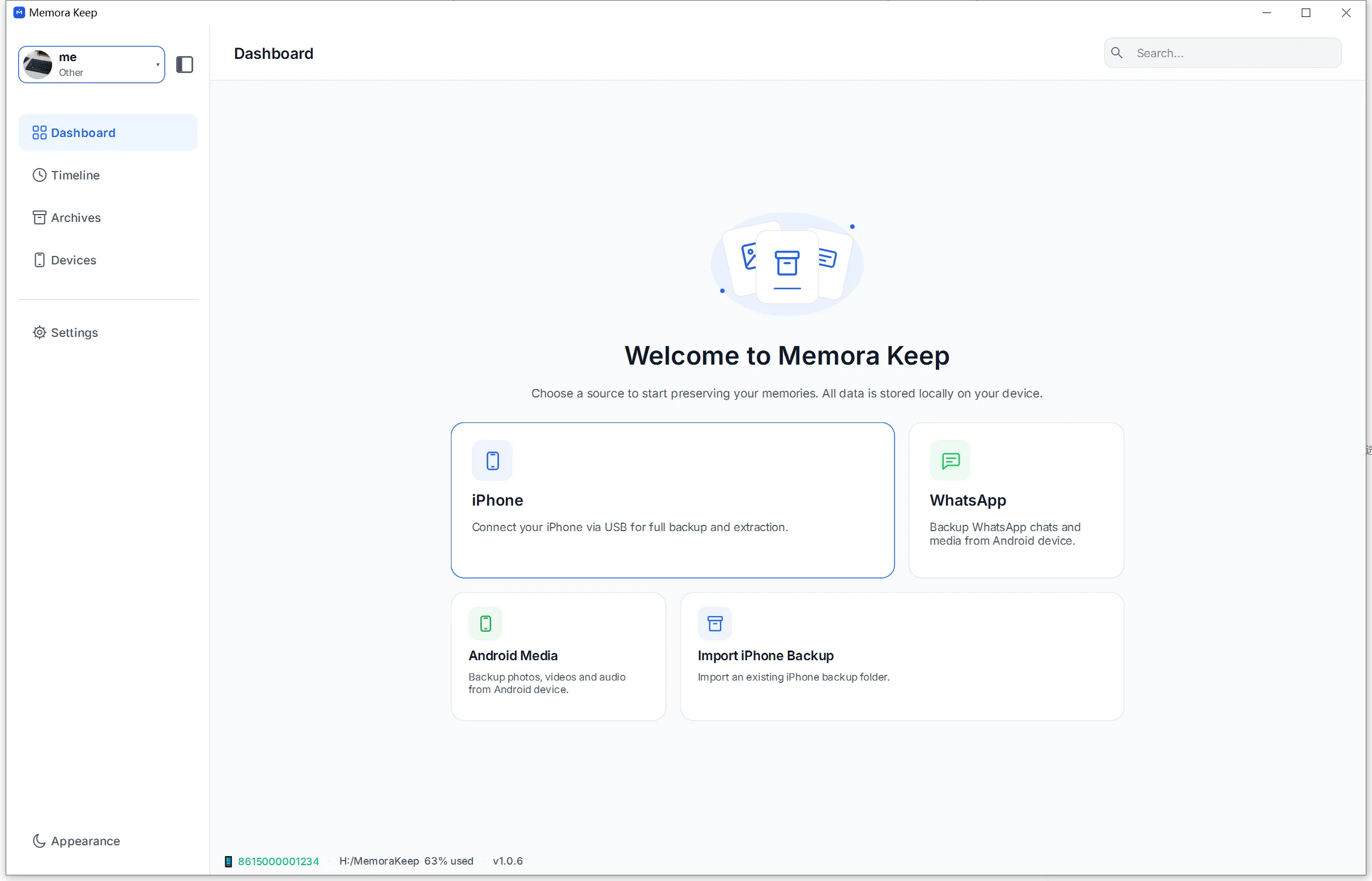
Choose the iPhone as the import source
Open the iPhone module from the Dashboard, then pick iPhone in the import wizard to create a fresh full-device backup. If you already have a MobileSync/Backup folder you want to read instead, pick the backup option there rather than making a new one.
- 3
Select what to include
Choose the apps and media to process. WhatsApp and WhatsApp Business can be selected alongside photos and videos. Everything selected is parsed into the archive afterwards, so you can browse it immediately.
- 4
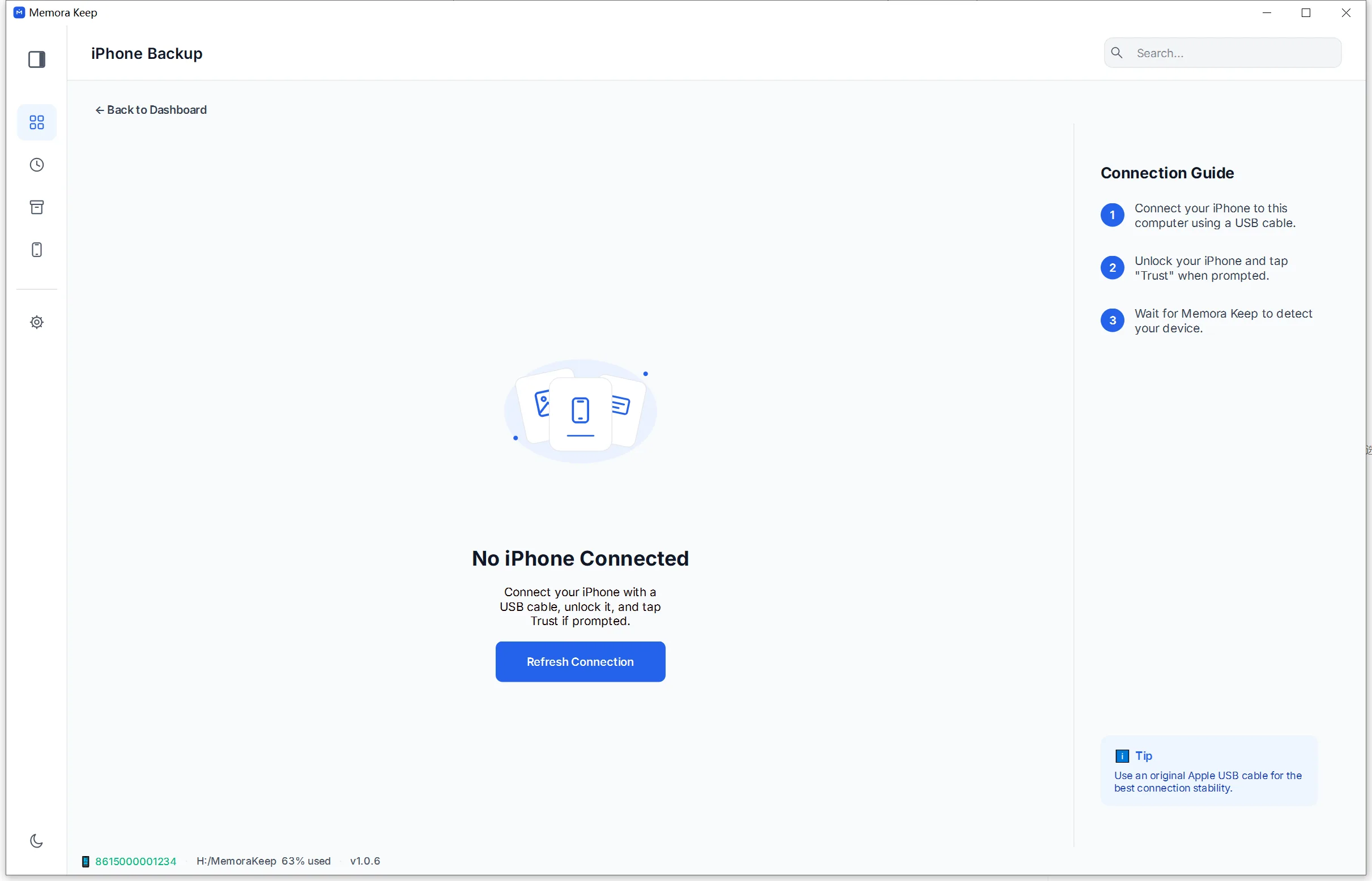
Connect the iPhone and trust the computer
Plug the iPhone in over USB, unlock it, and tap "Trust This Computer" when the prompt appears. Once the connection is authorized, the app shows the detected device, model and OS version.
- 5
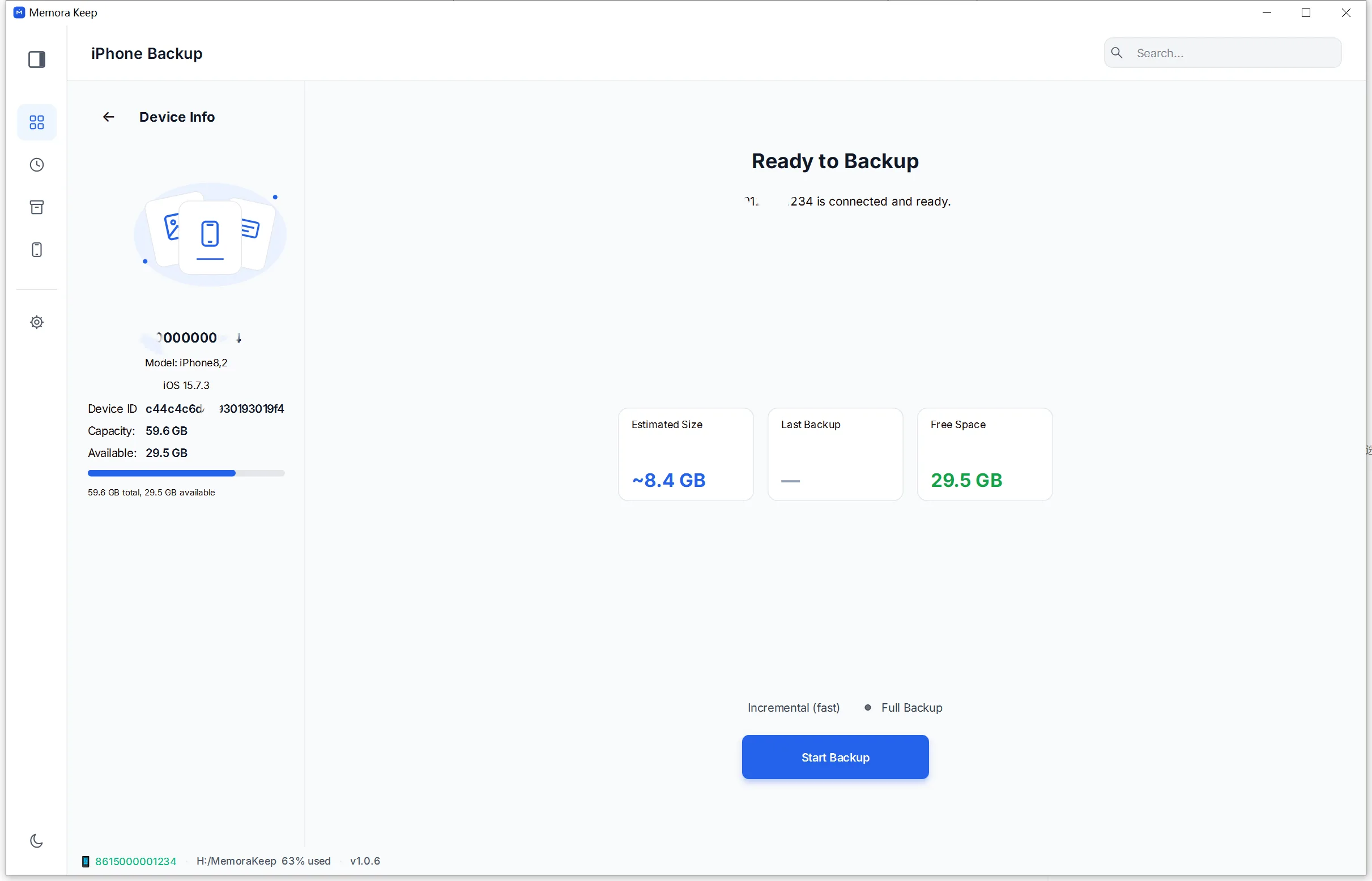
Review the pre-checks and start the backup
Before copying starts, Memora Keep reports the detected backup encryption state and confirms there is enough free space on the target disk. If the backup is encrypted you are asked for the backup password. Then start the backup.
- 6
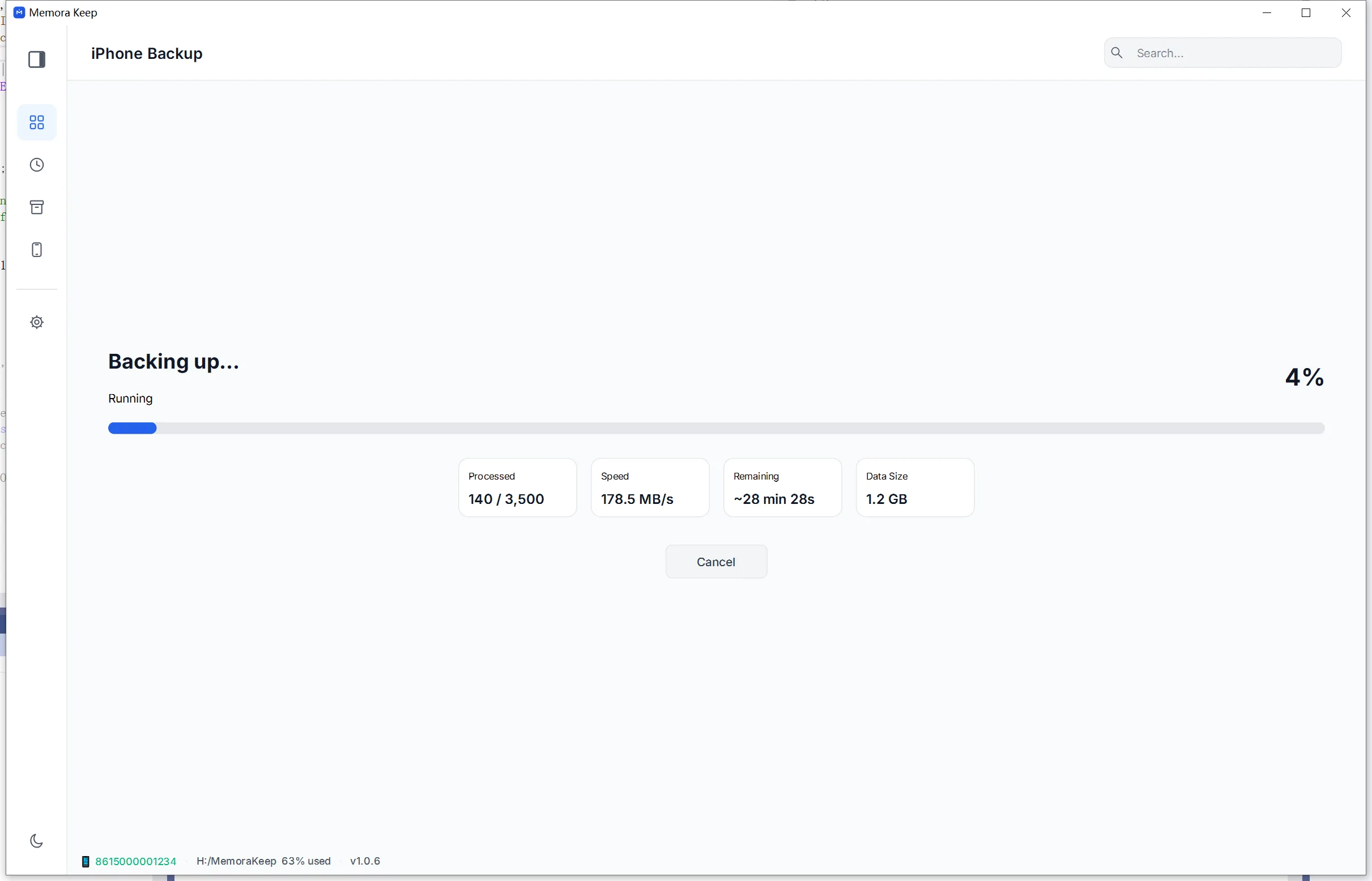
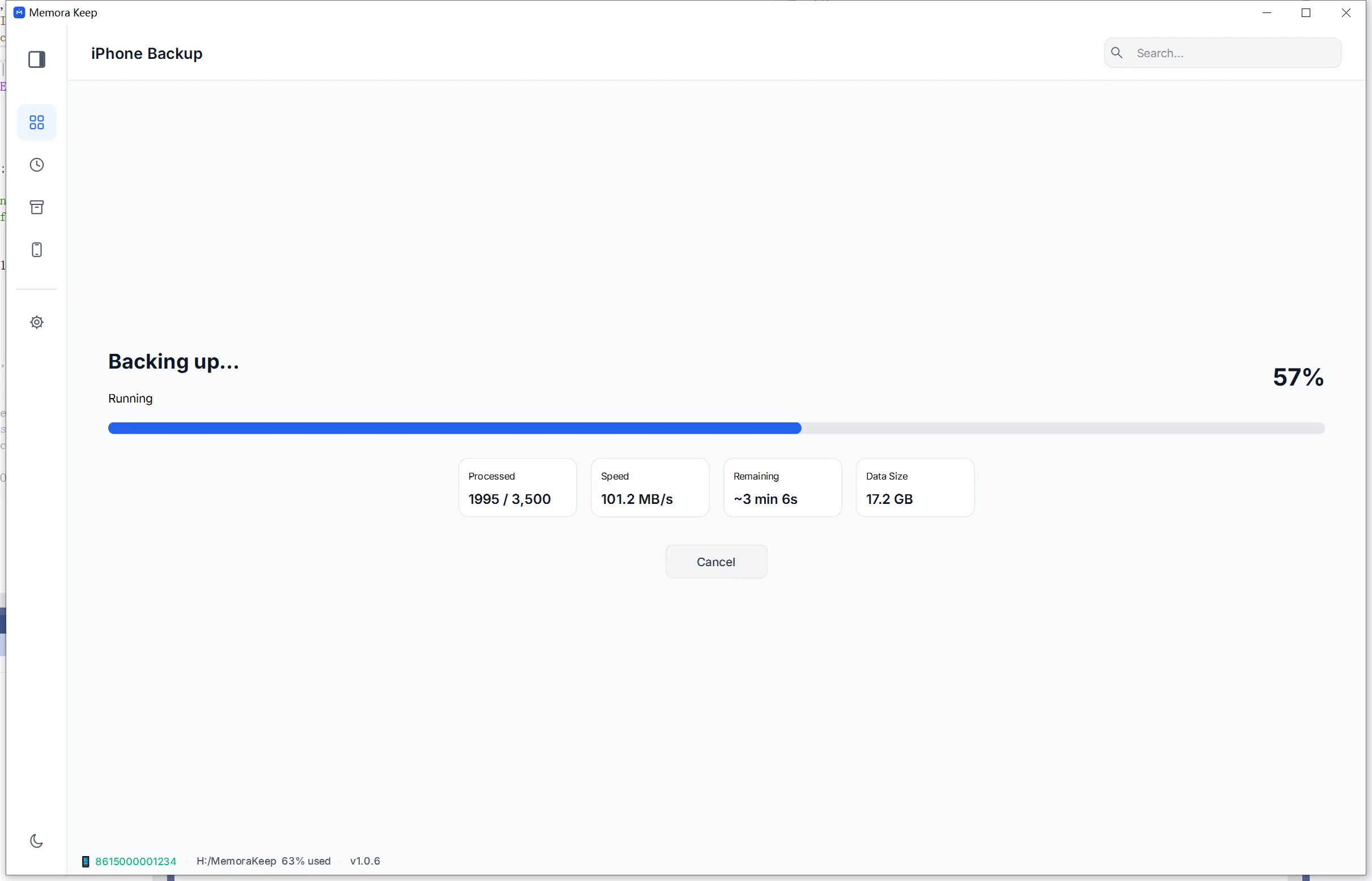
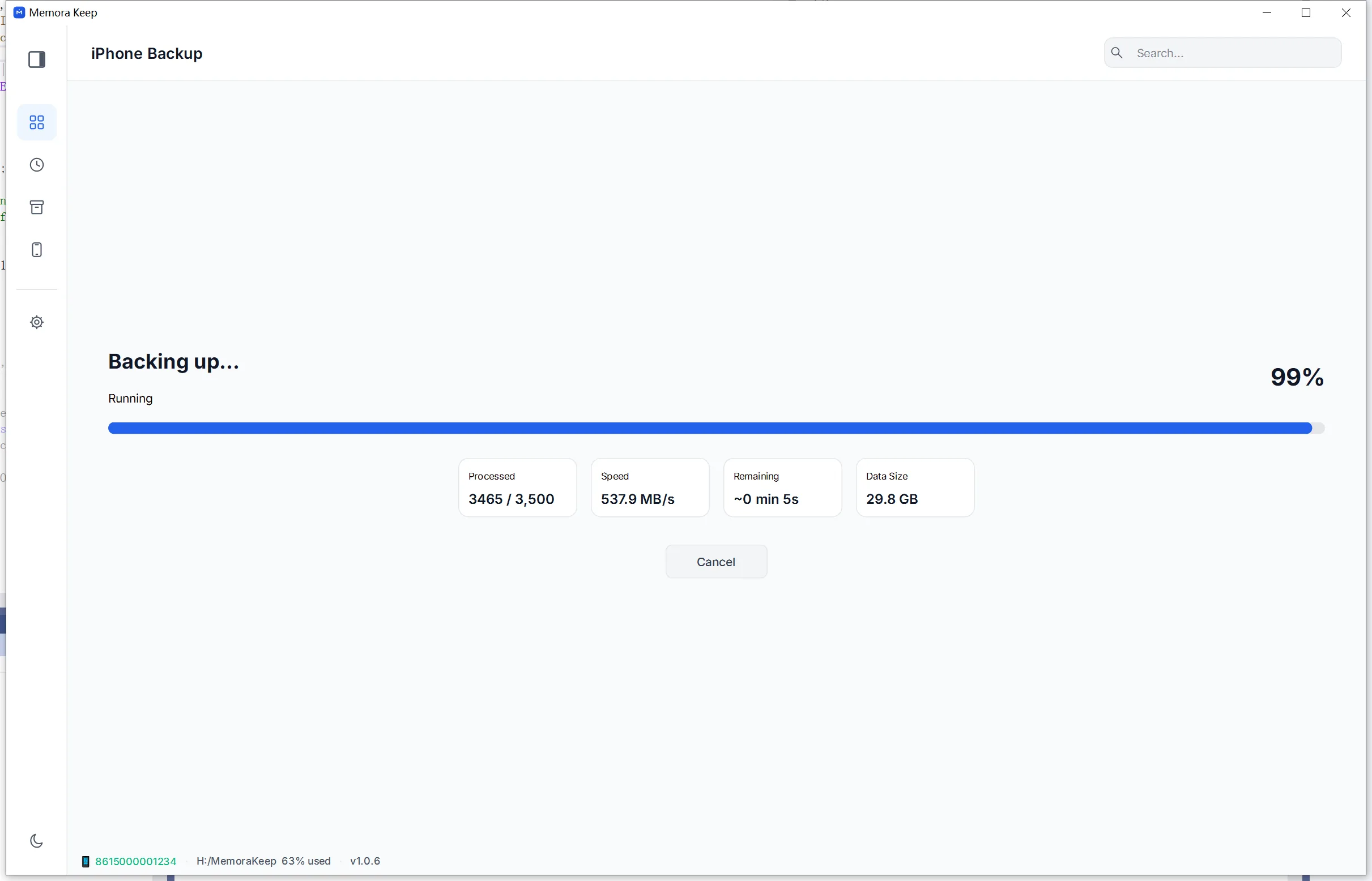
Wait while the backup runs
This stage copies the device data to your computer. Keep the phone connected until it finishes, and follow any prompts on the phone. If the backup is interrupted, check the result before relying on it.
- 7
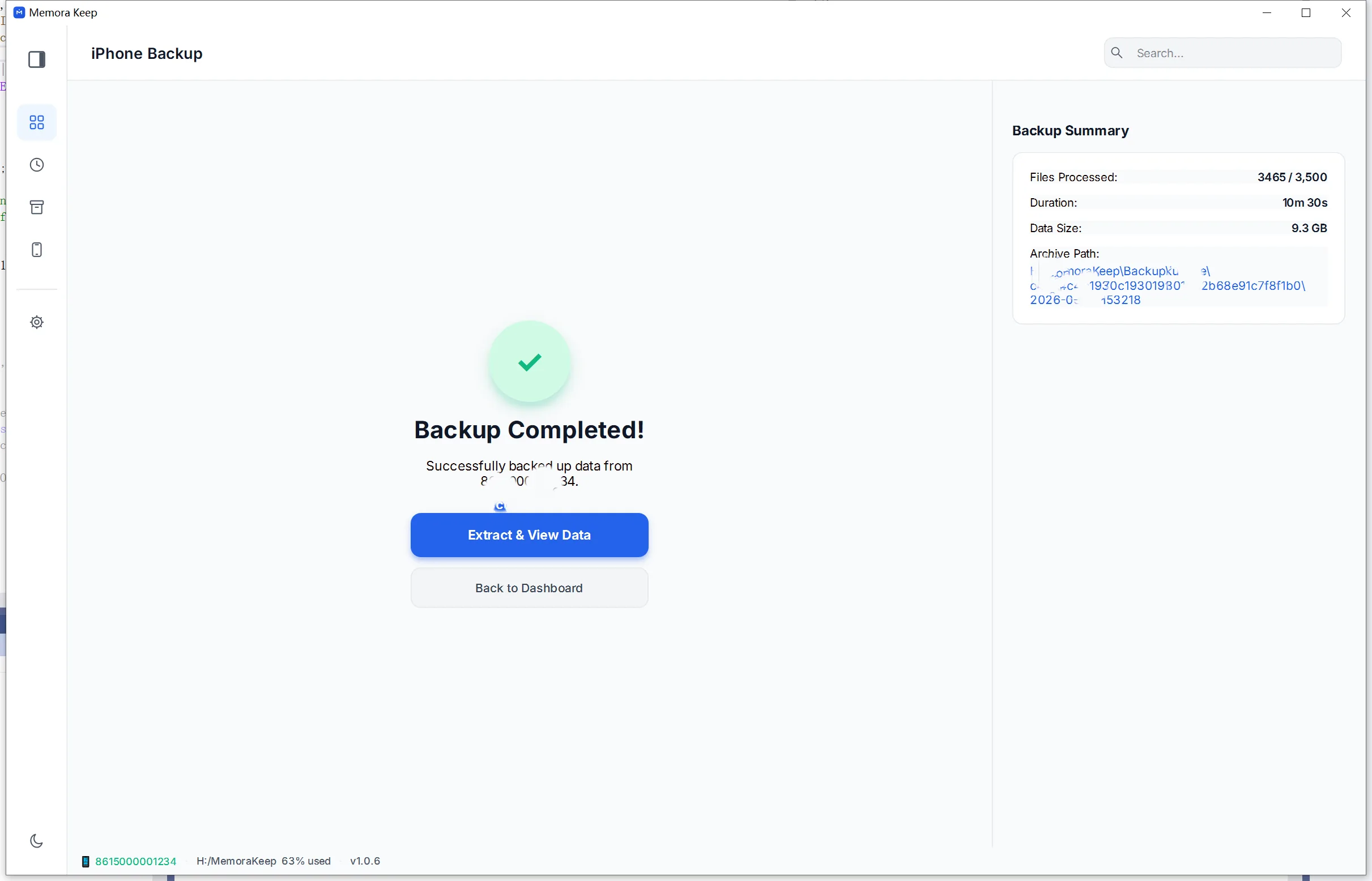
The backup completes
When the copy finishes, the raw full-device backup is on your own disk and ready to be parsed into the archive.
- 8
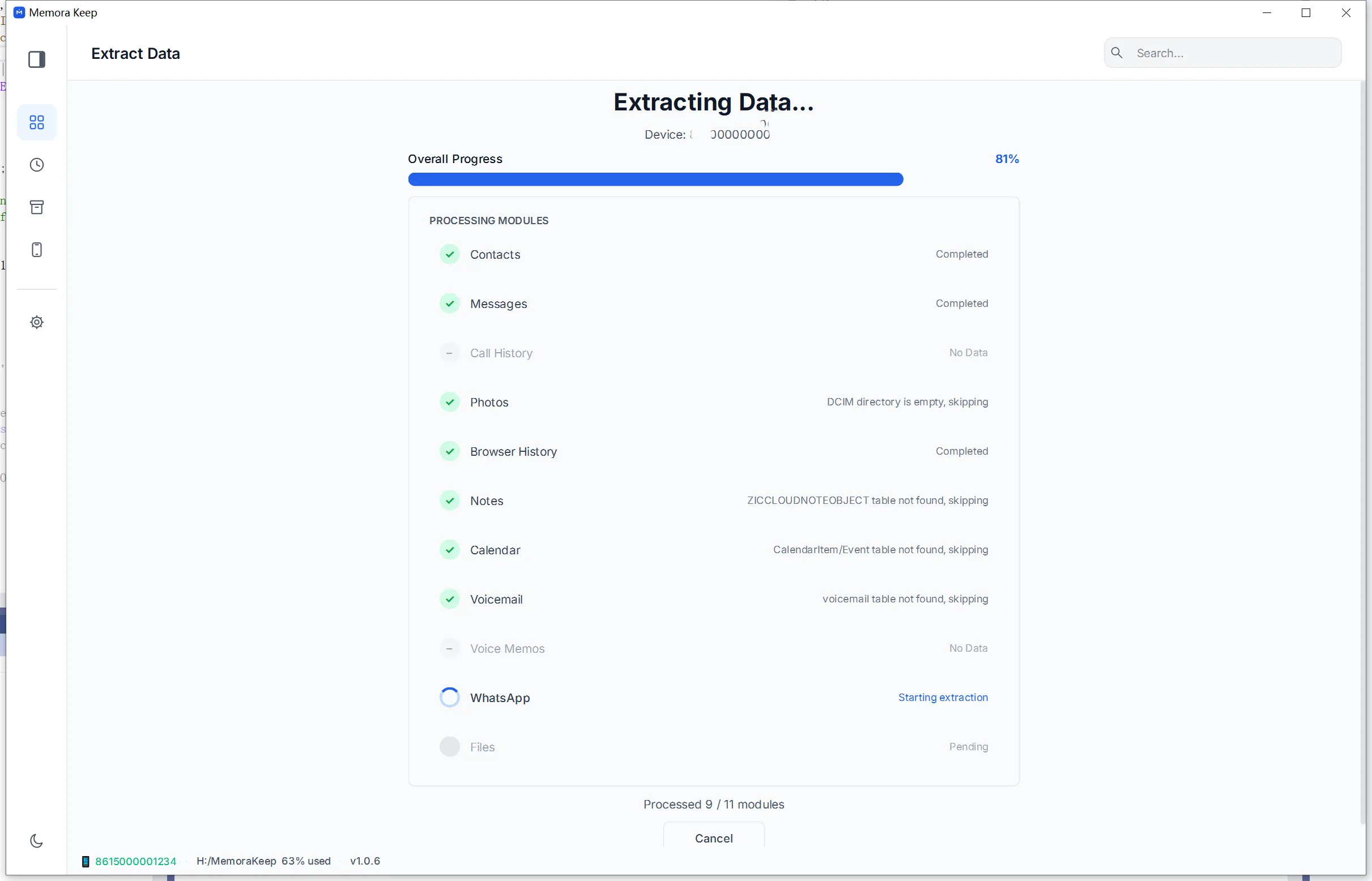
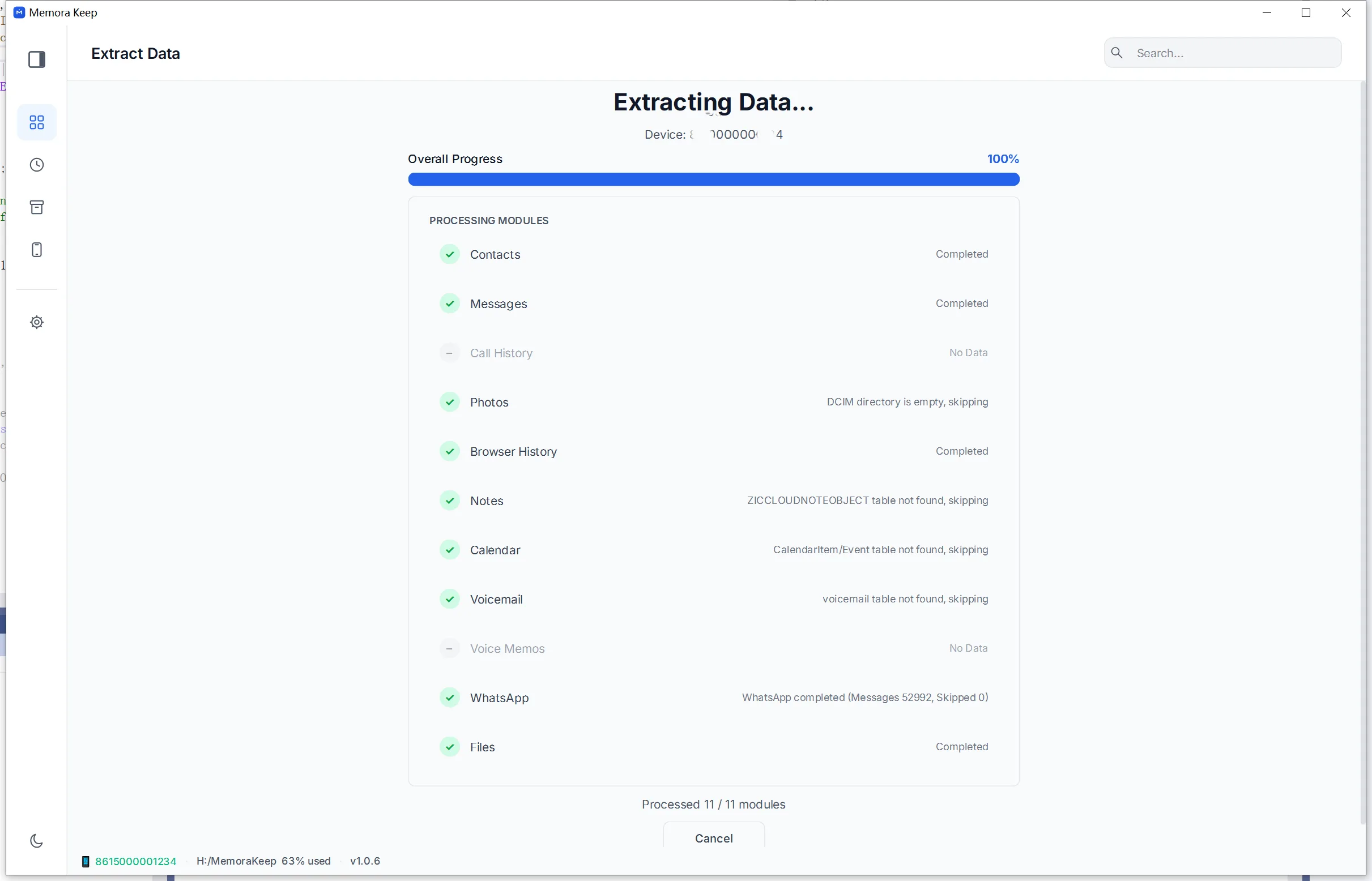
Extract the data into the archive
The next stage parses the backup into the local archive and reports how many messages, chats and media items were indexed as it goes.
- 9
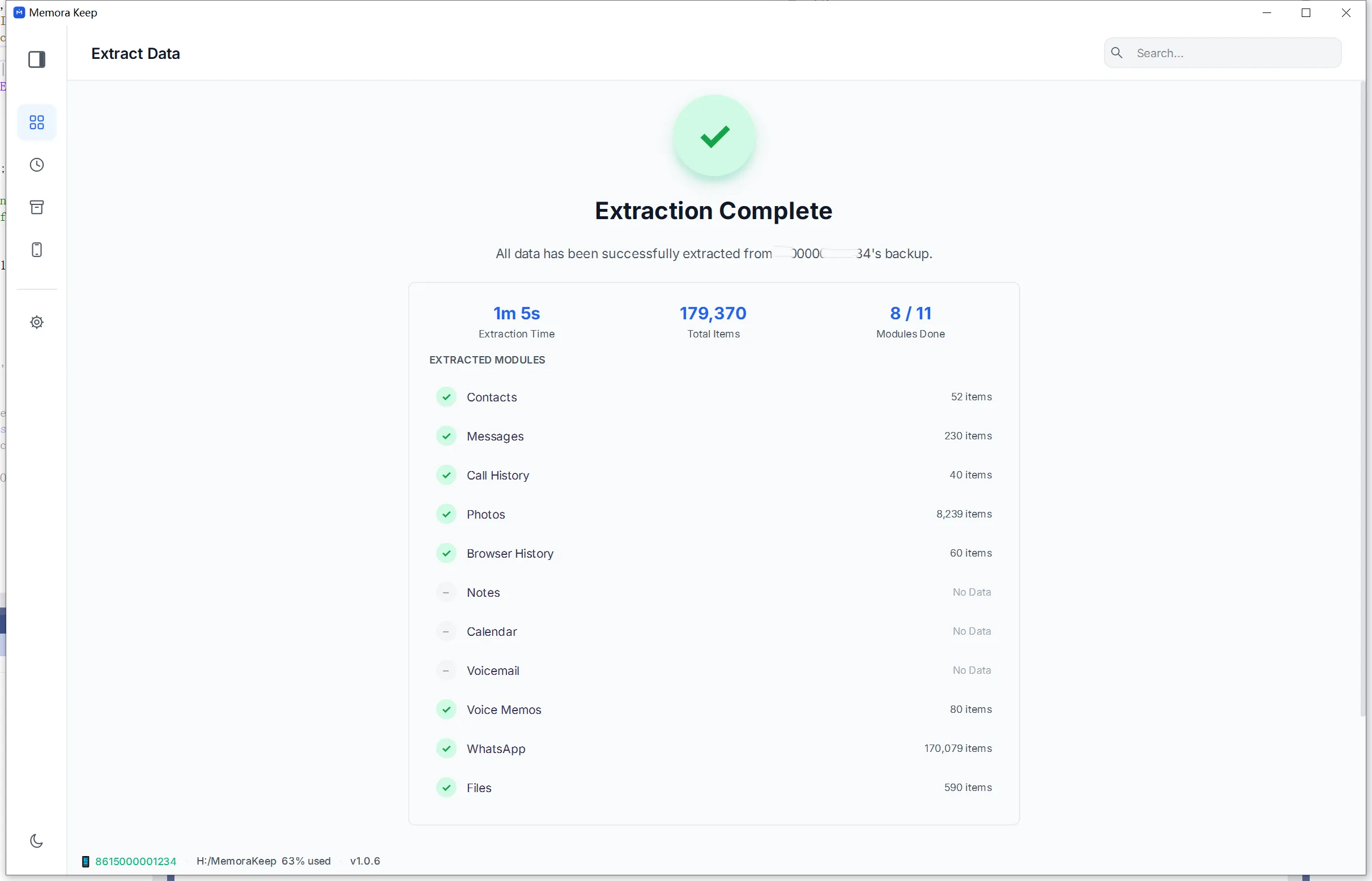
Review the result and open the archive
The result screen summarizes what succeeded and what was skipped. From there you can jump straight into the timeline, a chat, or the photo library to confirm your data is readable.
Notes
This guide takes you from connecting your iPhone to browsing its backup. Memora Keep saves the backup on your computer, then imports supported data into an archive you can read.
Before the first run
Two things are worth checking. First, use a cable that carries data — charge-only cables will let the phone charge but the computer will never see it. Second, if you have ever turned on encrypted backups, have the backup password ready; the app detects that state and will ask for it.
What gets processed
Memora Keep creates a device backup, then imports the selected supported data into your browsable archive. A device backup is not a copy of everything visible on your phone; some synced or cloud-only content may be excluded. Supported data types include:
- Messages and call history — SMS conversations and the complete call list
- Contacts, notes and calendar entries
- Safari history and bookmarks, voicemail and voice memos
- Photos and videos
- WhatsApp and WhatsApp Business chats, including their media
Data included in the backup remains in the original backup folder even if it is not imported into the browsable archive. Check important files in the archive before relying on the backup.
Frequently asked questions
How much disk space does an iPhone backup need?
It depends on how much media is on the device. Memora Keep estimates the requirement and checks the target drive before starting, so you find out before the copy begins rather than halfway through.
Does the backup include WhatsApp?
Yes. WhatsApp and WhatsApp Business can be selected as import items, and their chats and media are parsed into the archive so they can be read and exported.
What happens if the iPhone is disconnected during the backup?
The backup stops and the app reports the failure with a retry option. The raw backup already written stays on disk, and nothing in the original device data is modified.
Is the original Finder or iTunes backup modified?
No. The raw backup is kept intact. Parsing writes into the local archive and never rewrites the backup itself.
Need help with a step?
The support center answers the common questions, and you can tell us where you got stuck.