Export guide
How to export WhatsApp chats to PDF
Export WhatsApp chats to PDF, HTML or CSV with Memora Keep. Choose conversations and a date range, save the files and check the results.
Last updated
Prerequisites
- WhatsApp chats already in the archive
- Enough free space in the folder you want to write to
- 1
Make sure the chats are already in the archive
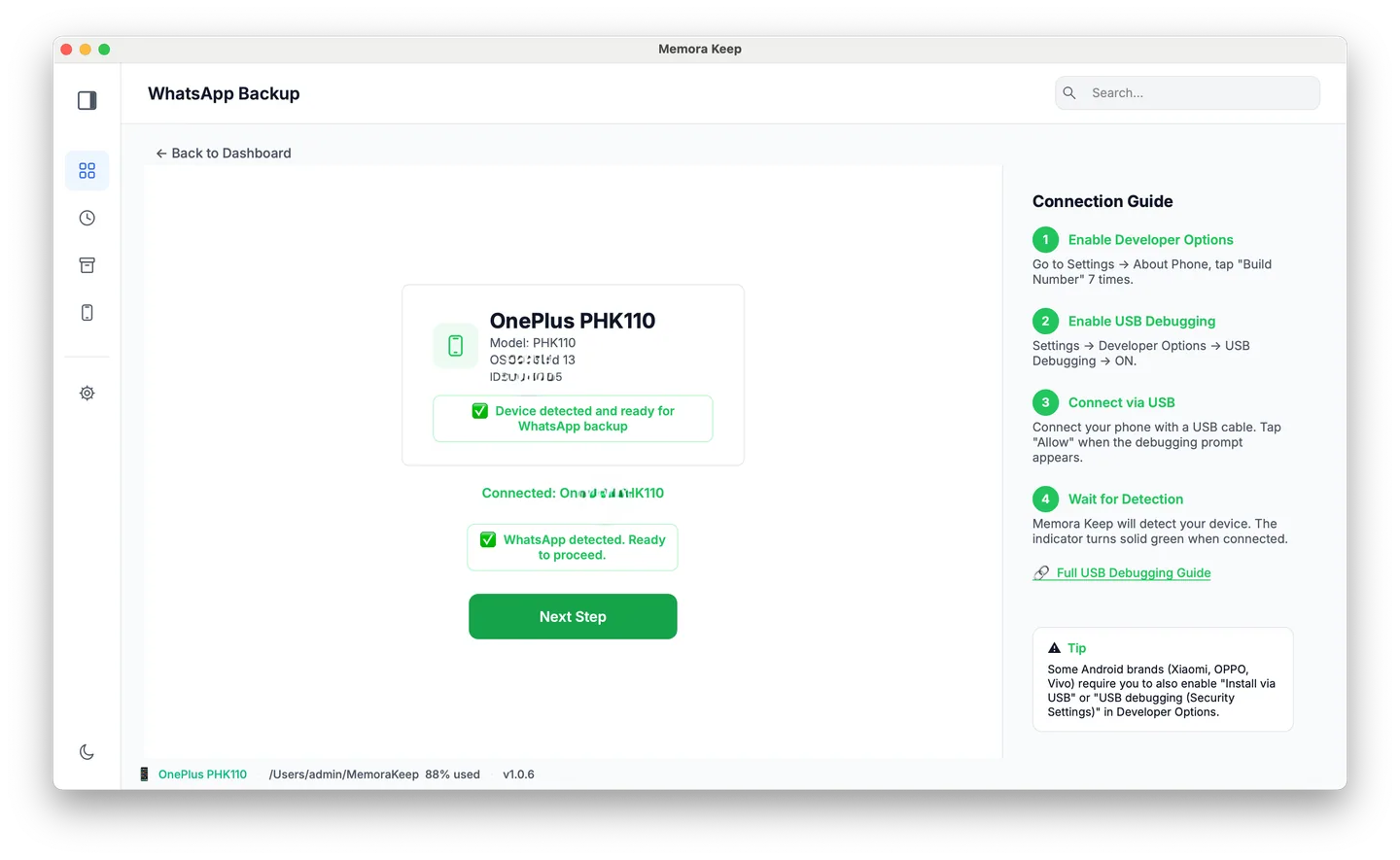
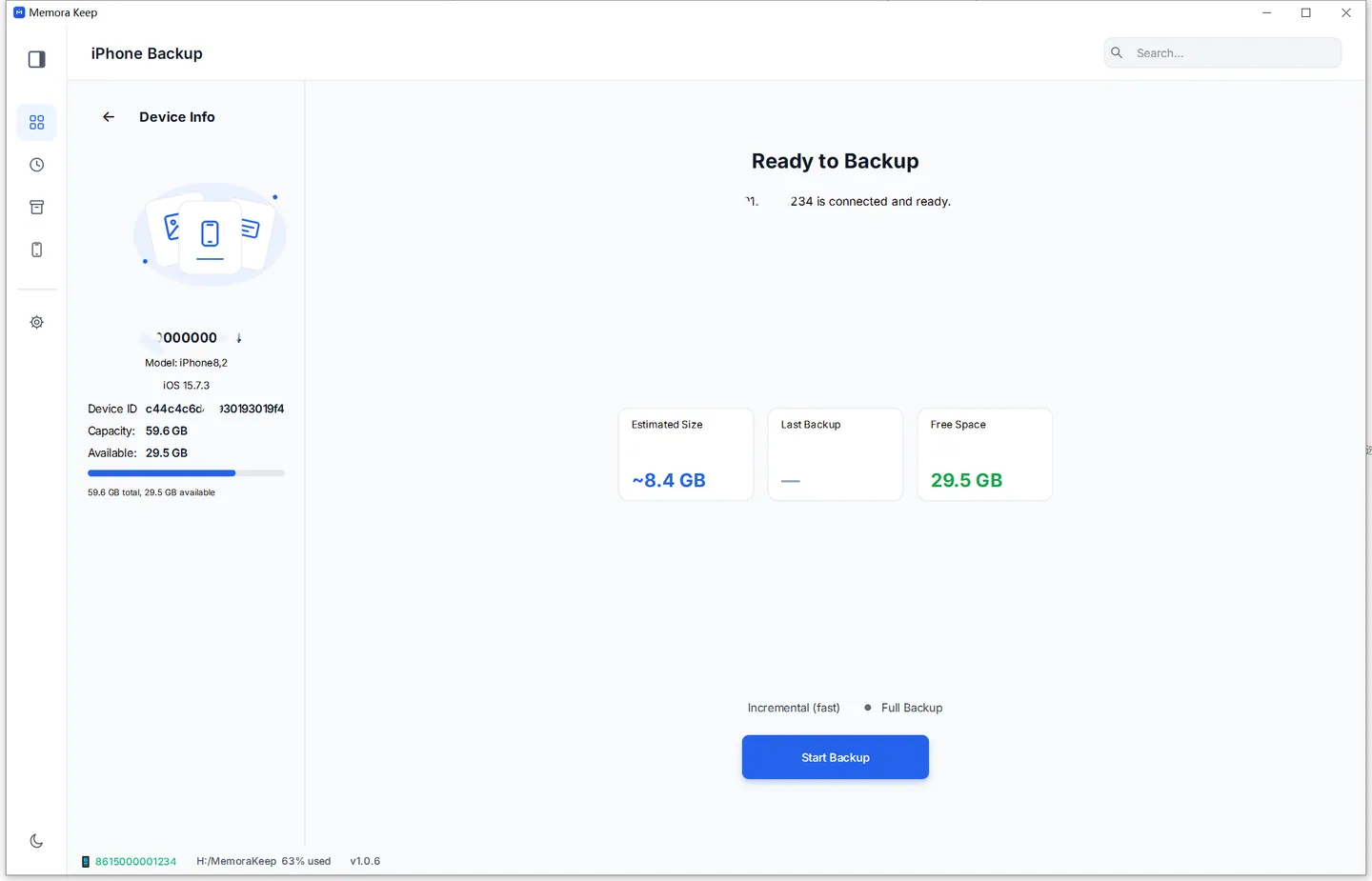
Export reads from the local archive, so the conversation has to be imported first — from an Android WhatsApp backup, or out of an iPhone device backup. Nothing is read from the phone during an export.
- 2
Open the conversation you want to export
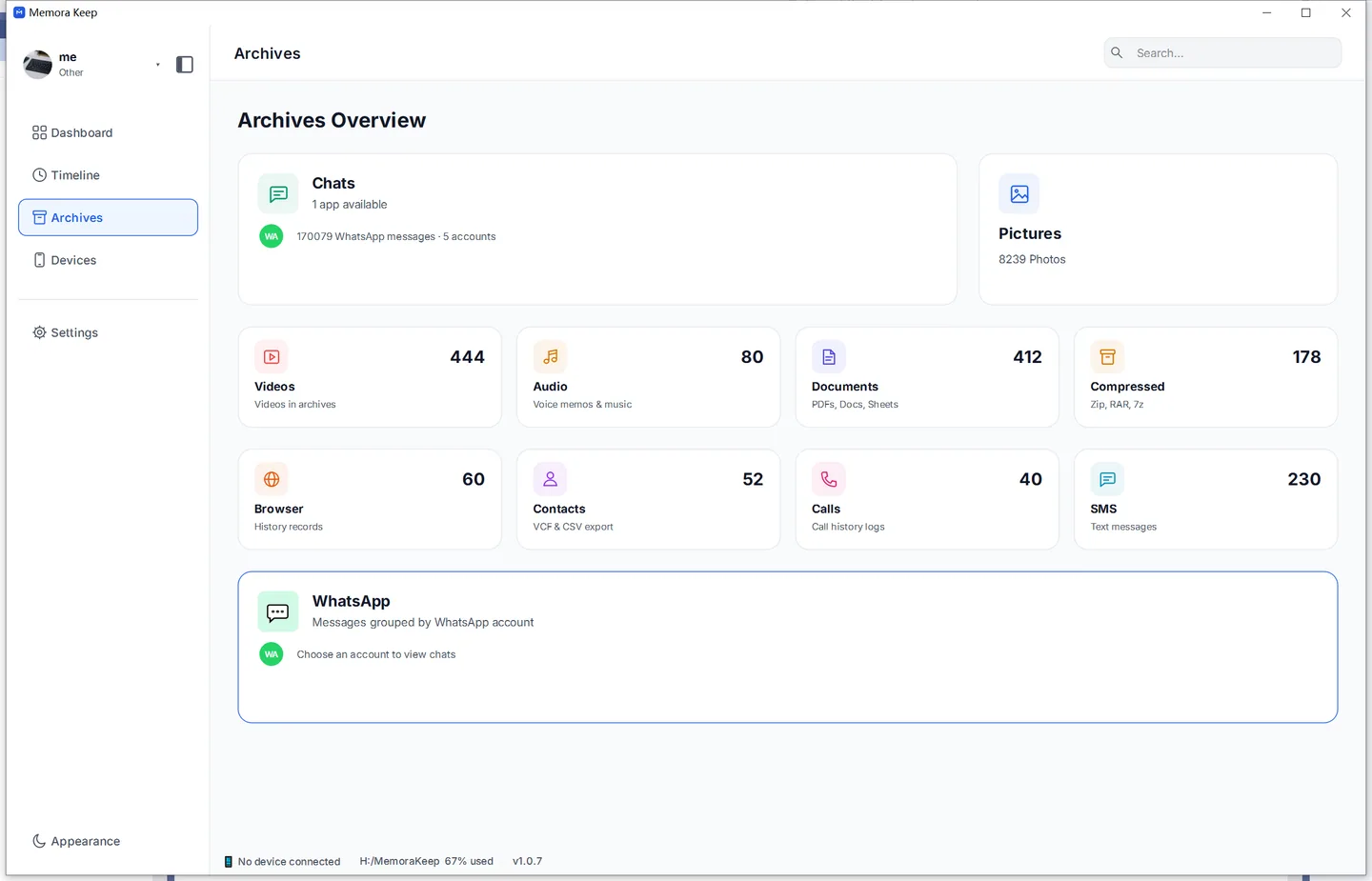
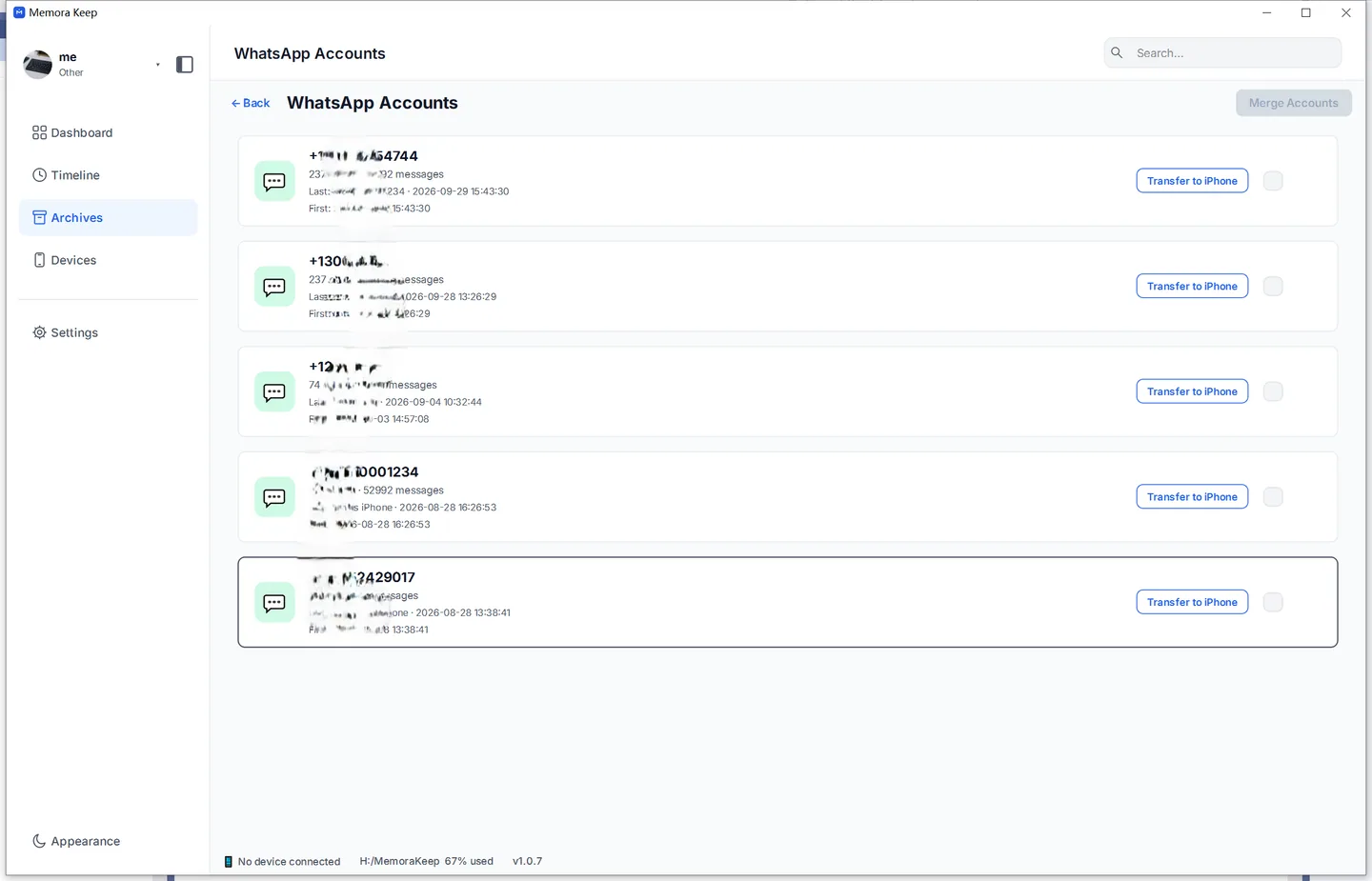
In Archives, open the WhatsApp section and choose the account to export from. The conversations for that account are listed in the WhatsApp viewer.
- 3
Start an export from the conversation
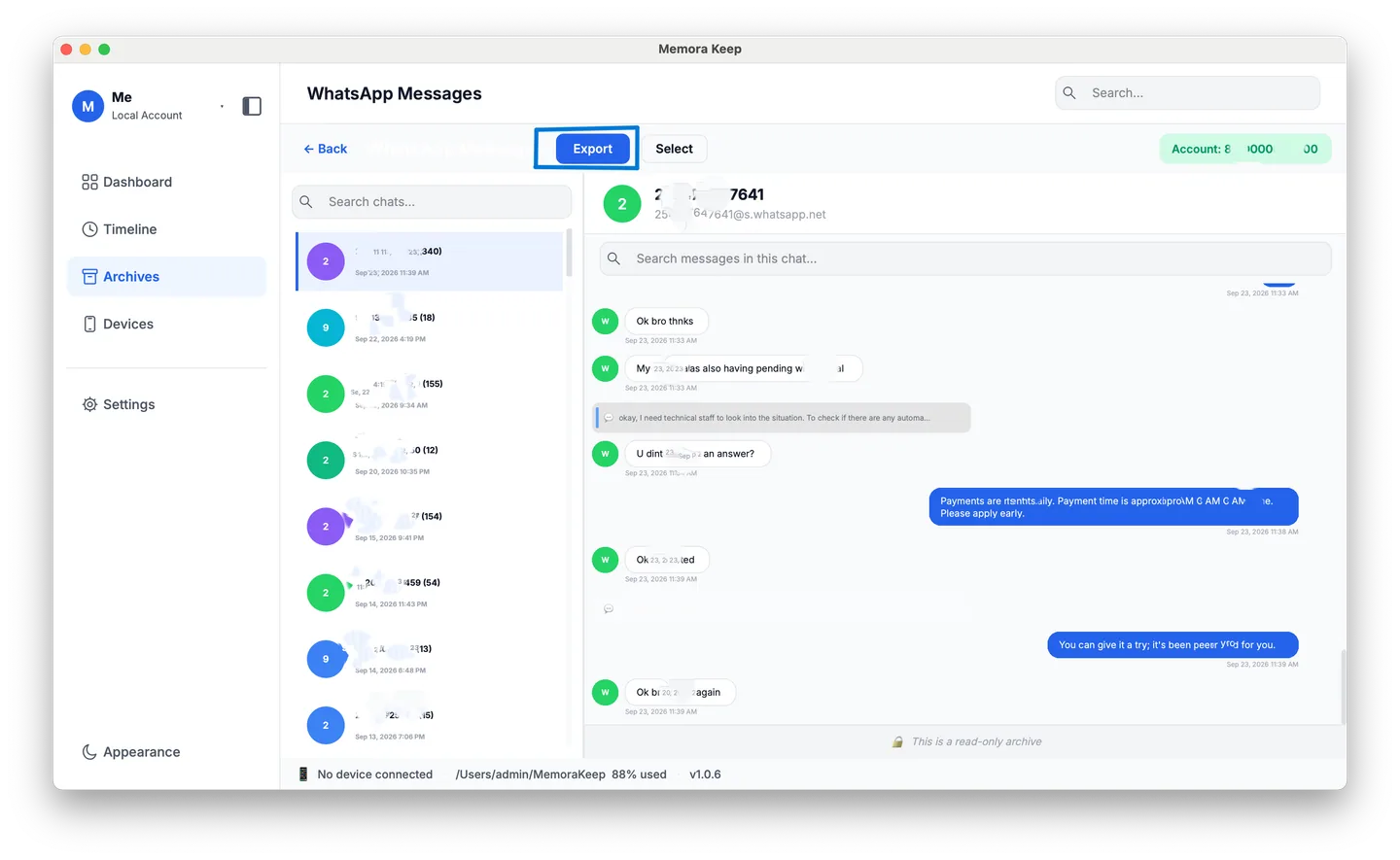
Open the conversation and use the Export button. If you would rather pick several conversations at once, start from the export entry instead — both routes end up in the same place.
- 4
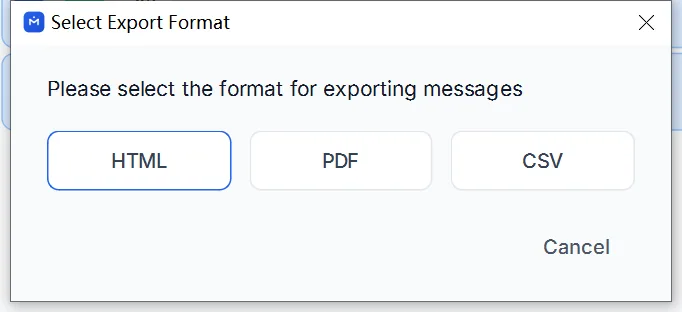
Choose the file format
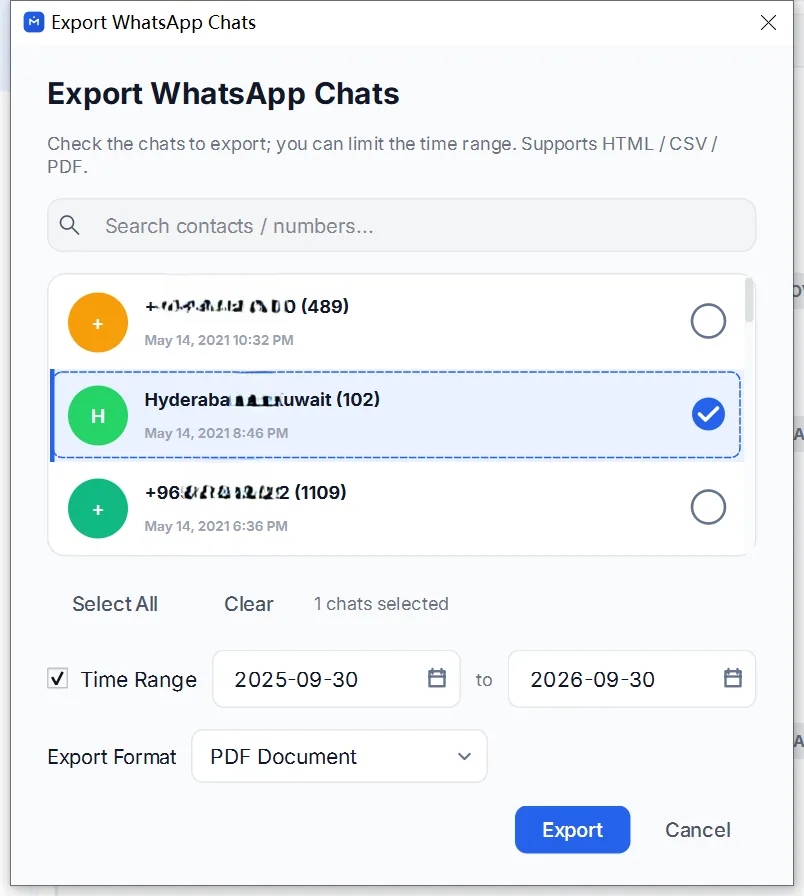
WhatsApp conversations export as HTML, CSV or PDF. PDF suits reading and printing, HTML keeps the conversation browsable in a browser, and CSV puts the messages in columns for sorting and filtering. The format matters more than it sounds — see the note below for which one suits which job.
- 5
Select conversations and a date range
Export can cover a single conversation or several at once, and can be limited to a date range. Narrowing the range is the usual way to keep a long thread to something readable.
- 6
Export only the messages you need
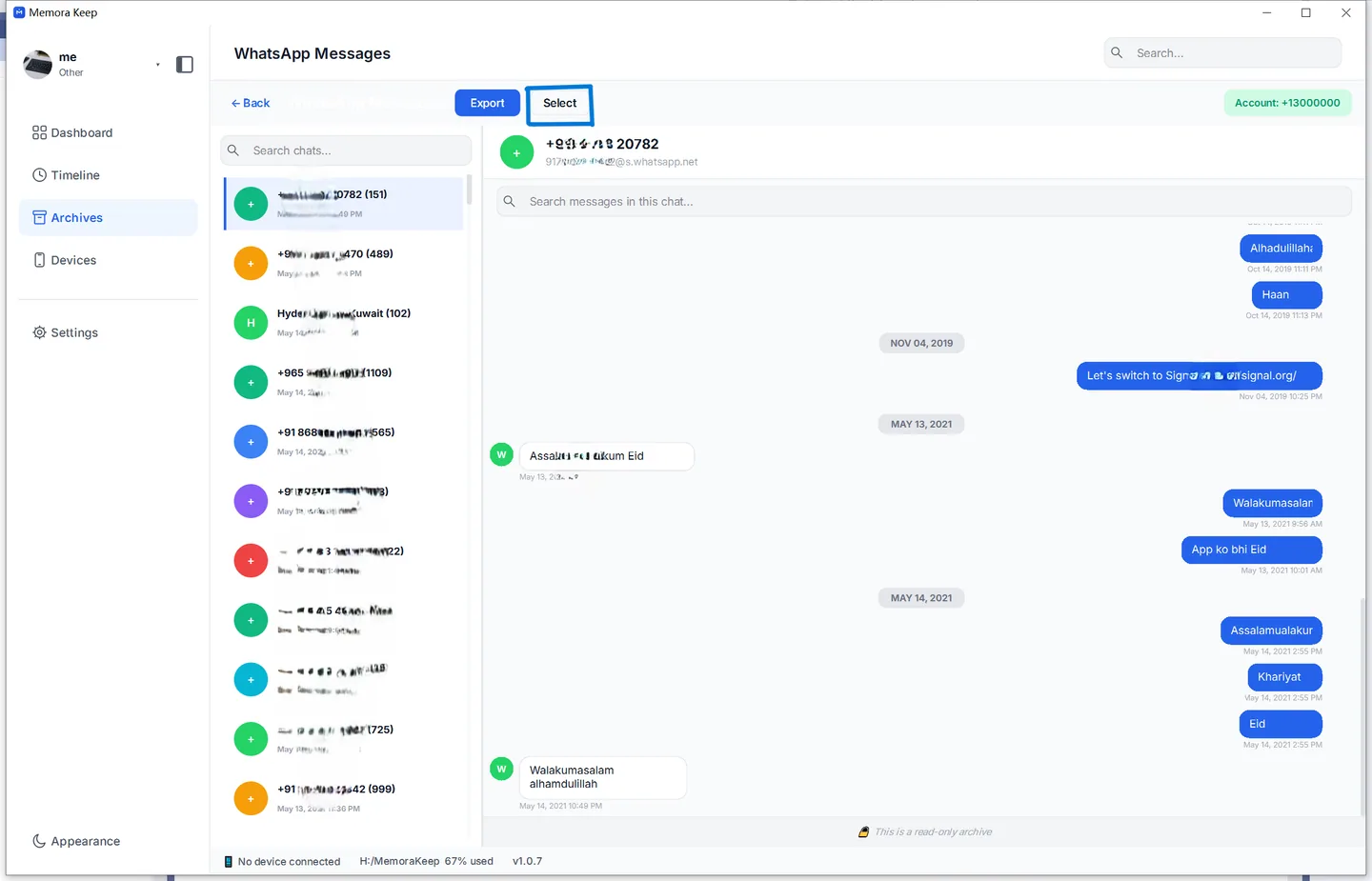
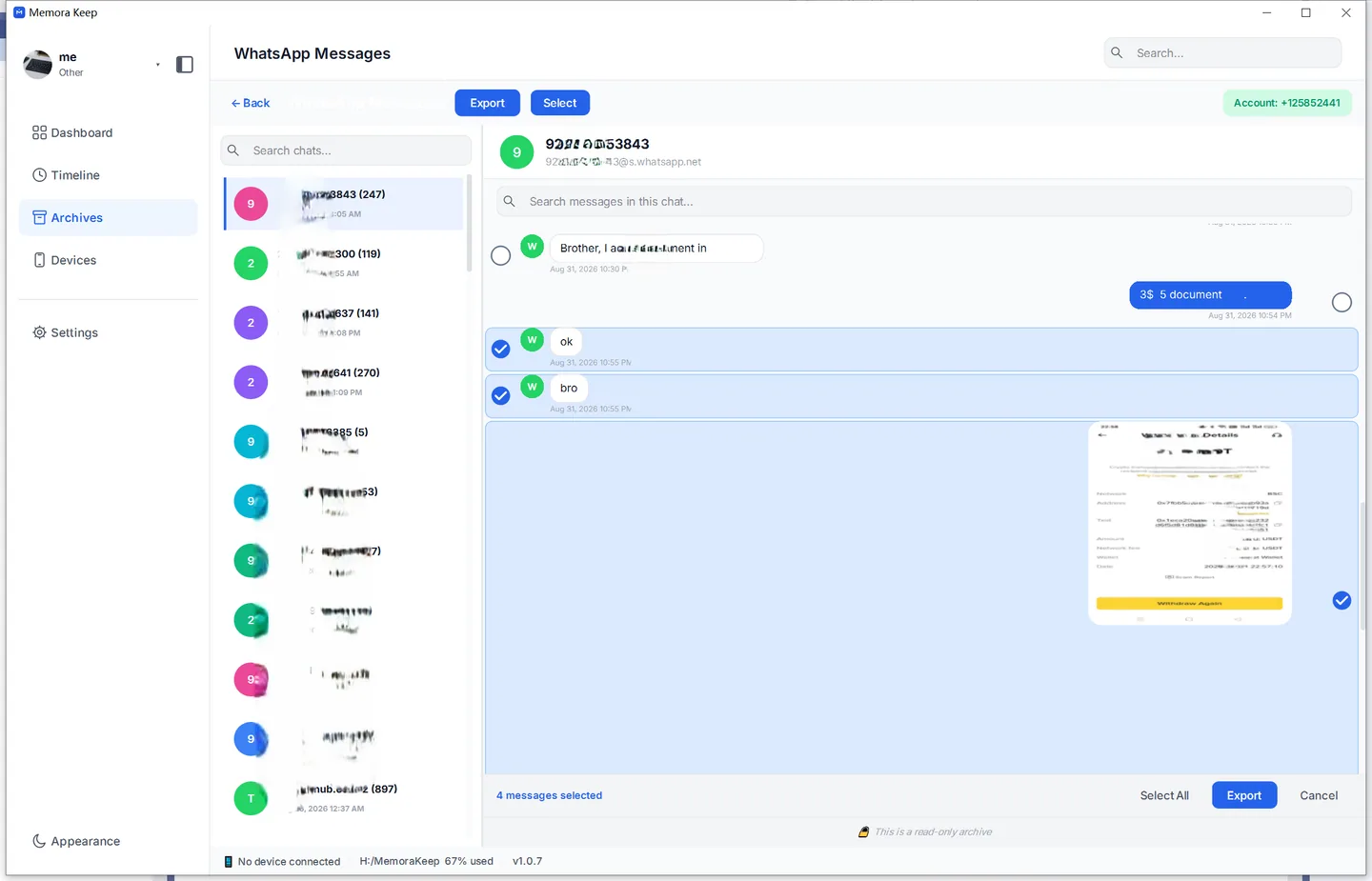
For part of a thread, open the chat and click Select at the top, tick the messages you want, then use Export below the conversation and choose PDF. Individual media files can be exported on their own as well.
- 7
Pick the destination and run it
Choose the folder to write to and start the export. Memora Keep writes the files and reports the result when it finishes, including the location it wrote to.
- 8
Check the result before you delete anything
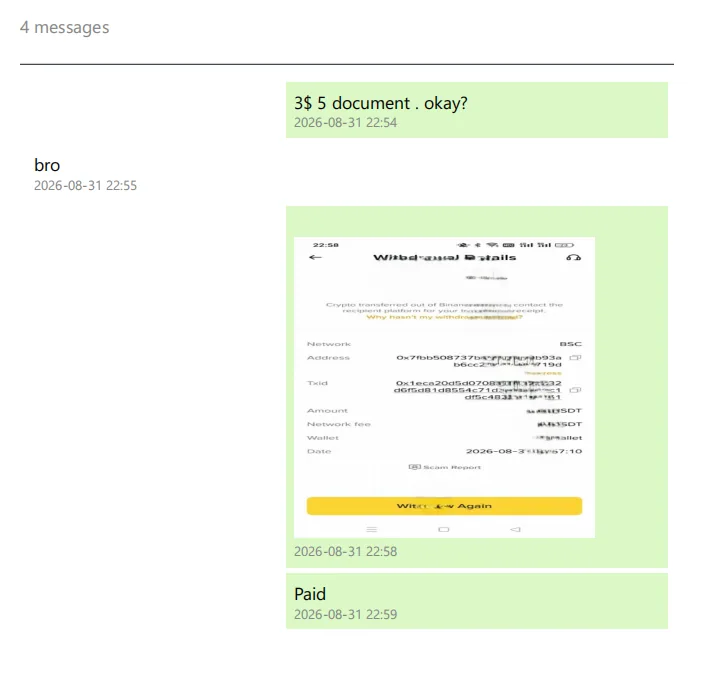
Open the exported file once to confirm the date range, the messages and any media are what you wanted. Media must be present in the archive to be exported, so a missing attachment may not exist in the backup — check before relying on the file as the only copy of a conversation.
Notes
Export a copy of your chats to read or share without Memora Keep. PDF, HTML and CSV work with common document viewers, browsers and spreadsheet apps.
Choosing between PDF, HTML and CSV
Choose PDF for reading or printing, HTML for reading in a browser, or CSV for sorting and filtering messages in a spreadsheet.
What an export is not
An export is a copy, not a migration. It does not change your archive, it does not remove anything, and it does not depend on Memora Keep being installed later — which is the whole point.
Frequently asked questions
Which format should I choose?
PDF for reading or printing, HTML if you want to browse the conversation with its structure intact, and CSV if you need to sort, filter or process the messages elsewhere.
Can I export more than one conversation at a time?
Yes. Export supports multiple conversations in a single run, and a date range can be applied across them.
Can I export just part of a conversation?
Yes. Open the chat, click Select, tick the messages you want and export those — the rest of the thread is left out.
Are message timestamps preserved?
Yes. Exported timestamps come from the saved message data.
Does exporting change or move my archive?
No. An export reads from the archive and writes new files to the folder you choose. Nothing in the archive or the original backup is modified.
Need help with a step?
The support center answers the common questions, and you can tell us where you got stuck.