Import guide
How to import an iTunes or Finder backup
Import an existing iTunes or Finder backup into Memora Keep. Check the backup, browse supported data and keep the original files intact.
Last updated
Prerequisites
- An existing iPhone backup folder created by Finder or iTunes
- Enough free disk space for the parsed archive
- The backup password, if that backup was encrypted
- 1
Download and install Memora Keep
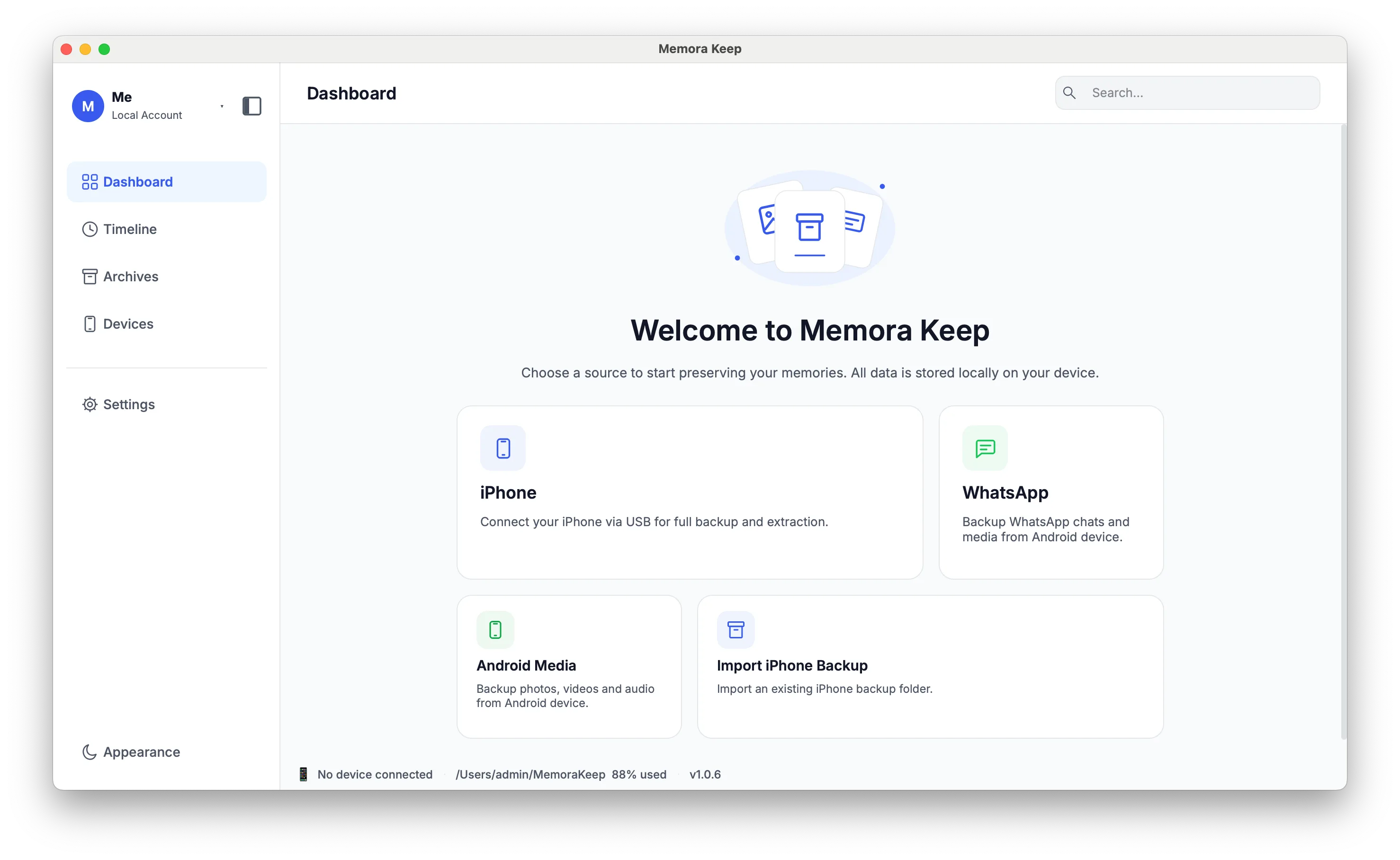
Install the app on your computer. On first launch it asks where the local archive should live — pick a folder on a drive with enough free space.
- 2
Choose "Import iPhone Backup"
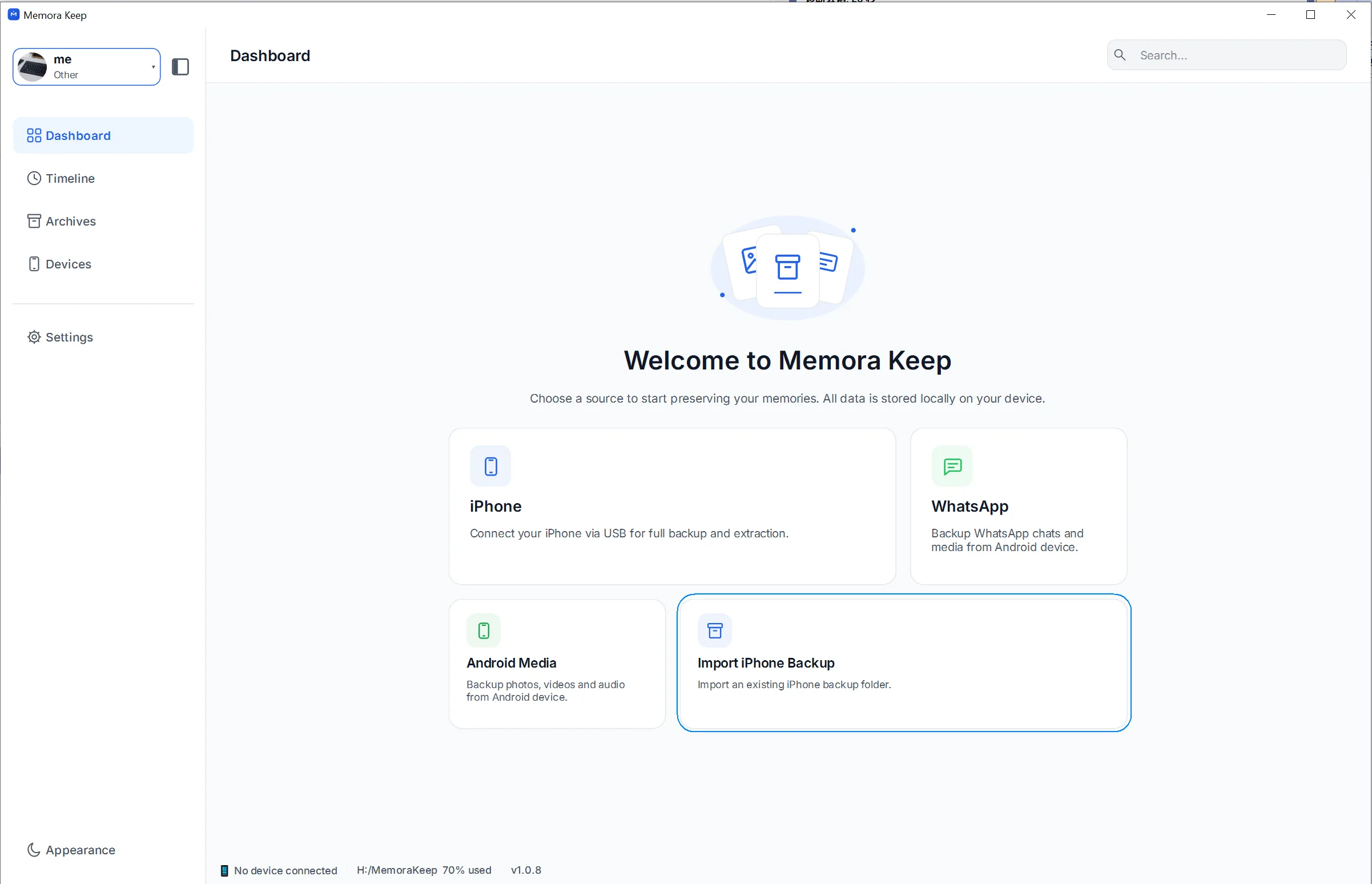
On the Dashboard, click the "Import iPhone Backup" card. This reads a backup you already have on disk — no cable and no new backup needed.
- 3
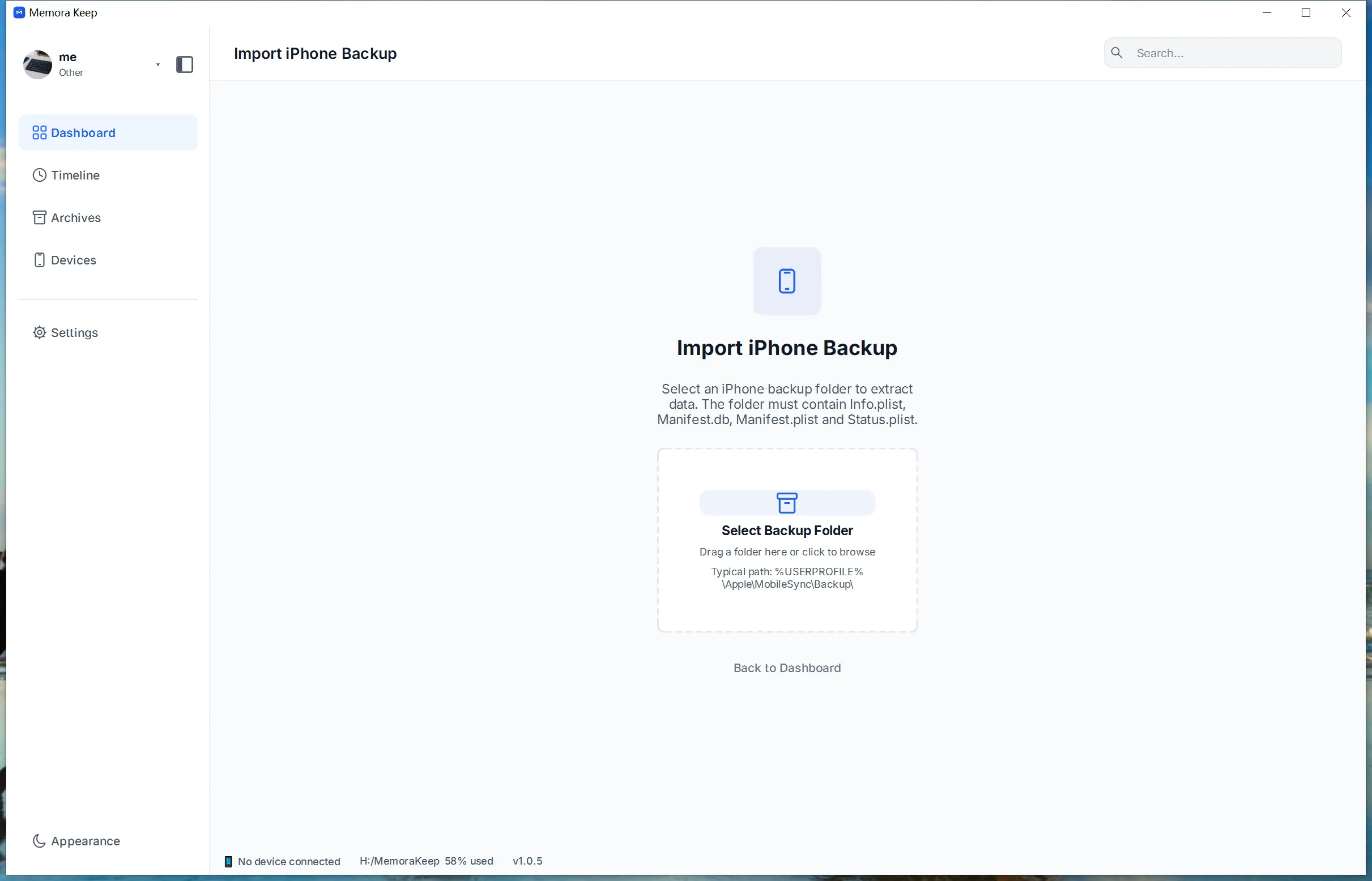
Click "Select Backup Folder" and pick the device folder
iTunes and Finder keep backups under a MobileSync/Backup folder. Inside it, each backup sits in its own subfolder named with a long device ID — 40 characters (64 on newer devices) of digits and letters A to F. Select that device-ID subfolder, not the Backup folder itself, or the import cannot start.
- 4
Check the details, then click "Start Import"
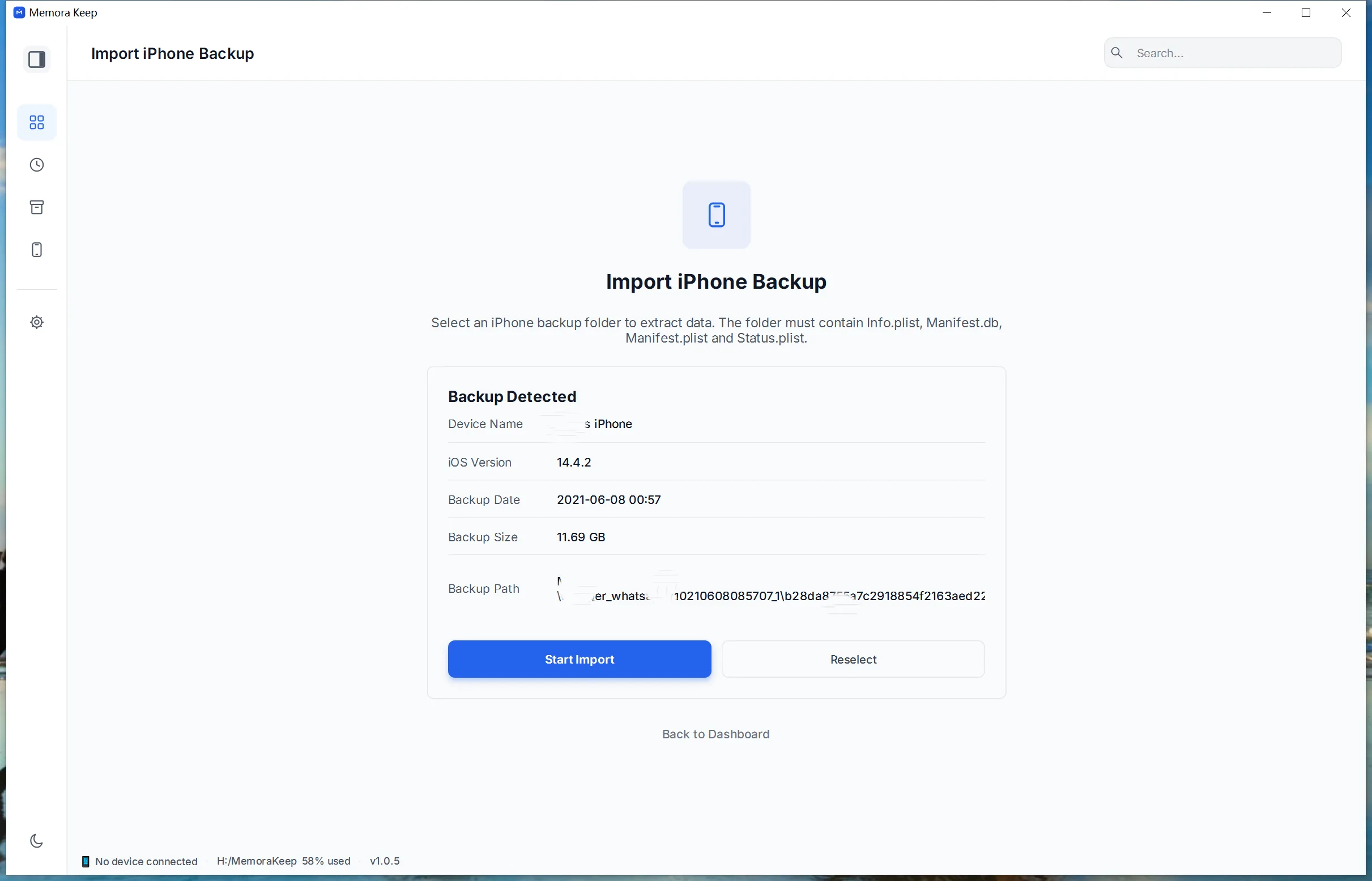
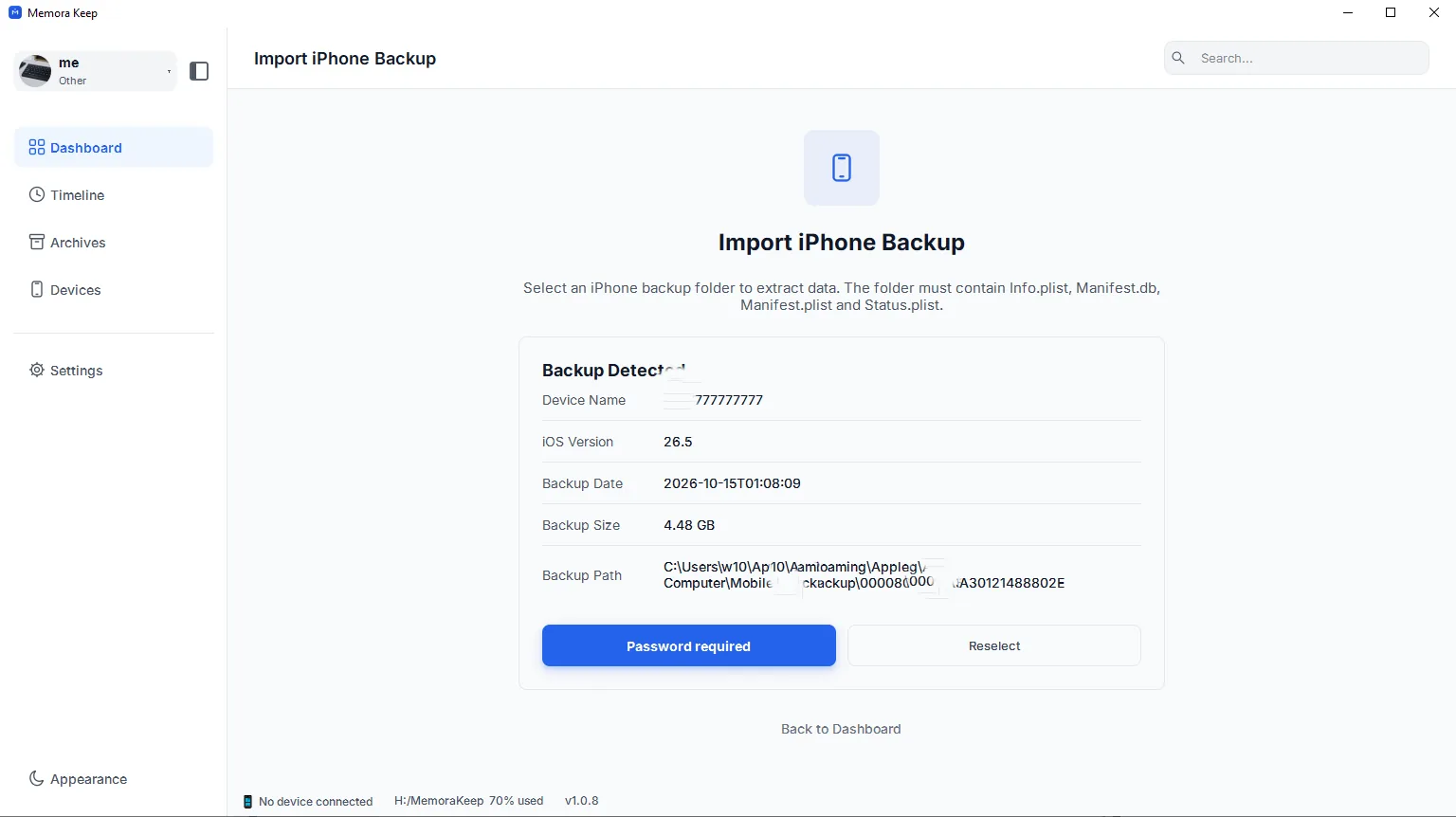
Once the folder is correct, the app shows the backup details — the phone name, the backup date and more. Confirm it is the backup you want, then click "Start Import".
- 5
If the backup has a password, unlock it
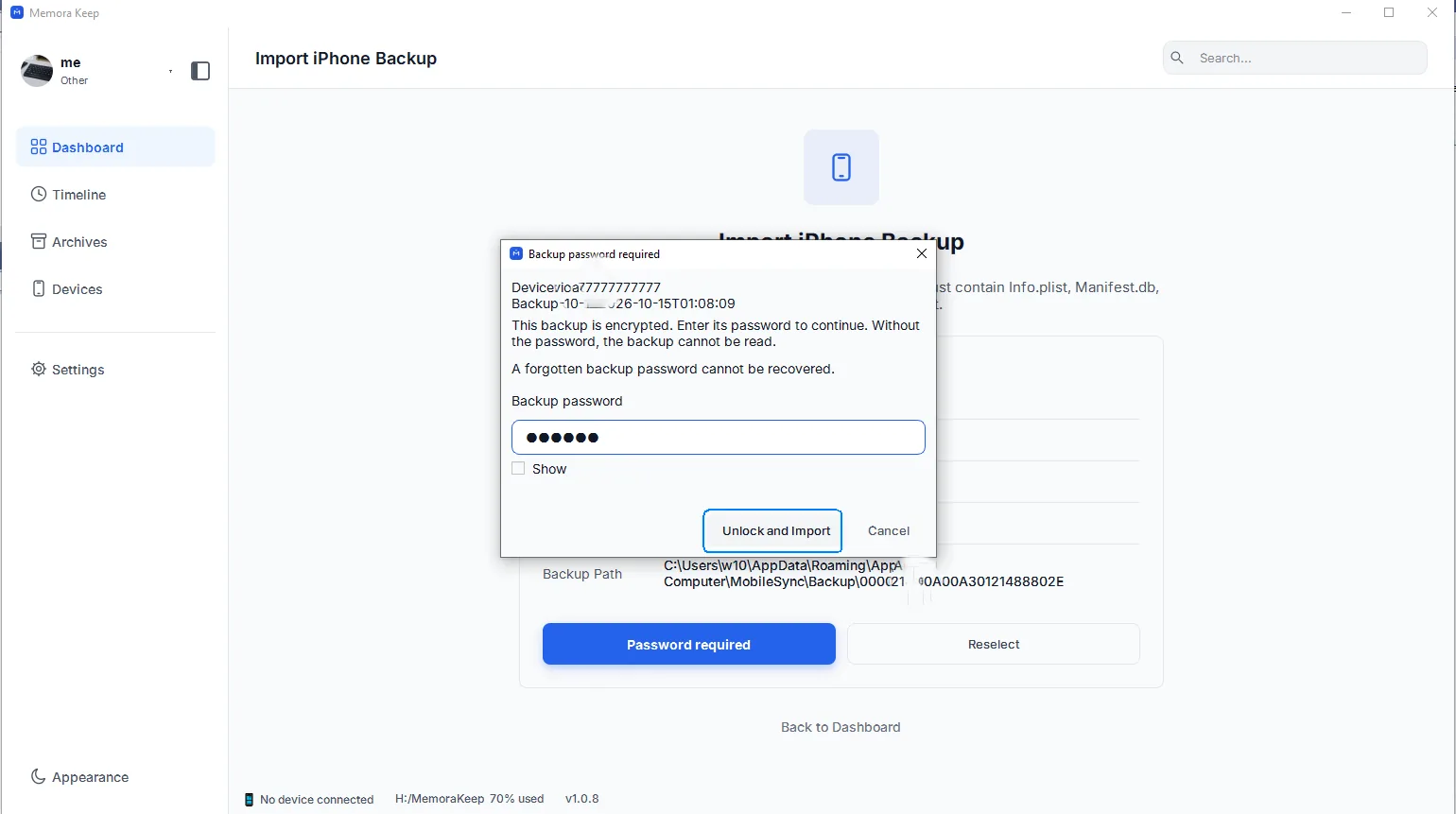
Some backups are protected with a password. When the folder you selected is an encrypted backup, the button reads "Password required" instead of "Start Import". Click it, type the backup password in the dialog and choose "Unlock and Import" — a forgotten password cannot be recovered. Once the backup is unlocked, the rest of the import runs exactly as described in the remaining steps.
- 6
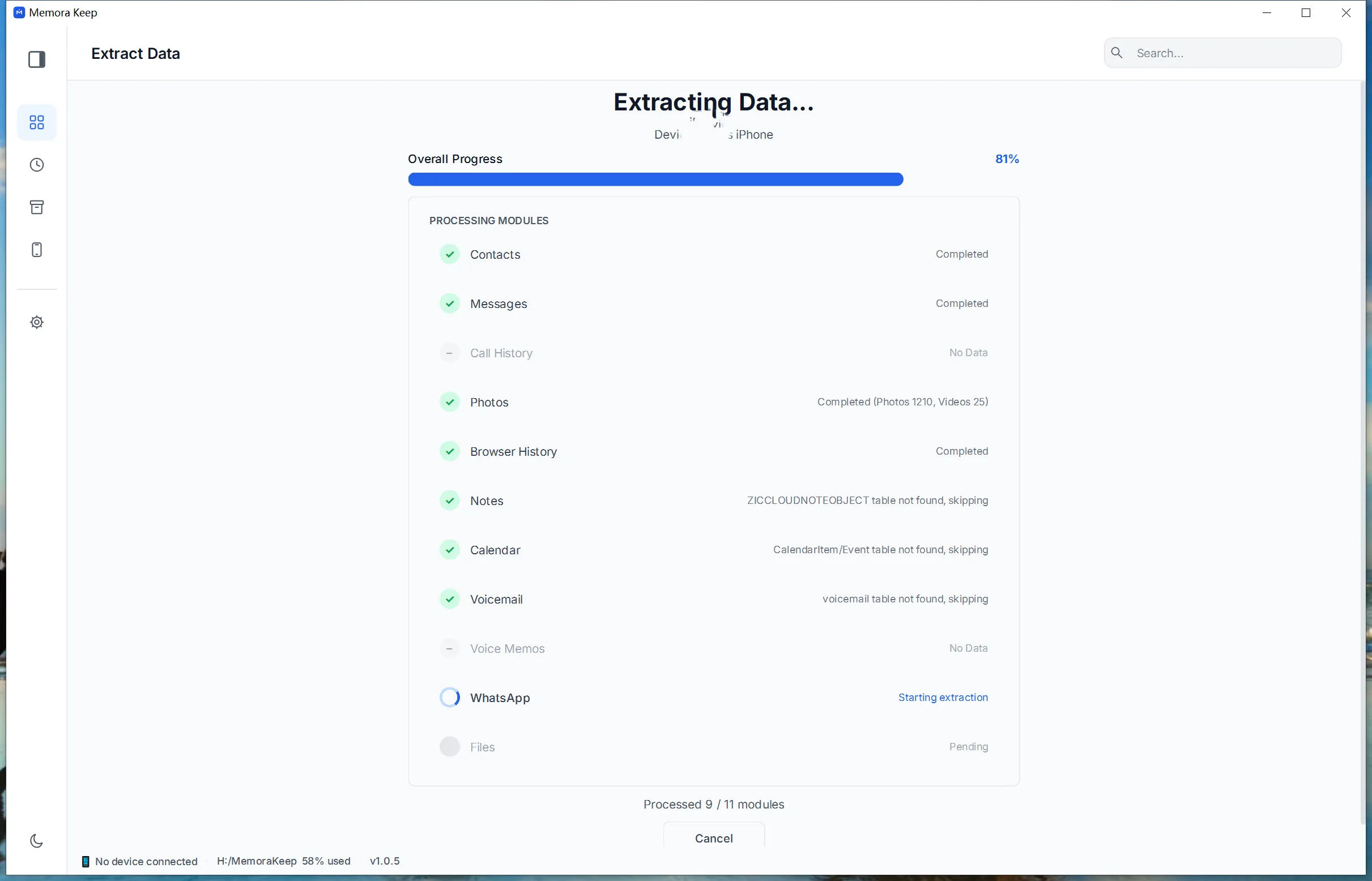
Wait while the data is extracted
Memora Keep parses the backup module by module — contacts, messages, call history, photos, videos, notes, WhatsApp and more — and shows the progress as it goes. The original backup is never modified.
- 7
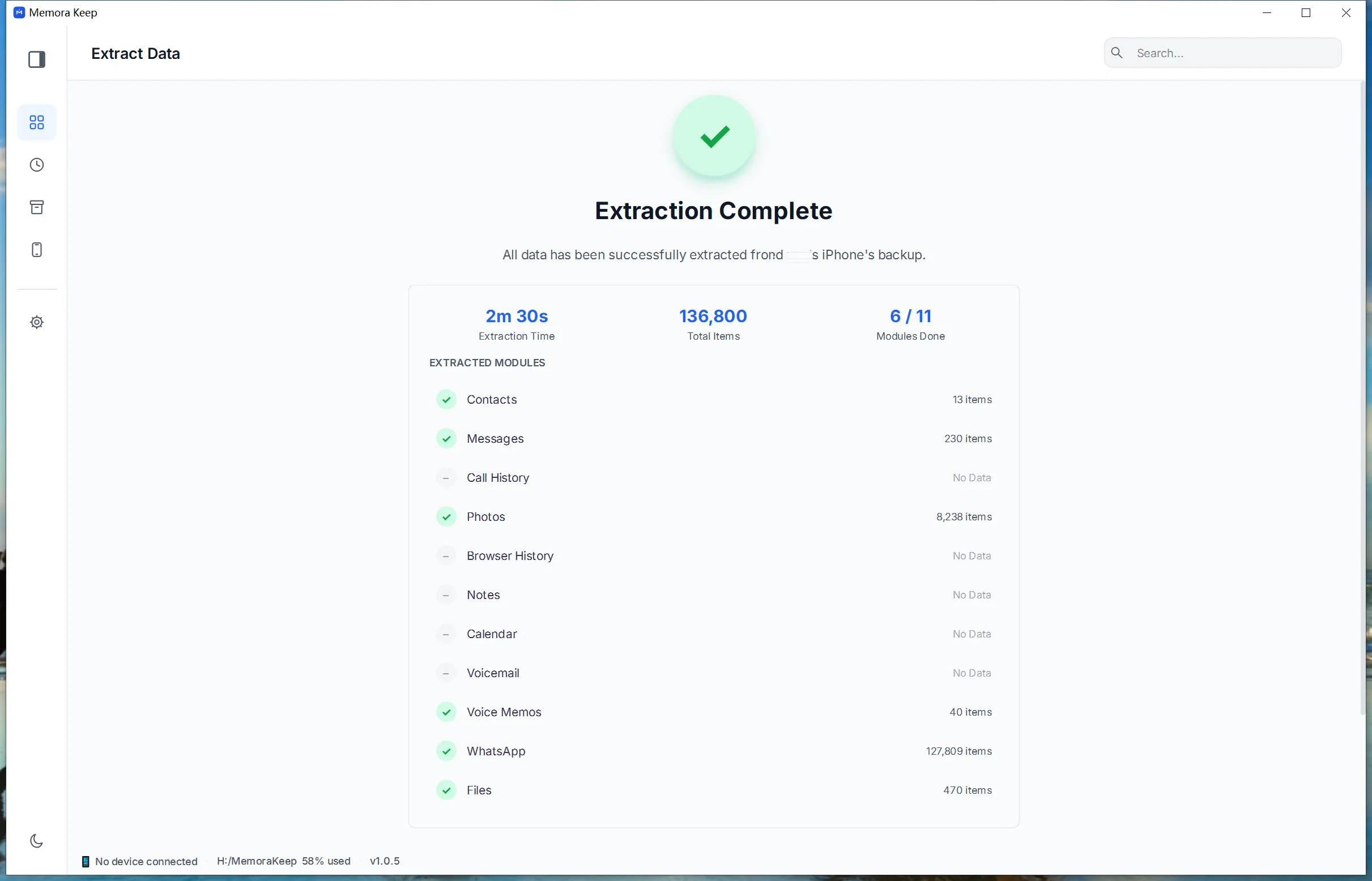
Extraction complete
The success screen summarizes what was imported. If anything was skipped, the reason is shown here.
- 8
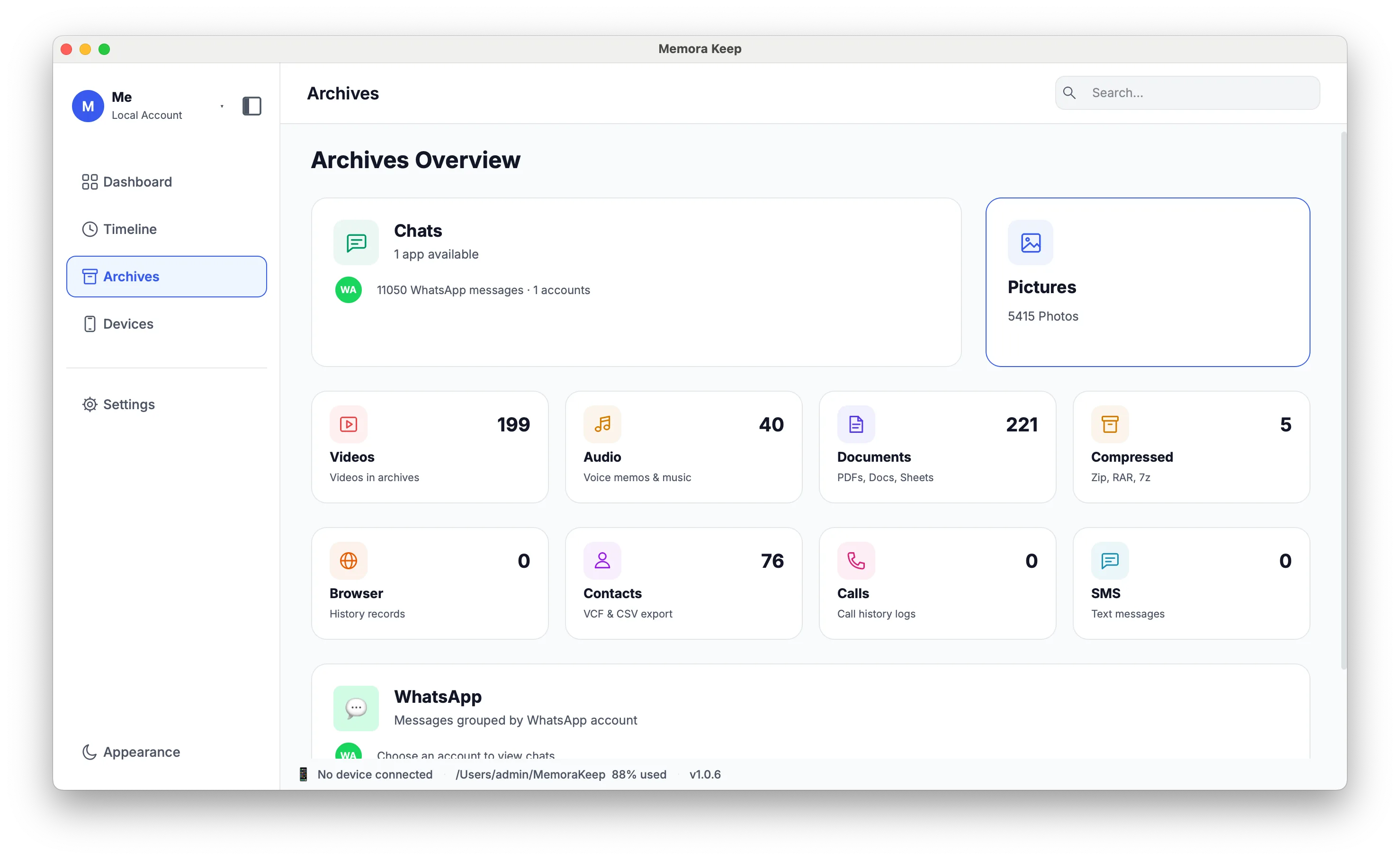
Browse your data in "Archives"
Open the Archives page to read everything the import brought in — chats, photos, contacts and call history are browsable right away. Large photo libraries build their thumbnails as you open them.
Notes
An existing backup is the fastest way to get data into Memora Keep, because the slow part — copying a phone — is already done. The only thing left is validating it and parsing it into something readable.
Why validation comes first
A backup folder can look complete and still be unusable, for example when a copy was interrupted or a file was moved out by hand. Checking the device identifier and required files helps detect problems before importing. Review the import results as well.
What you get out of it
The archive is built from the same modules the app parses for a live device backup, so an imported backup behaves identically once it is in. Anything that is not parsed — generic iOS files, for example — still exists in the original backup folder on your disk.
Frequently asked questions
Does importing create a second copy of the backup?
No. Importing only reads the existing backup and writes the parsed result into your archive. The backup folder itself is left exactly as it was.
What if the backup is encrypted?
Encrypted local-backup import requires a version with the "Backup password required" dialog. In that version, enter the backup password and choose "Unlock and Import"; an incorrect password can be retried. If your version has no password dialog, it cannot import encrypted backups. A forgotten password cannot be recovered. Creating a new backup directly from a connected iPhone still requires backup encryption to be disabled.
Which backup should I pick if the folder contains several?
Review the device name and backup details shown for the selected folder before starting the import.
Can I import the same backup twice?
You can, but there is no need — the data is already in the archive. If you do import it again, duplicate chat data can be cleaned up with the WhatsApp account merge.
Need help with a step?
The support center answers the common questions, and you can tell us where you got stuck.