Browse guide
How to merge WhatsApp chats from multiple accounts
Combine WhatsApp chats from several different accounts into one account in Memora Keep — download the app, get the data in, select the accounts and run the merge.
Last updated
Prerequisites
- Memora Keep installed on a Windows PC or Mac
- WhatsApp data from at least two different accounts already in the local archive
- 1
Download and install Memora Keep
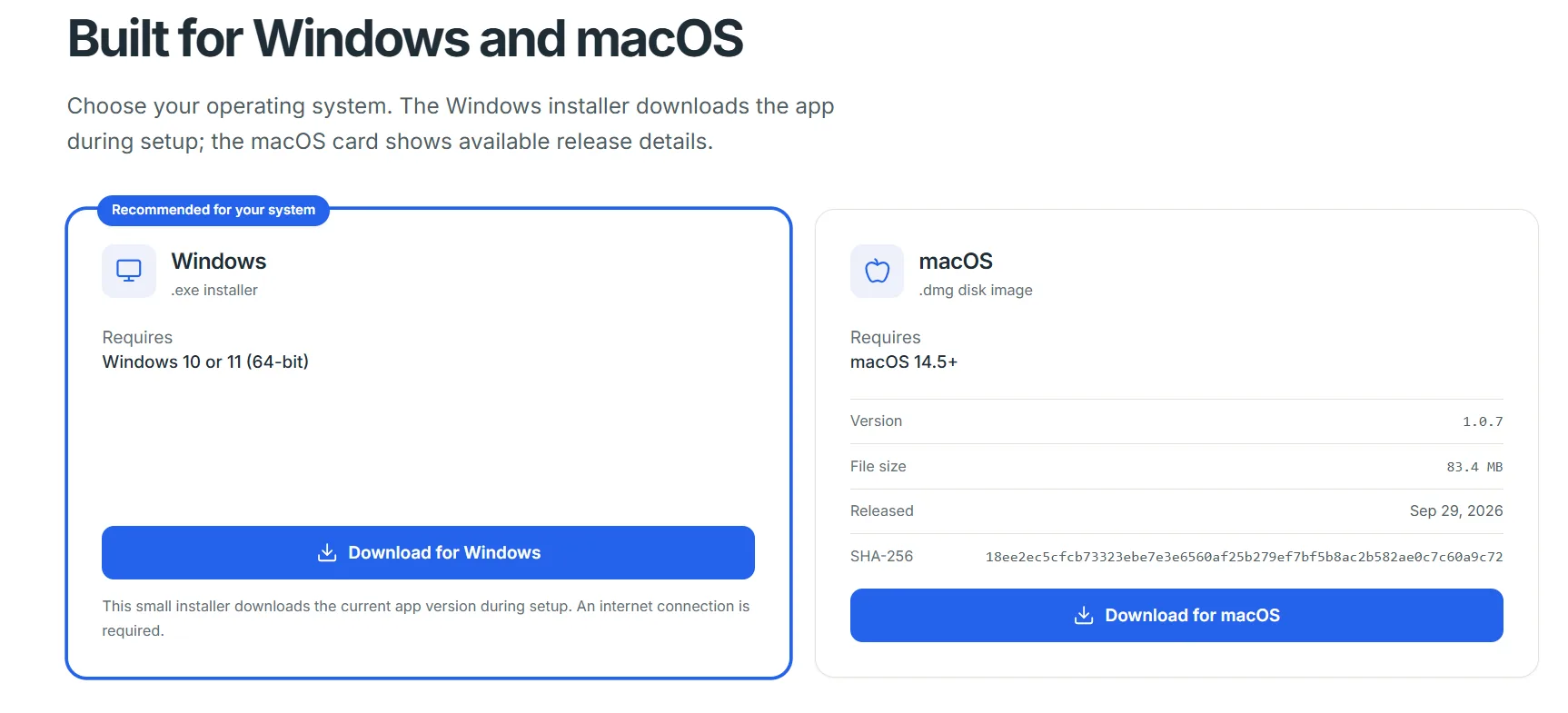
Download the desktop client from the Memora Keep website and install it on your Windows PC or Mac. On first launch it asks where the local archive should live — pick a folder on a drive with enough free space.
- 2
Get the WhatsApp data into the archive
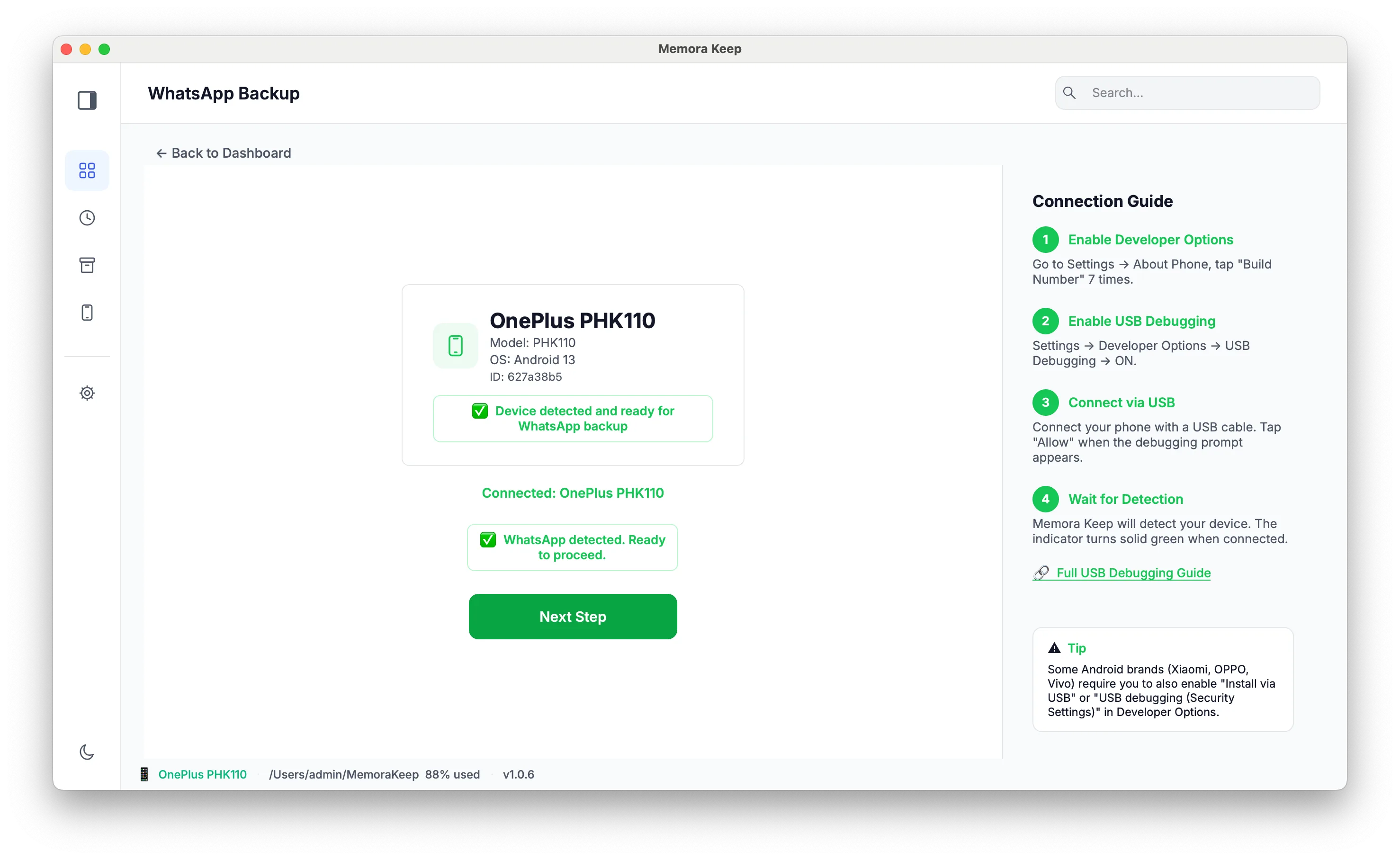
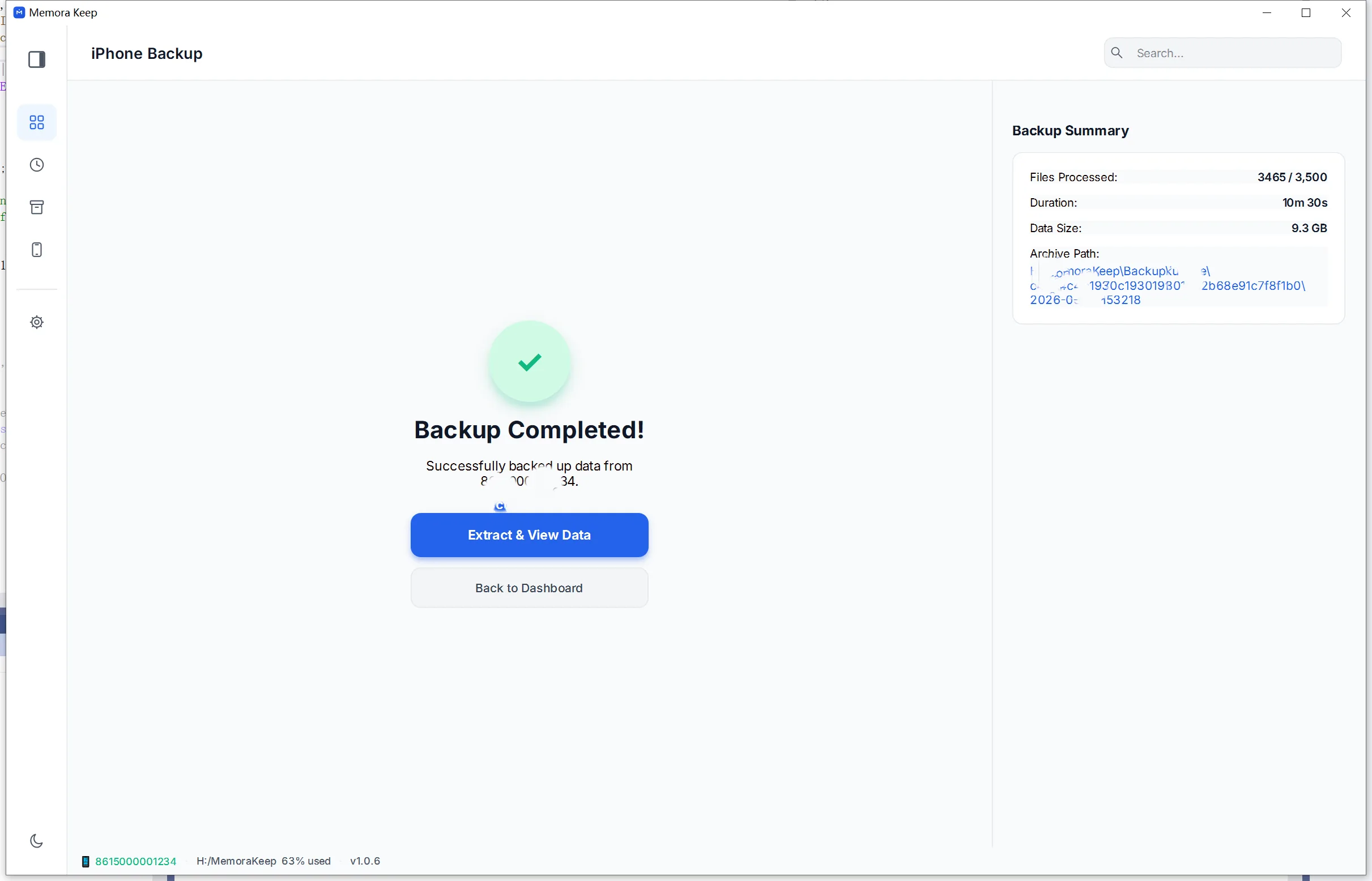
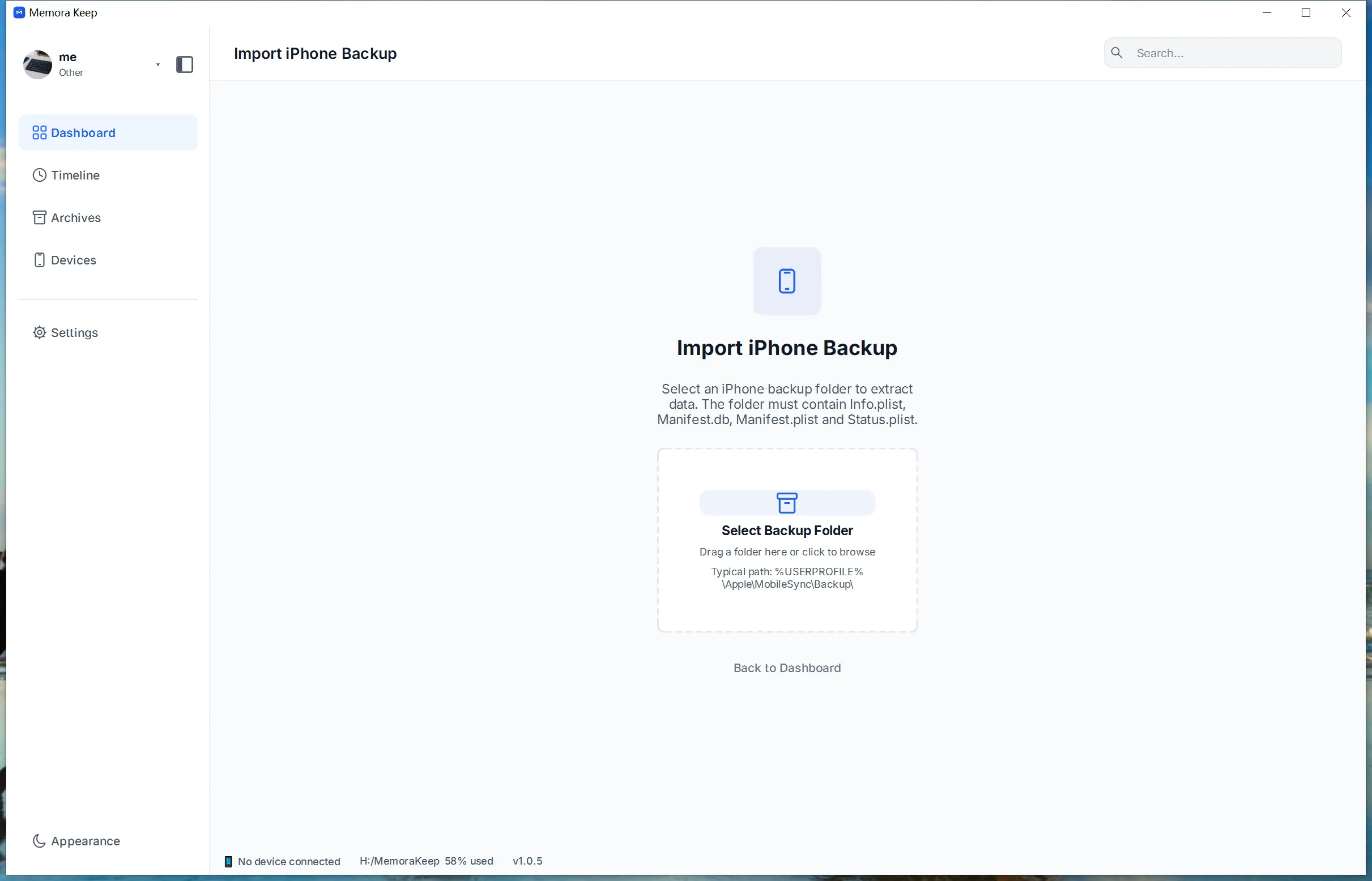
Merging works on the accounts already stored in your archive, so bring each account's WhatsApp data in first. On an iPhone, WhatsApp is included in the full device backup, or you can import an iTunes or Finder backup you already have. On Android, back up WhatsApp or WhatsApp Business through the WhatsApp module.
- 3
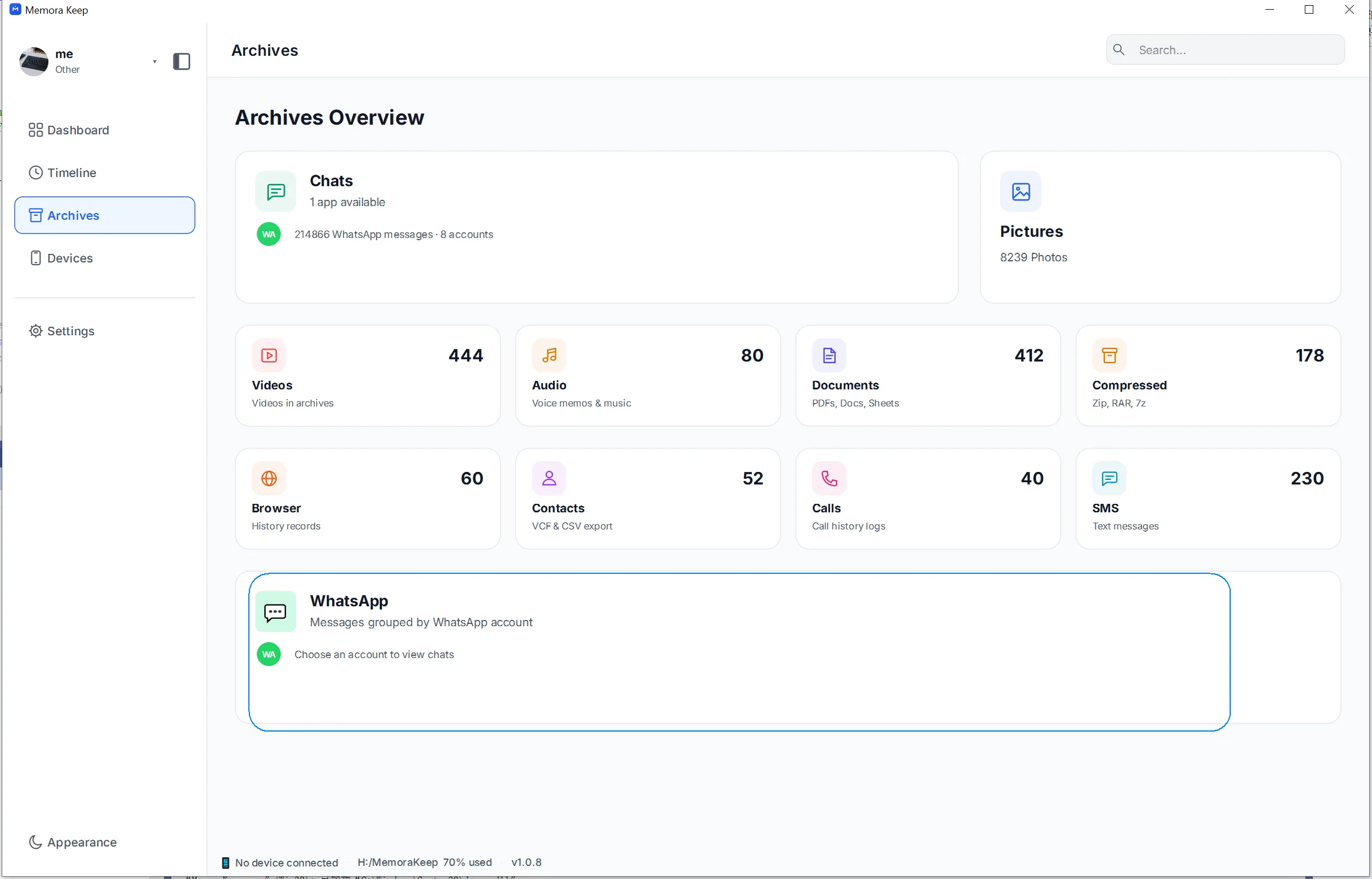
Open the WhatsApp section in Archives
In the app, go to Archives and select WhatsApp, then click Open. The WhatsApp page lists every account whose data is in your archive.
- 4
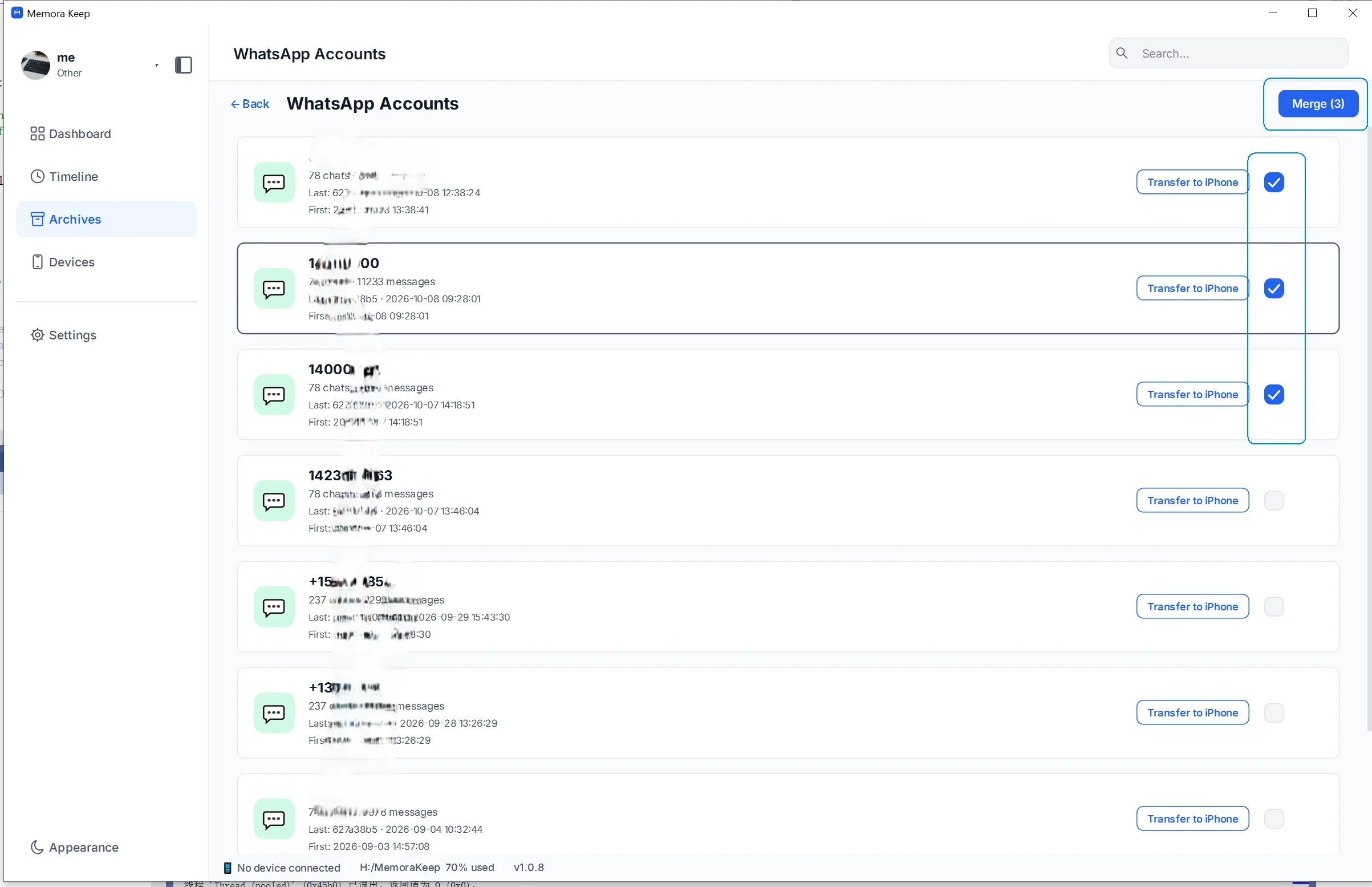
Select the accounts to merge
Tick the accounts whose chats should be brought together — you can select any number of them. When you are done, click the "Merge" button in the top-right corner.
- 5
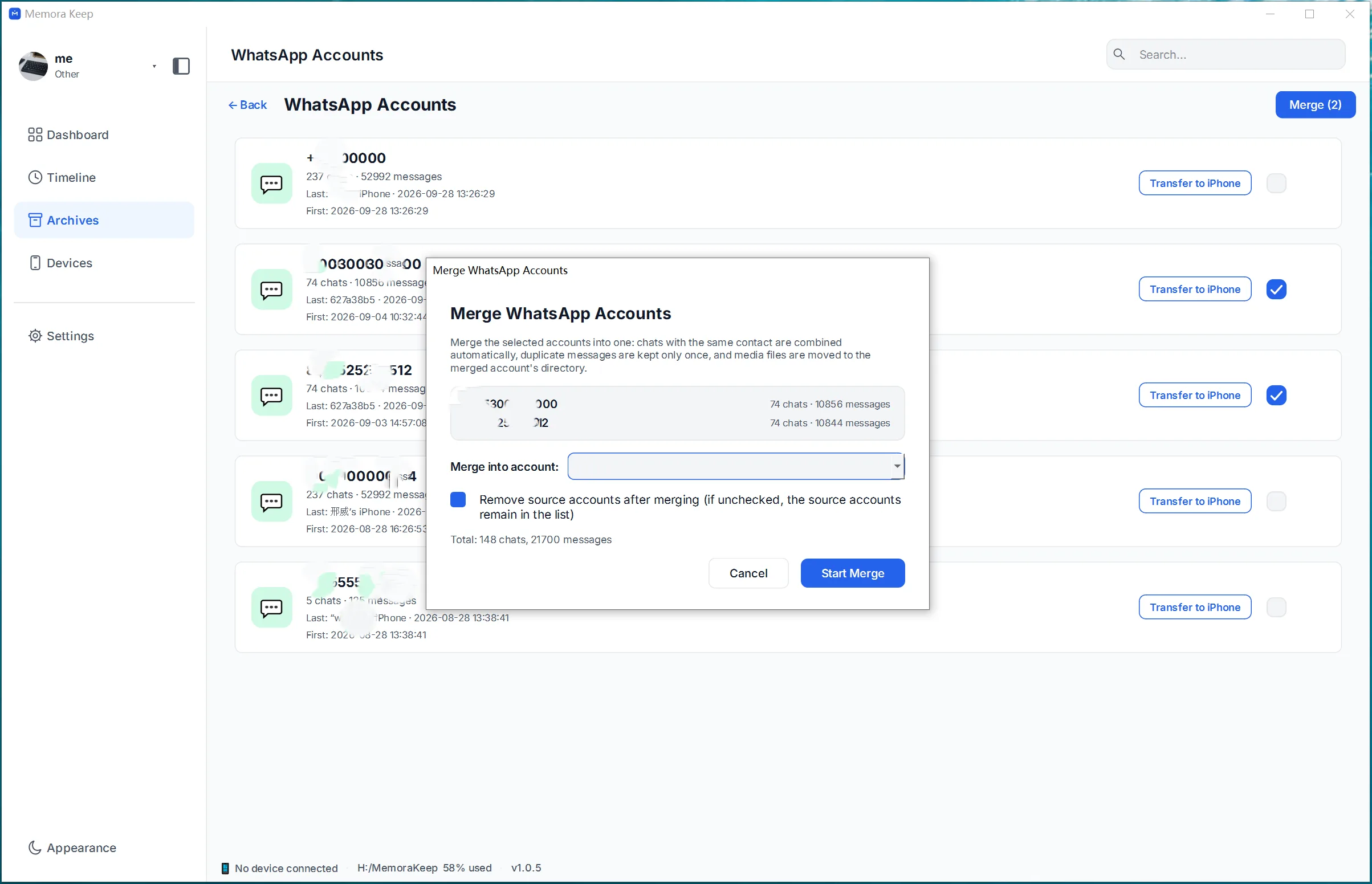
Configure the merged account
Set up the result. You can choose one of the selected accounts to become the merged account, or fill in a completely new name for it. You can also decide whether the original account data is kept after the merge. When everything looks right, click "Start Merge".
- 6
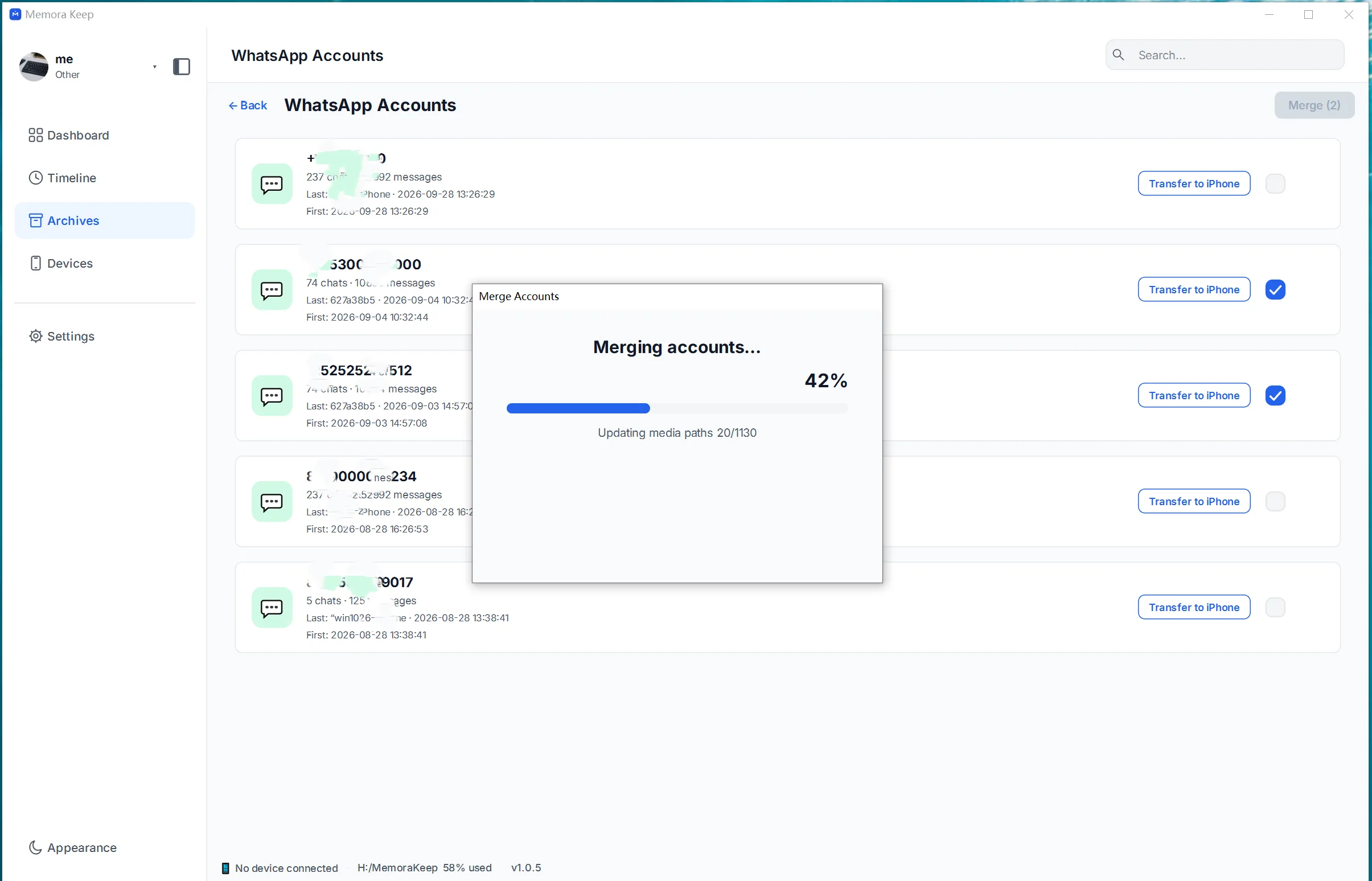
Wait while the merge runs
The client combines the selected chats into one account and removes duplicate messages as it goes. The original backups on your disk are not modified.
- 7
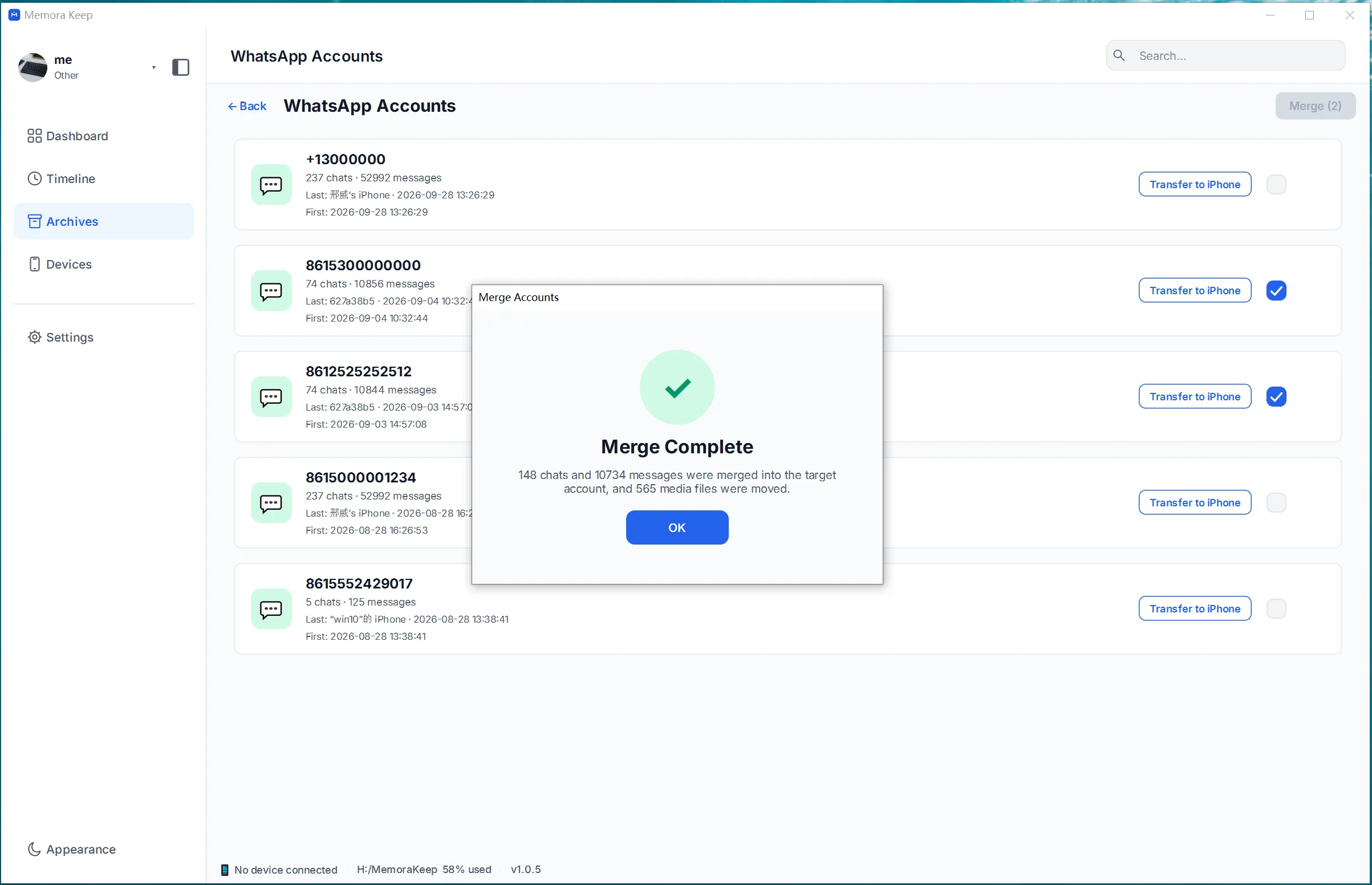
The merge completes
A success screen confirms that the chats from the selected accounts have been combined into one.
- 8
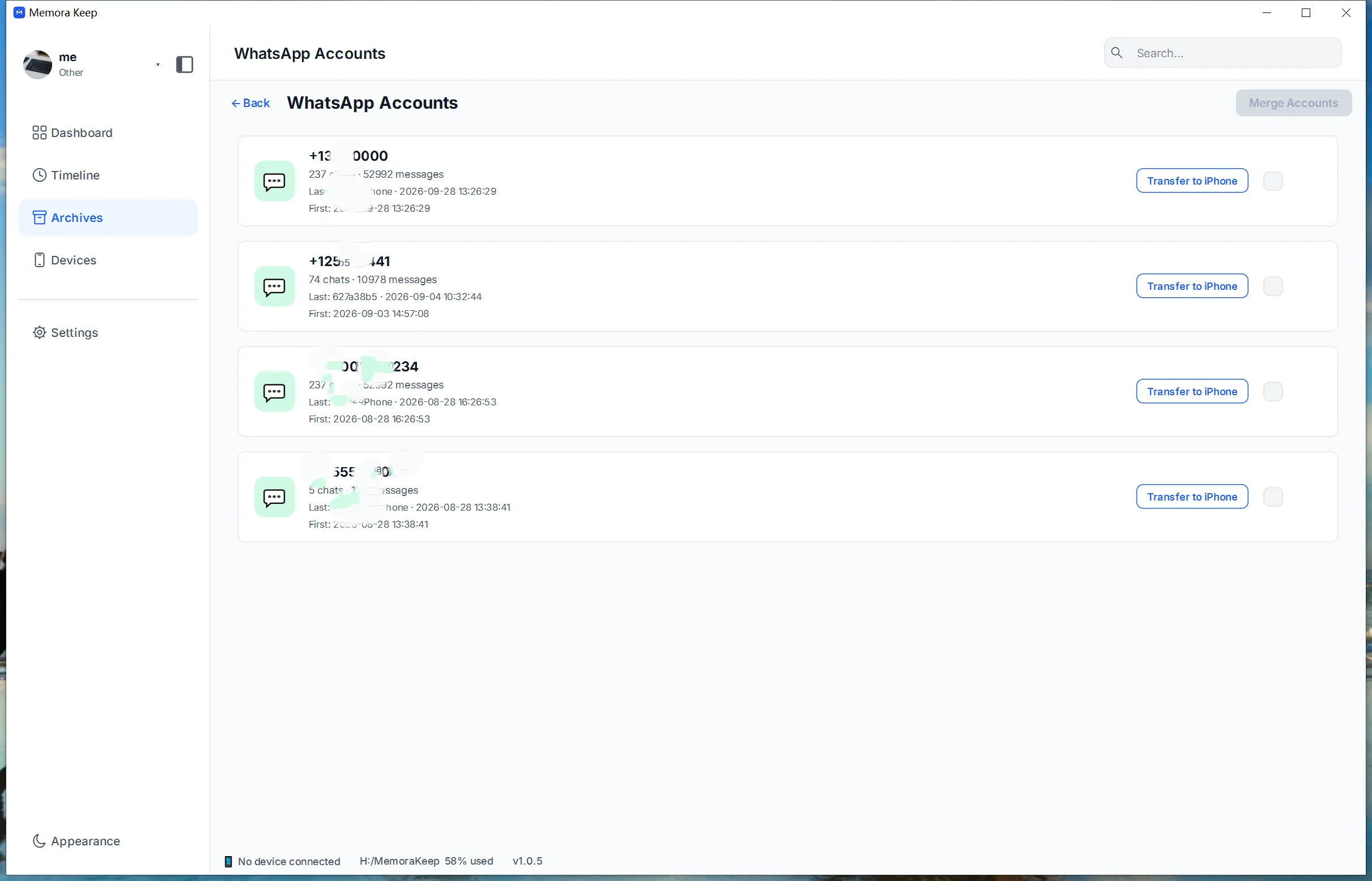
Open the merged account
Back on the account list you now see the merged account as its own entry. Open it to browse the combined chats, and use the separate export or iPhone transfer features when you need the result elsewhere.
Notes
Merging is for one specific situation: your WhatsApp conversations live under several different accounts, and you want them in a single place on your computer. It works entirely on the data already stored in your local archive, so nothing on your phones changes.
What the merge does
The selected accounts’ chats are combined into one account, and duplicate messages are removed so the result reads as one continuous history. You decide whether the merged result takes the name of one of the selected accounts or a new name you provide.
What the merge does not do
Merging does not combine phone numbers or live WhatsApp logins, and it does not transfer anything to a phone. If you want the combined history on an iPhone, review the merged account first, then use the separate WhatsApp transfer to iPhone workflow.
Good to know
- The merge only reads from your archive; the original backup folders on disk stay intact.
- Keeping the original account data is your choice in the merge settings — if you keep it, both the originals and the merged account remain browsable.
- You can open the merged account in the WhatsApp viewer right away, and export its conversations to PDF, HTML or CSV like any other account.
Frequently asked questions
Does merging change my live WhatsApp accounts?
No. The merge only combines stored chat data inside the Memora Keep archive. Your phone numbers and live WhatsApp logins are untouched.
How many accounts can I merge at once?
Any number. Select as many accounts as you want on the WhatsApp page and merge them into one.
What happens to duplicate messages?
The merge removes duplicate messages when combining the chats, so the merged account reads as one continuous history.
Can I keep the original accounts after merging?
Yes. The merge settings let you choose whether the original account data is kept alongside the merged result.
Need help with a step?
The support center answers the common questions, and you can tell us where you got stuck.