Transfer guide
Android to iPhone WhatsApp transfer guide
Follow illustrated steps to back up Android WhatsApp chats on your computer and transfer them to an iPhone through a full-device restore.
Last updated
Prerequisites
- A Windows 10/11 or macOS computer with Memora Keep installed
- A USB cable that supports data transfer, for each phone
- An Android phone with WhatsApp or WhatsApp Business installed
- An unlocked iPhone, with Find My iPhone turned off before the restore
- A separate backup of the destination iPhone before starting the restore
- 1
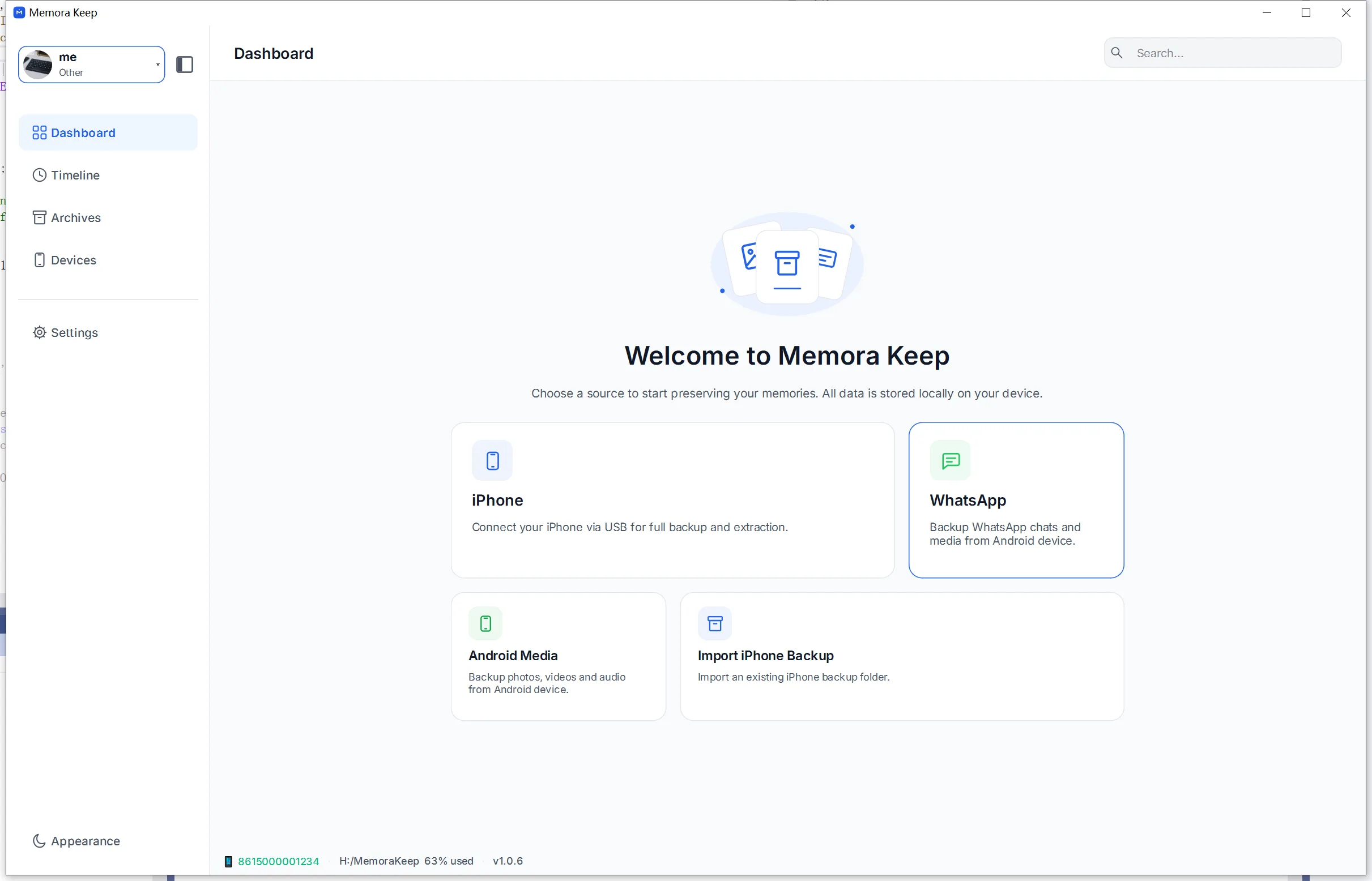
Open the WhatsApp module from the Dashboard
Start Memora Keep and open the WhatsApp module from the Dashboard. This is where the Android backup flow begins.
- 2
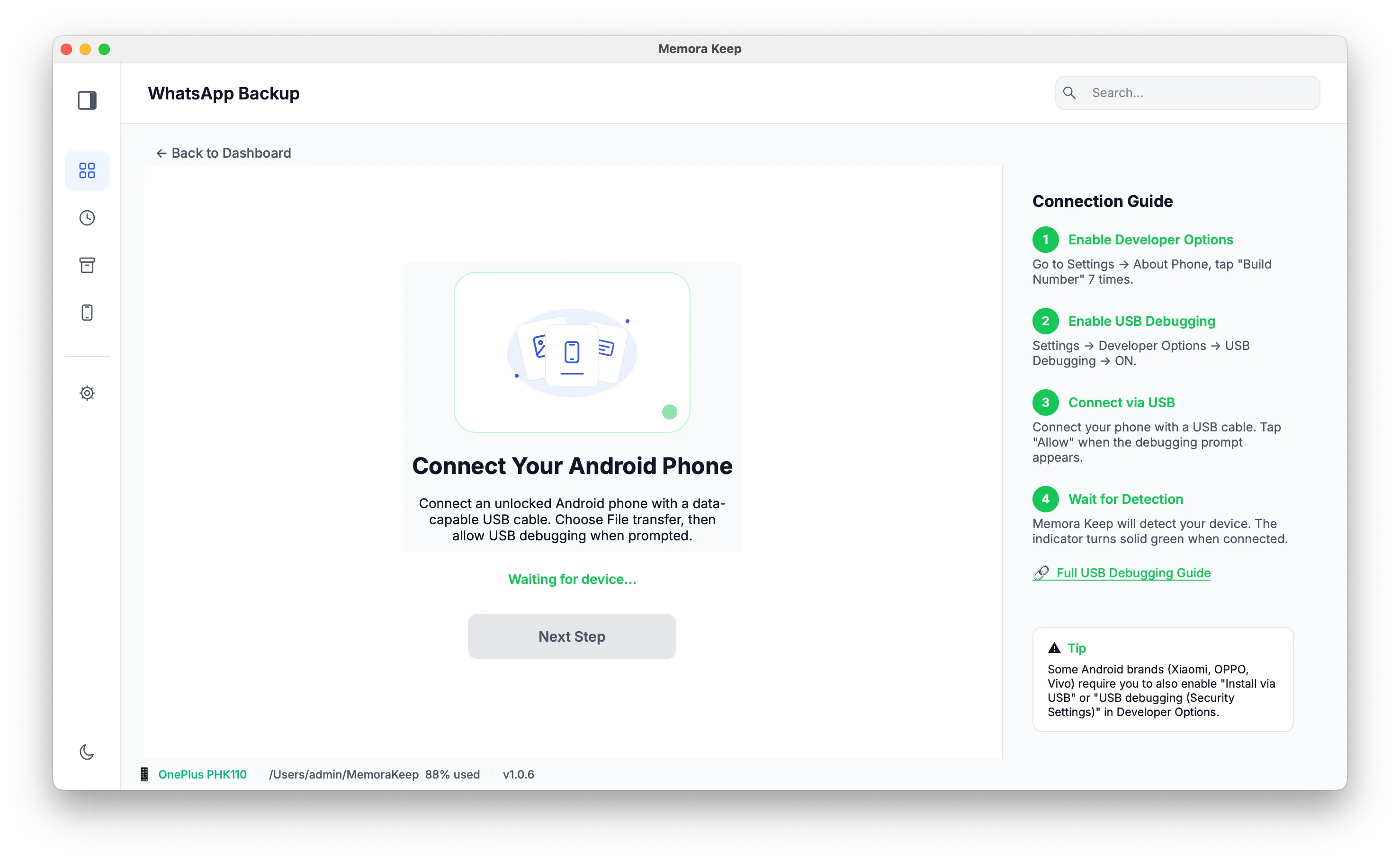
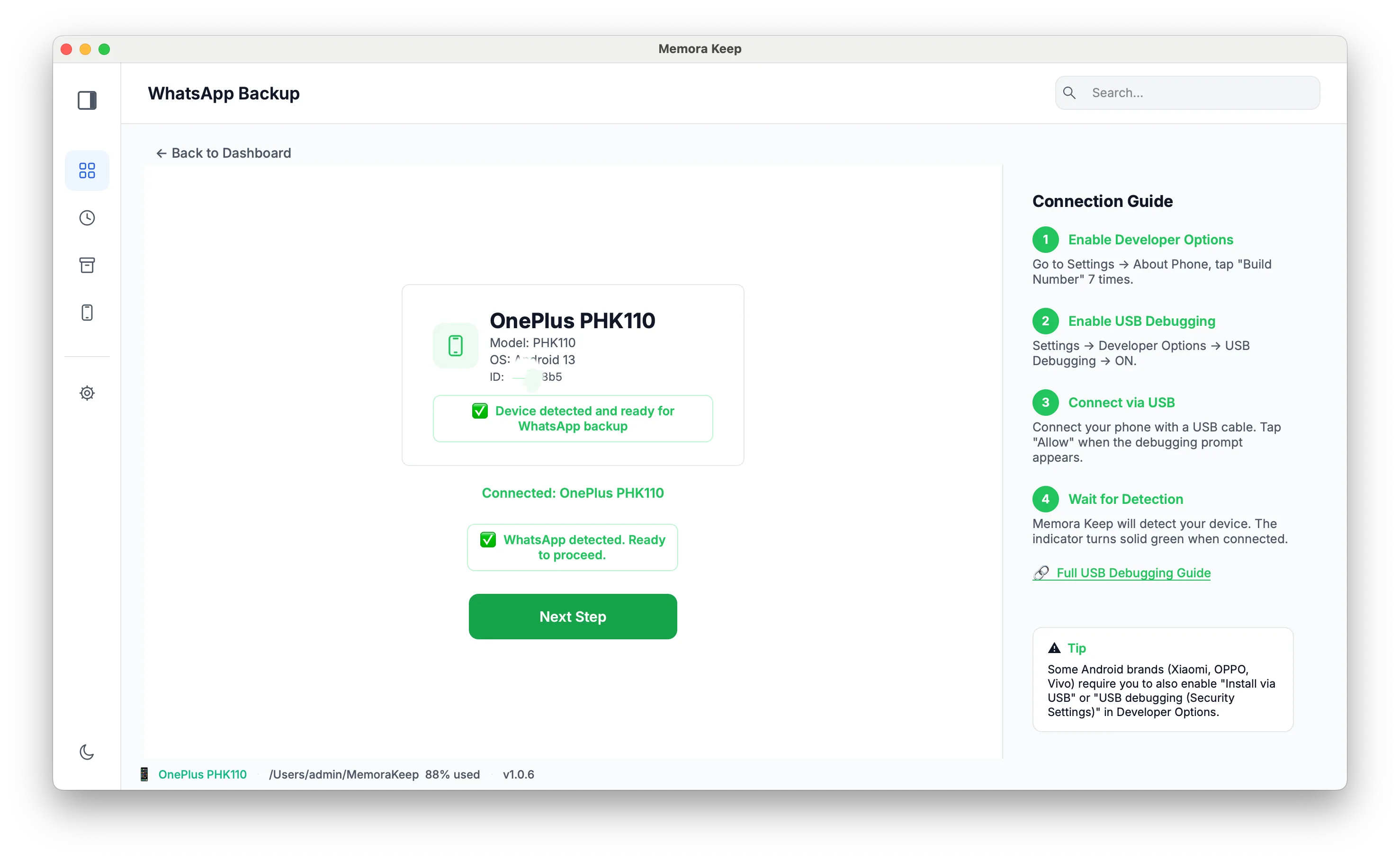
Connect your Android phone with a USB cable
Plug the Android phone in over USB. The module shows whether a device is detected, and switches to the connected state once Android is ready.
- 3
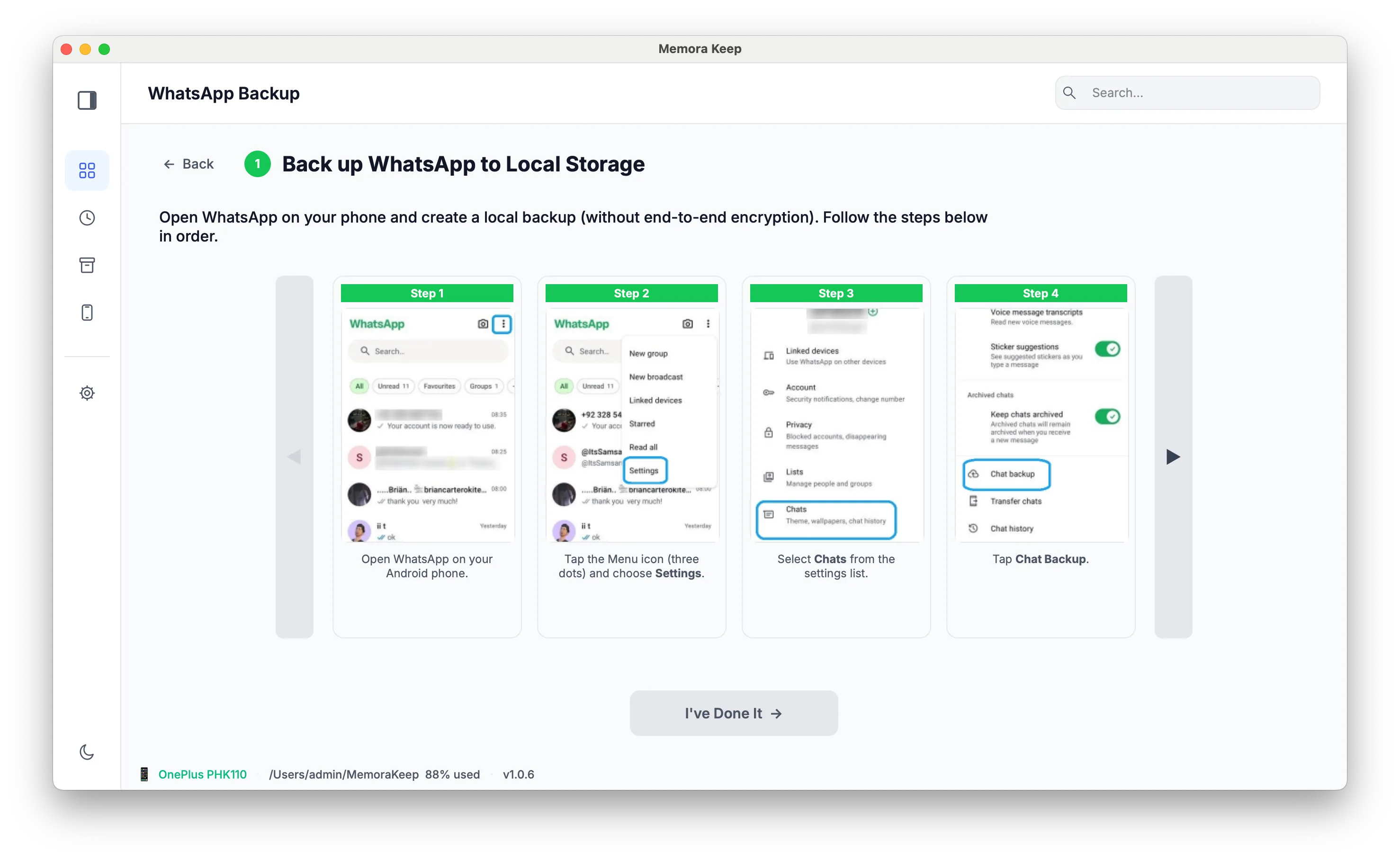
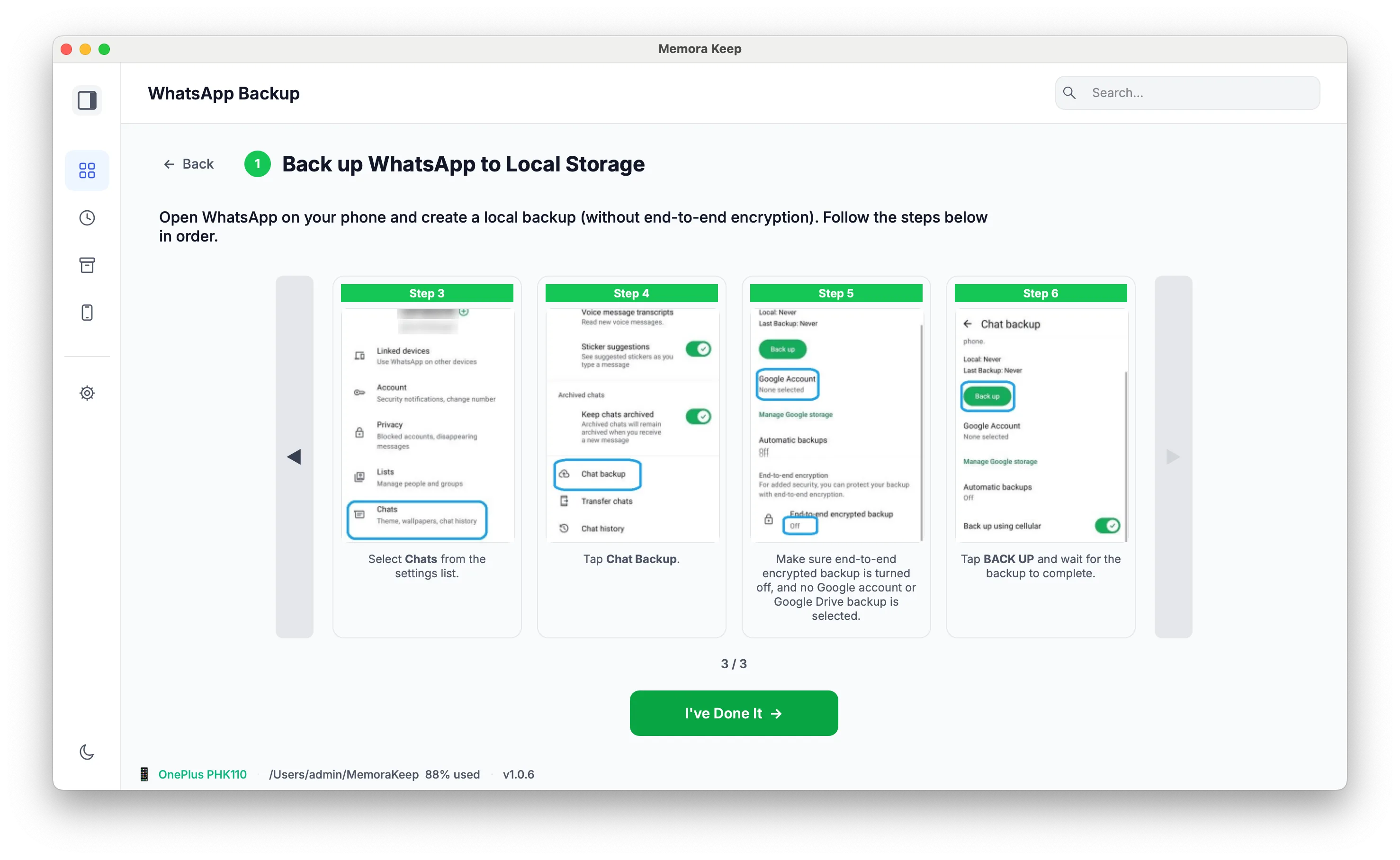
Back up WhatsApp to local storage
Choose the option to back up WhatsApp to local storage on the computer, then confirm. The data is written to the archive folder you chose, not to a cloud account.
- 4
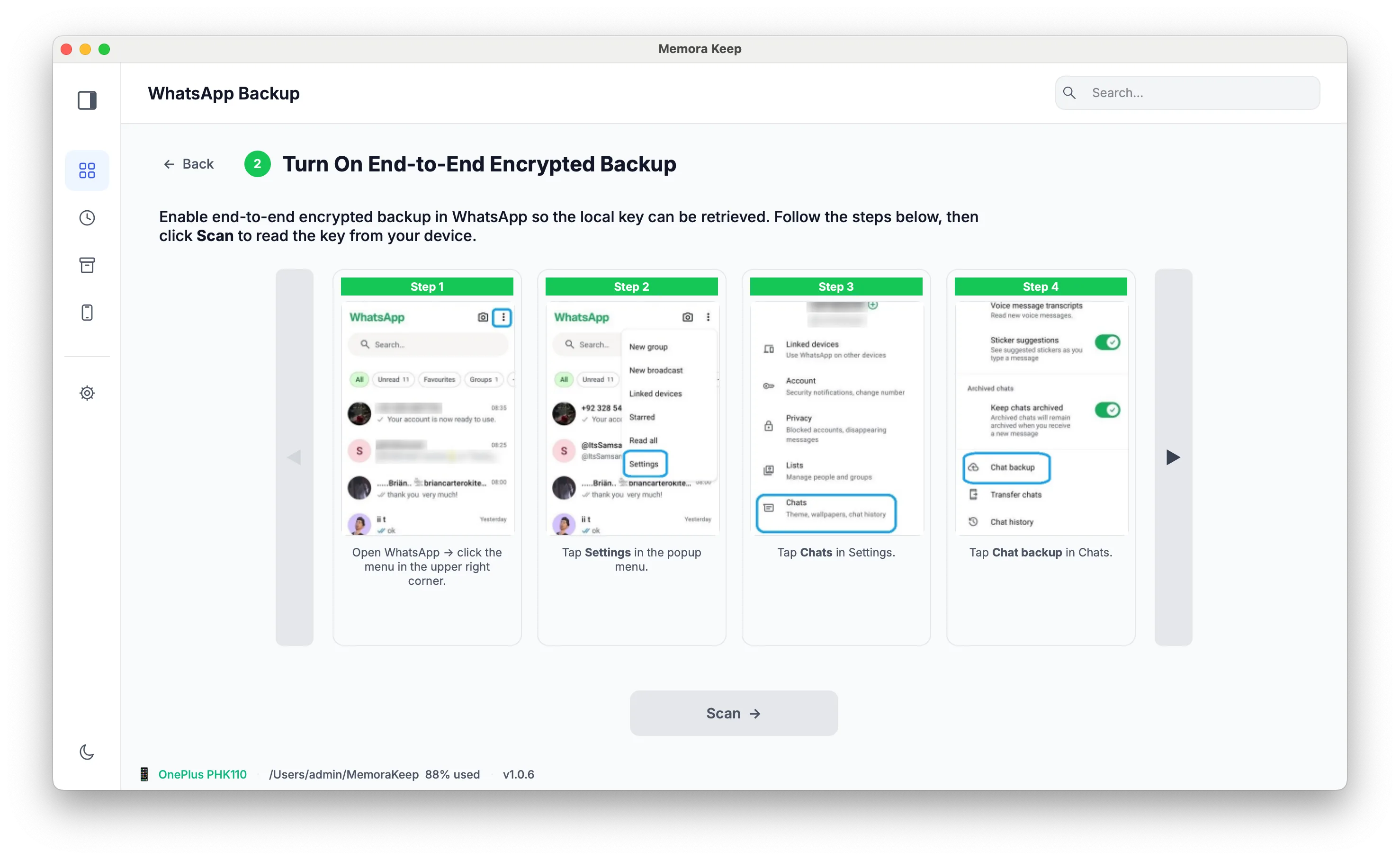
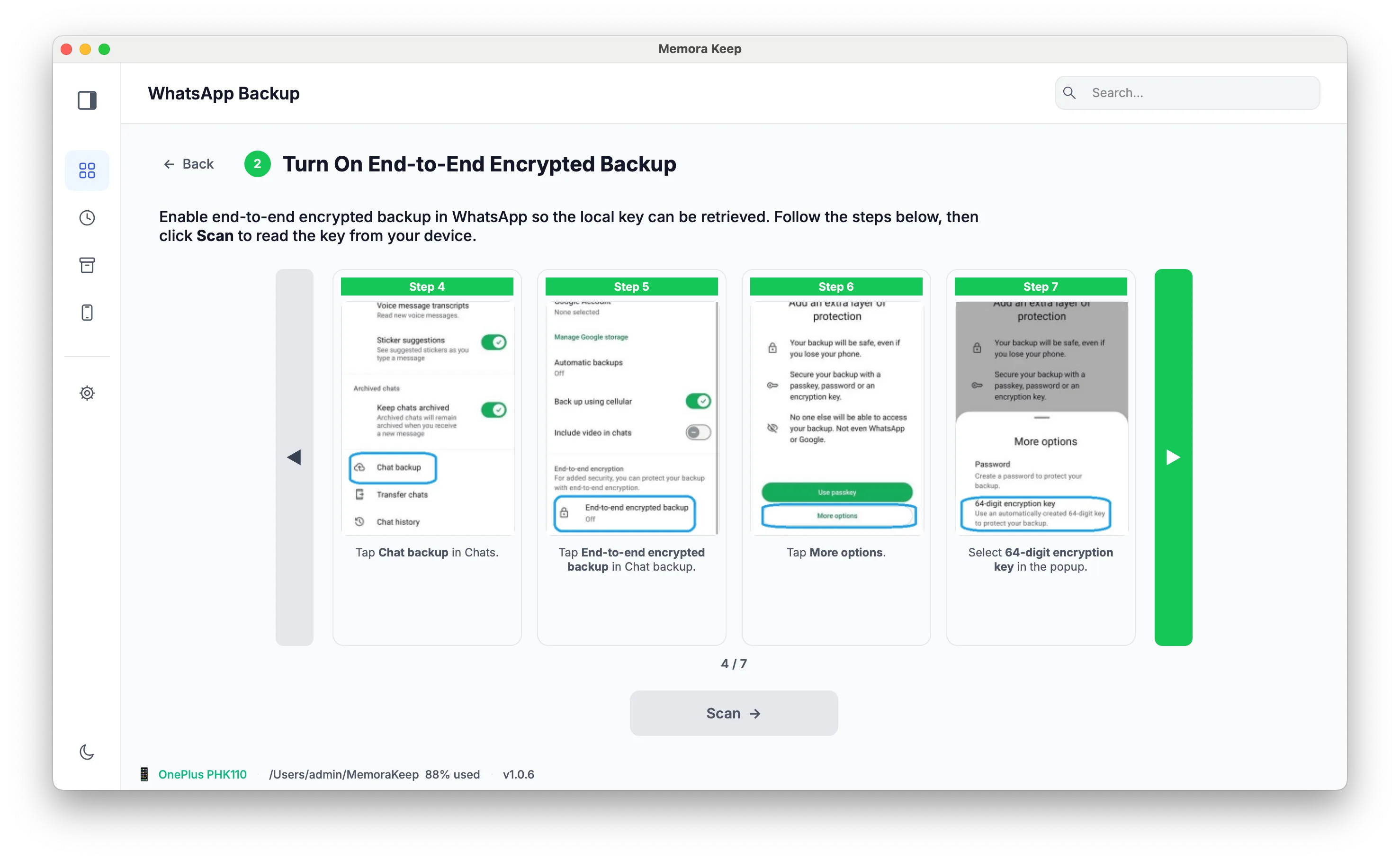
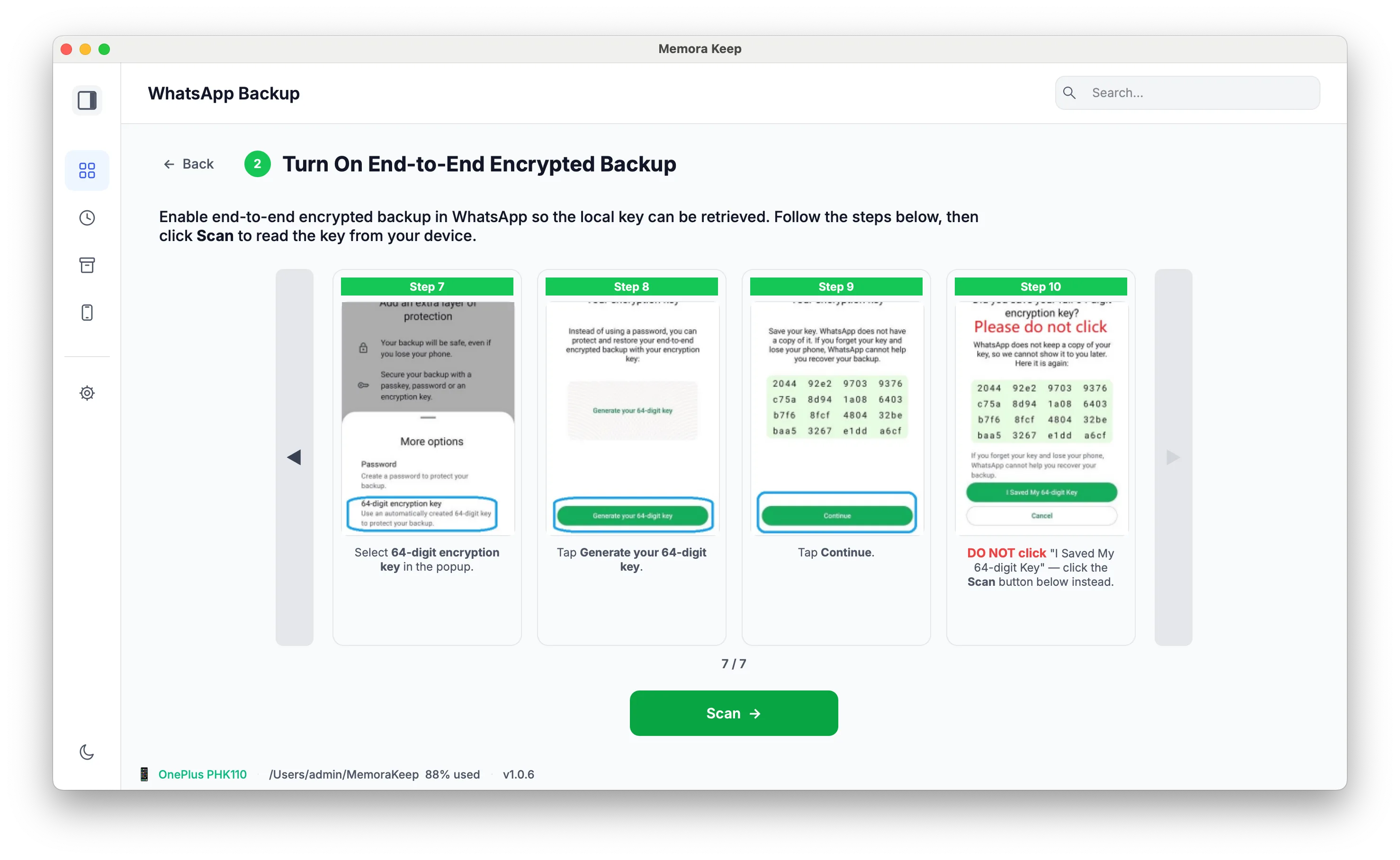
Turn on the end-to-end encrypted backup
Turn on the end-to-end encrypted backup and set the encryption key when prompted. Keep the key somewhere safe: it is what decrypts the backup later.
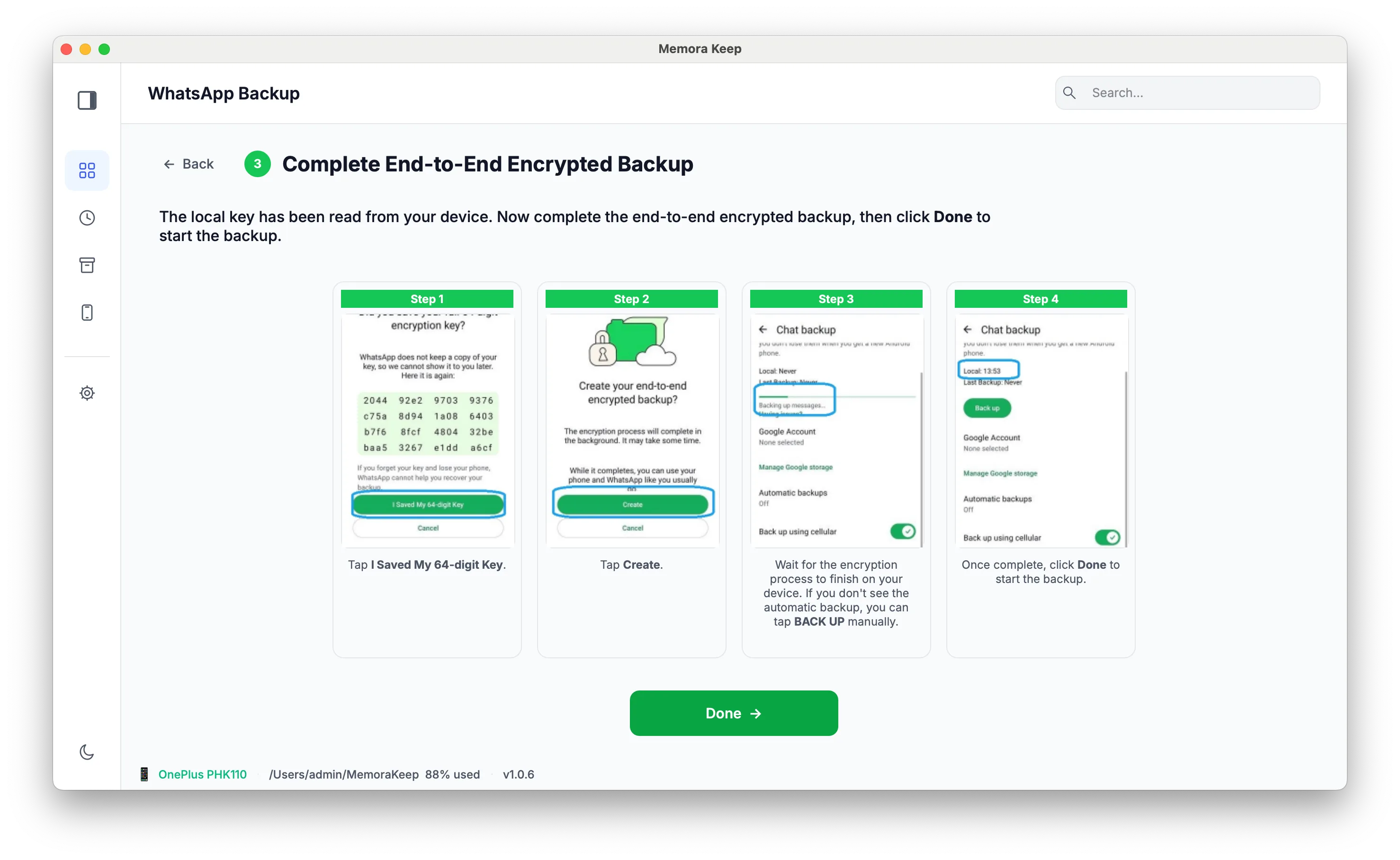
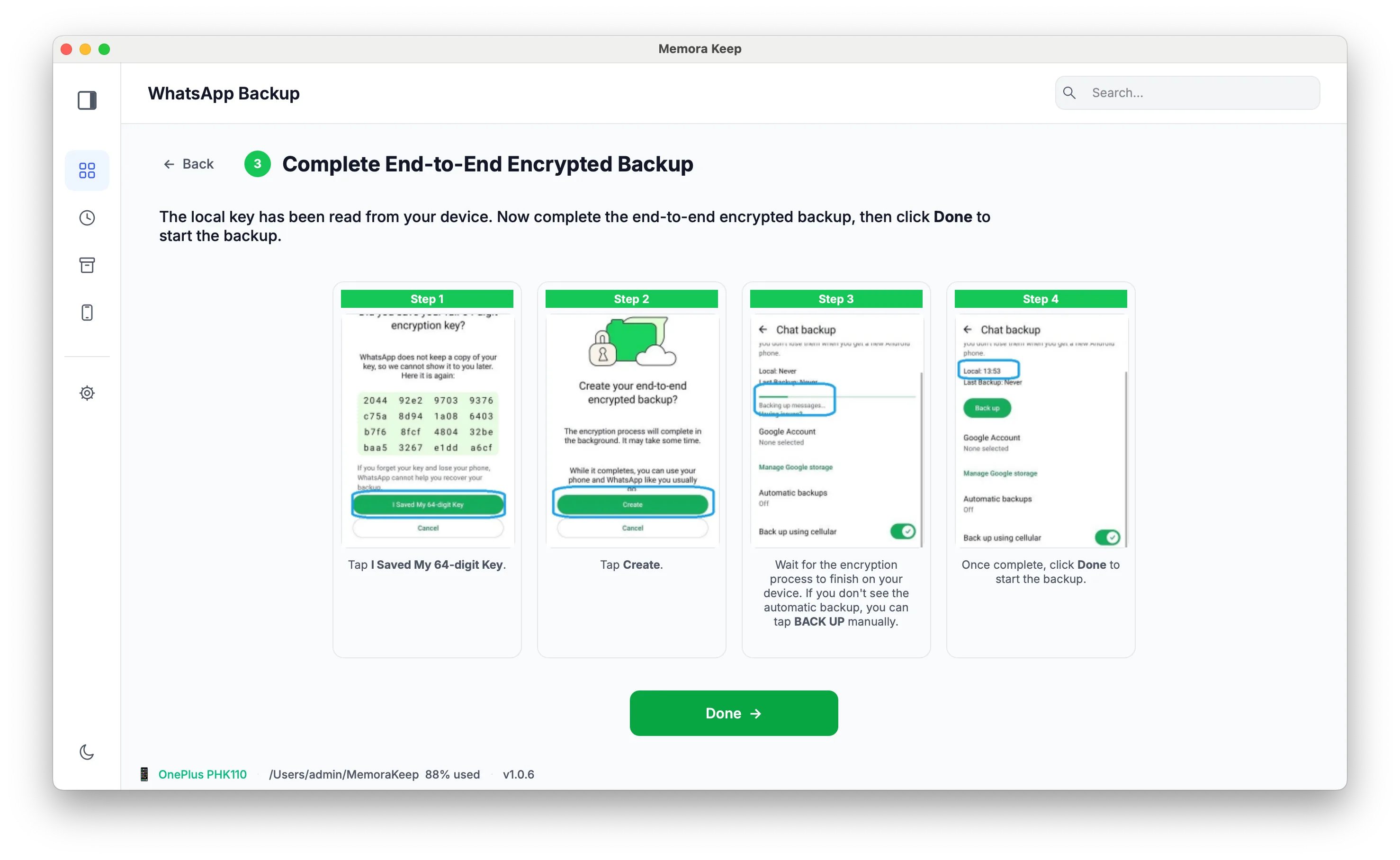
- 5
Complete the end-to-end encrypted backup
Finish the encrypted backup setup and confirm the key, so the backup can be decrypted when it is read.
- 6
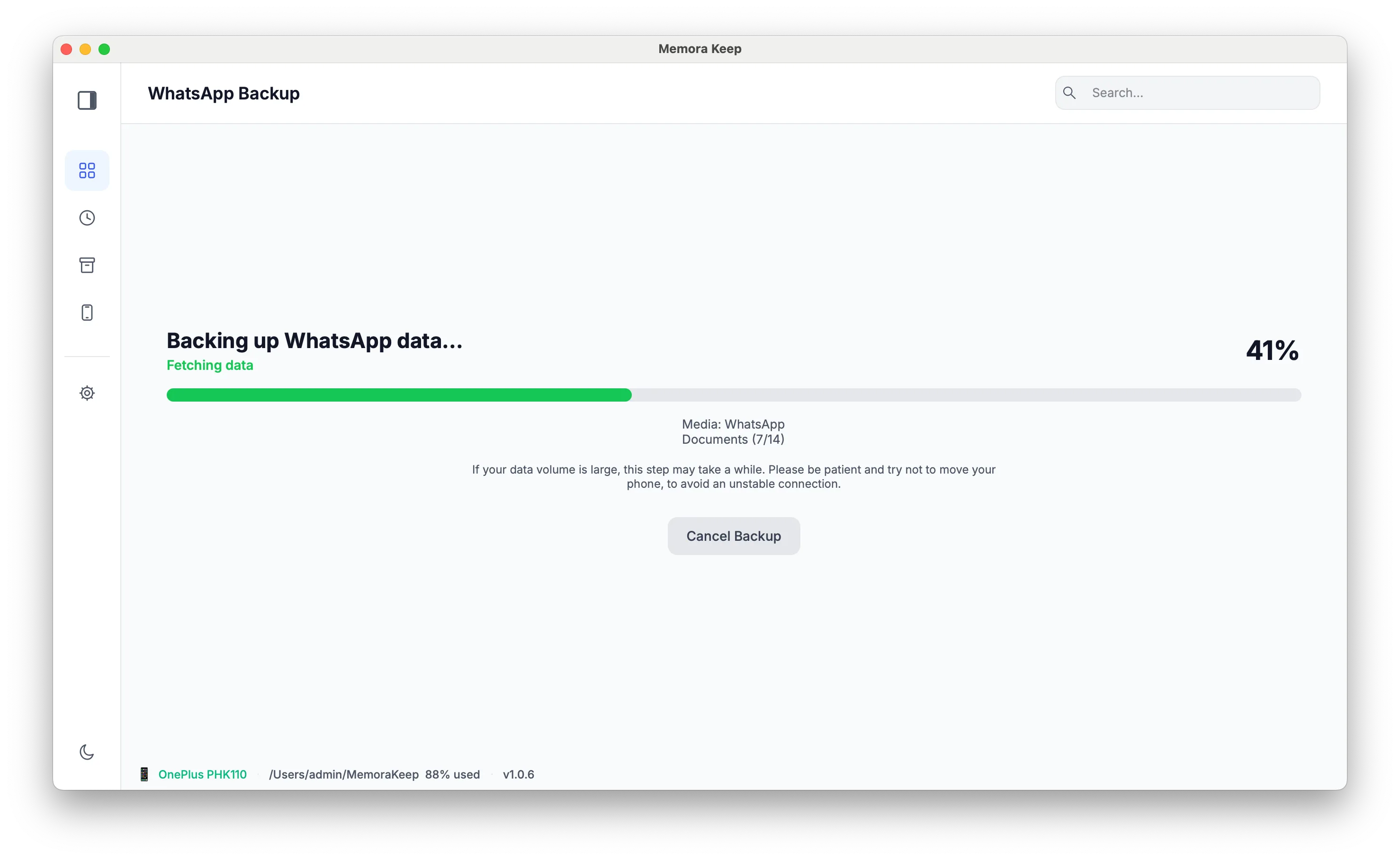
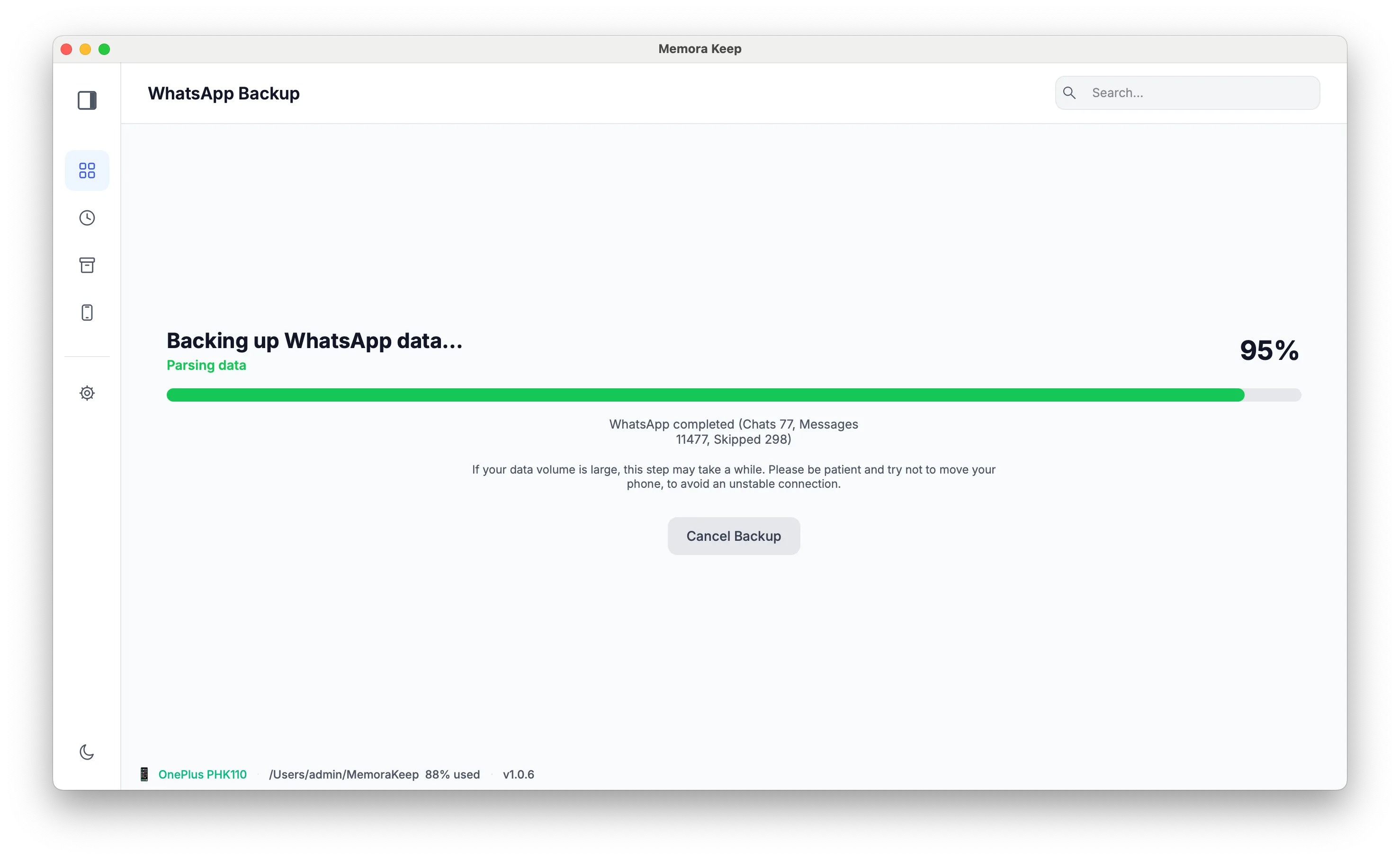
Wait while the WhatsApp data is backed up
The chat data and its media are copied to your own computer. Keep the phone connected until the run finishes.
- 7
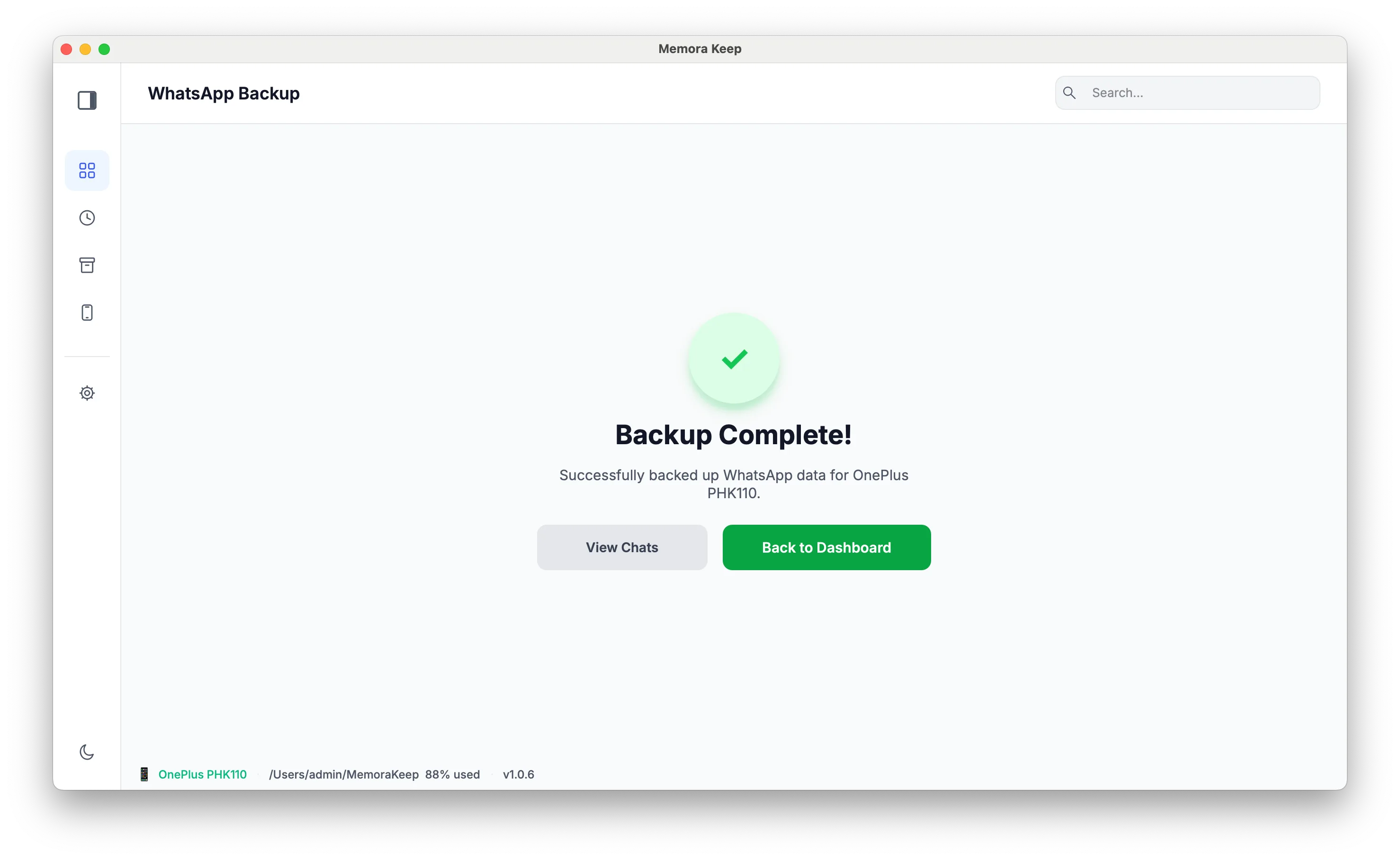
The backup completes
When the run finishes, the WhatsApp data is in your local archive and ready to be converted for the iPhone.
- 8
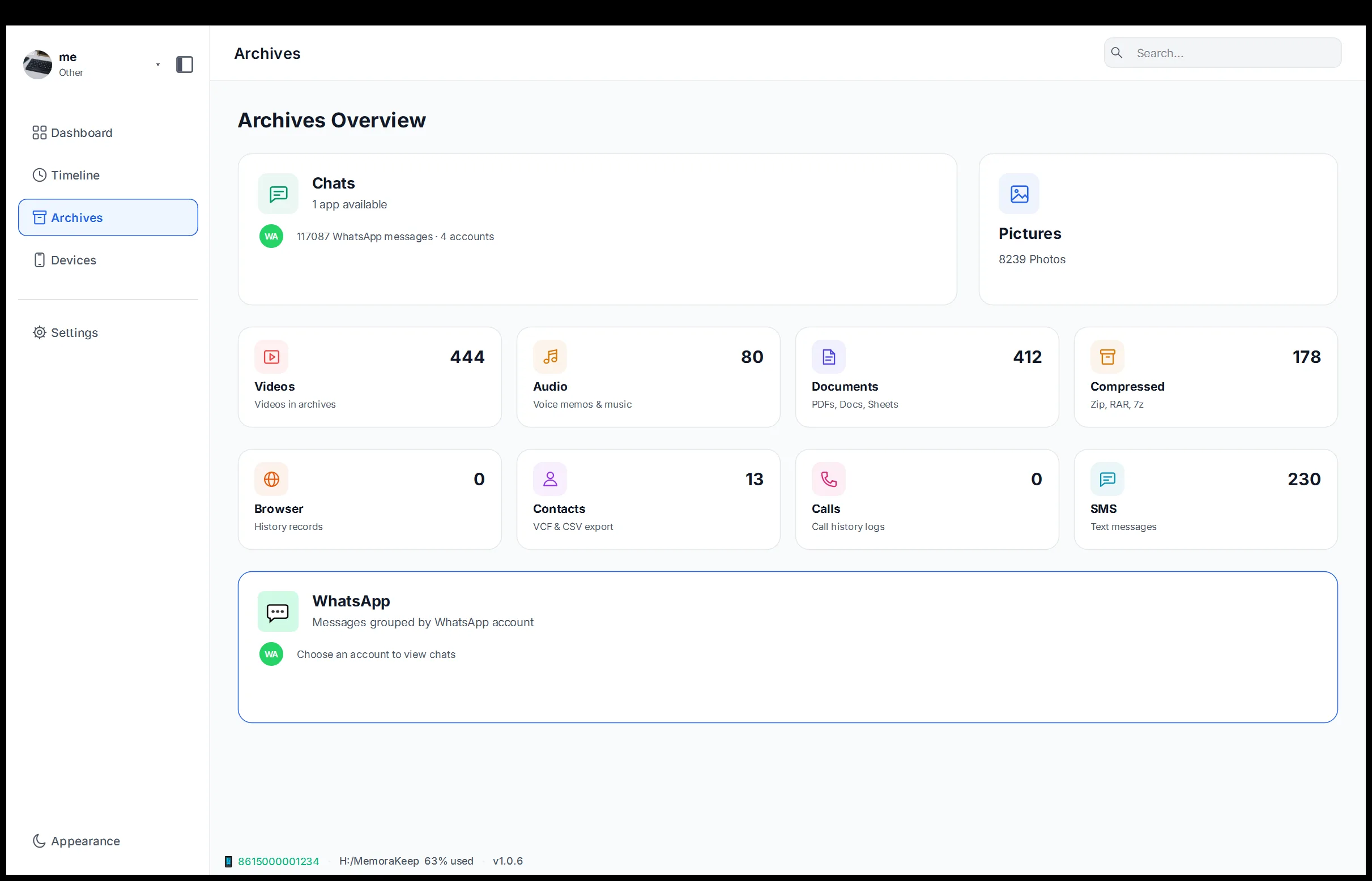
Open WhatsApp from Archives
In Archives, open the WhatsApp section to see the accounts that have been backed up from the phone.
- 9
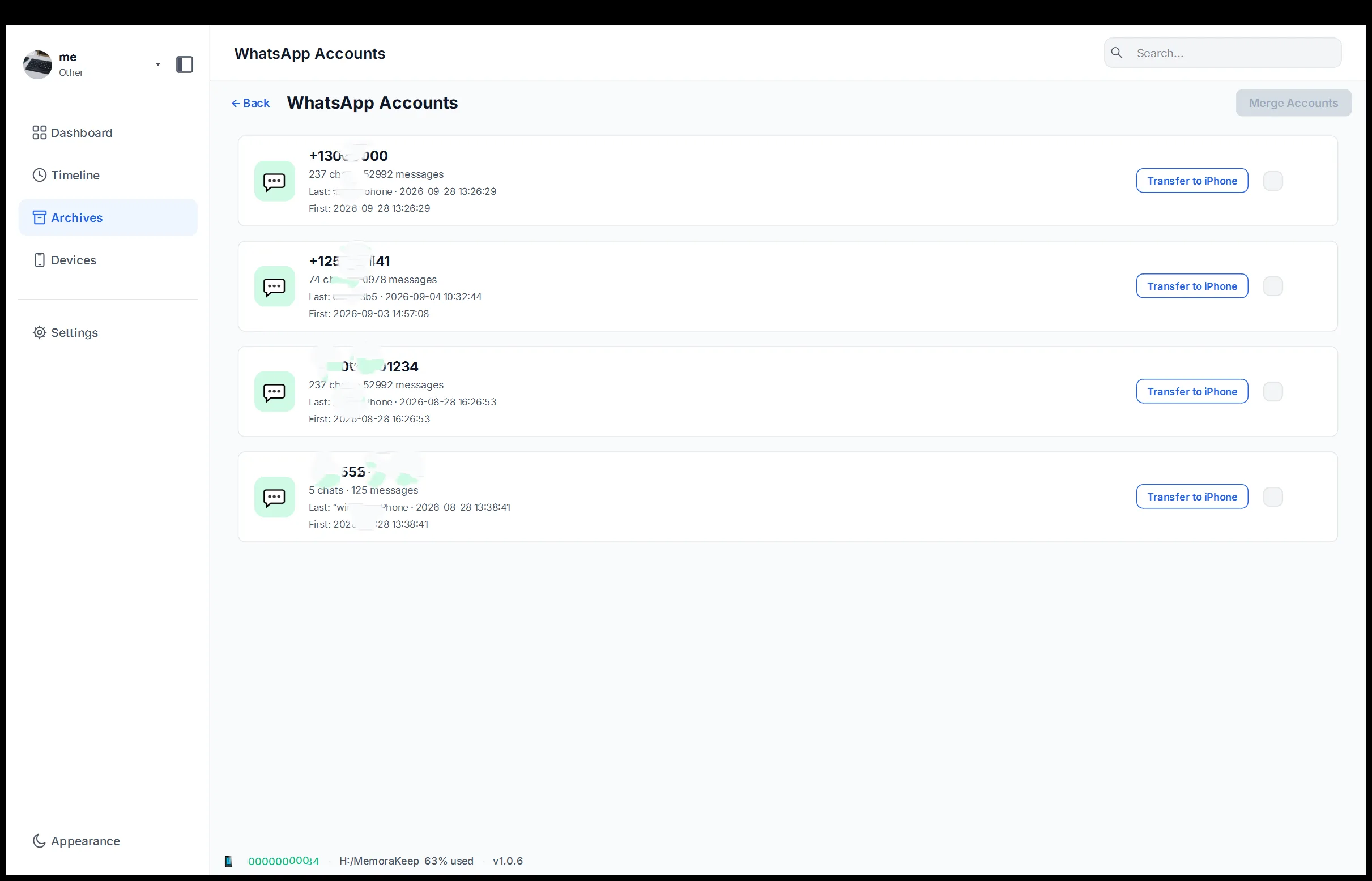
Select the data to restore and choose "Transfer to iPhone"
Select the account data you want to move, then start the iPhone transfer workflow.
- 10
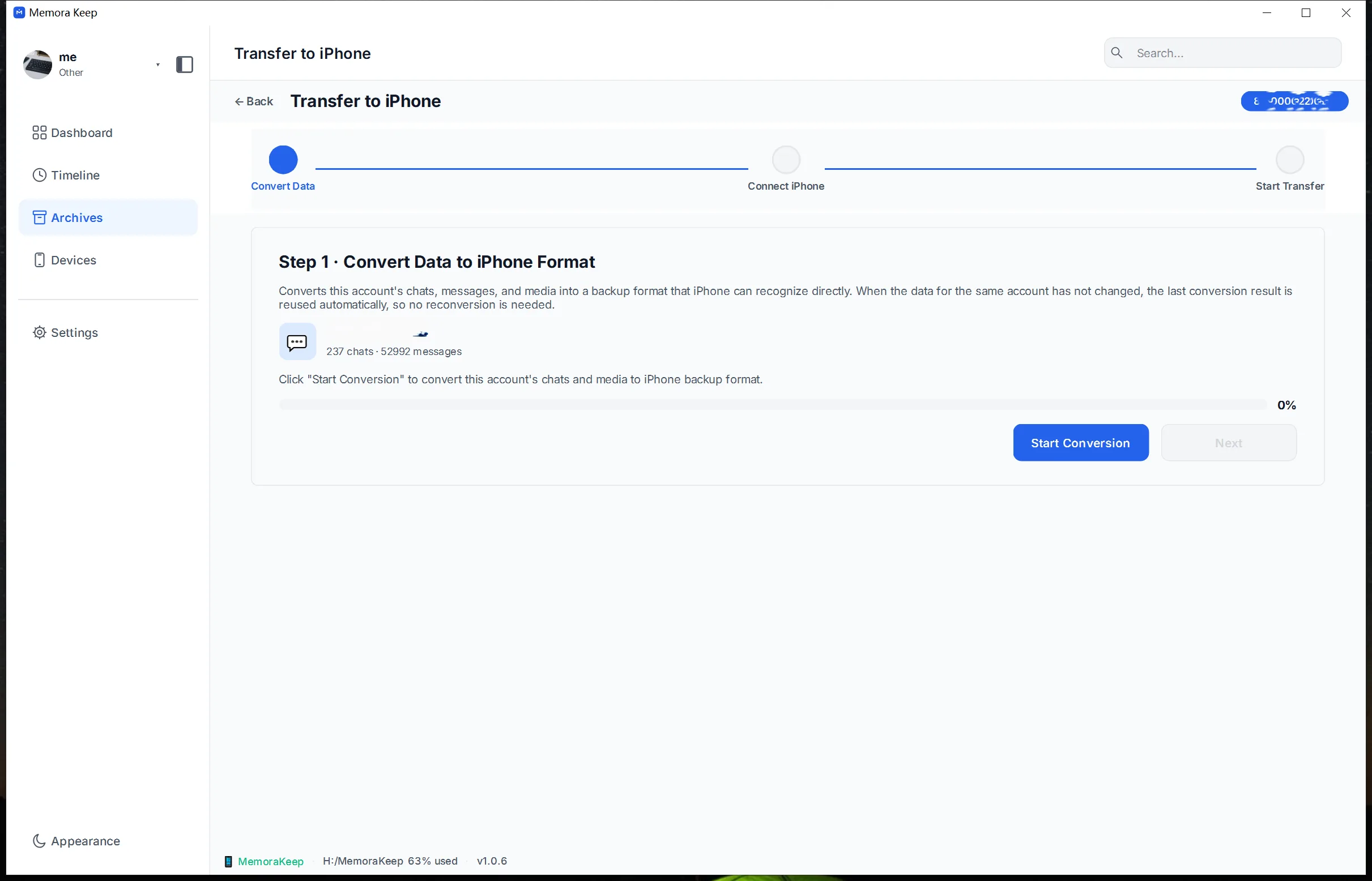
Start converting the data
Choose "Start Conversion". The Android backup is turned into the format an iPhone restore expects.
- 11
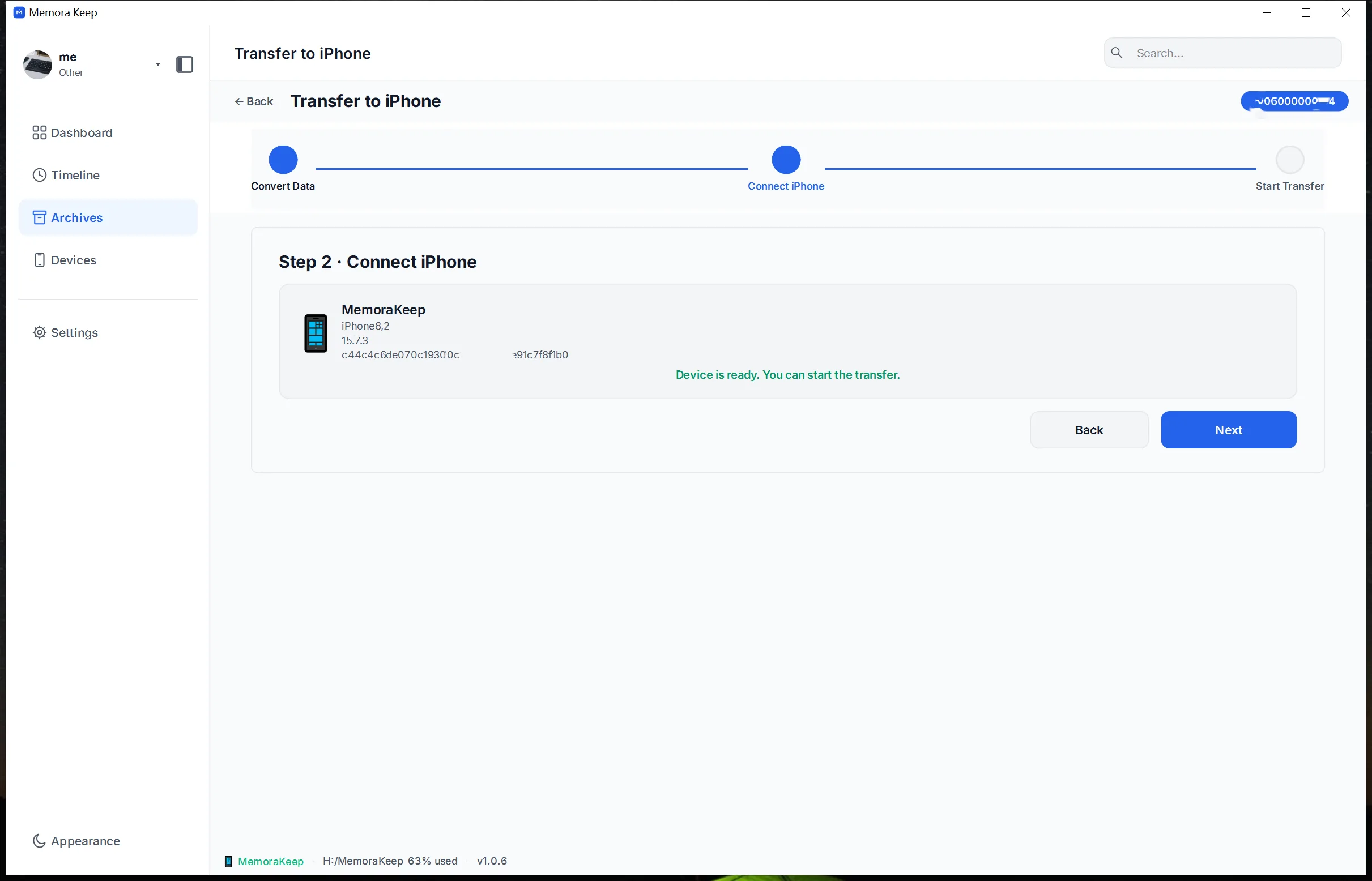
Connect your iPhone and click "Next"
Plug the iPhone in over USB and unlock it. Once the device is detected, click Next to continue.
- 12
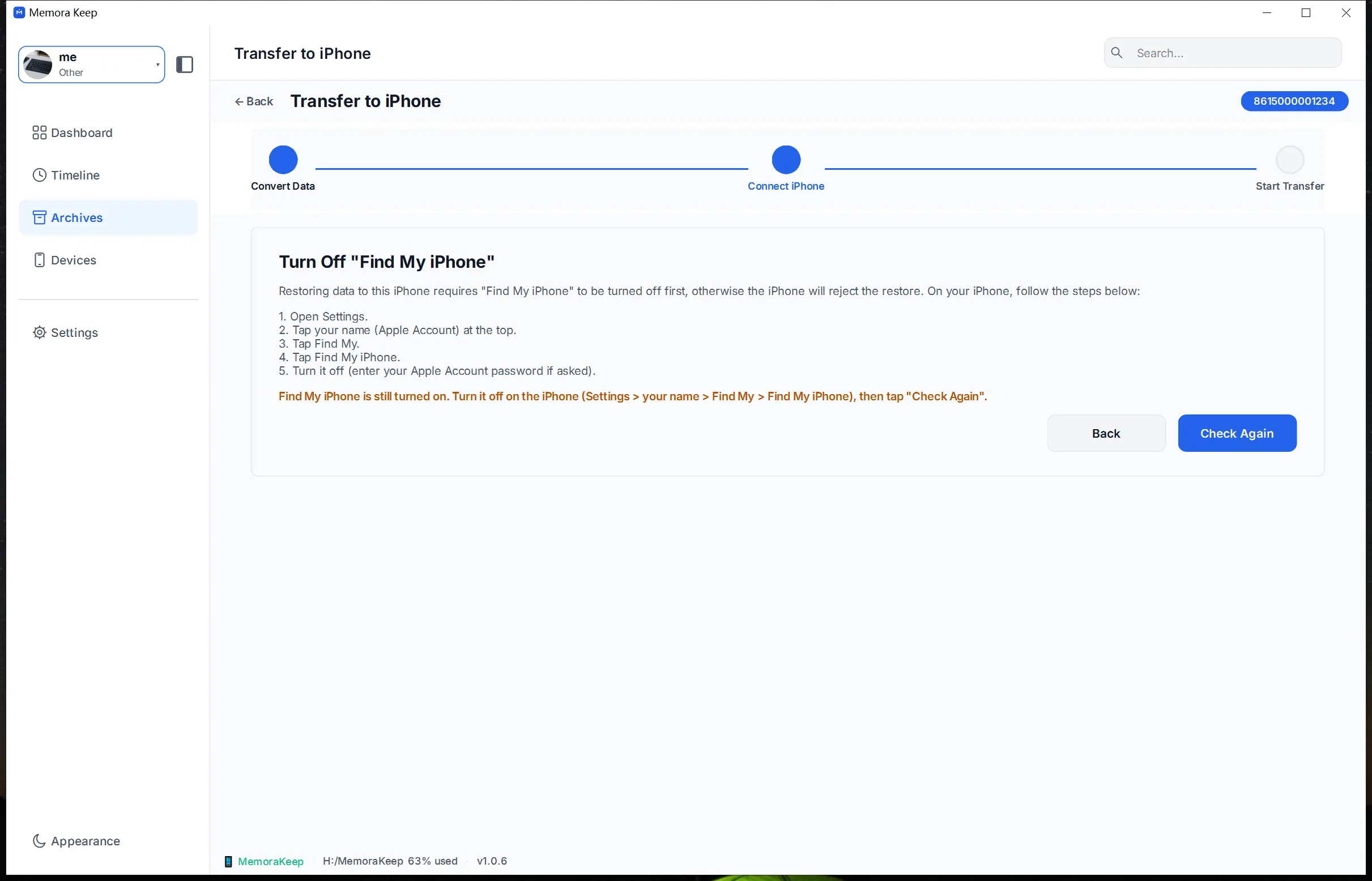
Turn off Find My iPhone before restoring
If Find My iPhone is on, turn it off first. The restore cannot proceed while it is enabled.
- 13
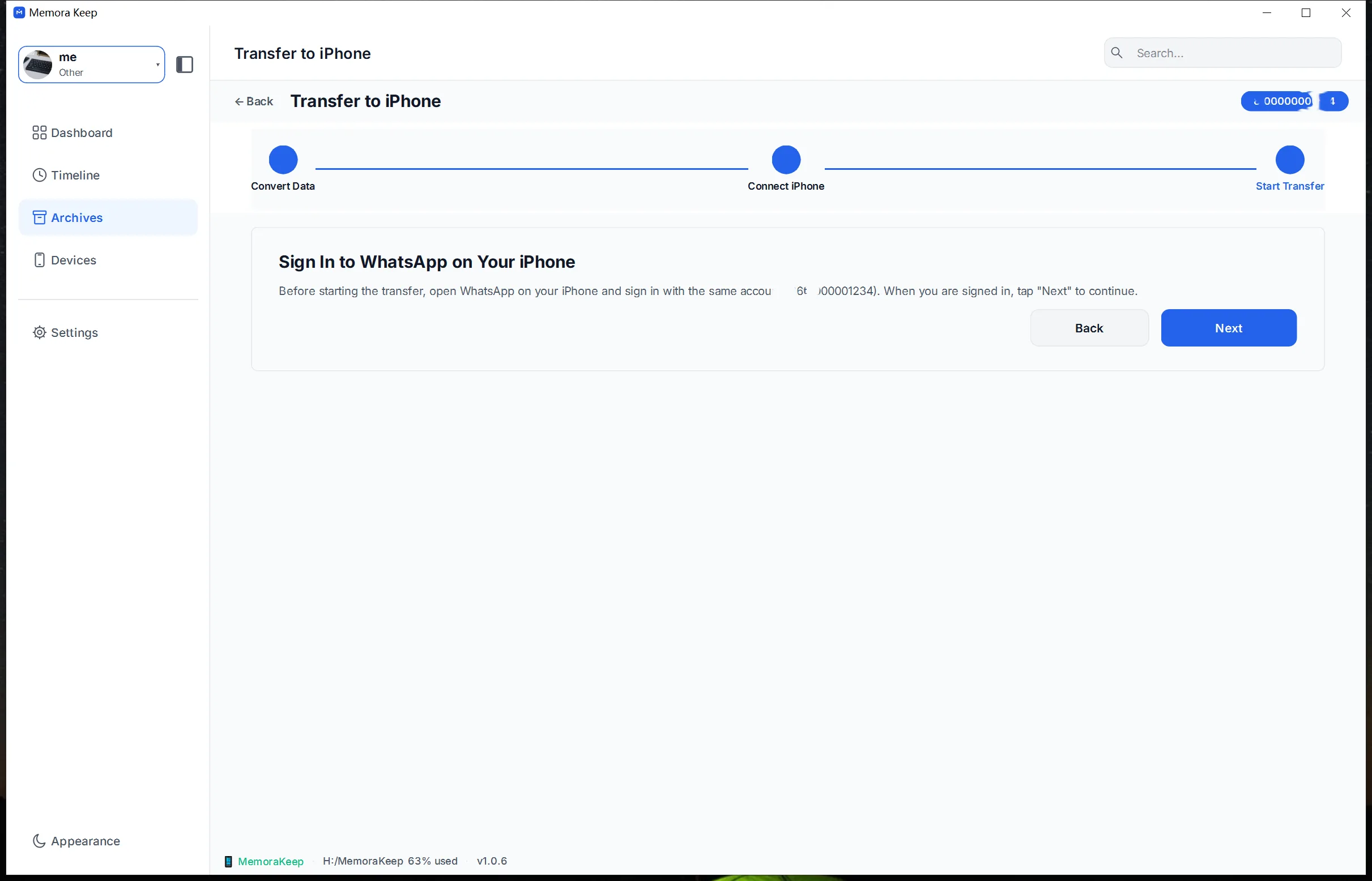
Sign in to WhatsApp on your iPhone, then click "Next"
On the iPhone, sign in to WhatsApp when the flow asks you to, then click Next in Memora Keep.
- 14
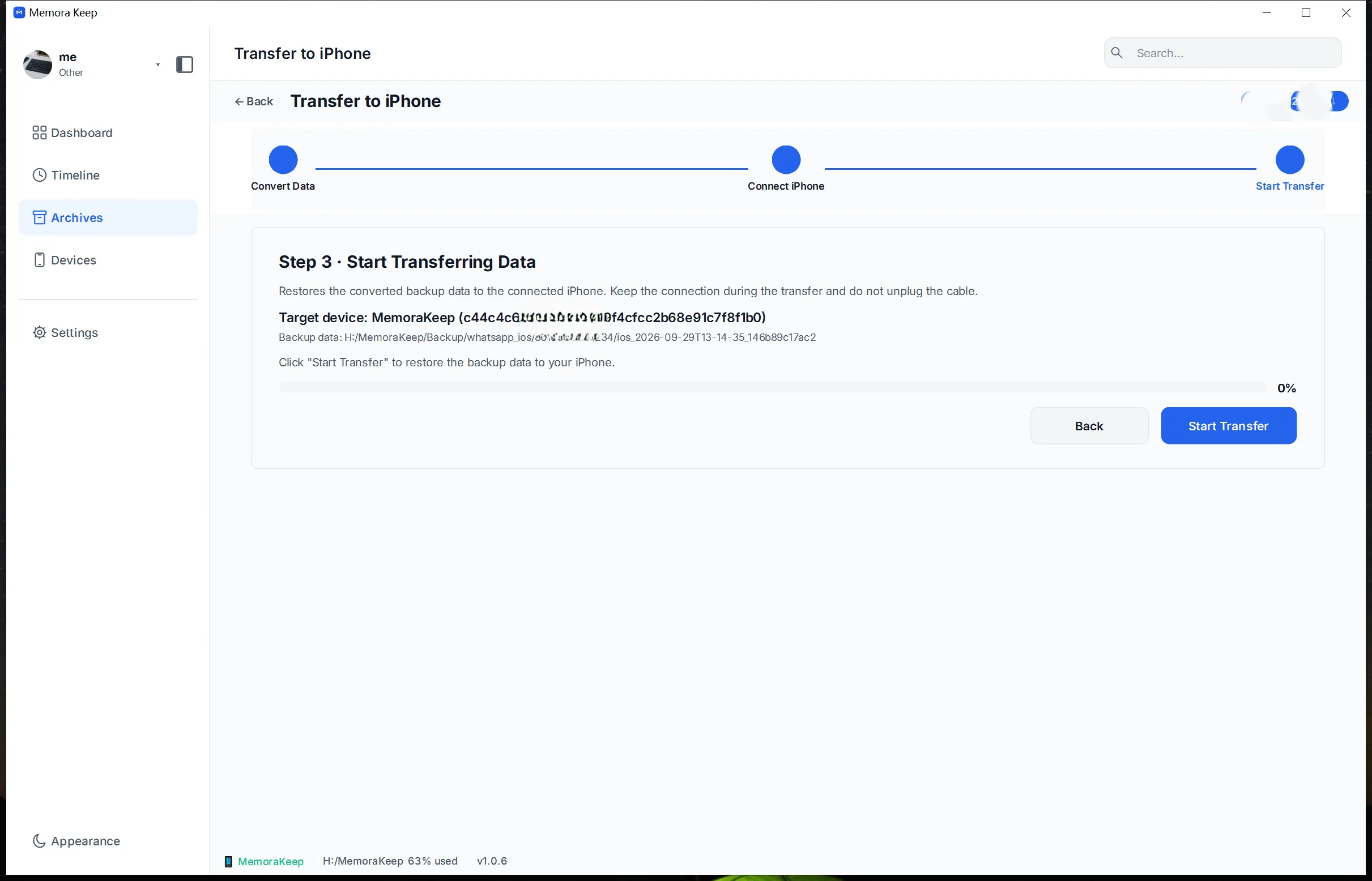
Start the transfer and wait for it to finish
The converted data is written to the iPhone through a full-device restore. Keep the phone and the computer connected while it runs.
- 15
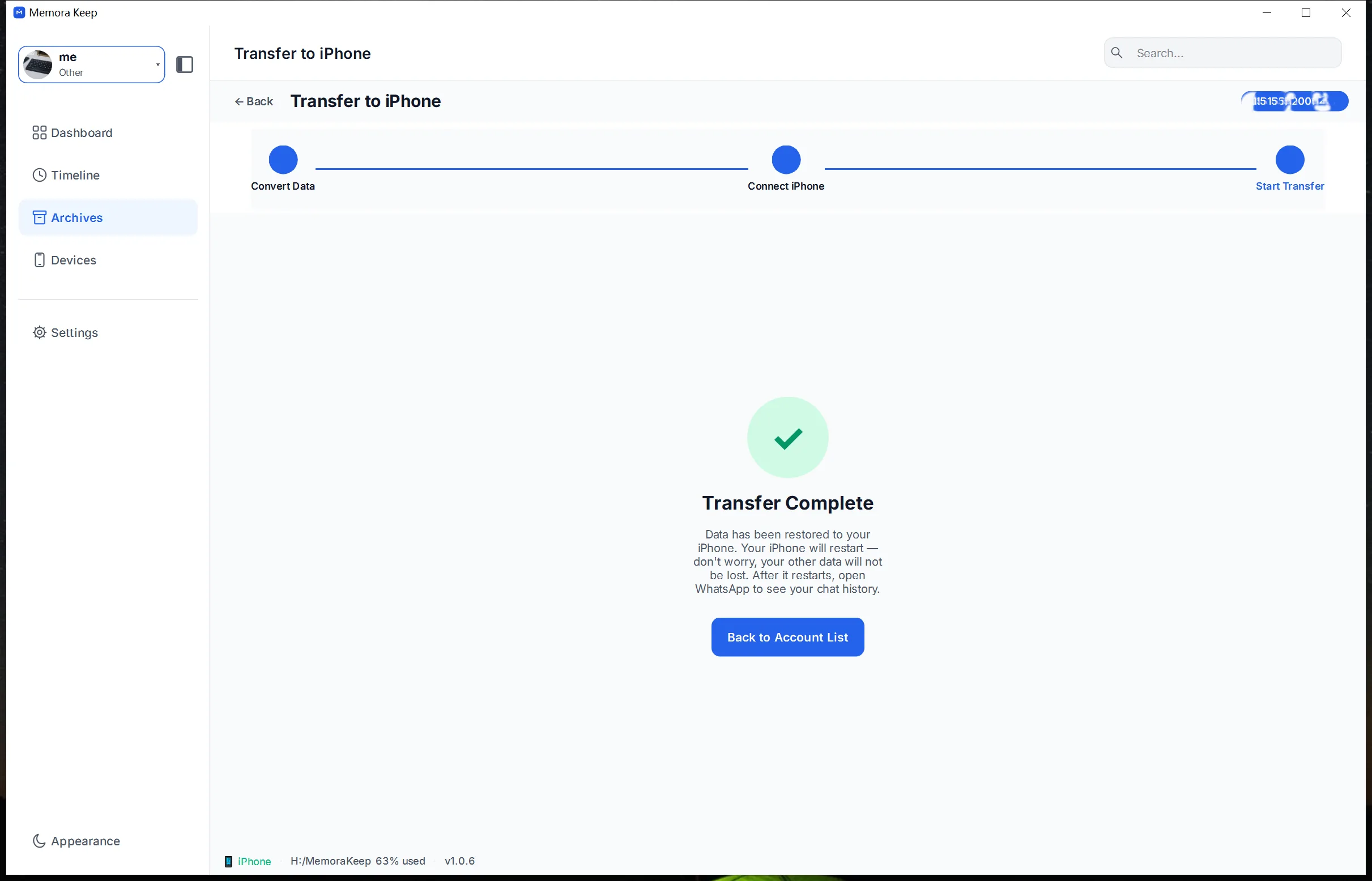
The transfer is complete
When the restore reports success, open WhatsApp on the iPhone and check the conversations and media you expected to transfer.
Notes
The transfer is two stages, and both happen locally. First the WhatsApp data is backed up from the Android phone into the archive on your computer. Then that backup is converted into iPhone backup format and written to the iPhone through a full-device restore.
Before you start
Have both phones and a data-capable USB cable to hand, and enough free space on the computer for the backup and the converted output. Turning Find My iPhone off before the restore avoids a stop partway through.
What happens to each phone
The Android phone keeps its own data; the backup is a copy, not a move. The restore may replace existing data on the iPhone. Back up the destination iPhone and review the restore prompts before starting.
Frequently asked questions
Does the transfer go through a cloud service?
No. The backup, the conversion and the restore all work from the data on your own disk and the connected iPhone. Nothing is uploaded to a cloud account.
Do I need to keep both phones connected?
The Android phone is needed while its WhatsApp data is backed up. The iPhone is needed for the restore. Follow the on-screen prompts for which device to have plugged in at each stage.
Is the data converted again every time?
No. If the data for the same account has not changed, the previous conversion output is reused instead of being produced afresh.
Why does the flow ask me to turn off Find My iPhone?
The data is written to the iPhone through a full-device restore, which cannot proceed while Find My iPhone is enabled. Turn it off before the restore and you can turn it back on afterwards.
Need help with a step?
The support center answers the common questions, and you can tell us where you got stuck.